
iPhone - Enable & Verify Push Notifications:
1. Open iPhone Settings
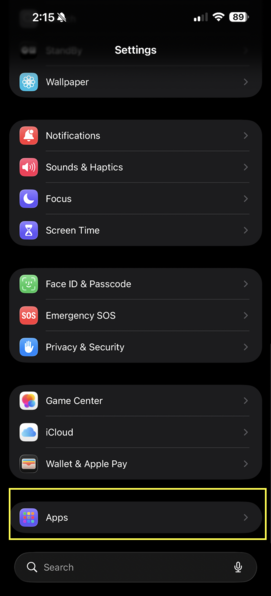
- Go to Settings
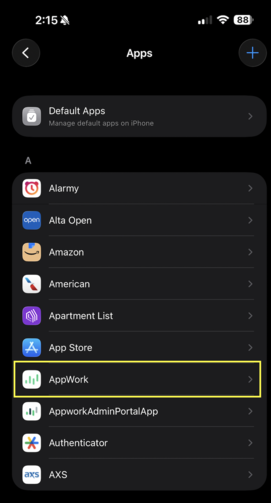
- Scroll down and select AppWork
2. Turn on Notifications
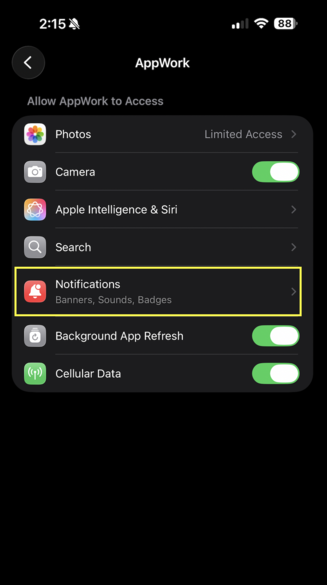
- Tap Notifications
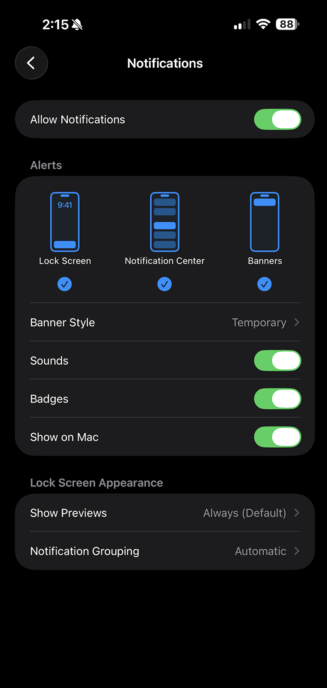
- Make sure Allow Notifications is ON
- Turn on: Lock Screen, Notification Center, Banners, Sounds, Badges
3. Check Focus / Do Not Disturb
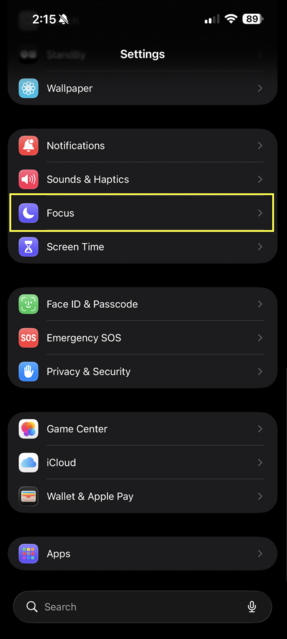
- Go to Settings → Focus
- Make sure Do Not Disturb or another Focus mode isn't blocking AppWork notifications
4. Verify inside the AppWork app
- Open AppWork
- Confirm the technician is logged in with the correct technician profile
- If notifications still aren't coming through, close the app completely and reopen it
5. Quick test
- Have the admin assign a test Work Order to the technician
- The technician should get a push notification on the iPhone
Tip: If notifications are enabled in iPhone Settings but the technician still isn't receiving them, have them log out and back into AppWork, then test again.
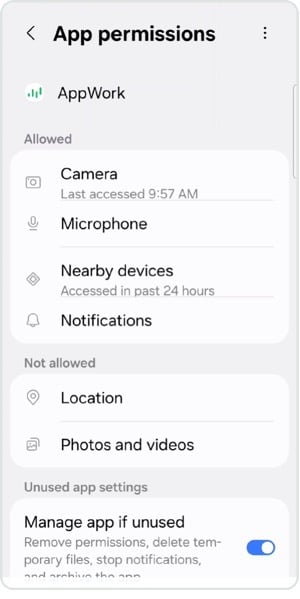
Android - Enable & Verify Push Notifications:Technicians using the AppWork Tech App on Android need to check both the phone's notification settings and the AppWork app itself. (Screens below are from a Samsung device; other Android phones look slightly different but follow the same path.)
- Open Settings on the Android phone
- Tap Notifications
- Tap App notifications (or Notifications from apps)
- Find and select AppWork
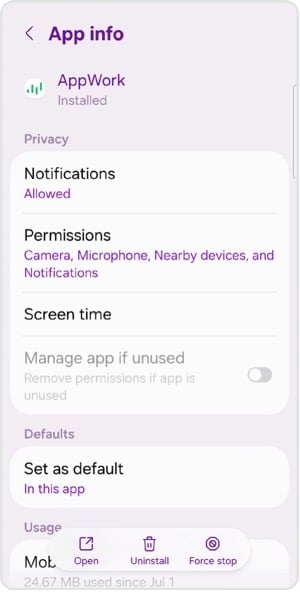
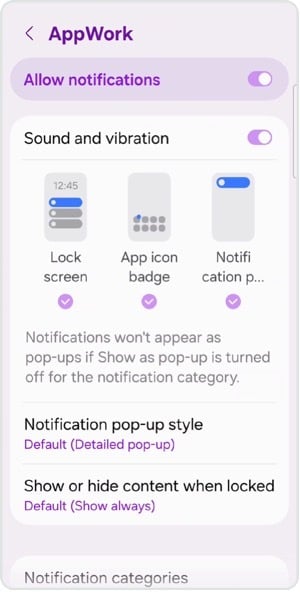
- Make sure Allow notifications is ON
- Confirm notifications are allowed on the Lock screen, and turn on notification sounds if the technician wants them
- Open the AppWork Tech App and confirm the technician is logged in
- If notifications still aren't coming through, close and reopen the AppWork app, then restart the phone
Good to know: Notifications also shows up under App permissions. Make sure it's listed under Allowed, not Not allowed.
Quick technician check
Settings → Notifications → AppWork → Allow Notifications = ON. Then open AppWork and confirm the technician is logged in.
Troubleshooting Quick Reference|
Symptom |
Fix |
|
Notifications are ON in phone Settings but nothing comes through |
Log out and back into AppWork, then run the test again |
|
Notifications still seem silent |
Check that Focus / Do Not Disturb isn't blocking AppWork |
|
App seems stuck or notifications are delayed |
Close AppWork completely and reopen it (on Android, also restart the phone) |
|
Not sure if setup actually worked |
Have the admin assign a test Work Order and confirm the push notification arrives |