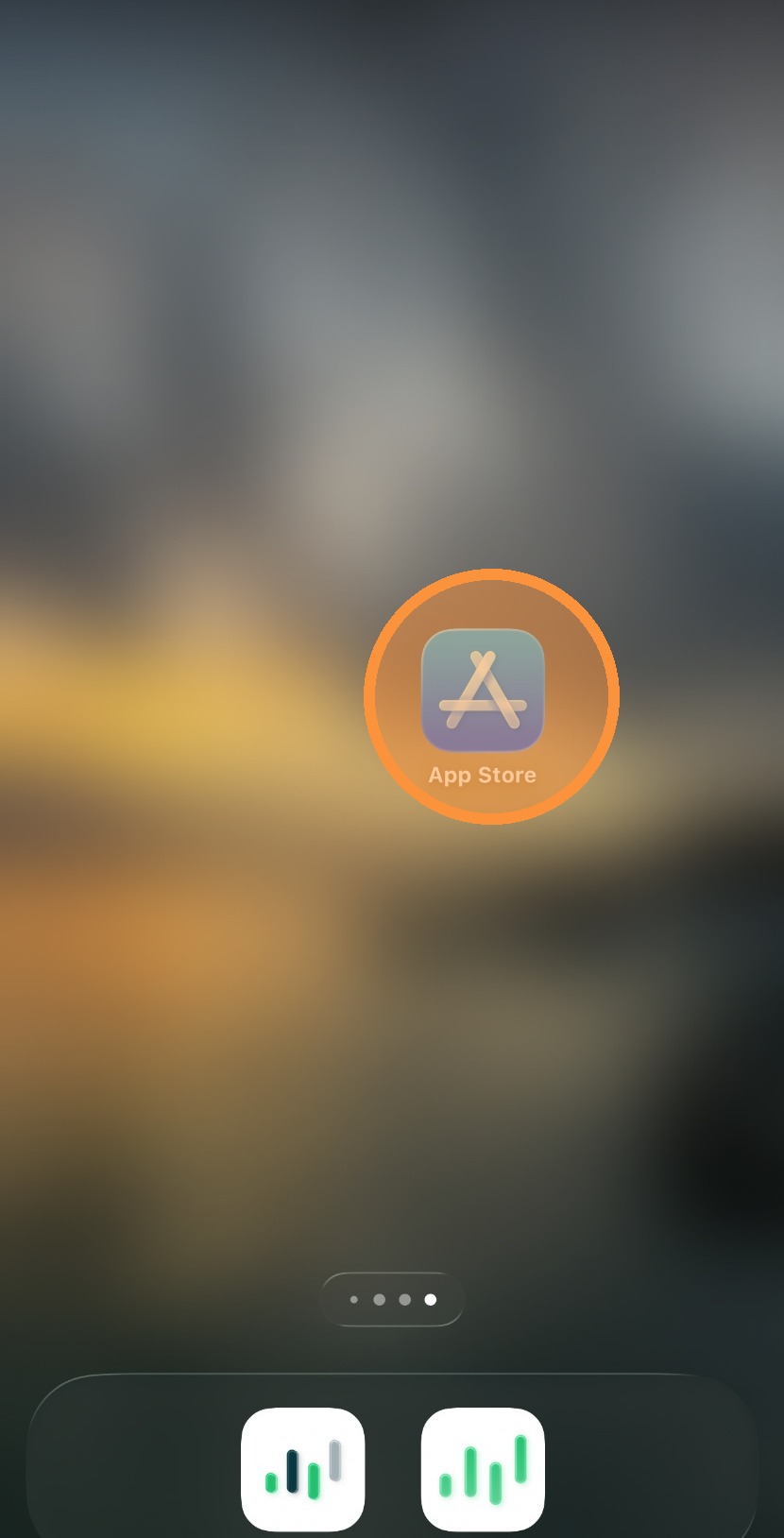
1. From your iPhone’s Home Screen, locate and tap the App Store icon to open it.
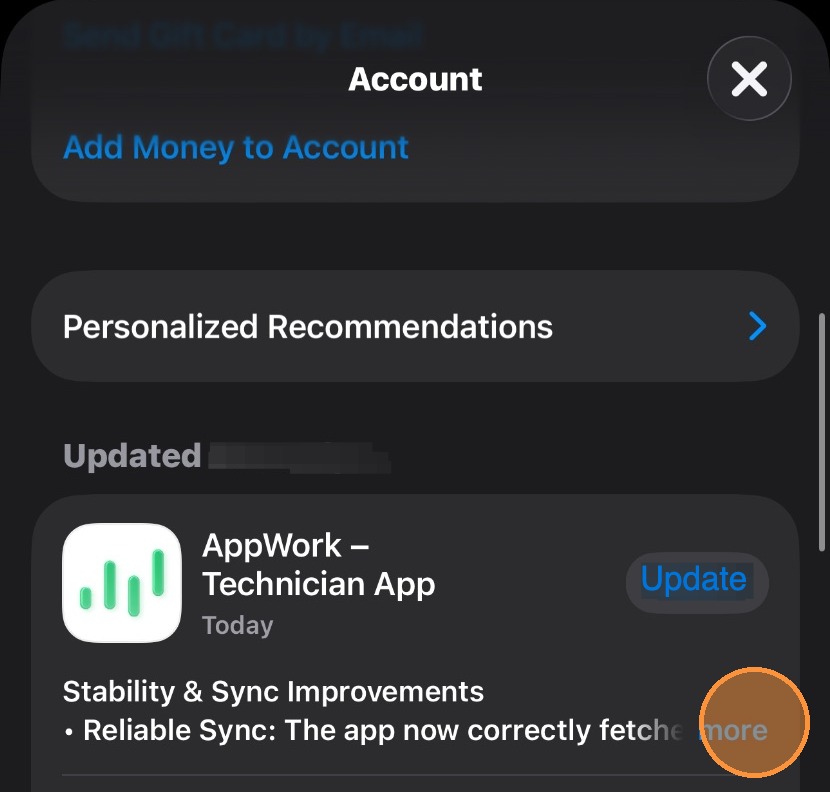
2. After opening the App Store, navigate to the top-right corner of the screen and tap on your profile icon. After tapping your profile icon, your account page will appear. Scroll down to locate the “Updates” section.

3. If you’d like to learn more about an update and what it includes, tap “More” to view additional details.
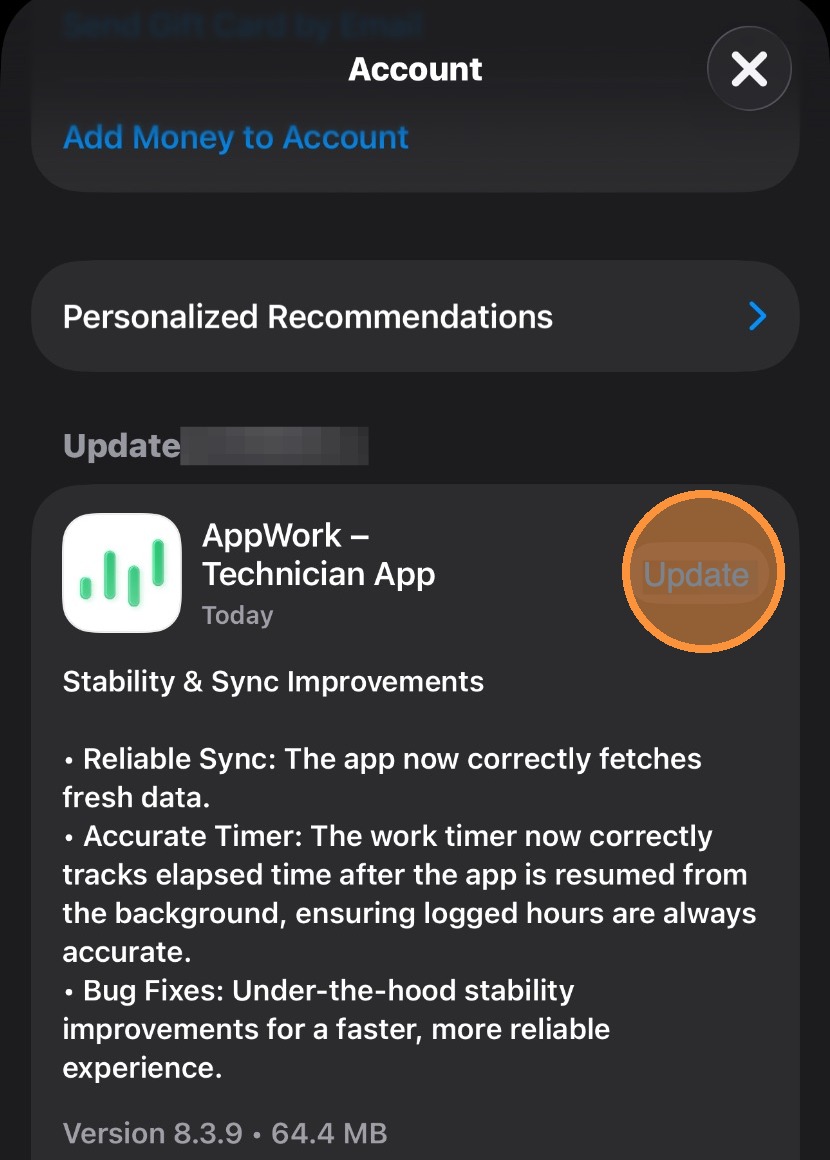
4. To update the Tech App, tap “Update.” The installation will begin automatically.