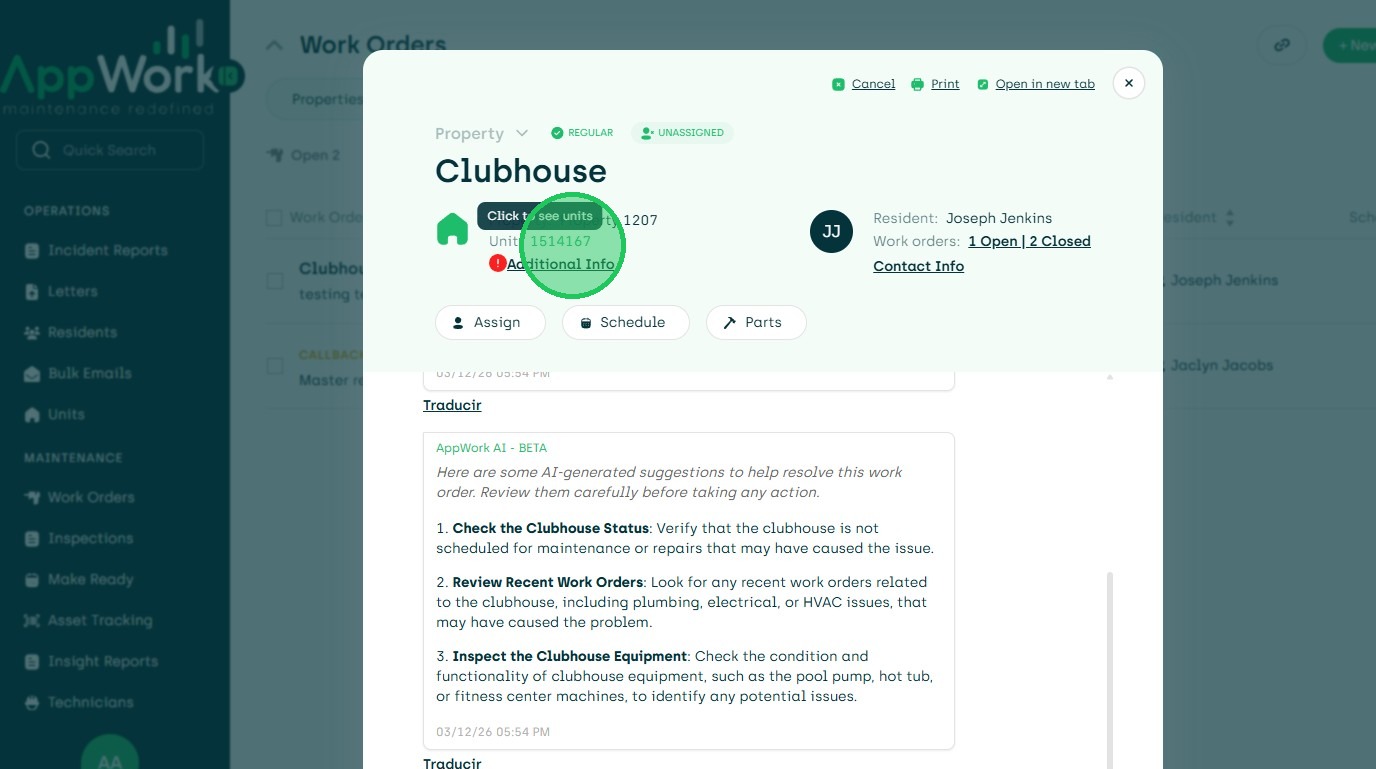
1. Navigate to Work Order Dashboard and Choose Work Order to Edit
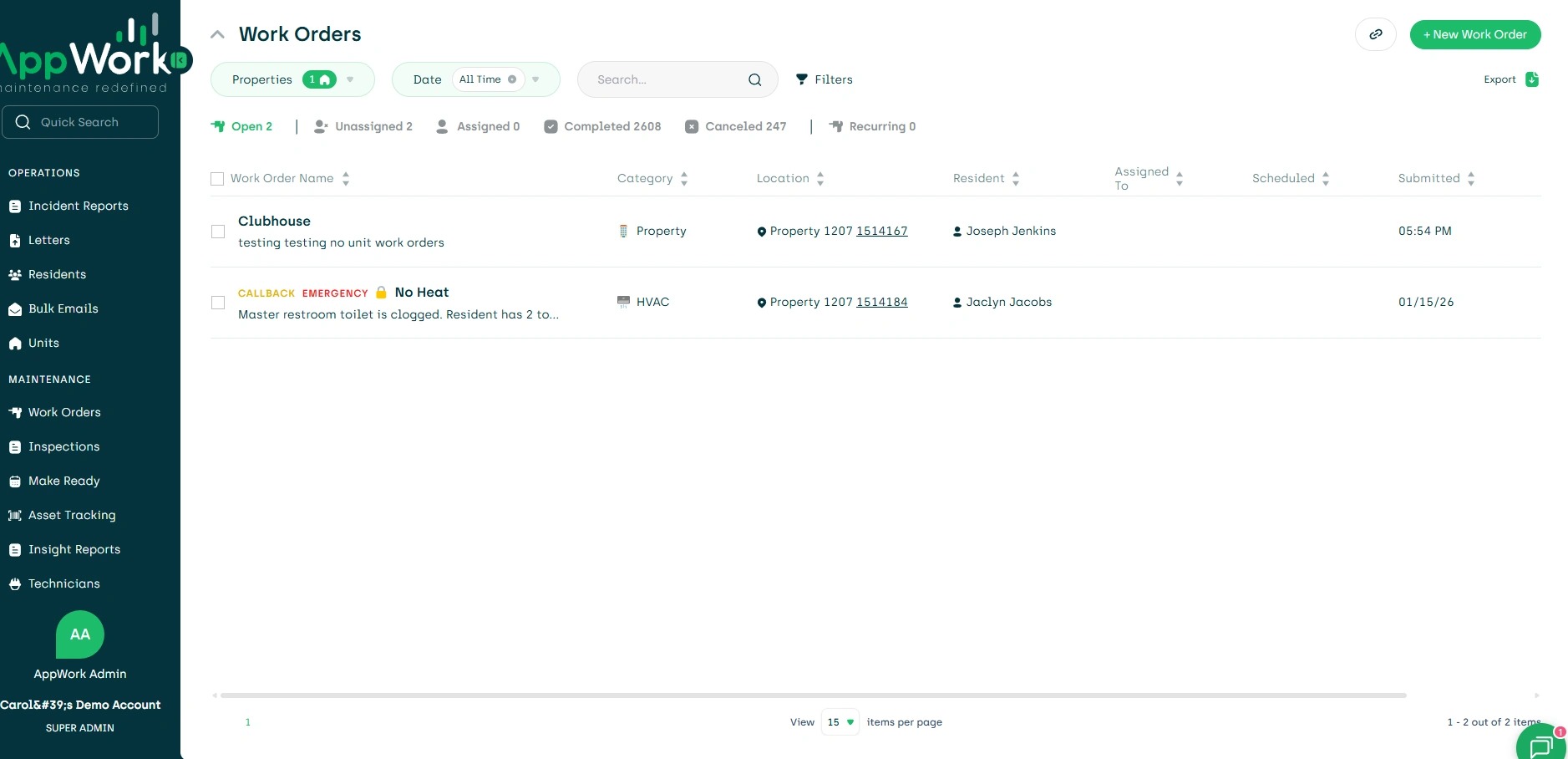
2. To Change the Category Click the Up Carrot
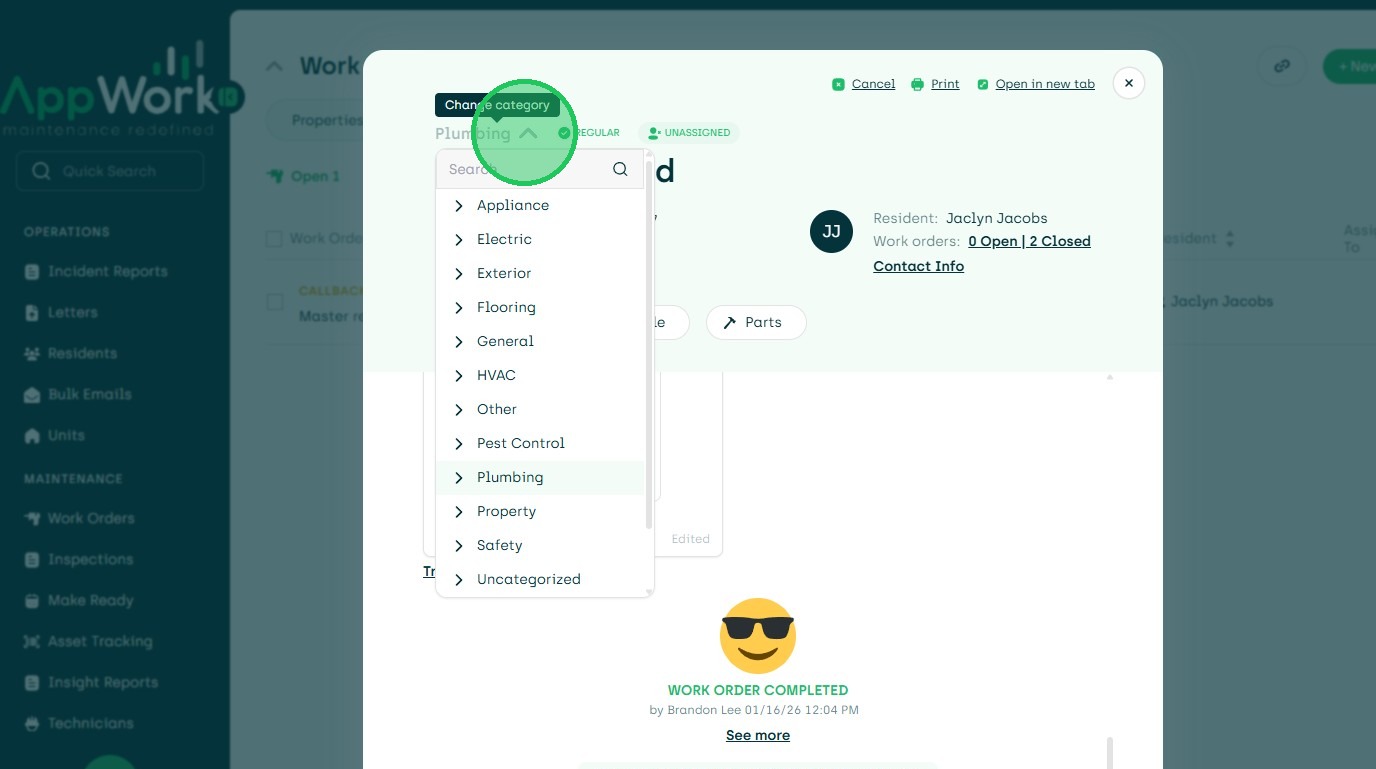
3. The Choose New Category.
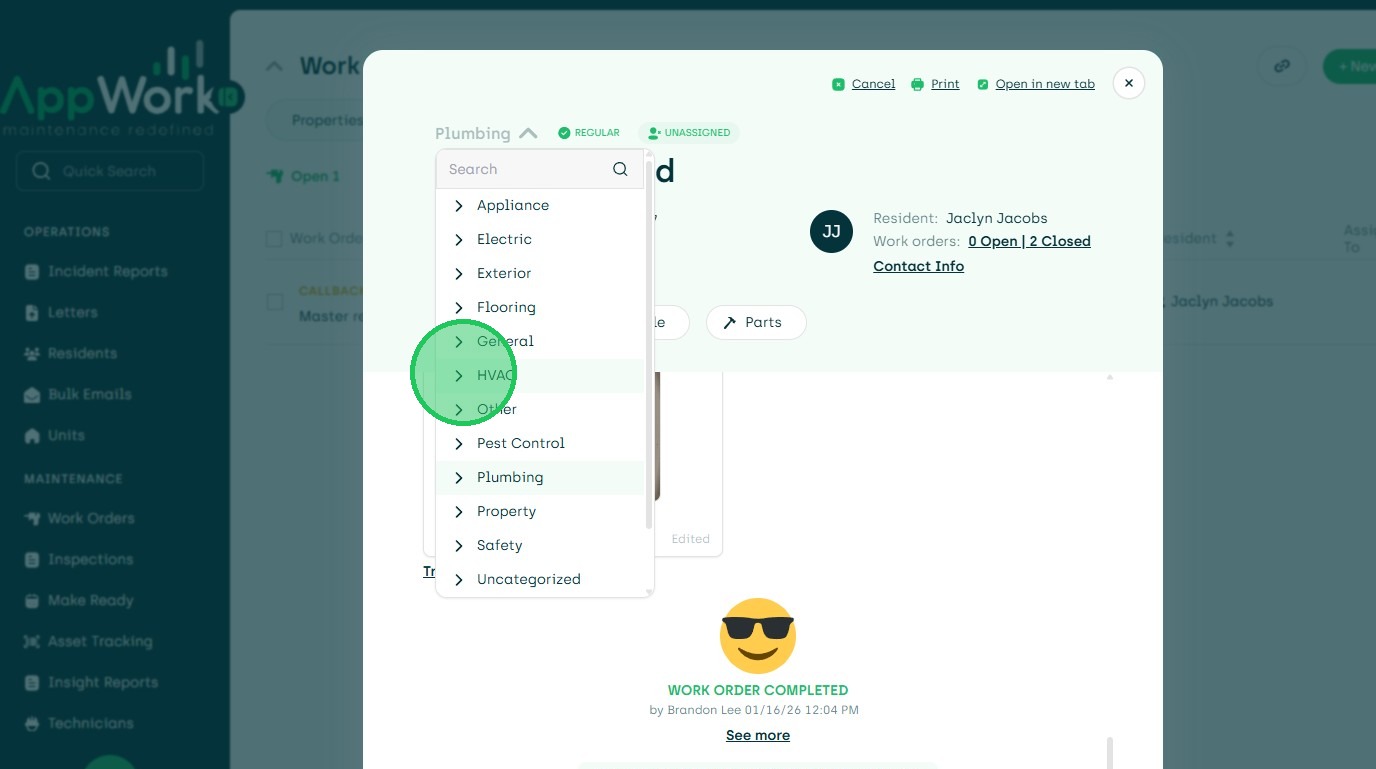
4. Choose Subcategory.
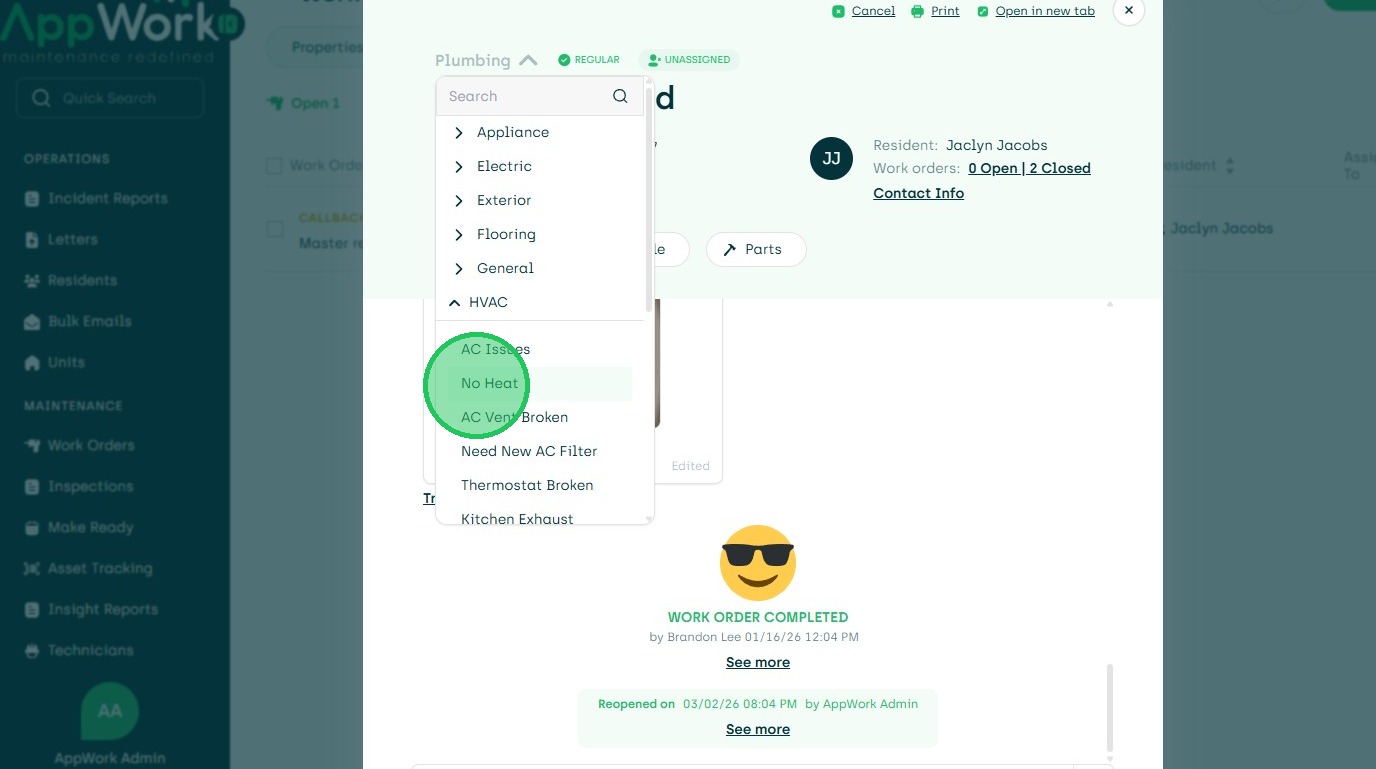
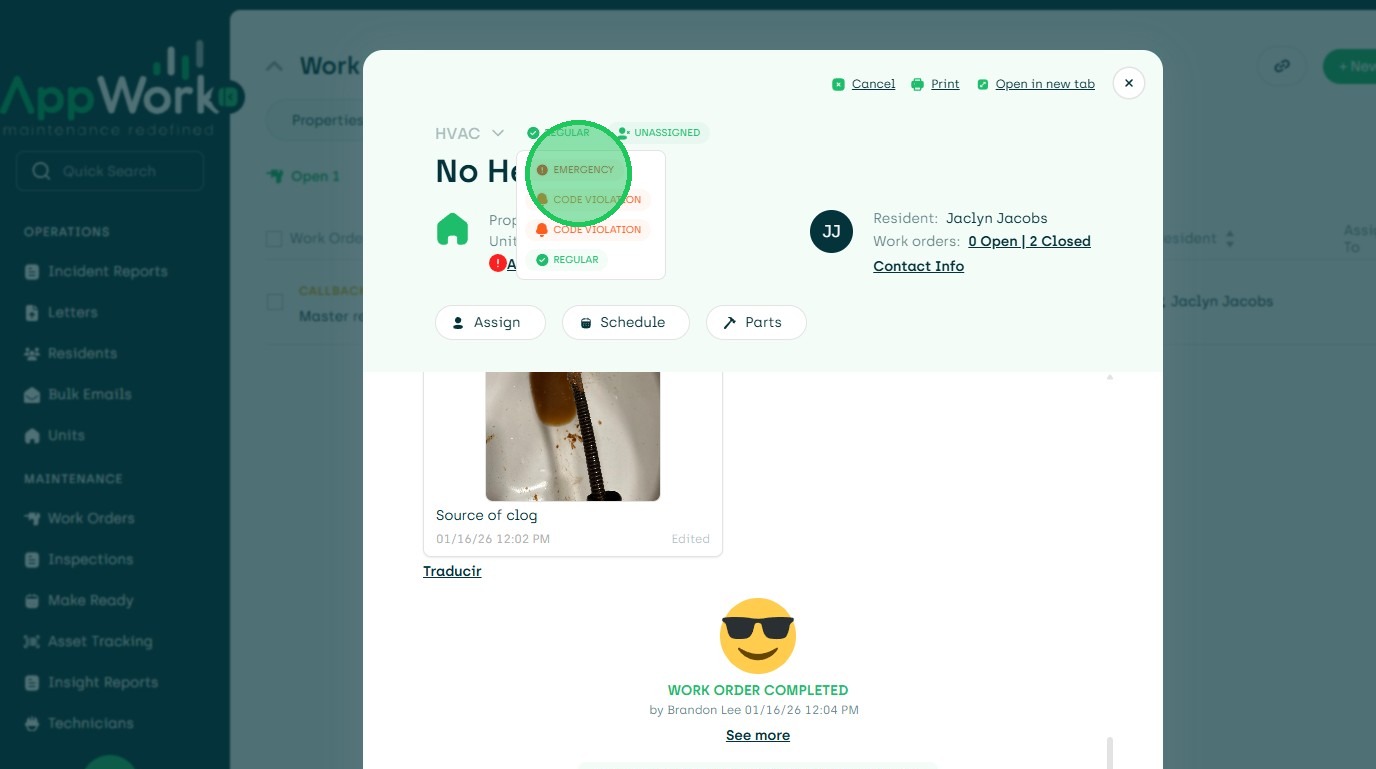
5. To Edit the Priority, Click the Priority at the Top.
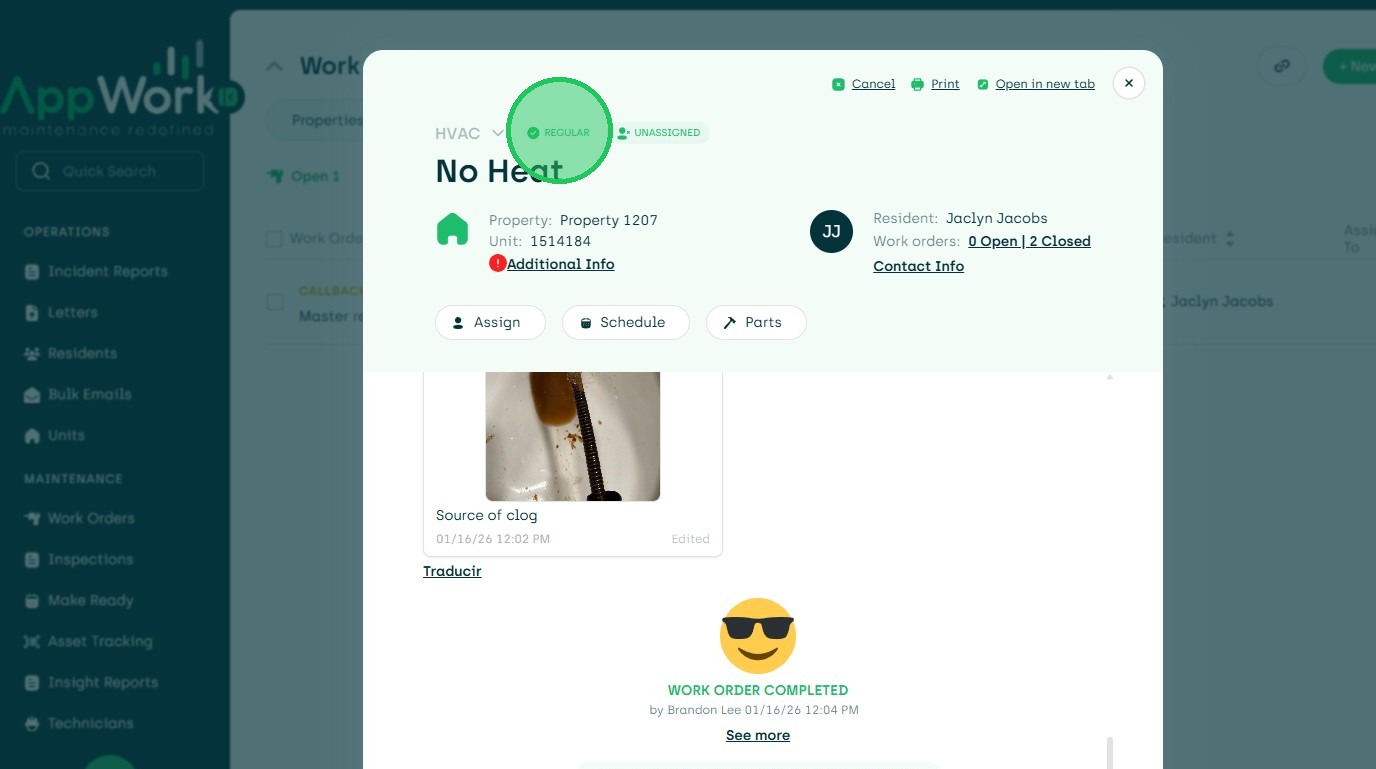
6. Choose New Priority.
7. Type "hello change notes."
8. To Update Notes Choose the Three Ellipses.
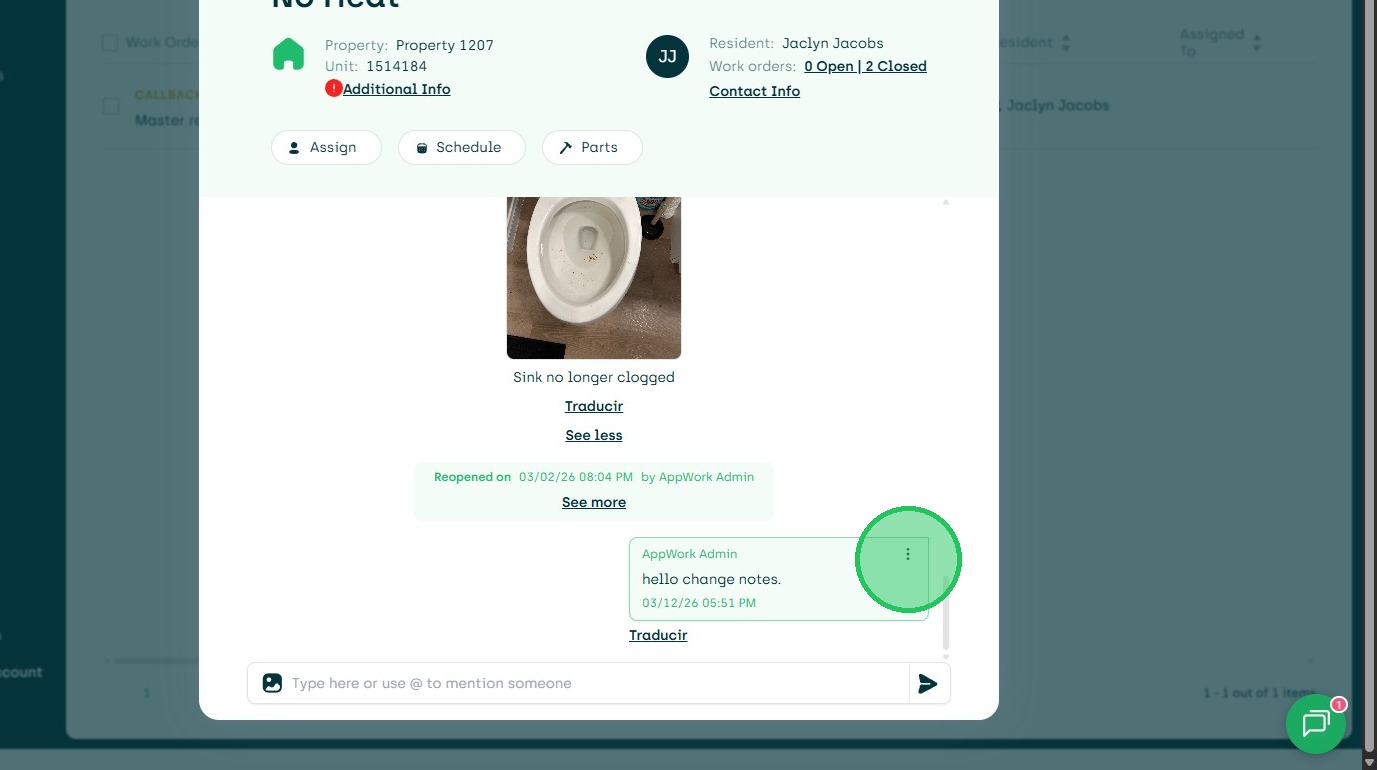
9. Click "Edit"
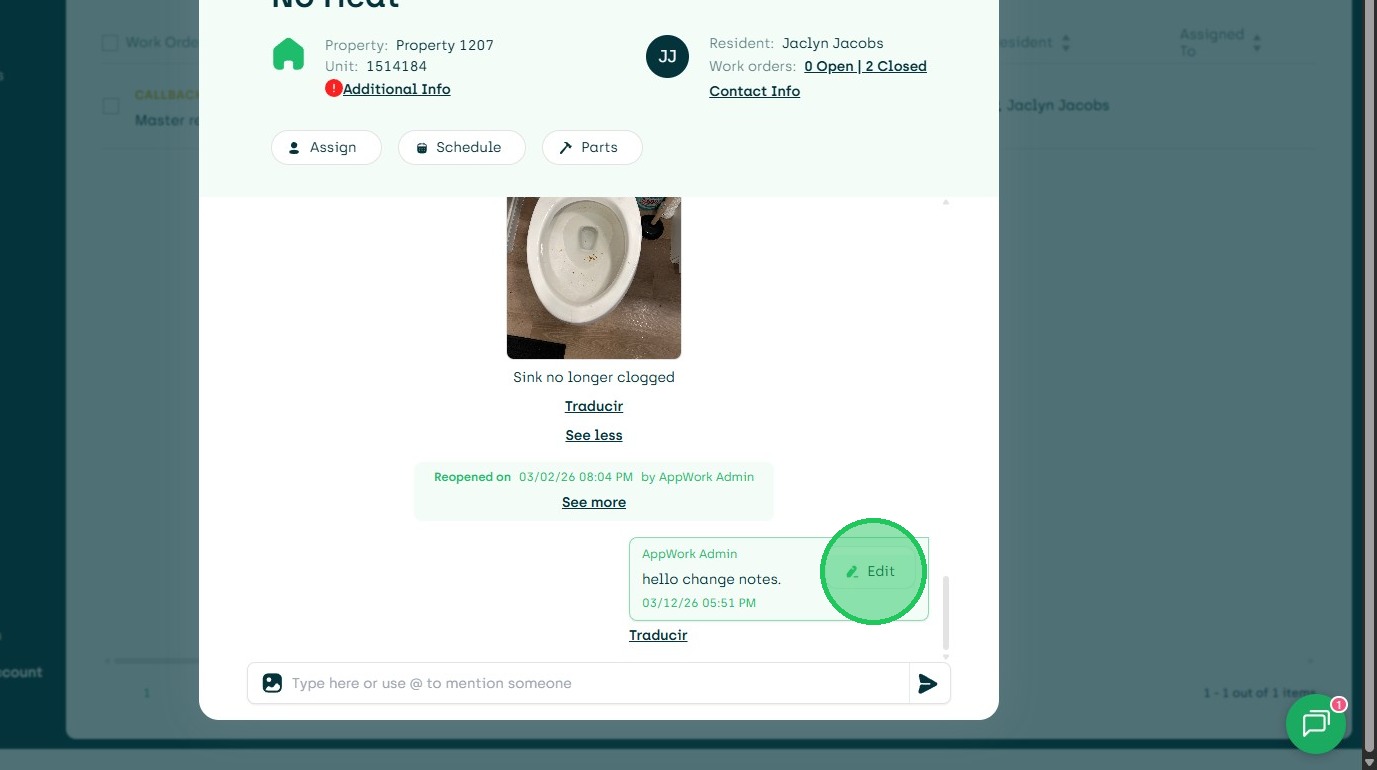
10. Update the Note, Then Submit with the Arrow Button.
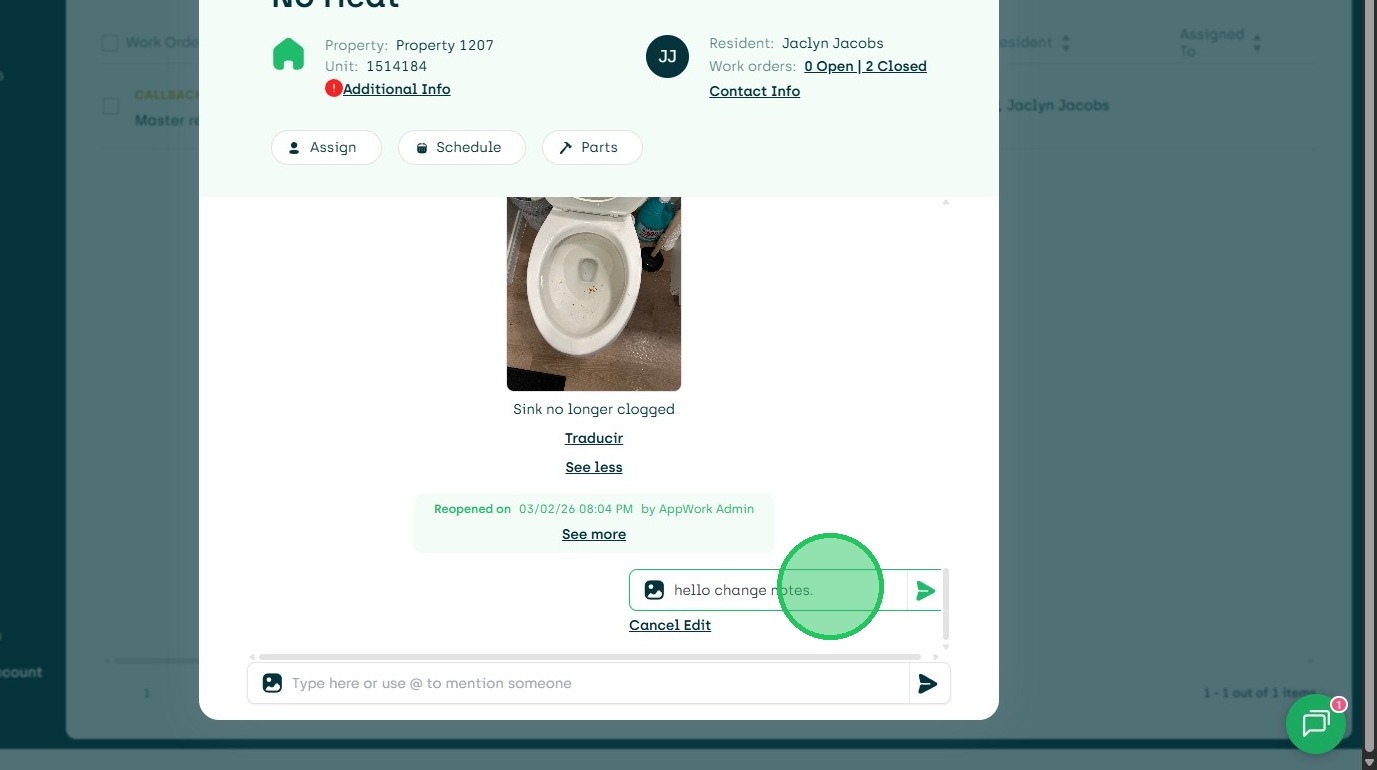
11. The New Notes are Now Visible.
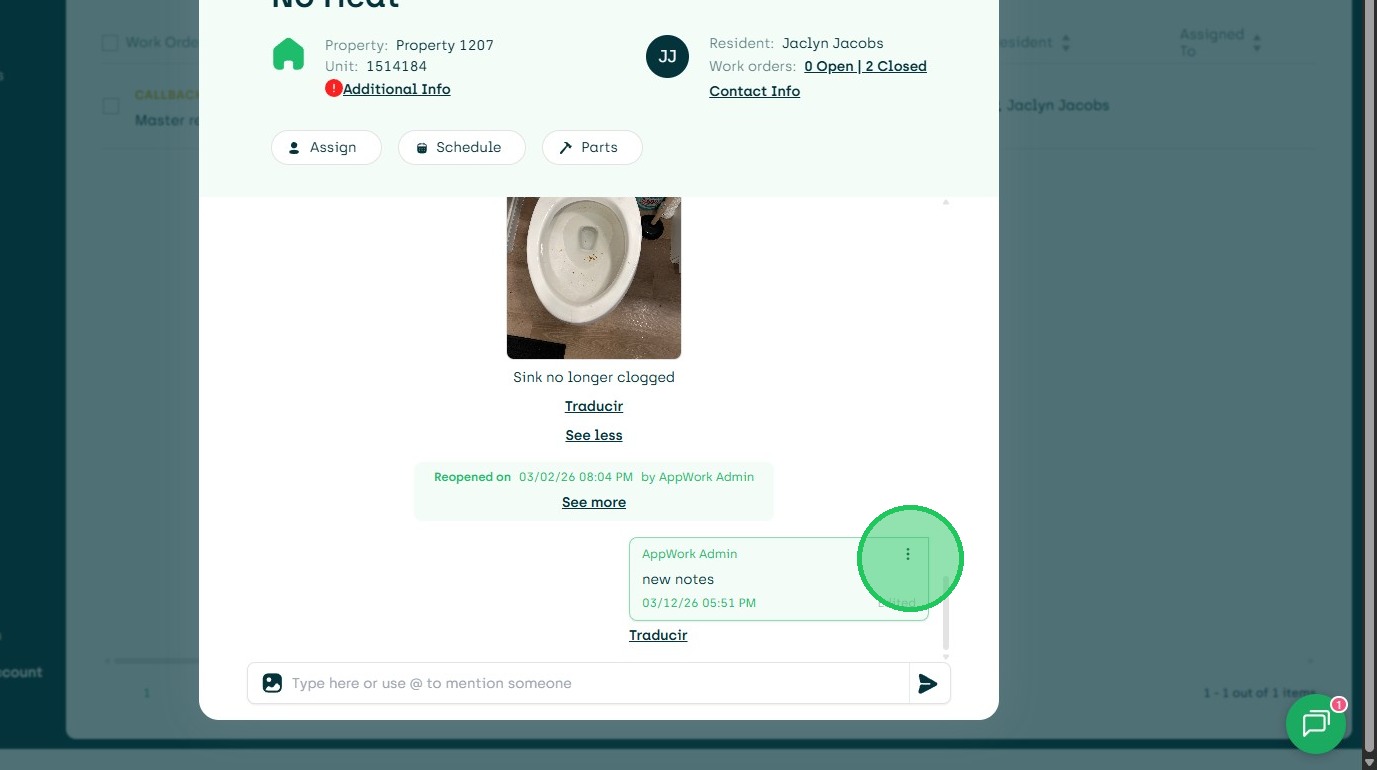
12. However the Version History will still be Available.
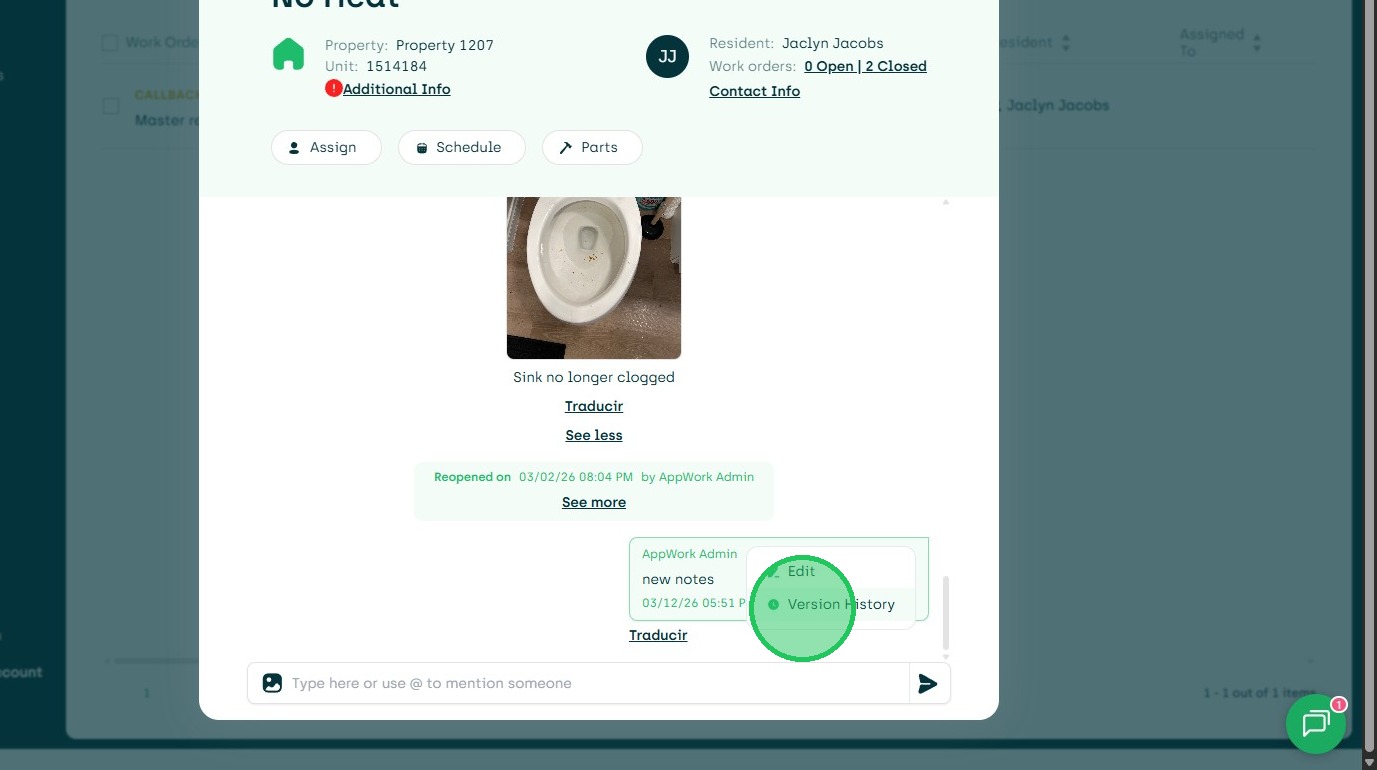
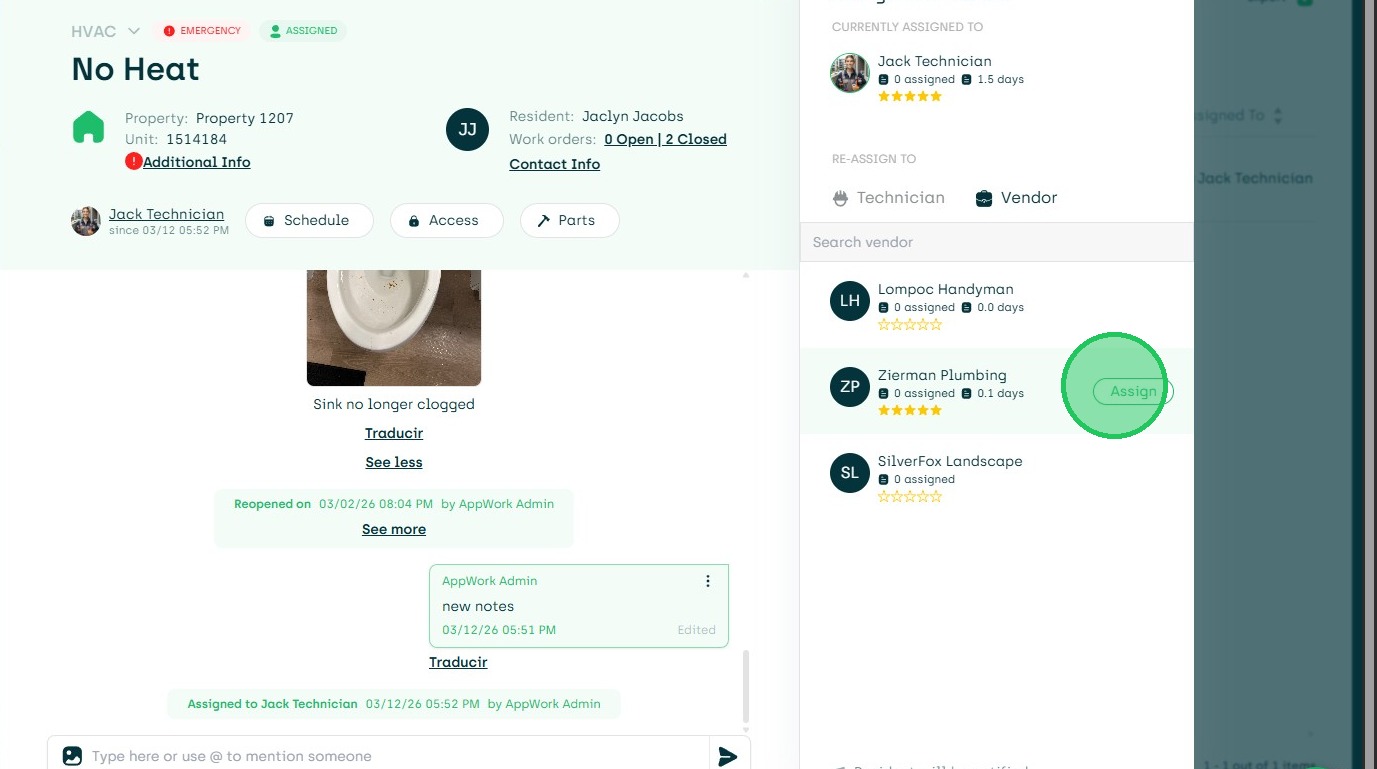
13. To Assign, Unassign, or Reassign.
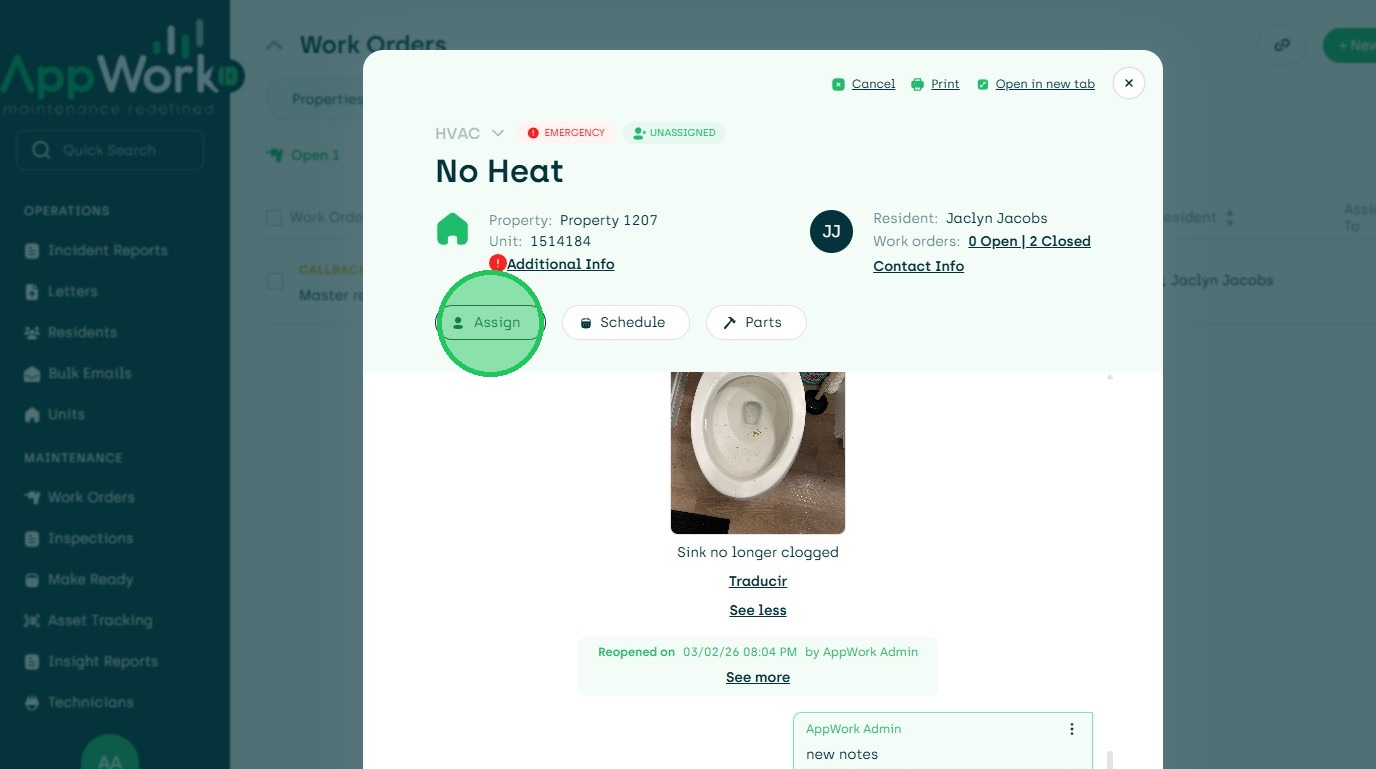
14. Click "Assign"
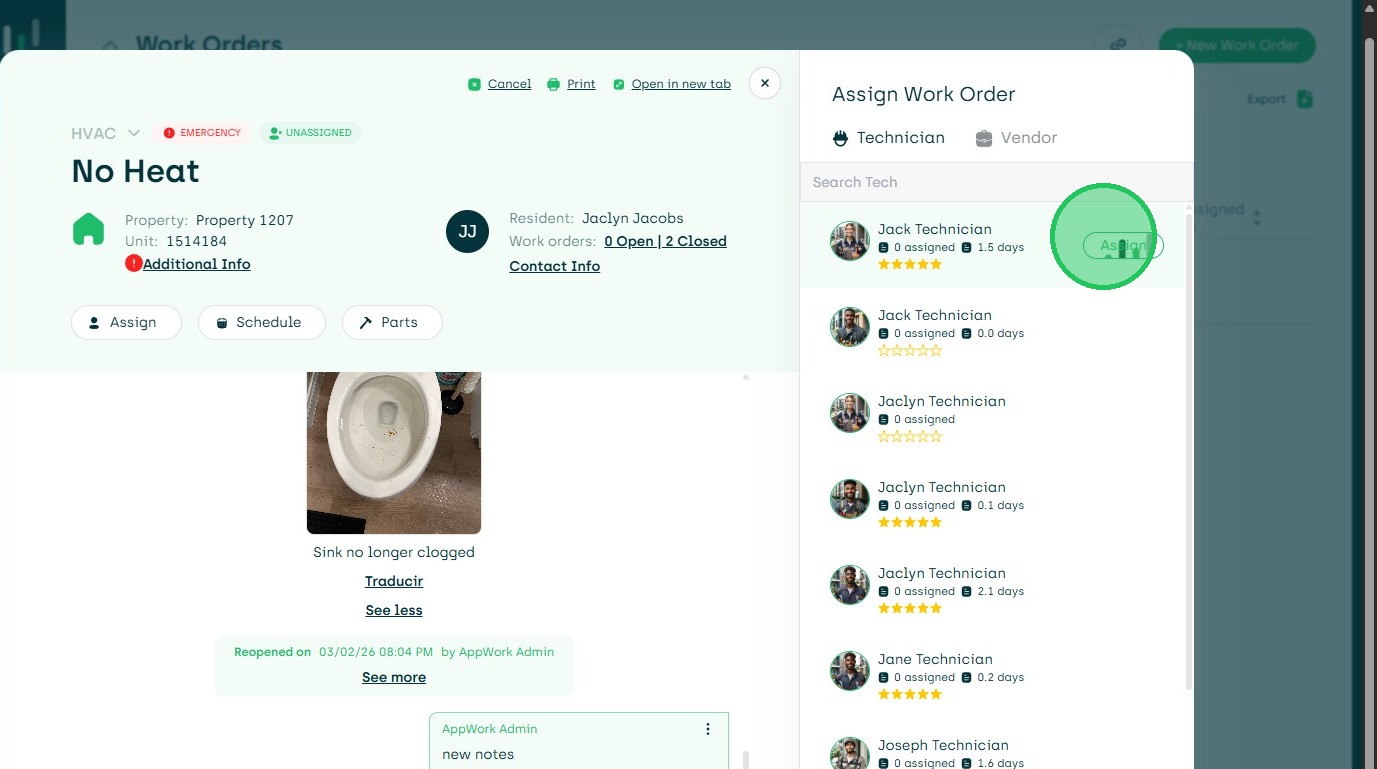
15. If Assigned click Techs Name
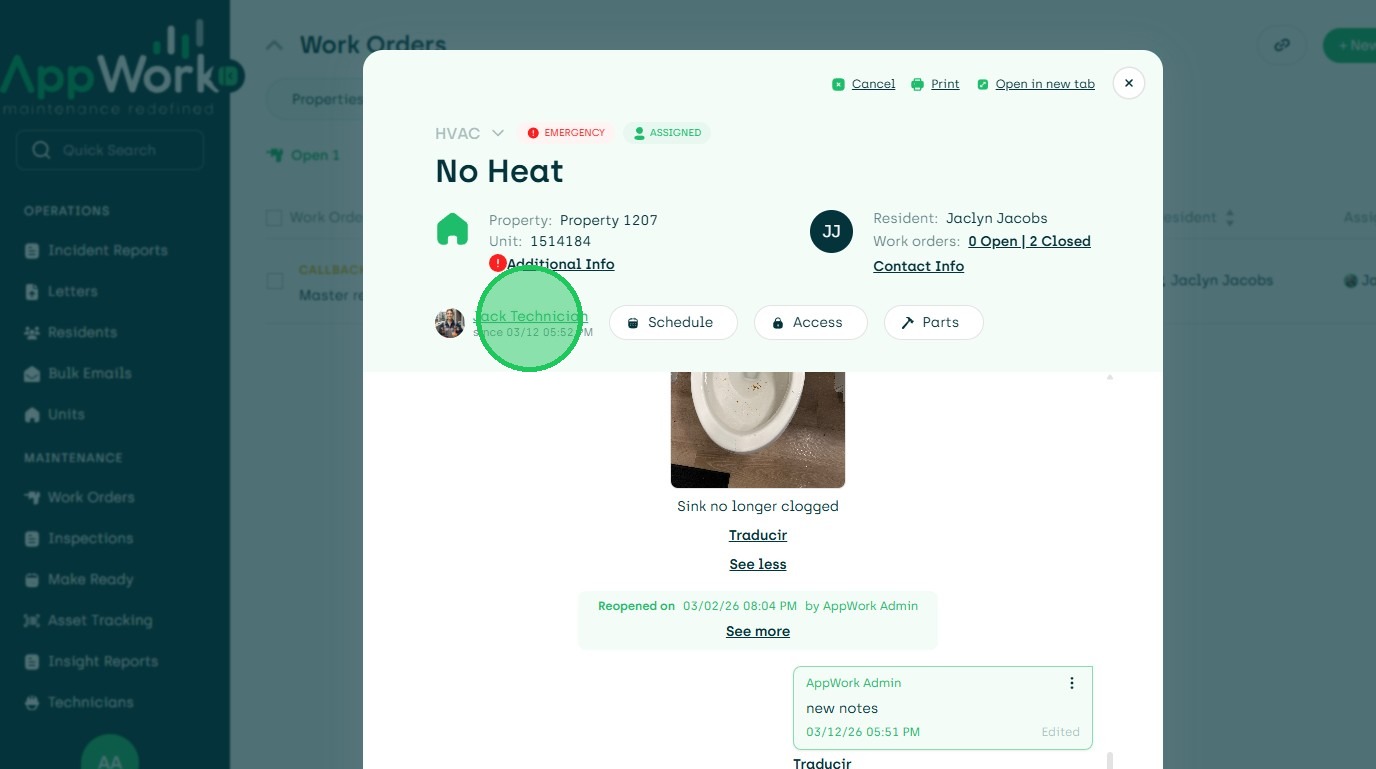
16. Choose New Assignment to Another Tech, Vendor Or Unassign
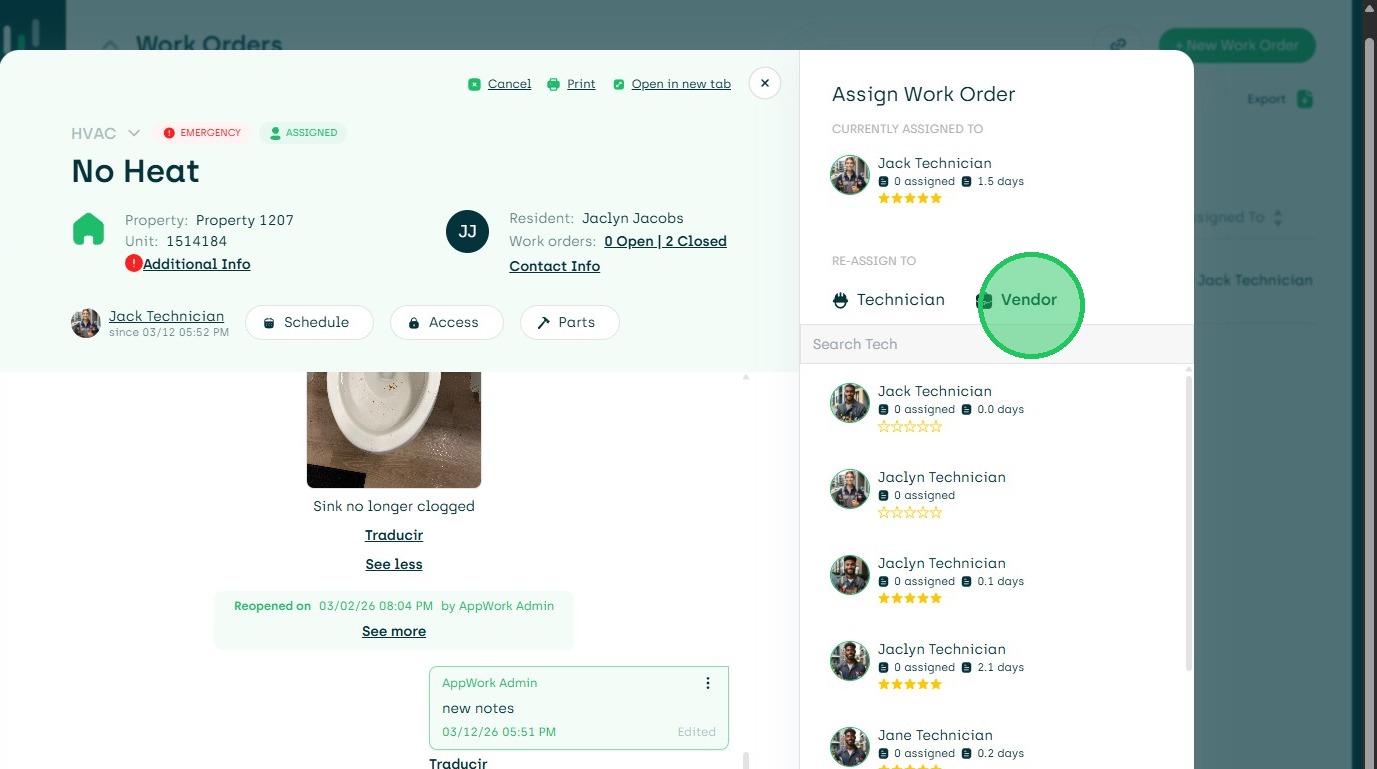
17. To Change Simply Click Assign to the New Assignee.
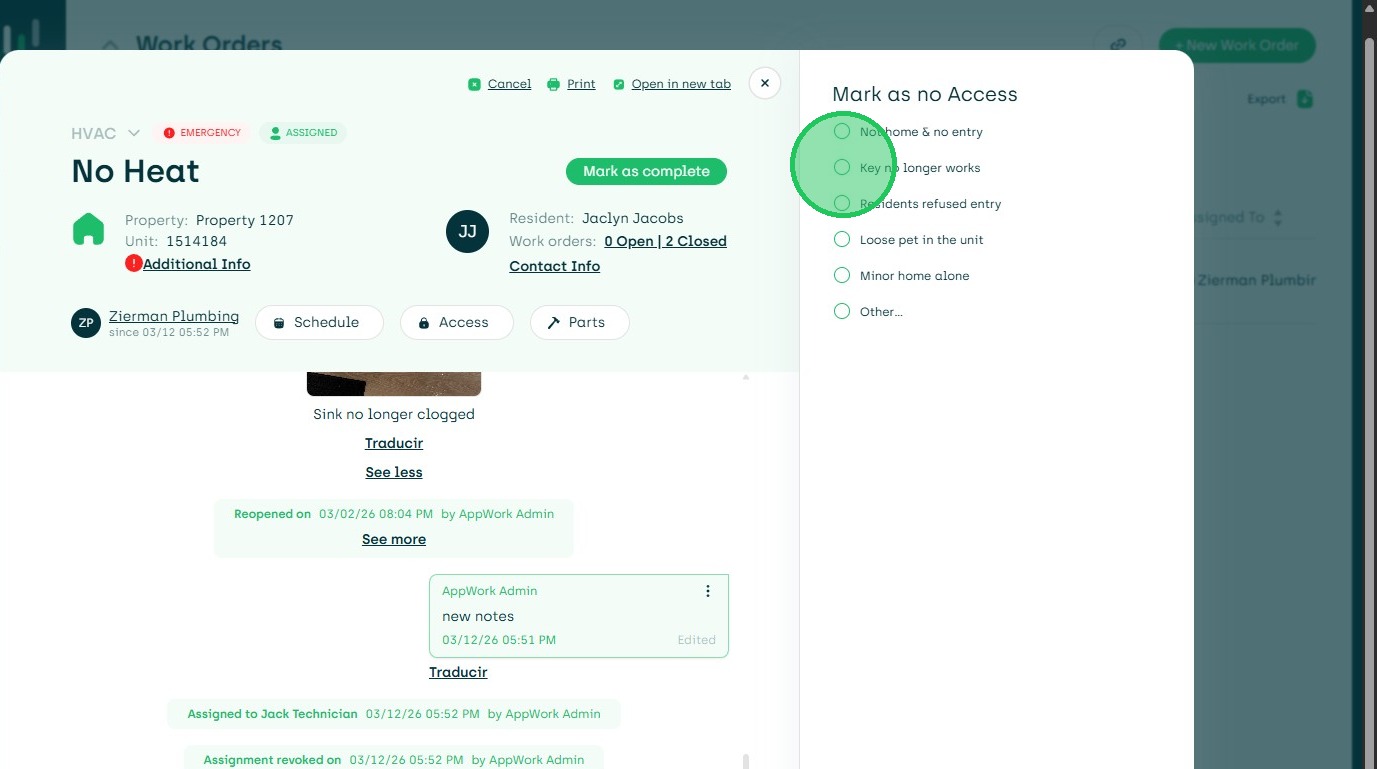
18. You can Add or Update Access.
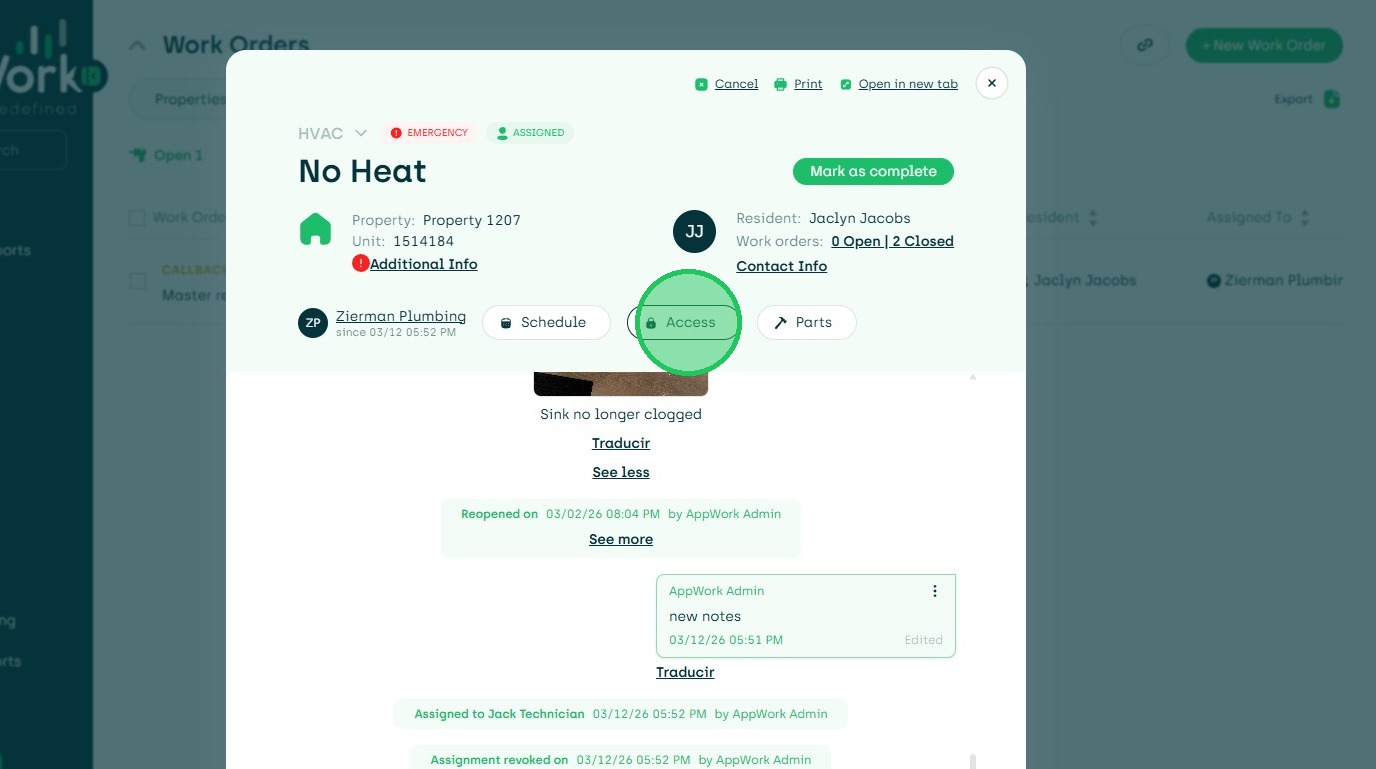
19. Click here.
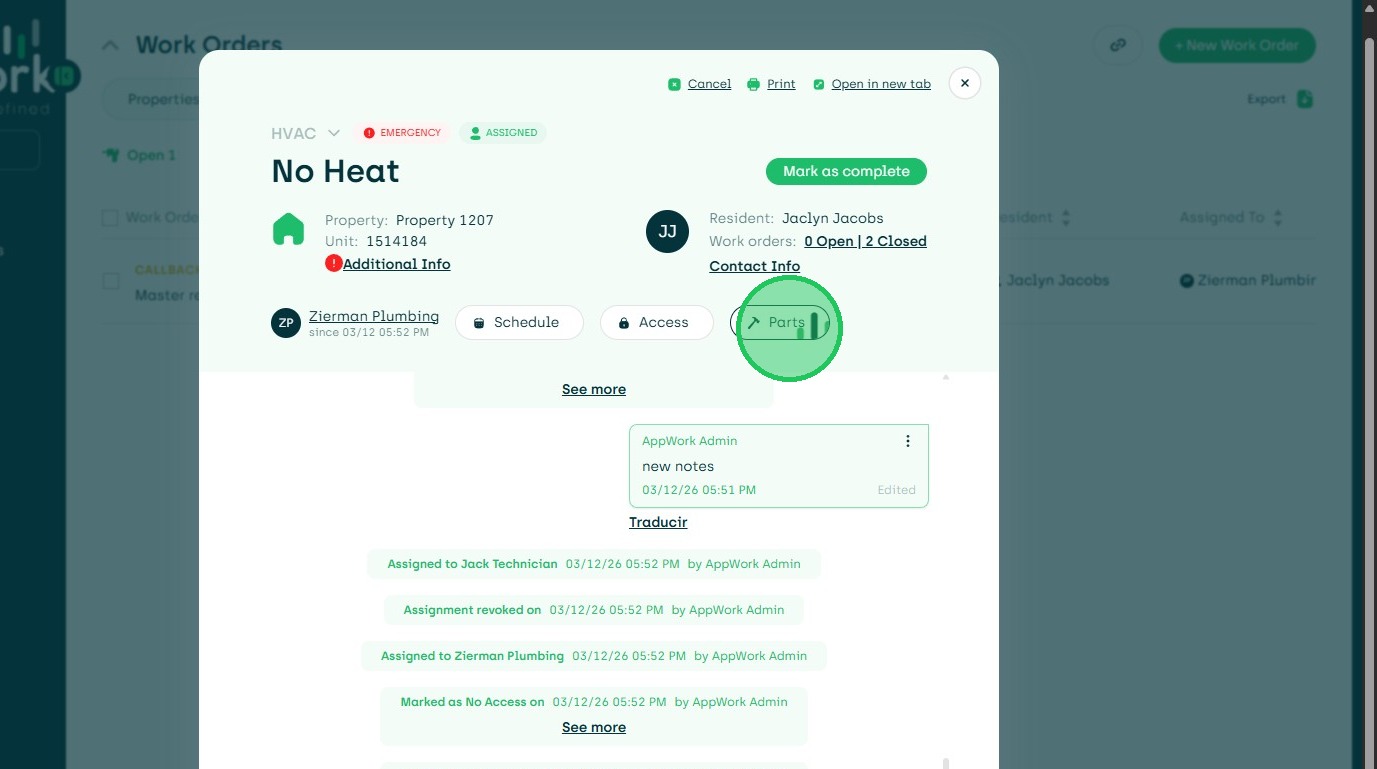
20. You can Add Parts Needed.
21. You can Complete Vendor Work Orders.
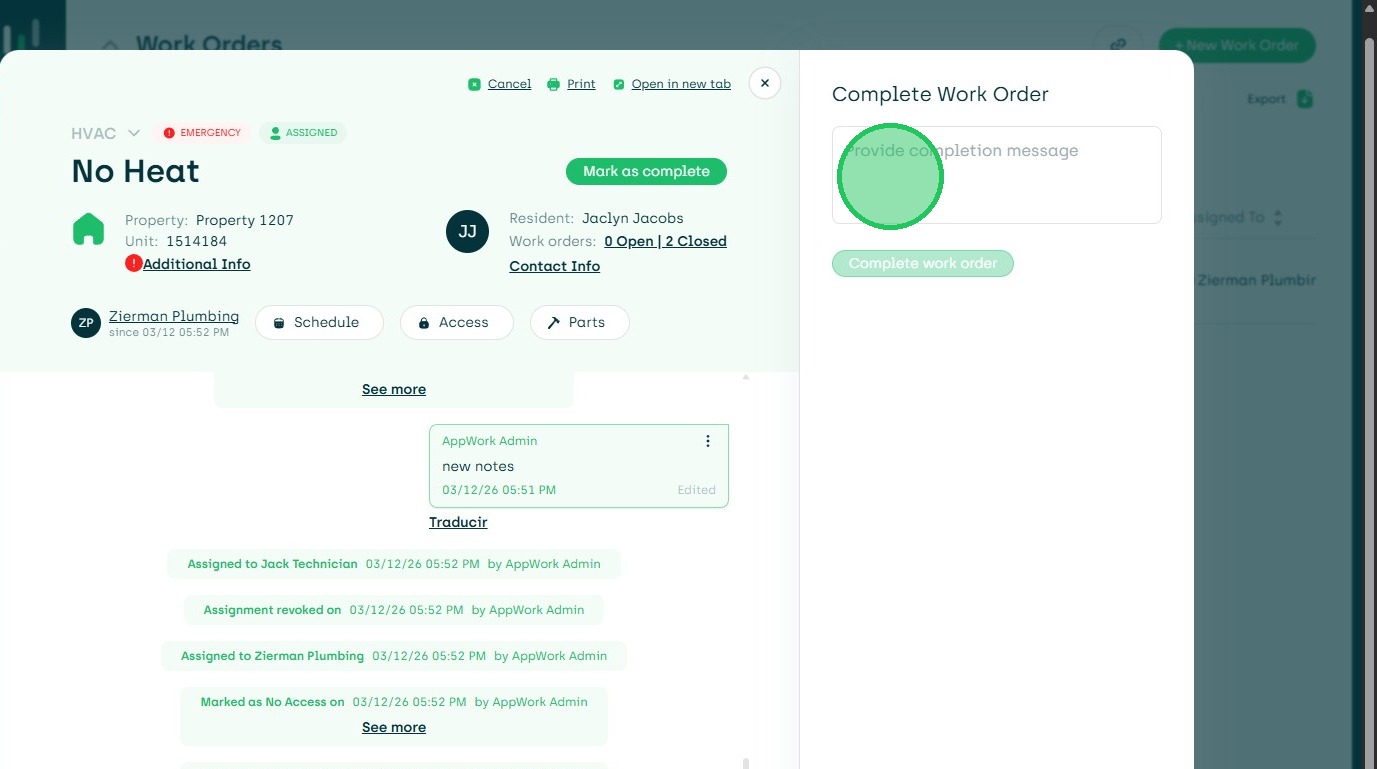
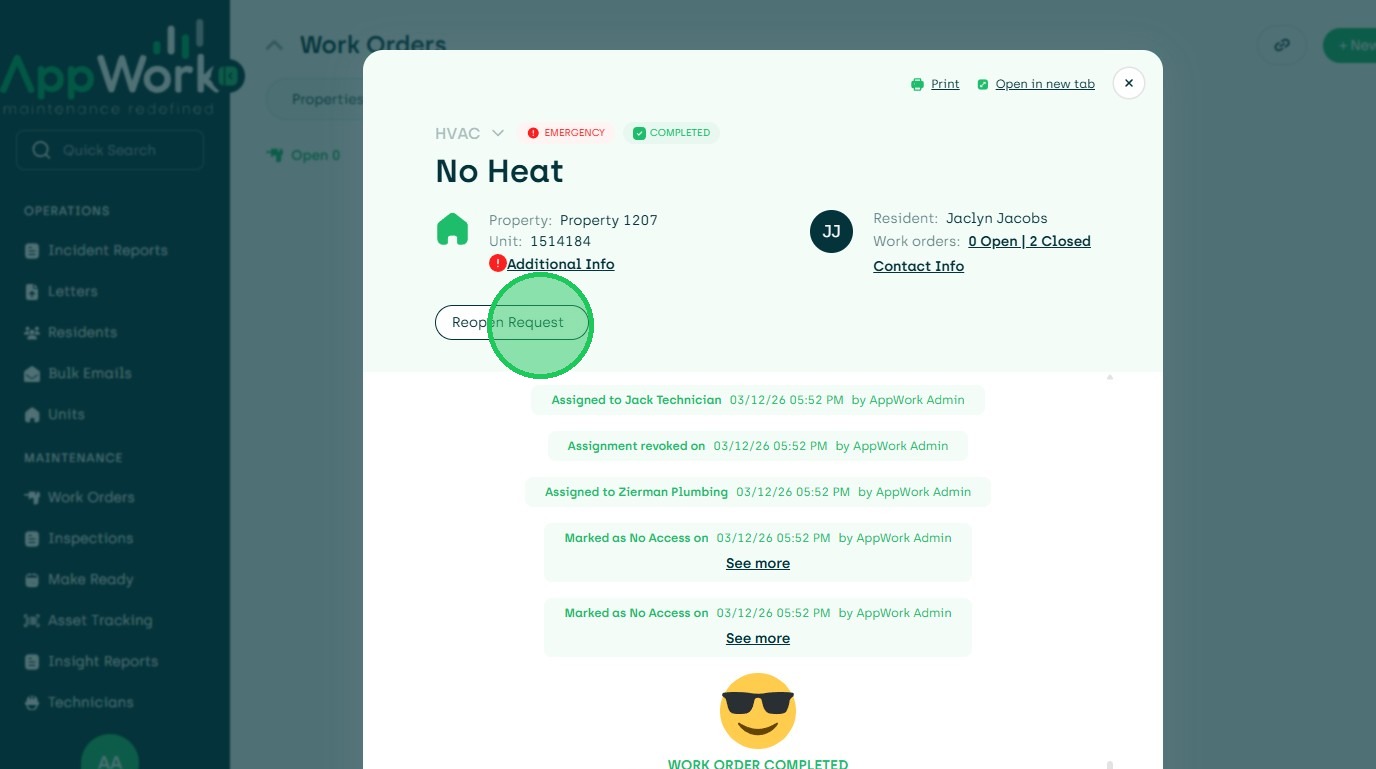
22. To Reopen a Work Order.
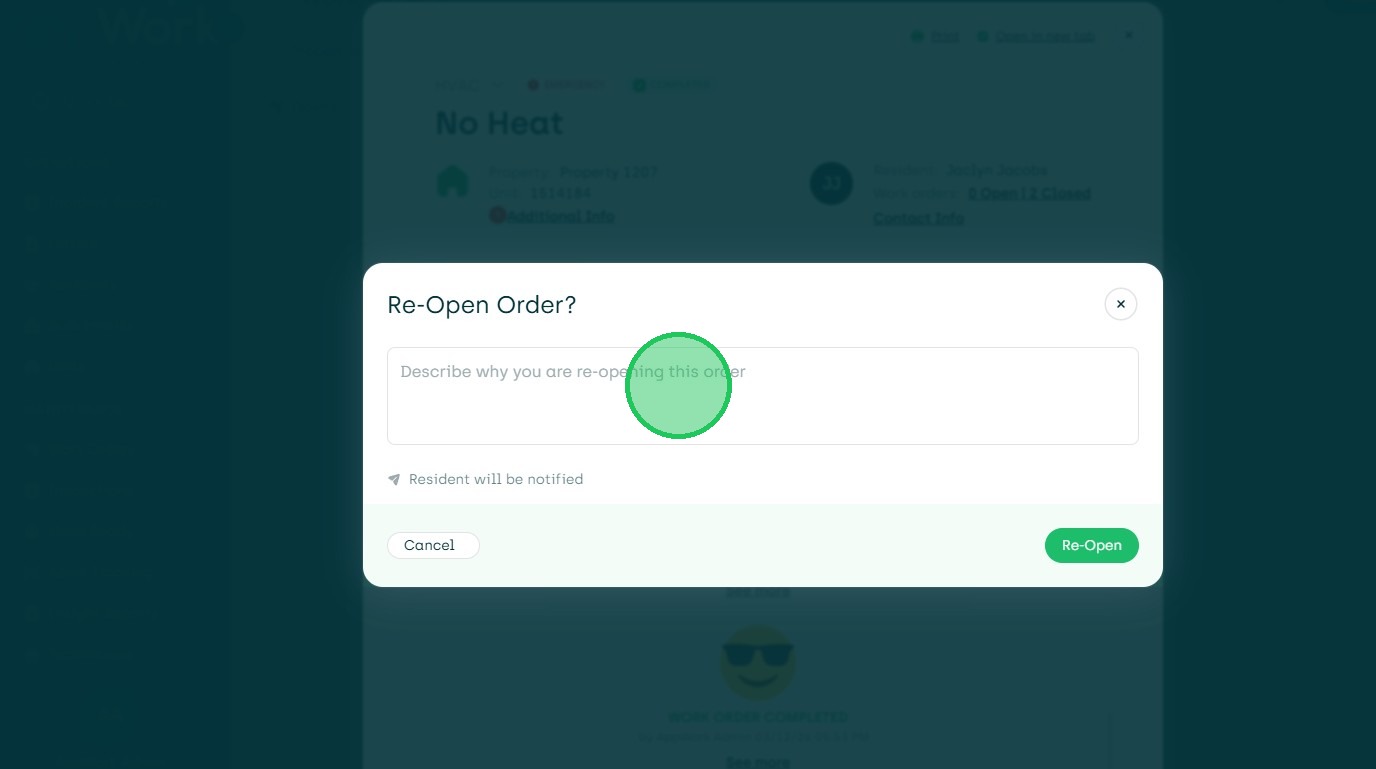
23. Describe Why the Work Order is Being Reopened.
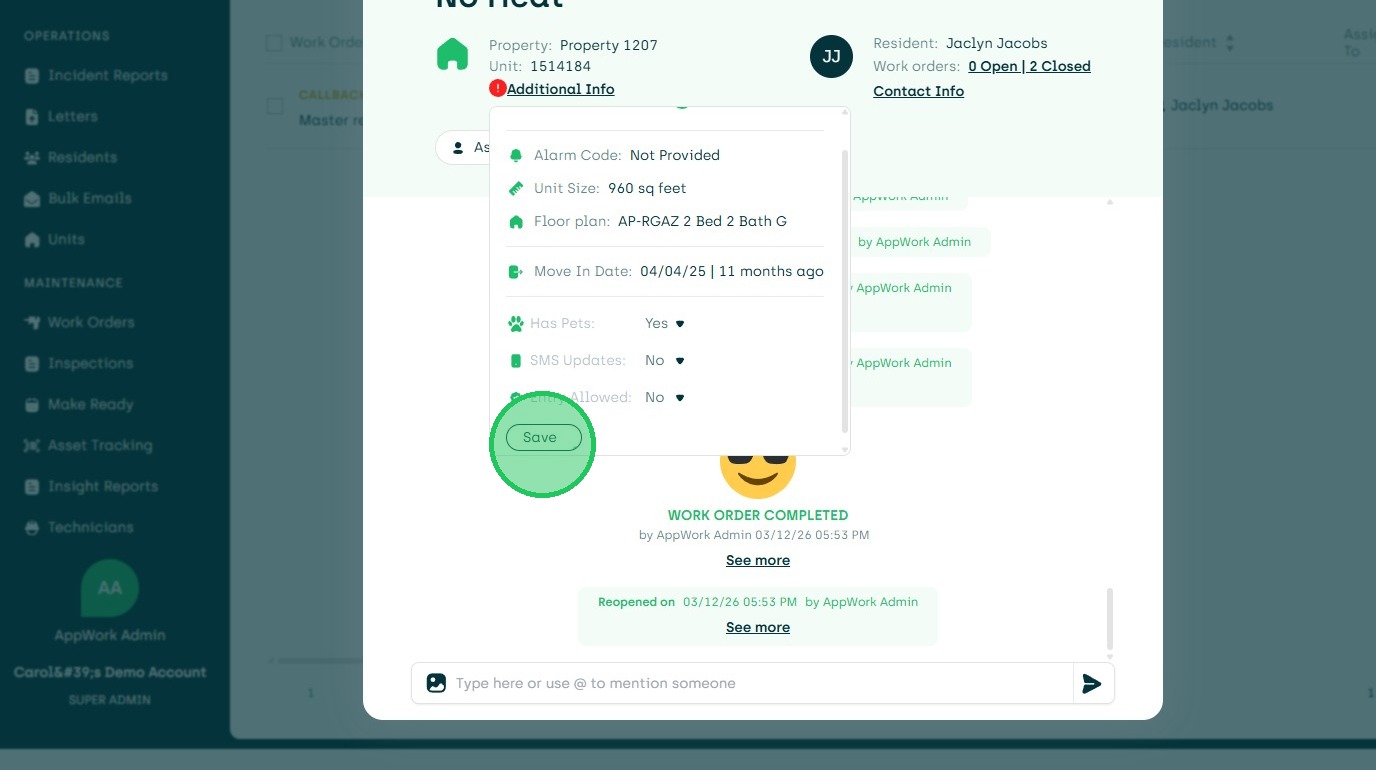
24. To Edit PTE, SMS, and Pets.
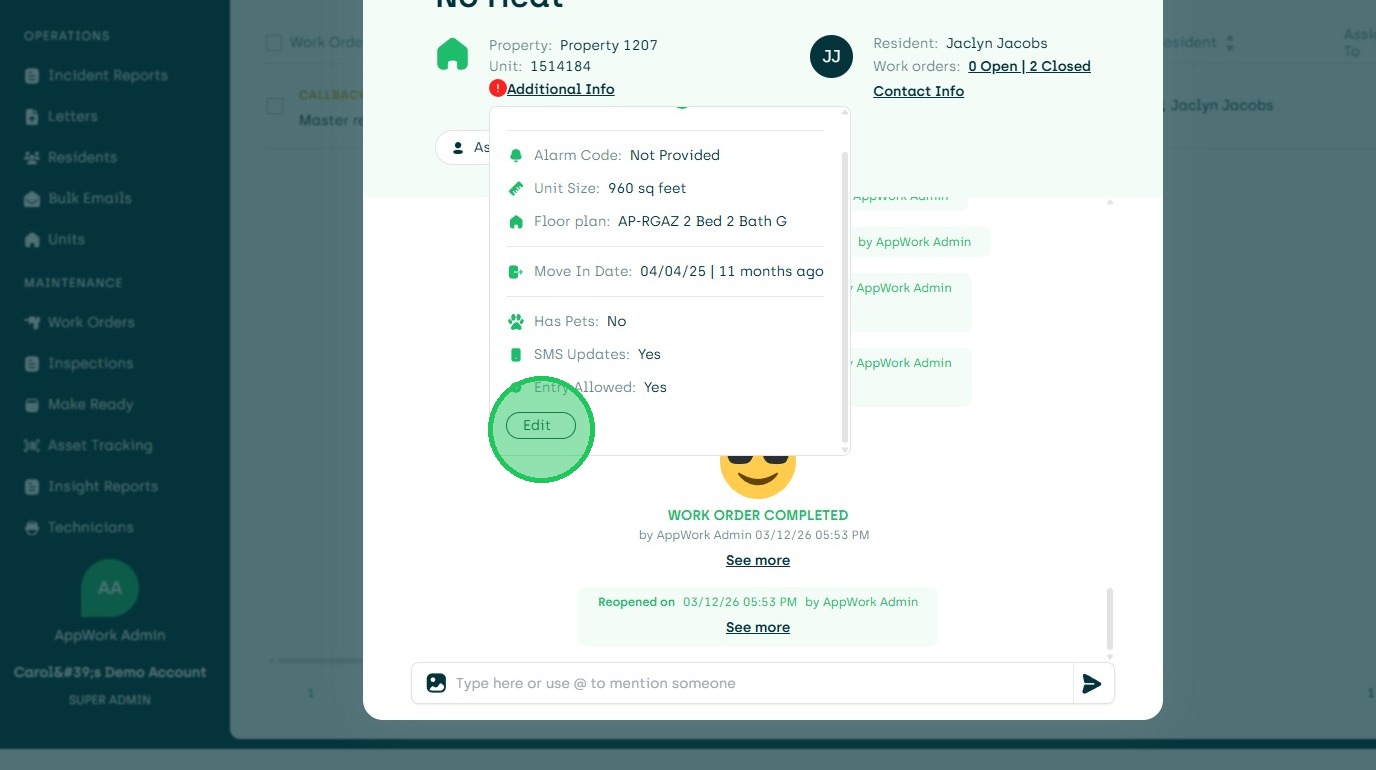
25. Save.
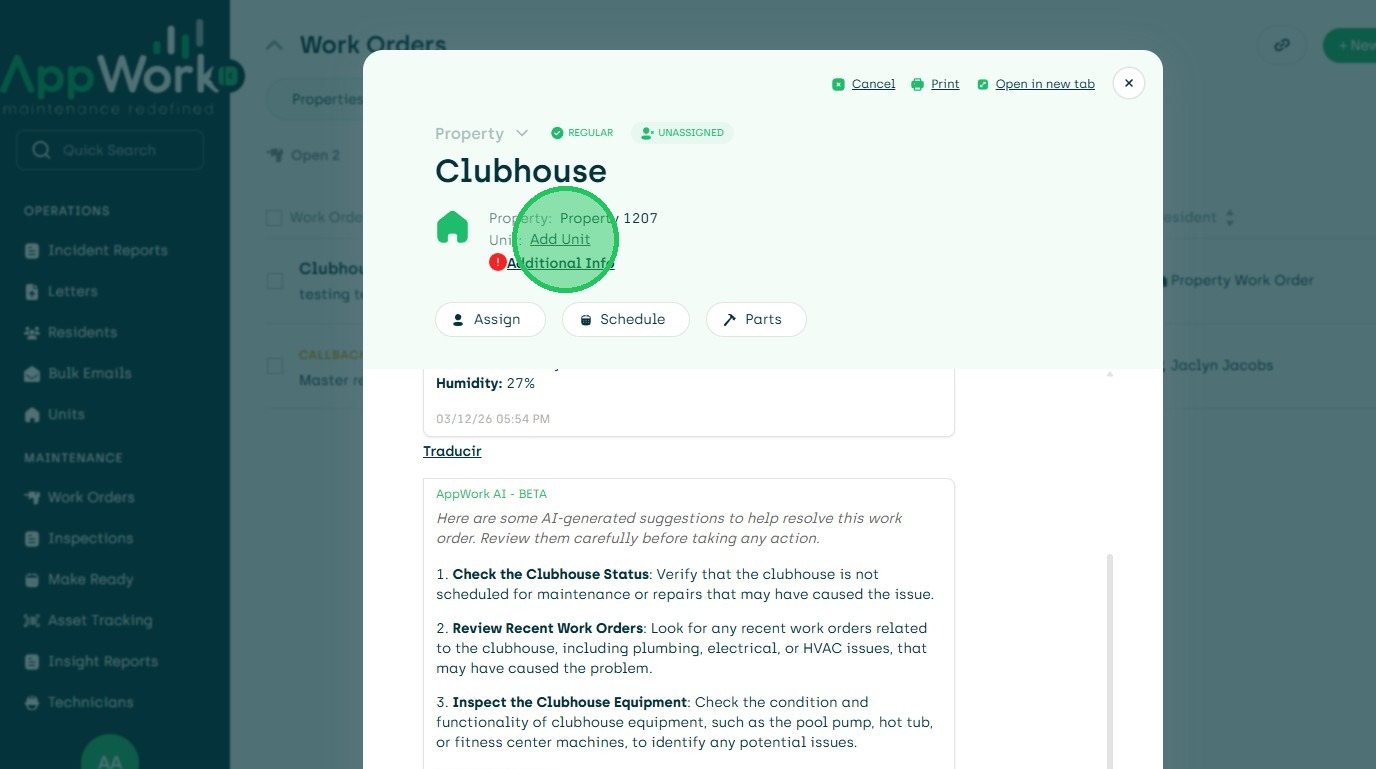
26. If No Unit was Added at Creation, One can be added.
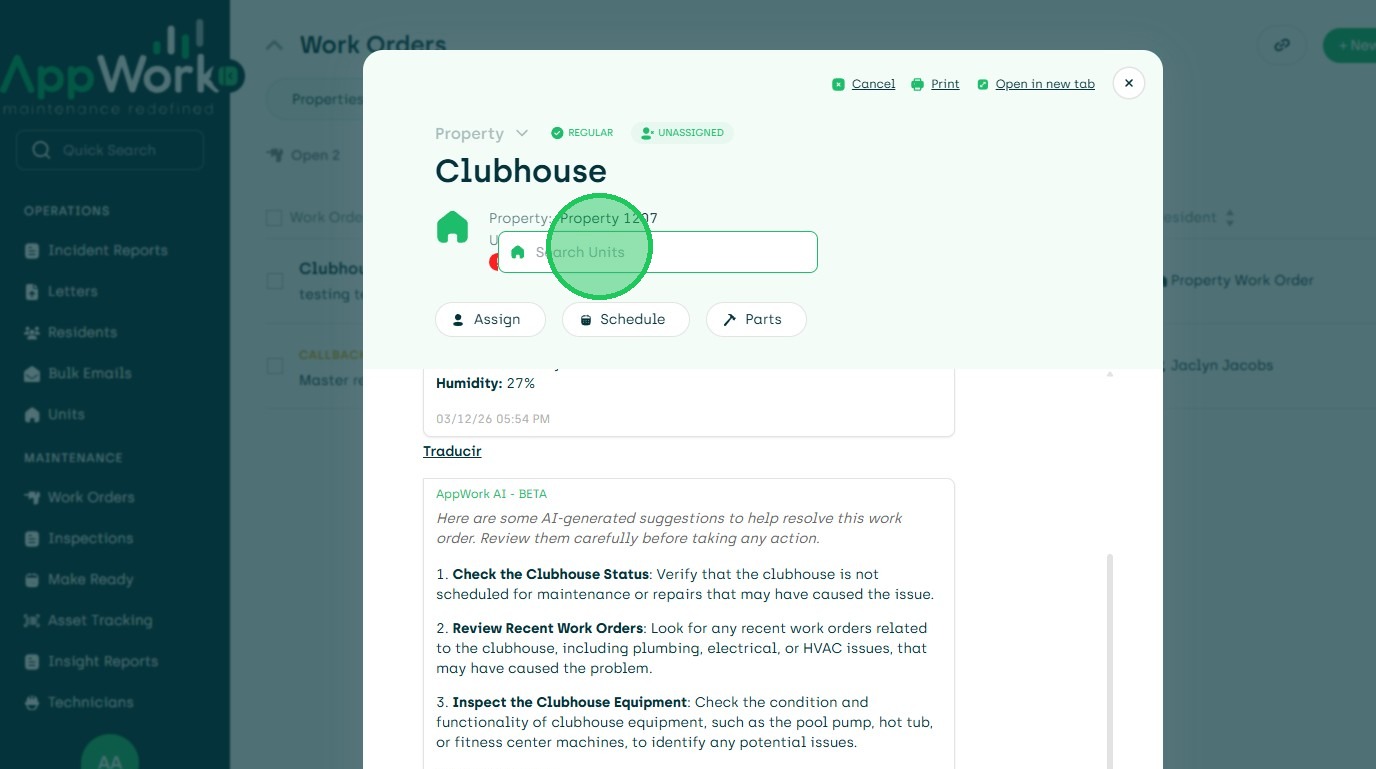
27. Search for Unit.
28. Choose Unit.
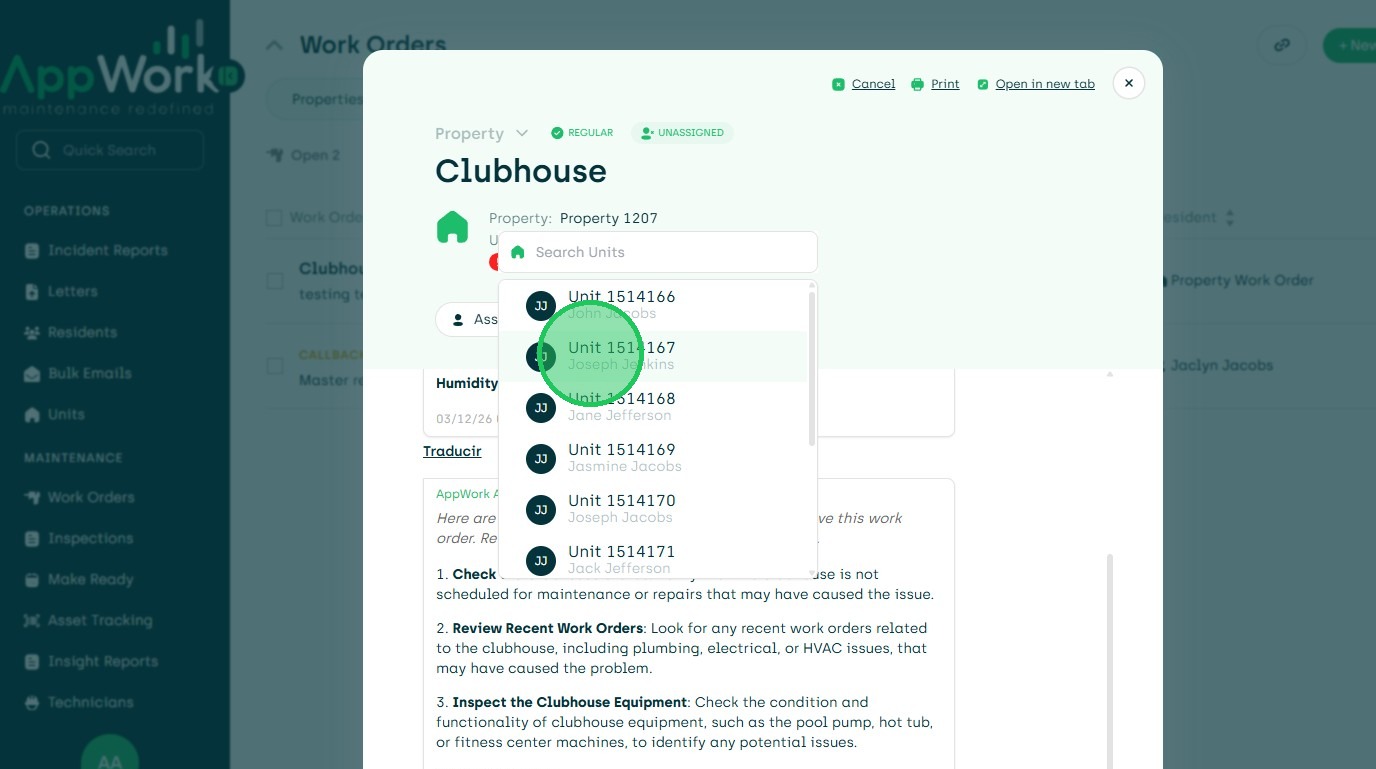
29. Once a Unit is Added It Cannot be Changed.