How to Create a New Unit Group in AppWork
Learn how to efficiently organize your property units by creating custom groups in the AppWork admin dashboard. This guide walks you through the process of naming your group and assigning specific units to streamline your management tasks.
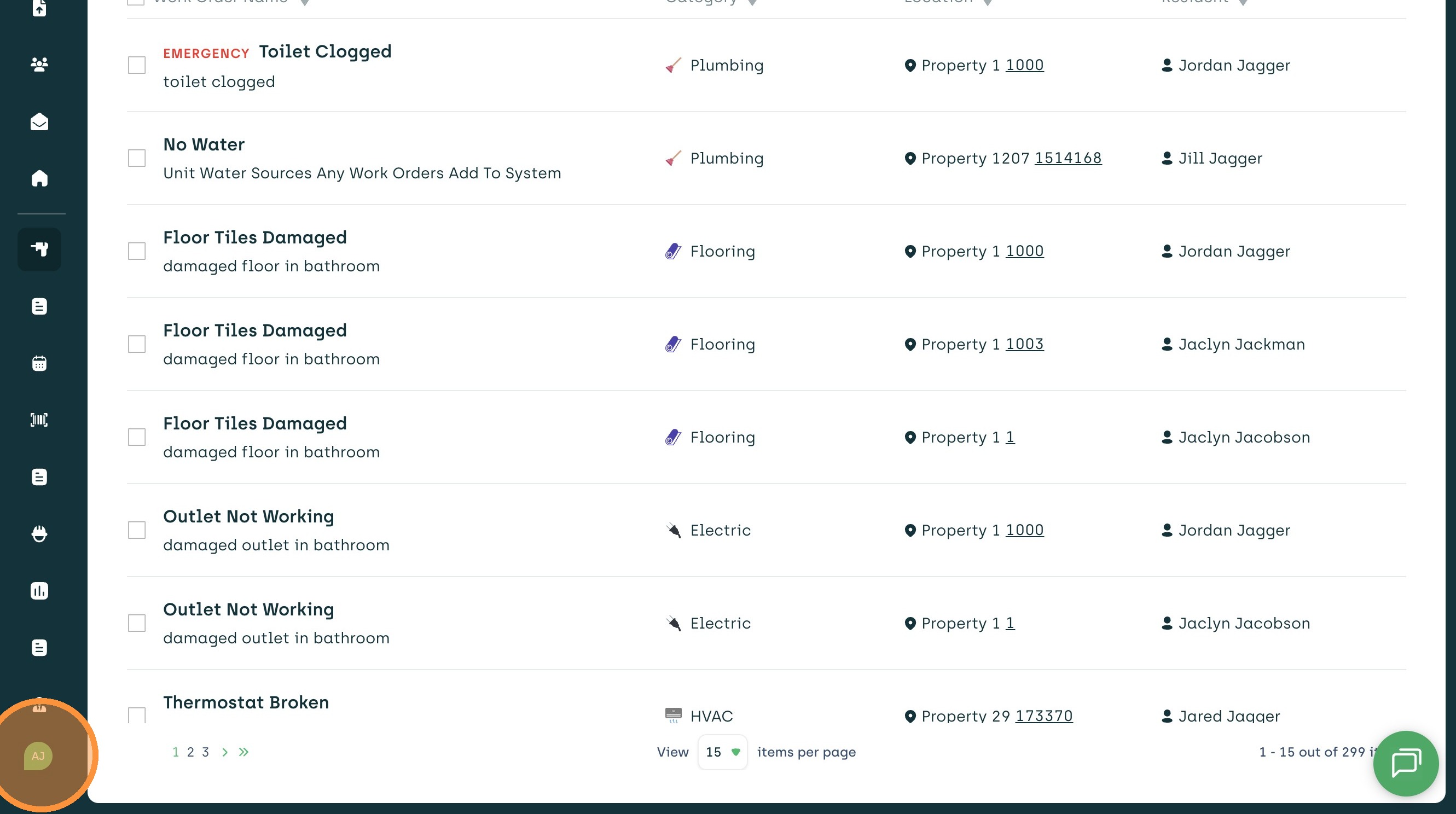
1. Once you are logged in, click on your Initials in the bottom left corner.
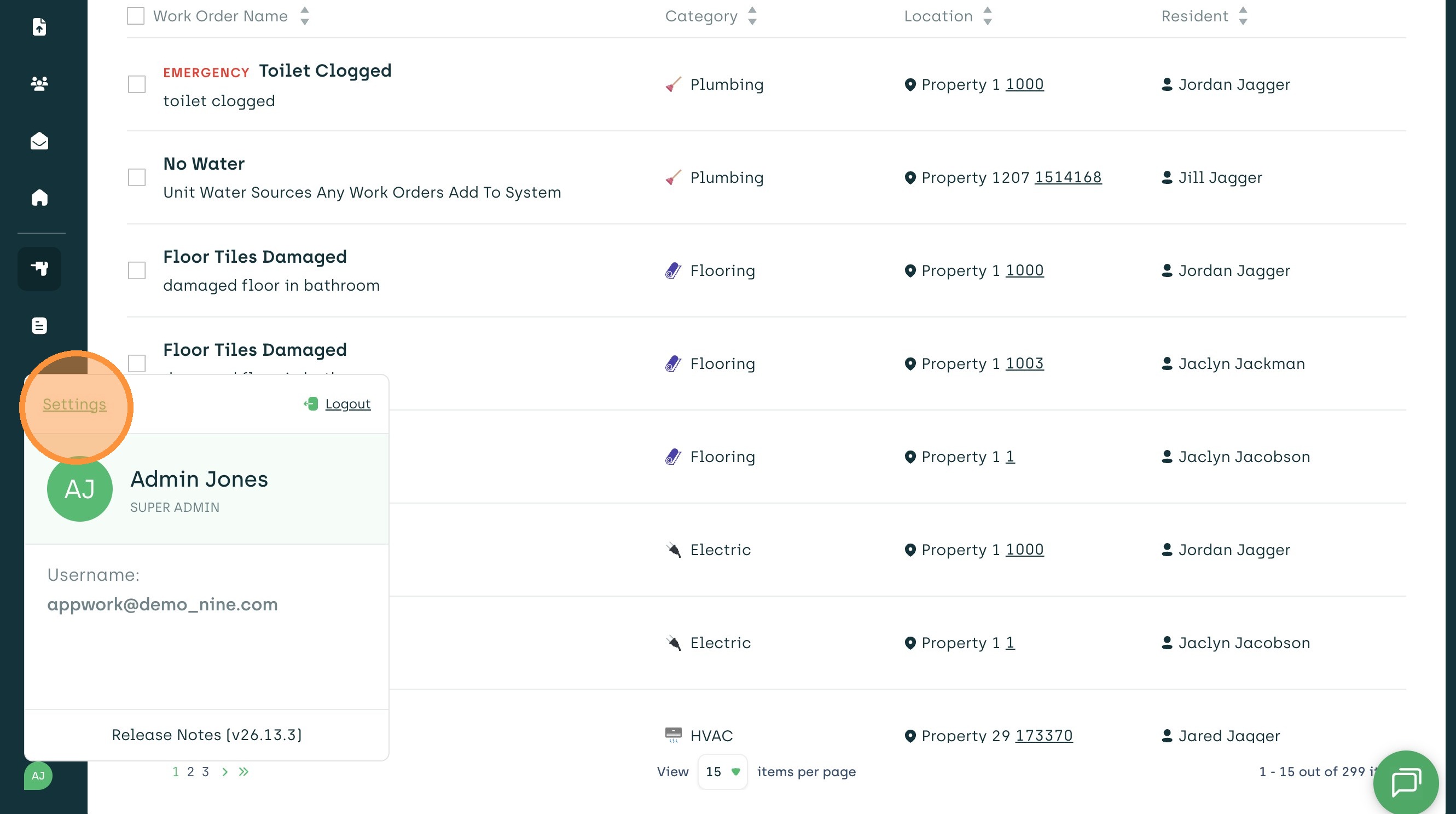
2. Click "Settings"
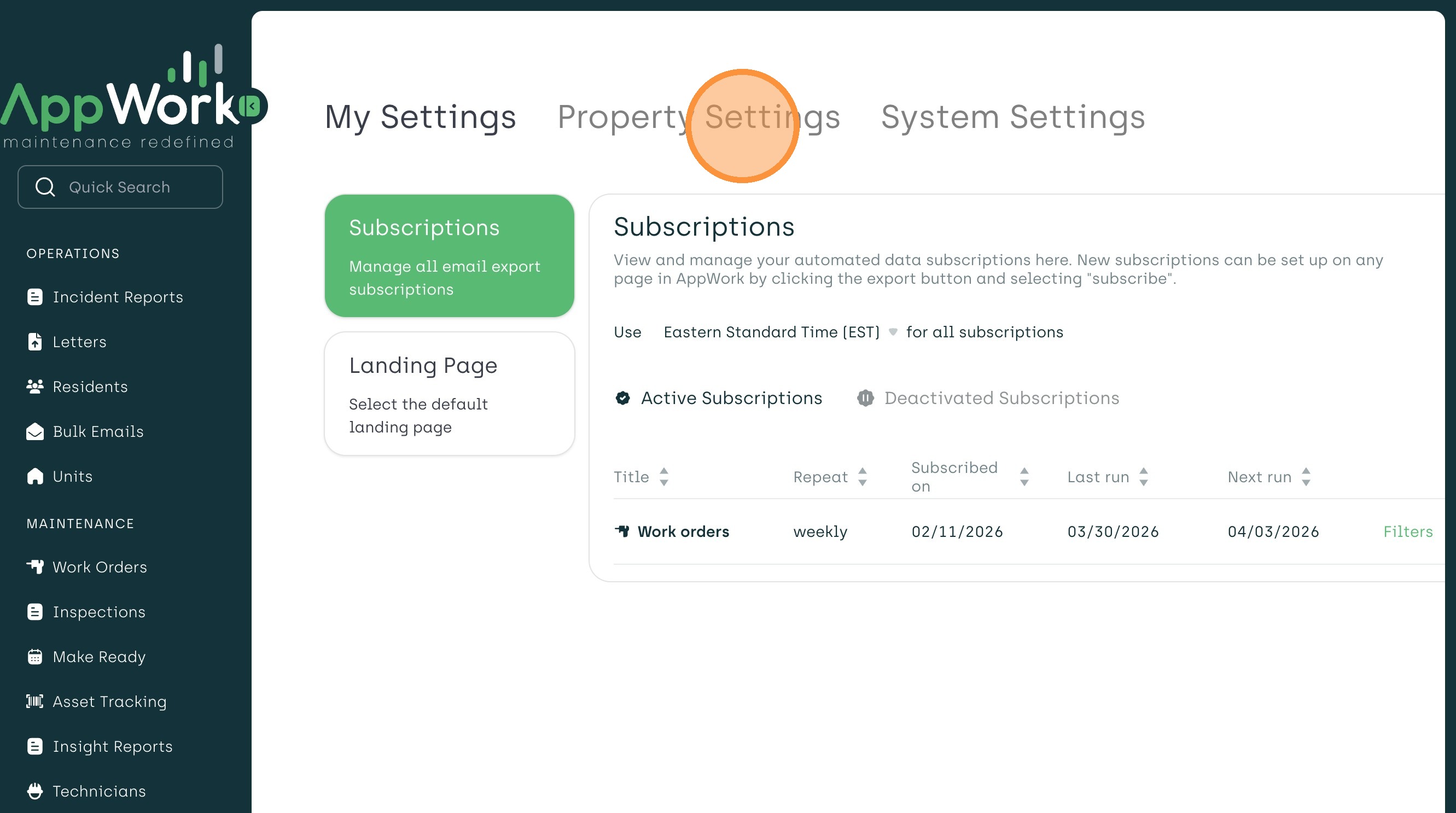
3. Click "Property Settings"
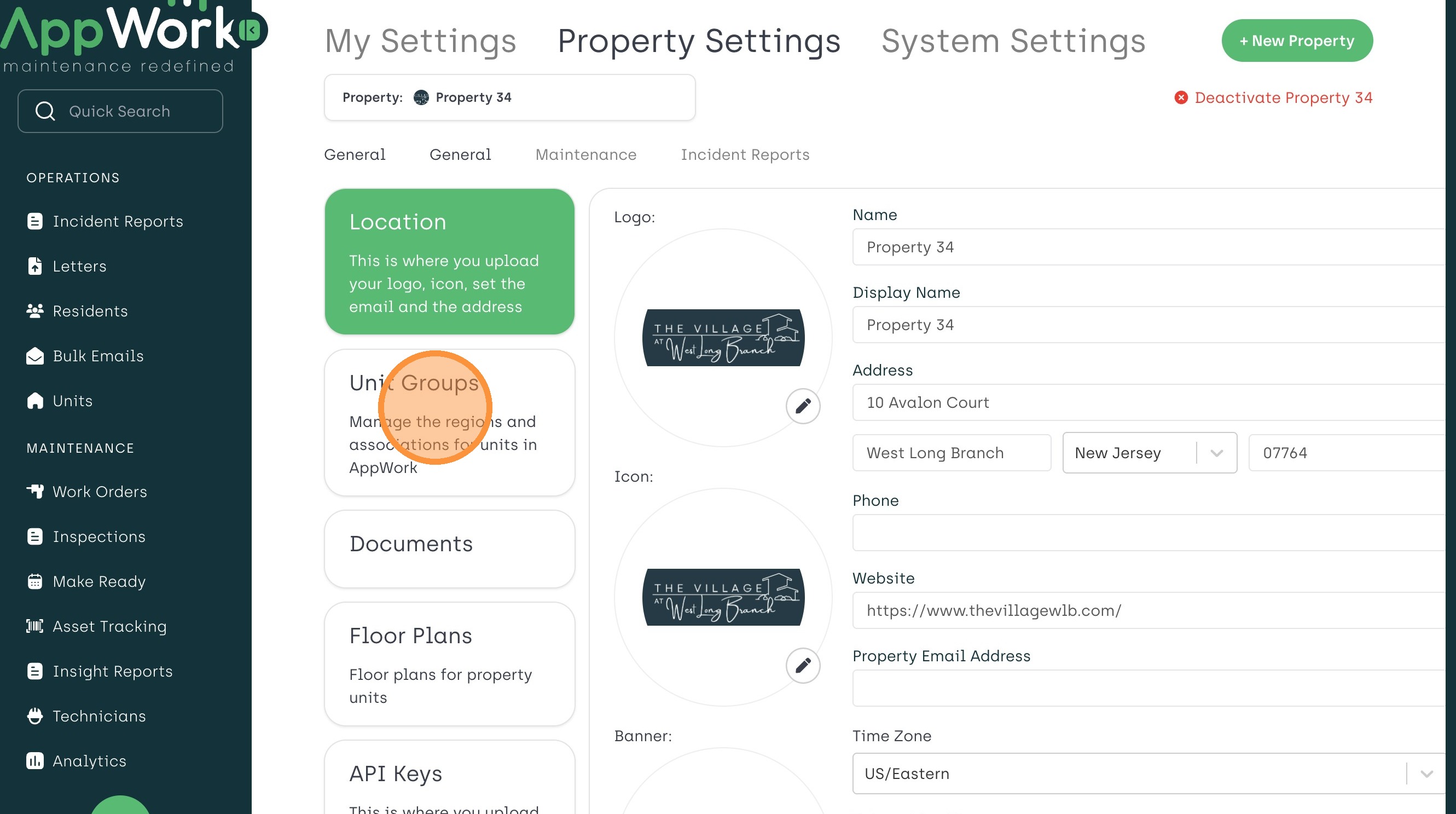
4. Click "Unit Groups"
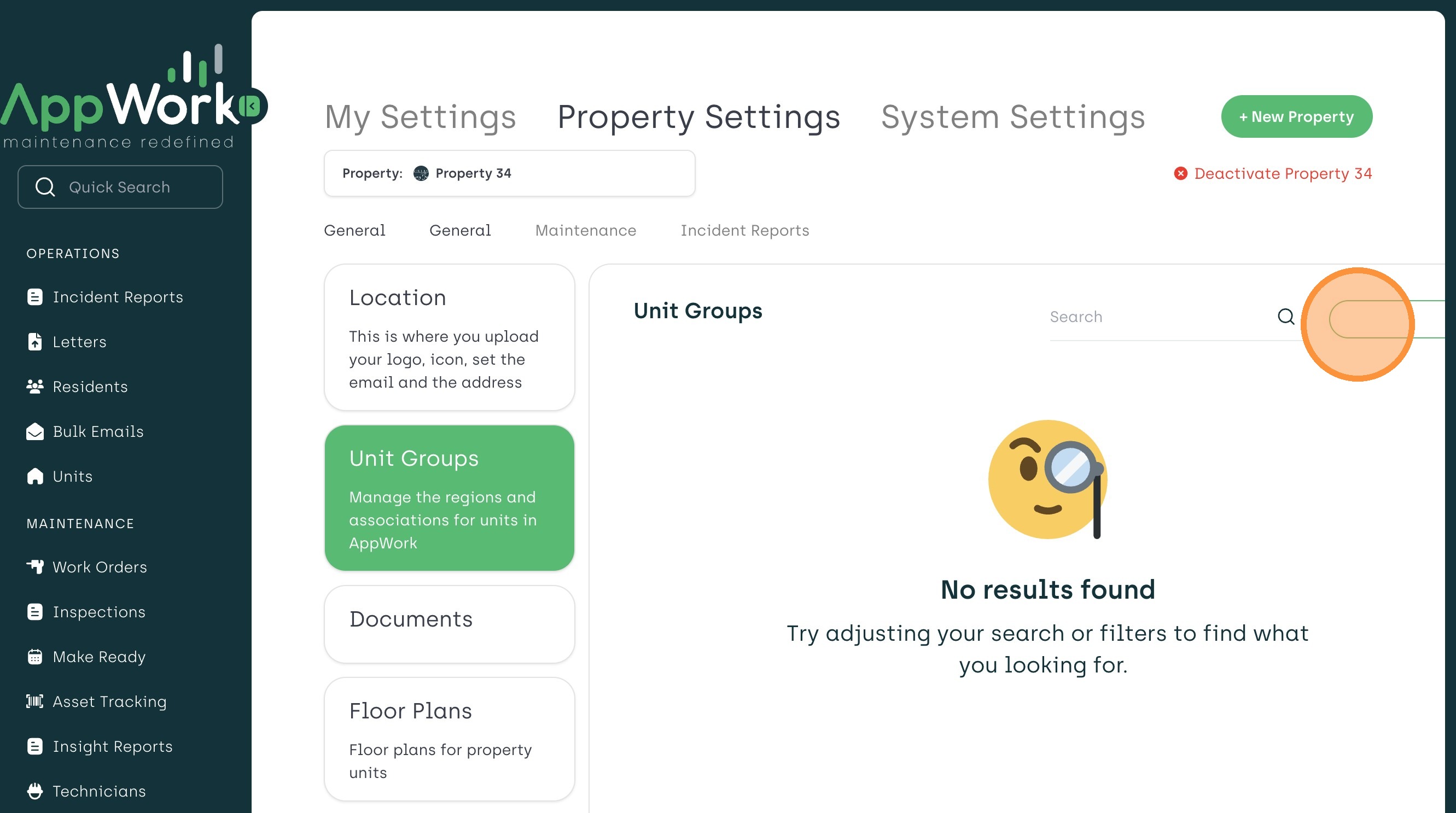
5. Click "+ New Group" on the left
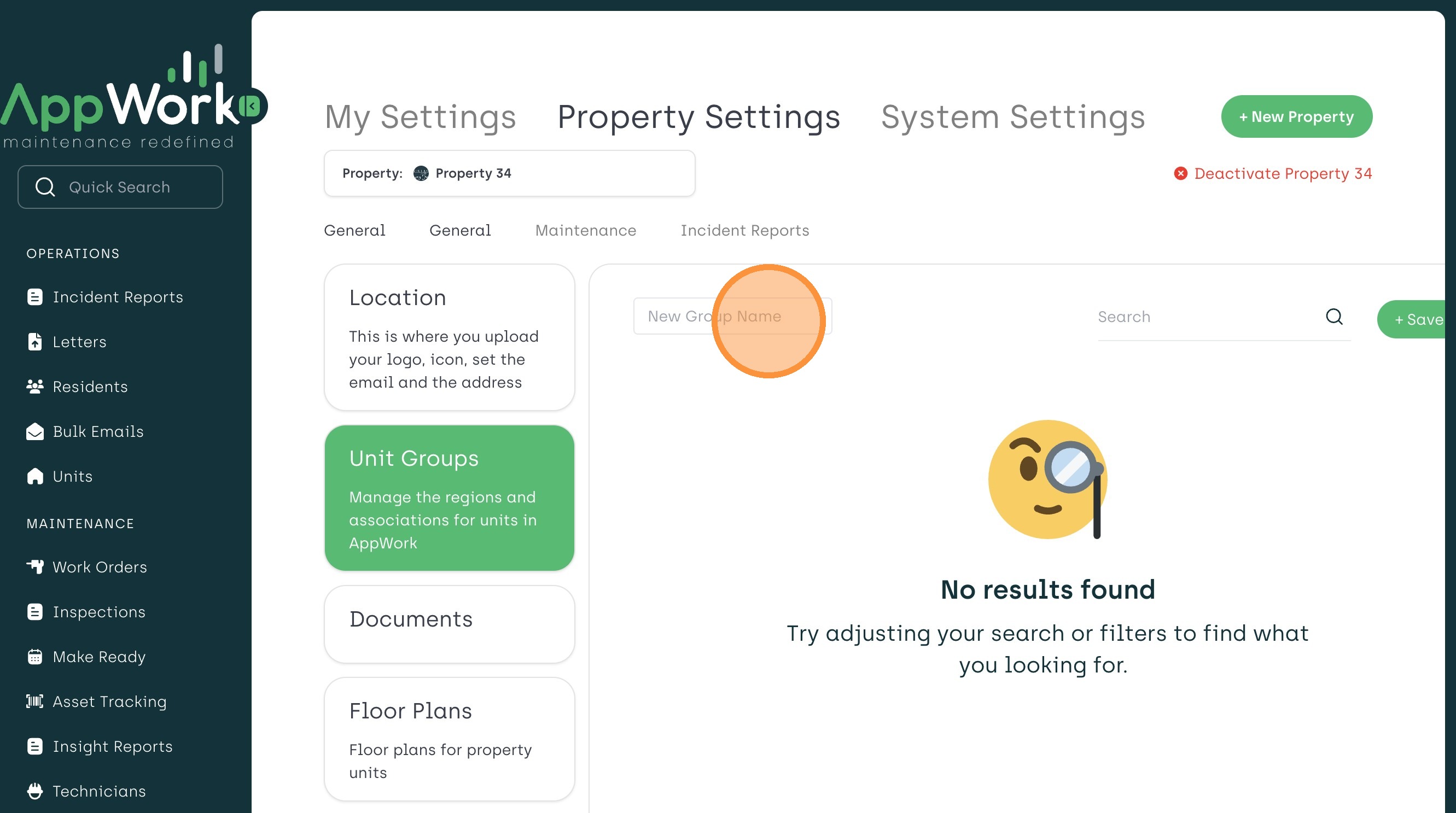
6. Click the "New Group Name" field.
7. Type "Building 1" as an example. This is where you label the group you are creating. Hitting Enter or "+ Save Group" will save and allow you to move to the next step.
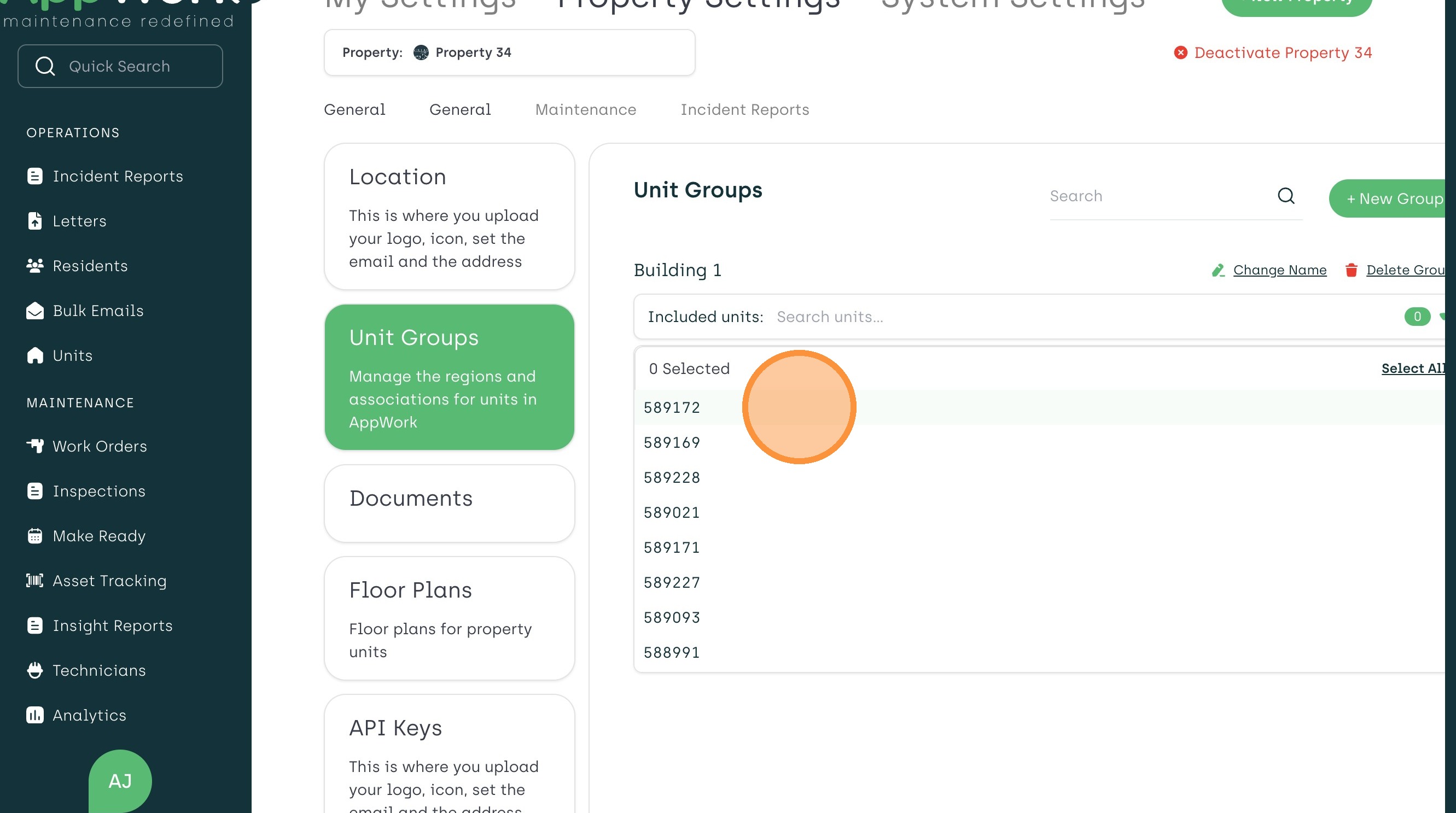
8. Once the group is created Click the "Search units..." field.
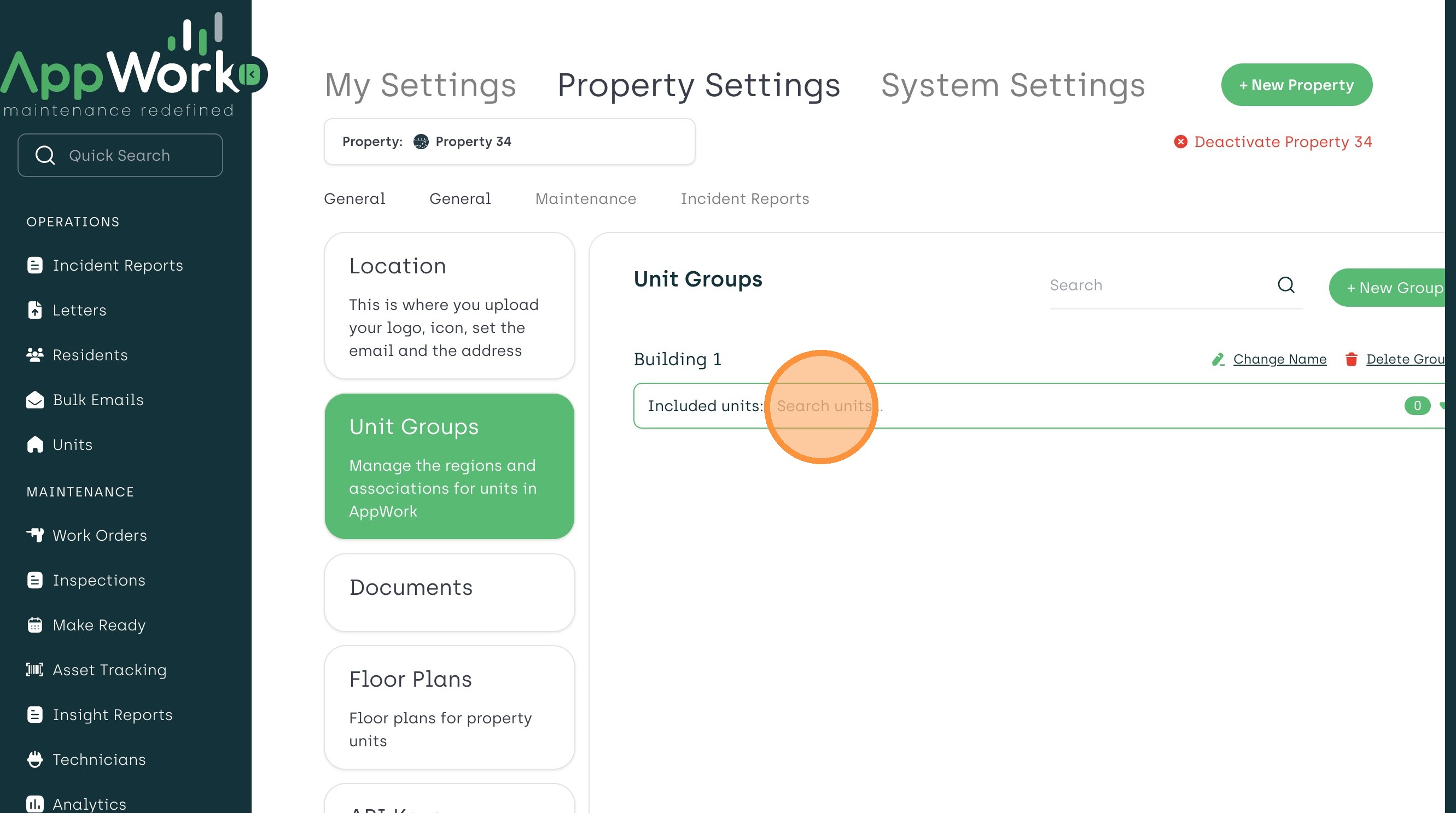
9. You can search, scroll, and select multiple units at this point.
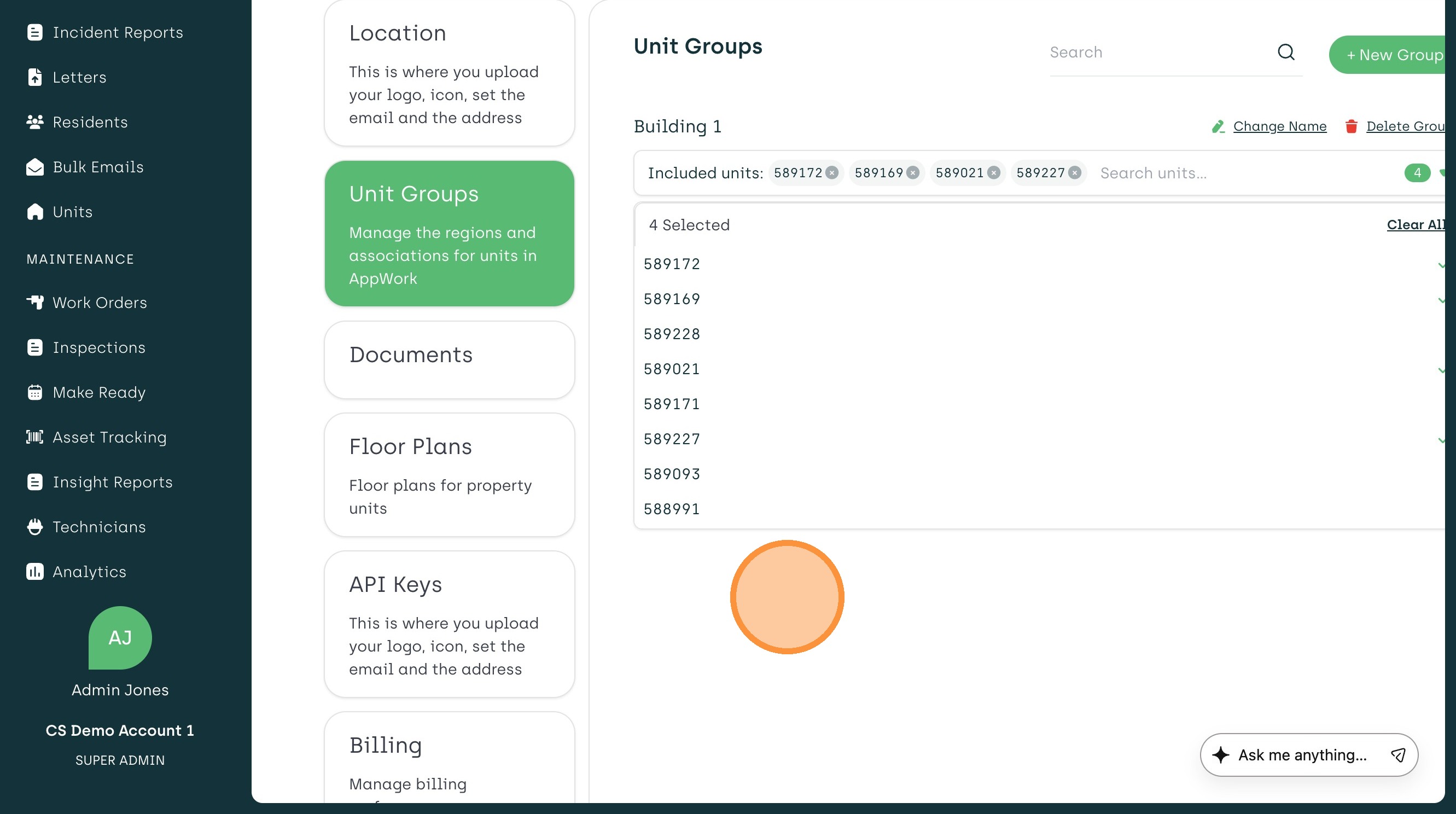
10. As you can see, 4 units were added here. You can click out of the "search" function and your unit group is automatically saved!
How to Filter by Unit Group
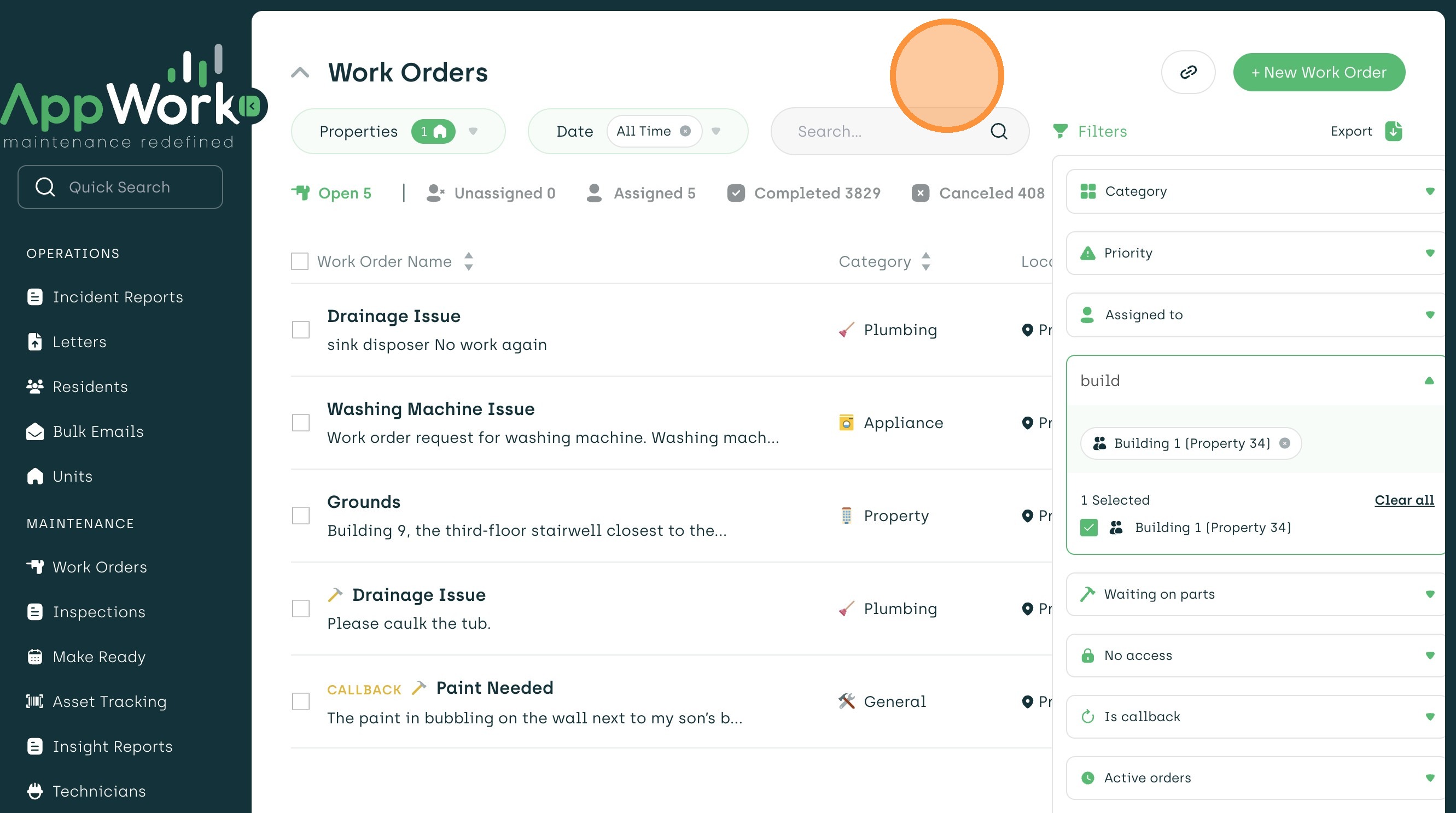
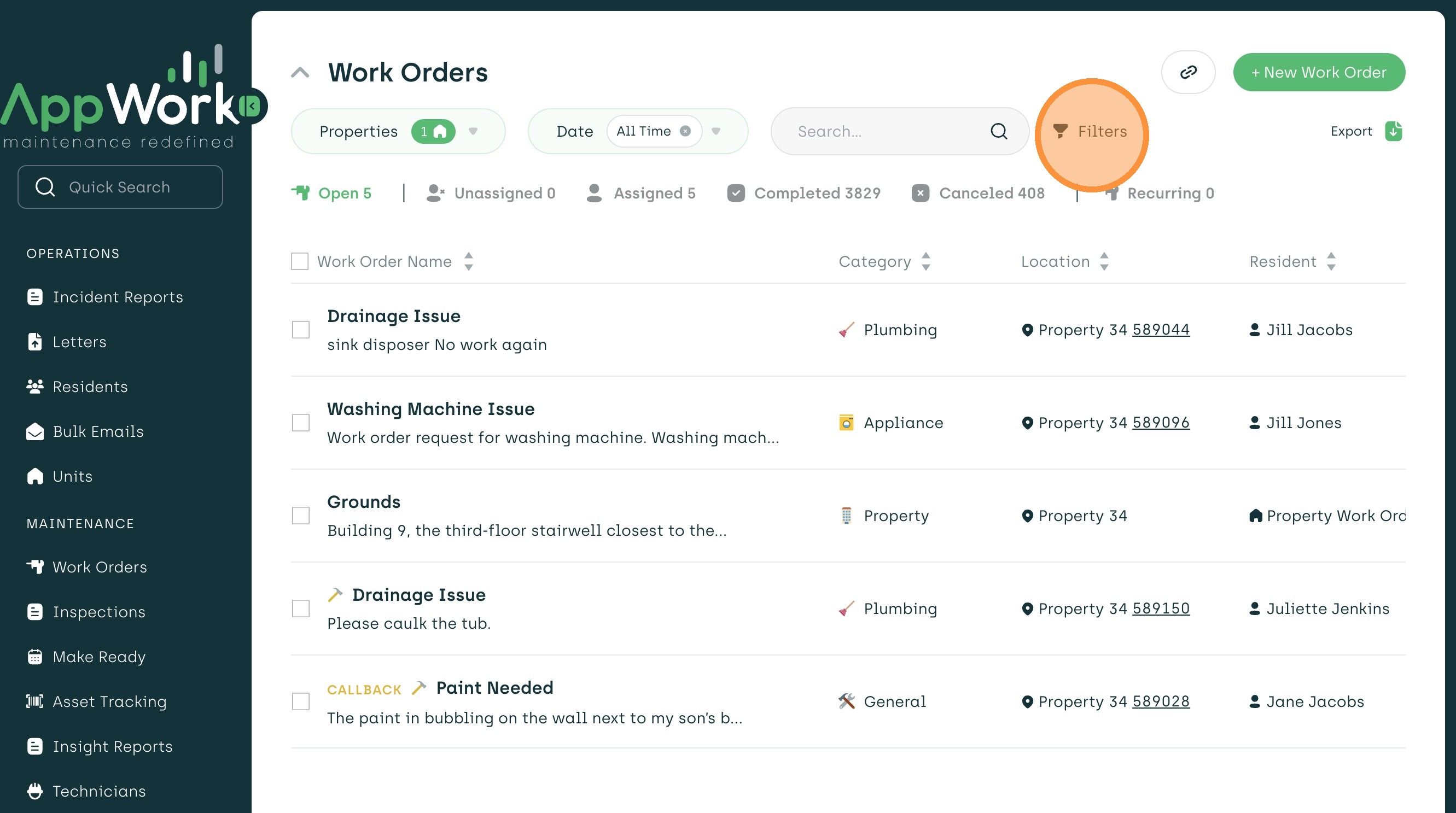
1. From the Work Orders page, click Filters
2. Click "Unit"
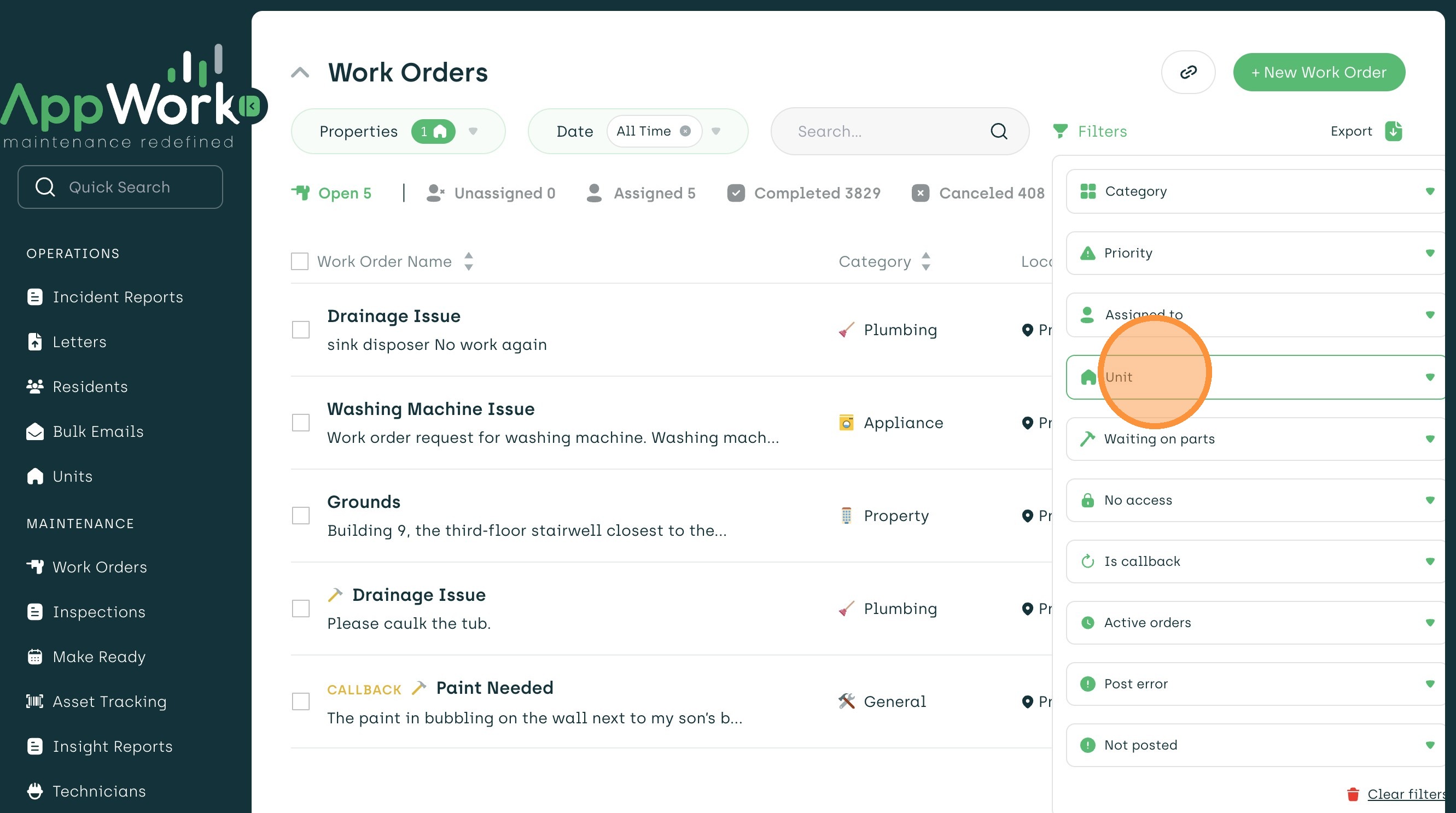
3. Type in the unit group you are looking for
4. Select the unit group you want to view
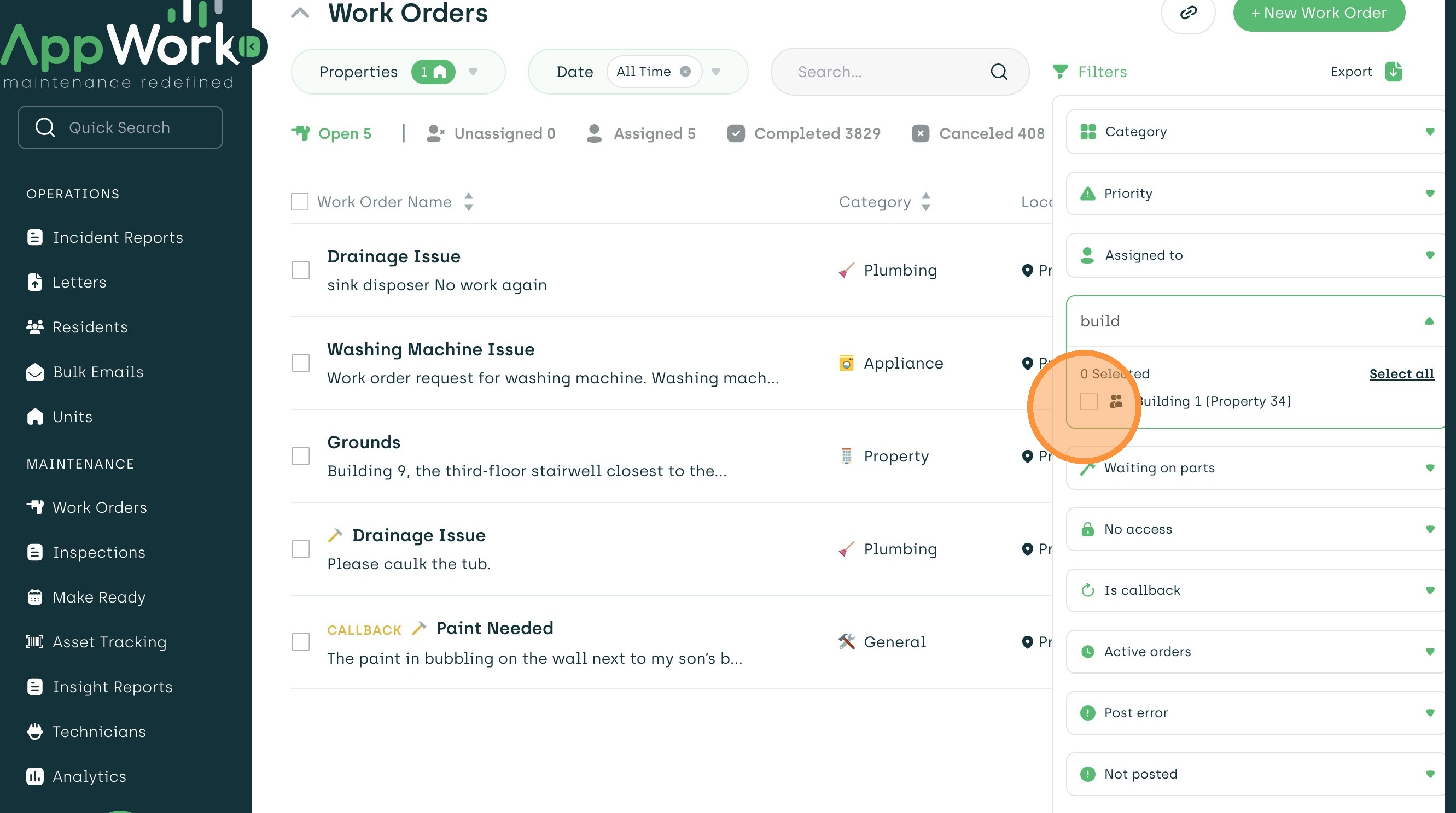
5. Click out of the filter area to set the filter. You will now see all work orders for the units only within that group.