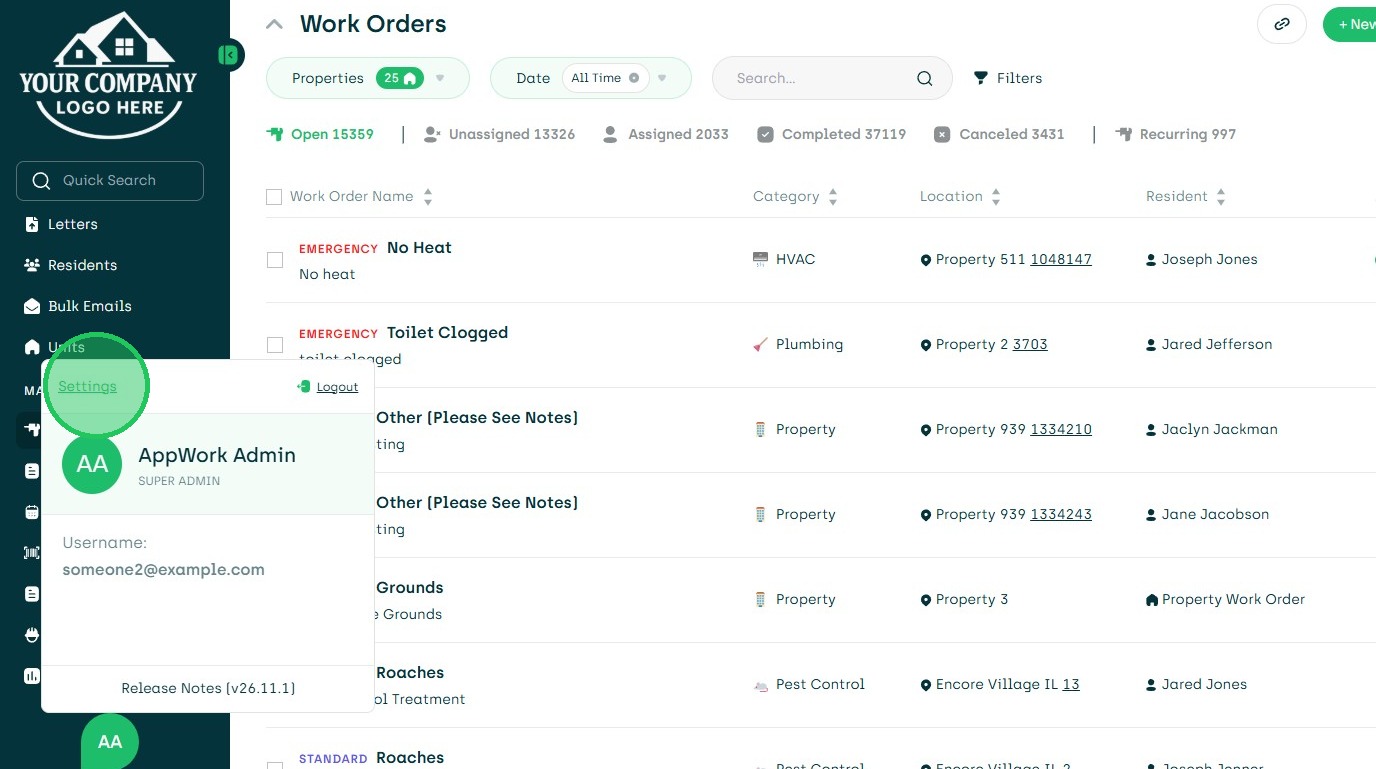
1. Navigate to Settings
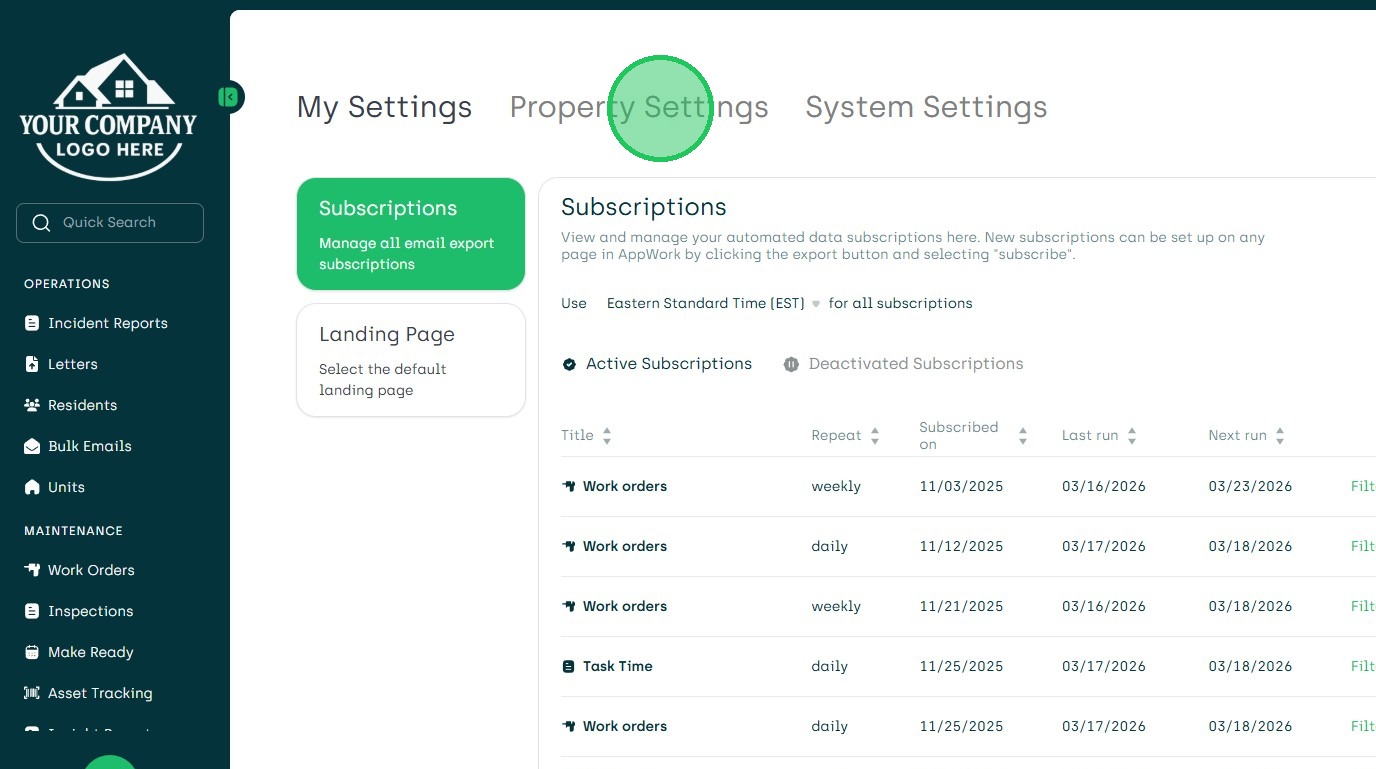
2. Choose Property Settings
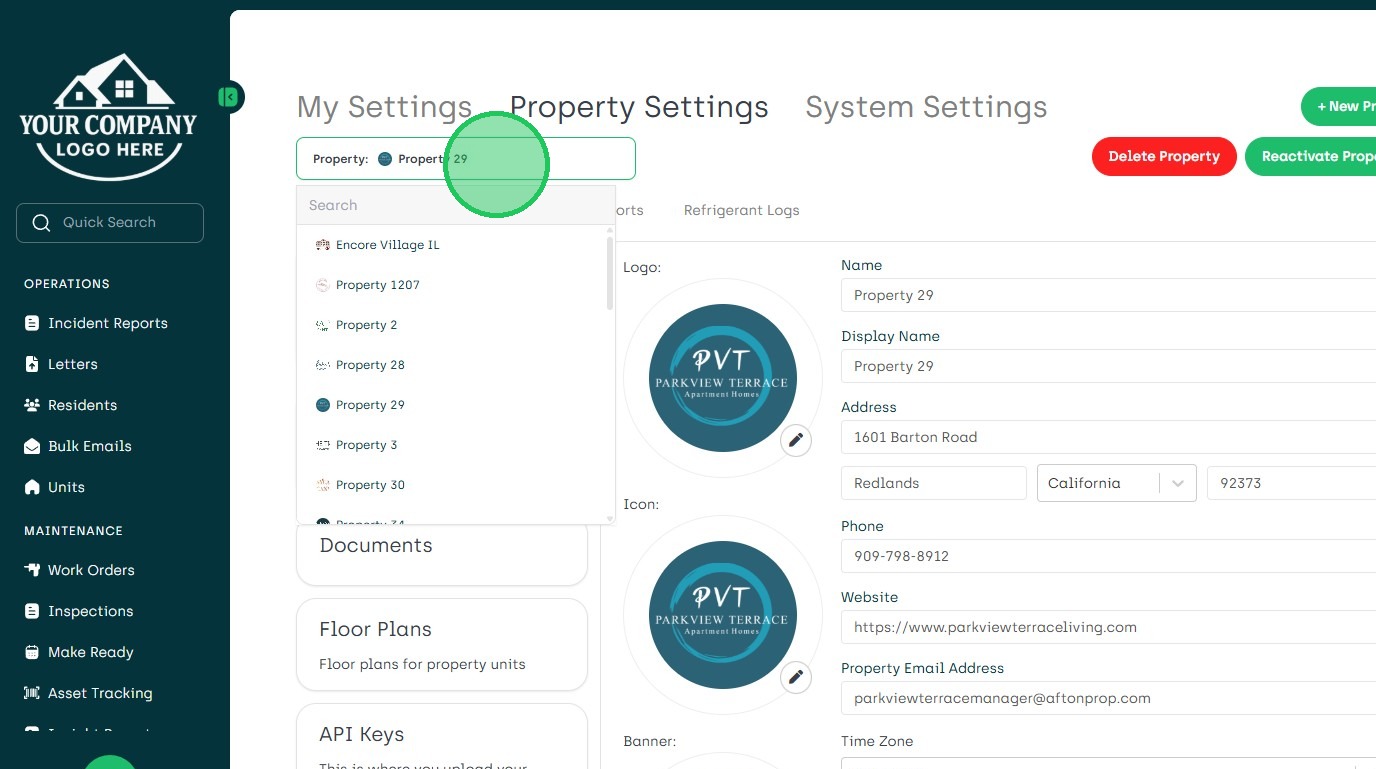
3. Choose Property to Re-activate
4. Click the Re-activate Property Button
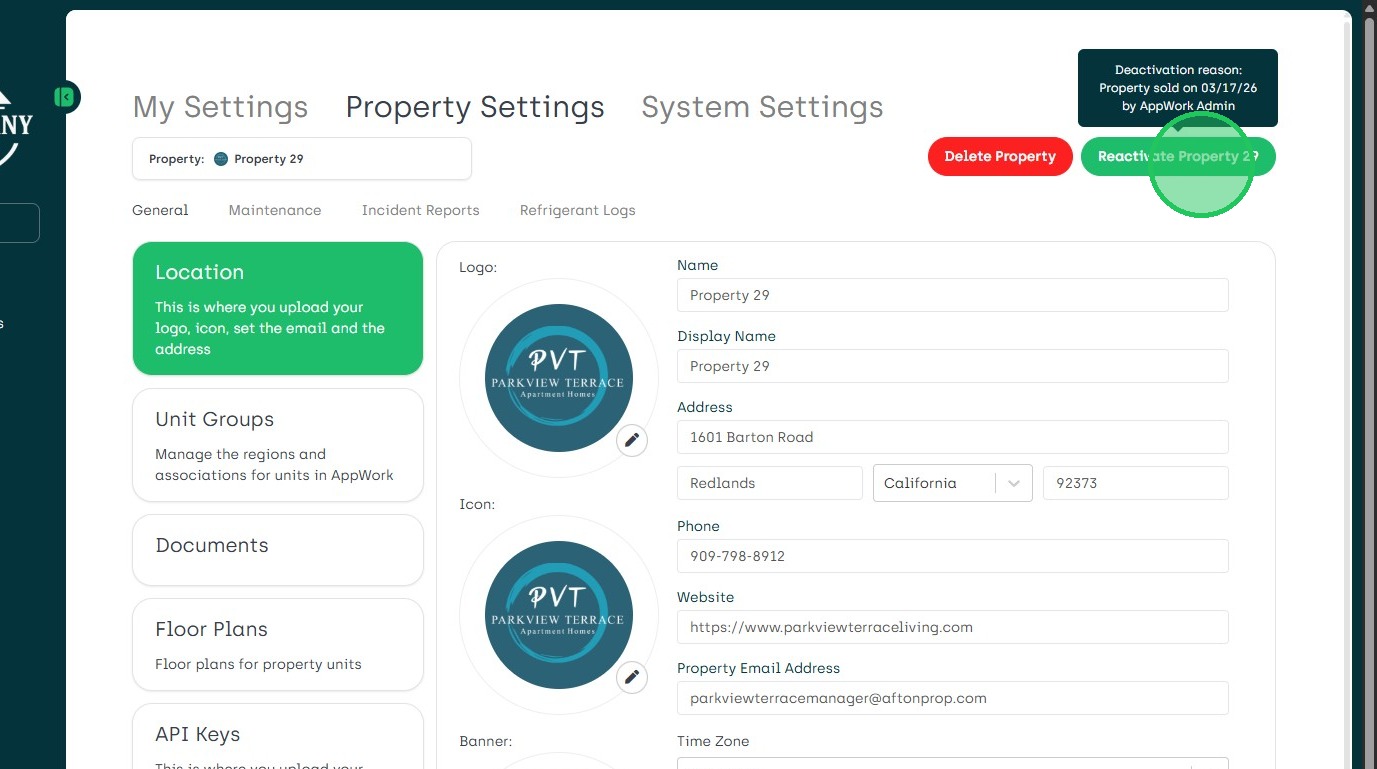
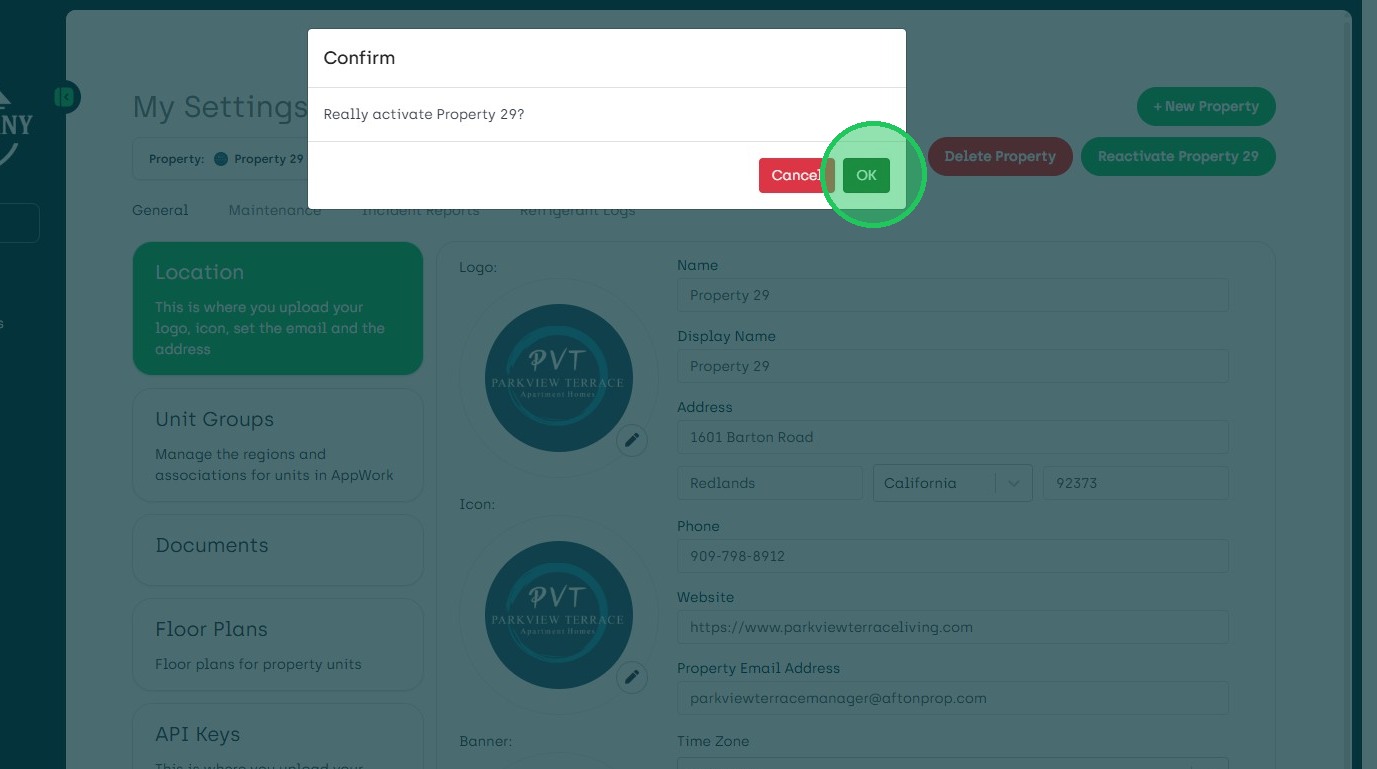
5. Confirm Re-activation
6. Once Re-activated, The Property's Information is Now Retrievable and Researchable.
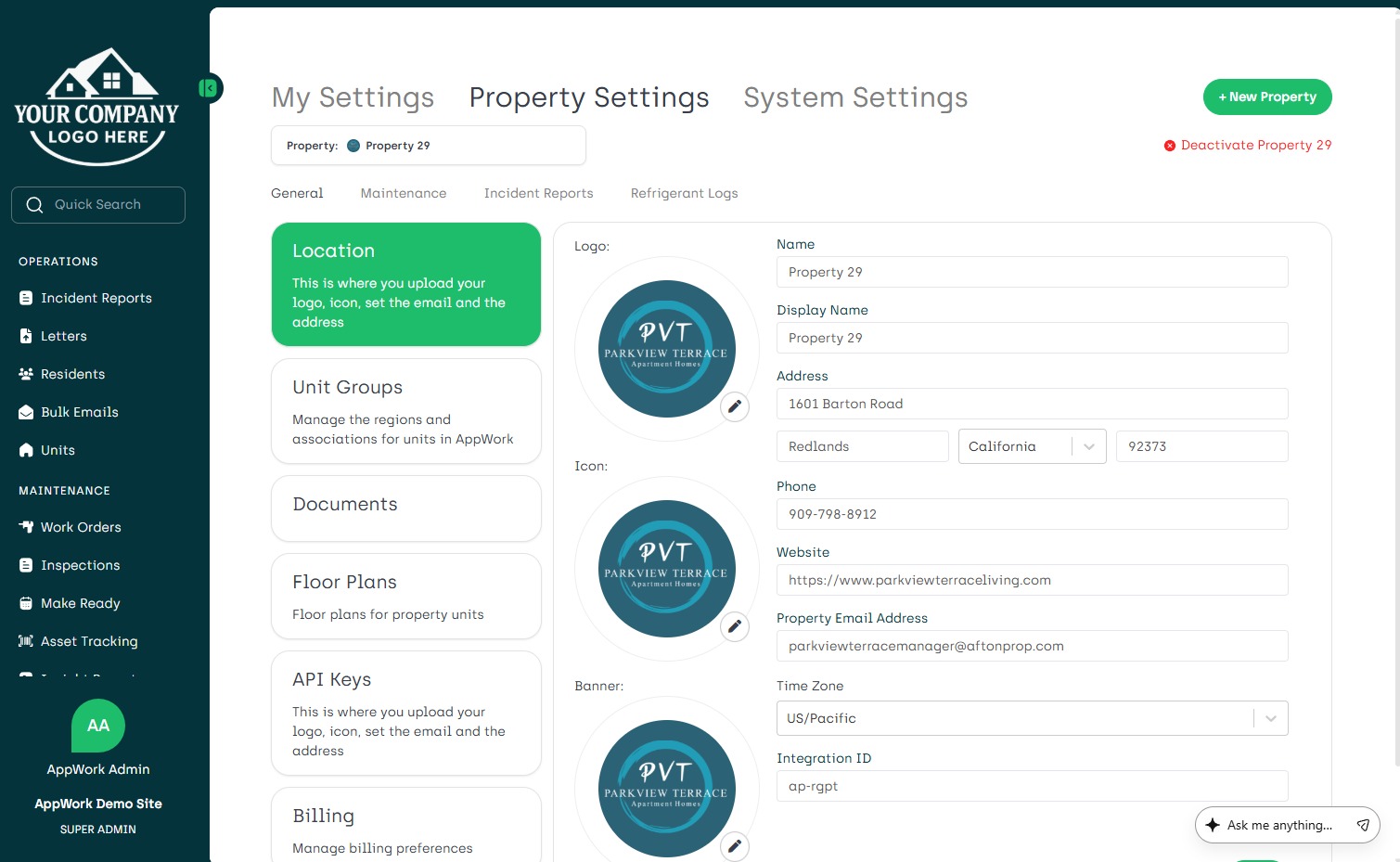
7. Keep in Mind Re-activating a Property Will Trigger the Billing Process Again. Deactivate the Property as Soon as the Needed Information has been Gathered. By End Of the Property's Business Day. Click the Little Red X to Deactivate.
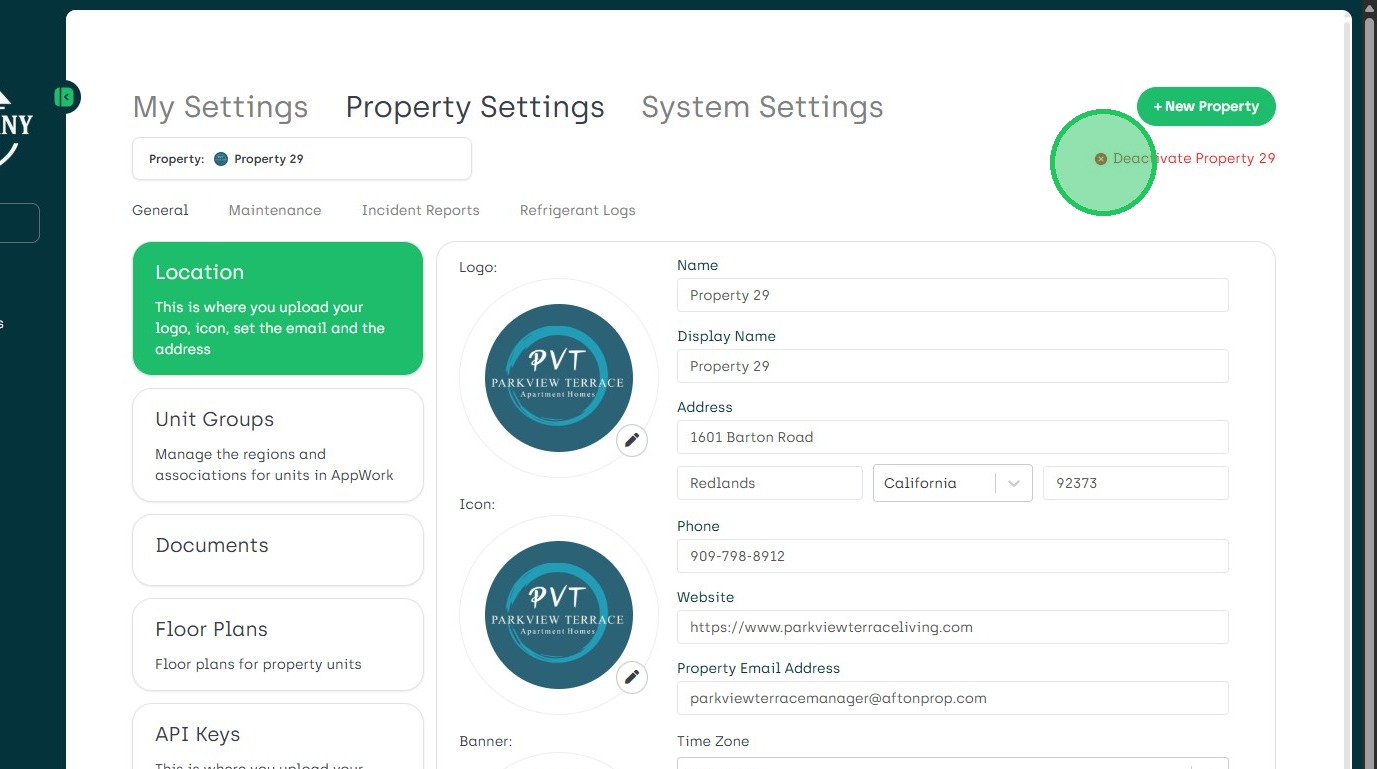
8. Explain Reason For Deactivation.
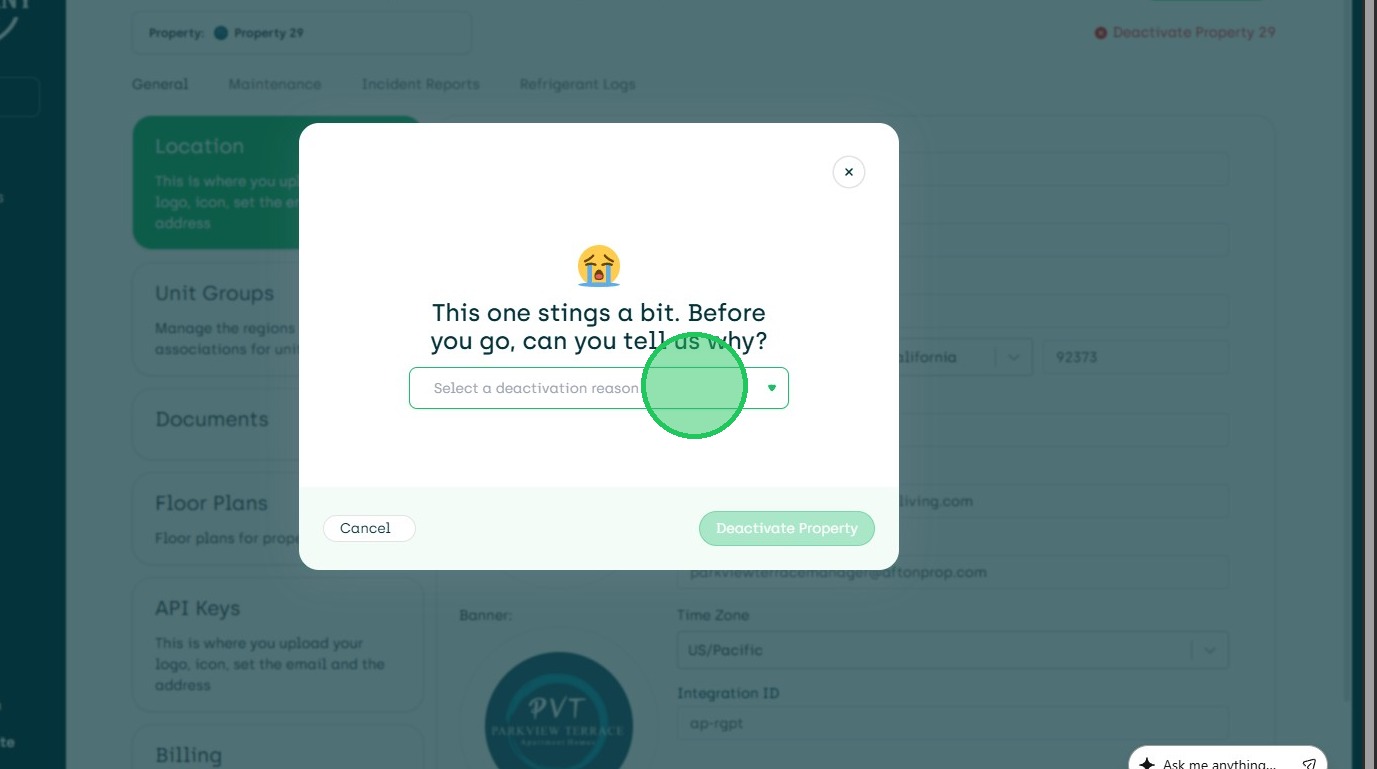
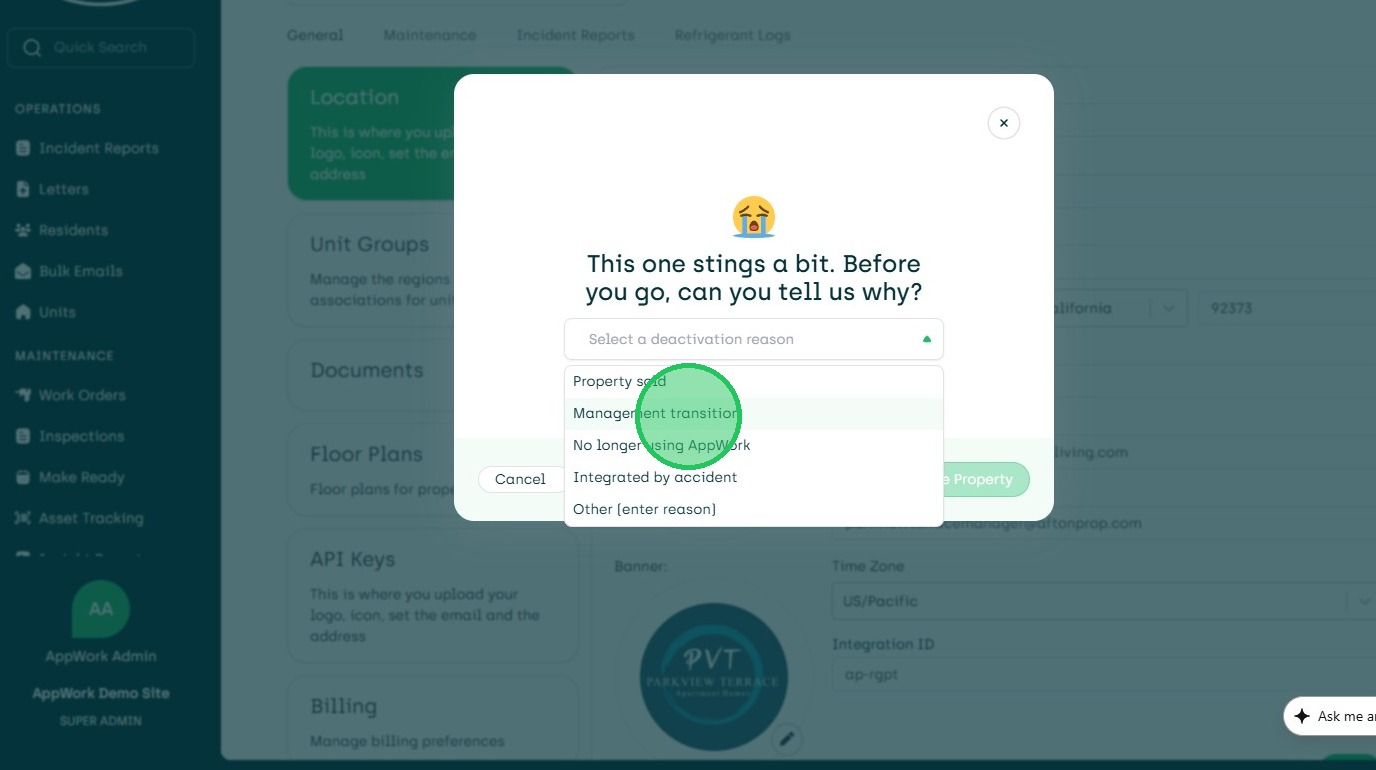
9. Ensuring the Same Reason is Chosen.
10. Then Choose the Deactivate Button.
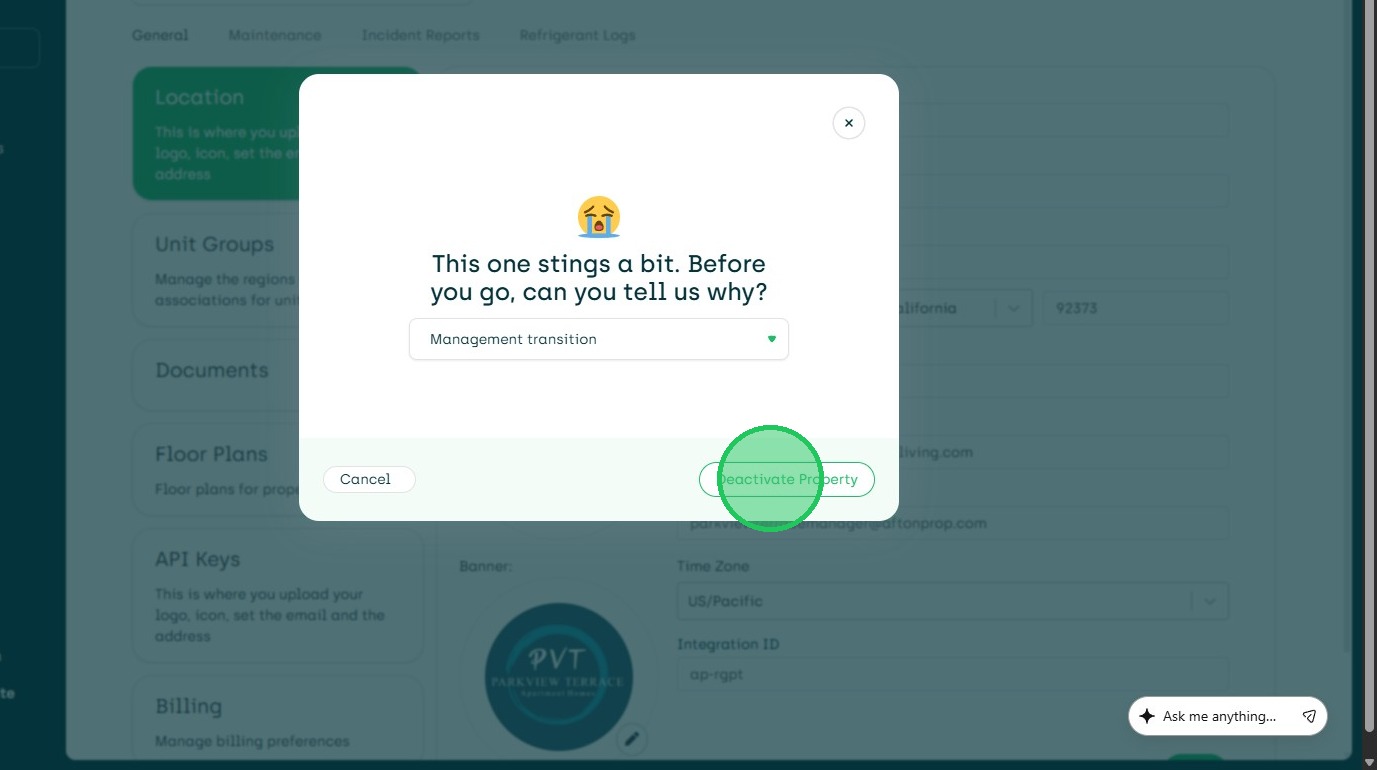
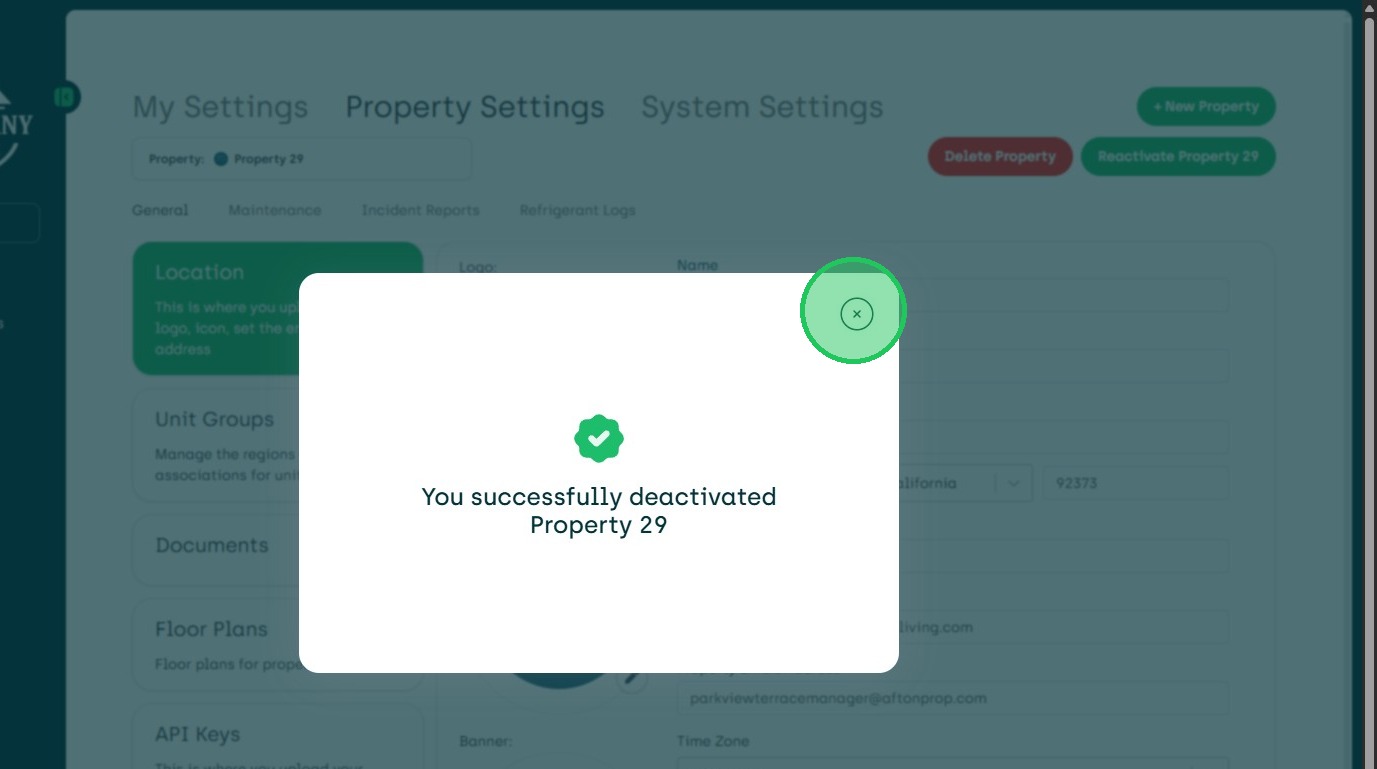
11. The System Confirms the Deactivation.