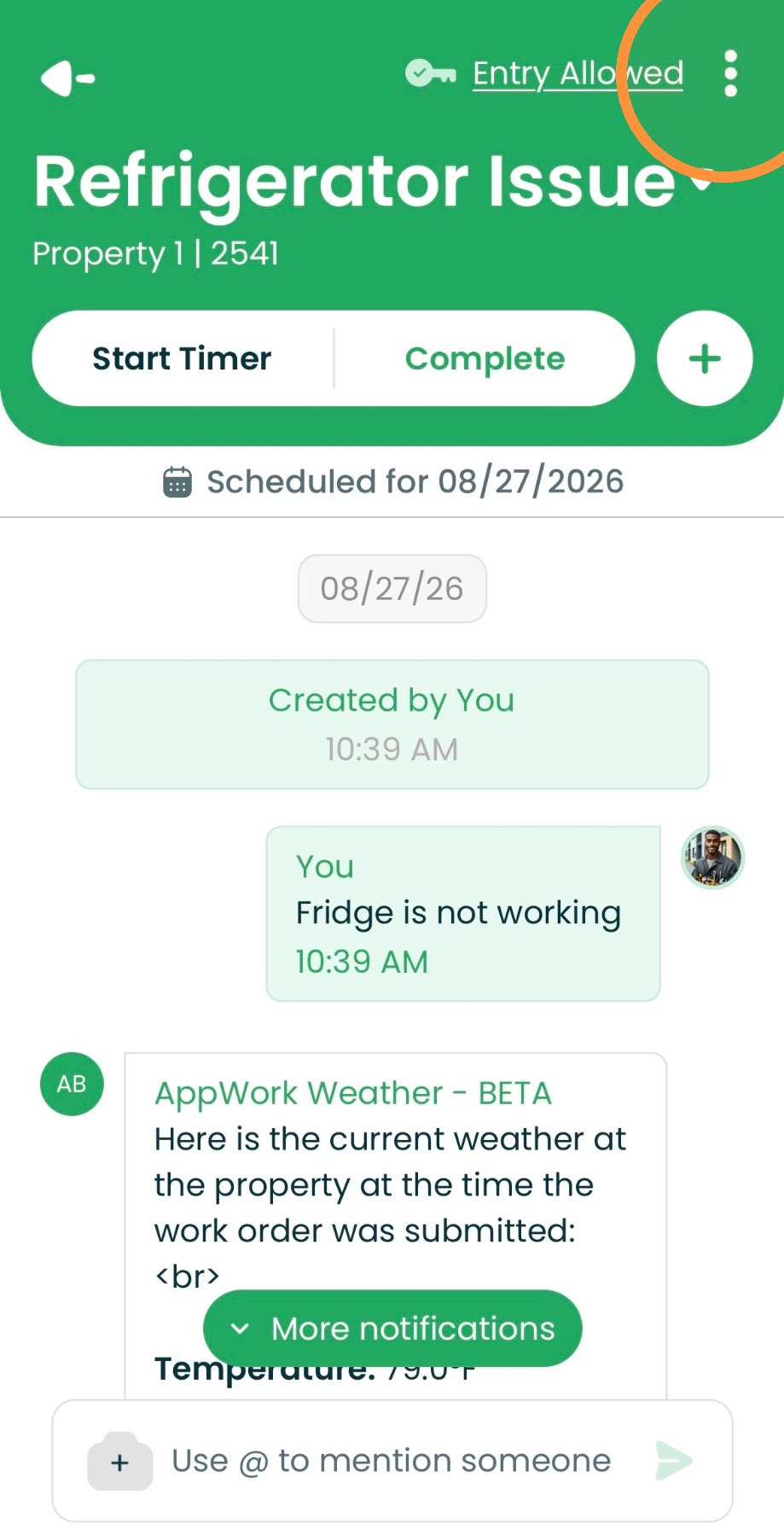
1. Start by navigating to the three dots in the top right of the work order to show More Info.
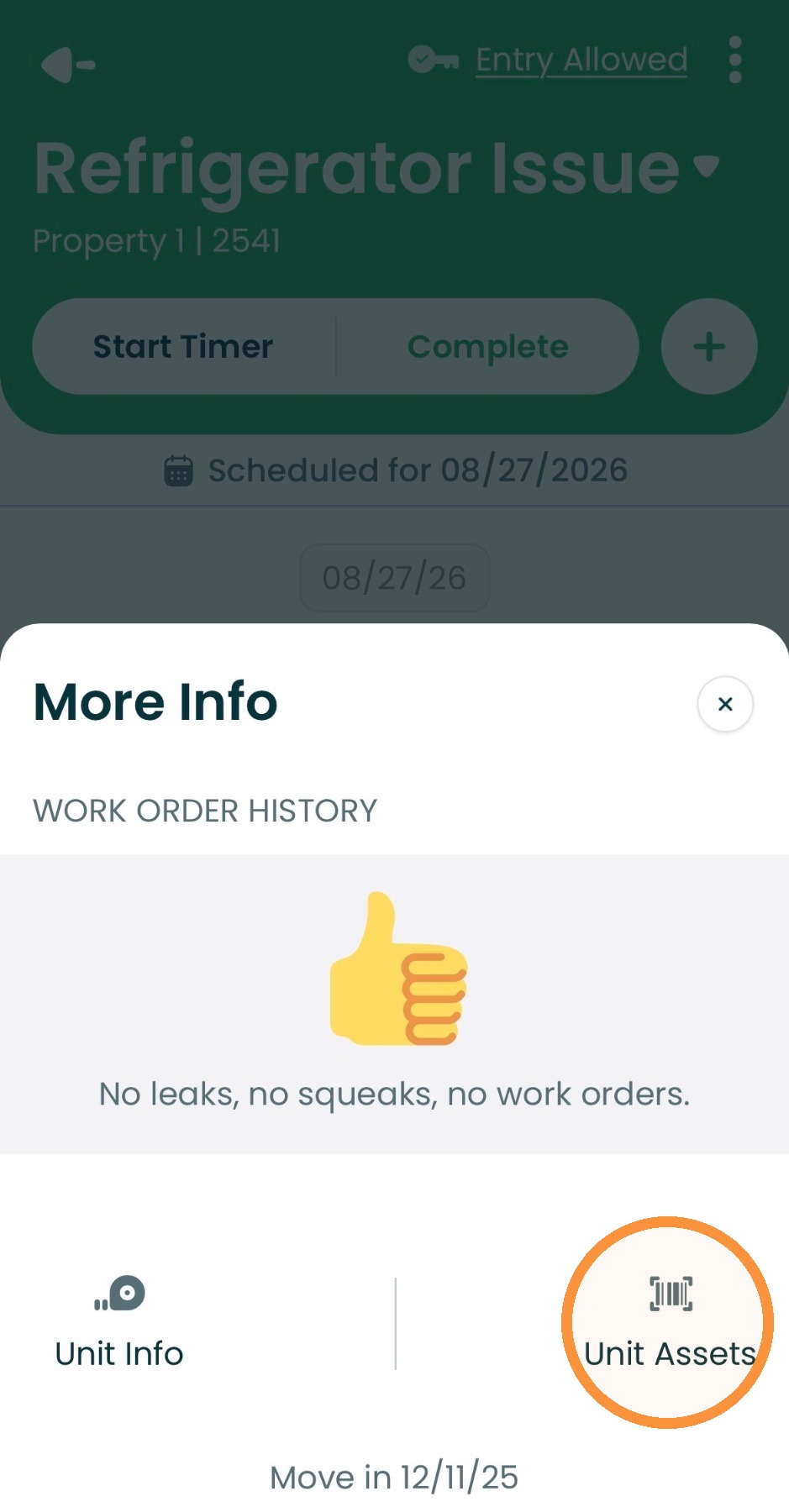
2. Select Unit Assets to view current assets for that specific unit.
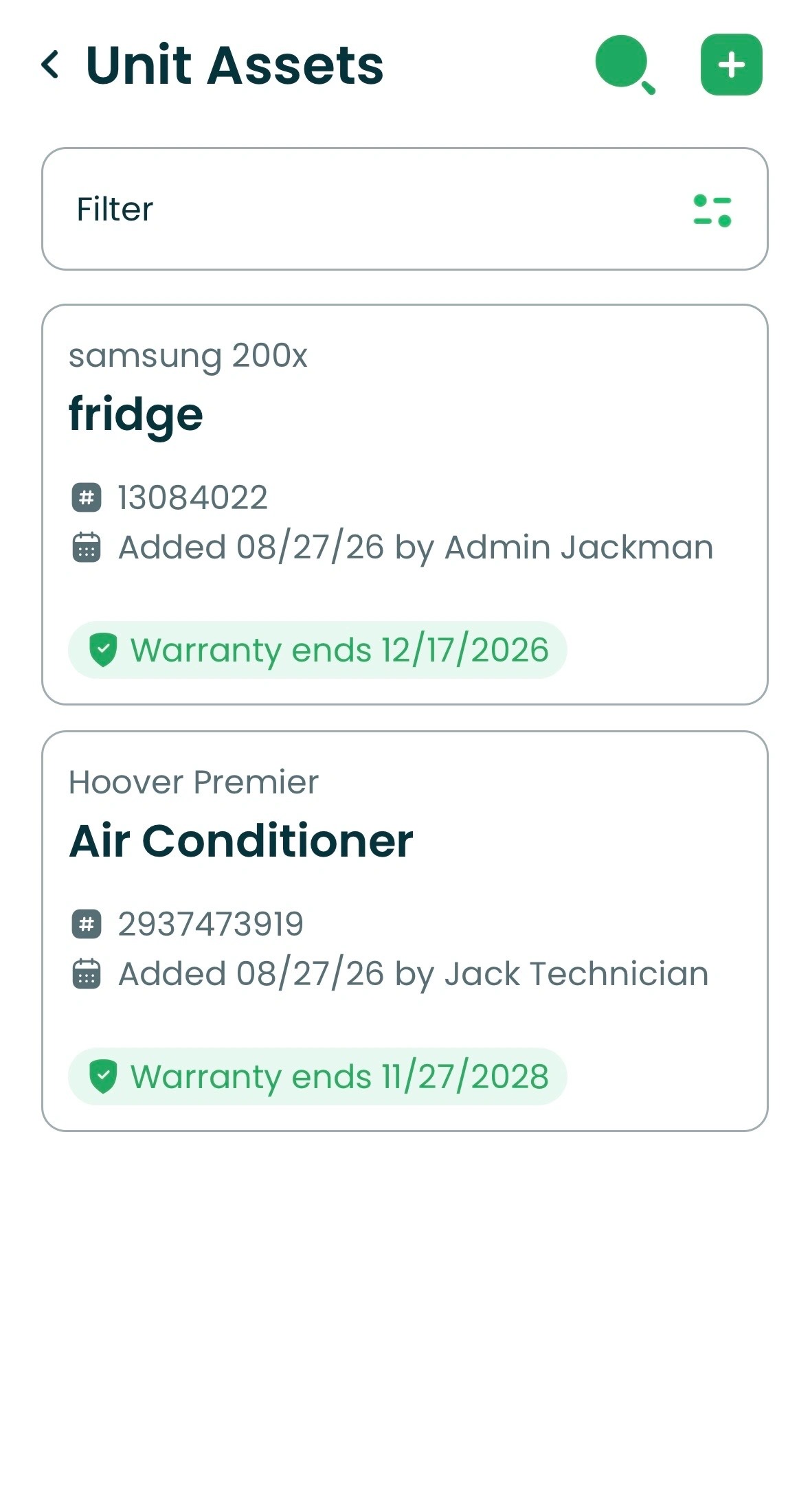
3. Find your list of assets tied to each unit.
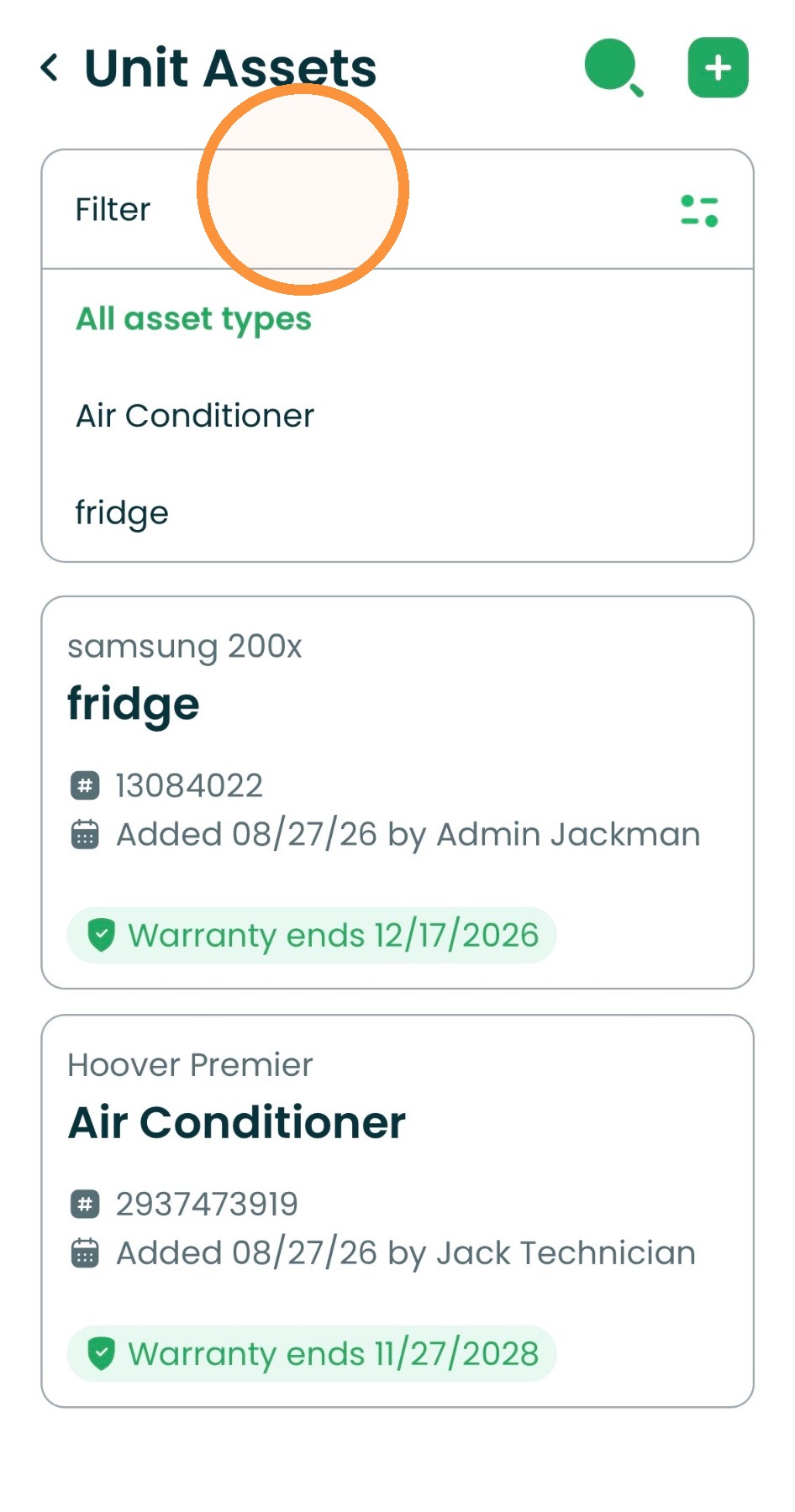
Asset Filtering
4. Select Filter to pinpoint a certain type of asset.
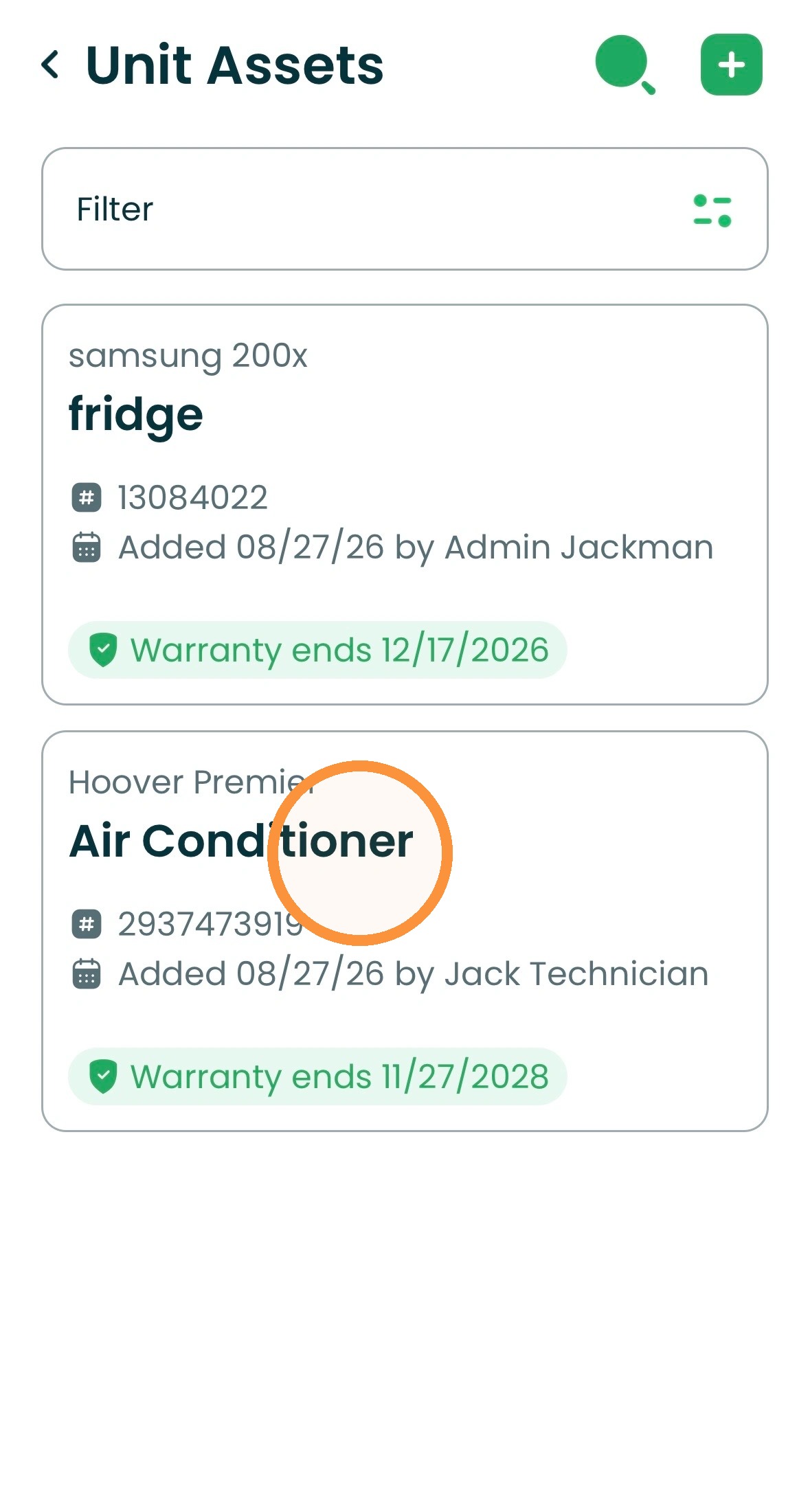
Editing Asset Information
5. Tap on an asset that you would like to edit.
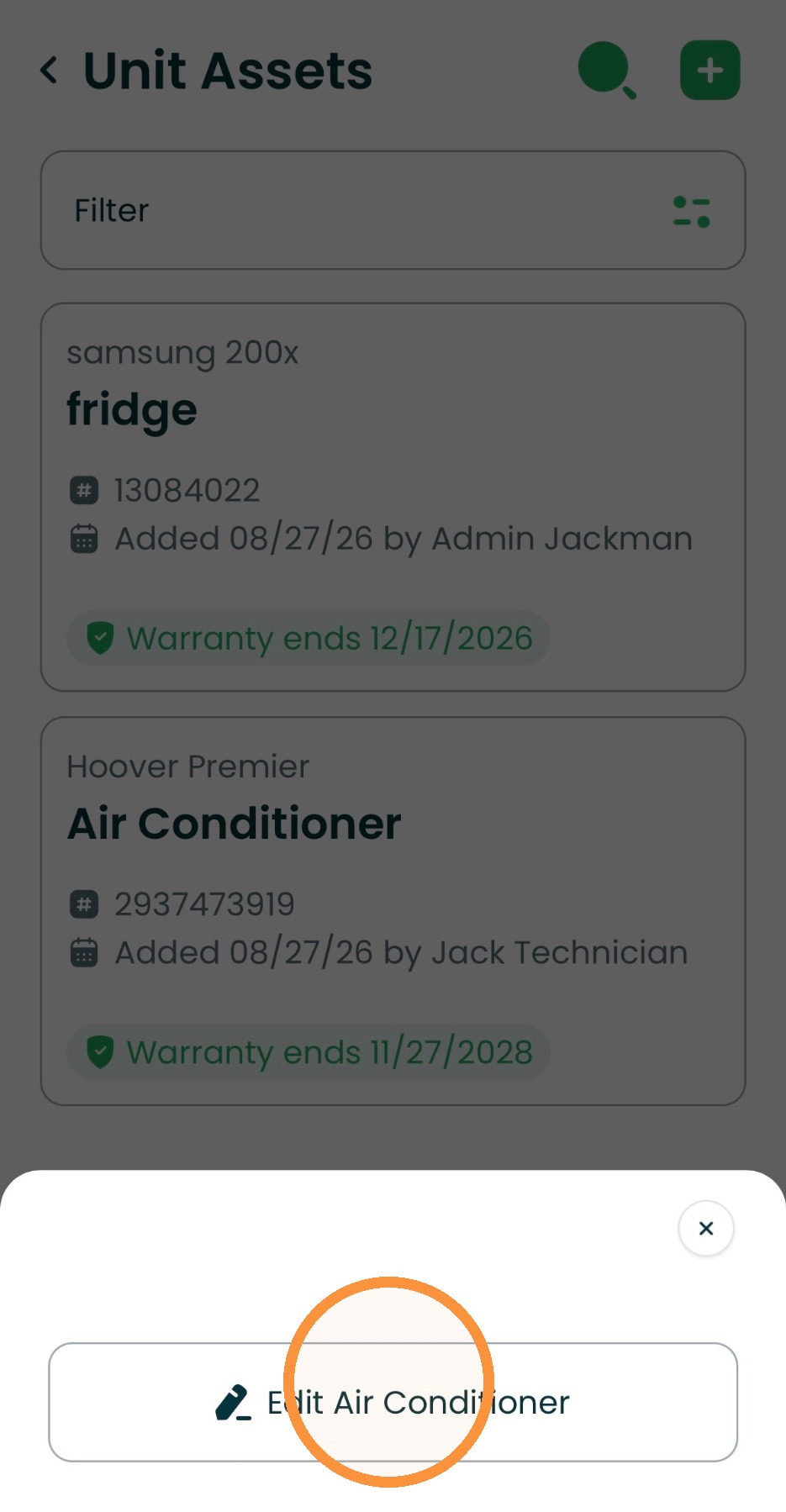
6. Click the Edit button to update any relevant information.
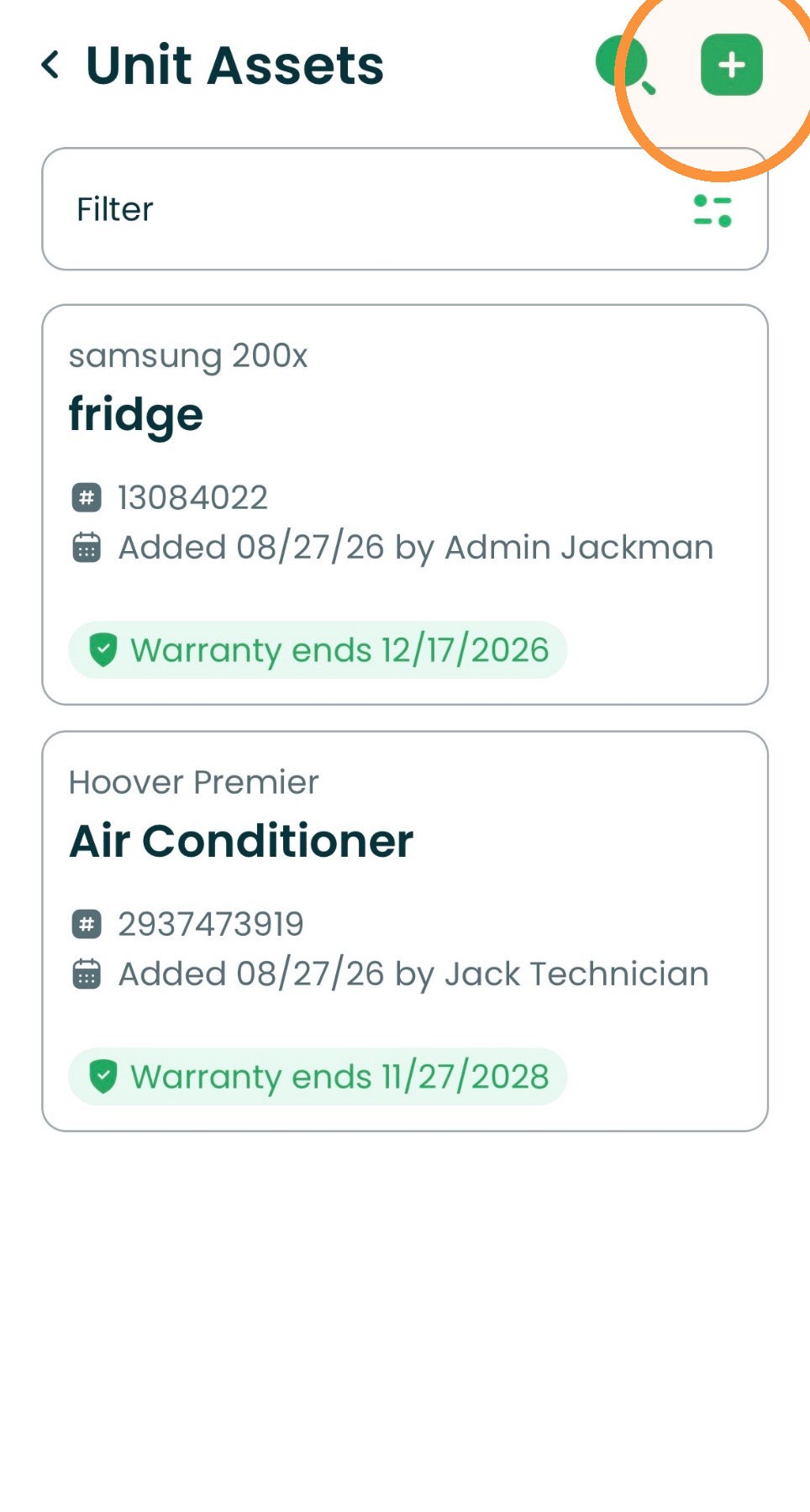
Creating A New Asset
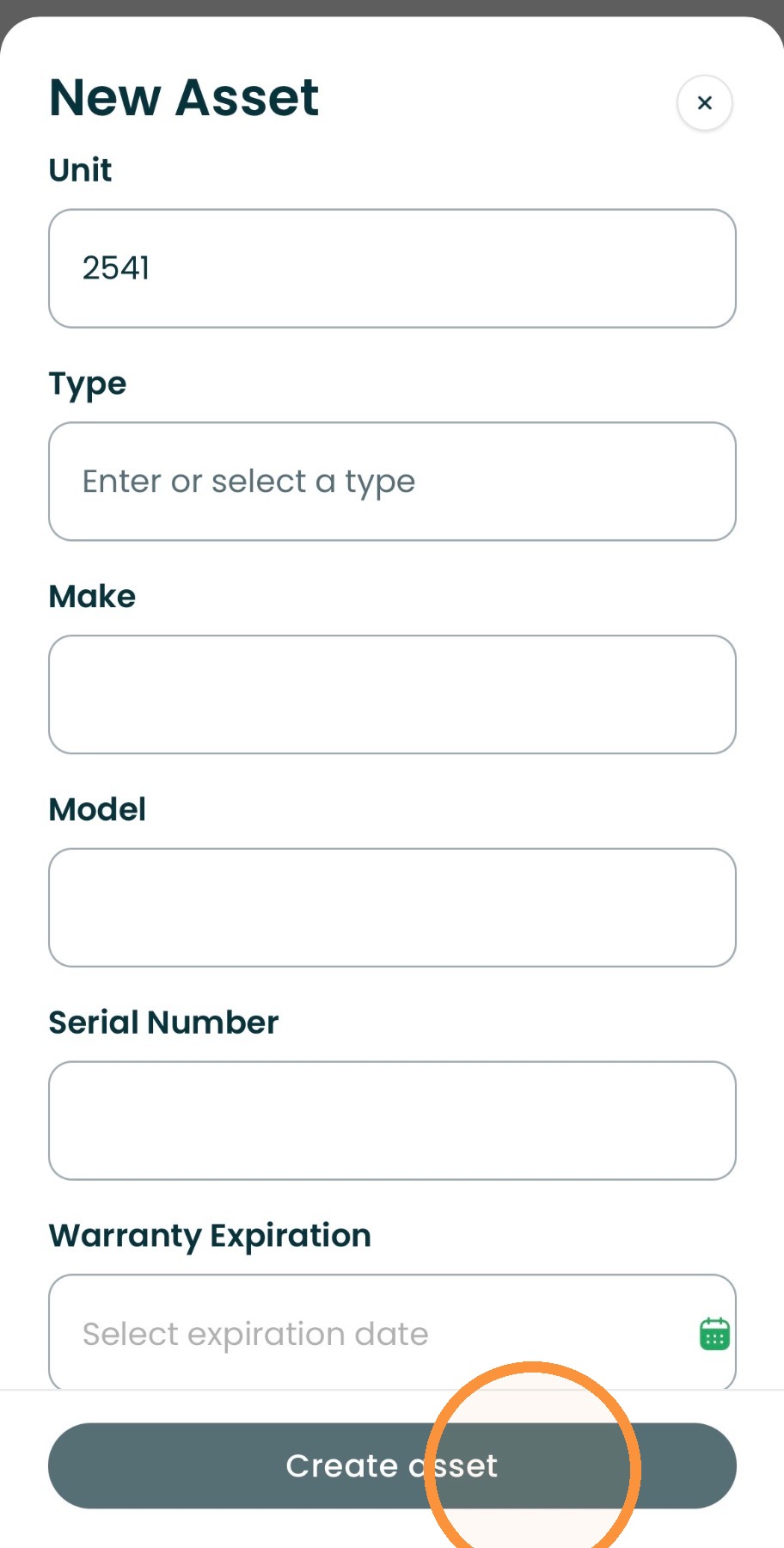
7. Select the + in the green box to create a new asset.
8. Enter in the asset information and hit Create Asset