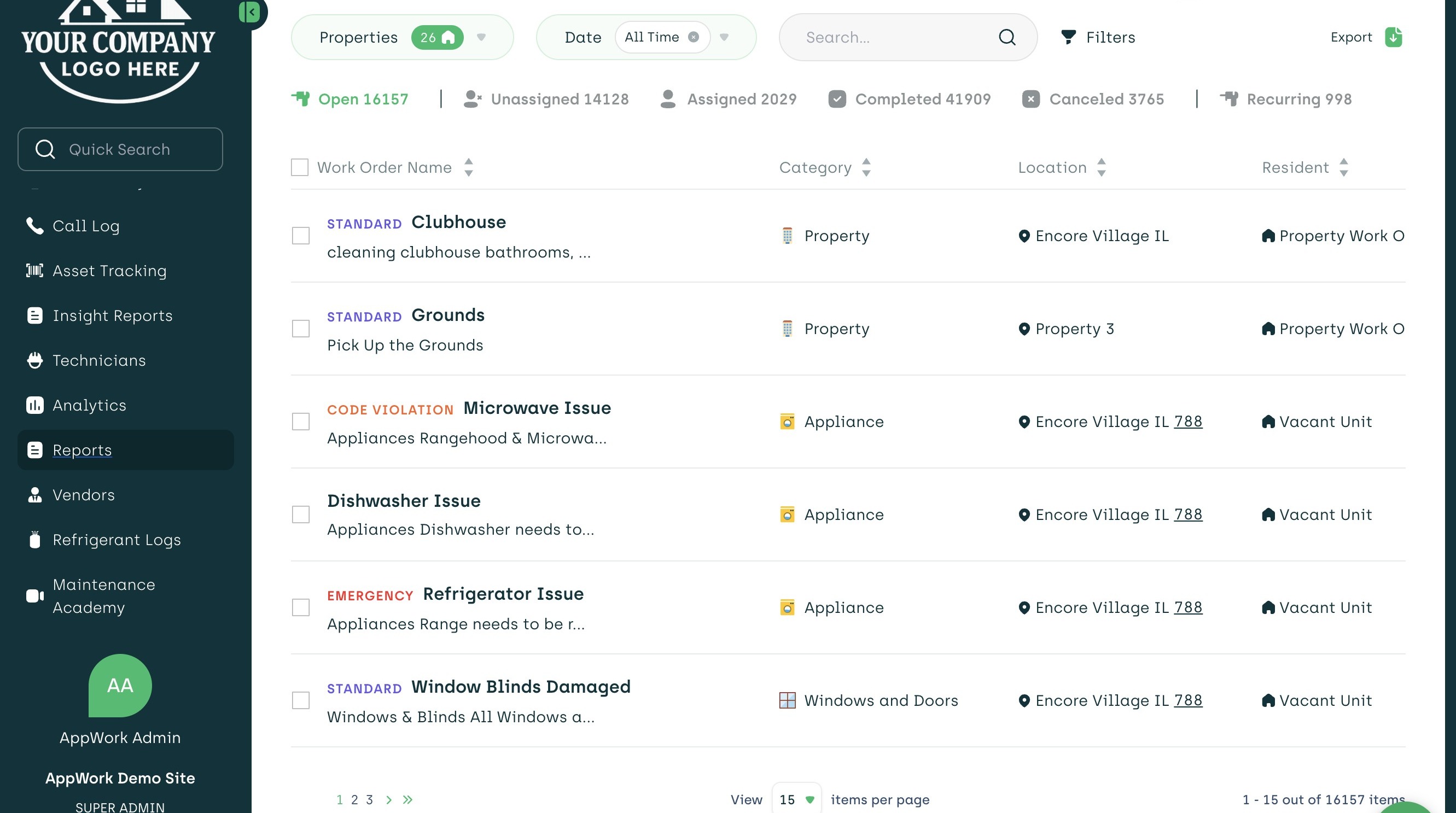
1. Navigate to the home page in the Admin Portal.
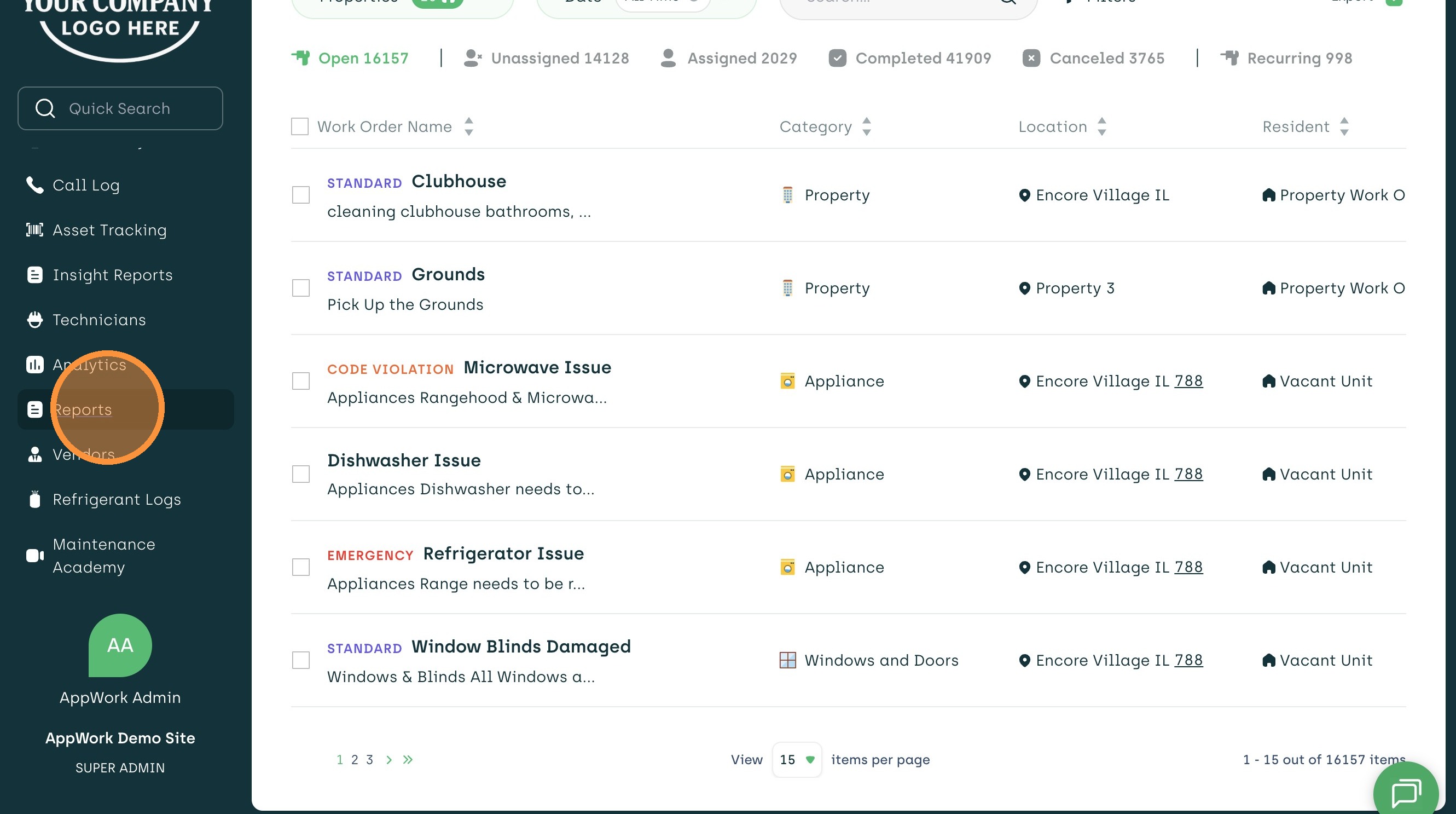
2. On the left-hand navigation bar, click on Reports
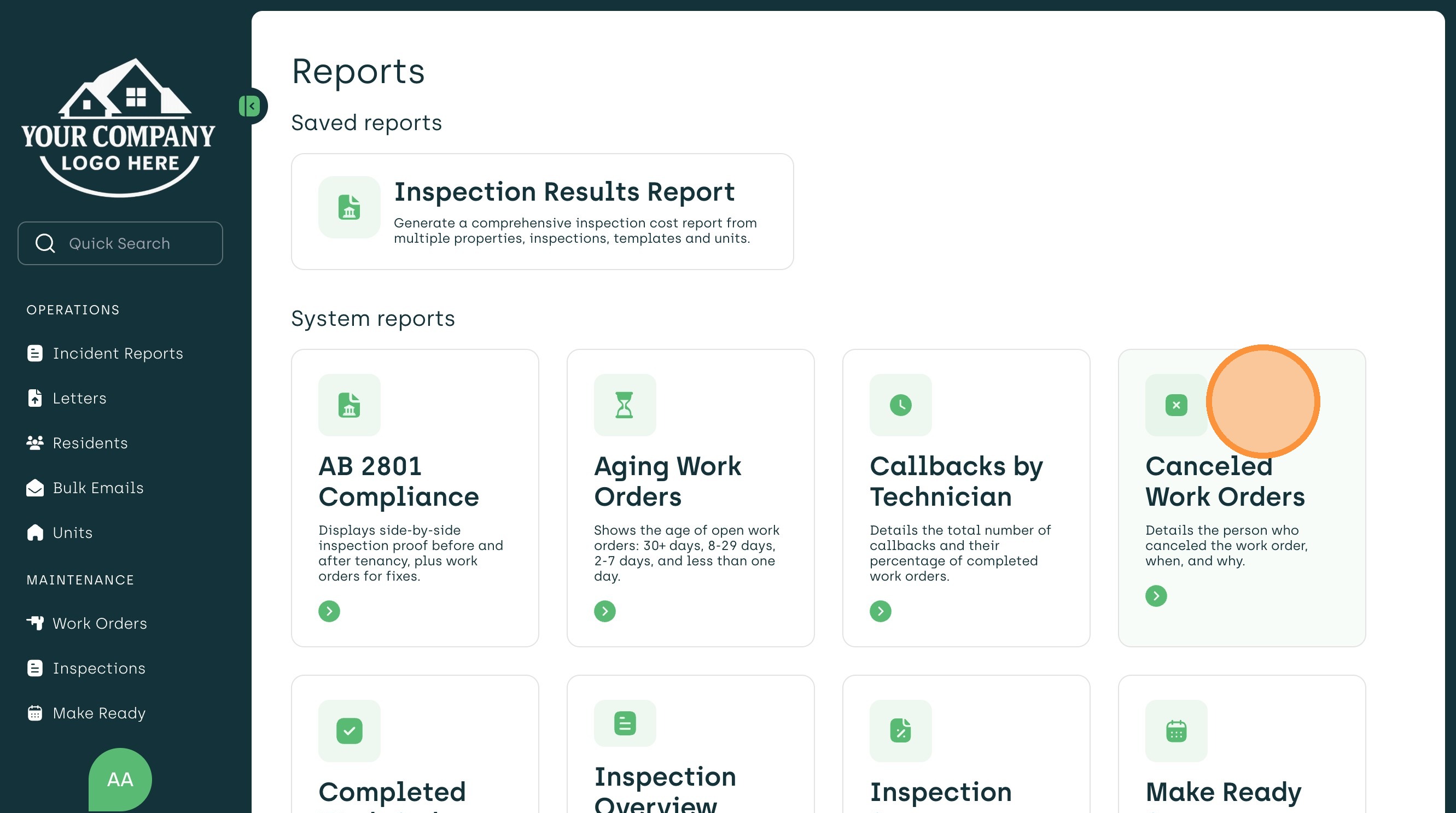
3. Choose the specific report you want to automate (e.g., Canceled Work Orders)
4. Before subscribing, set your desired filters (e.g., select specific properties, date ranges, or categories). Note: The subscription will send the report with these exact filters applied every time.
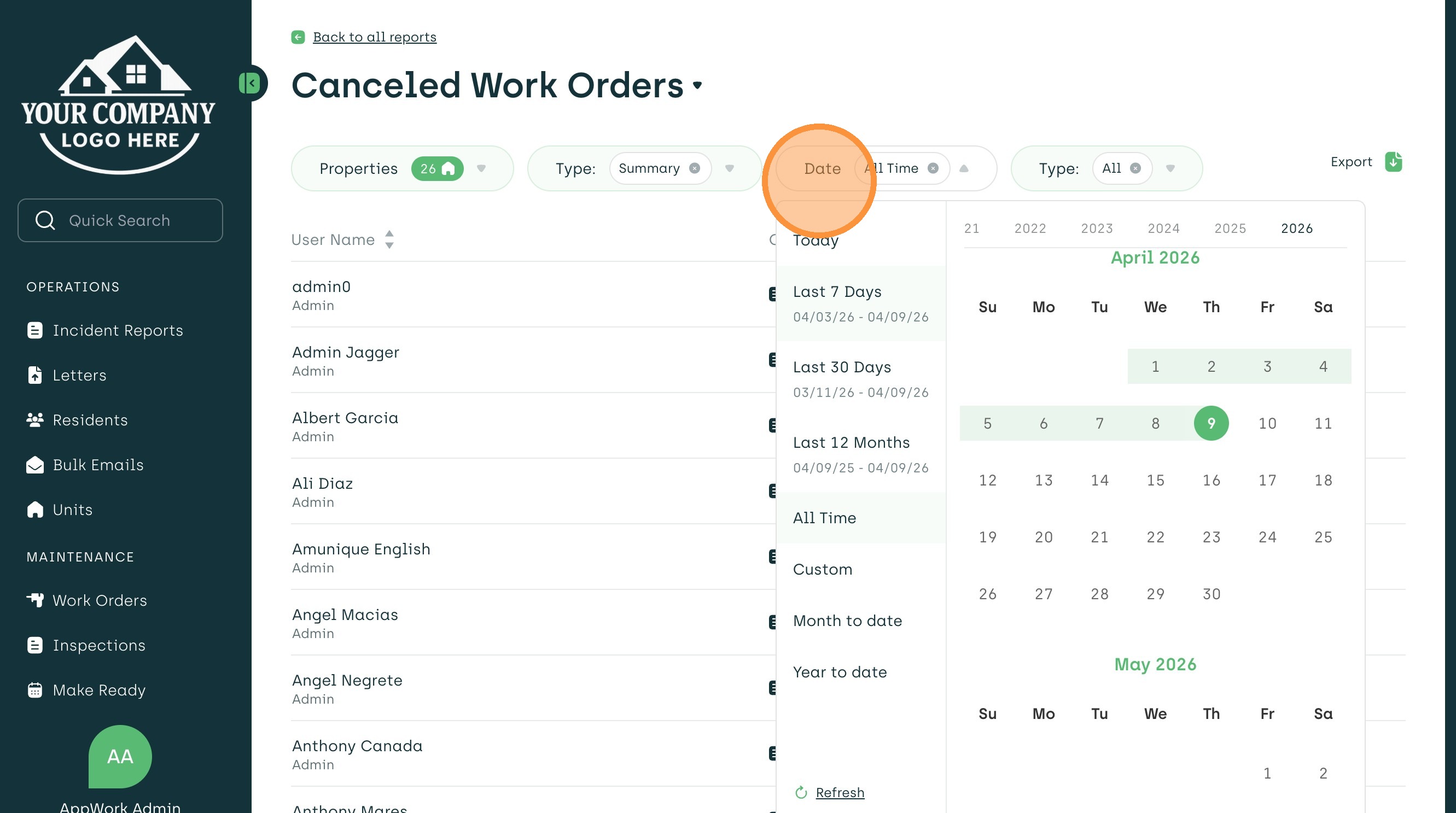
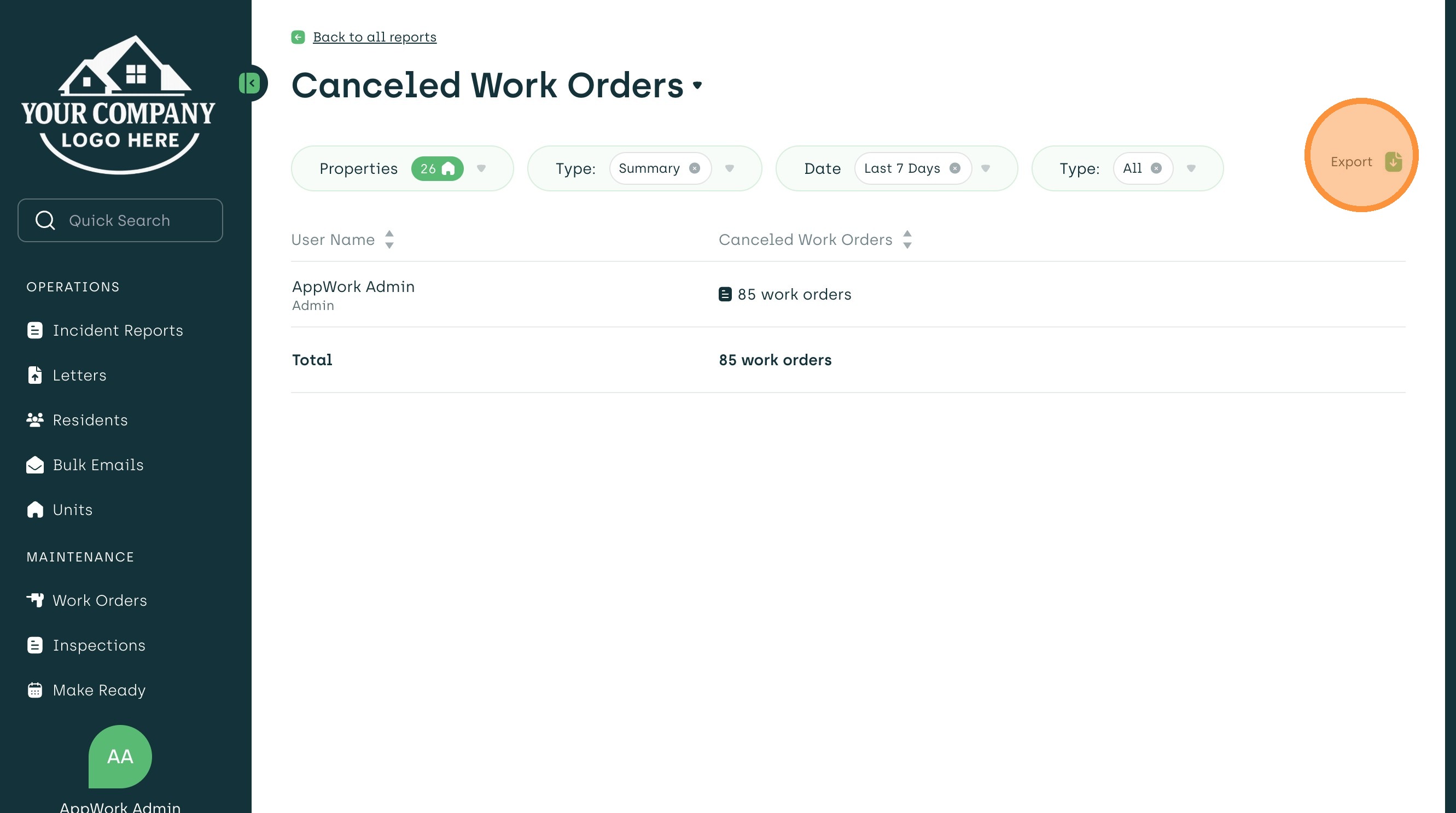
5. When ready, find the "Export" icon in the top right-hand corner and click on it.
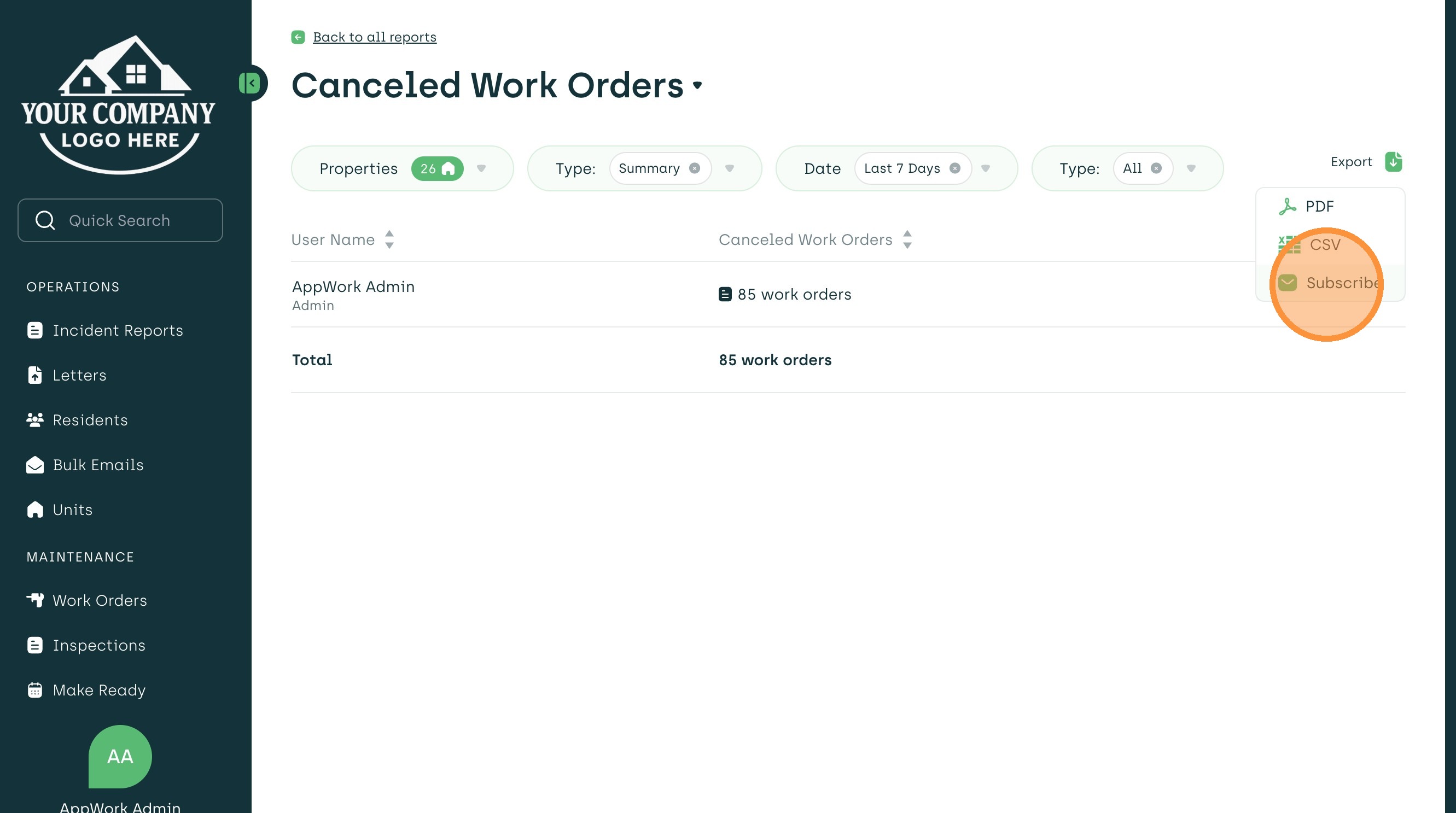
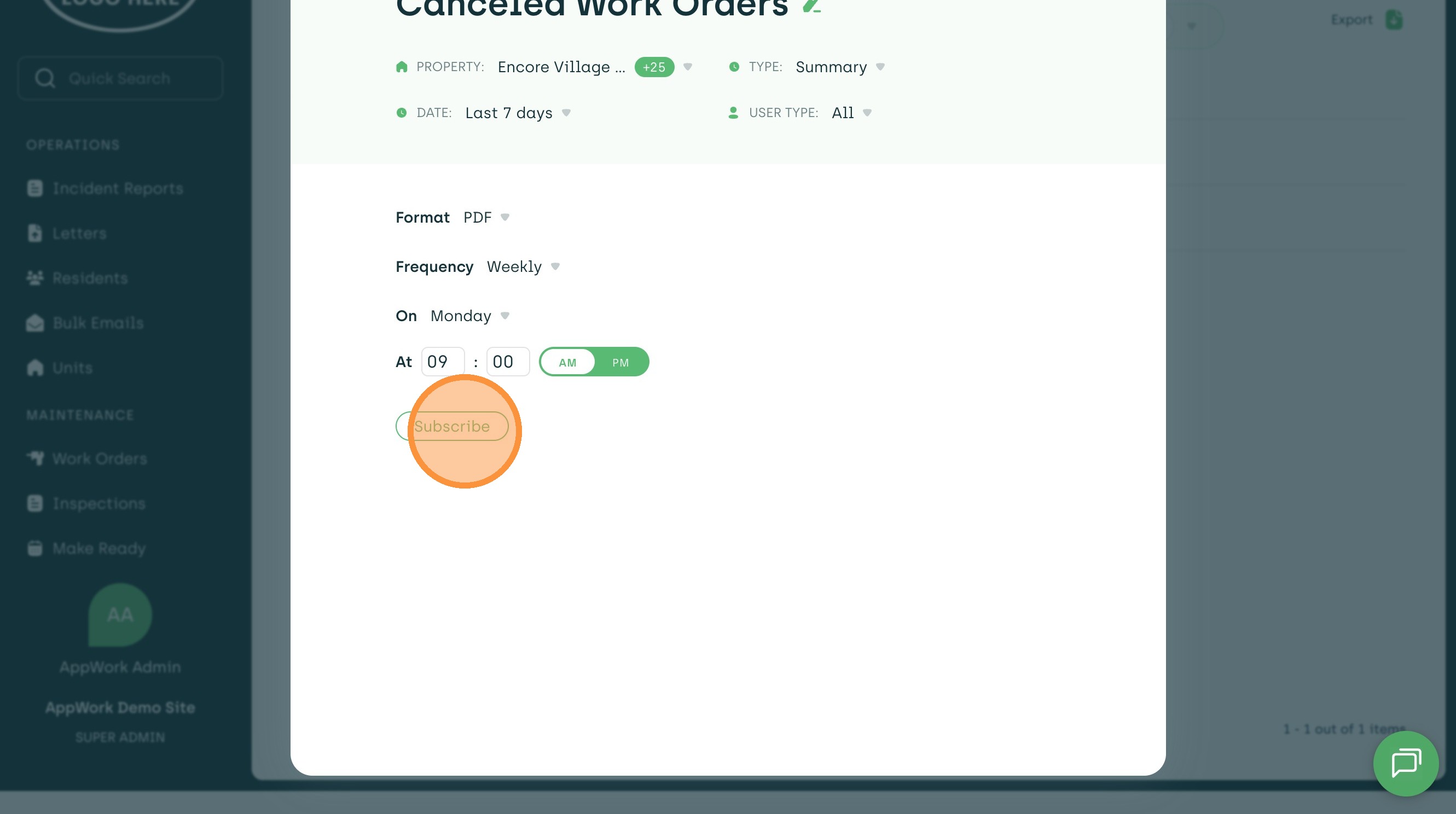
6. Select the "Subscribe" option.
7. In this pop-up window, you can customize your Subscription preferences
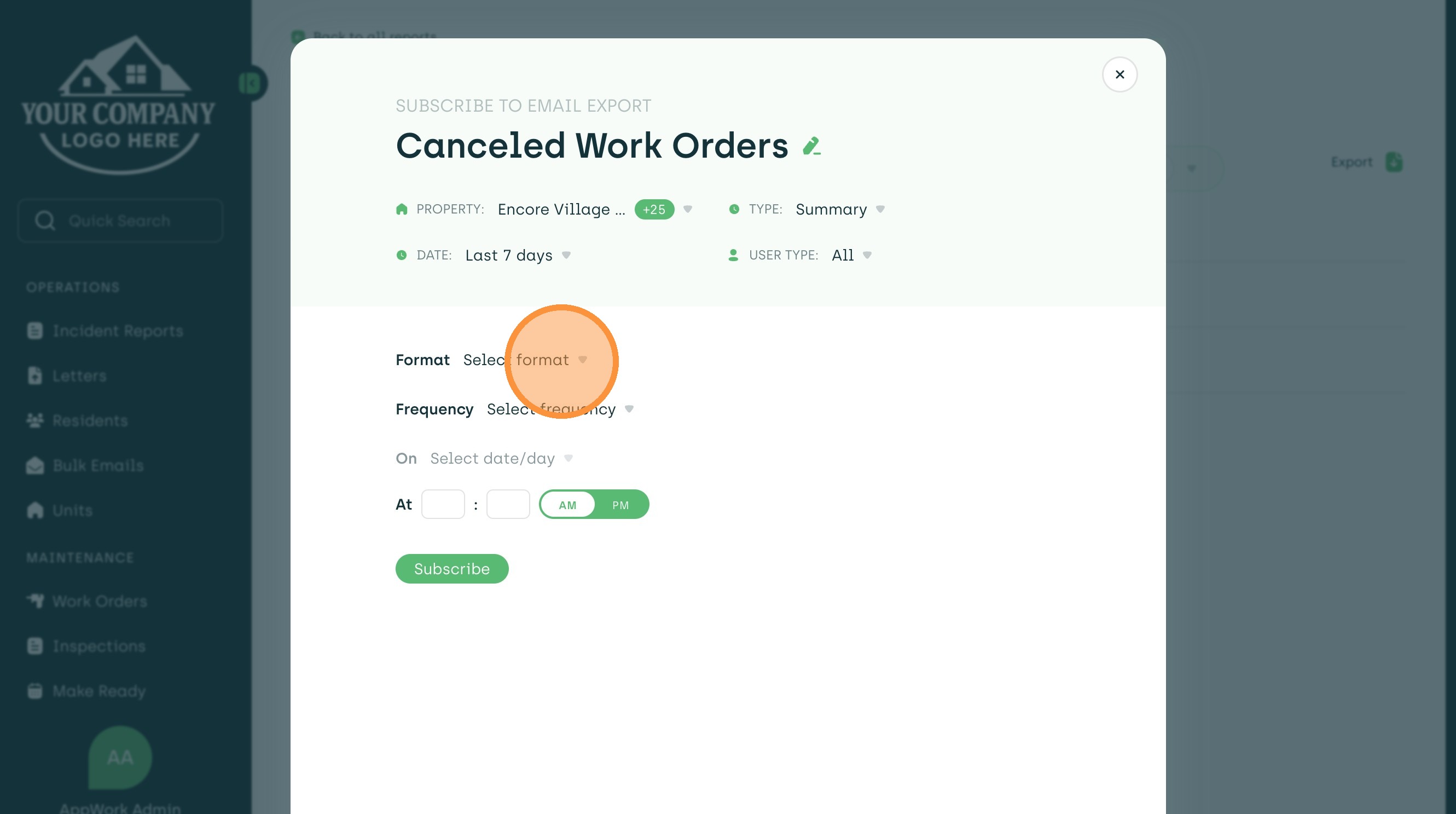
8. Format: Choose between PDF (best for viewing) or Excel/CSV (best for data analysis).
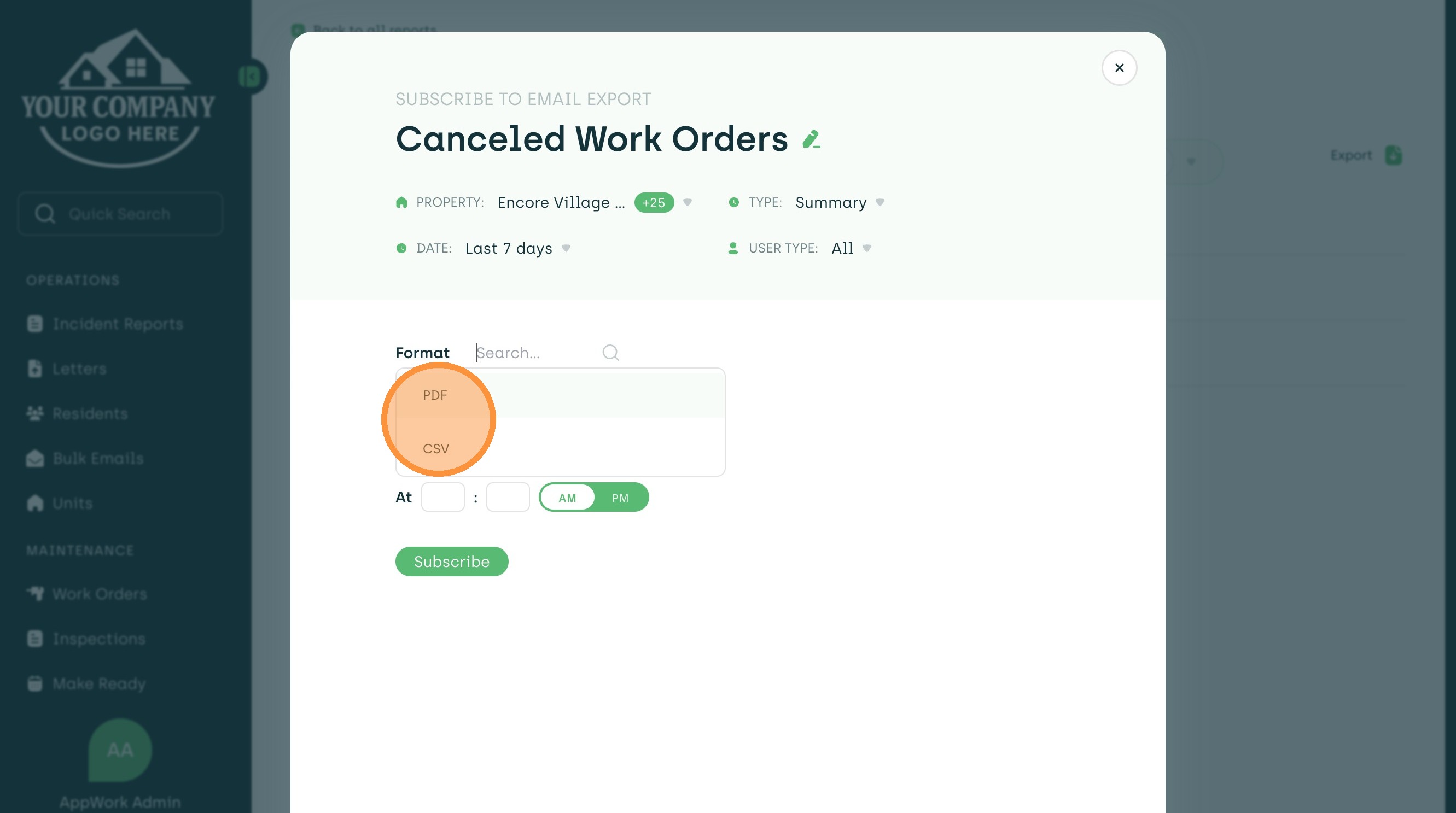
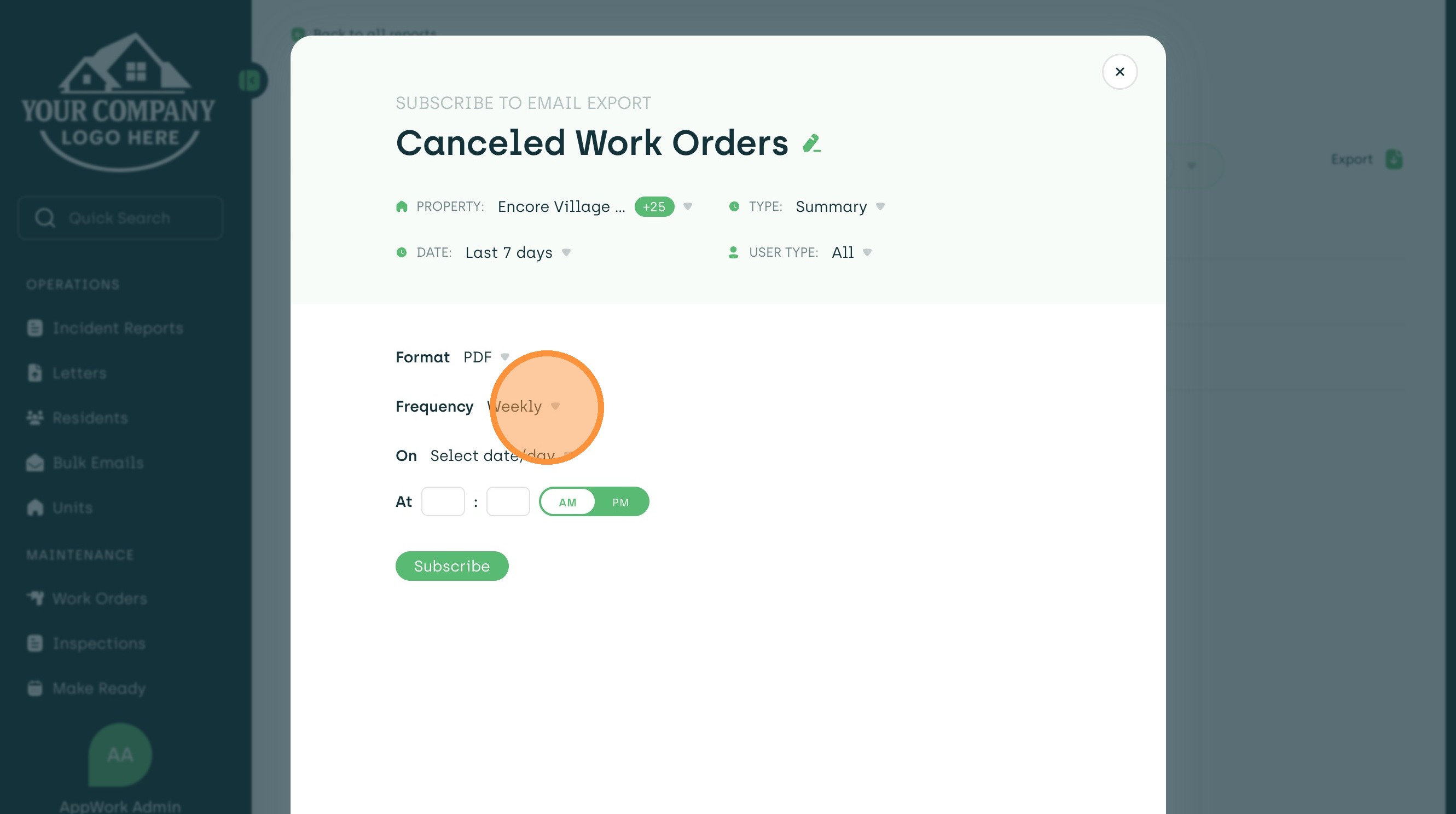
9. Frequency: Select Daily, Weekly, or Monthly.
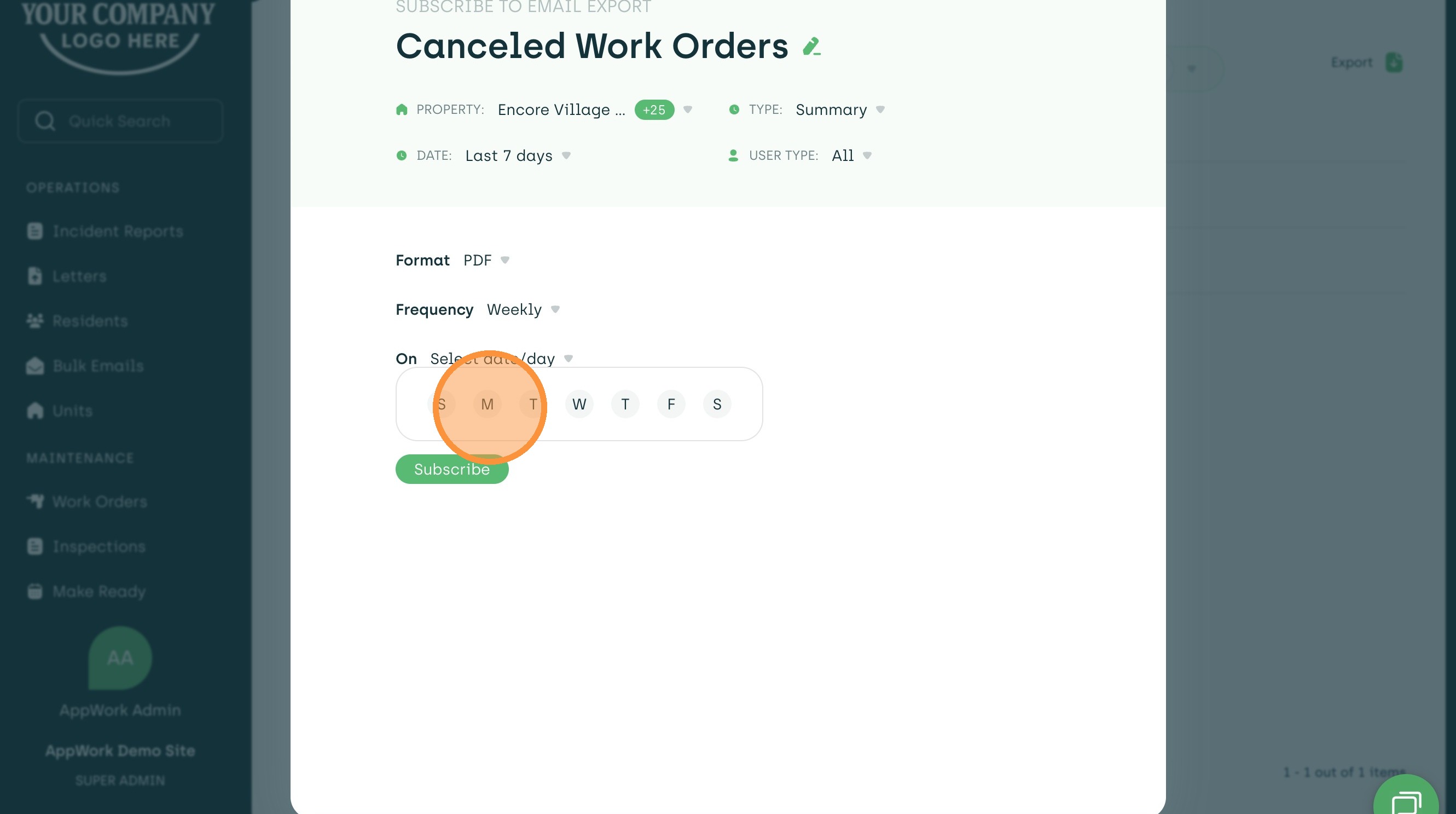
10. Date: Choose which day of the week you want the email report to arrive.
11. Time: Choose a specific time of day you want the email report to arrive.
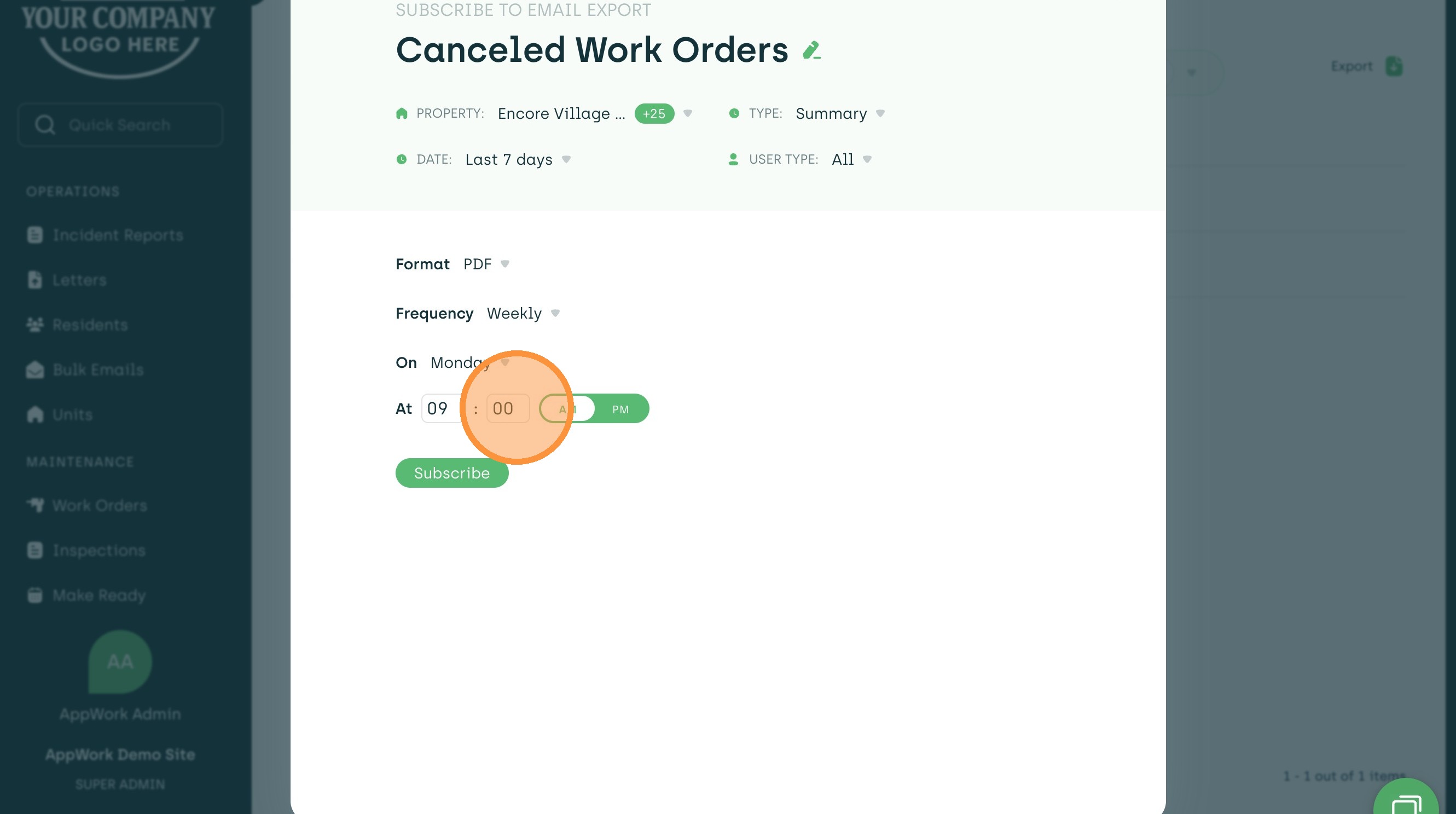
12. Review your selected setting options and click "Subscribe" at the bottom to finalize.
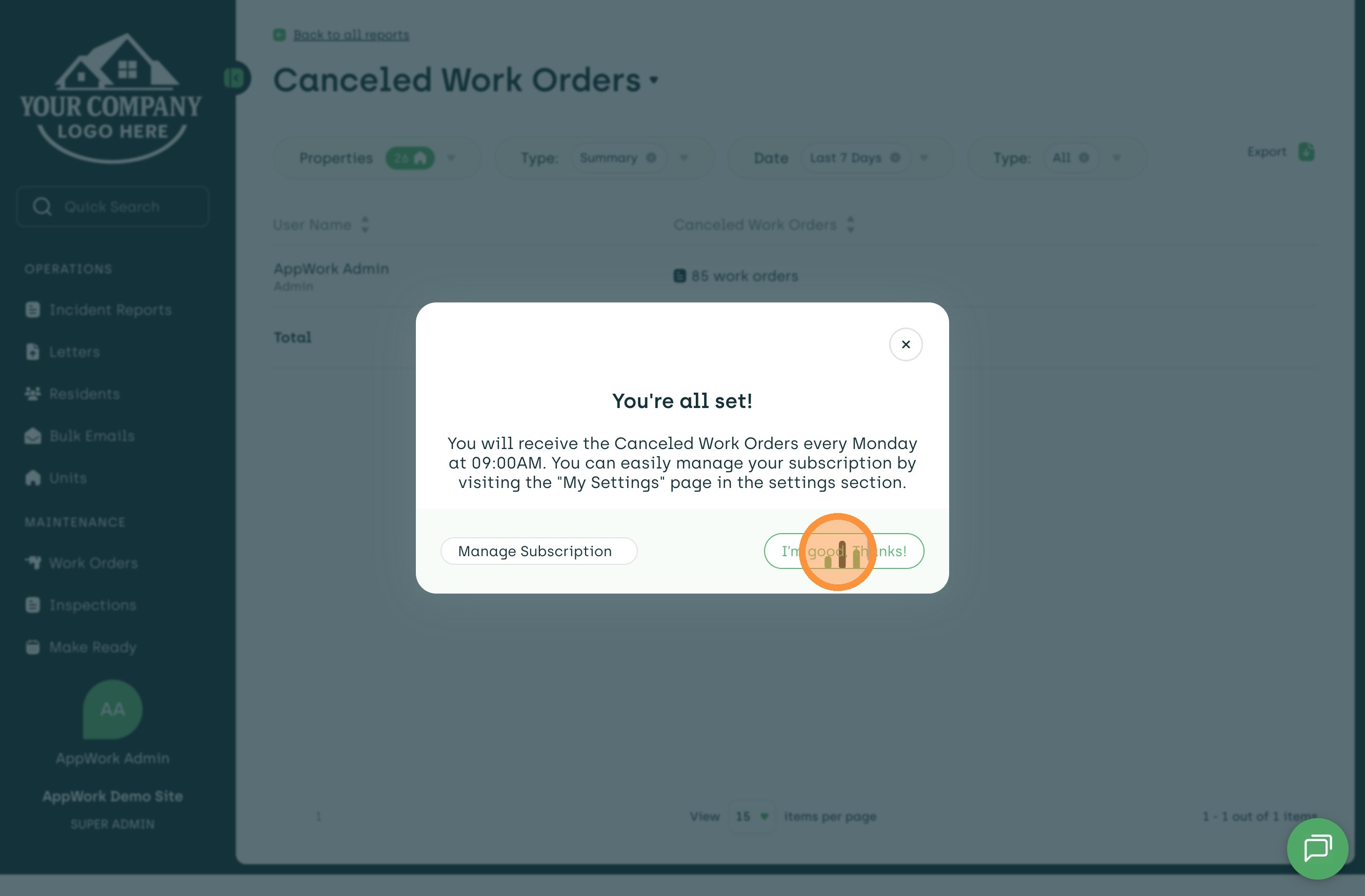
13. Select "I'm all good, thanks" when complete. You can manage, edit, or delete your active subscriptions at any time by going to Reports > My Subscriptions.