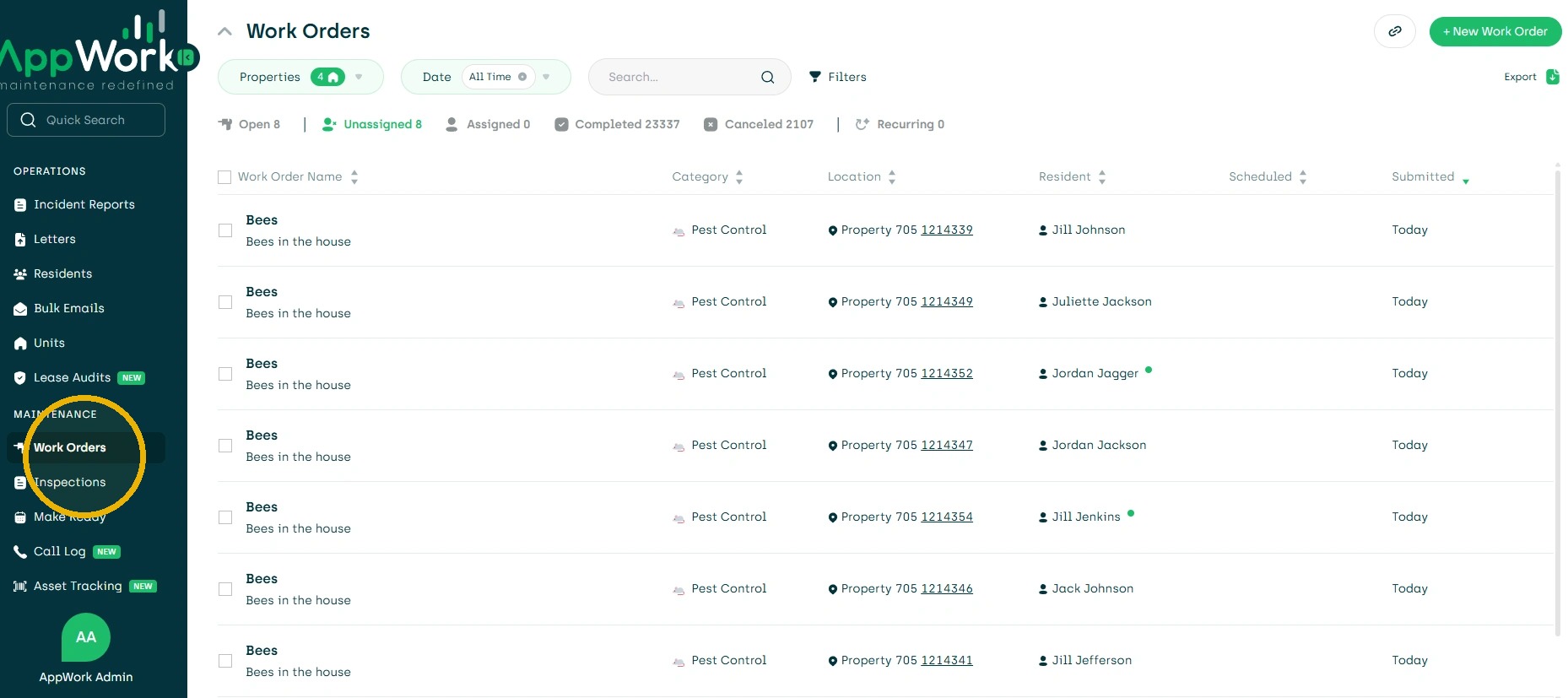
1. Navigate to Work Order Dashboard
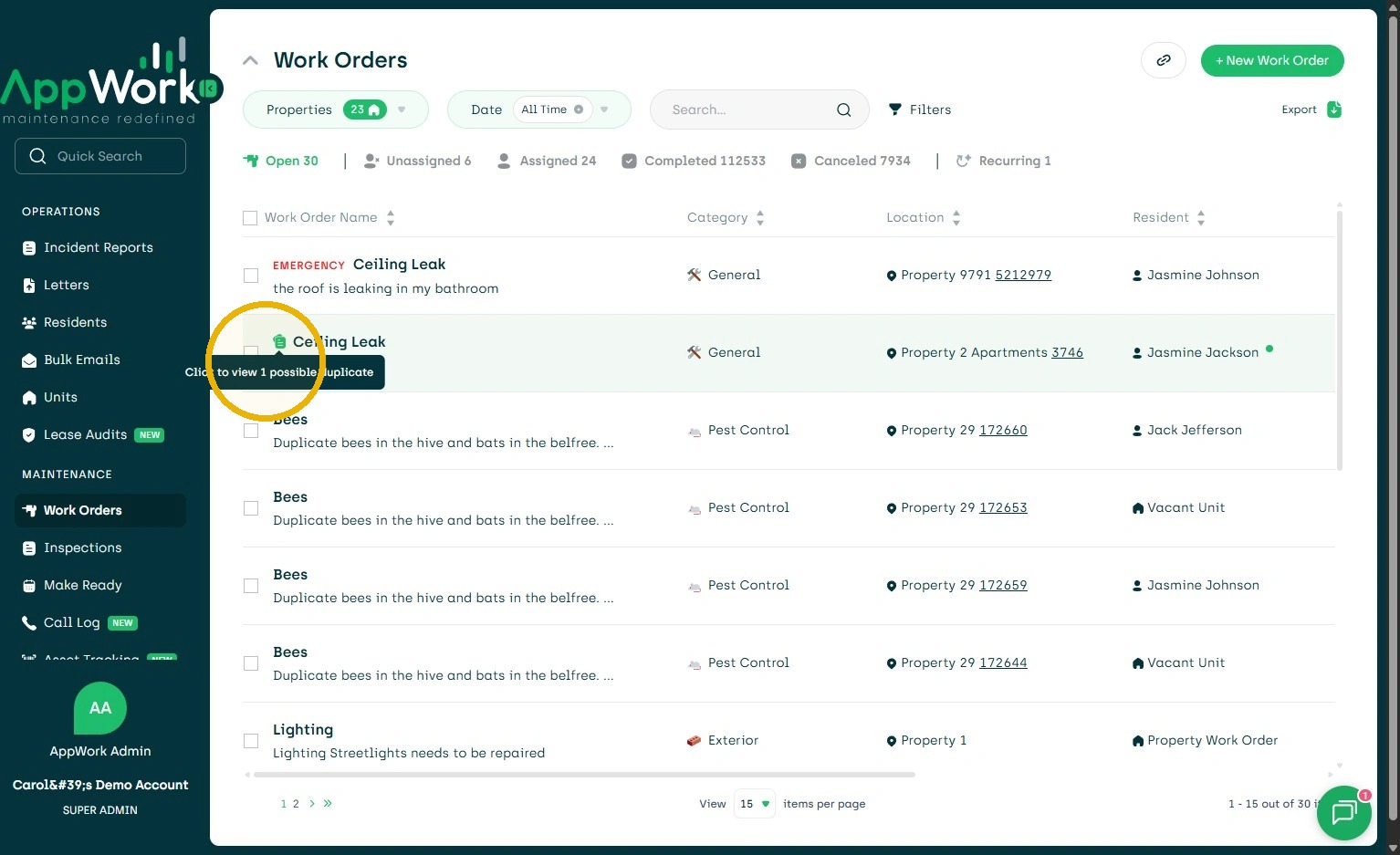
2. Detect Duplicate by the Paper Icon. Click it to View Duplicates.
3. Possible Duplicates will Populate.
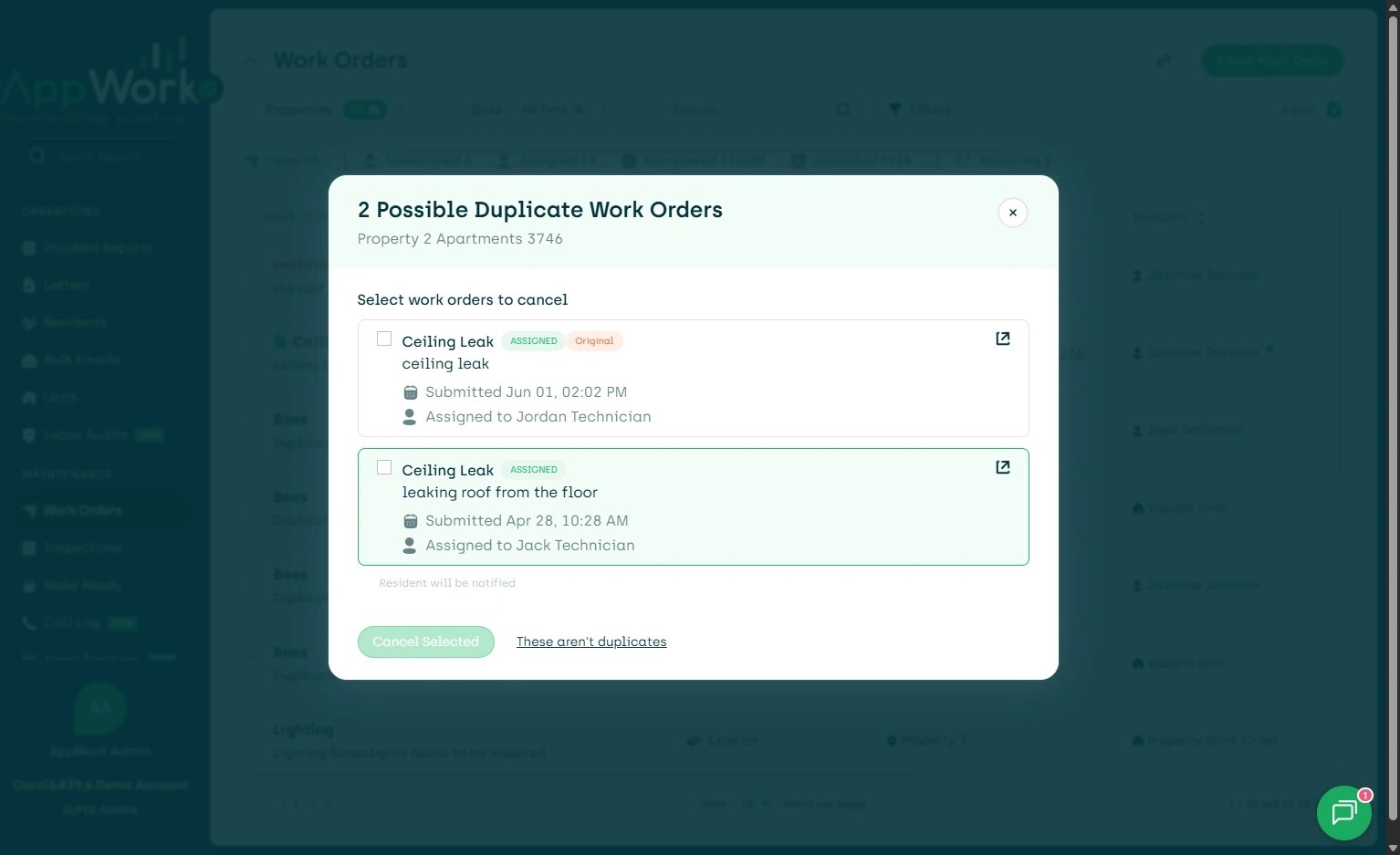
4. Click the Box or Duplicate/s to Cancel.
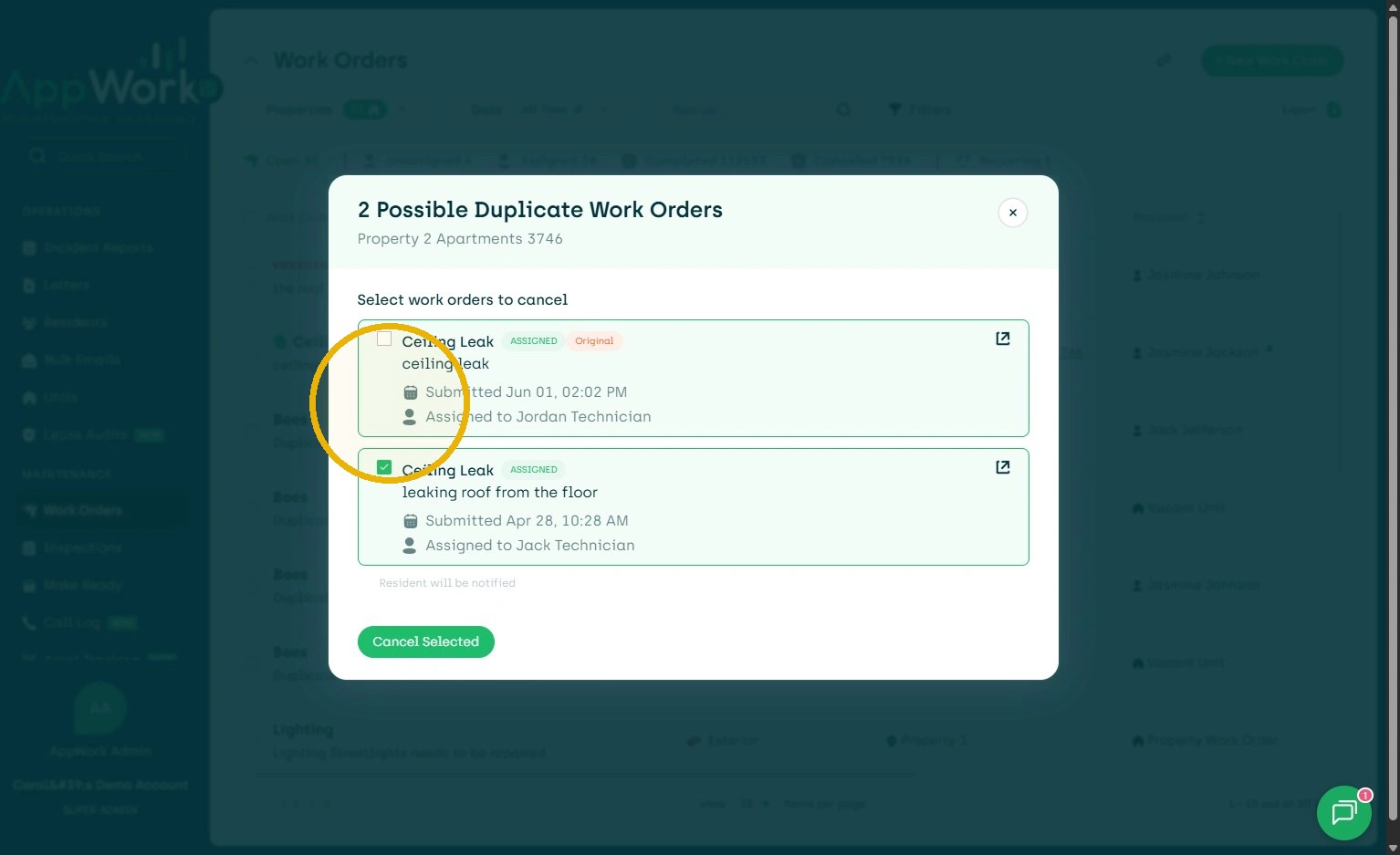
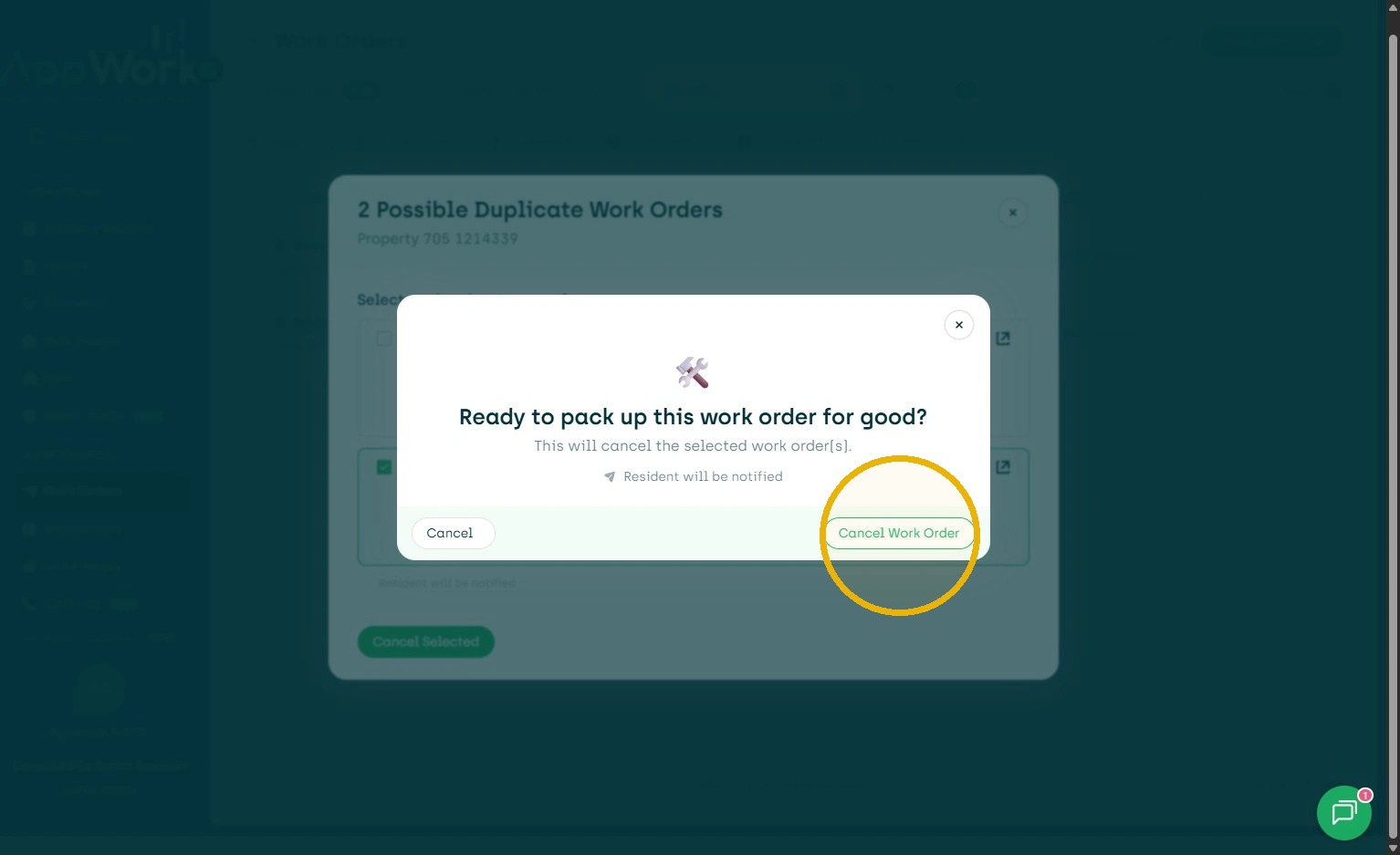
5. Remove Duplicate/s
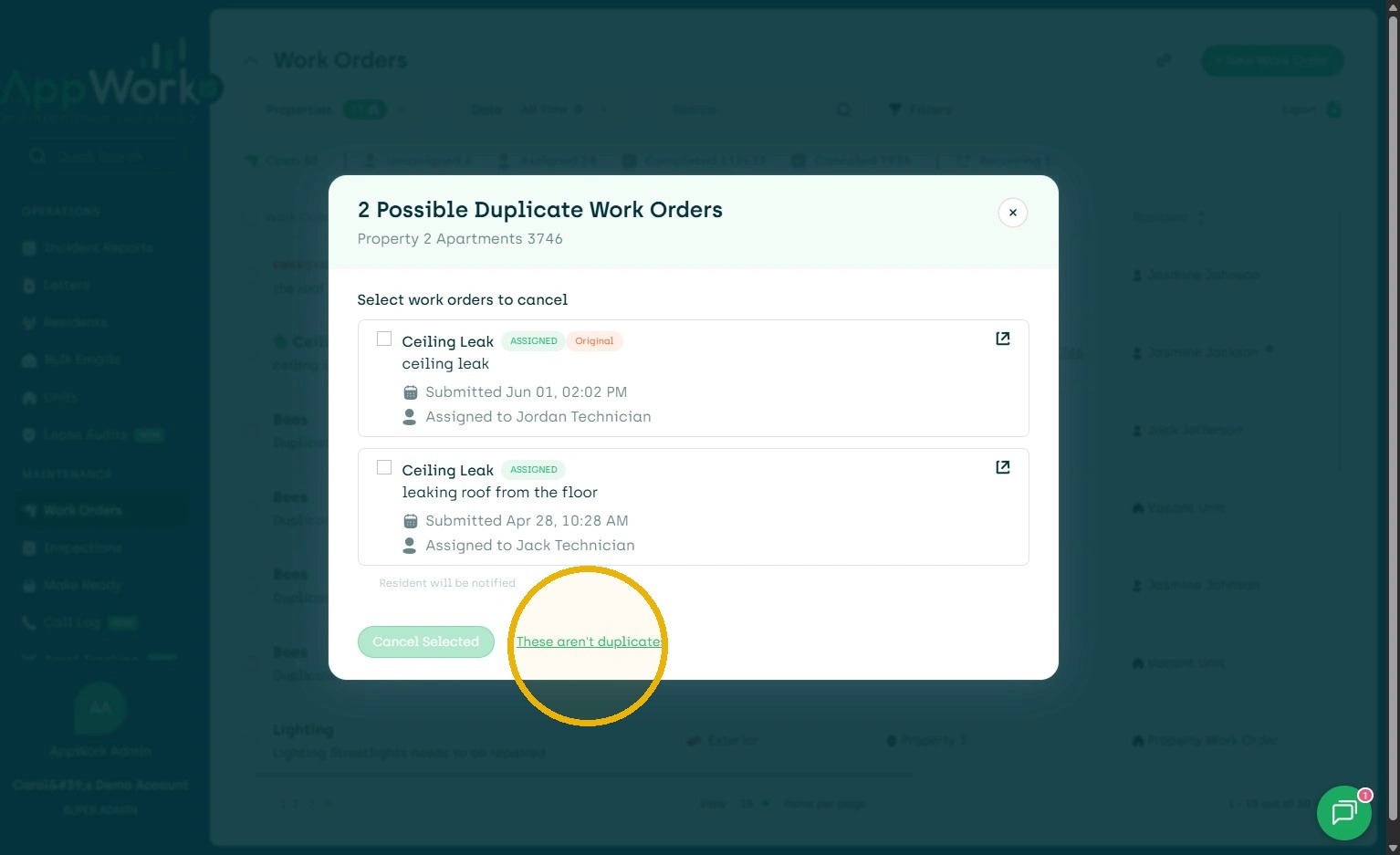
6. If not Duplicates - Remove Duplicate Status.
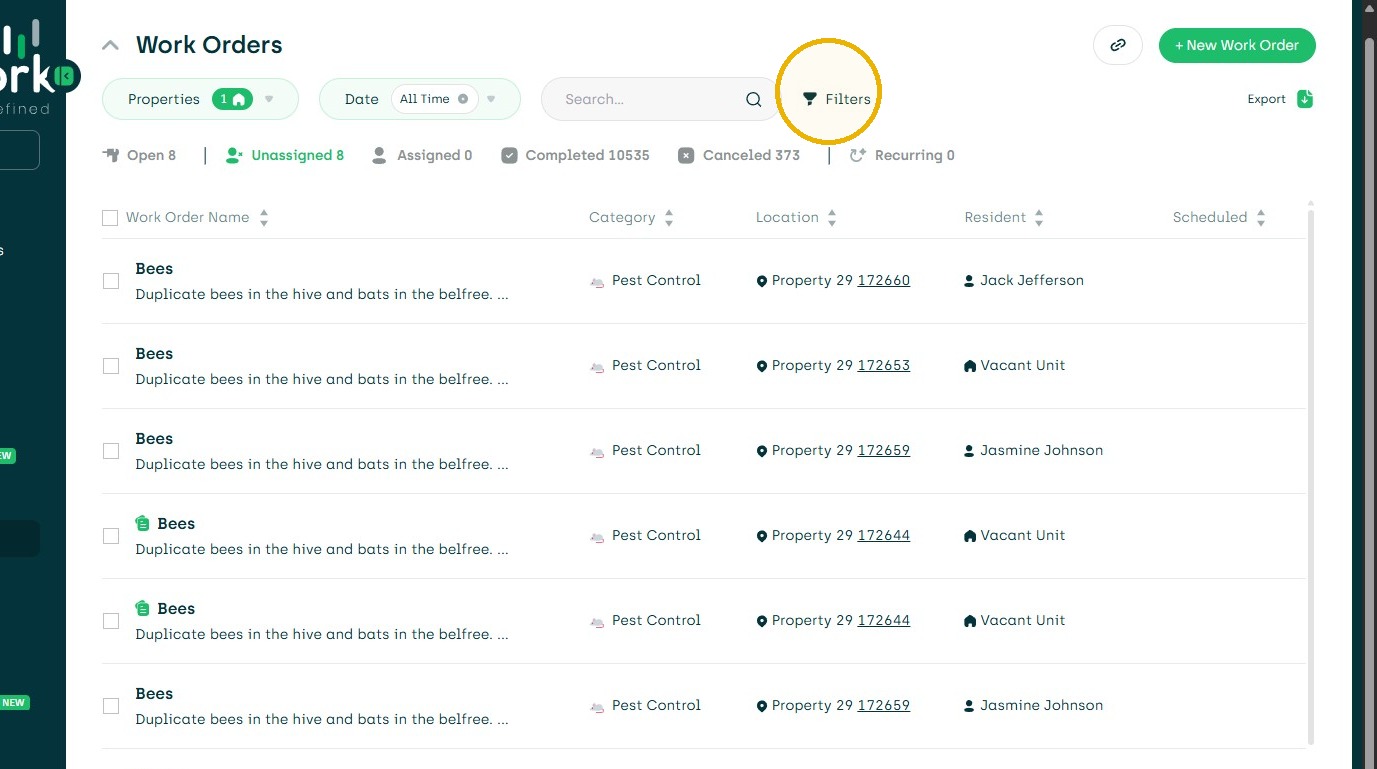
7. Choose Filters to also Detect and Manage Duplicate Work Orders
8. Choose Duplicates
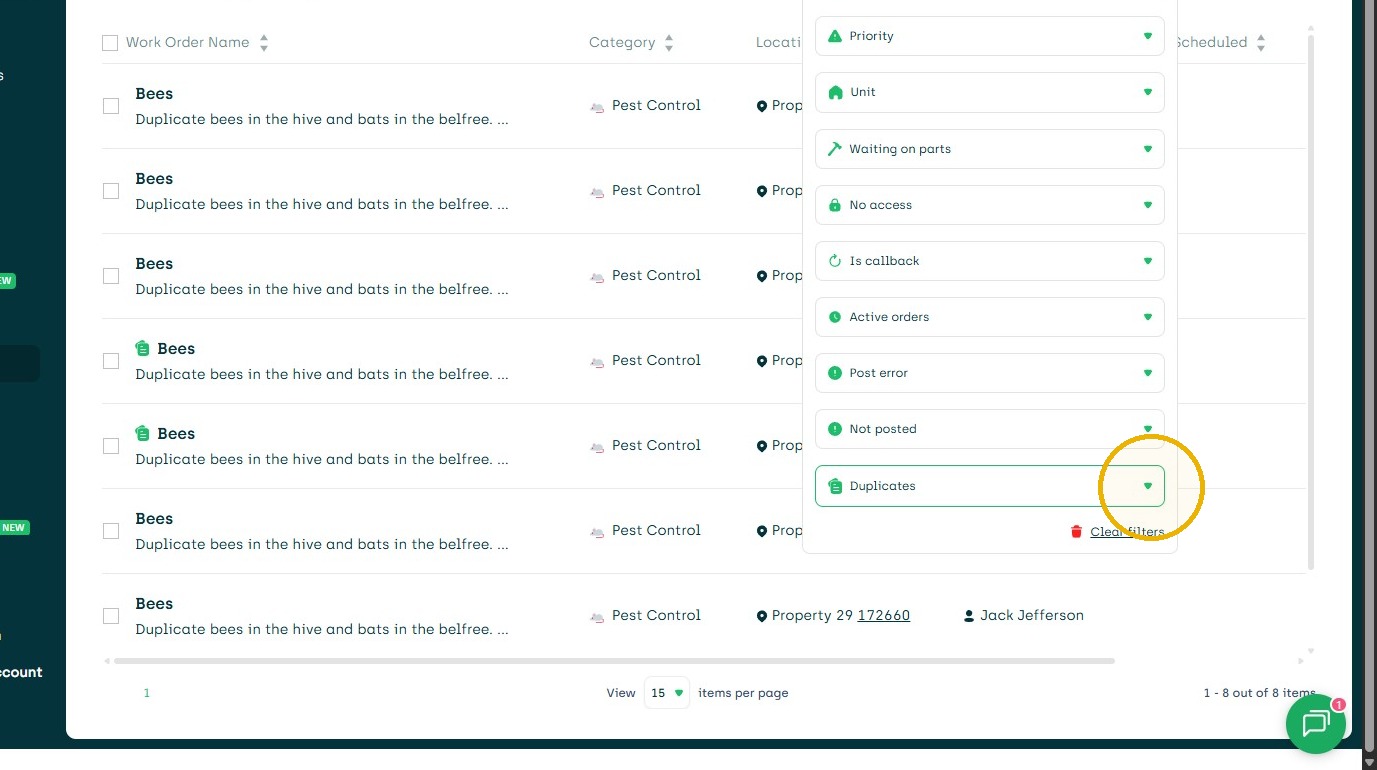
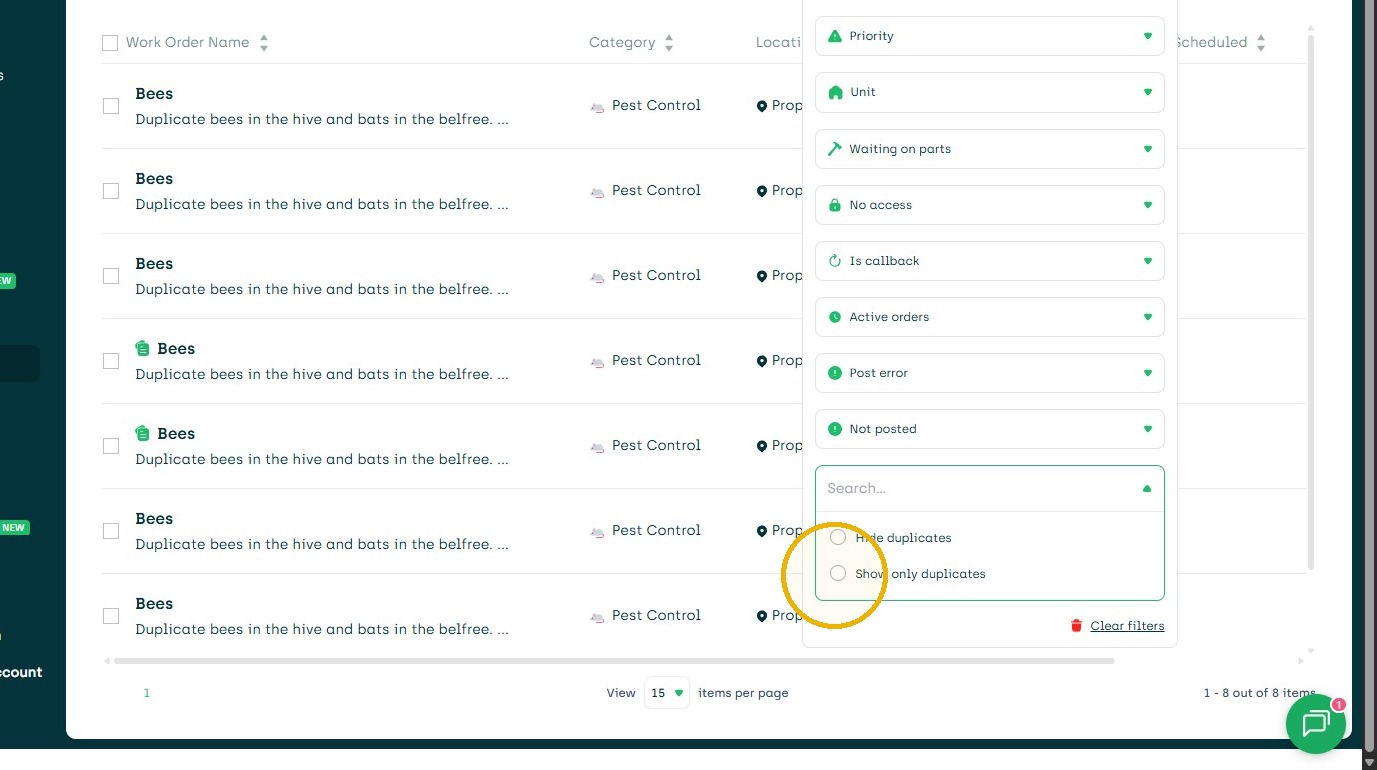
9. Show Duplicates
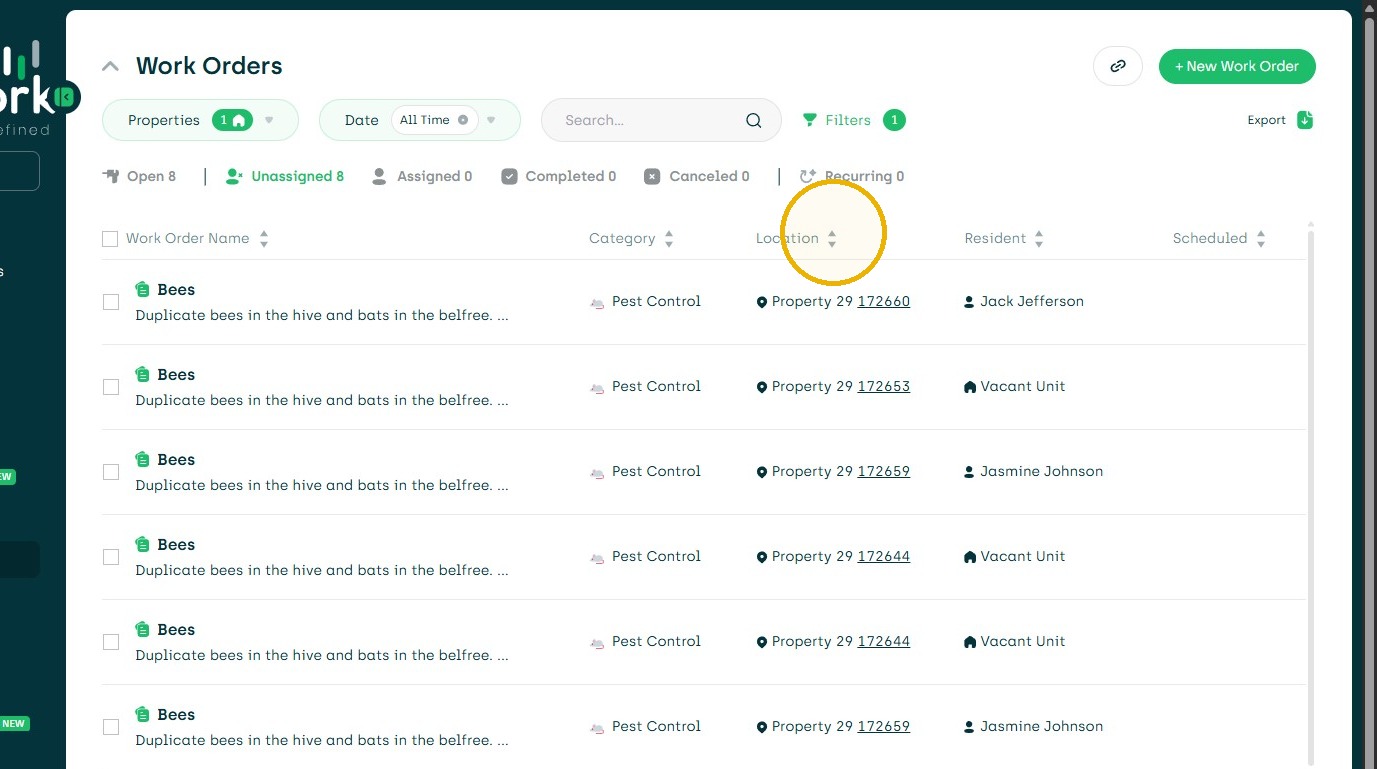
10. Once filtered by duplicate, sort my location.
11. You can then choose to select work orders to cancel. Or repeat Step 4 & 5.
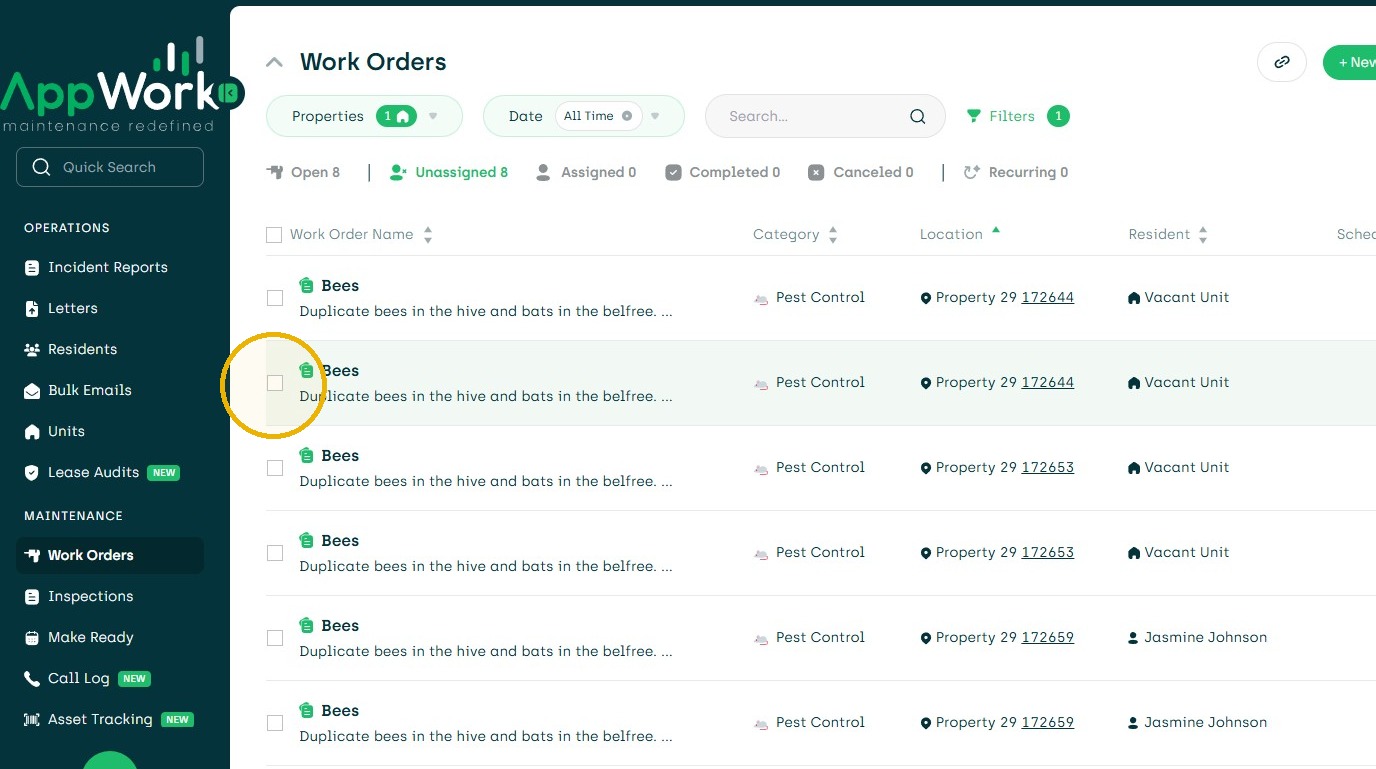
12. Choose Cancel.
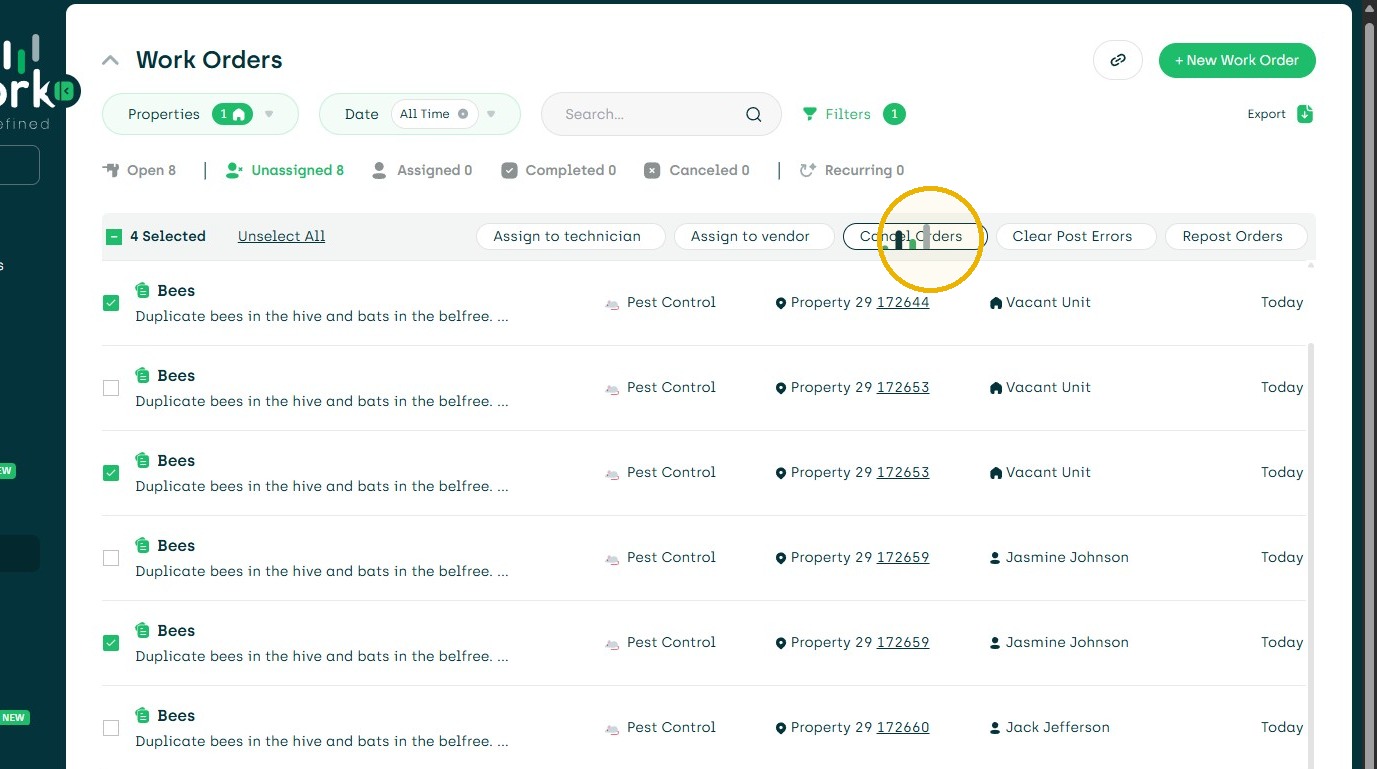
13. Click the "Describe why you are cancelling these work orders" field.
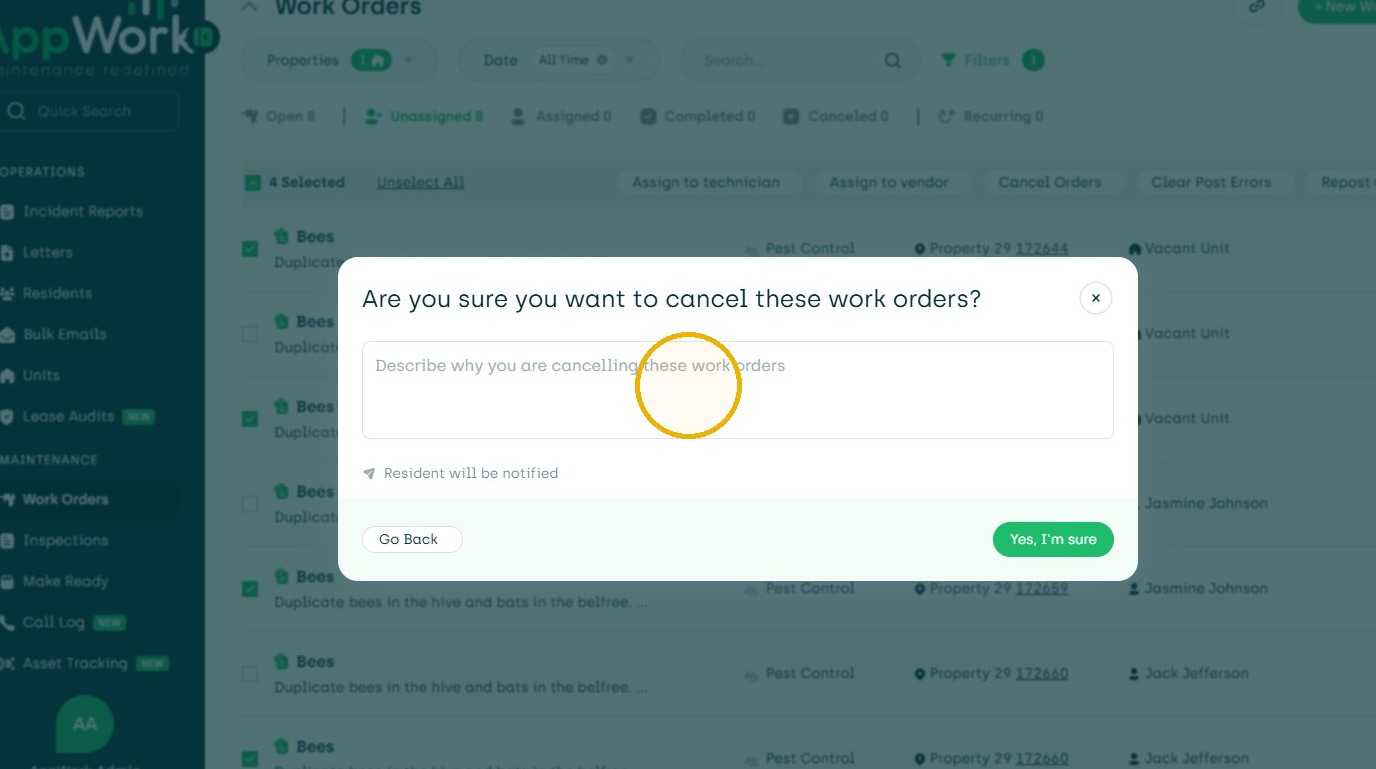
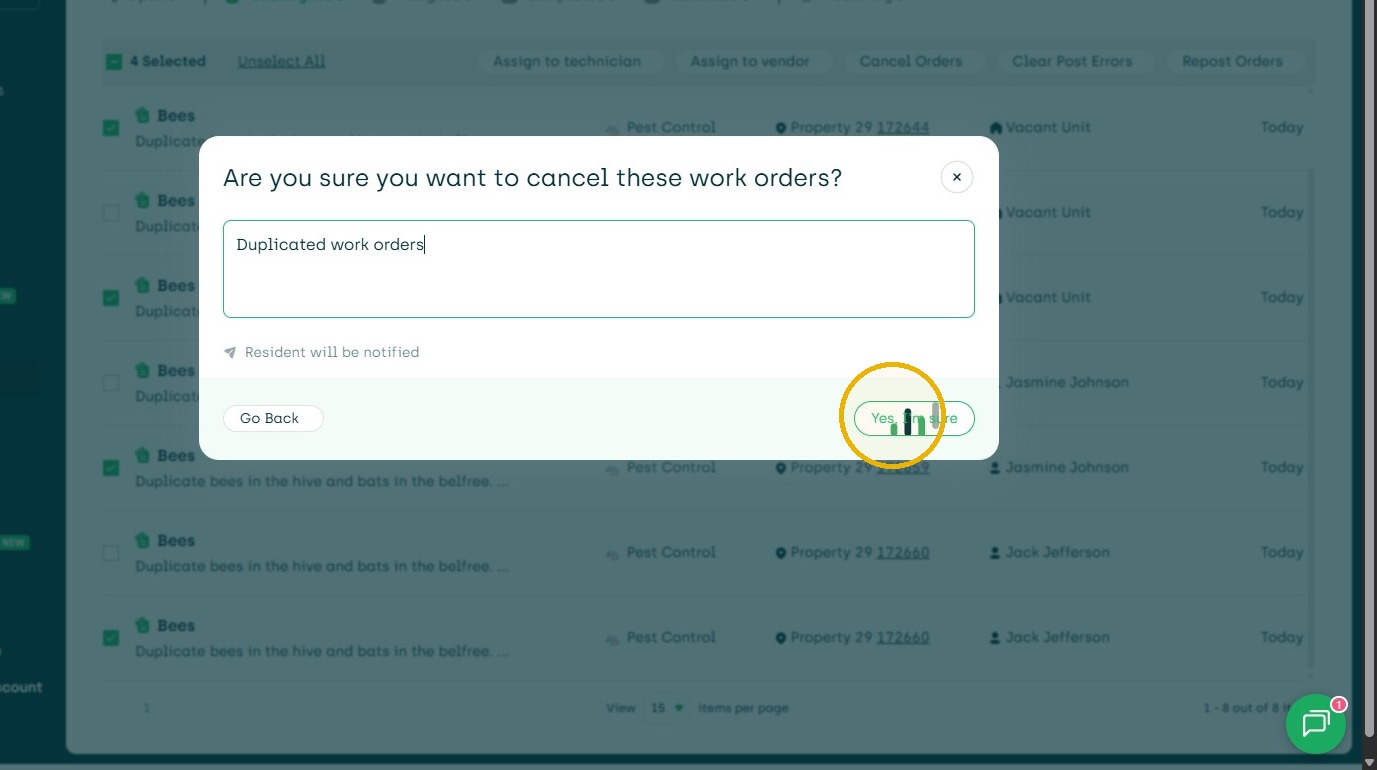
14. Type "Duplicated work orders" or other desired comment.
15. Click "Yes, I'm sure"
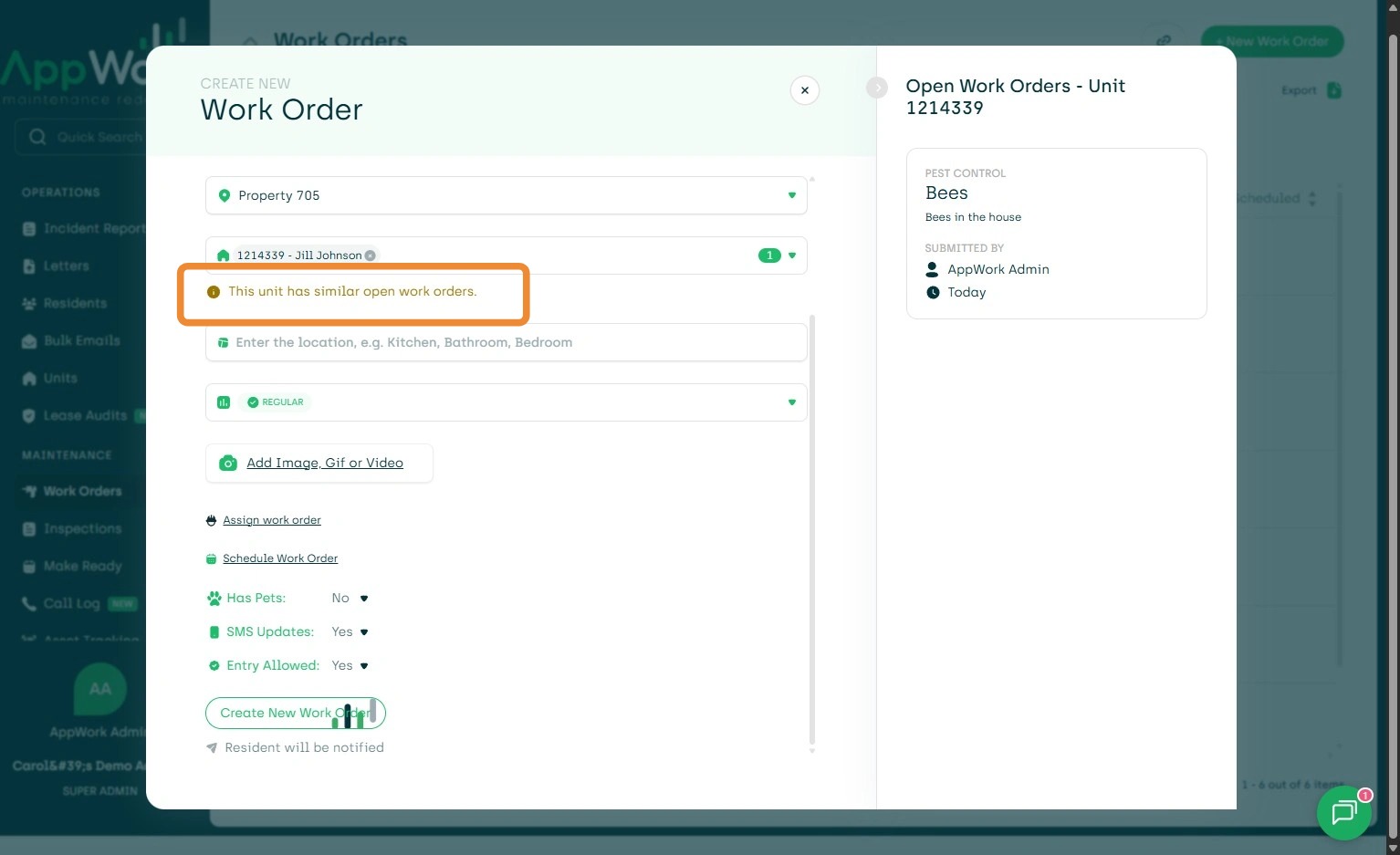
16. Automatic Possible Duplicate Detection at Creation of Work Order I not a Duplicate Continue. I Duplicate do not create.