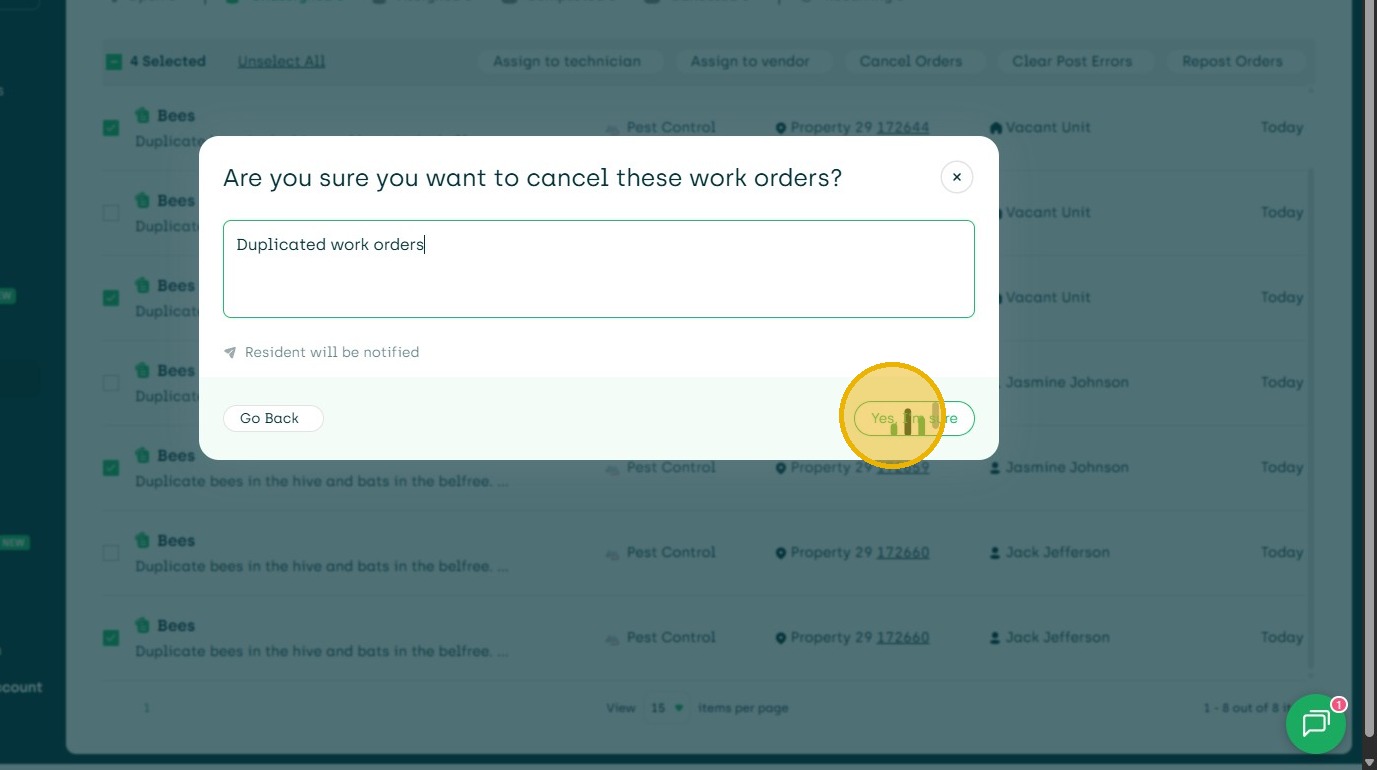
1. Navigate to Work Order Dashboard - Alert for Duplicate Upon Creation
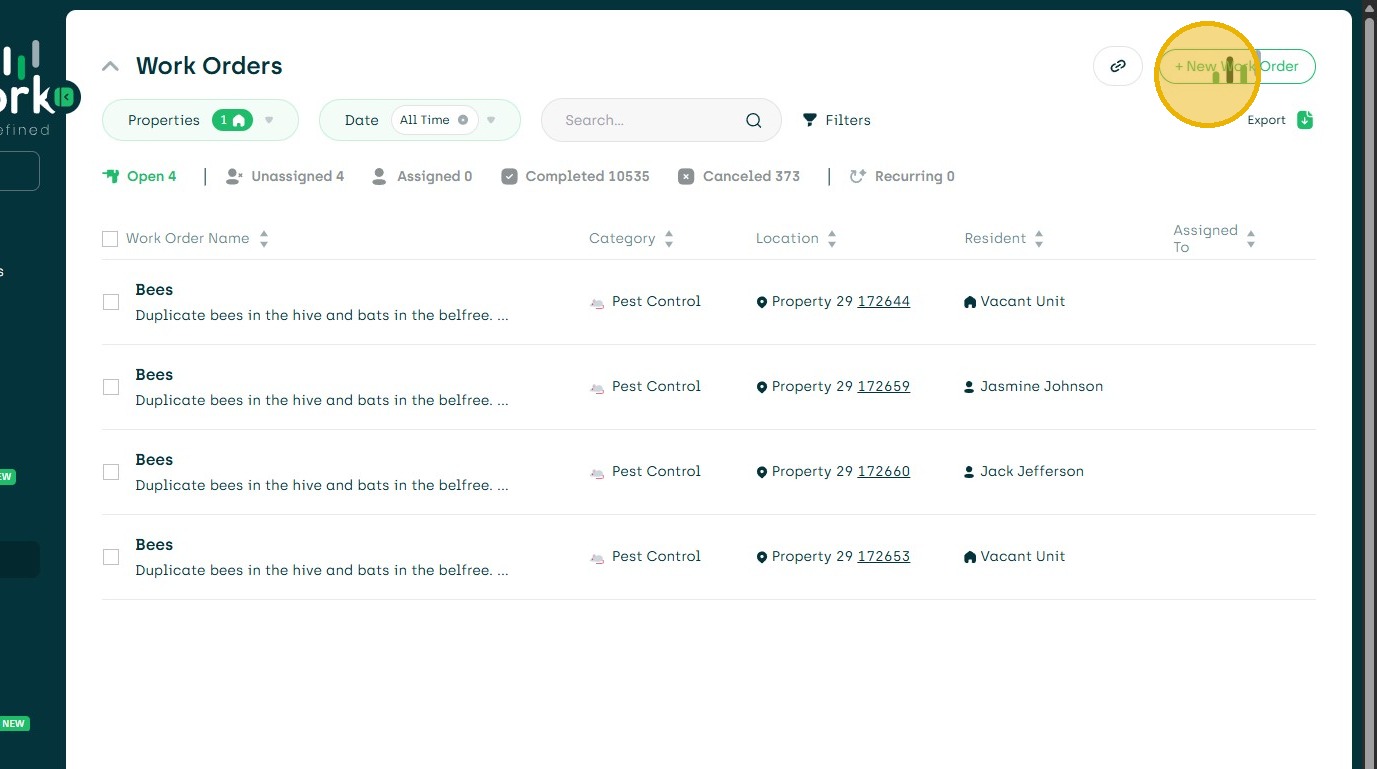
2. Create Work Order
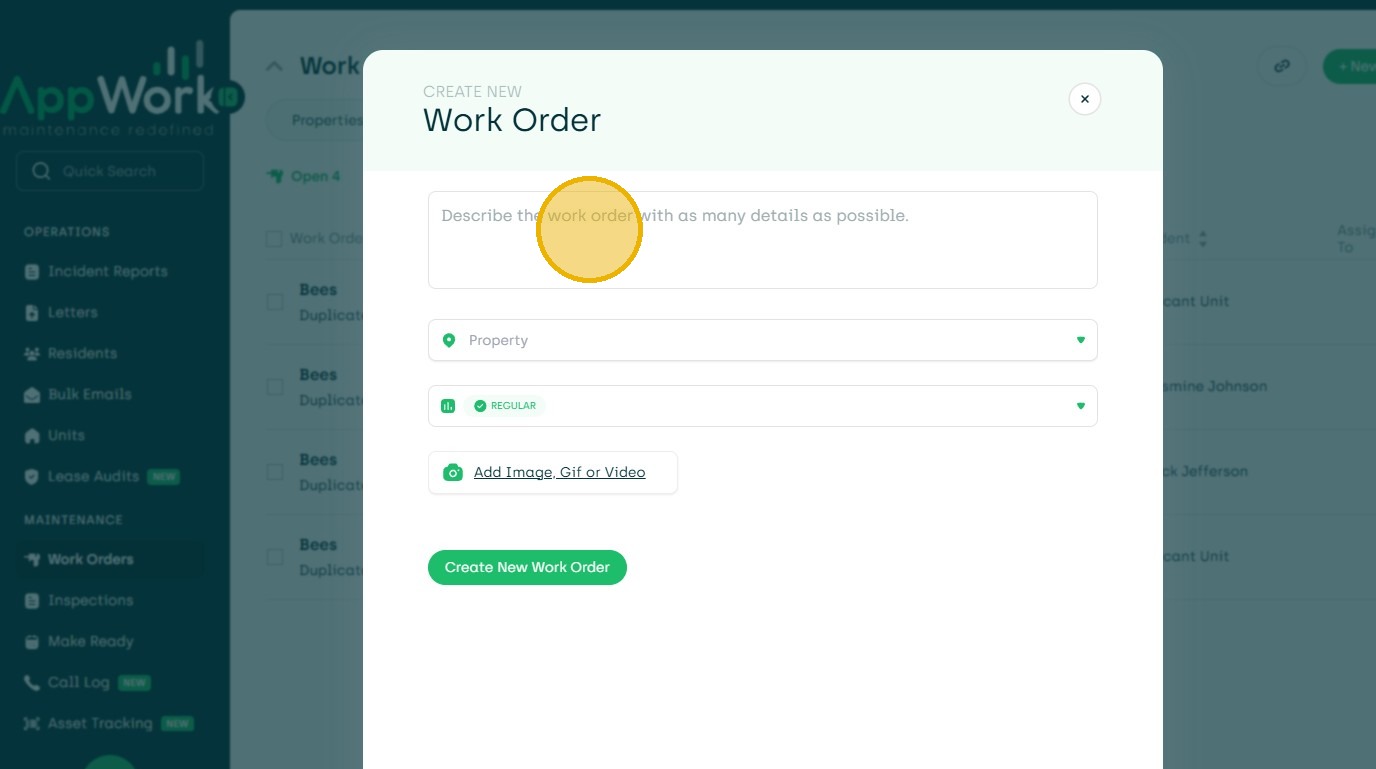
3. Click the "Describe the work order with as many details as possible." field.
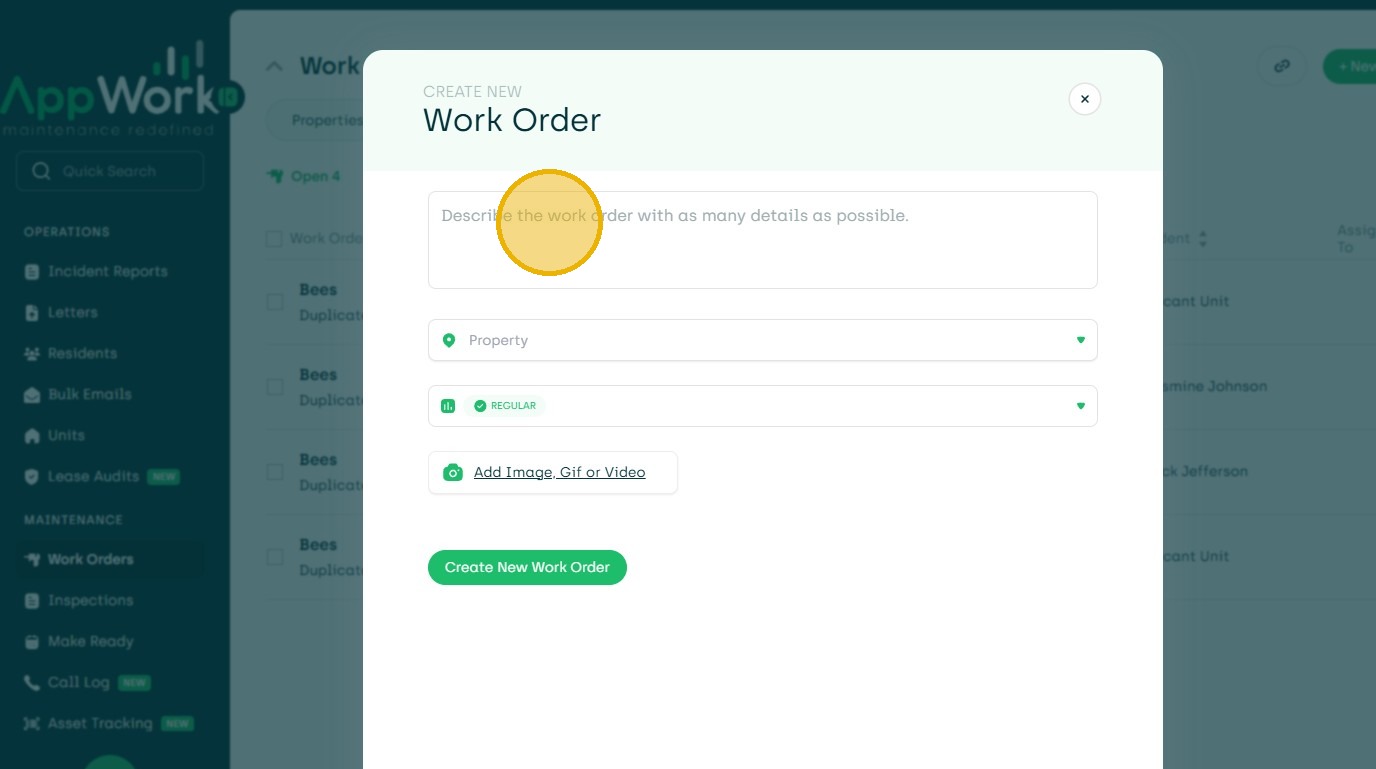
4. Click the "Property" field.
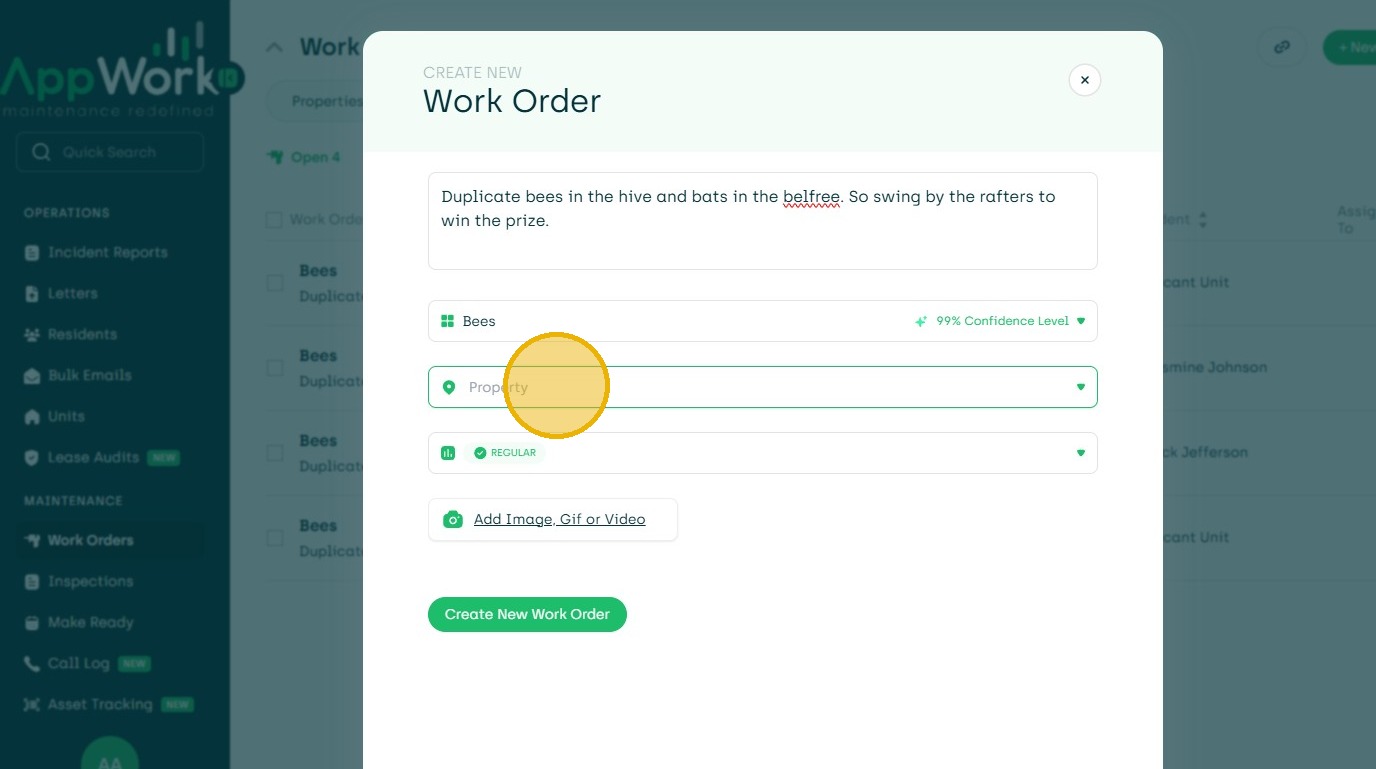
5. Click "Property"
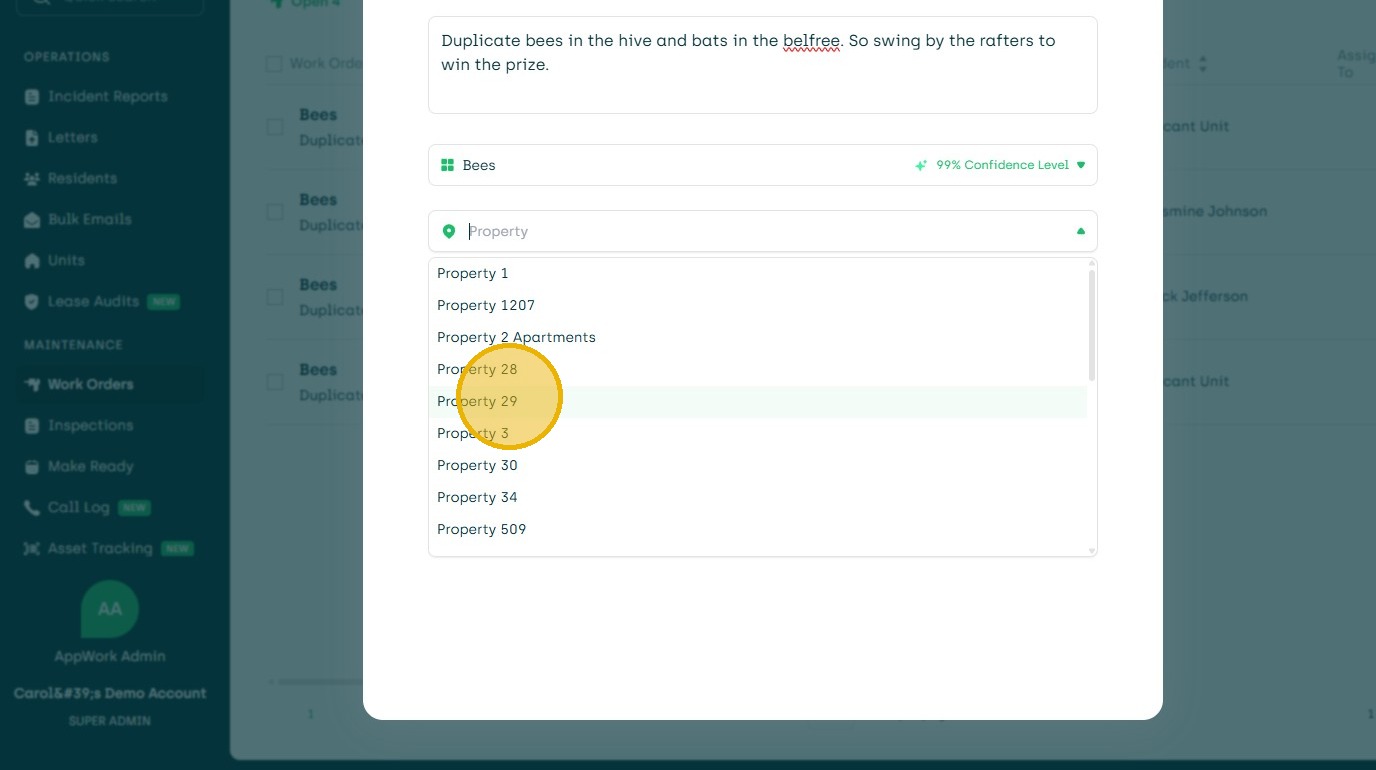
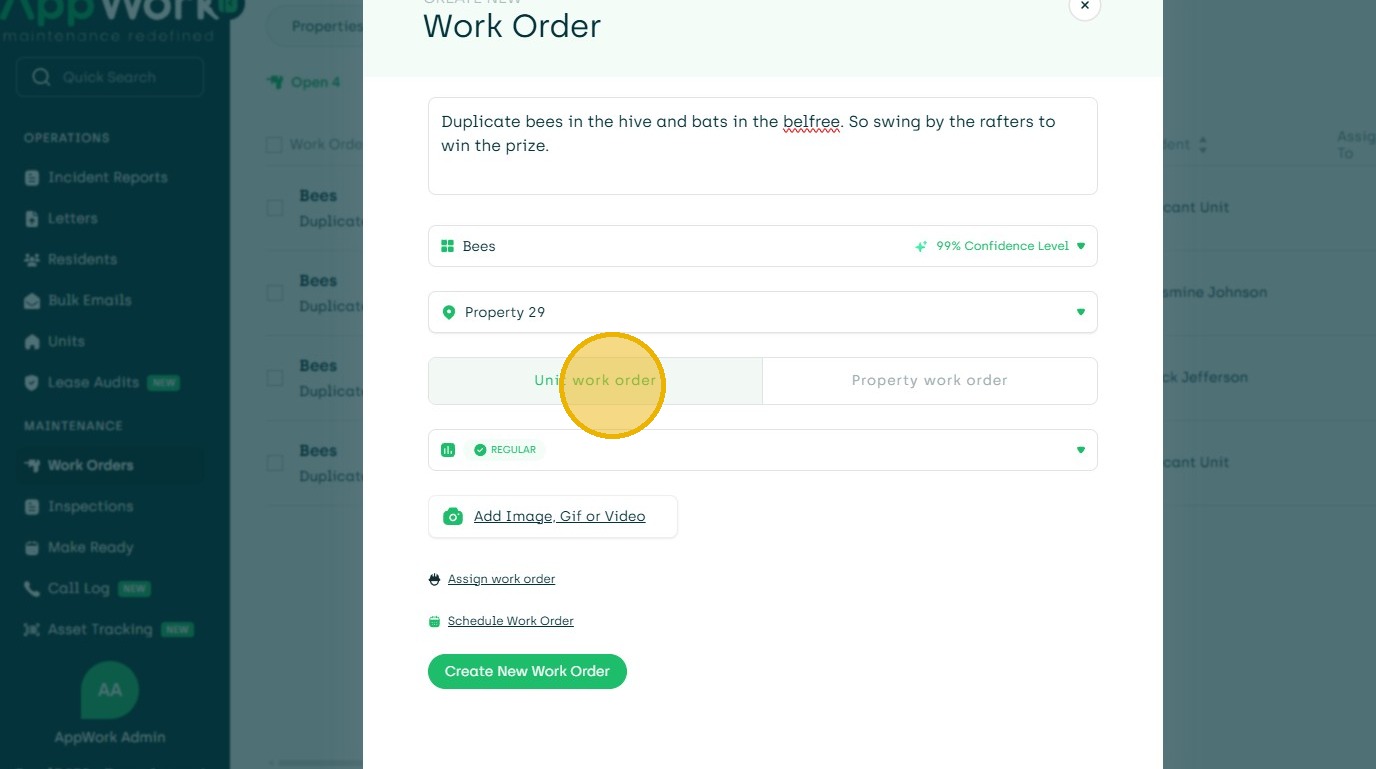
6. Click "Unit work order" Or "Property work order"
7. Click here.
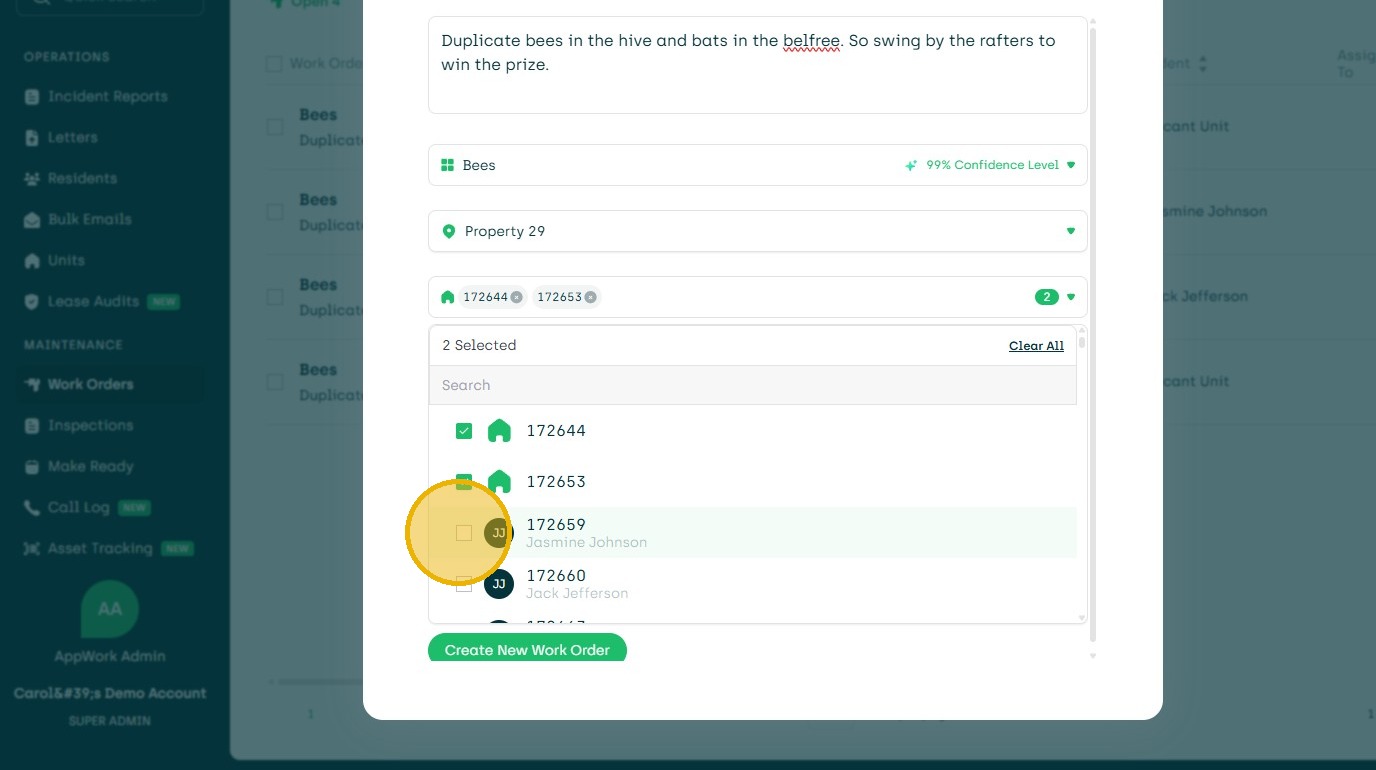
8. Once Created, if Possible Duplicates are present the submitter will be notified.
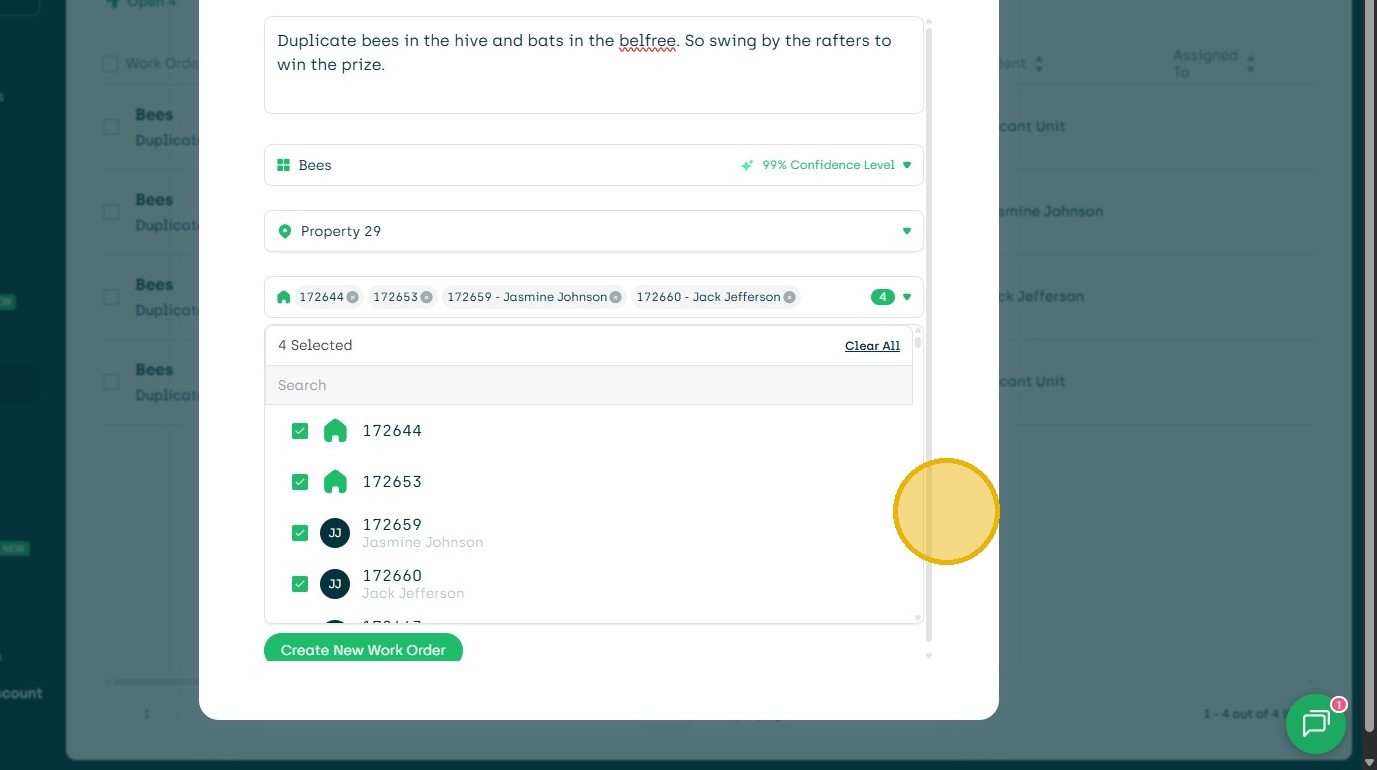
9. Below the units is the notice. The right side bar show the possible duplicates.
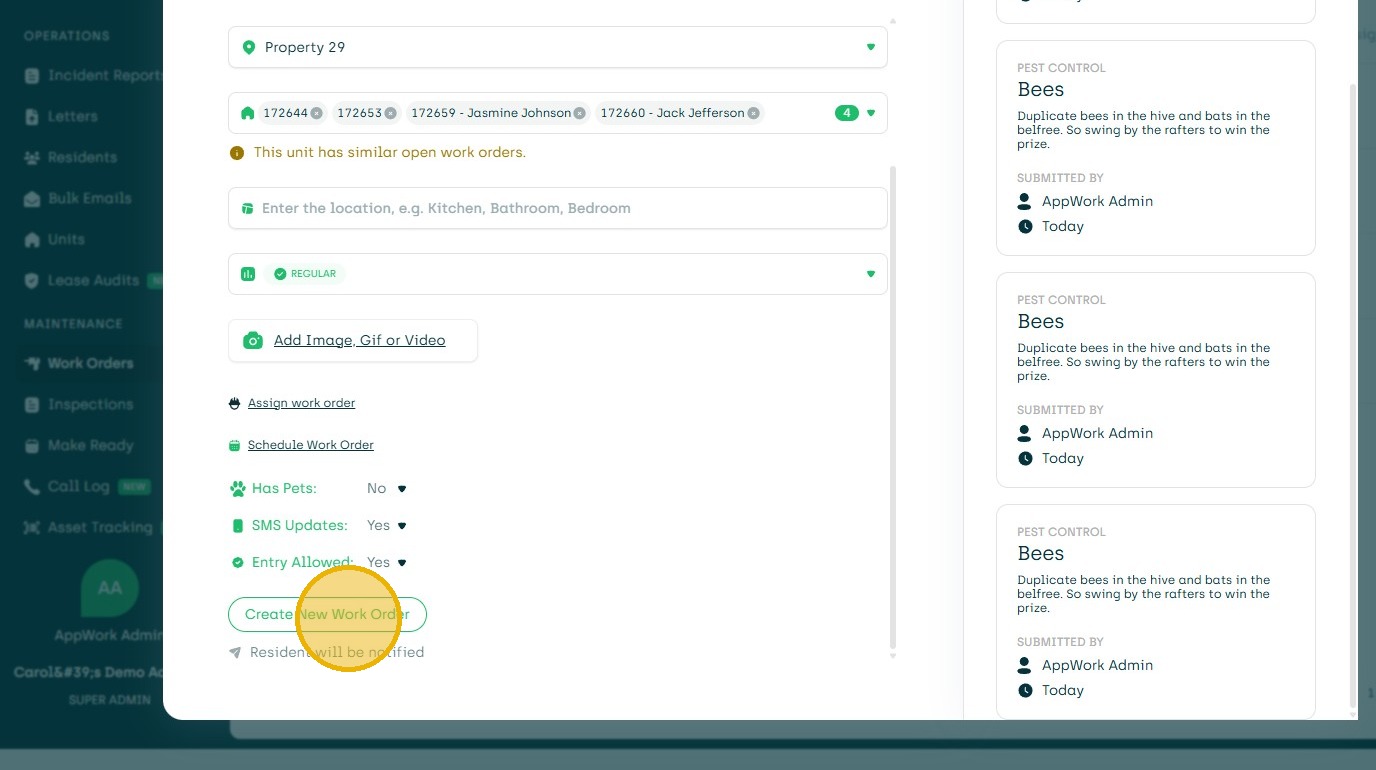
10. If Duplicates are created, you can then filter for them.
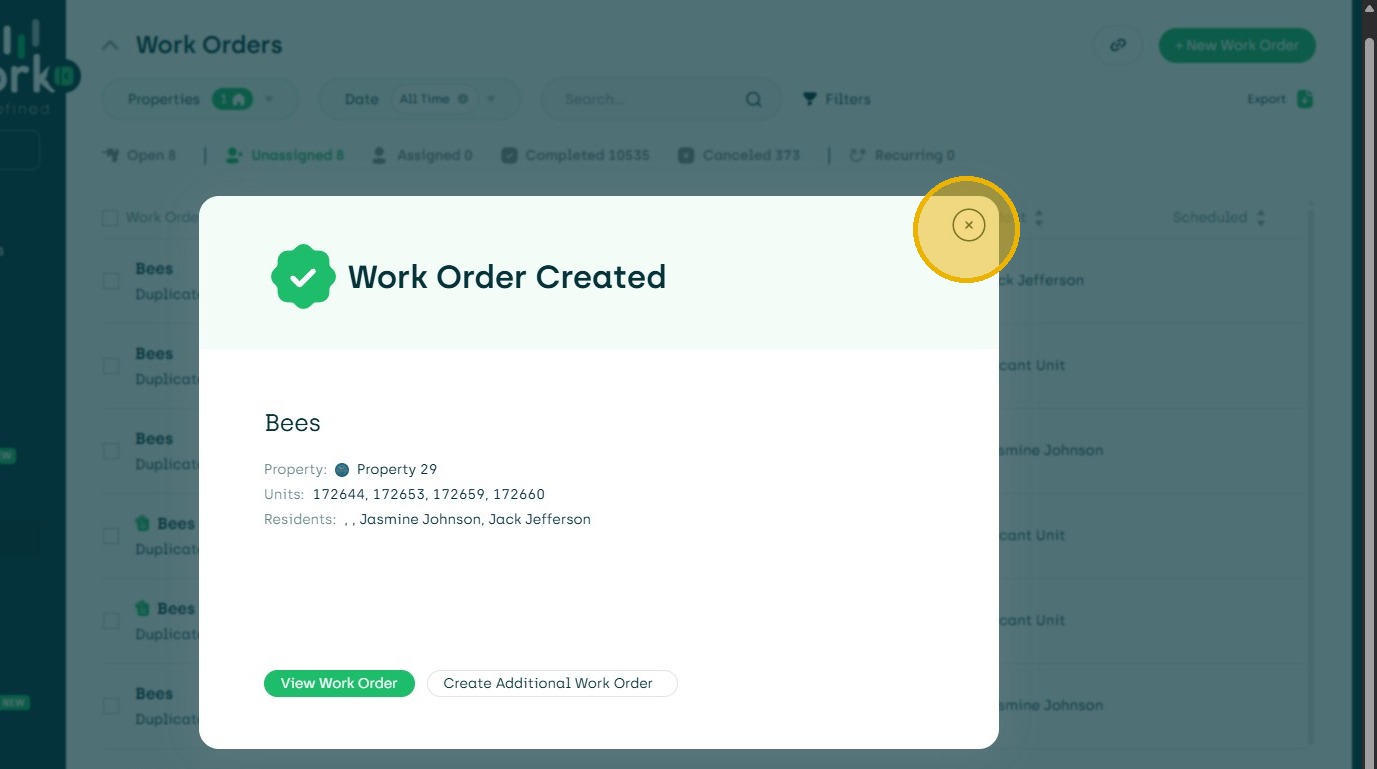
11. Choose Filters.
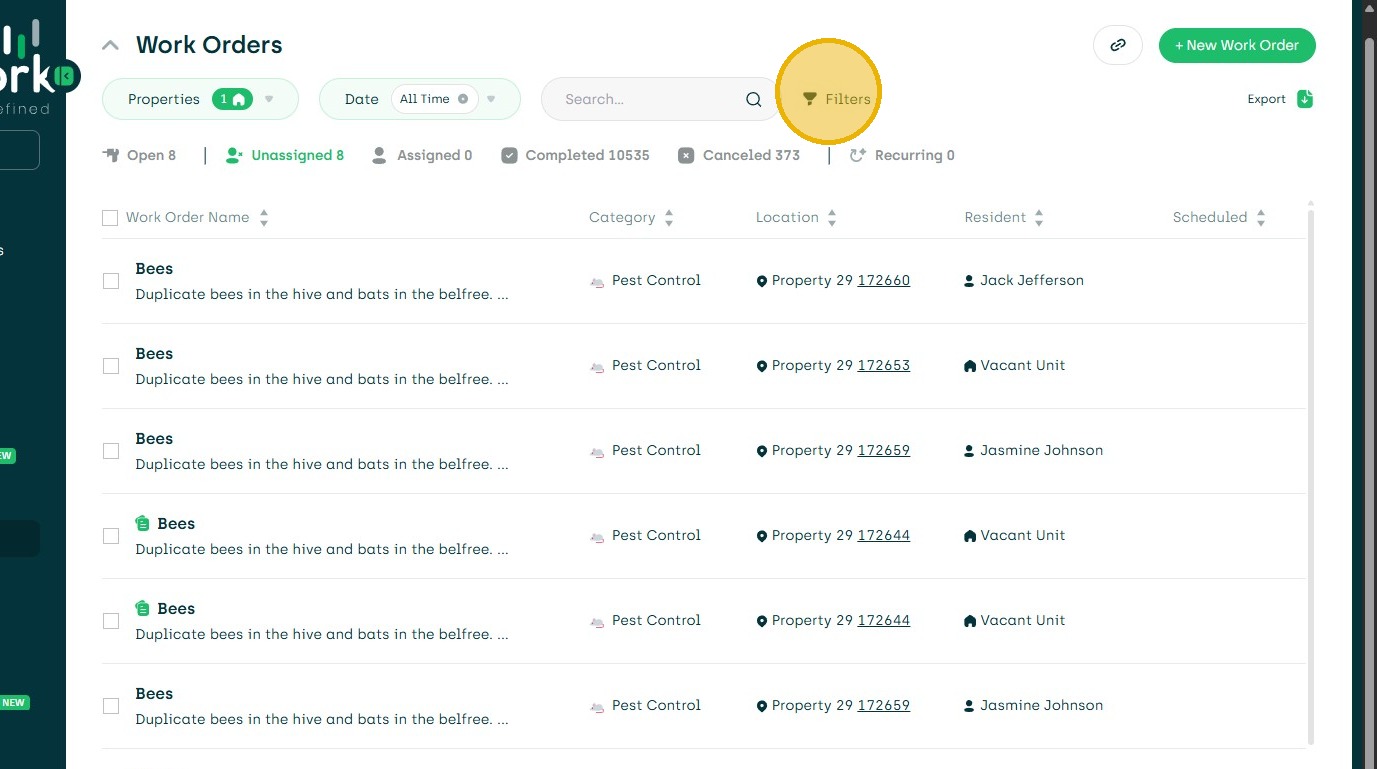
12. Choose Duplicates
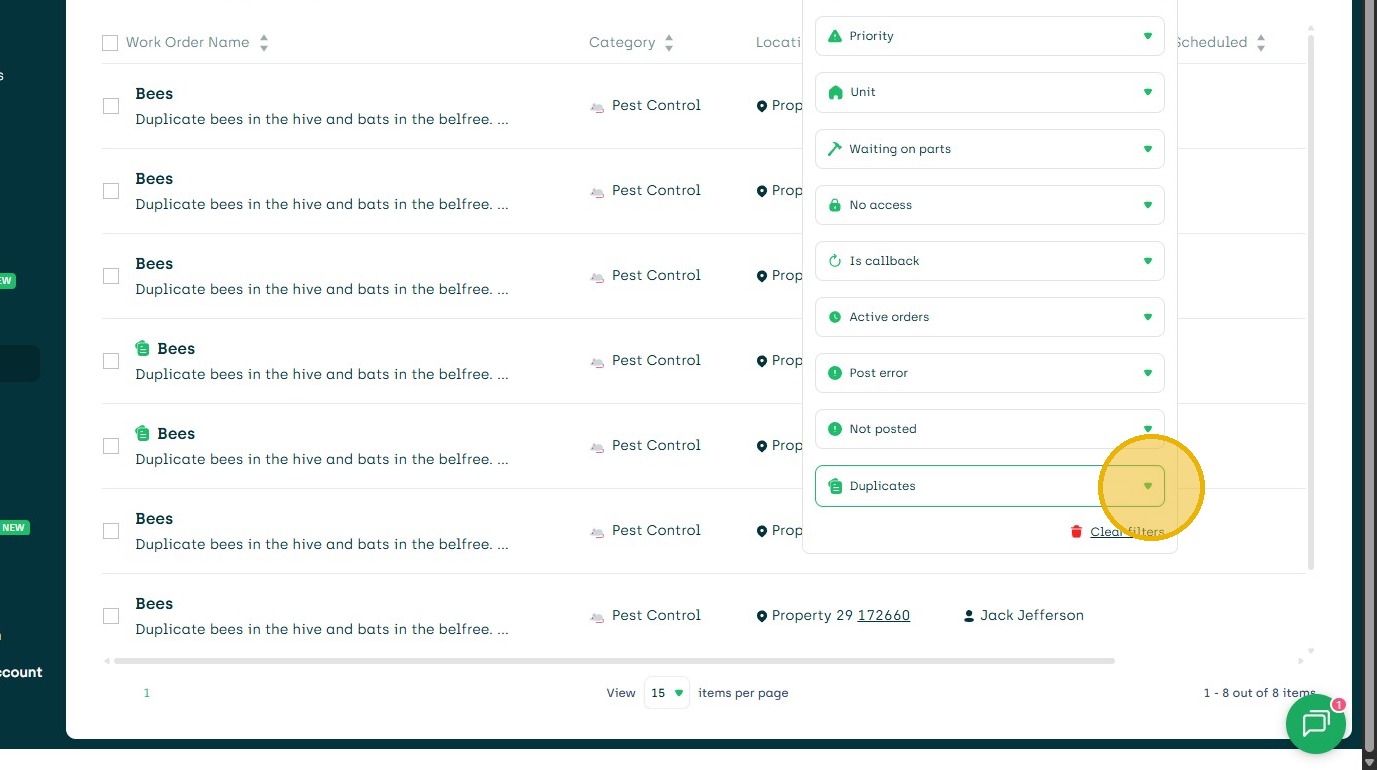
13. Show Duplicates
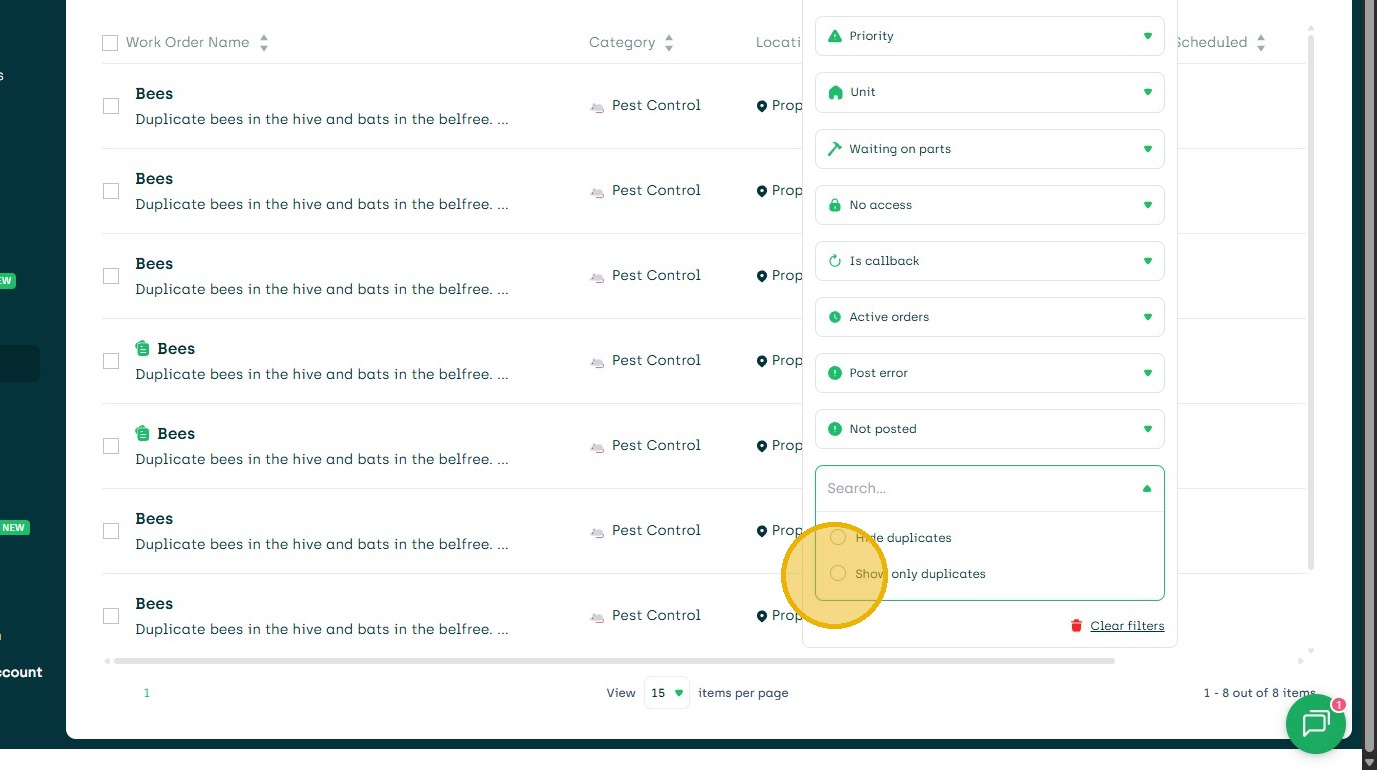
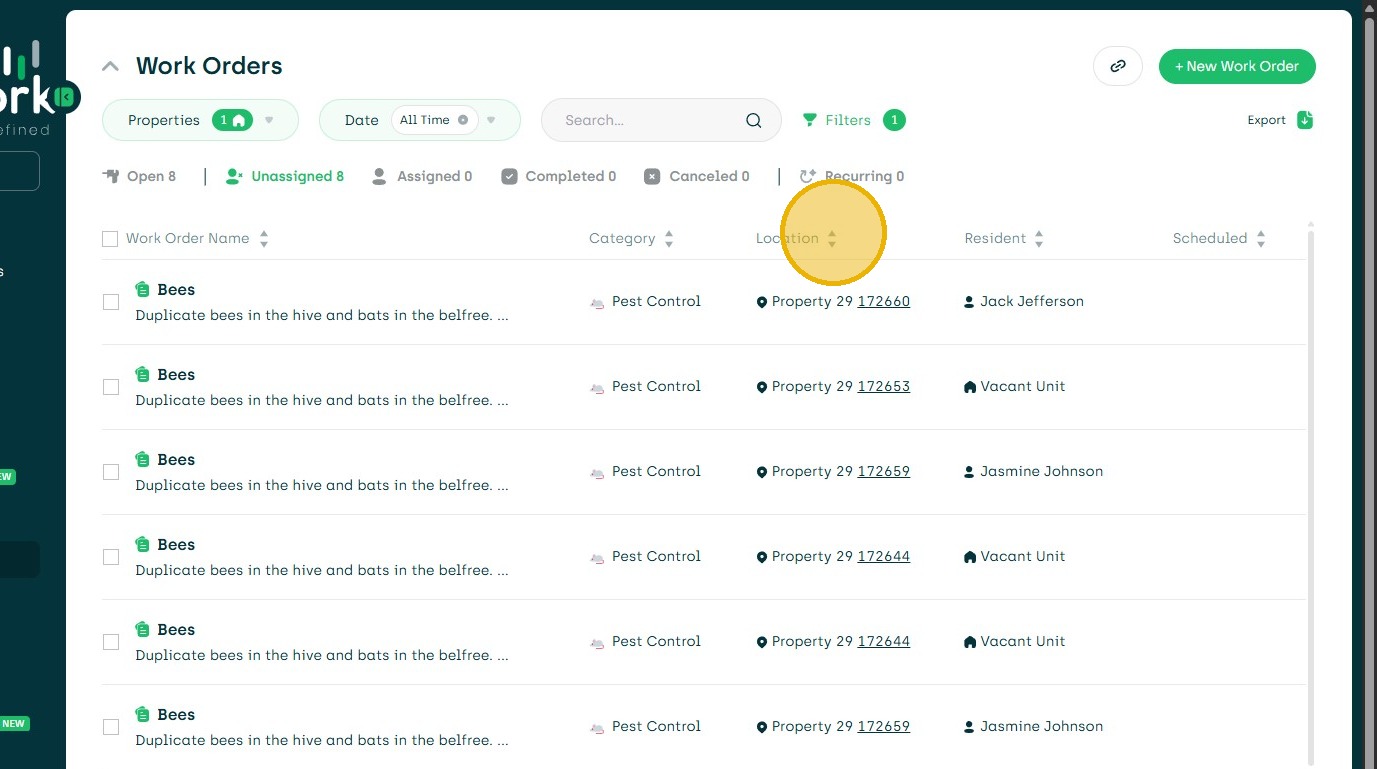
14. Once filtered by duplicate, sort my location.
15. You can then choose to select work orders to cancel.
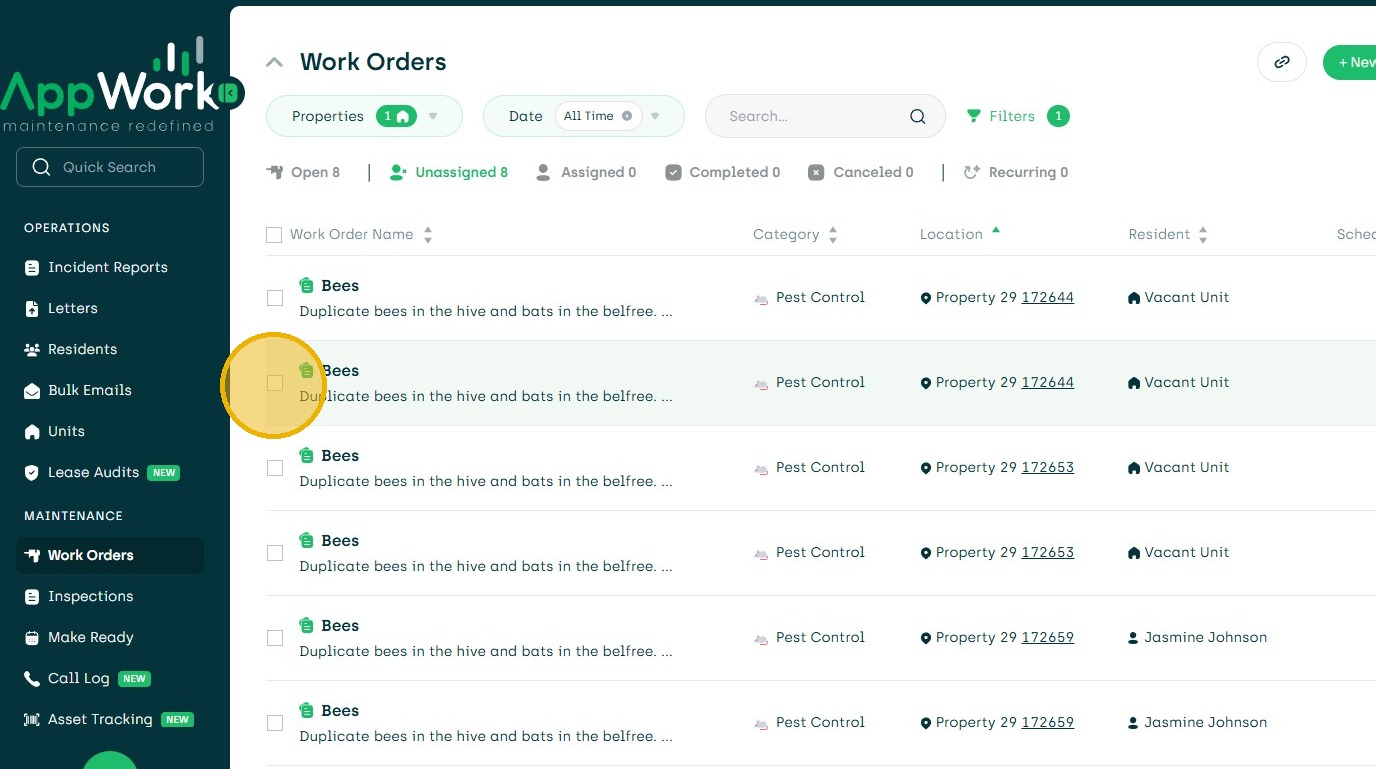
16. Choose Cancel.
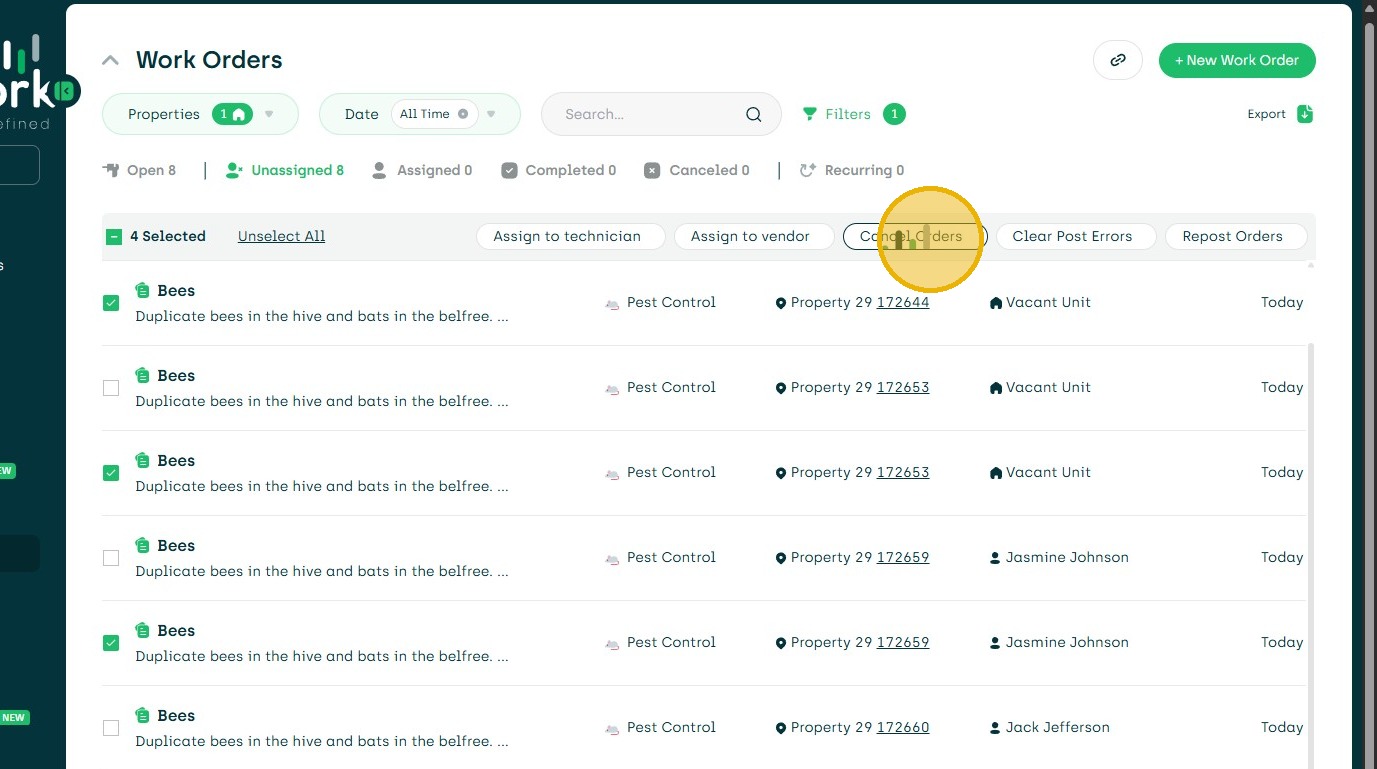
17. Click the "Describe why you are cancelling these work orders" field.
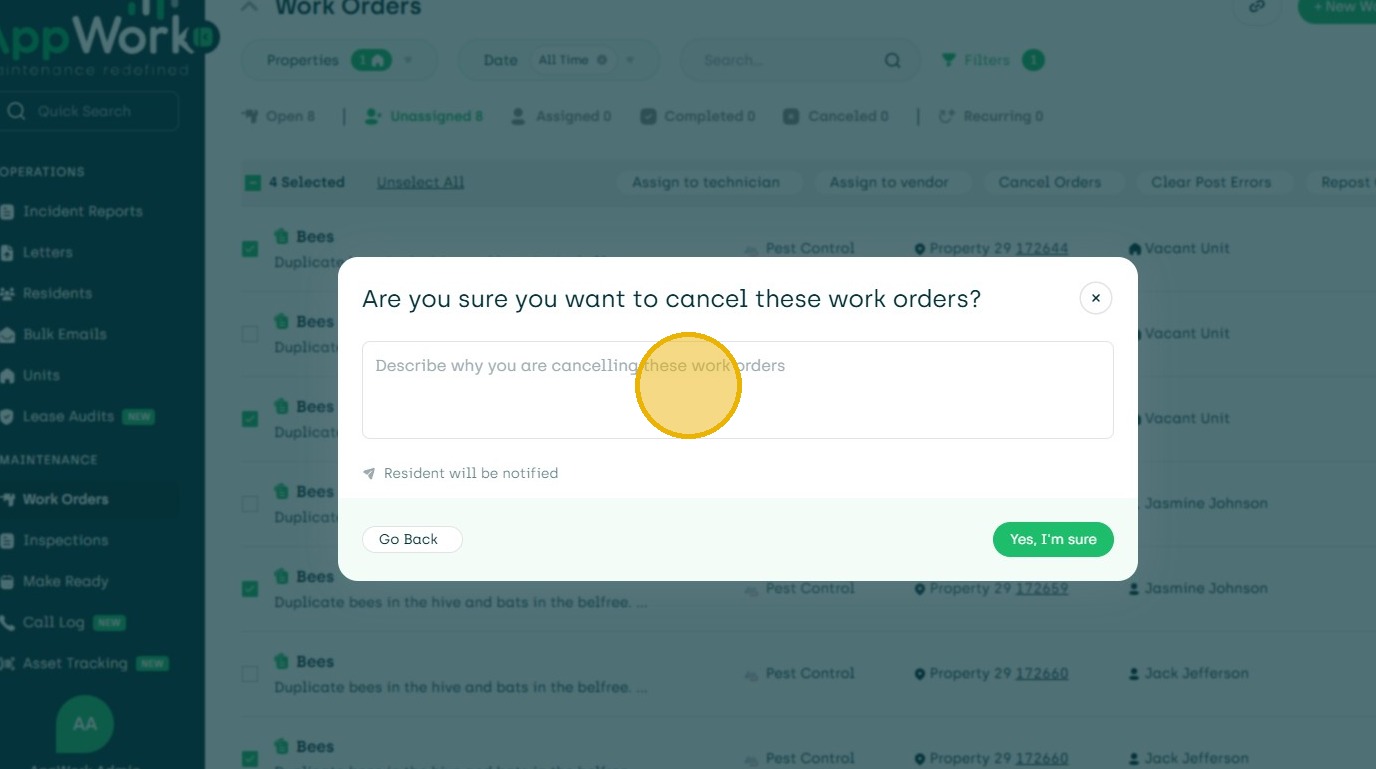
18. Type "Duplicated work orders" or other desired comment.
19. Click "Yes, I'm sure"