1. Navigate to the Admin portal.
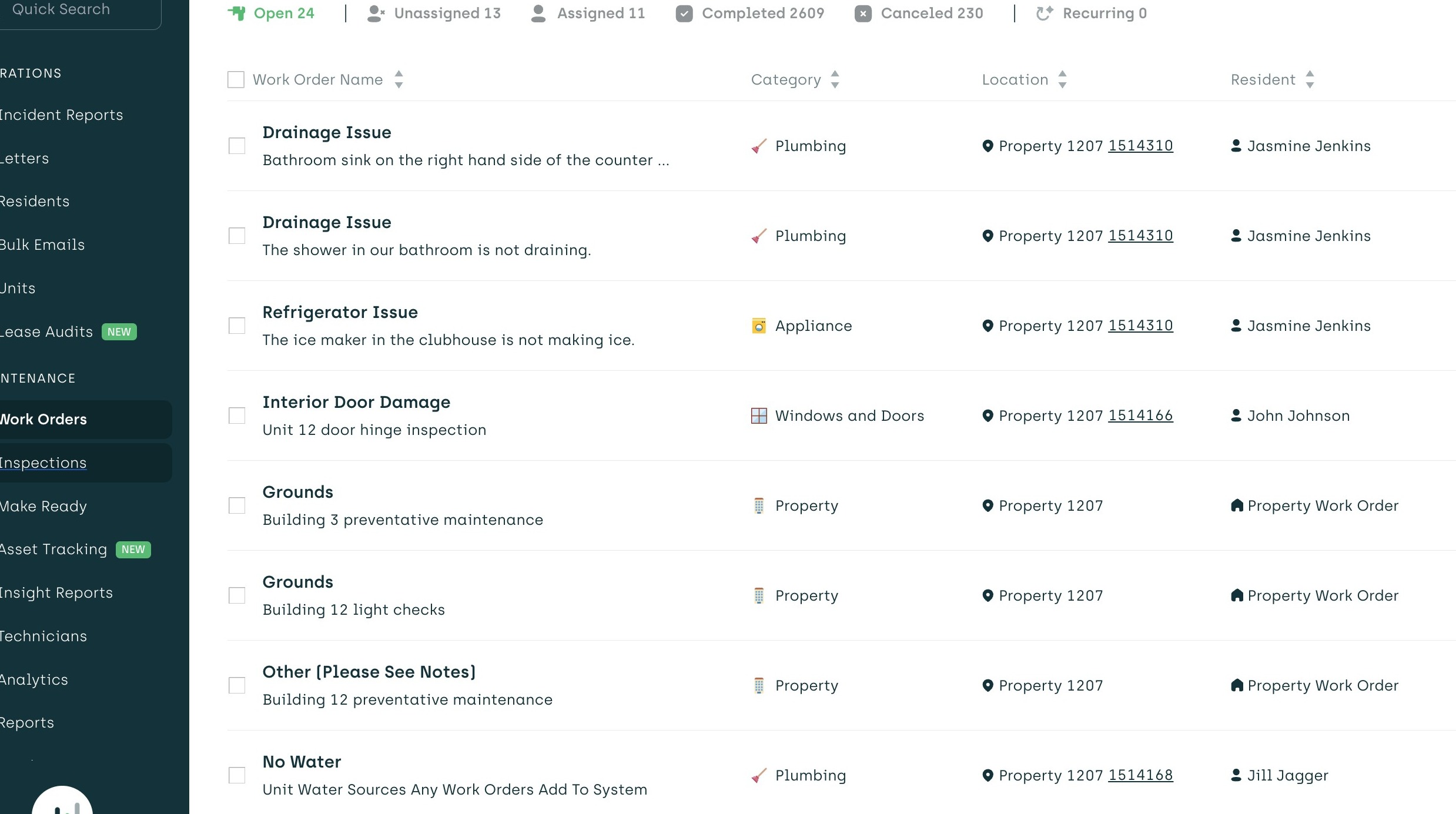
2. Click "Inspections."
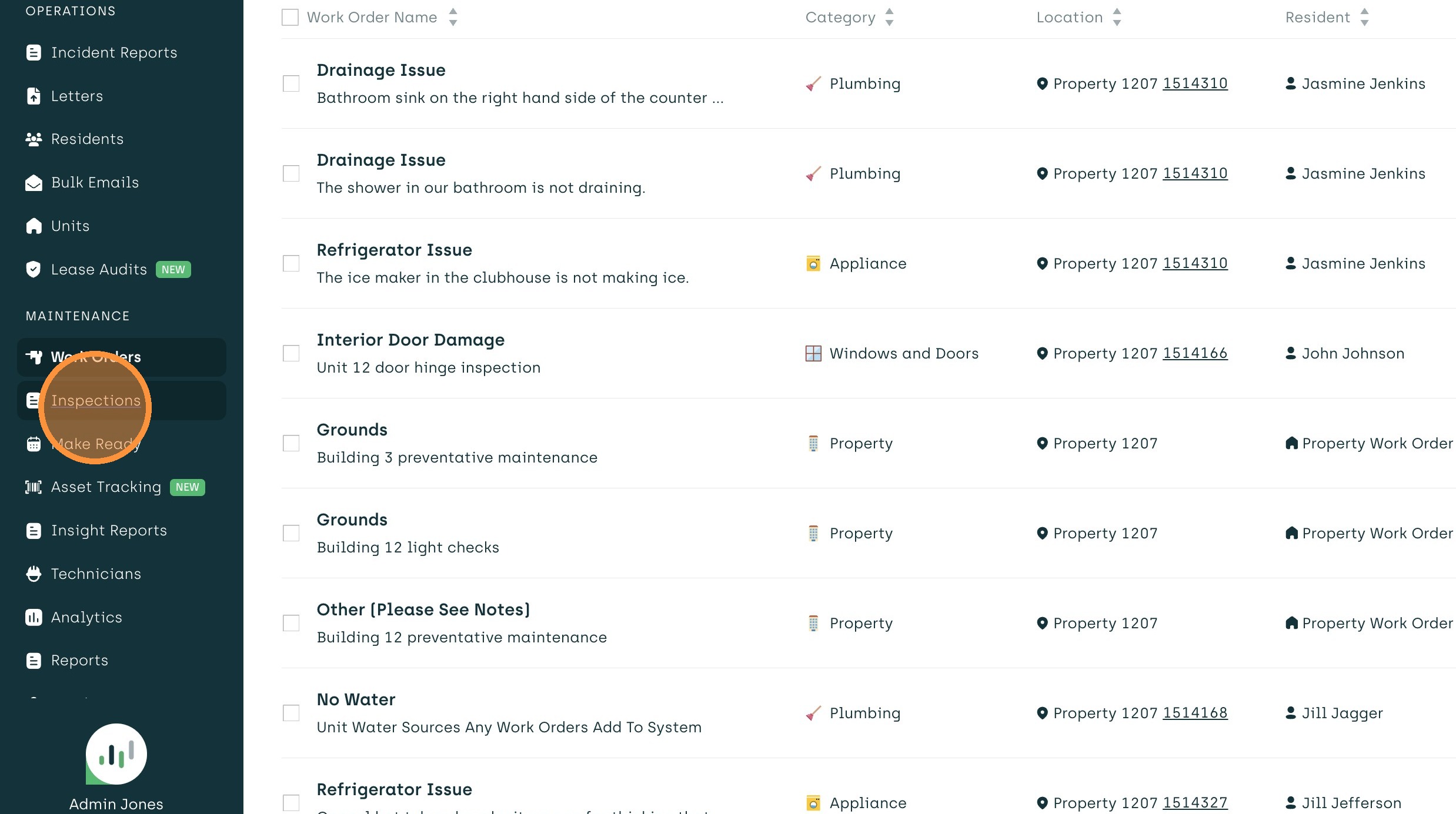
3. Select 'Completed' to filter the list for finished inspections.
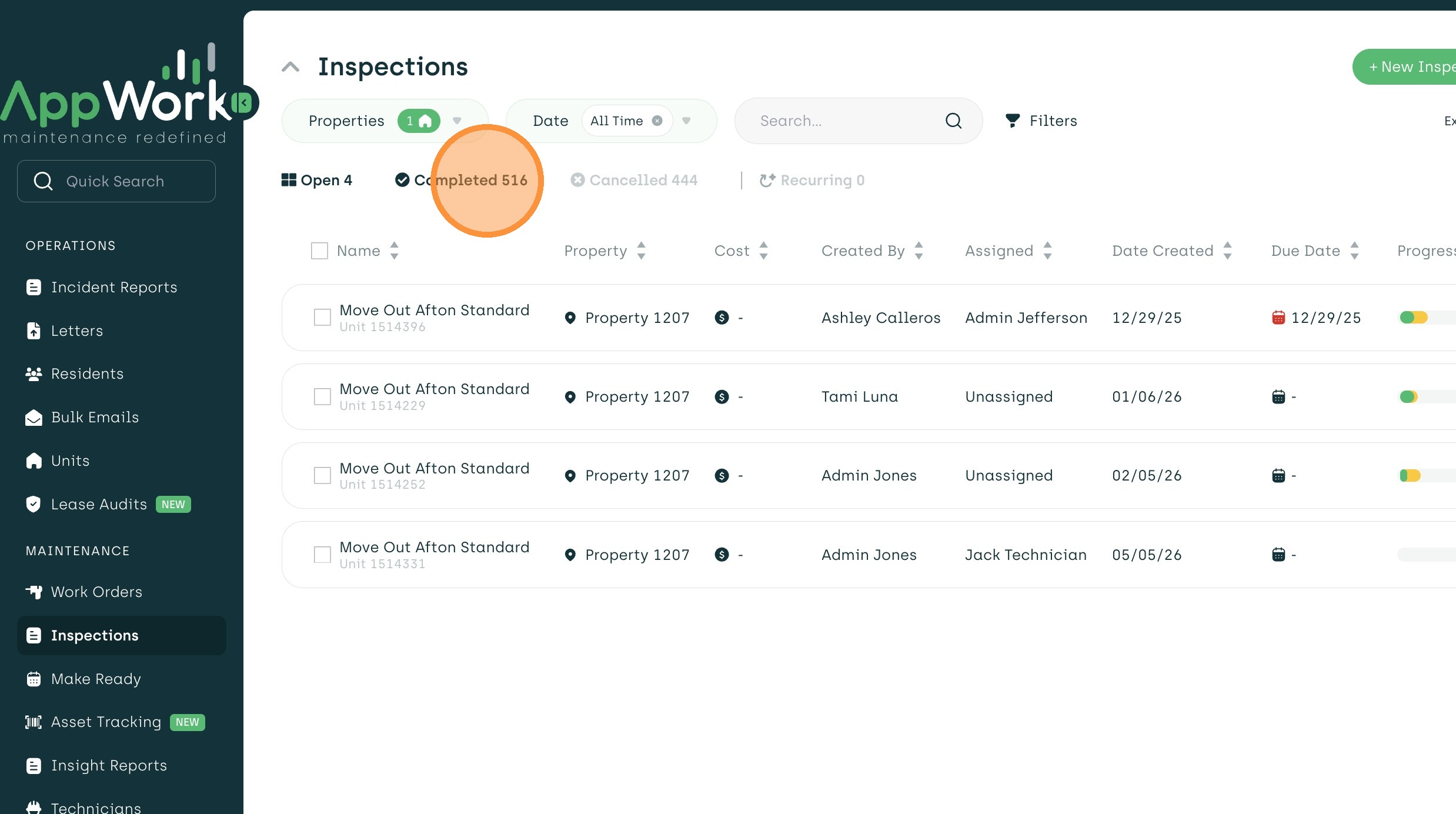
4. Choose an inspection with "action required" items.
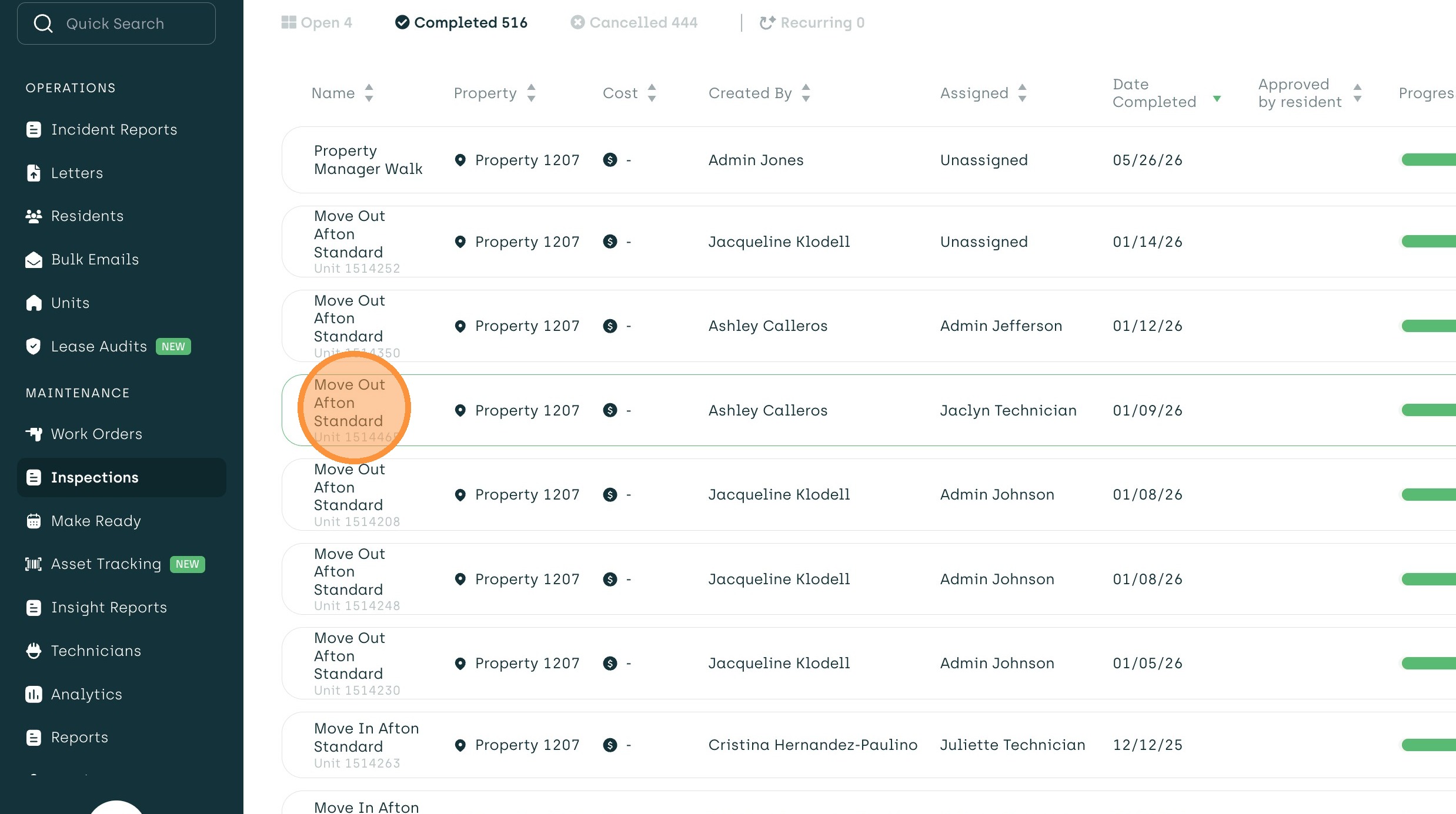
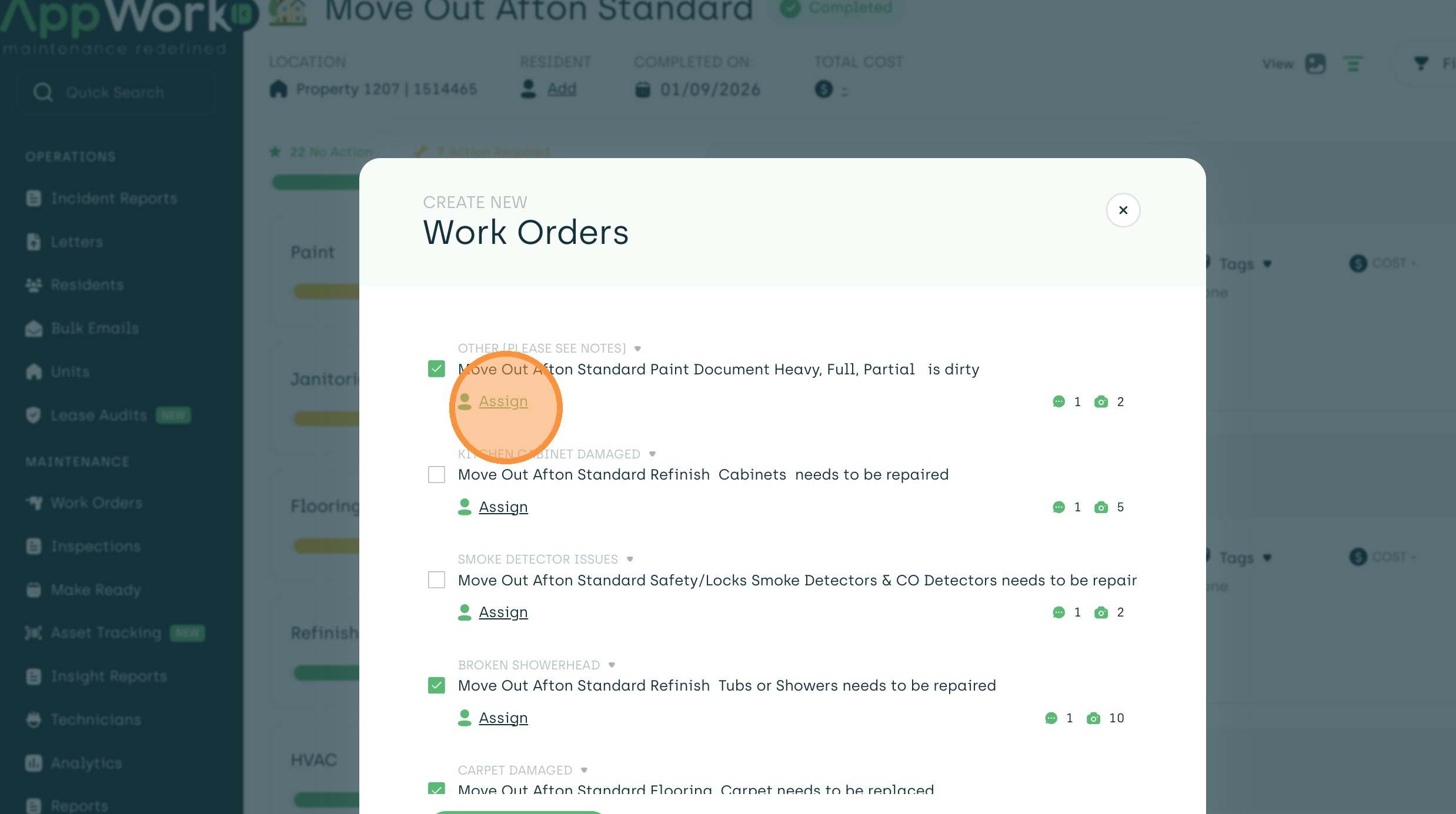
5. Click the 'Create Work Orders' button to start the generation process.
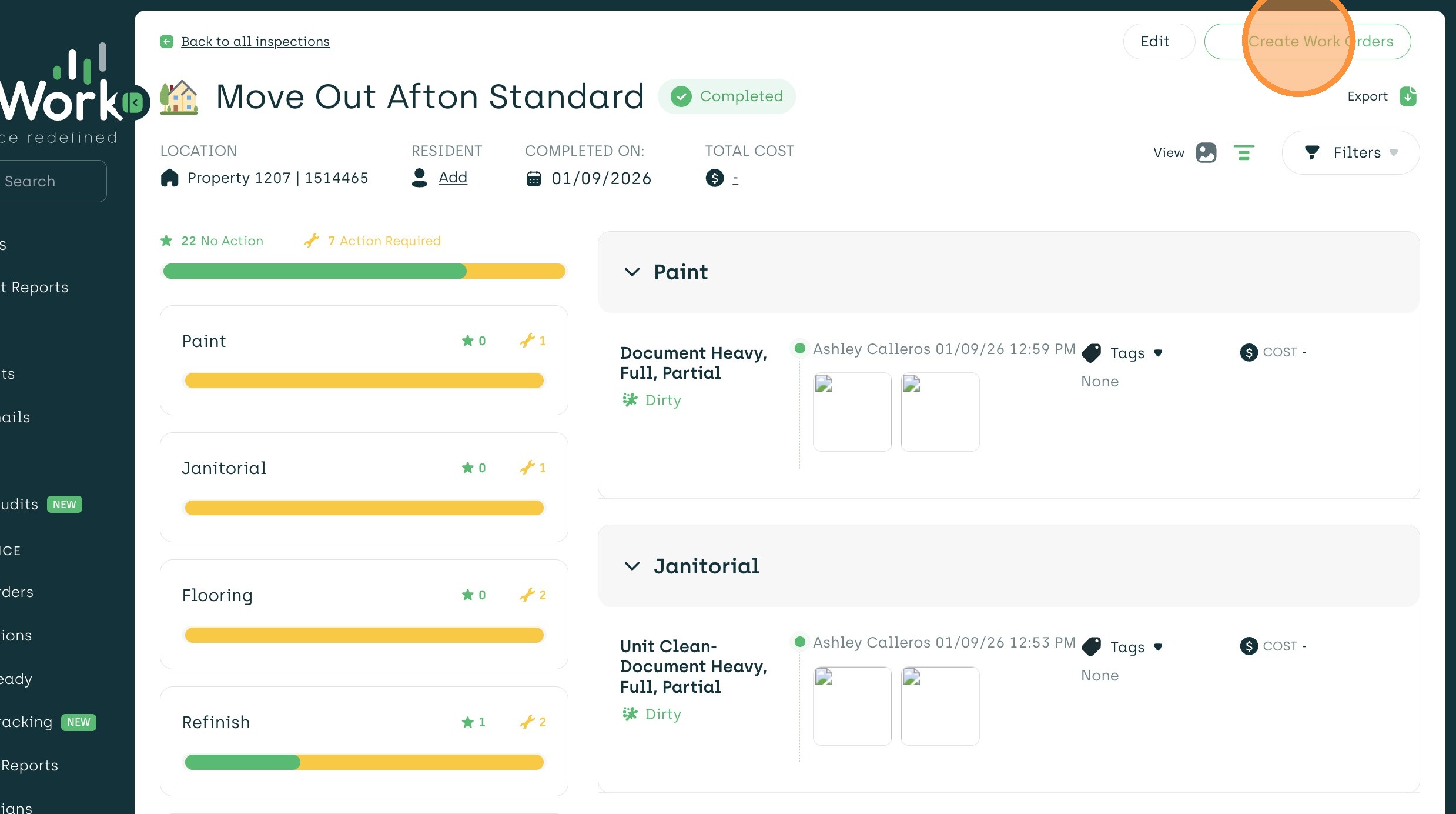
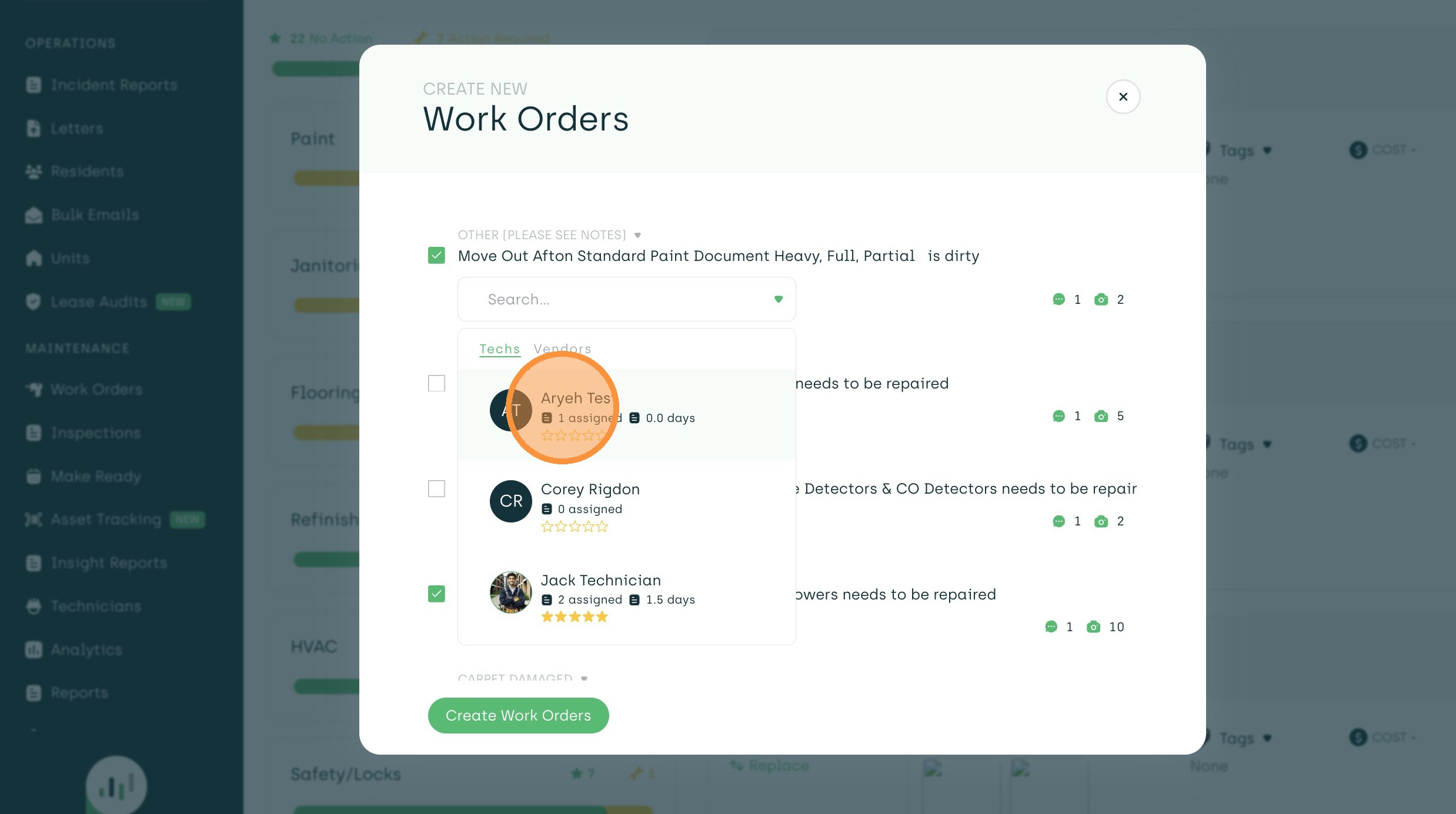
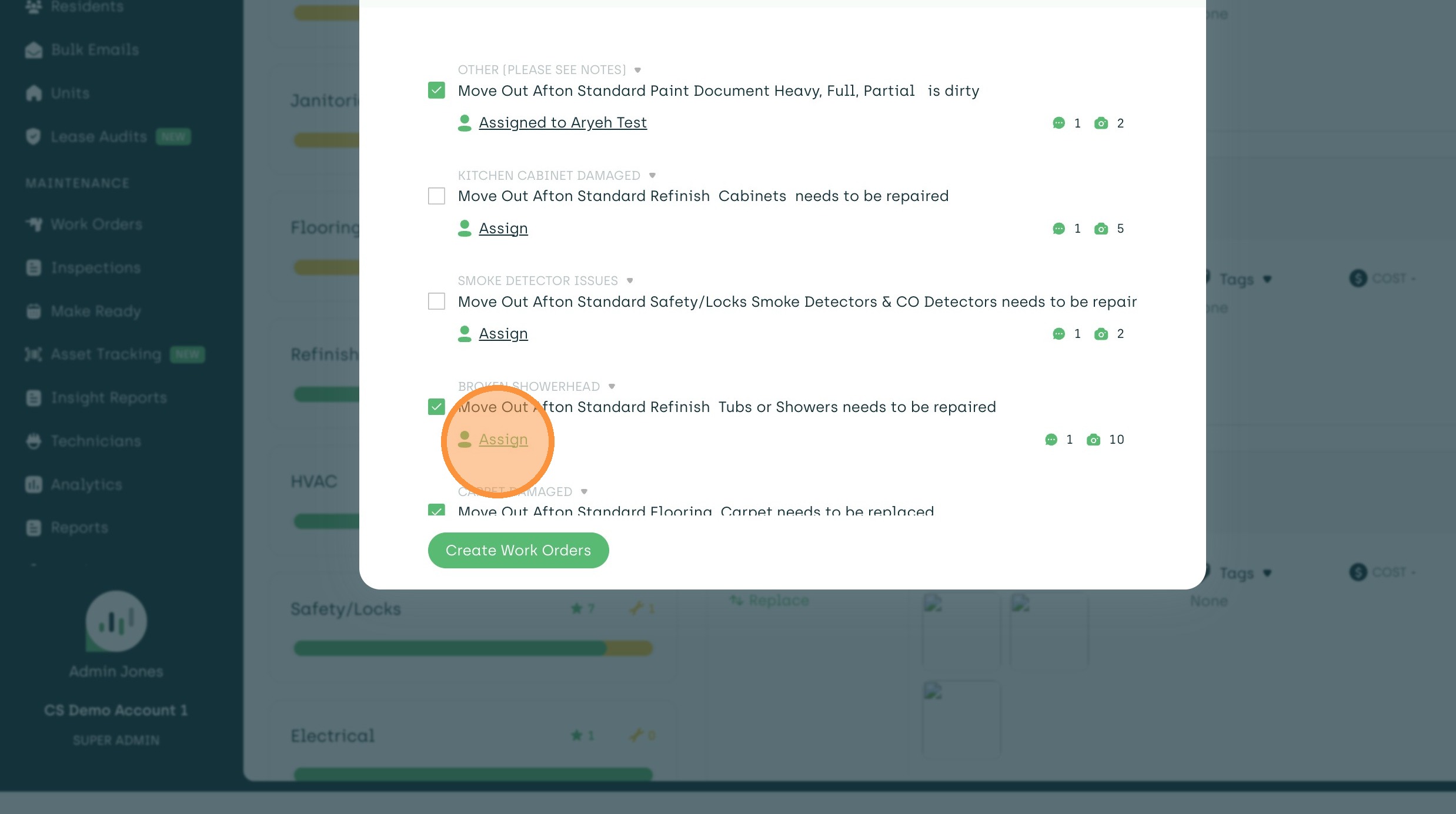
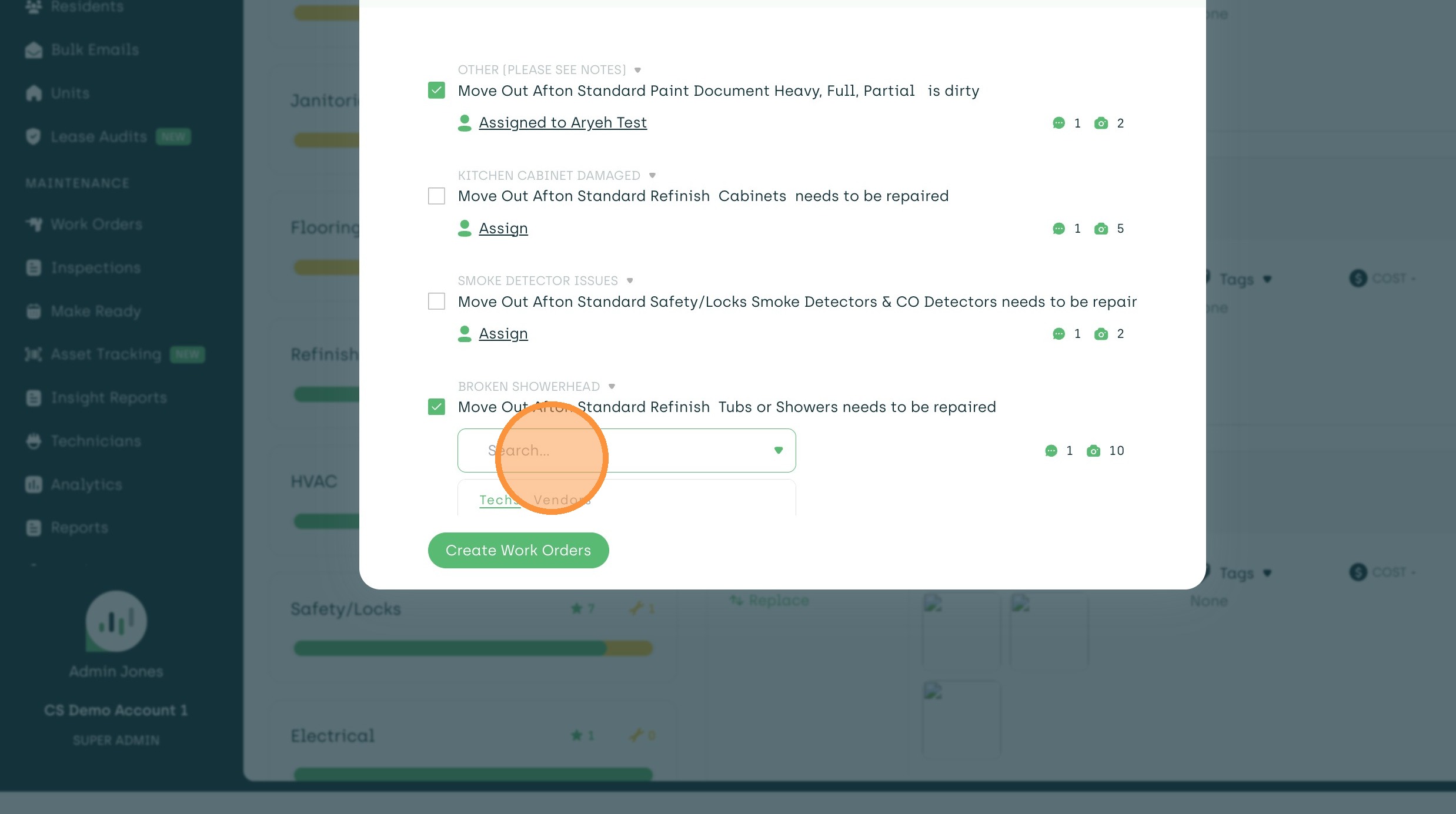
6. All "action required" items will be on this list. You can select/unselect from this list, and assign different technicians if needed before creating the work orders.
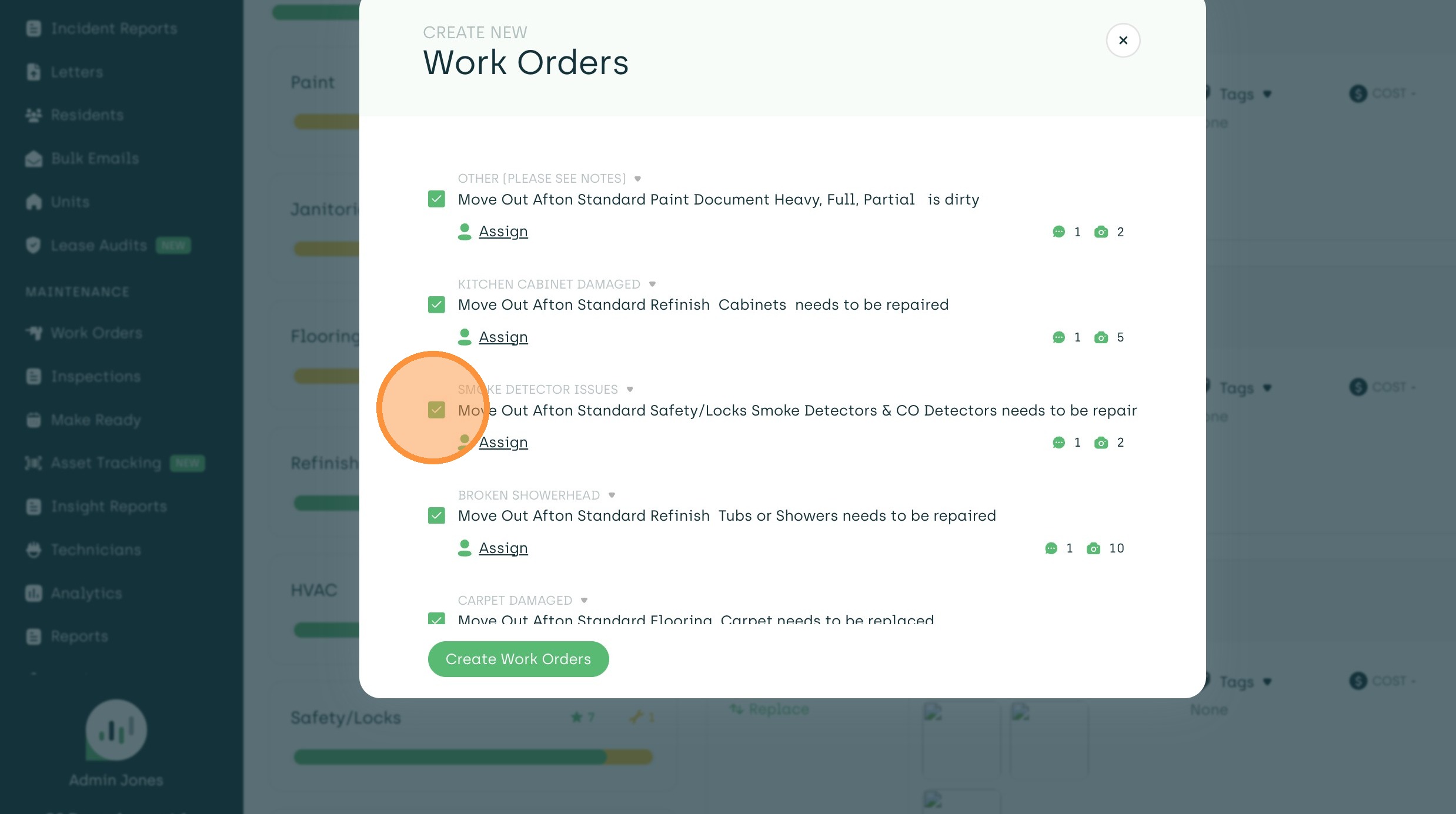
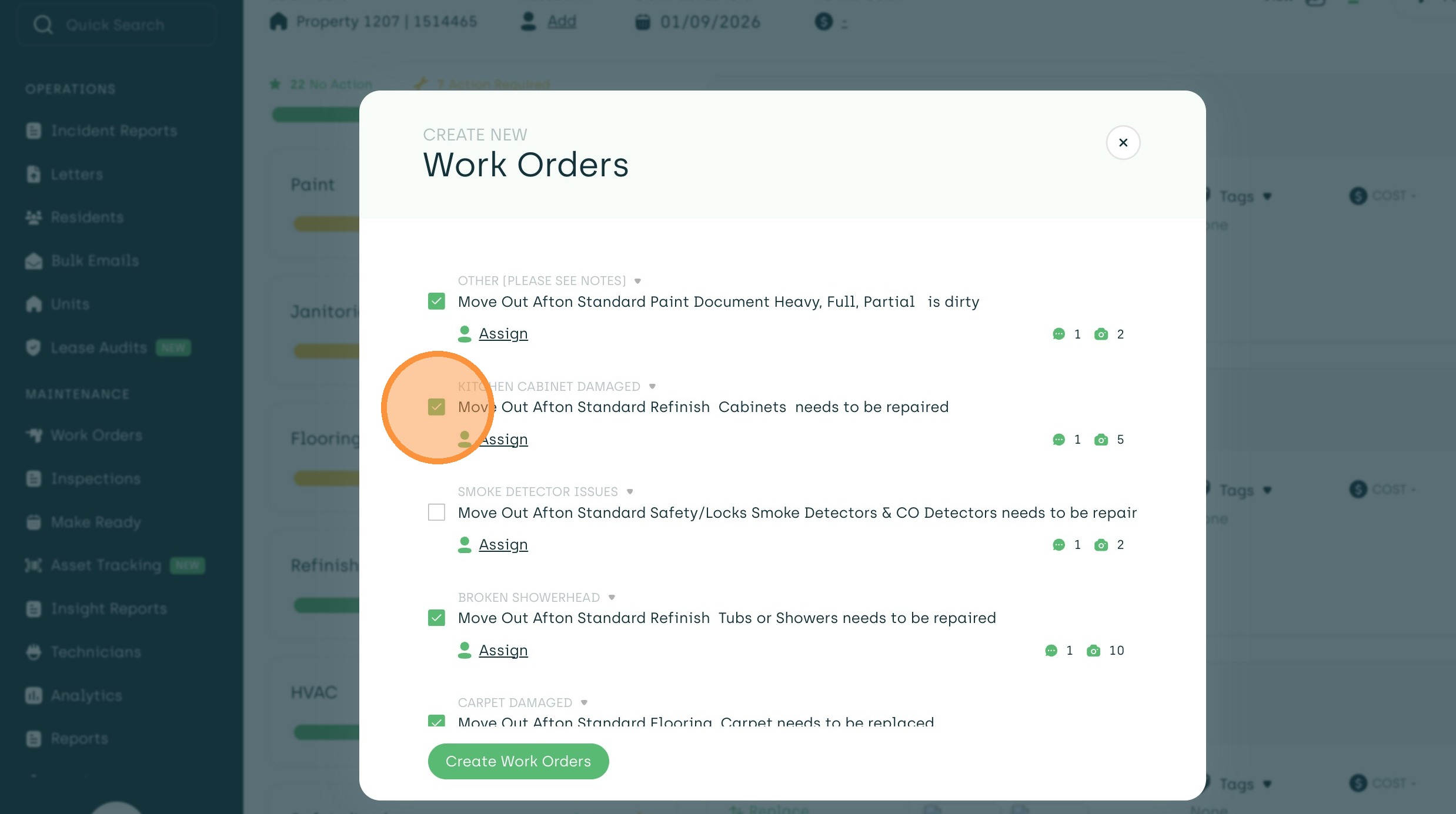
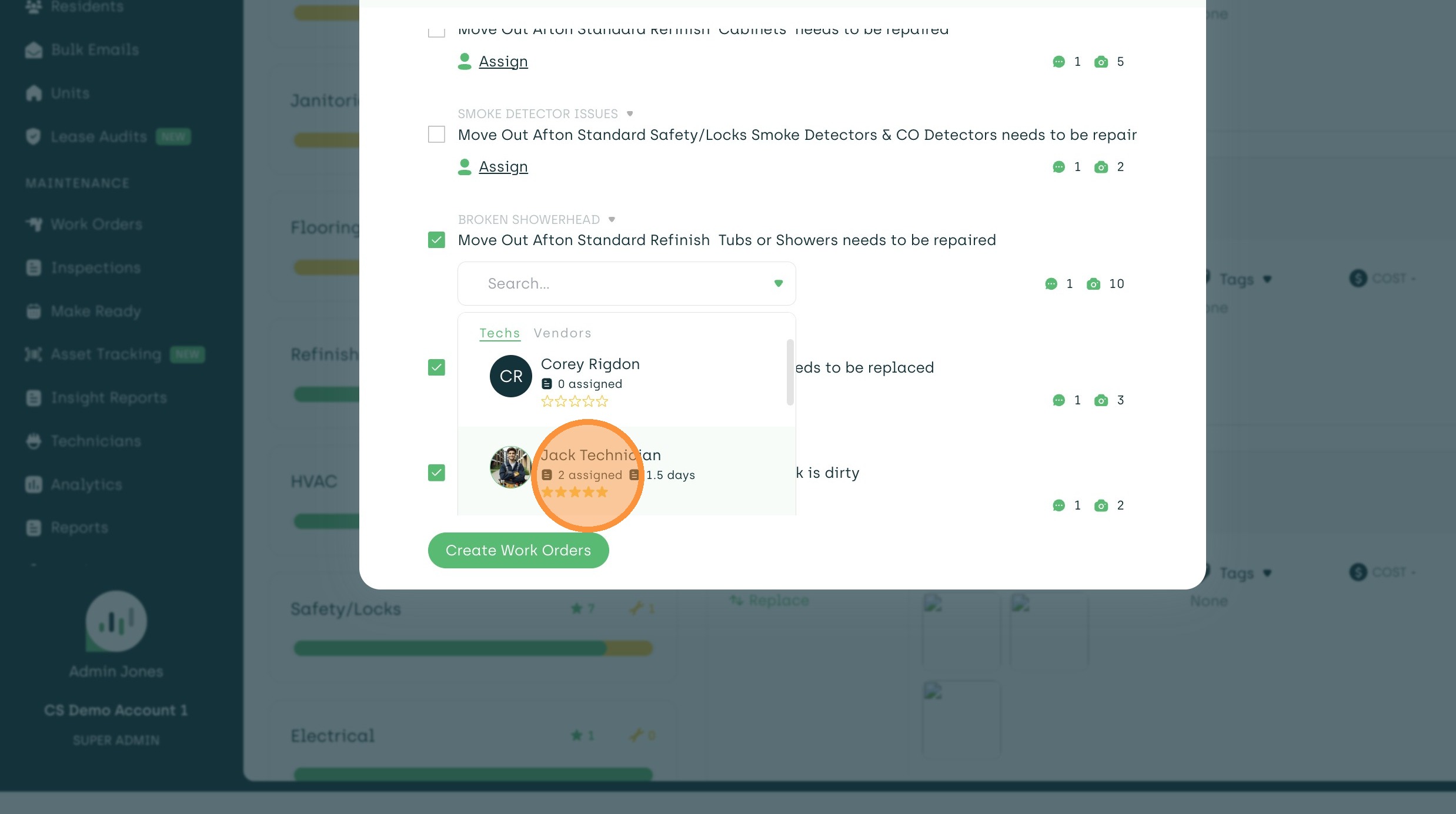
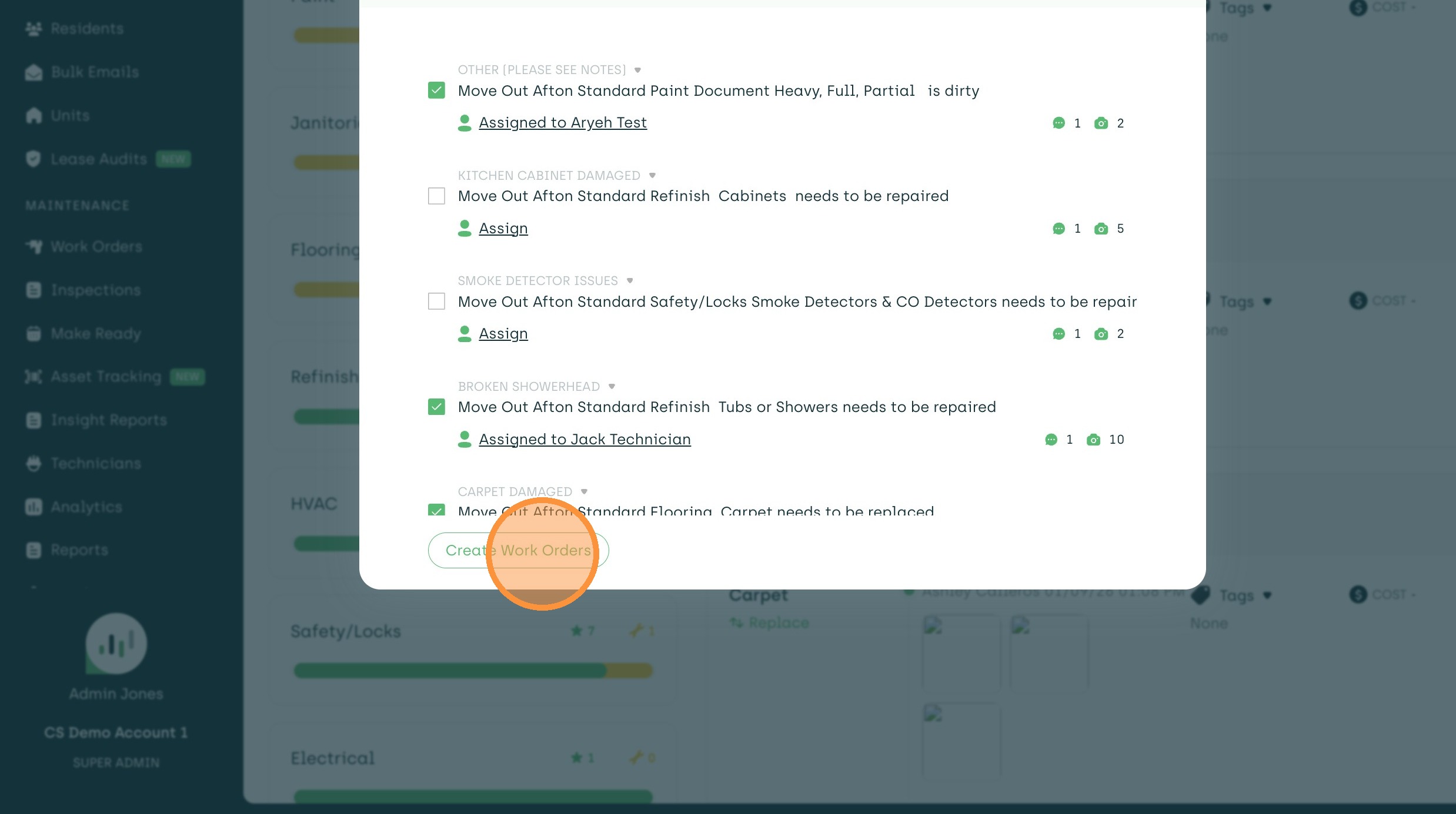
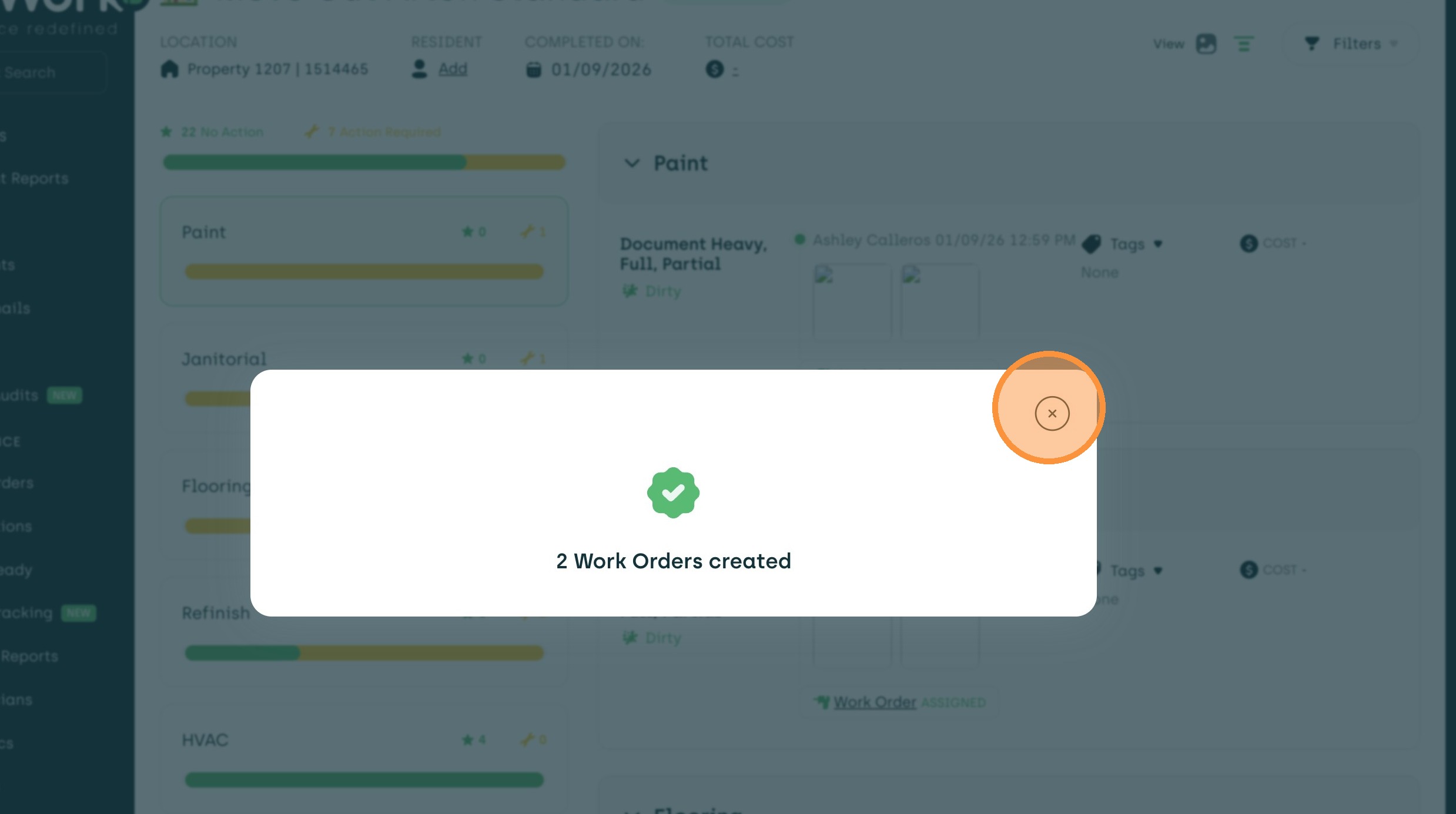
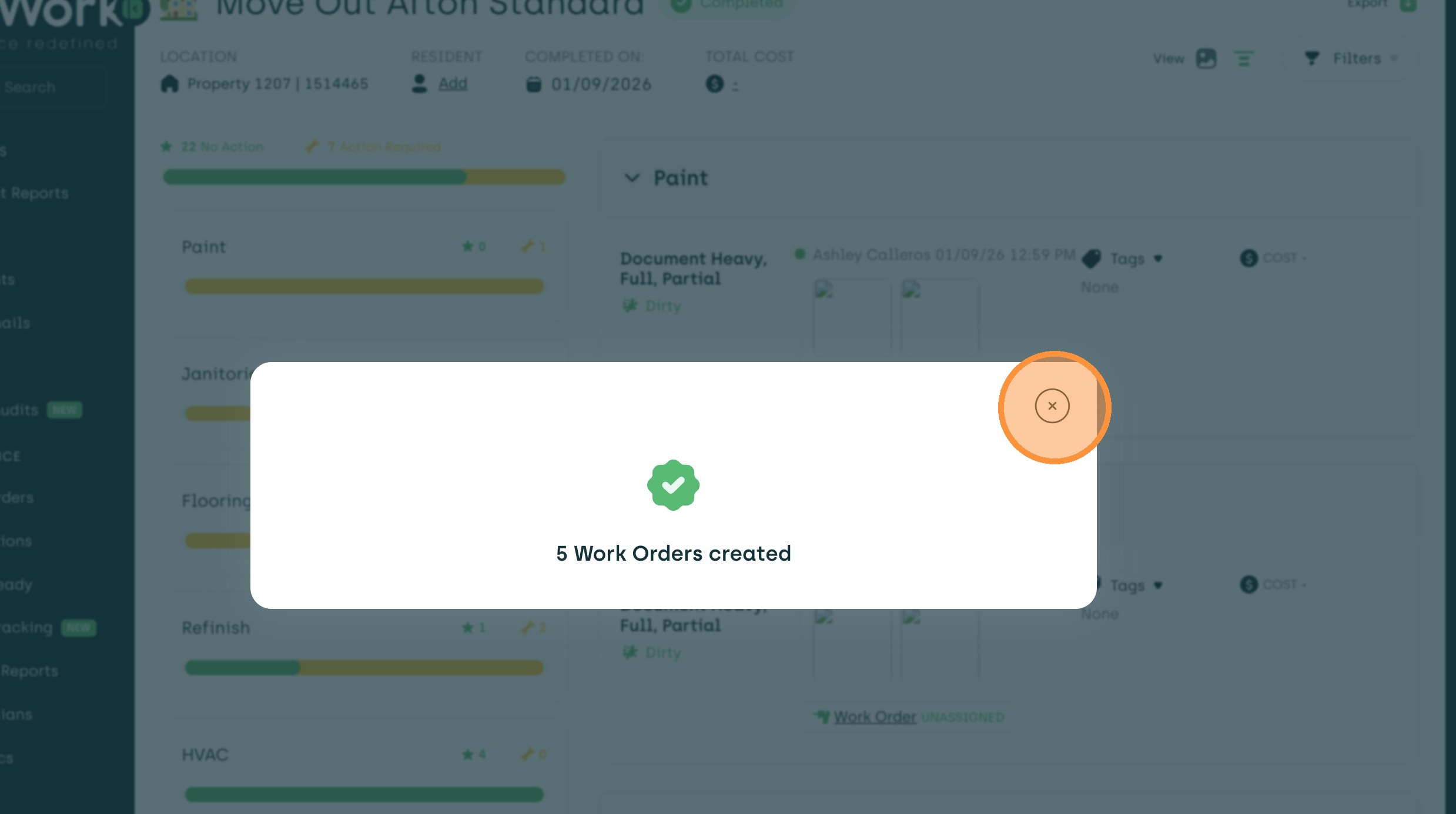
7. Confirm the creation of work orders by closing the success message.
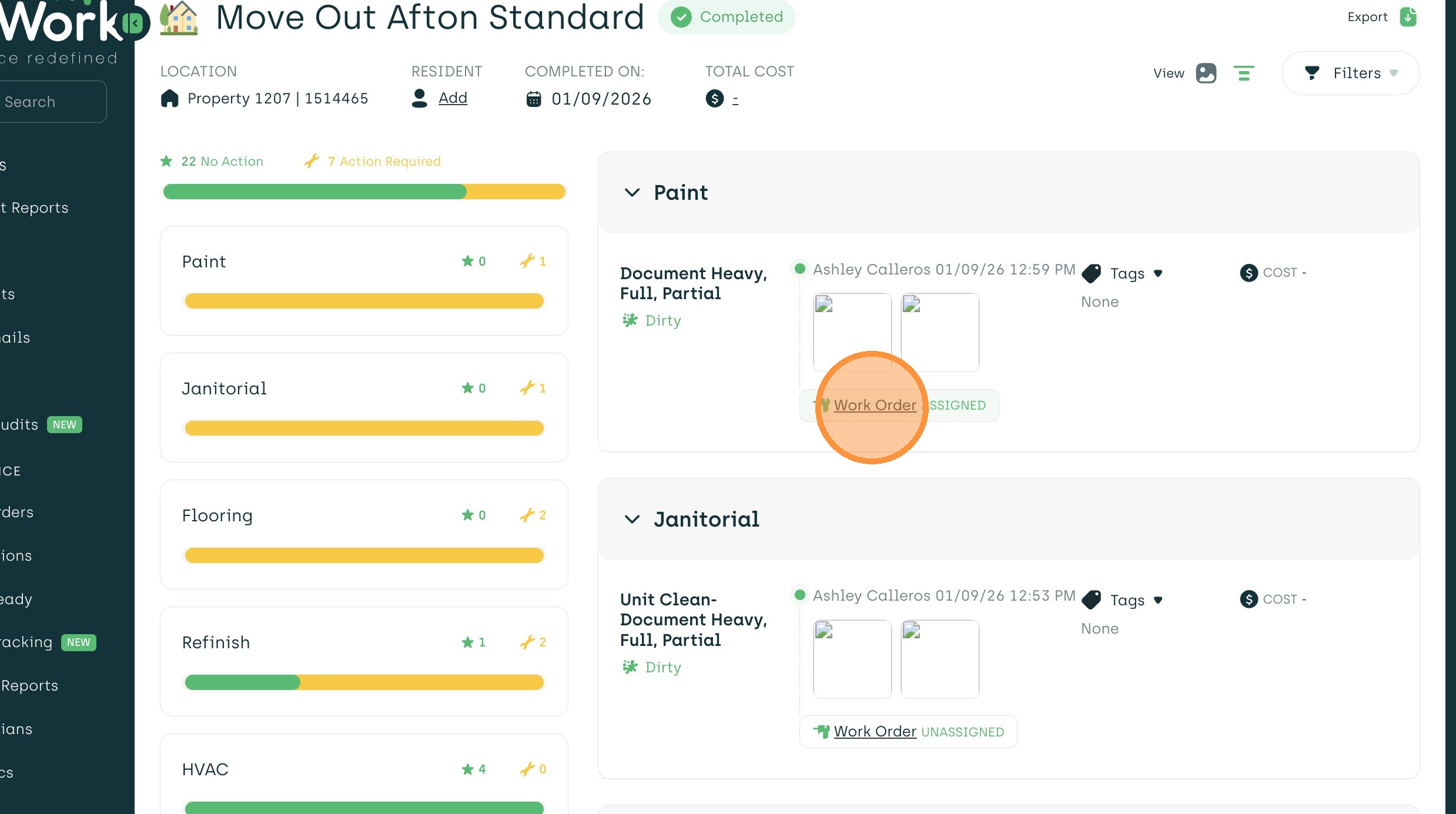
8. In the inspection, you'll now see all work orders. Click on a work order that was created.
9. You will see in the timeline that this work order was created from inspection.
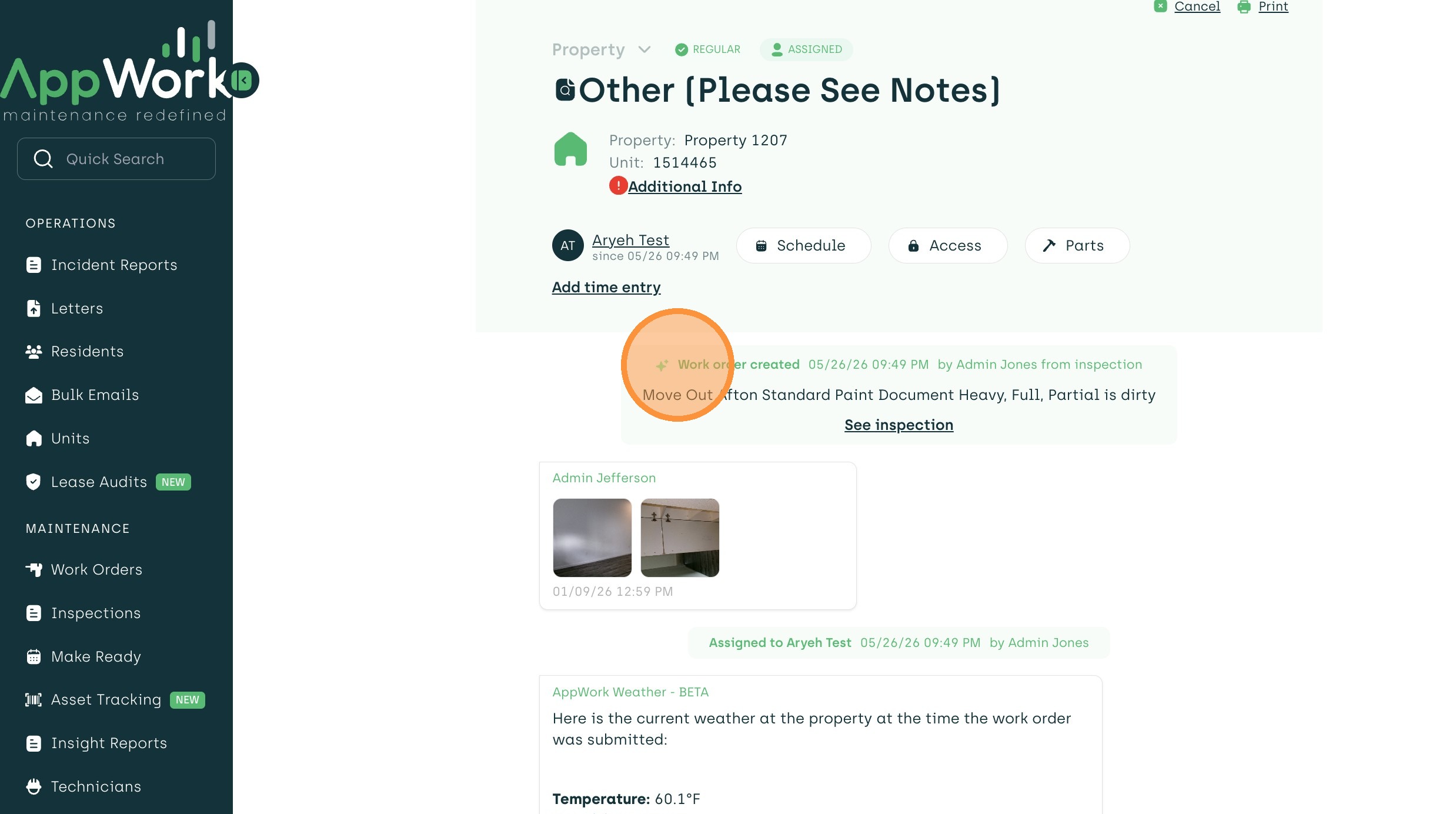
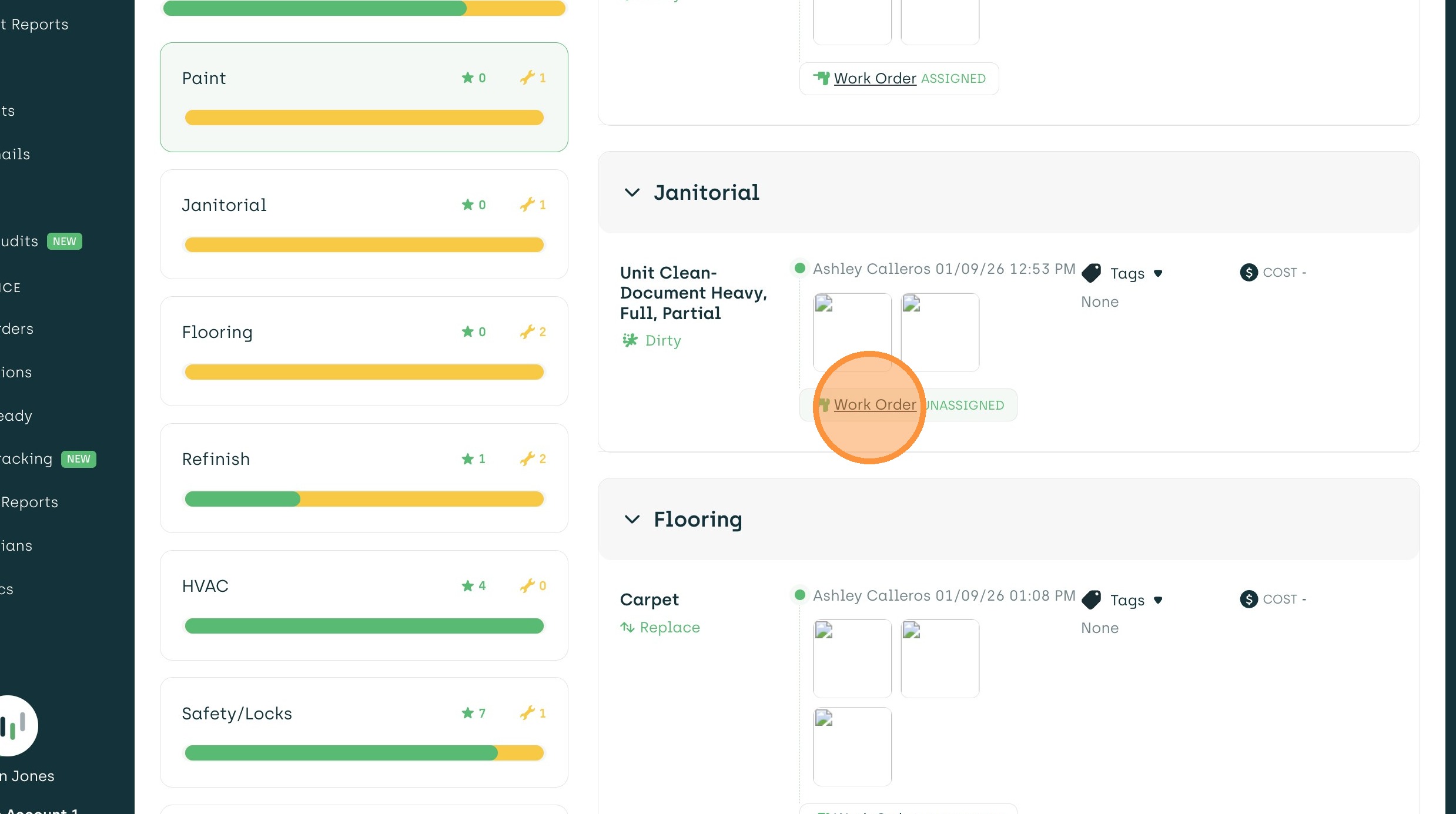
10. Click on the unassigned work order in the inspection.
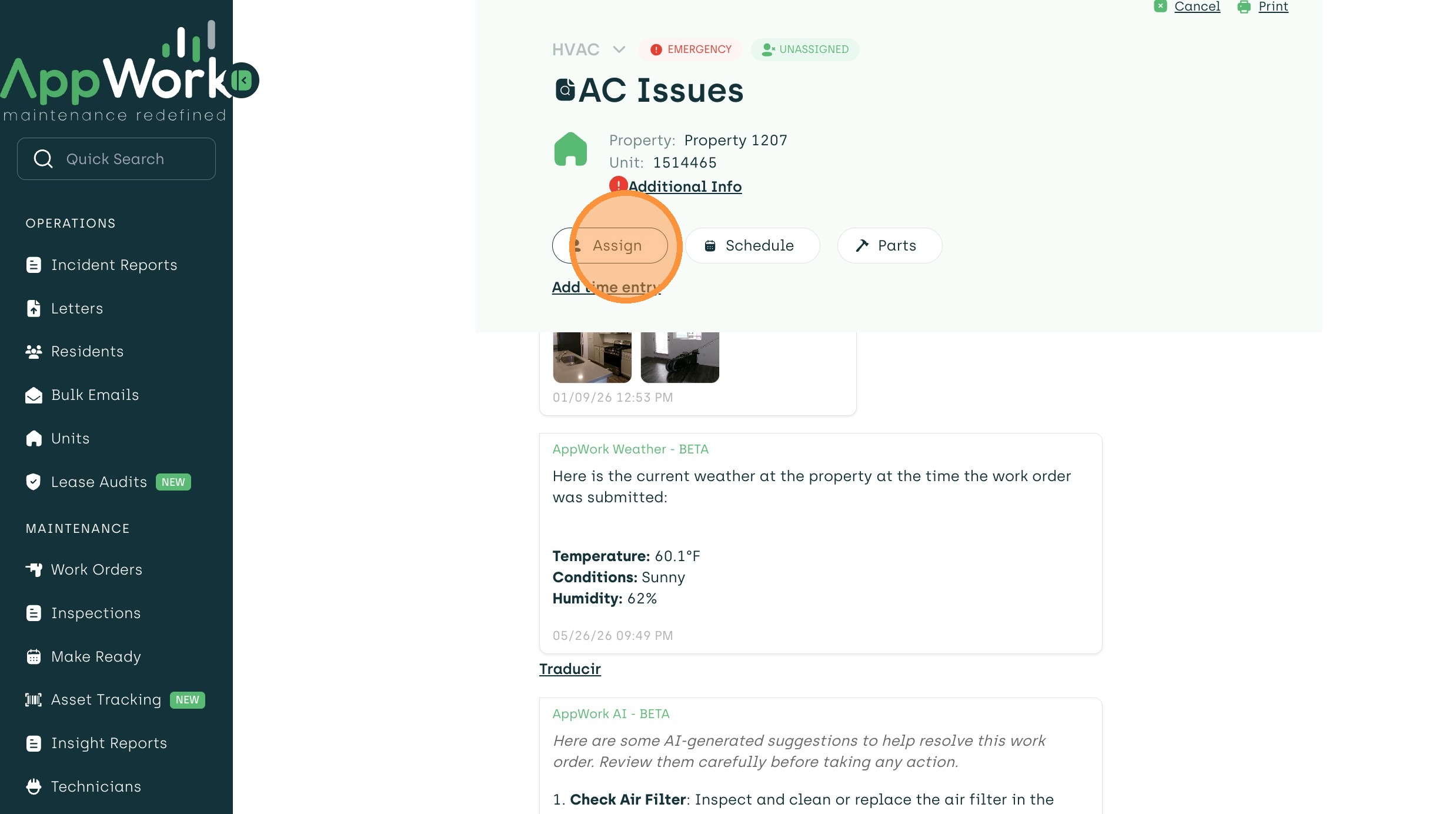
11. Once the work order opens up in a new window, you have the ability to assign it from here as well.
12. You can always go back to the inspection to create the rest of the work orders you did not select the first time.
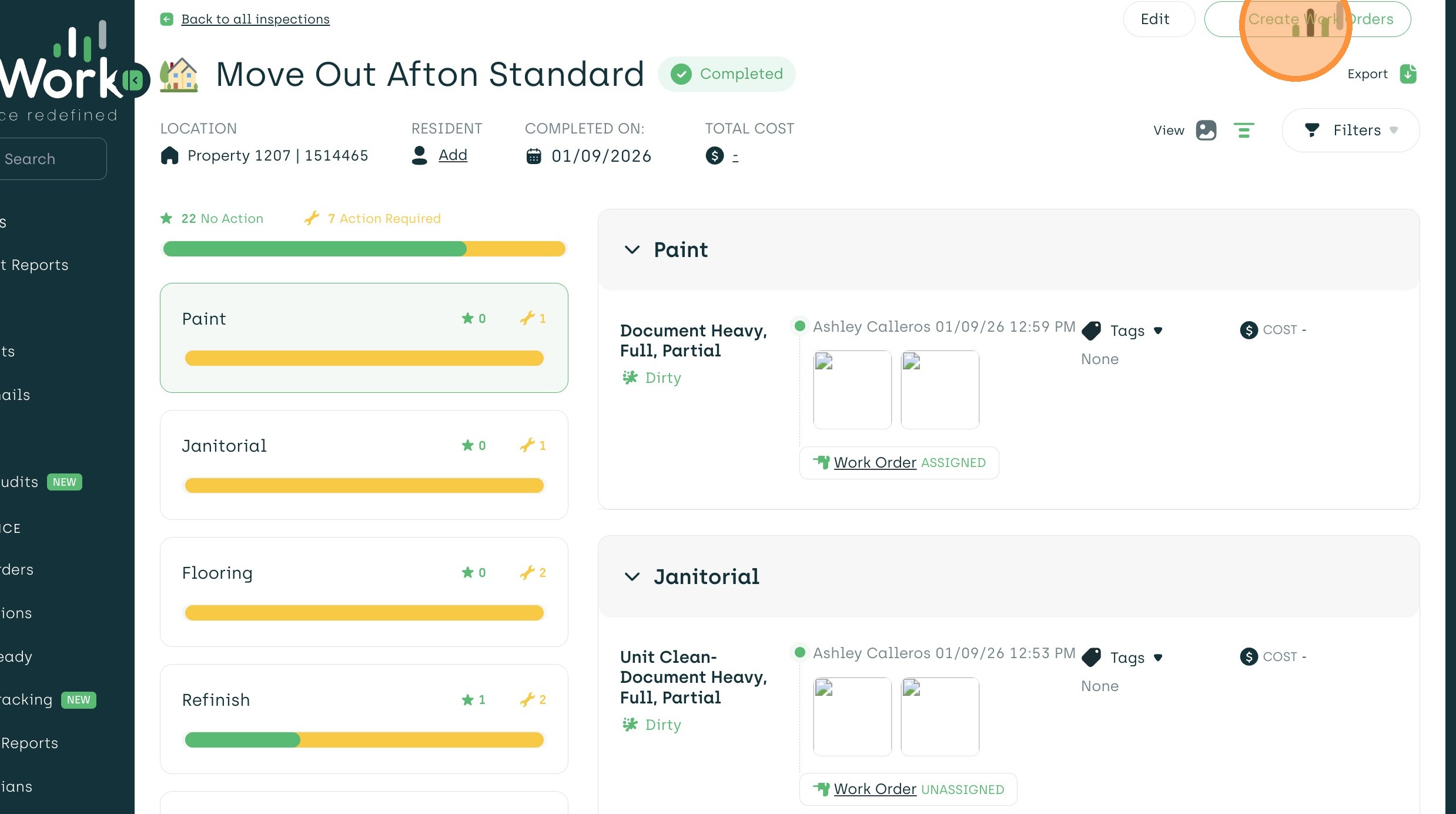
13. All remaining work orders will appear as an option for creation and assignment.
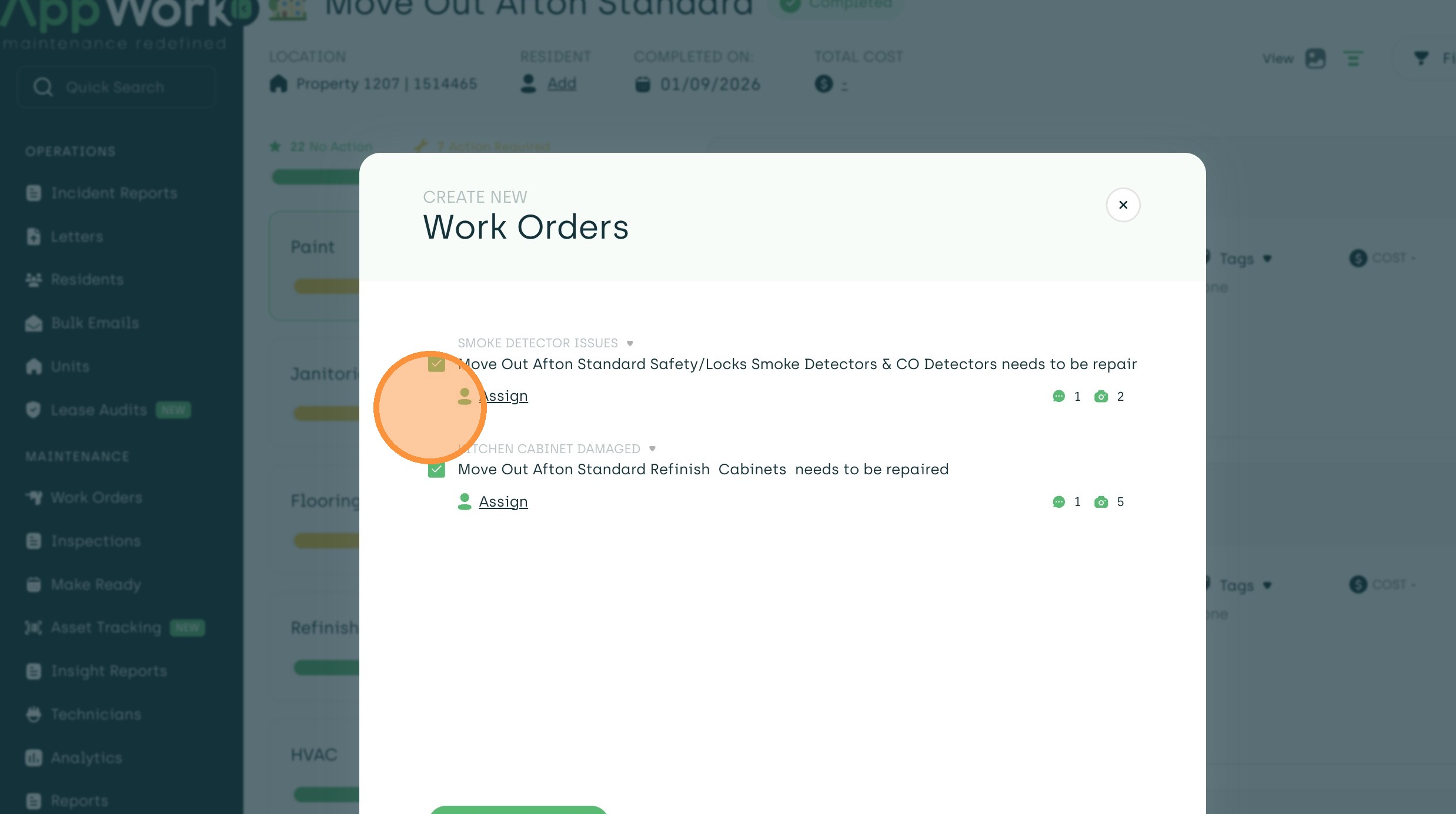
14. Click "Create Work Orders"
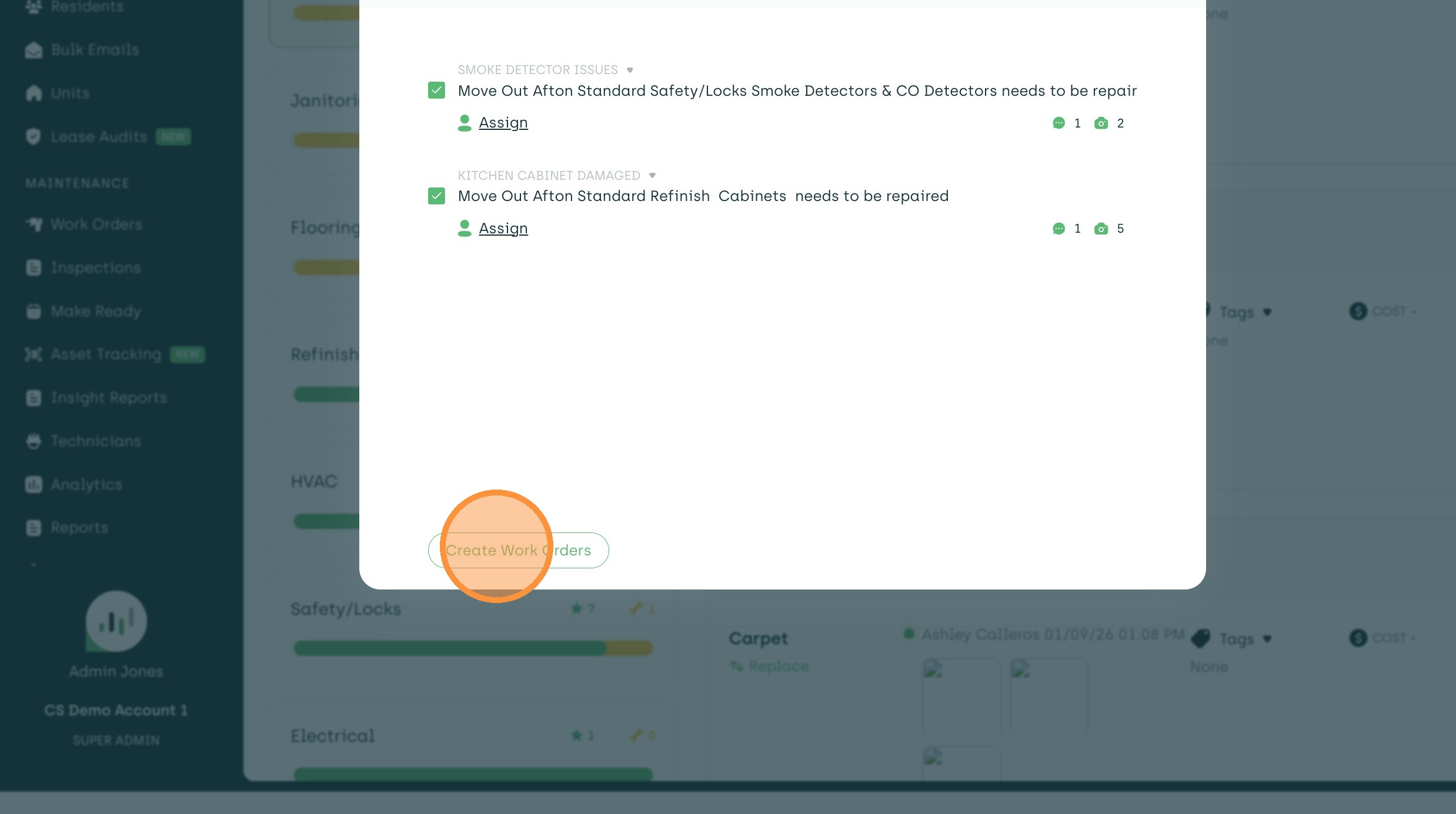
15. Close the final work order creation confirmation dialog. All work orders in this inspection were created with ease.