How to Create a Recurring Work Order in AppWork
Learn how to efficiently automate maintenance tasks by setting up recurring work orders in the AppWork admin portal. This guide walks you through scheduling frequencies, selecting properties, and configuring specific work order details to ensure consistent property management.
1. Navigate to the Admin Portal.
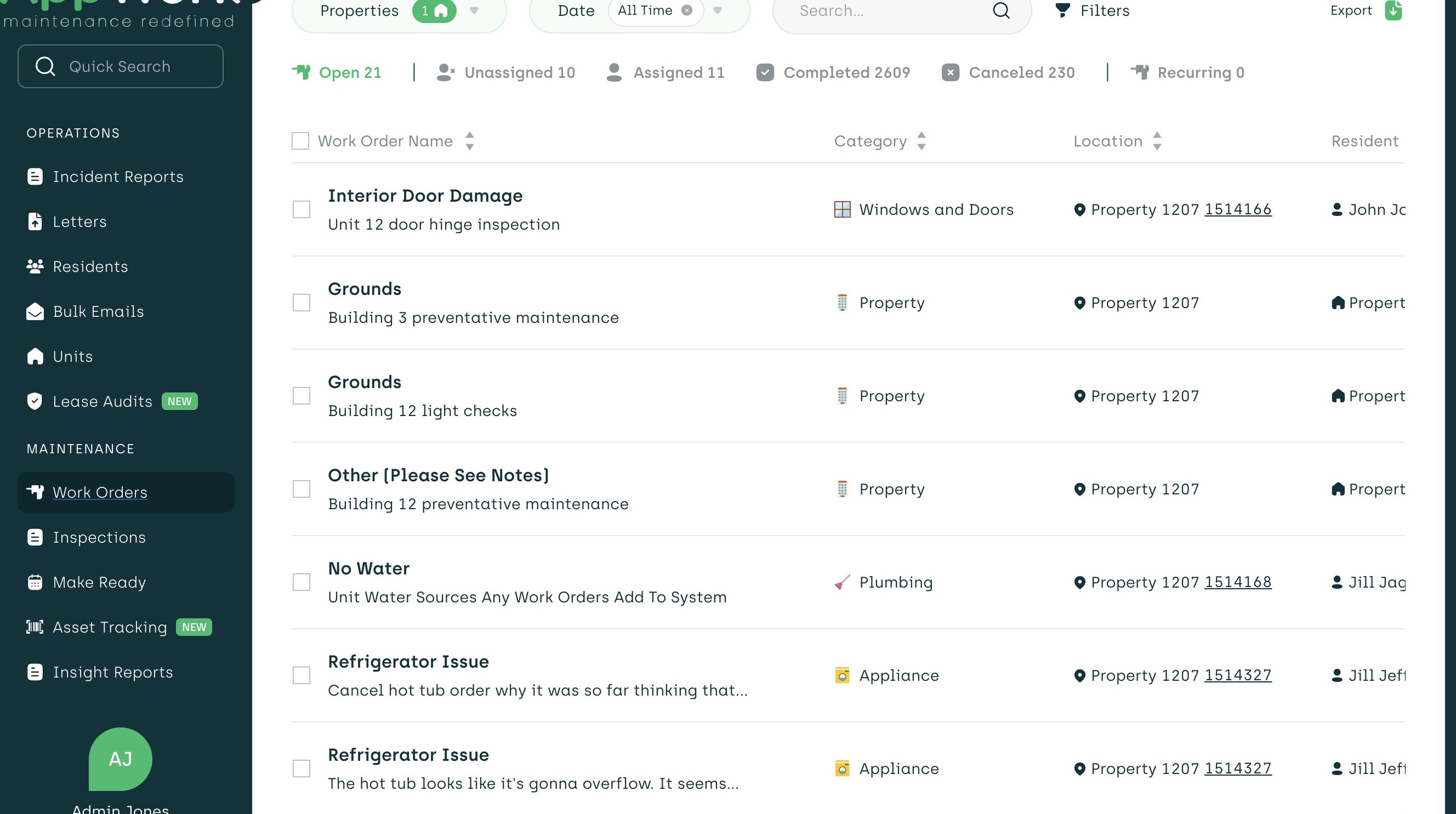
2. Select Work Orders from sidebar.
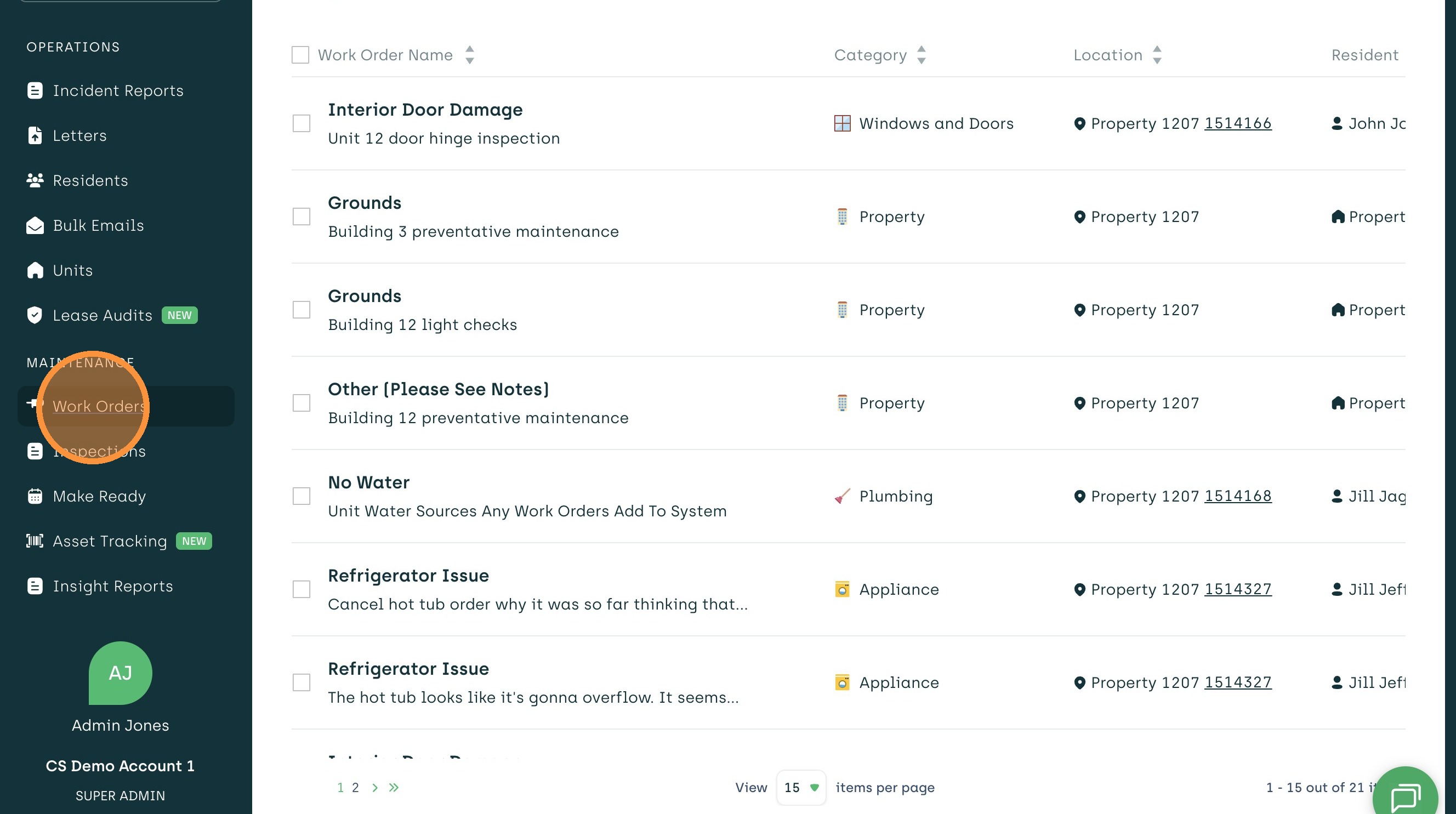
3. Click Recurring tab.
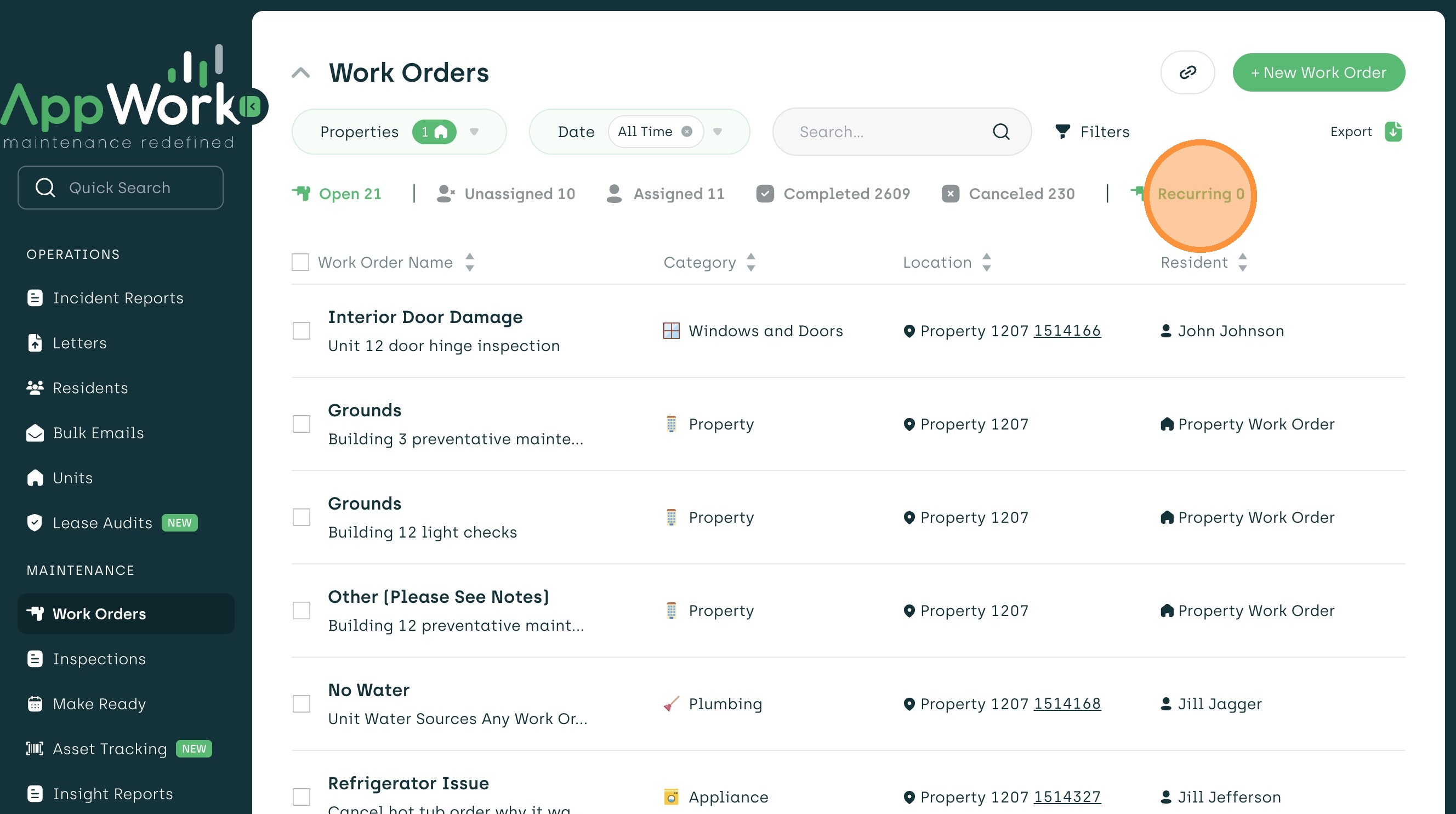
4. Click "+ New Recurring Work Order"
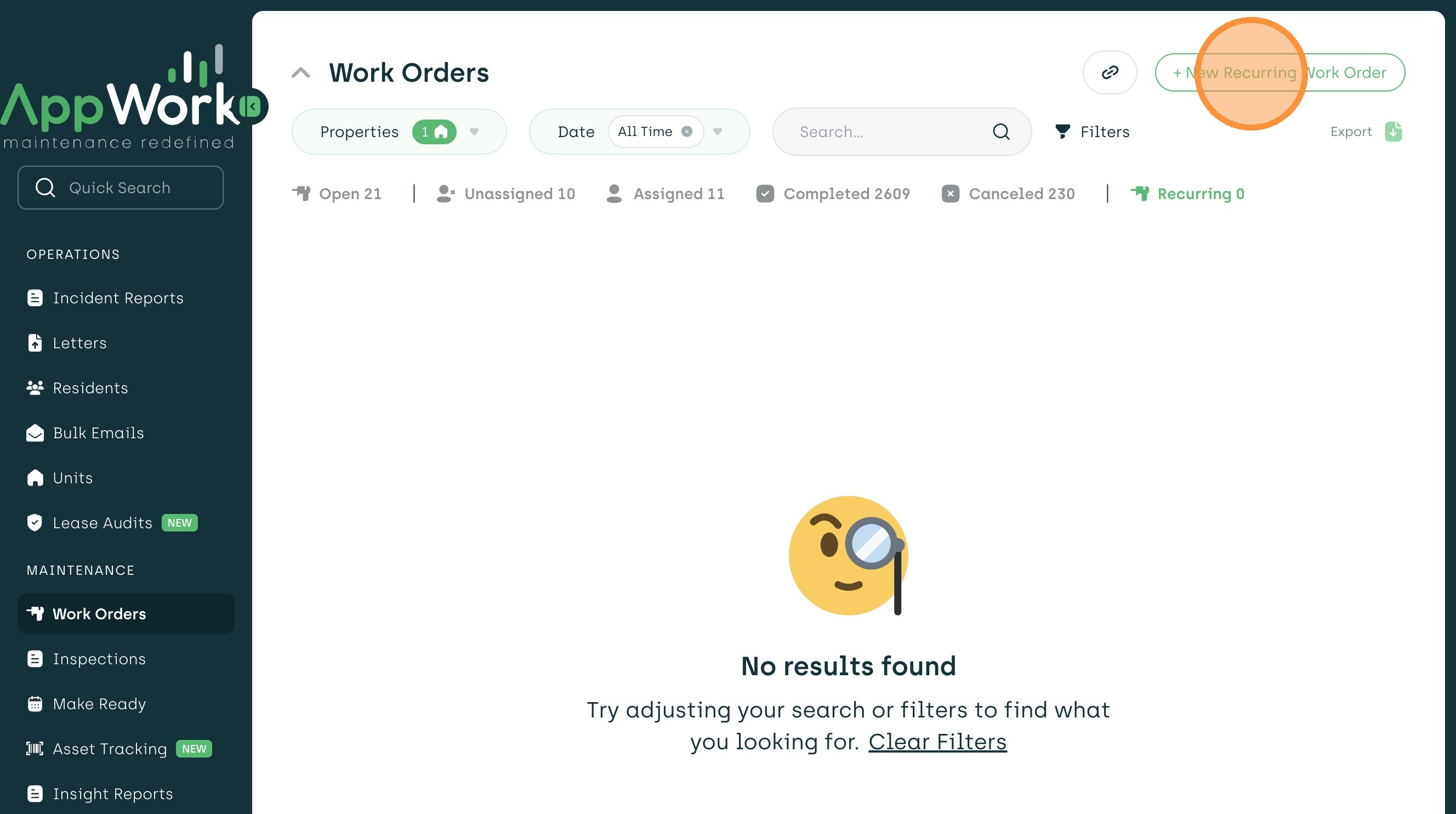
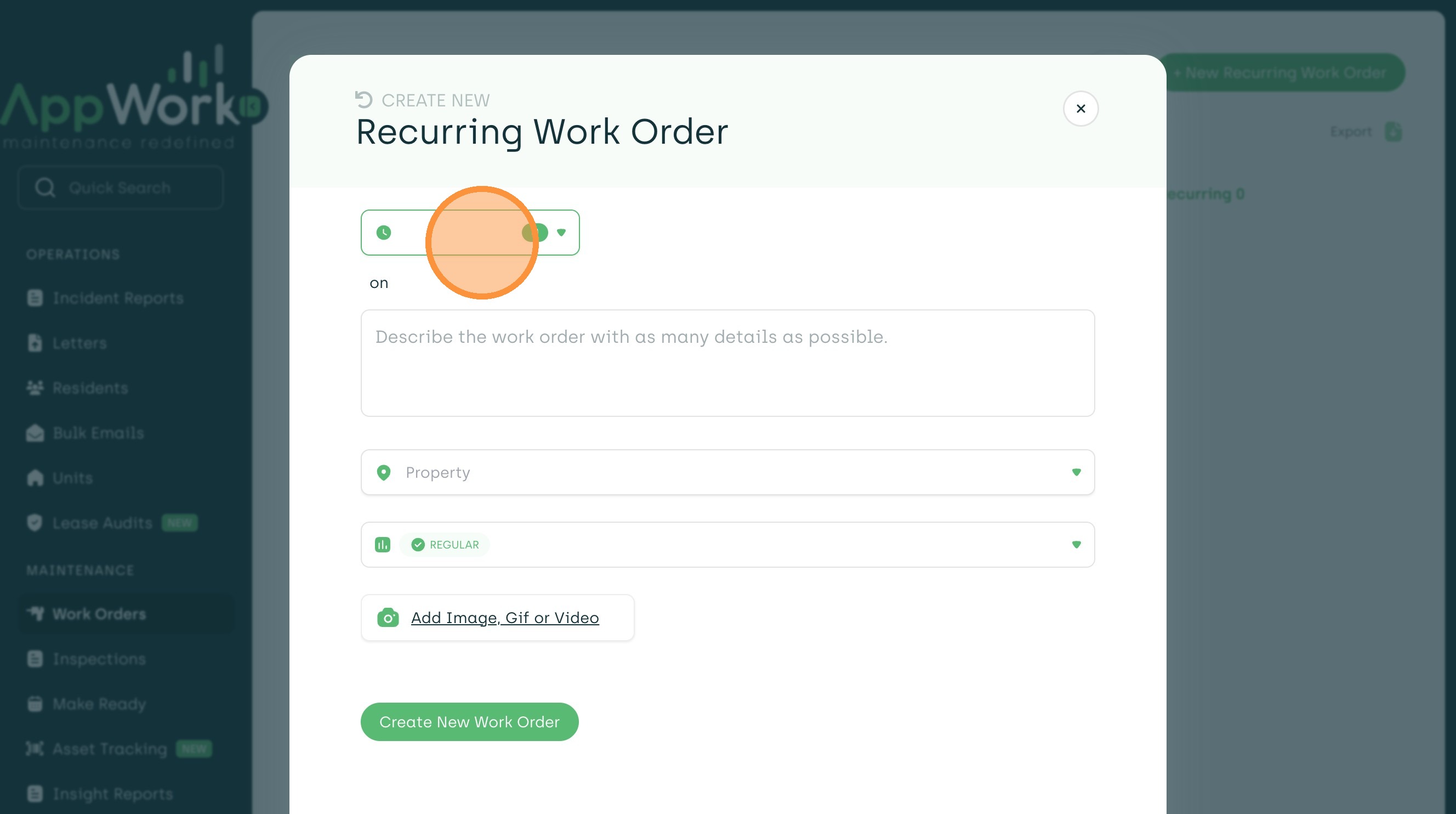
5. Click on the Frequency dropdown.
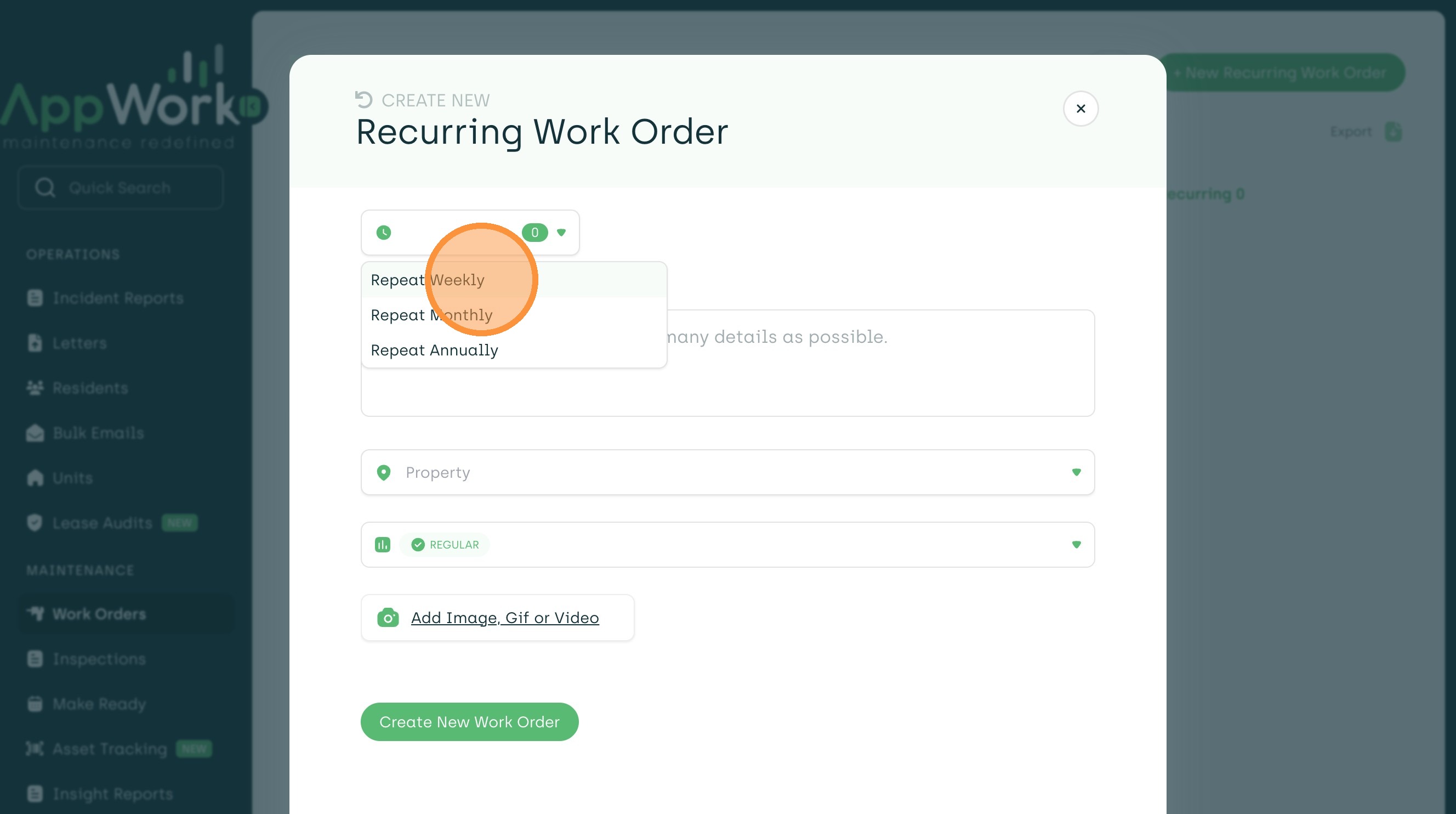
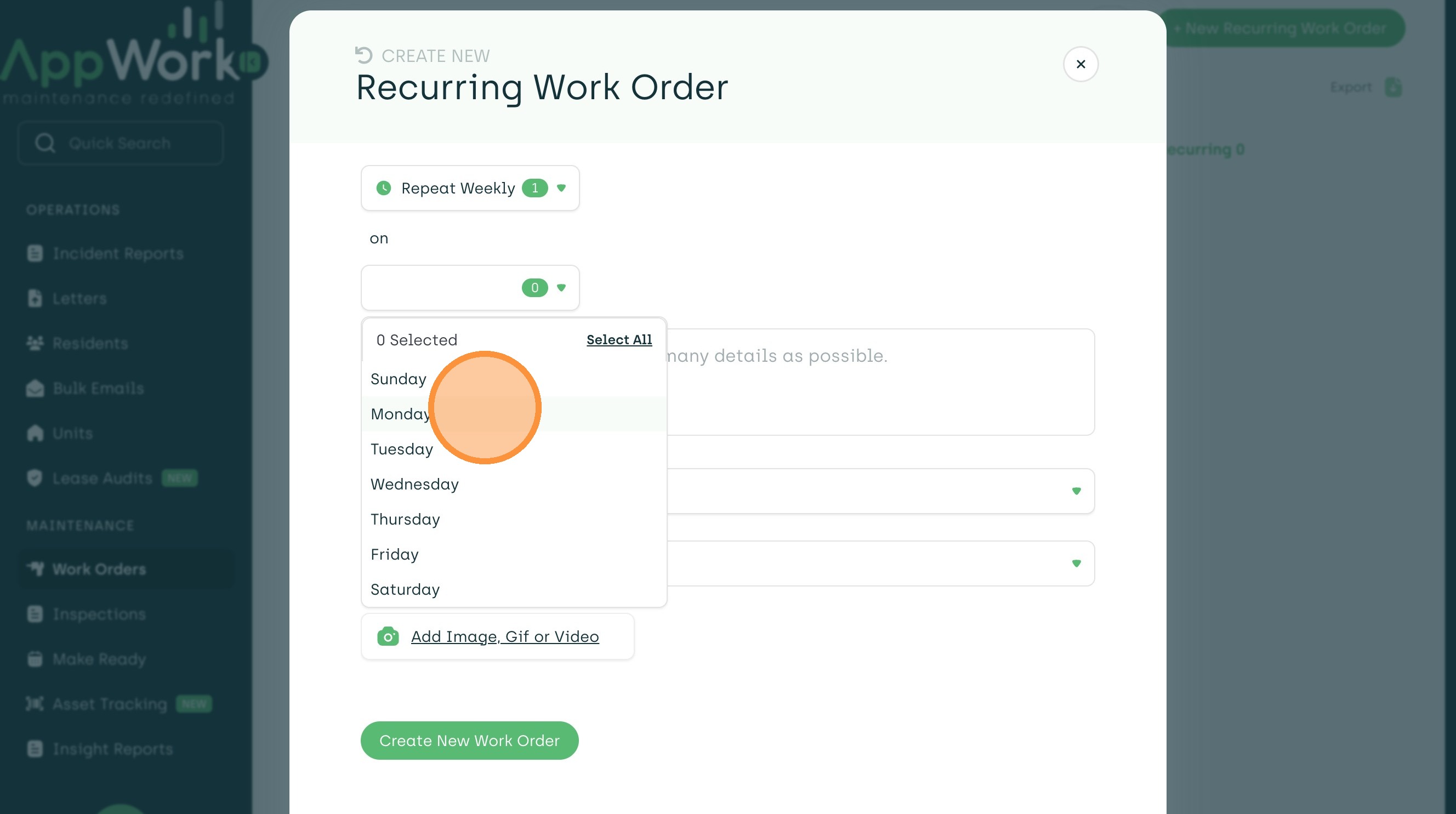
6. Select Weekly.
7. Next, select days of the week.
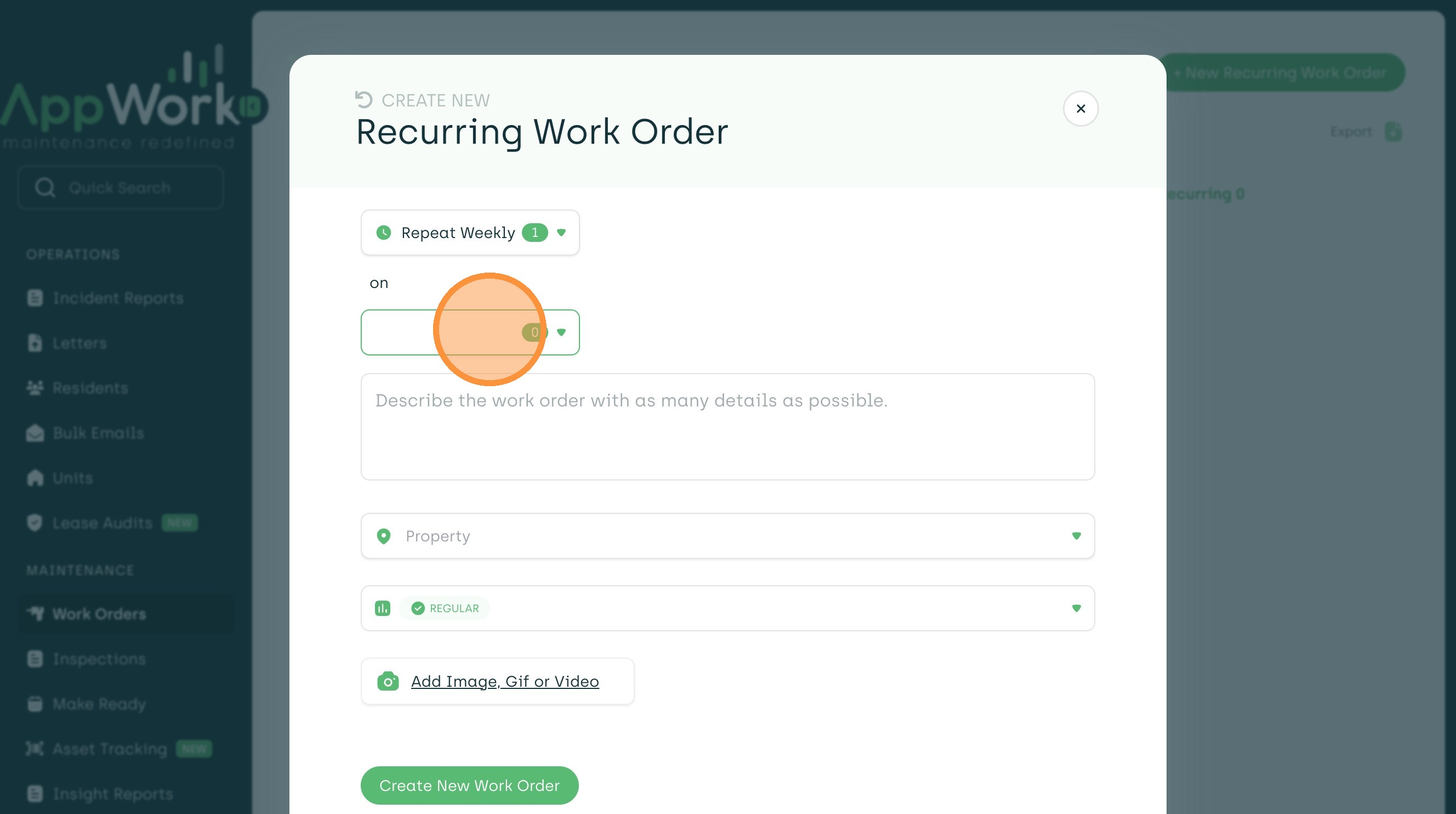
8. Repeat Weekly: You can set it up for one or multiple days of the week.
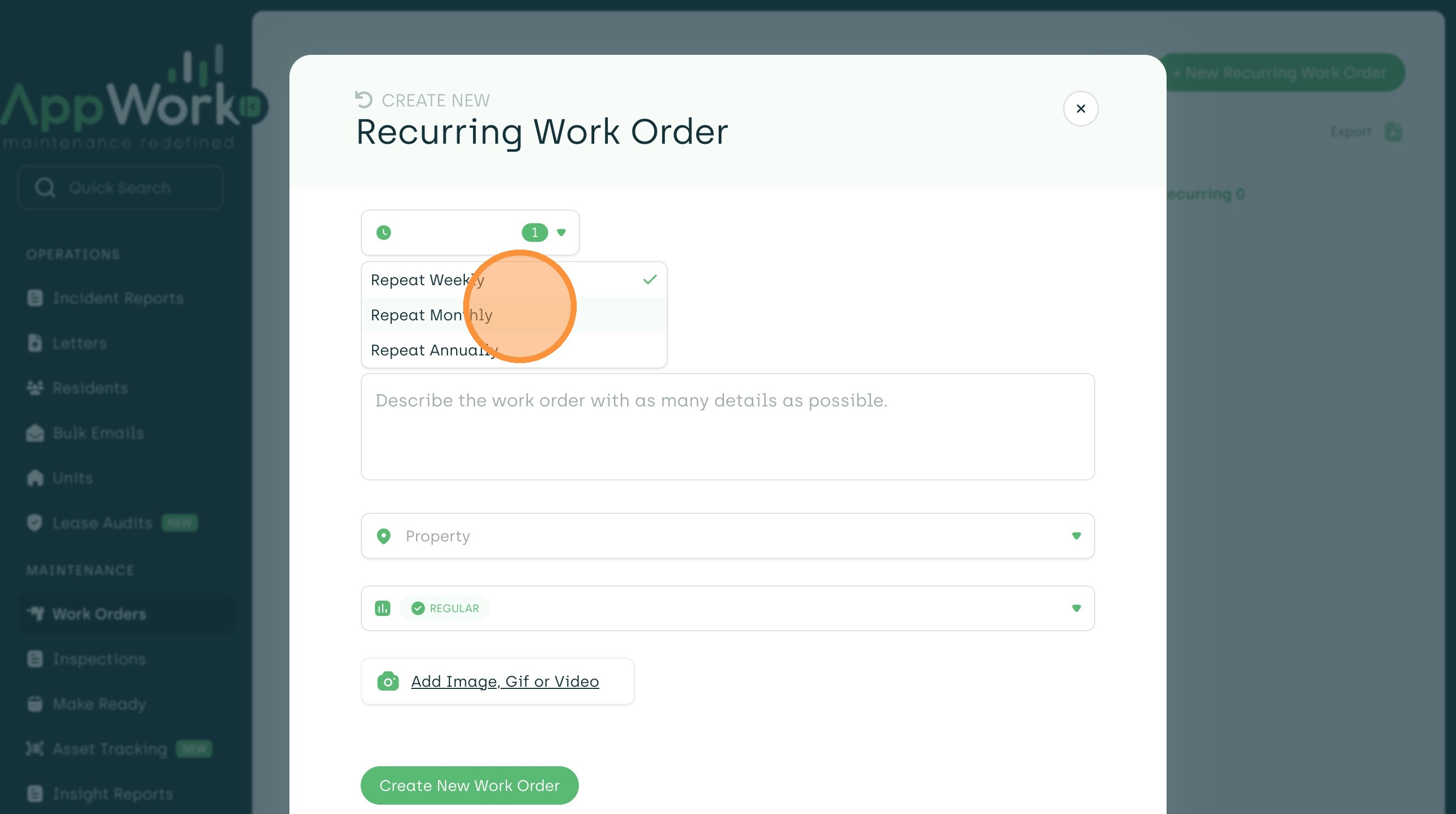
9. Select Repeat Monthly on the Frequency dropdown.
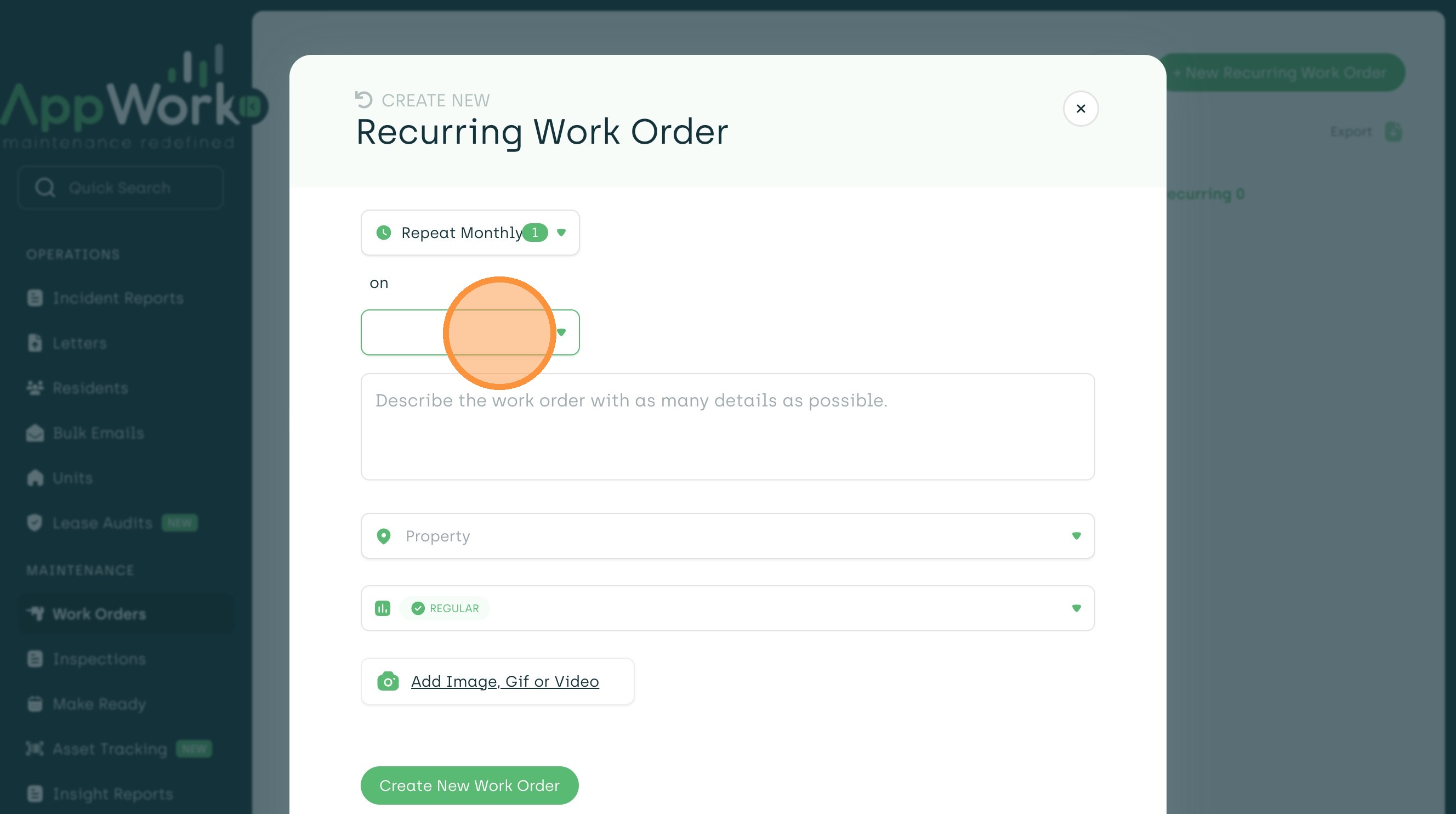
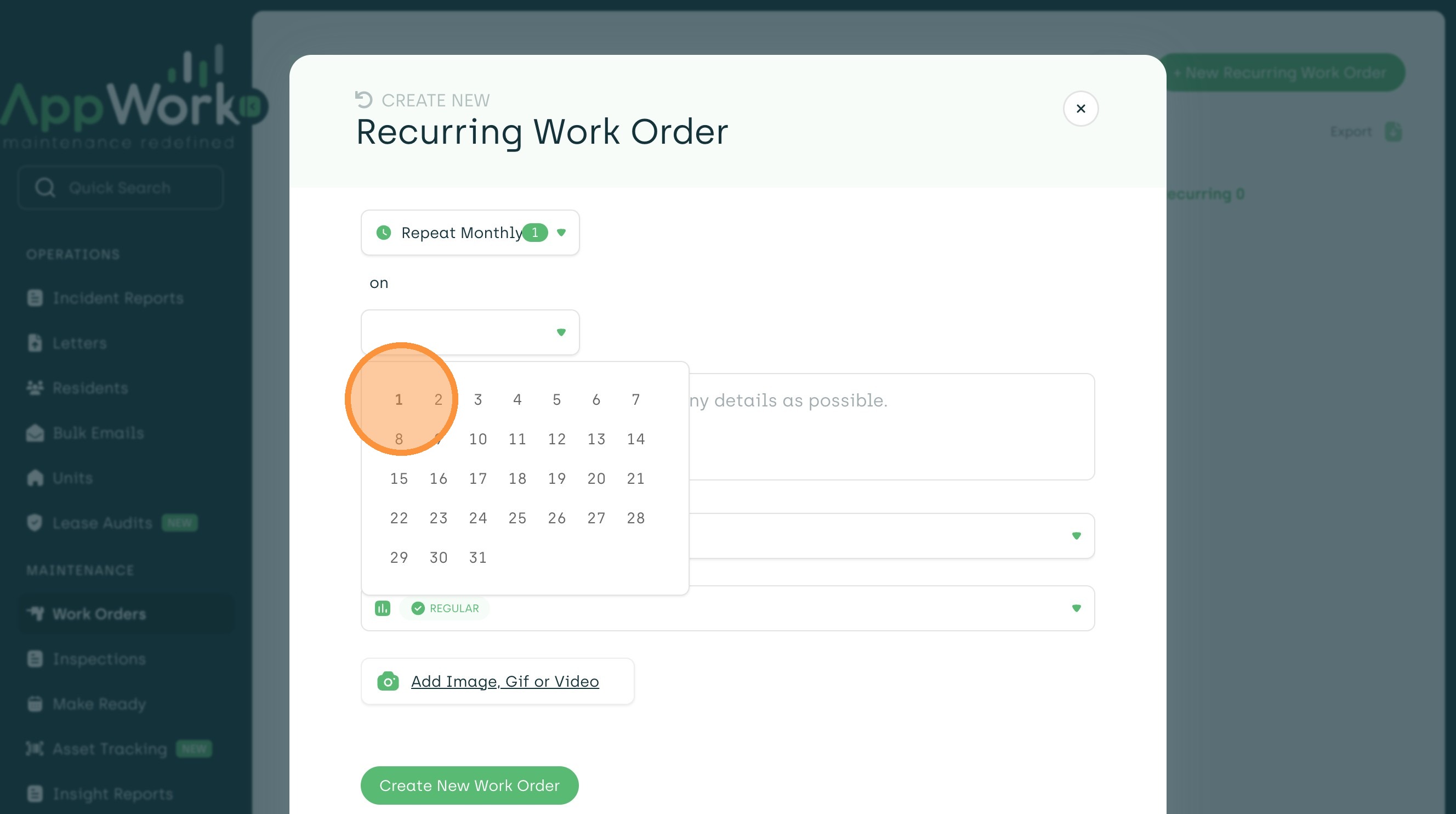
10. Next, select days of the month.
11. Repeat Monthly: You can set it up for one or multiple days of every month.
12. Select Repeat Annually from frequency dropdown.
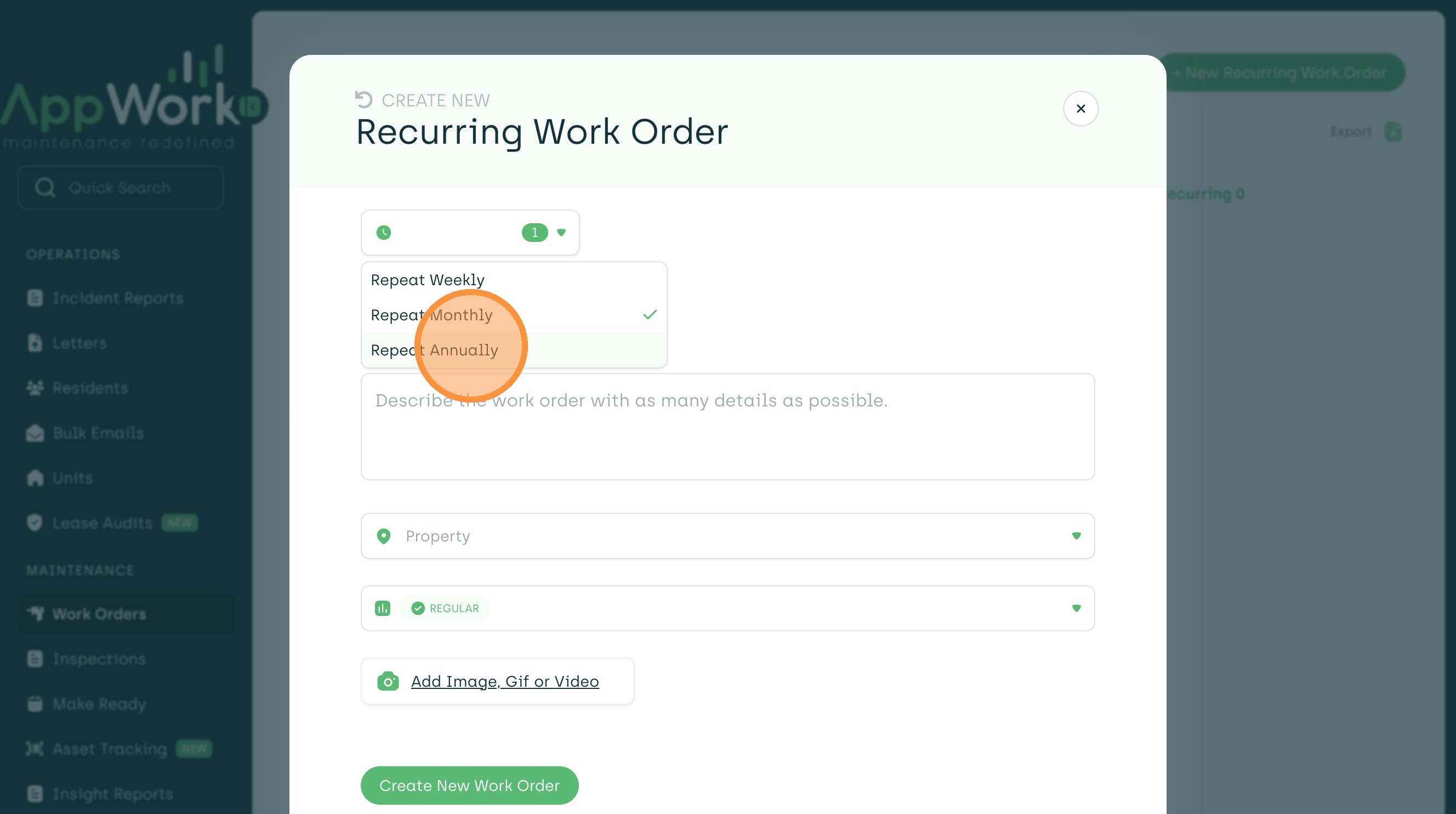
13. Repeat Annually: Allows you to set up a recurring inspection for multiple months, and multiple days of the month, if needed. This is how you can set up quarterly recurring work orders, for example.


14. Type recurring work order details into description field.

15. Make sure the correct work order category is selected.

16. Select the correct property from Property dropdown. If you are assigned to one property, you will not see a dropdown option here.
17. Select "unit" or "property" work order. If you select Unit, you will have to search and select the specific unit needed.
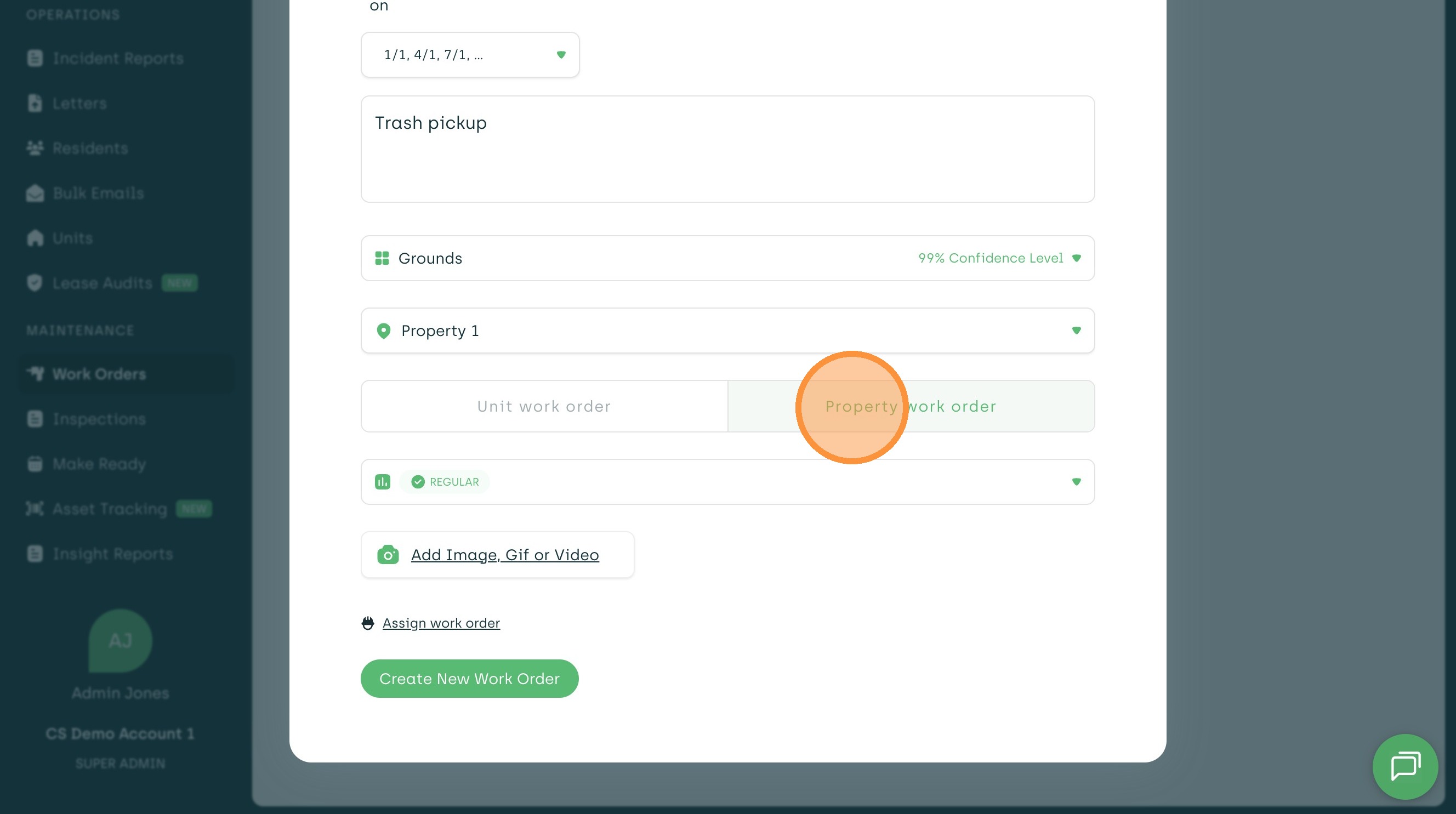
18. You can add photos and assign to a specific technician if needed. Click Create New Work Order to finalize.
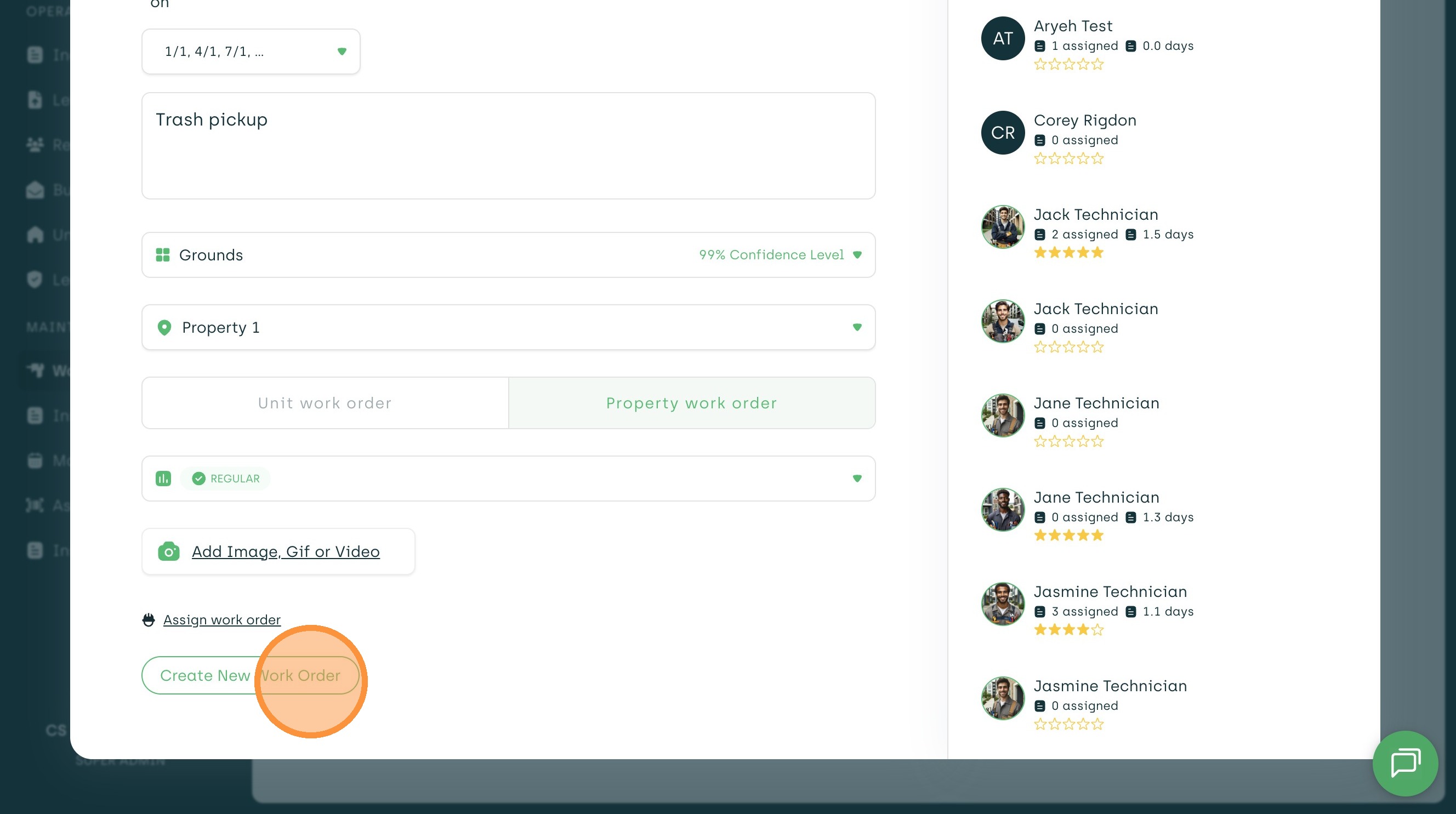
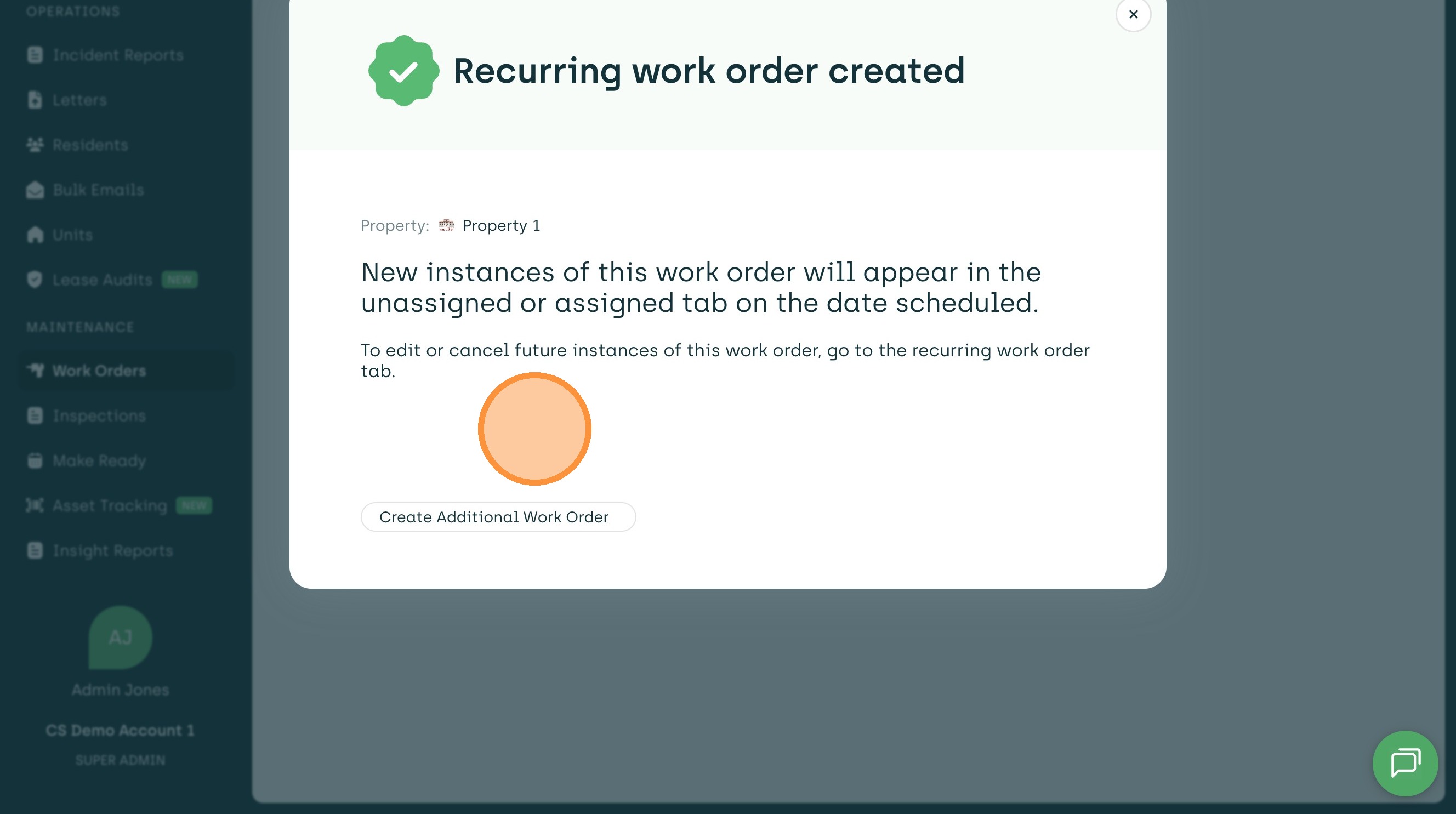
19. You will receive confirmation once created! The recurring work order will appear in the correct column (unassigned or assigned) on the specified date.