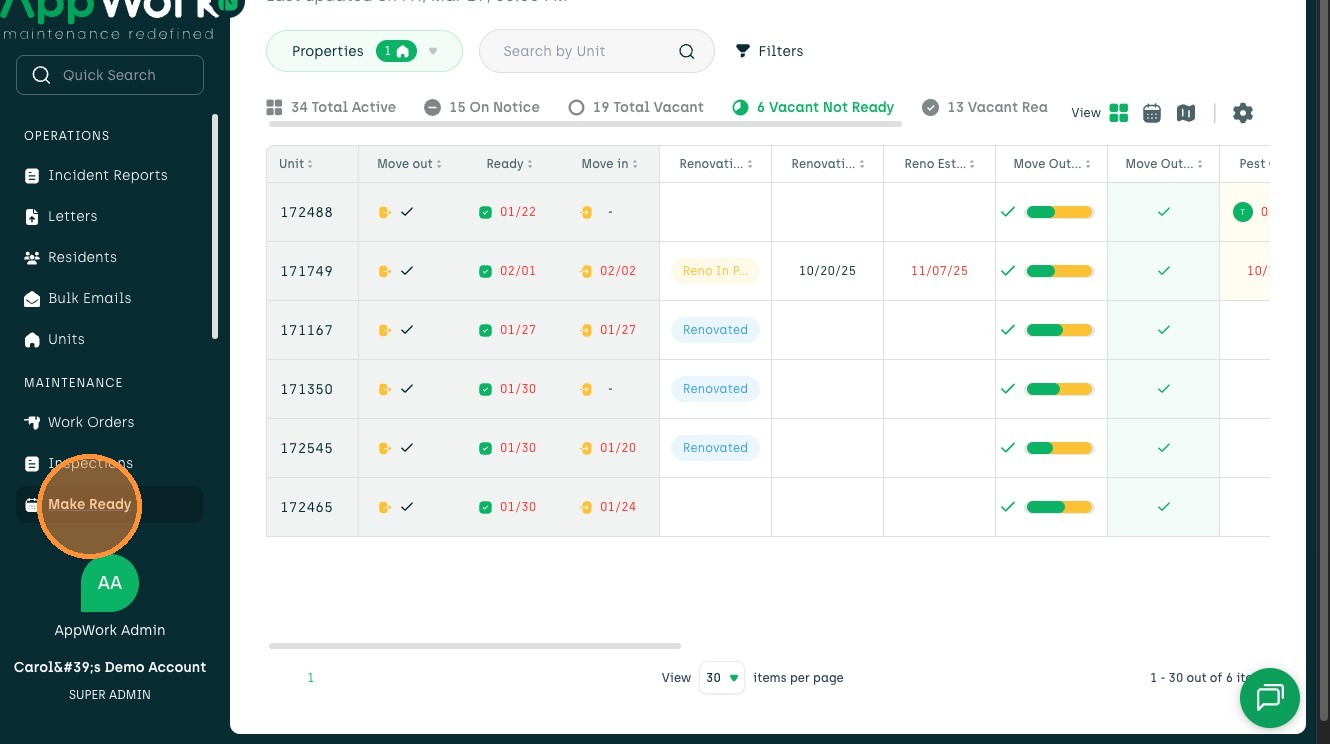
1. Click on the Make Ready tab
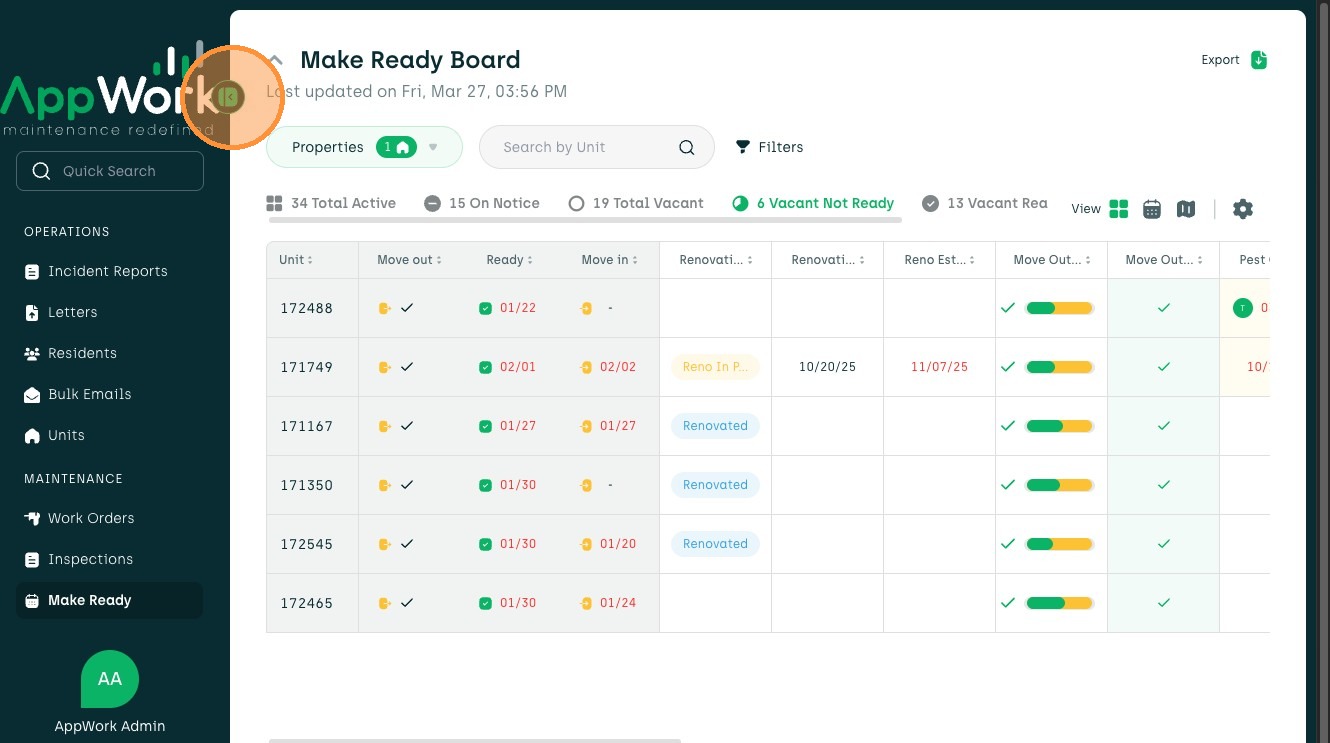
2. Click here to collapse the menu bar. This helps get a full view of the Make Ready Board.
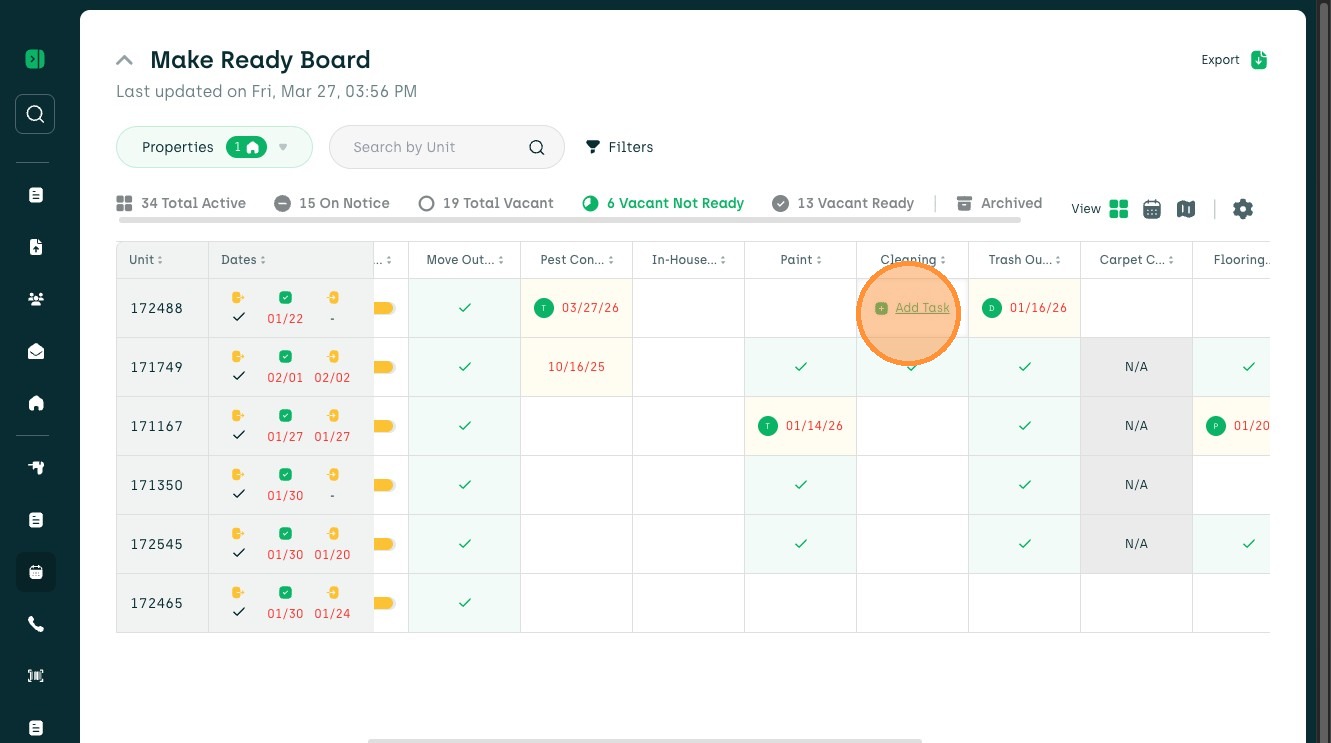
3. Hover your mouse over any tile and select 'Add Task'.
4. Select the 'Schedule' field to open the calendar view.
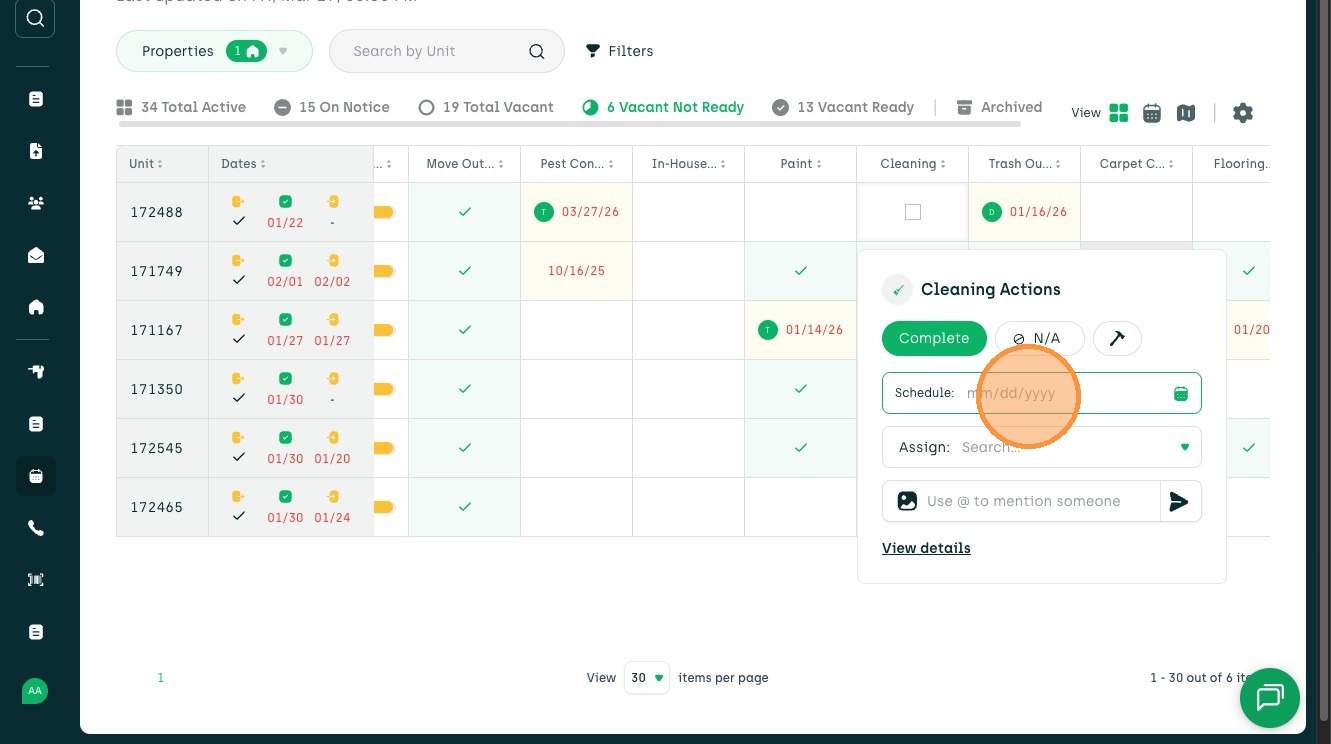
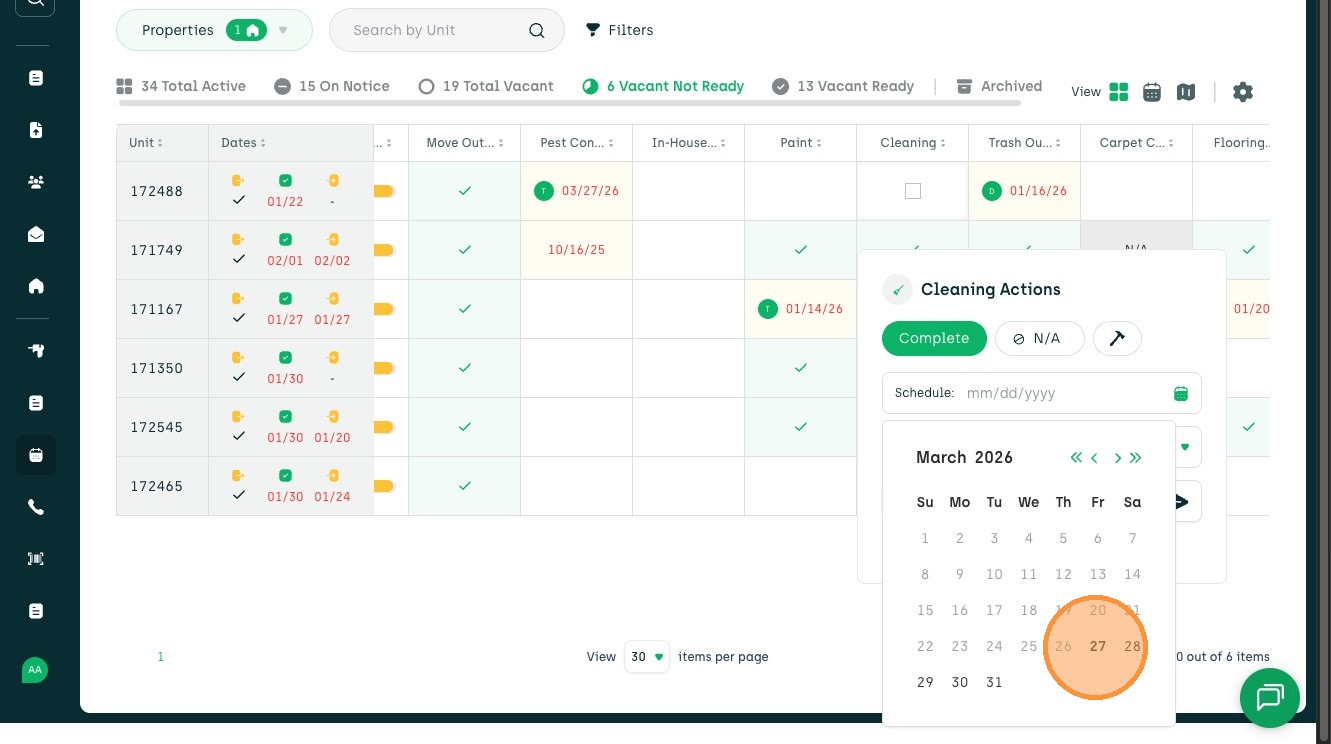
5. Pick a date to schedule on the calendar.
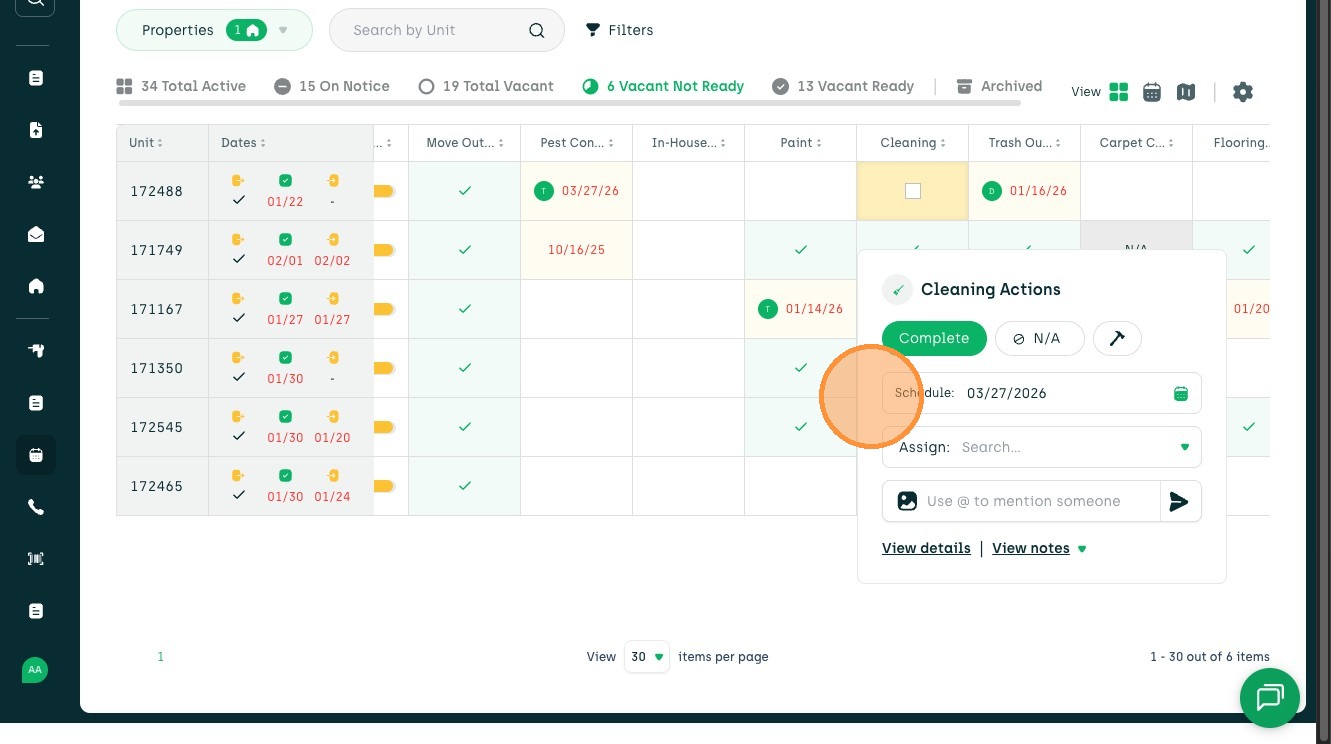
6. You can now see the task is scheduled.
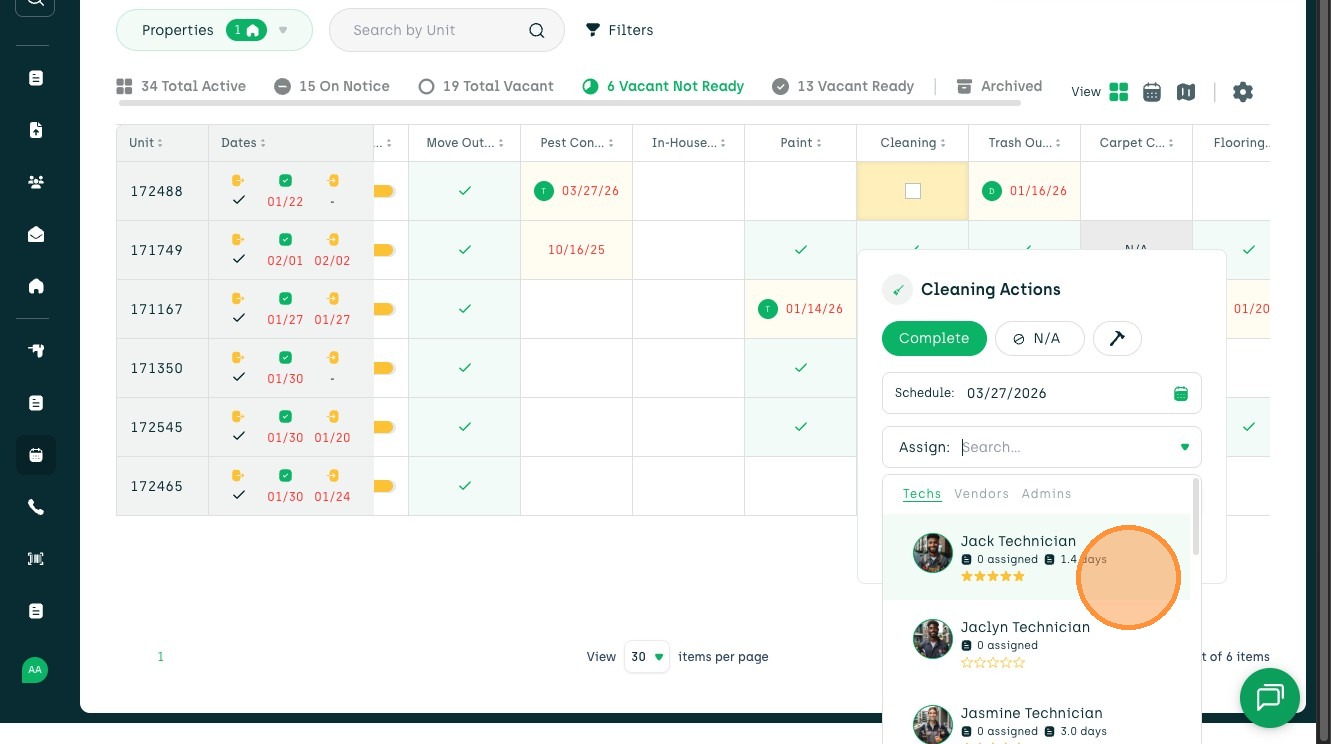
7. Select the 'Assign' field to open the list of technicians.
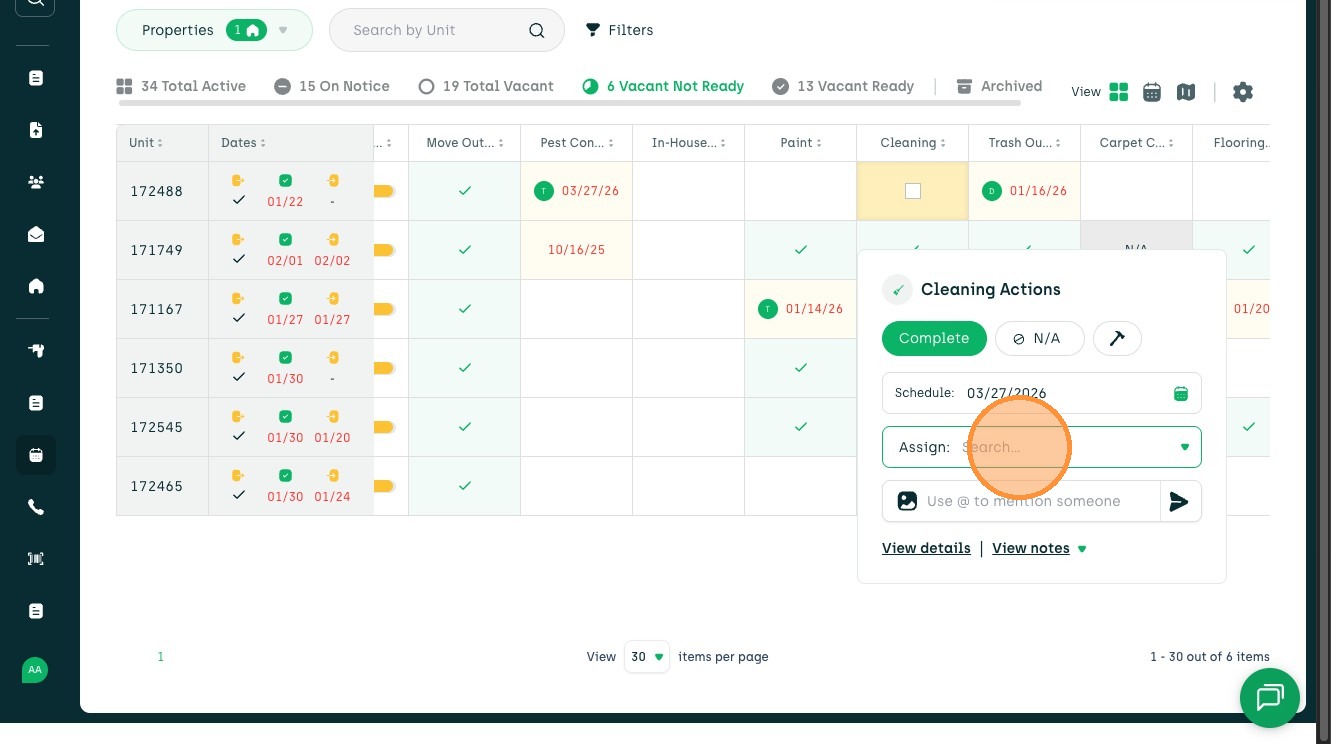
8. Select the technician you would like to assign to this task.
9. You can now see the task is scheduled and assigned.
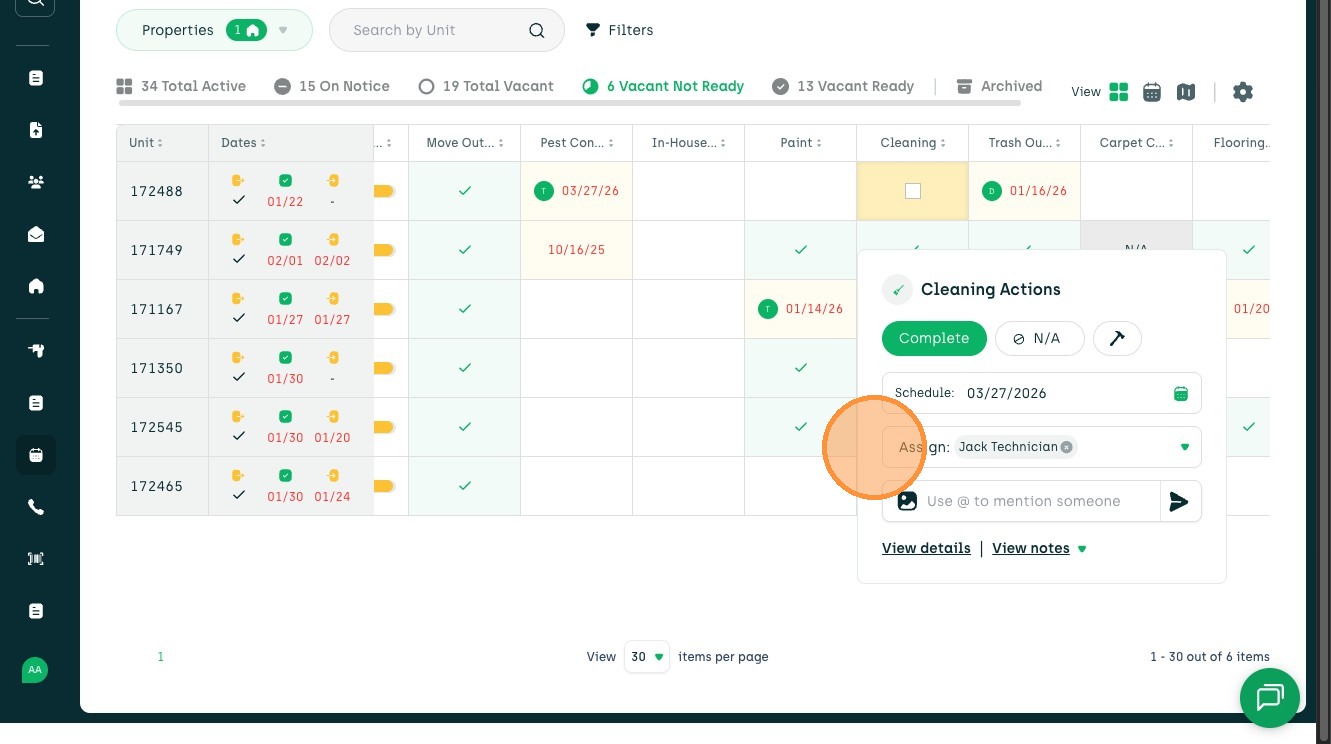
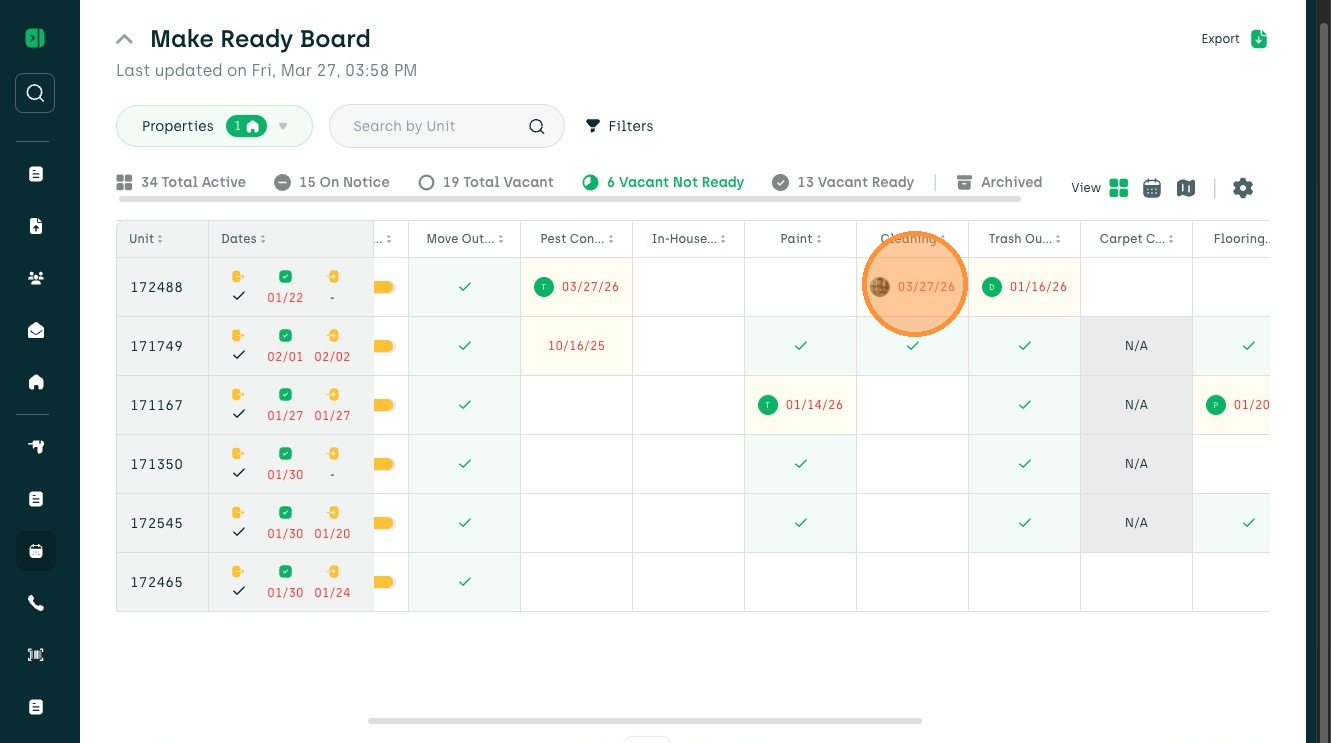
10. Click outside of the box to view the technician assign to the task and the scheduled date.