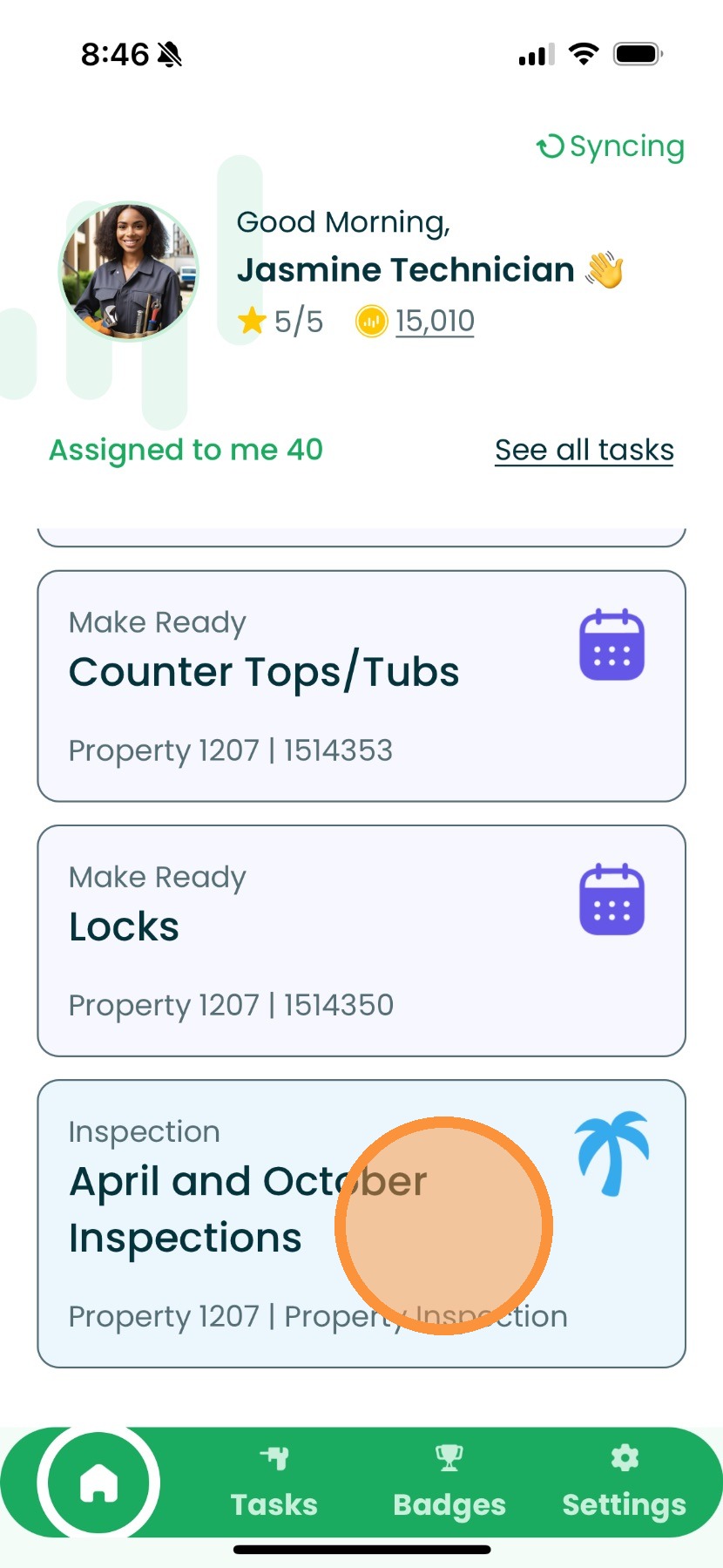
1. In the Technician App, find the Inspection you would like to complete.
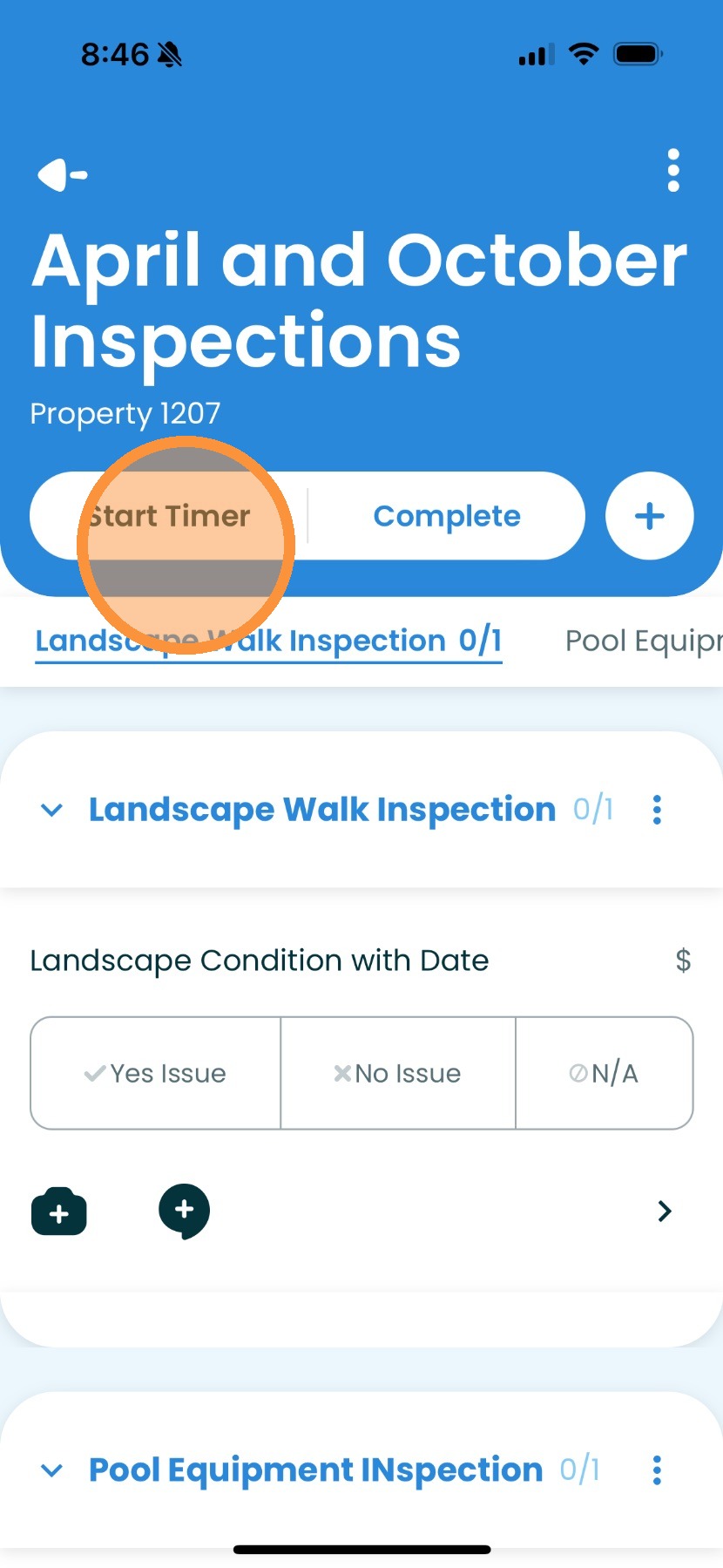
2. Then start your timer. (If this applies)
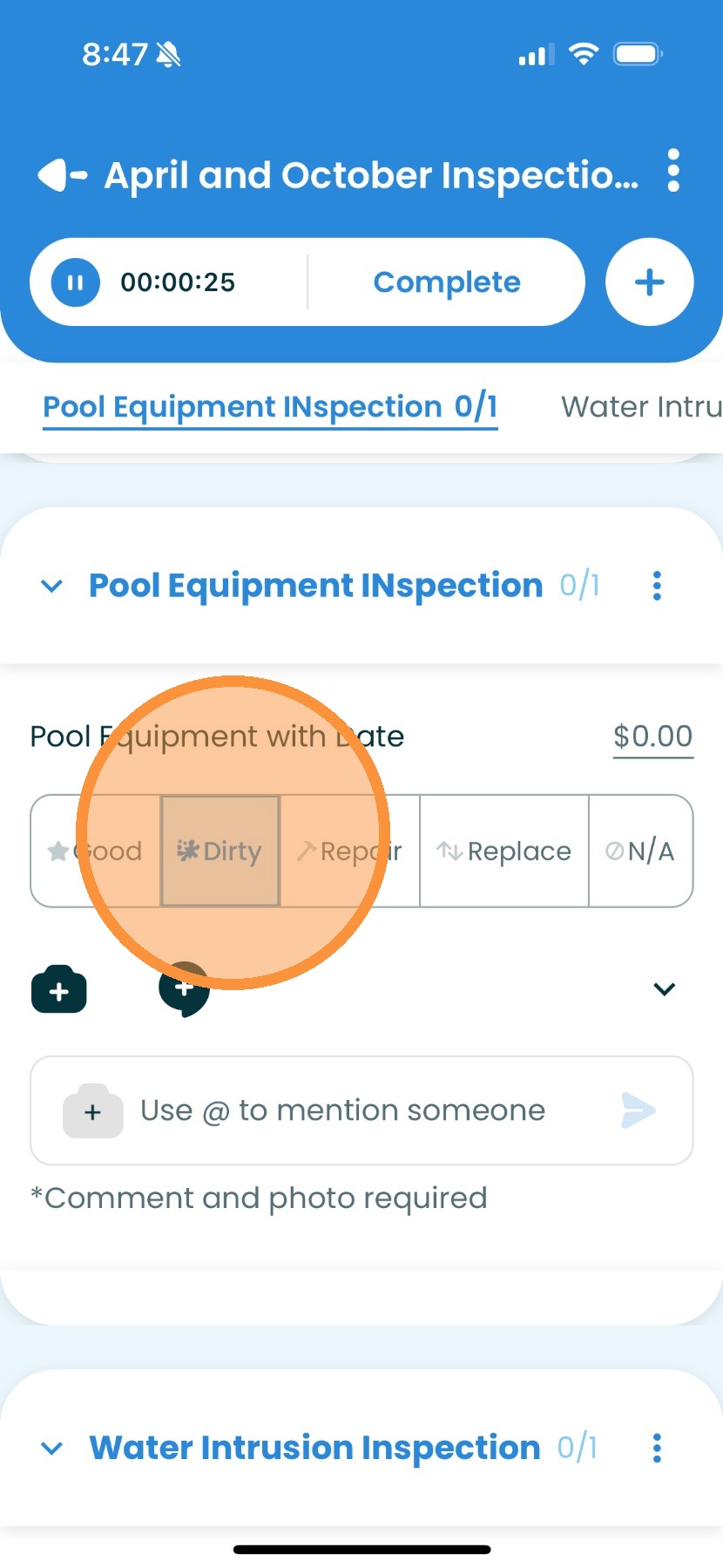
3. When completing an Inspection, any action items are going to require a photo and/or a comment.
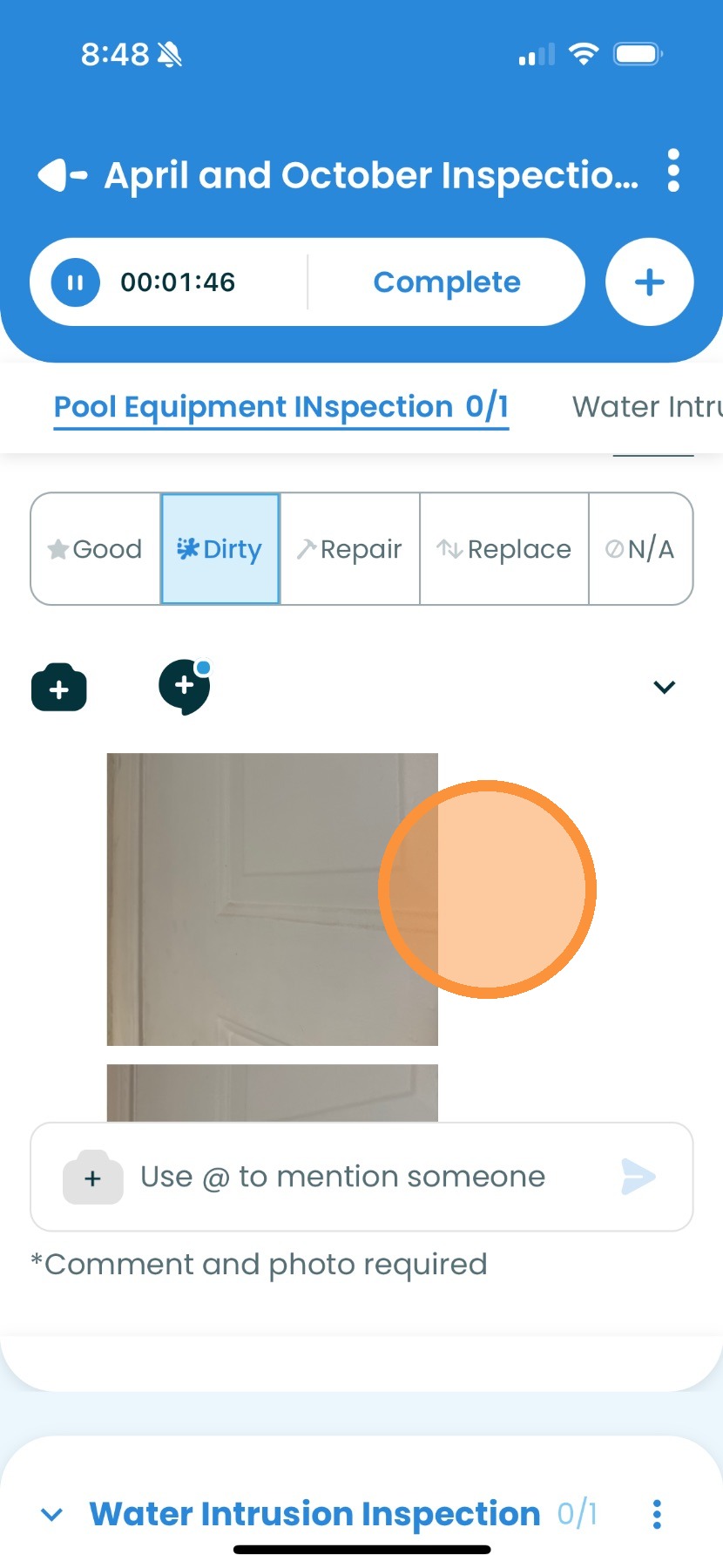
4. Once you've mark an item as Dirty, click on the camera icon to add photos.
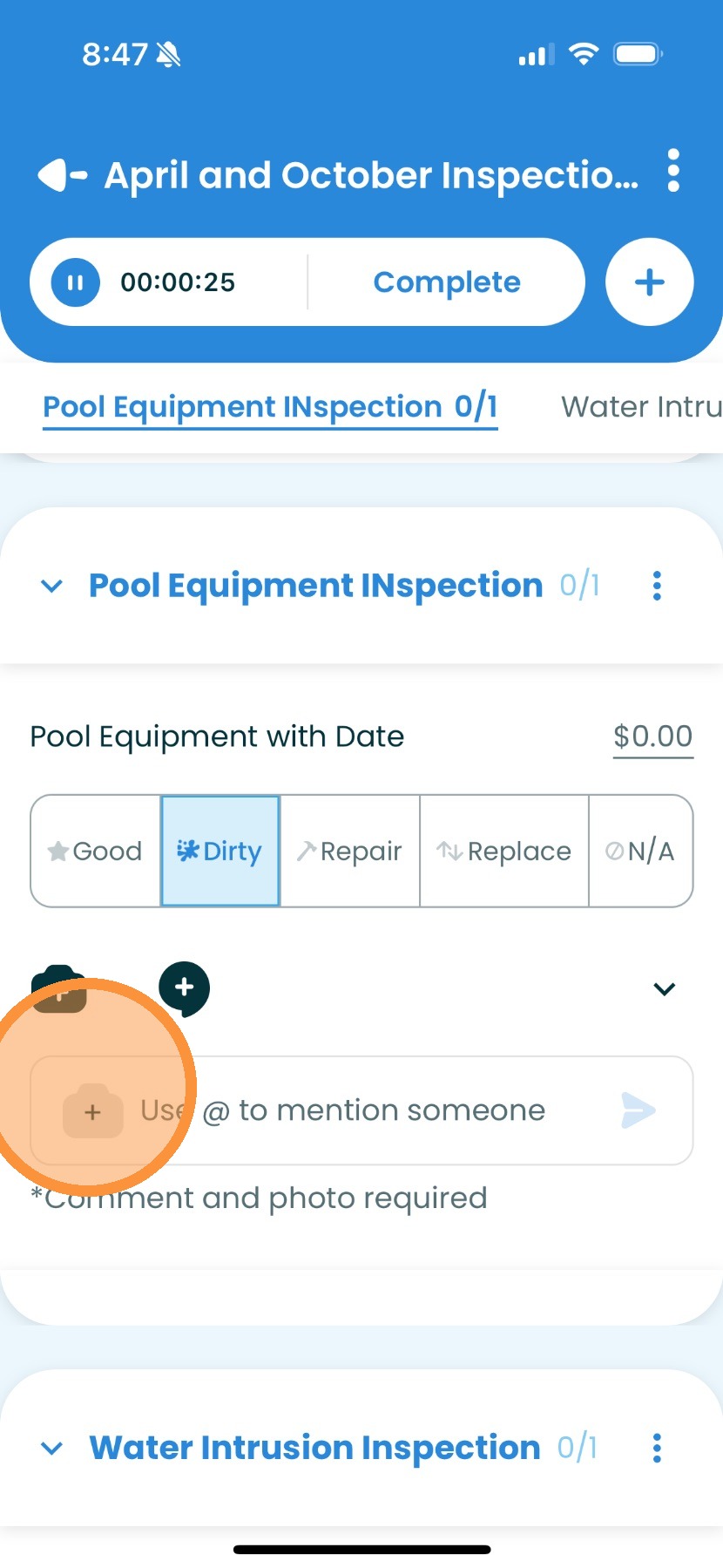
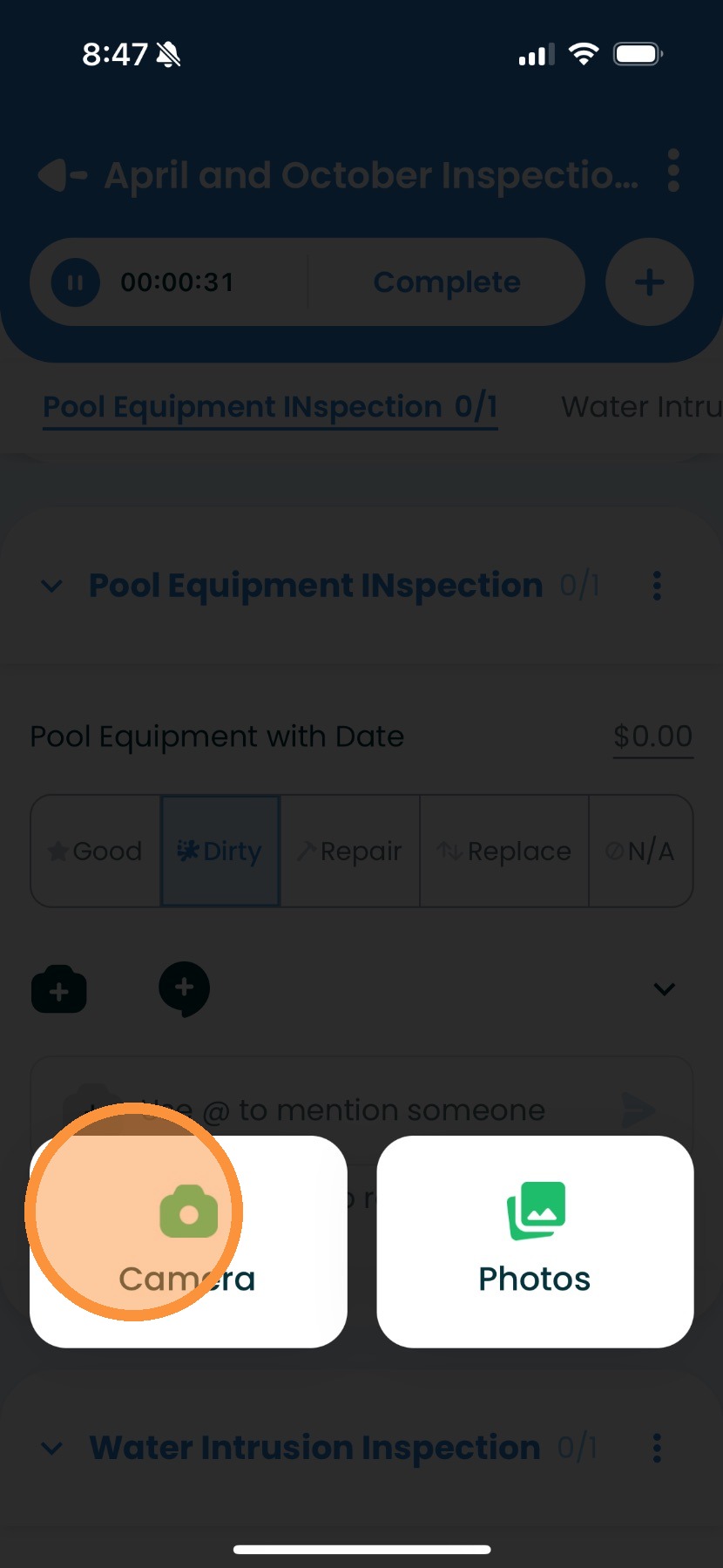
5. Select Camera.
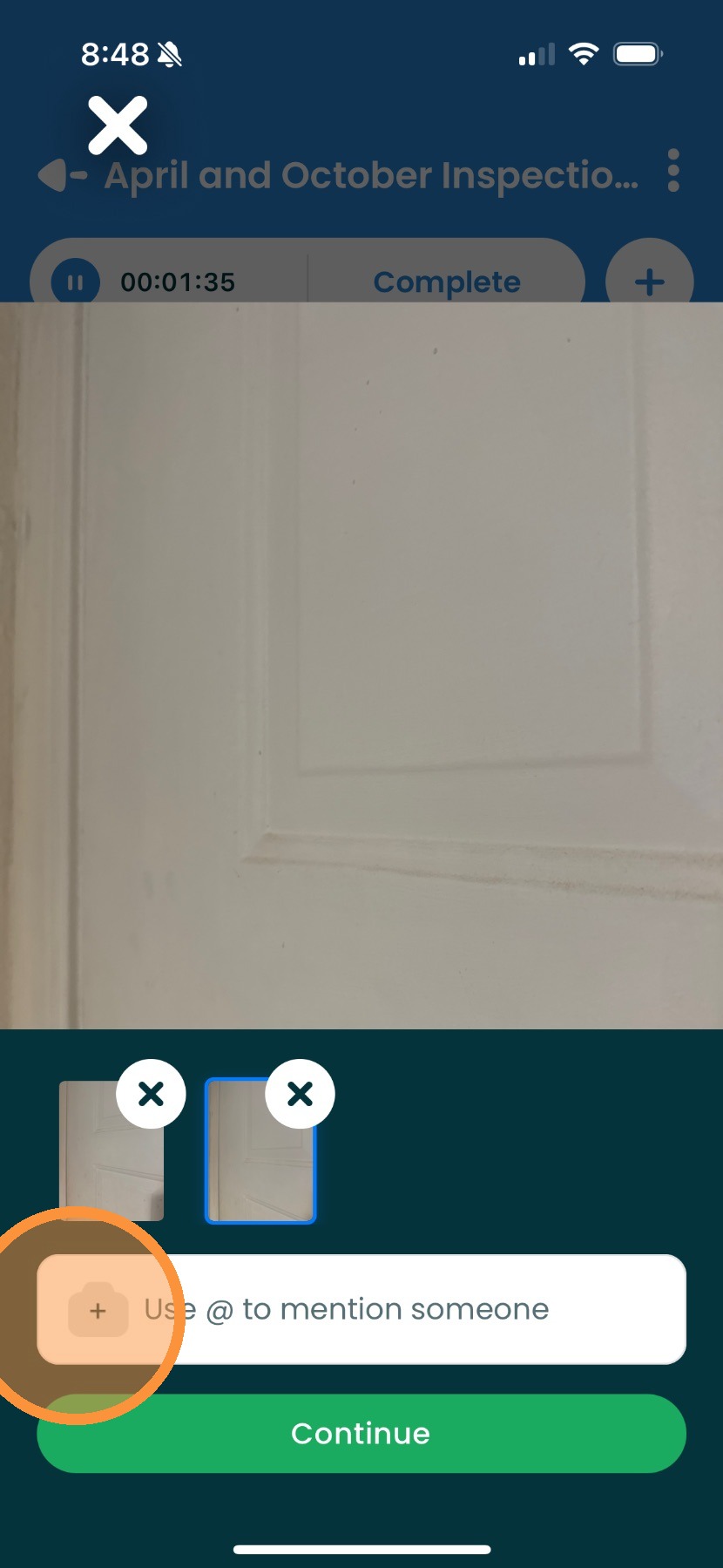
6. As you take photos, press the camera icon to add more to the photo gallery before pressing continue.
7. Press Continue to save photos.
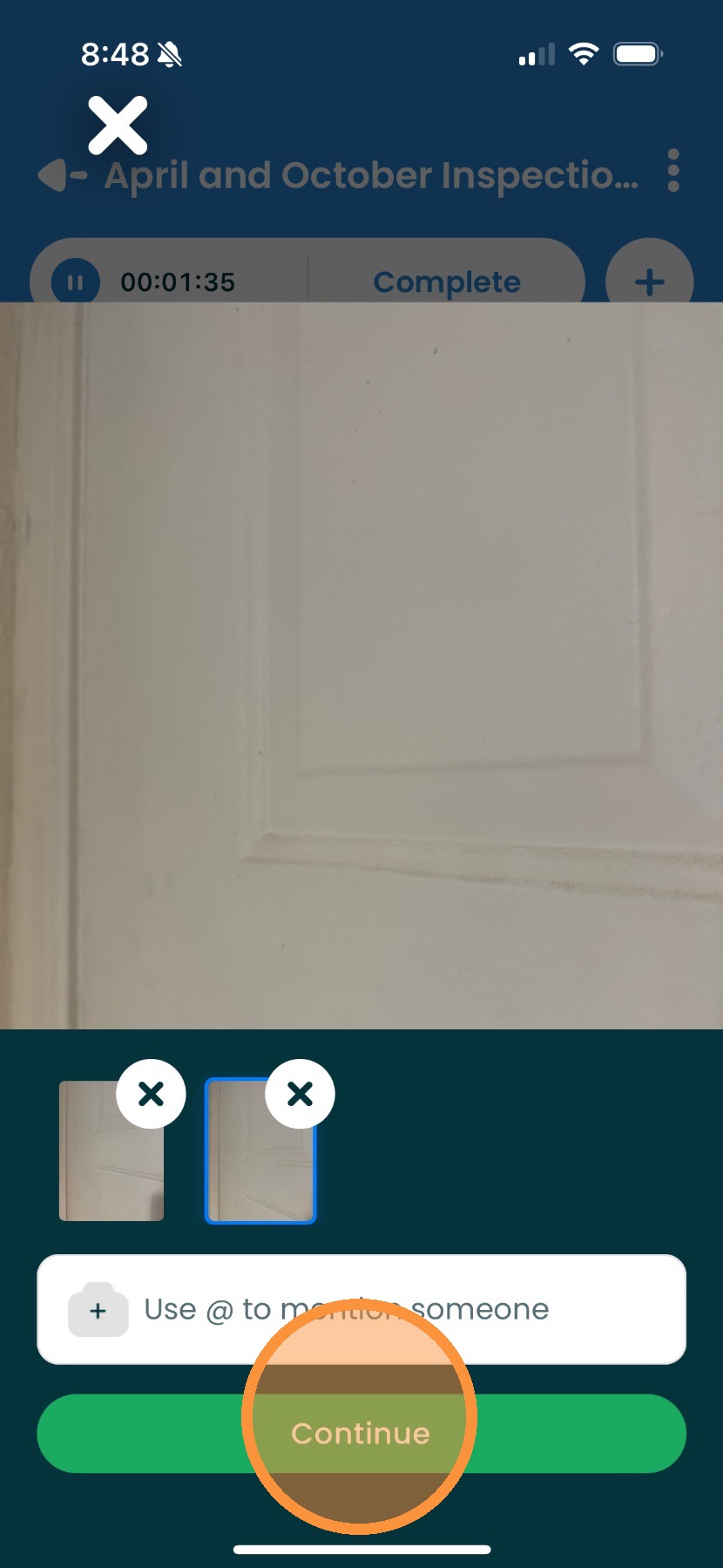
8. Here you can see multiple photos added at once.