Inventory Navigation
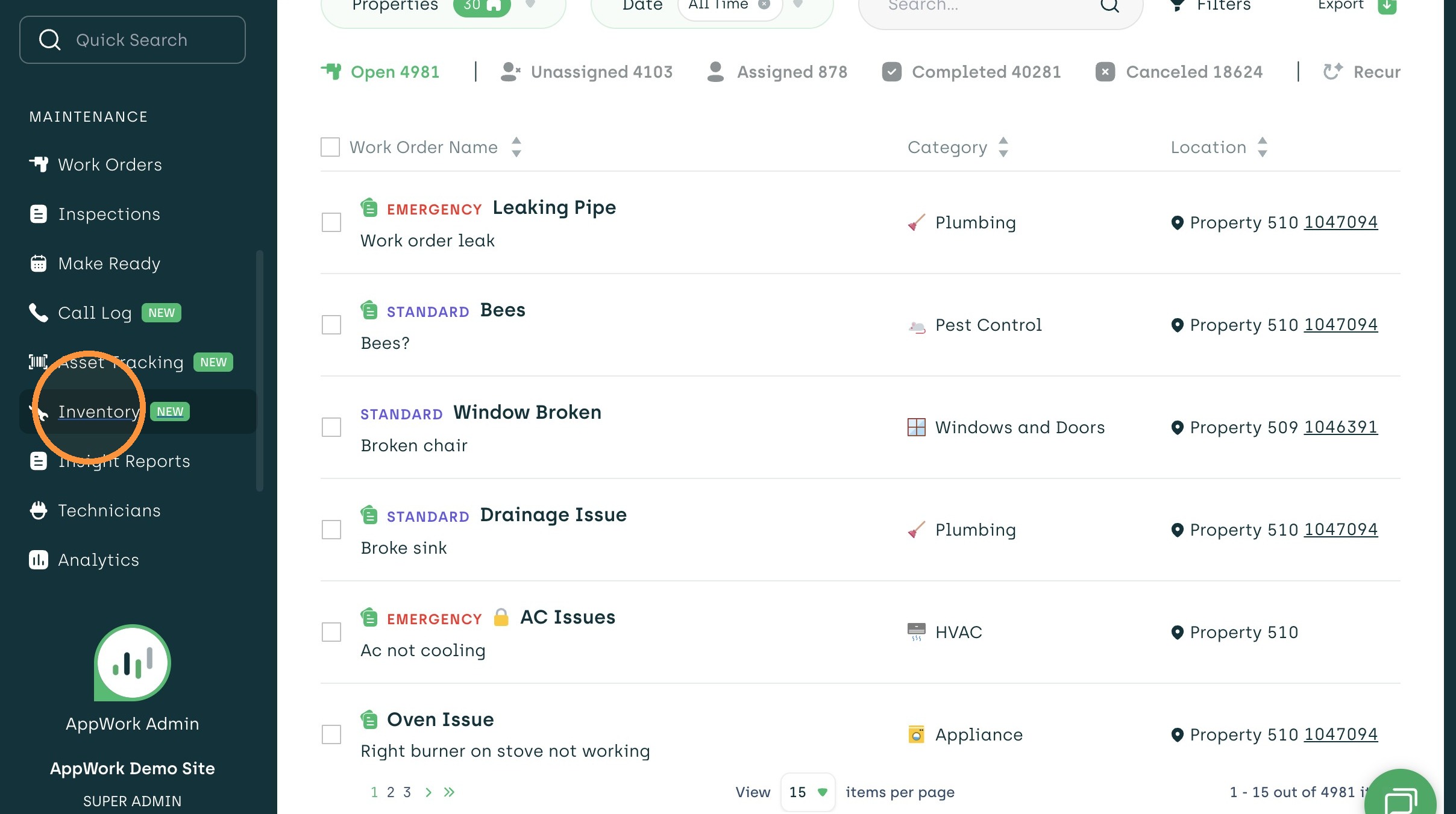
1. Select Inventory from the left sidebar menu
Item Creation
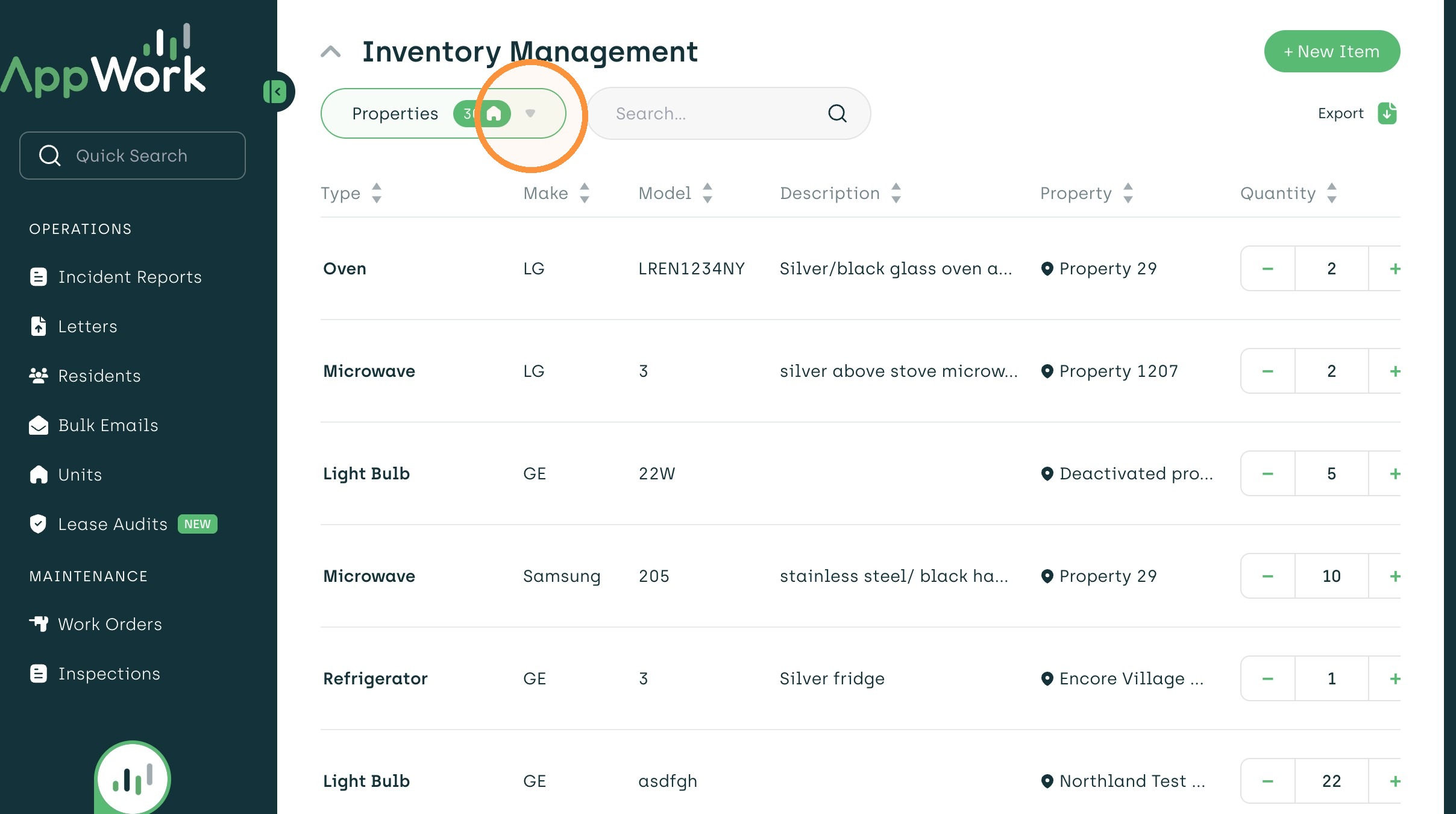
2. Open the Properties filter to select property if not already present
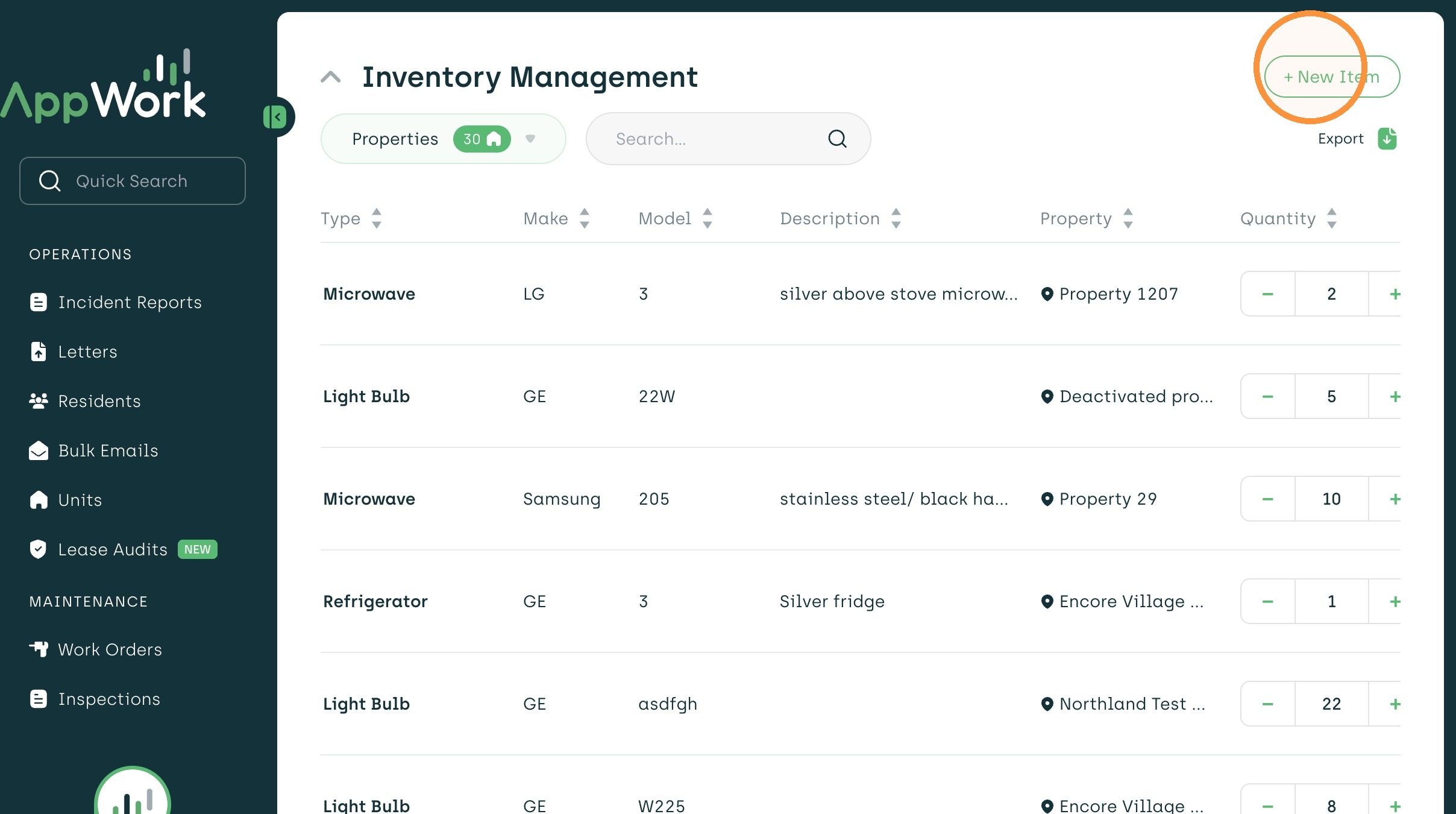
3. Click "+ New Item" in the top right
4. Enter the type of item (i.e oven, fridge, microwave, light bulb...)
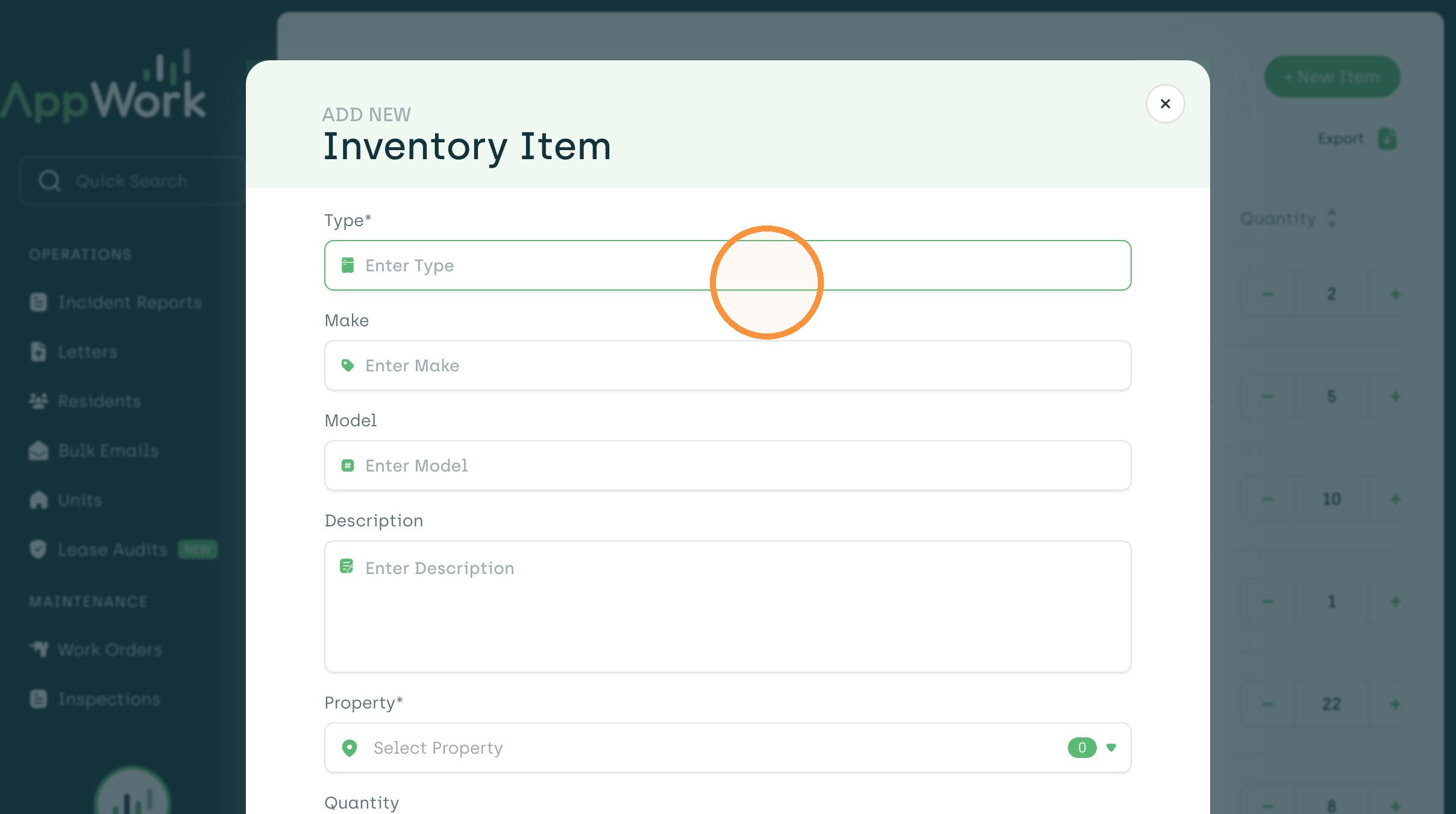
5. Enter the make of the item
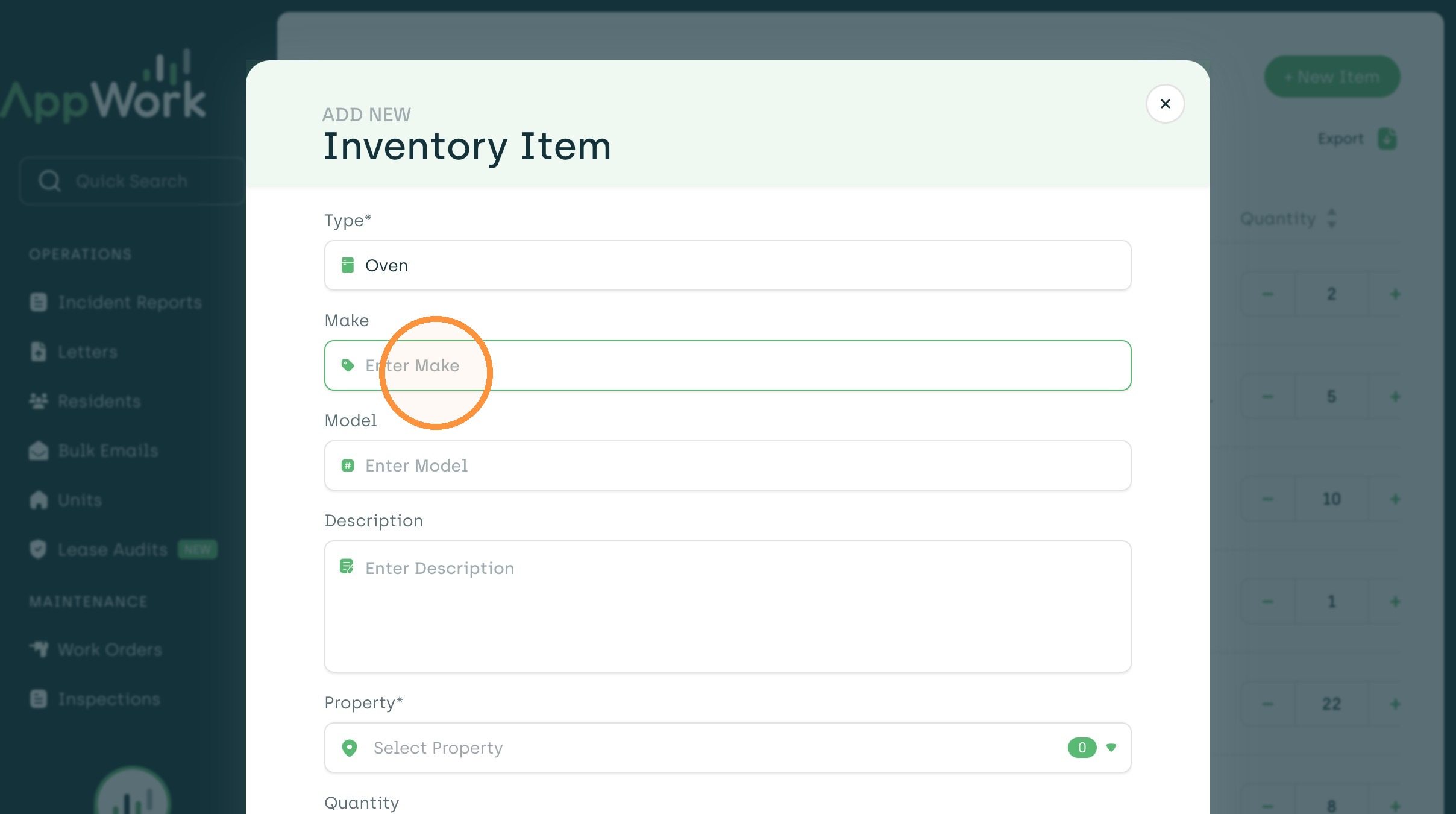
6. Type in the model number on the item
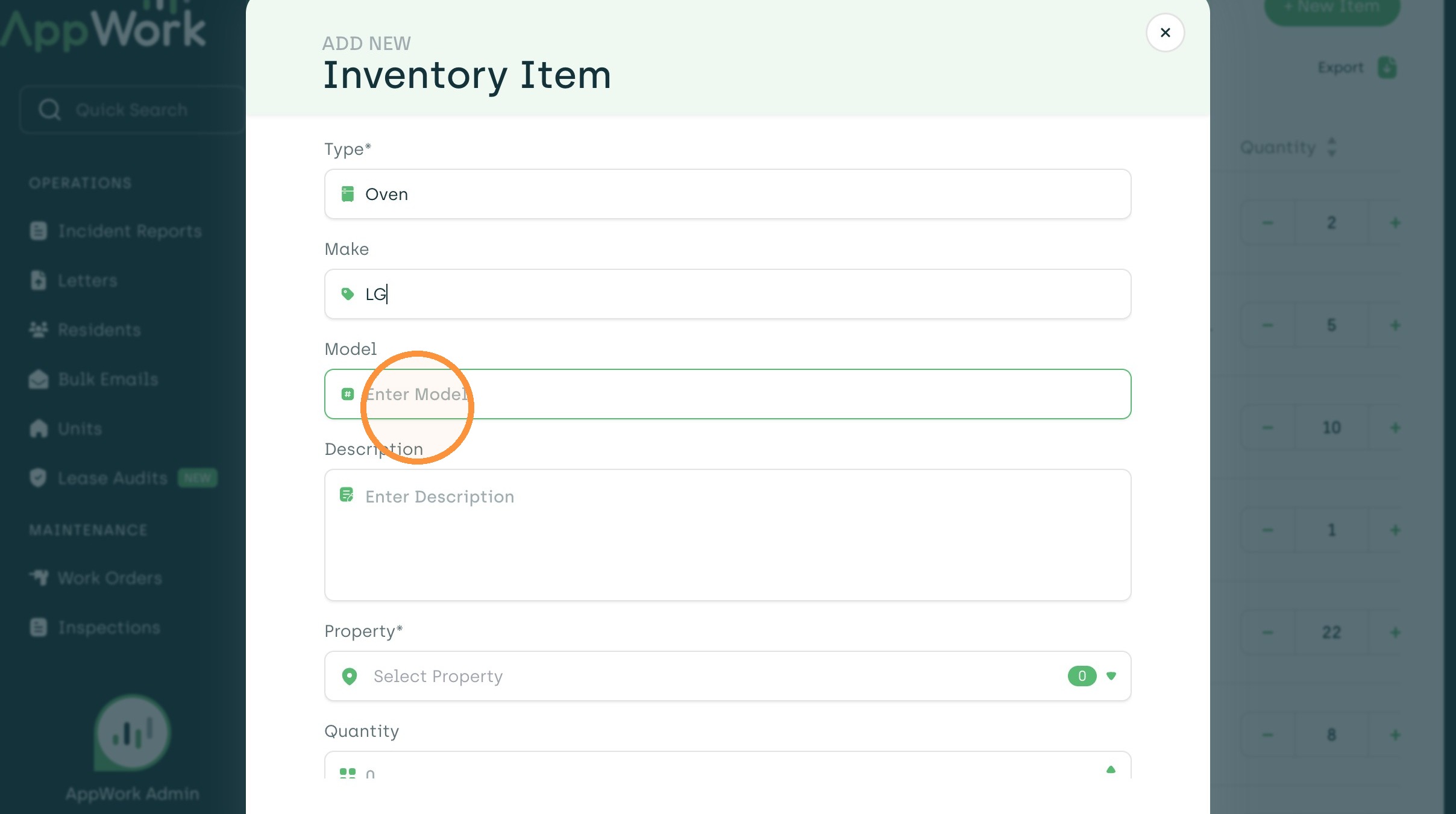
7. Enter a description for the inventory item
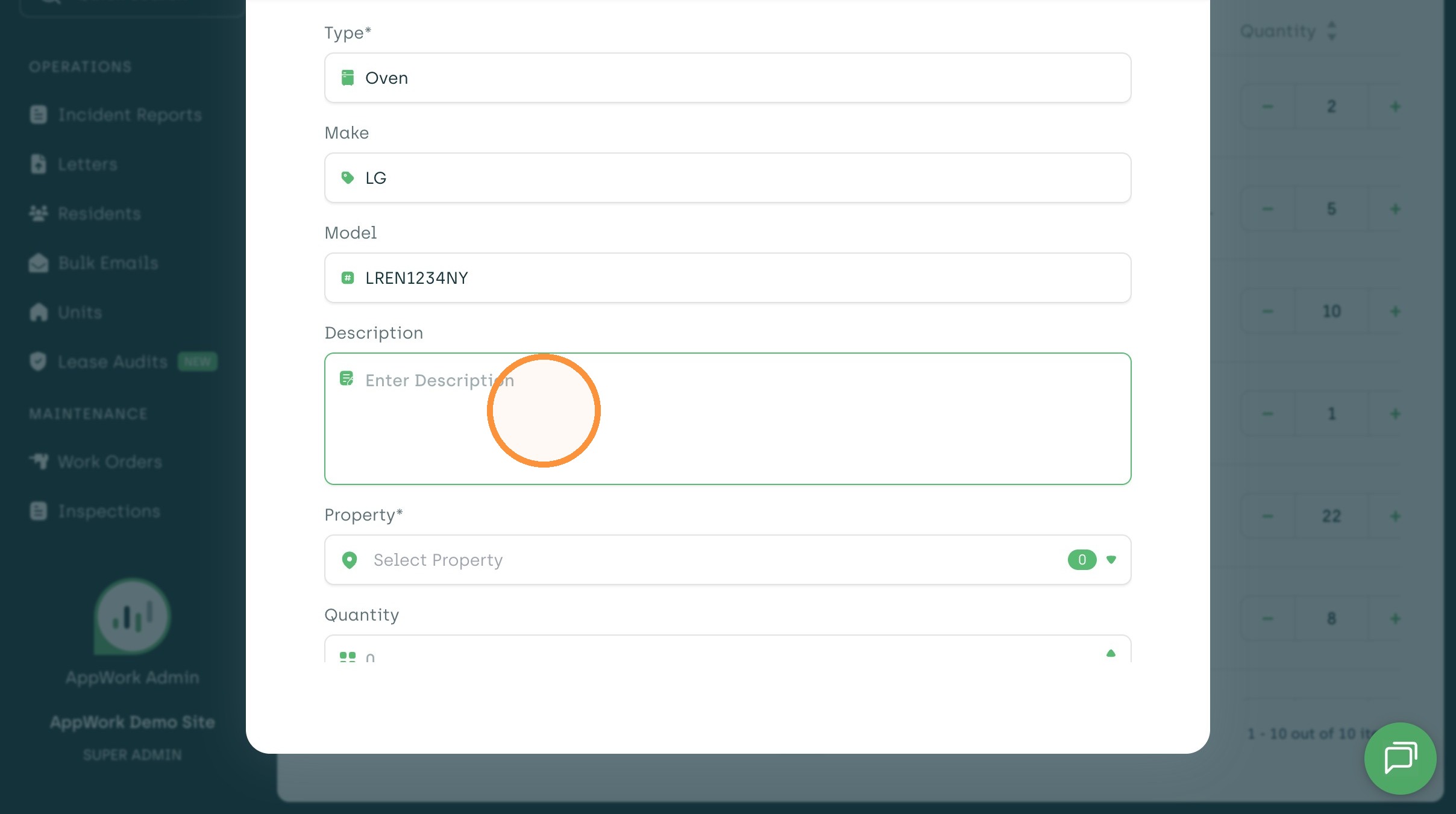
8. Select the property that the item is going to be used at.
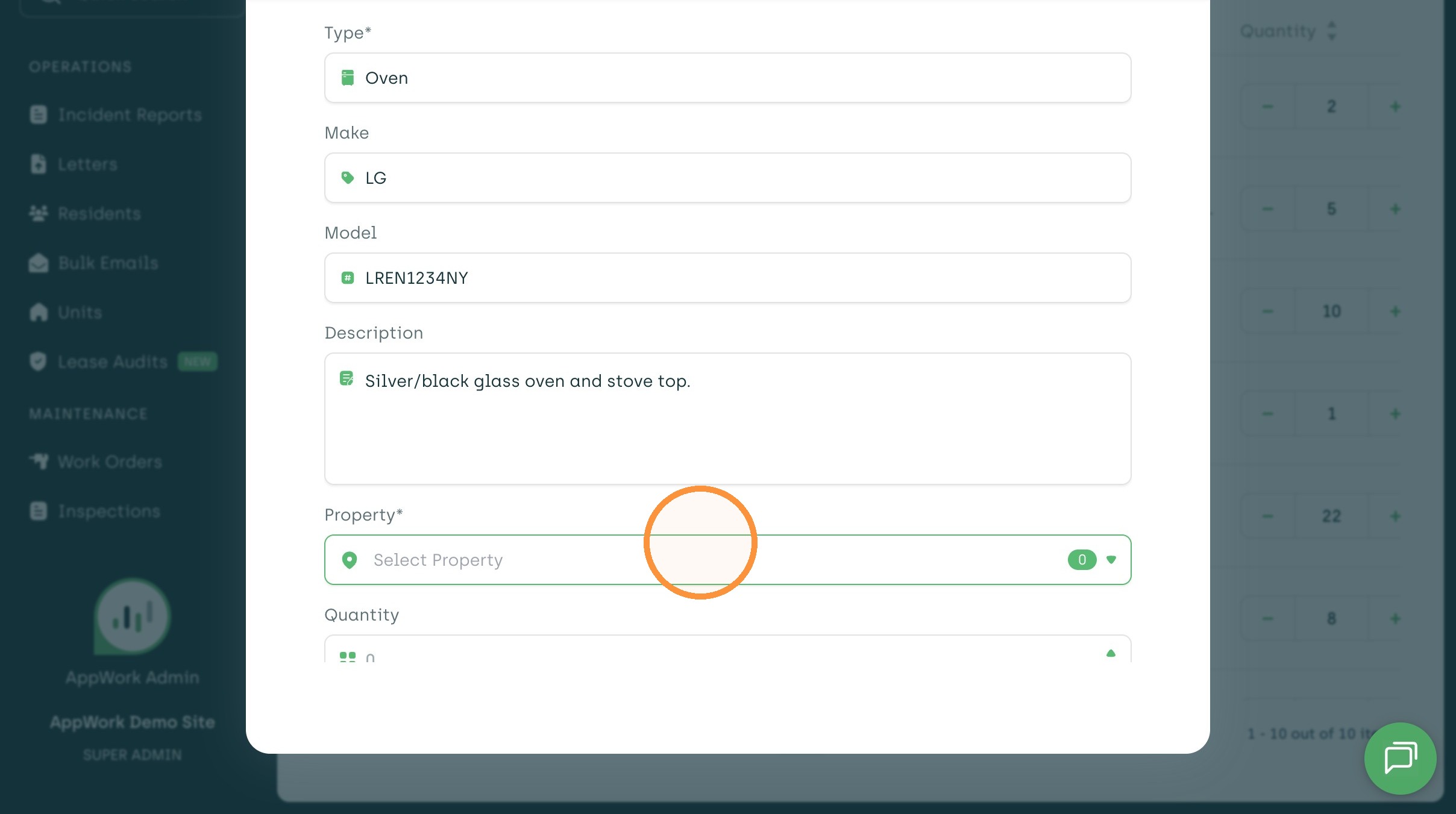
9. Enter the amount of the item that is on hand
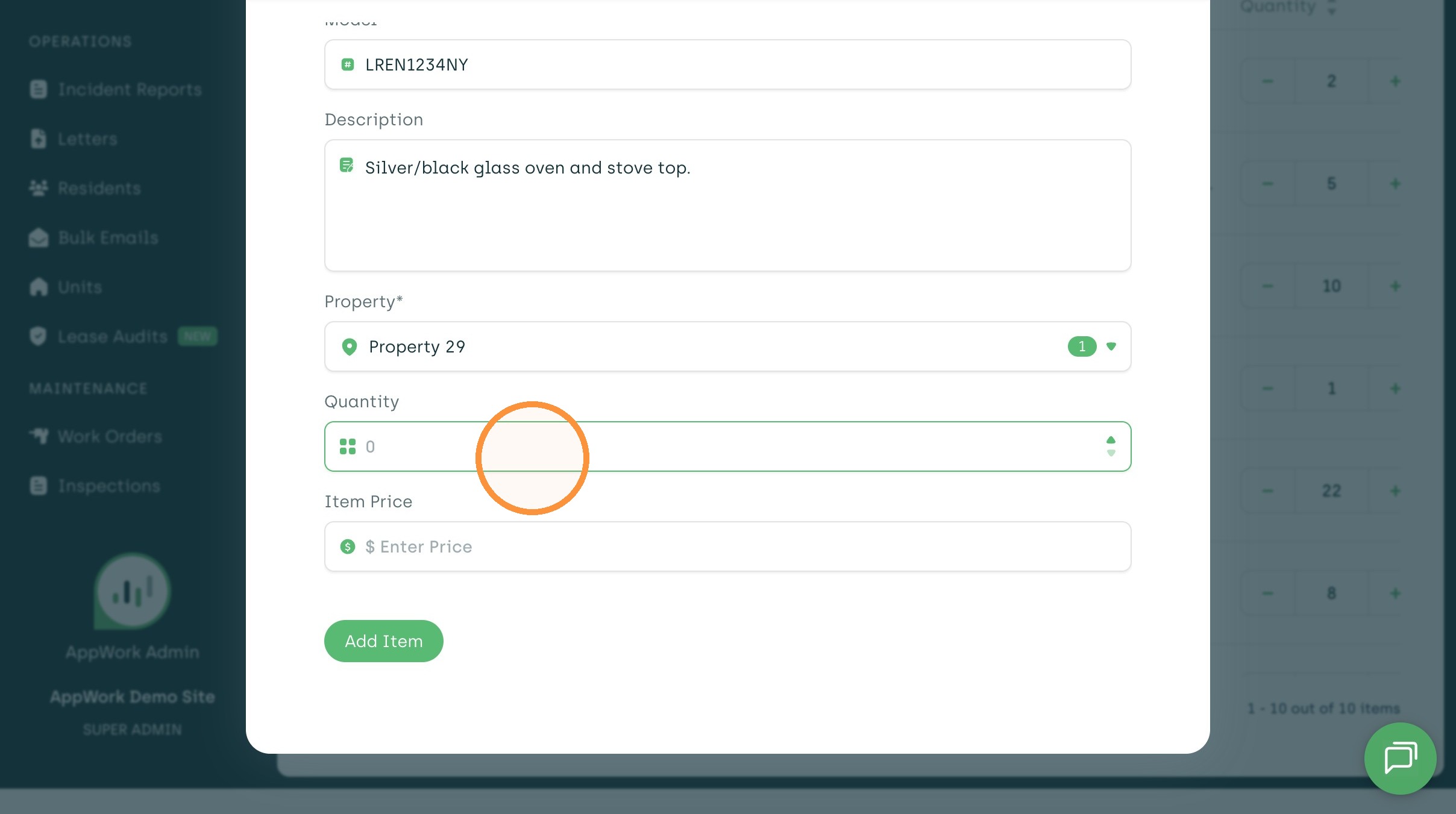
10. Enter the cost of the individual item
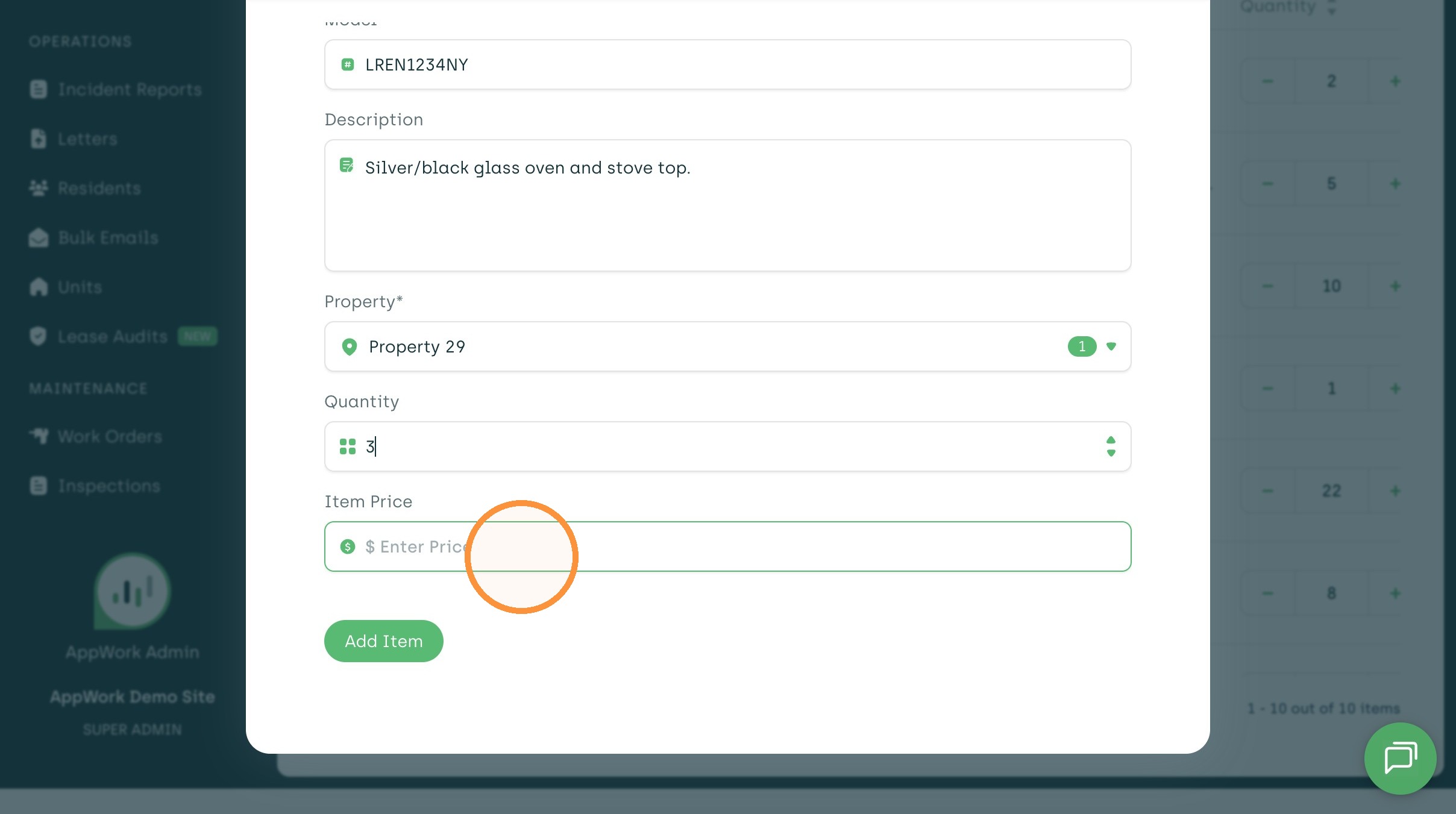
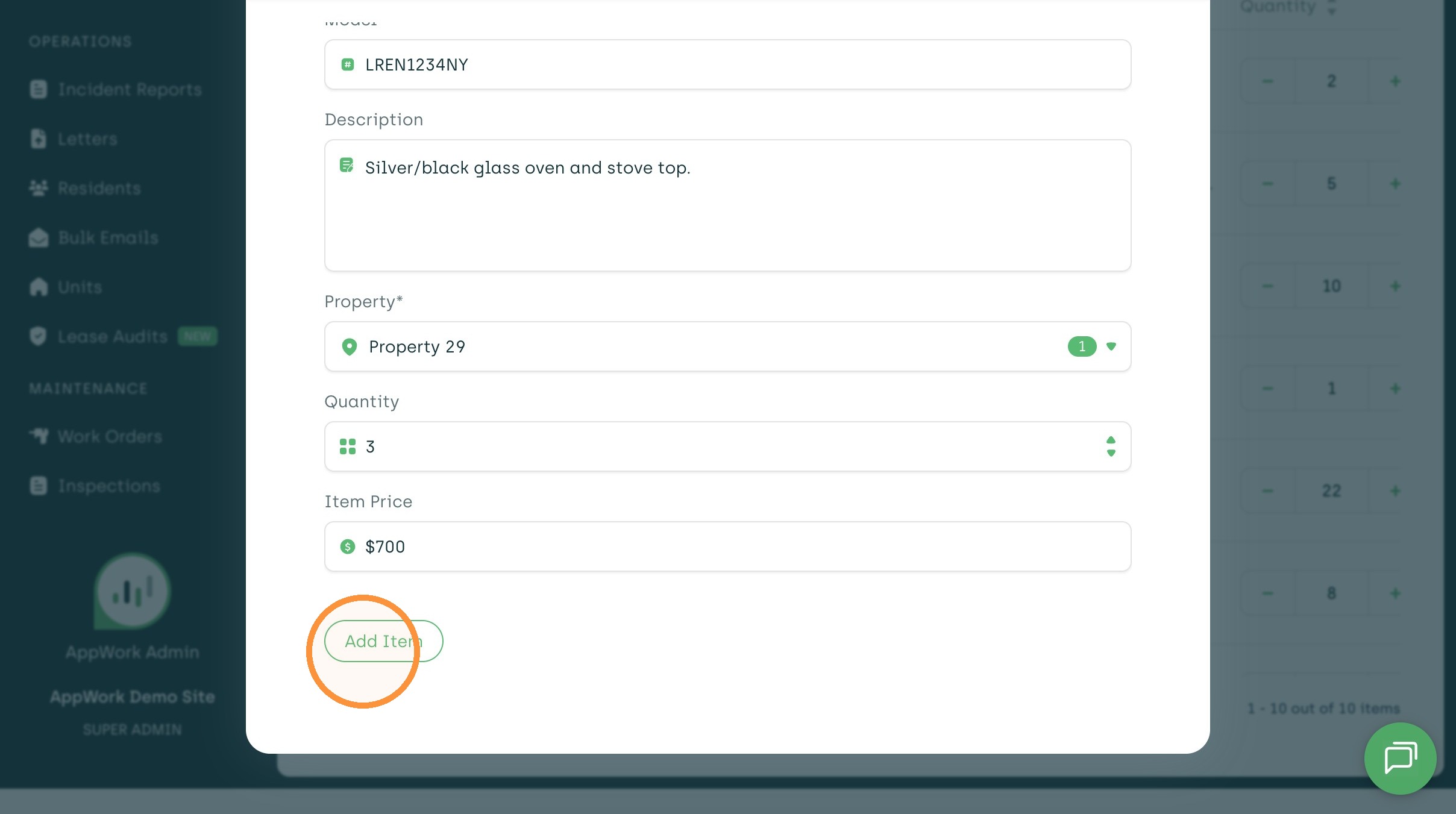
11. Click "Add Item" to save the new entry
Item Modification
12. You can click on the line to go back into the product to make any updates
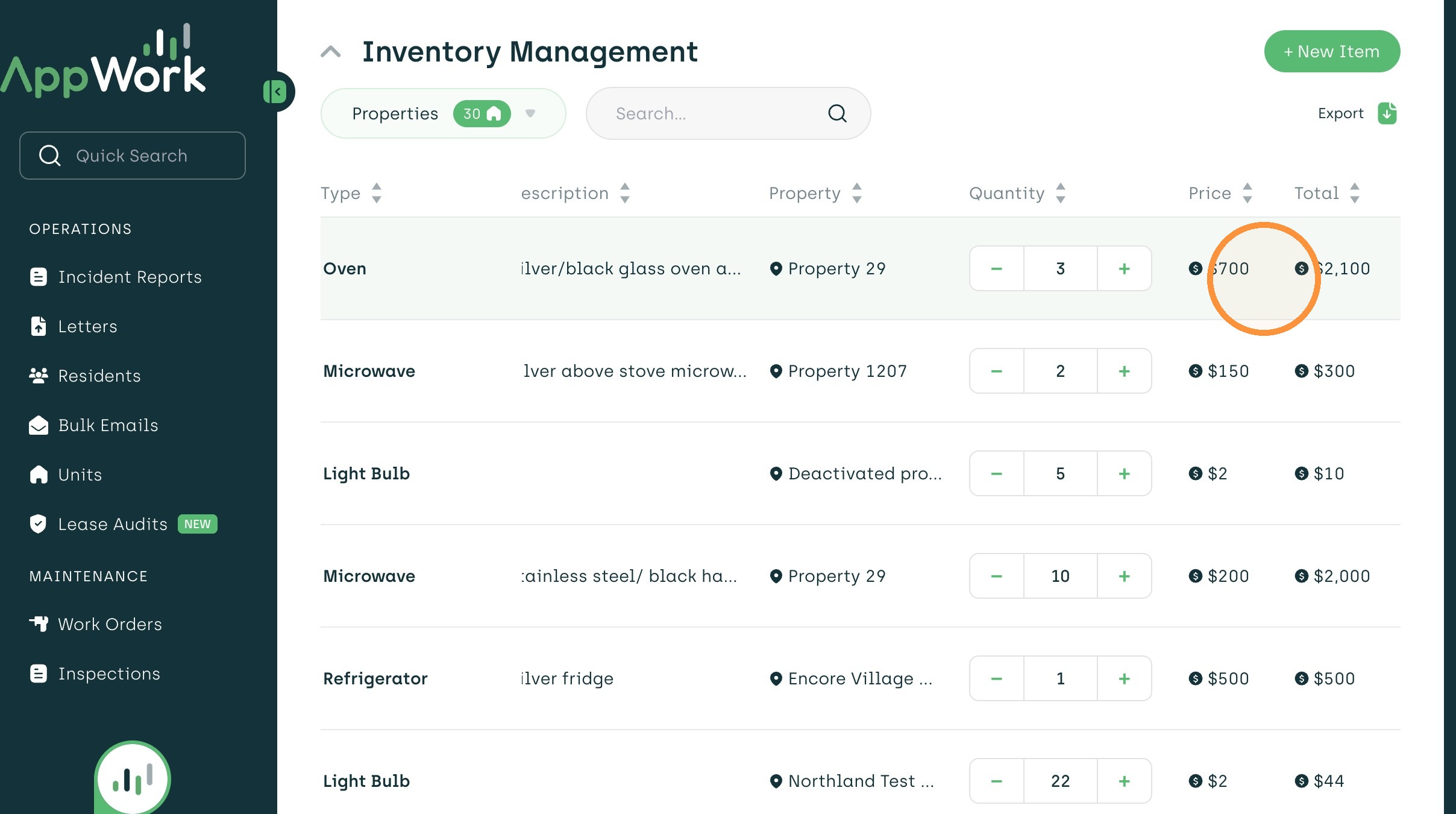
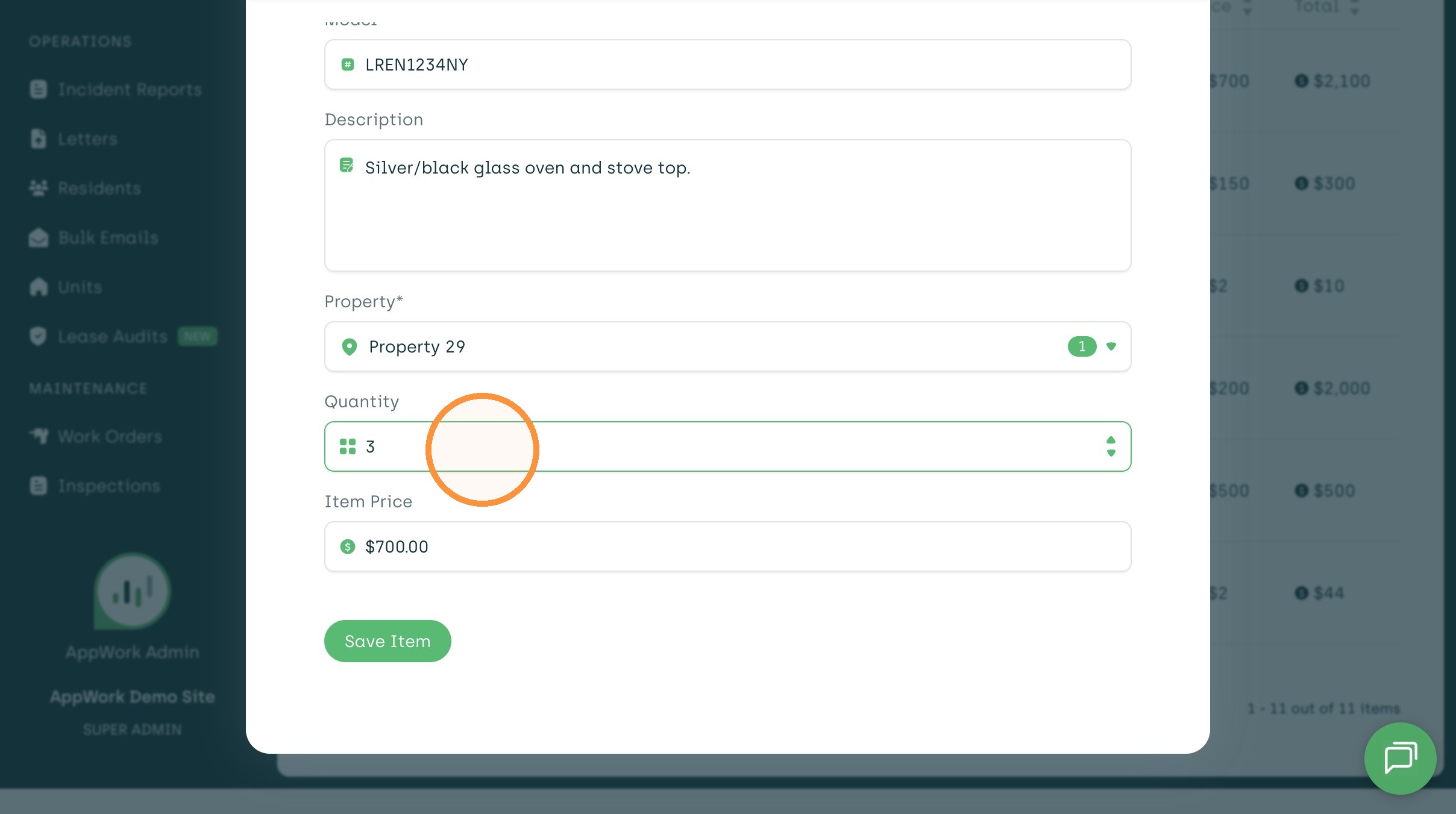
13. You can update any of the line items needed
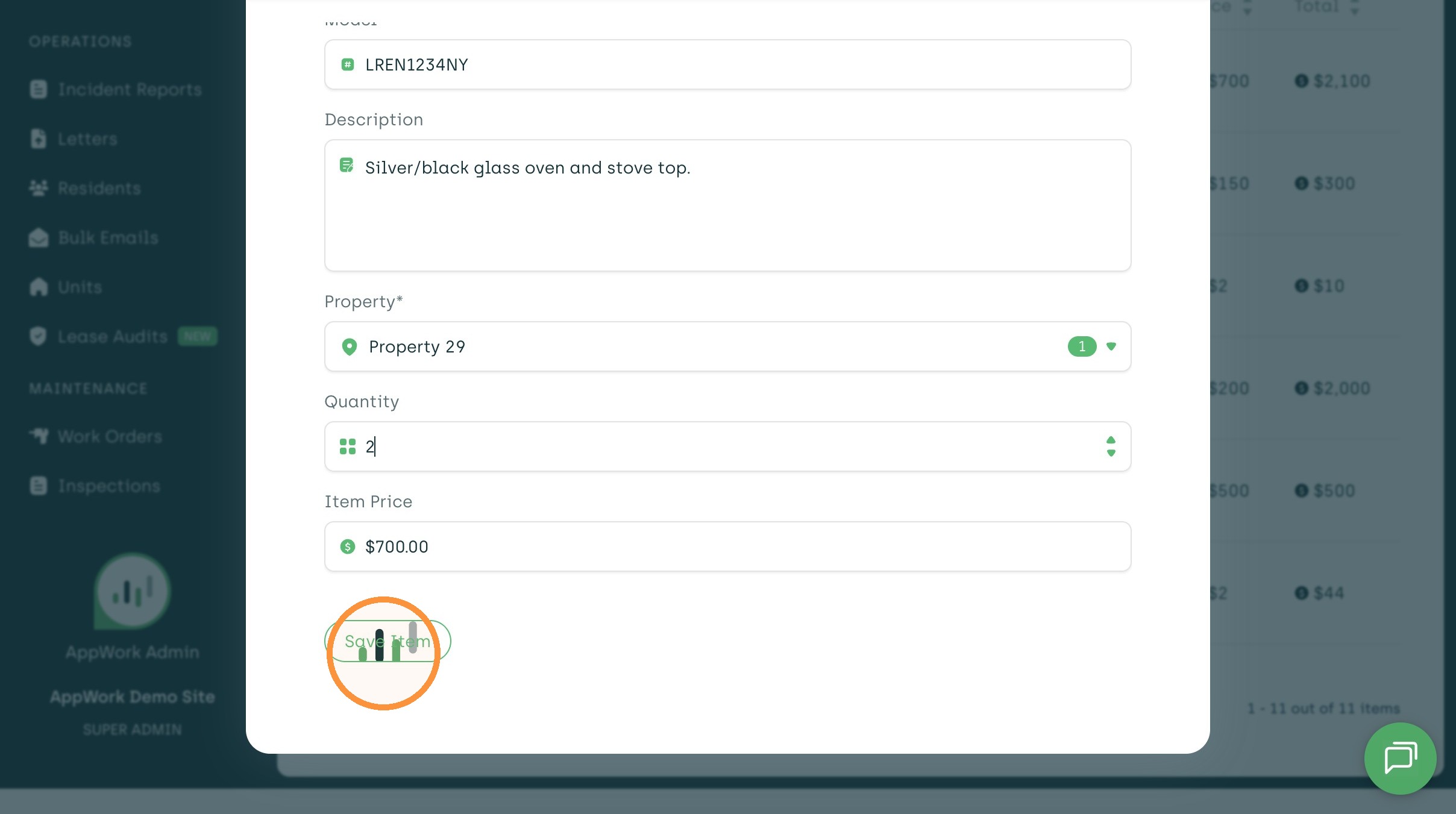
14. Once done, click "Save Item"
Inventory Management
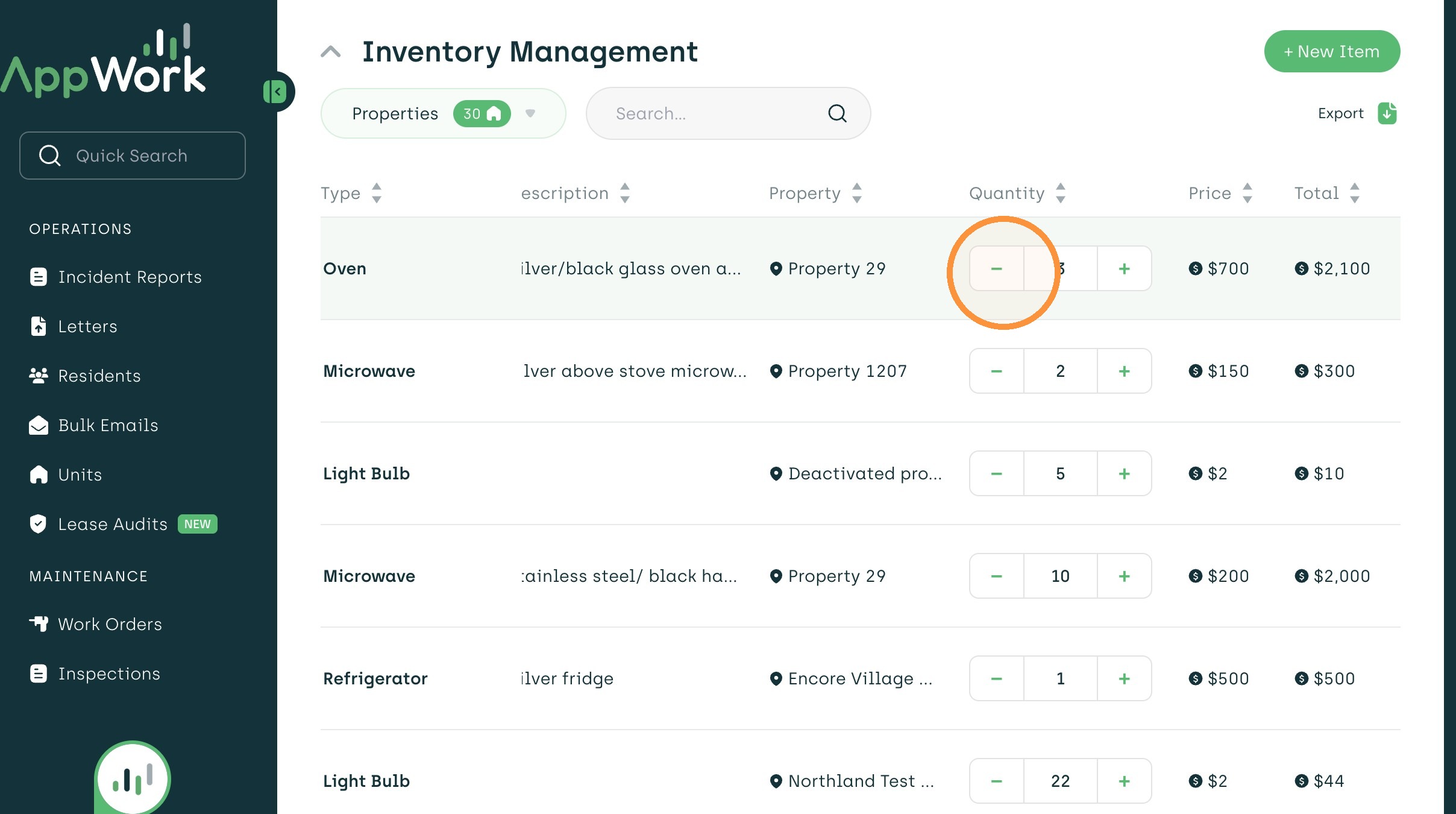
15. You can select the "+" to the right of the number to add to the quantity
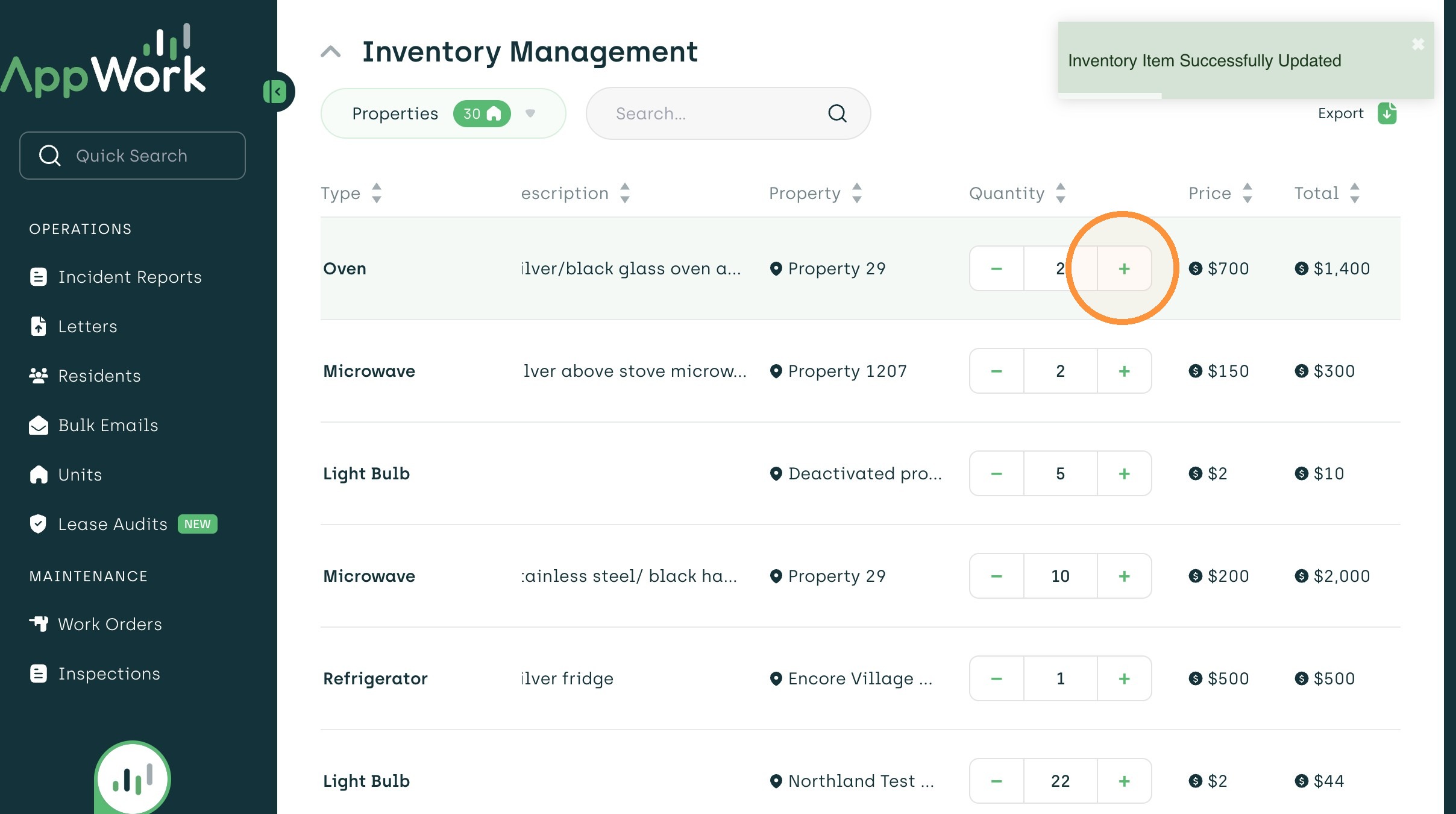
16. You can click the "−" to the left of the number to take away from the quantity
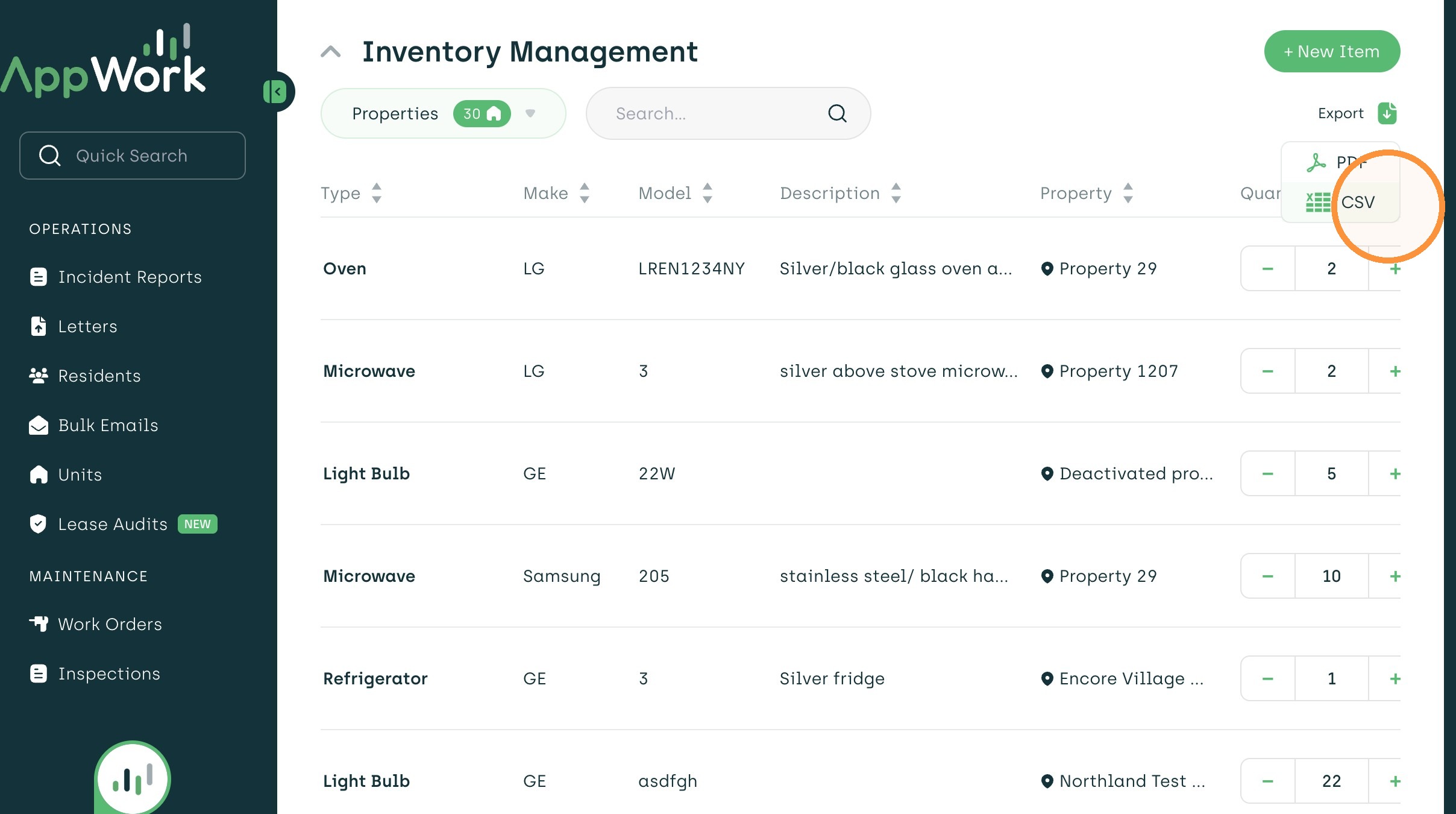
17. You have the ability to export a report showing all the items, cost and quantity
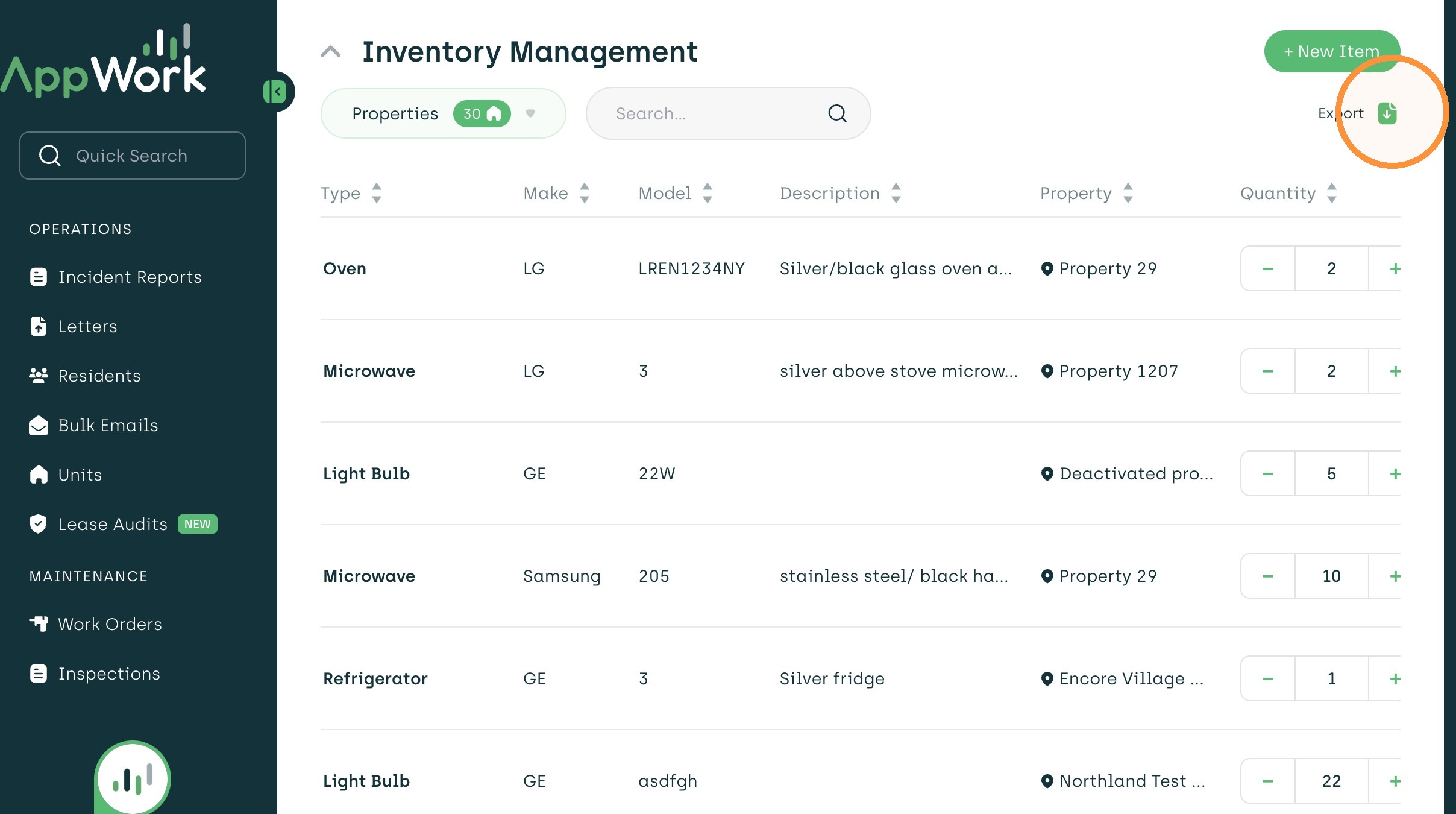
18. You may choose between a PDF or a CSV file