
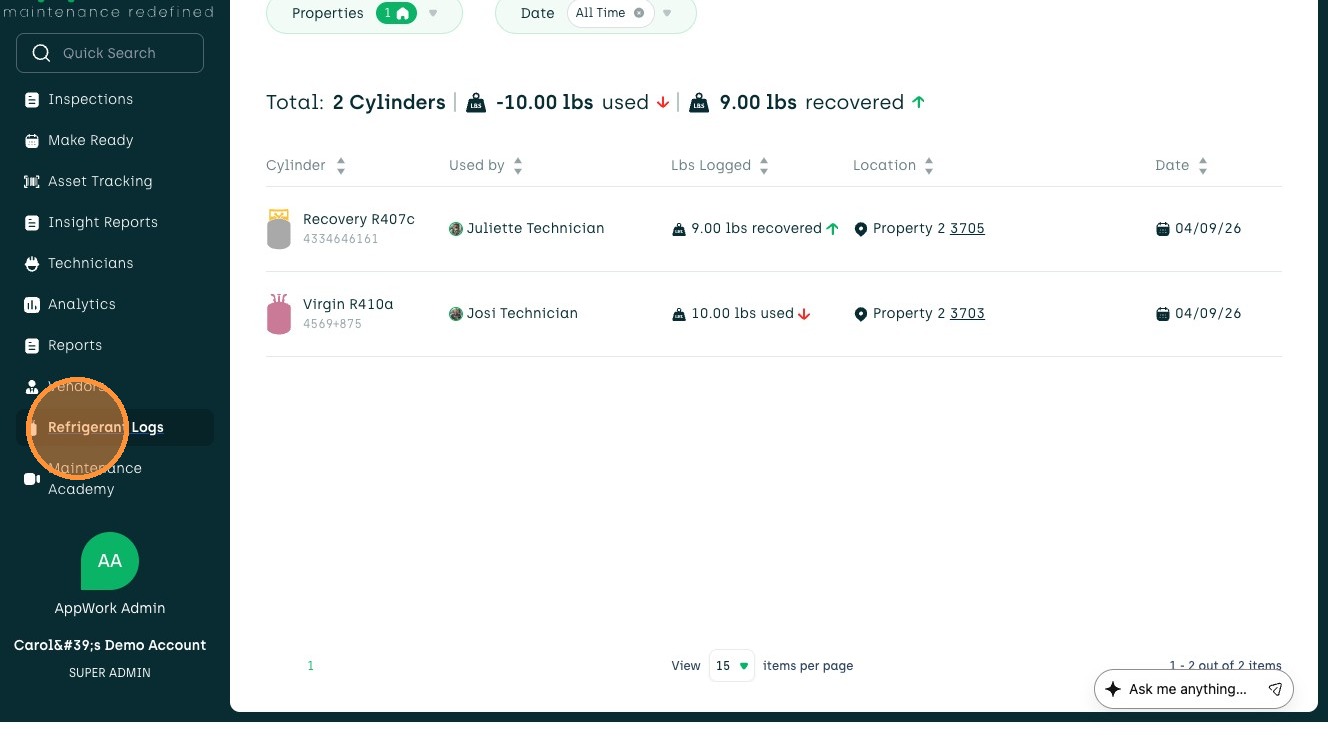
1. Navigate to Refrigerant Logs in the sidebar menu.
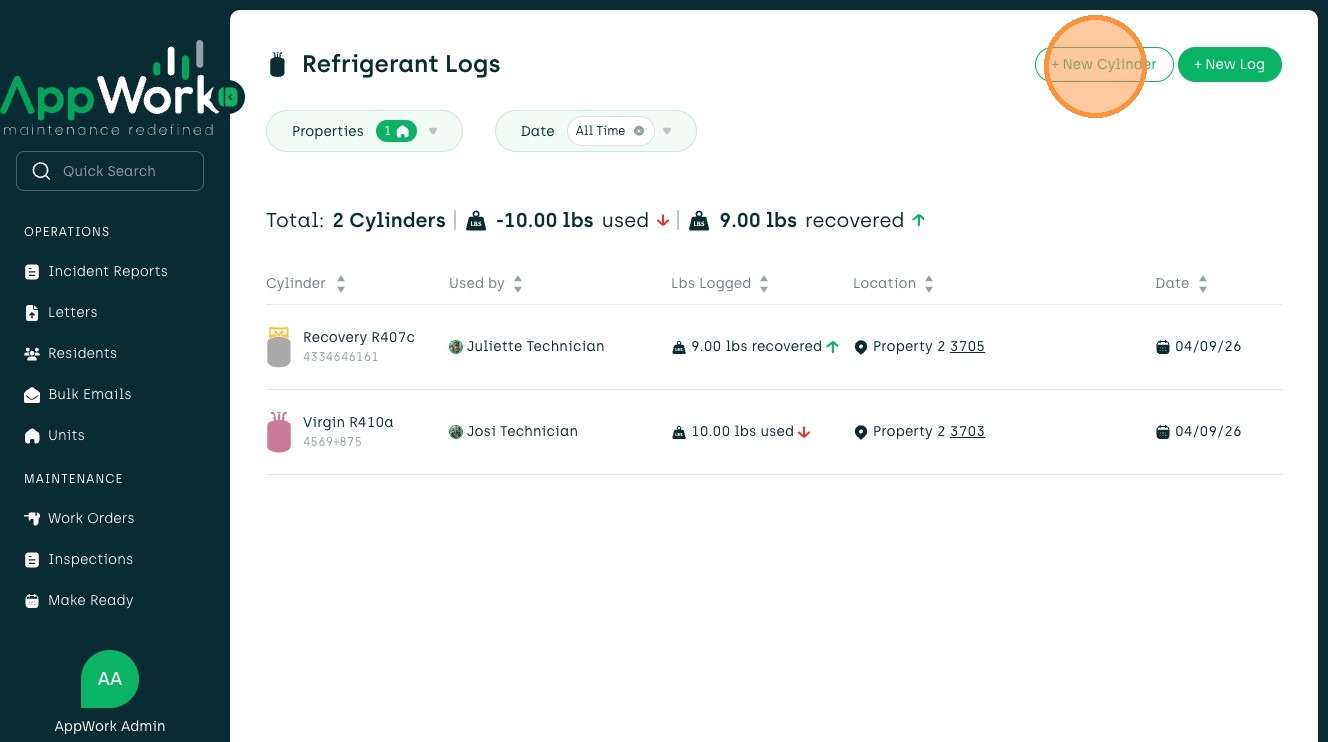
2. Select the + New Cylinder in the top right of the page.
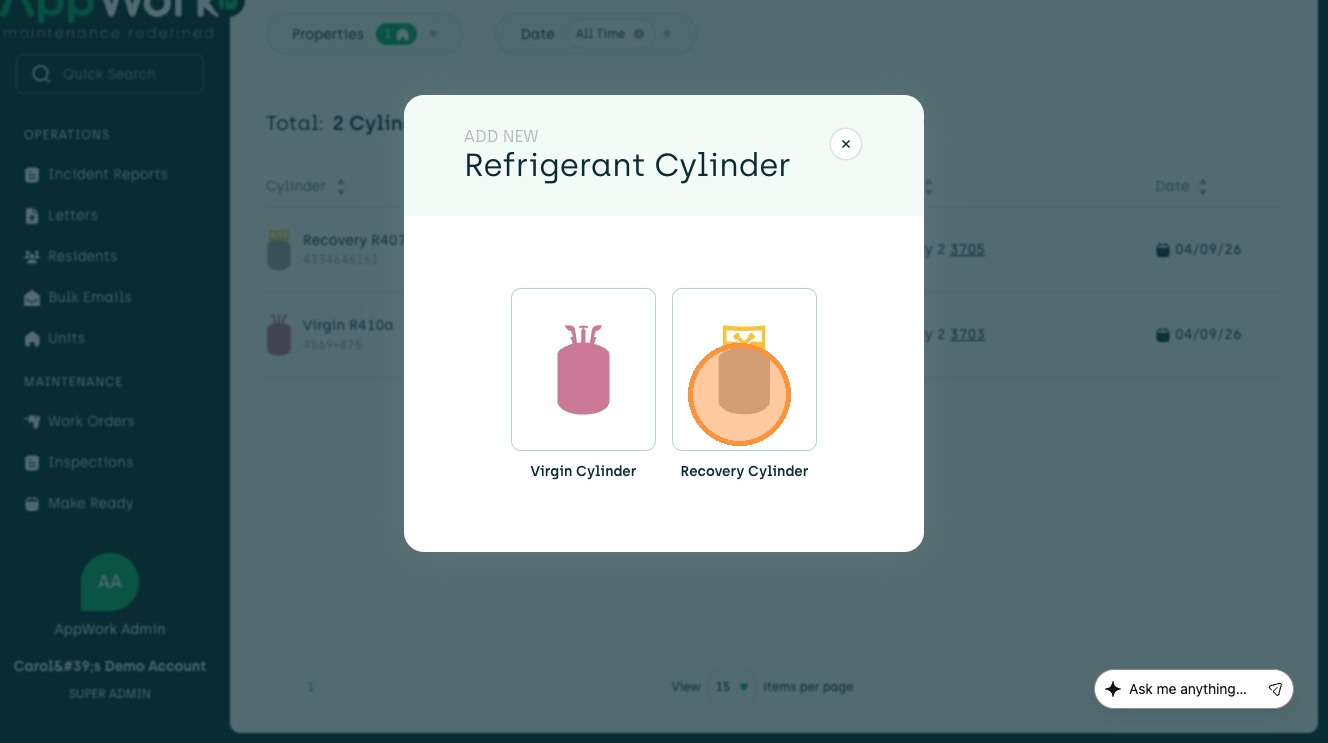
3. Choose Recovery Cylinder.
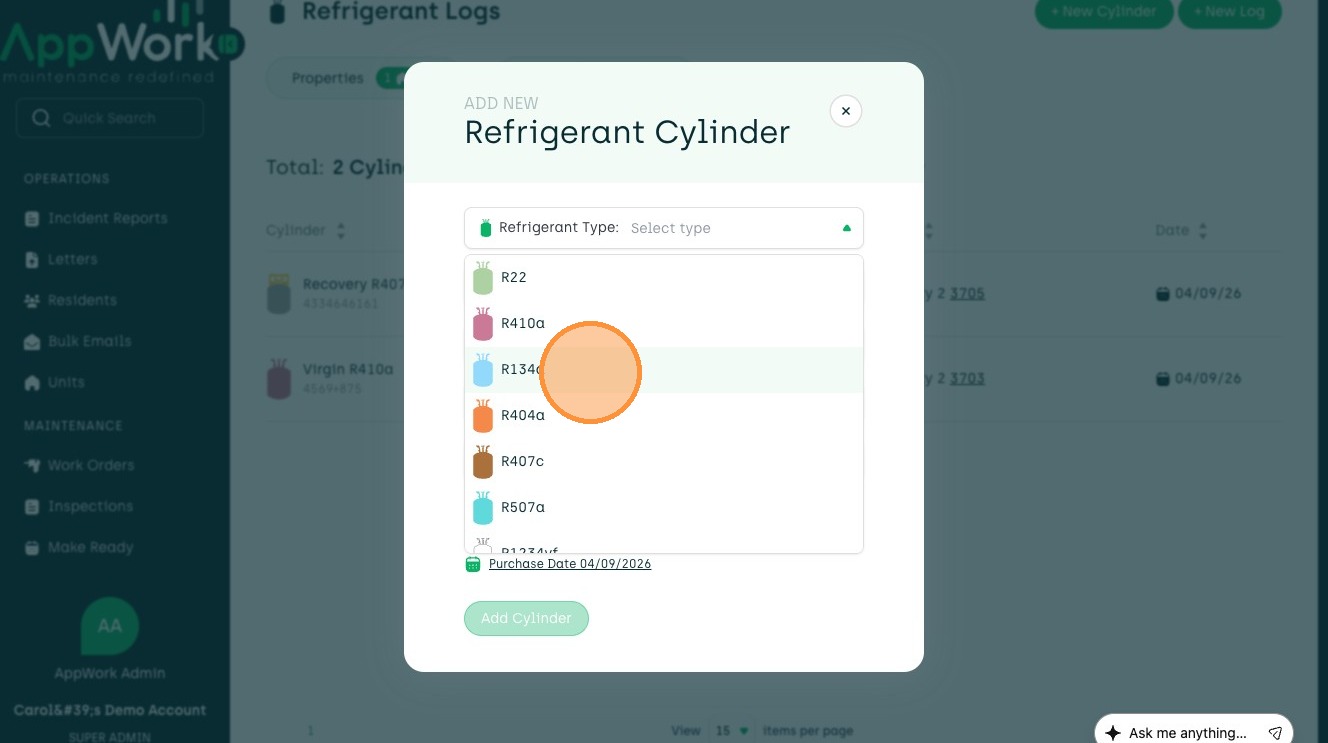
4. First, select the type of refrigerant from the dropdown.
5. Add the Serial Number.
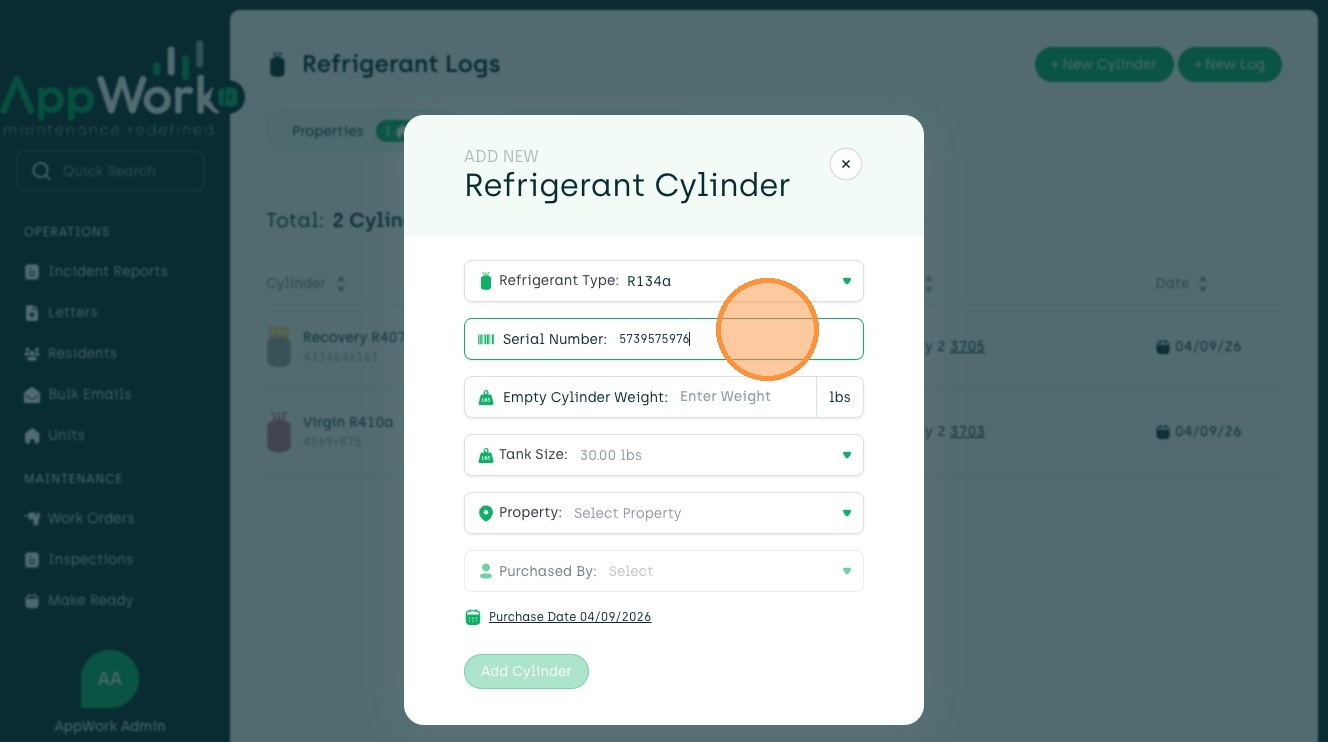
6. Type in the weight of the cylinder.
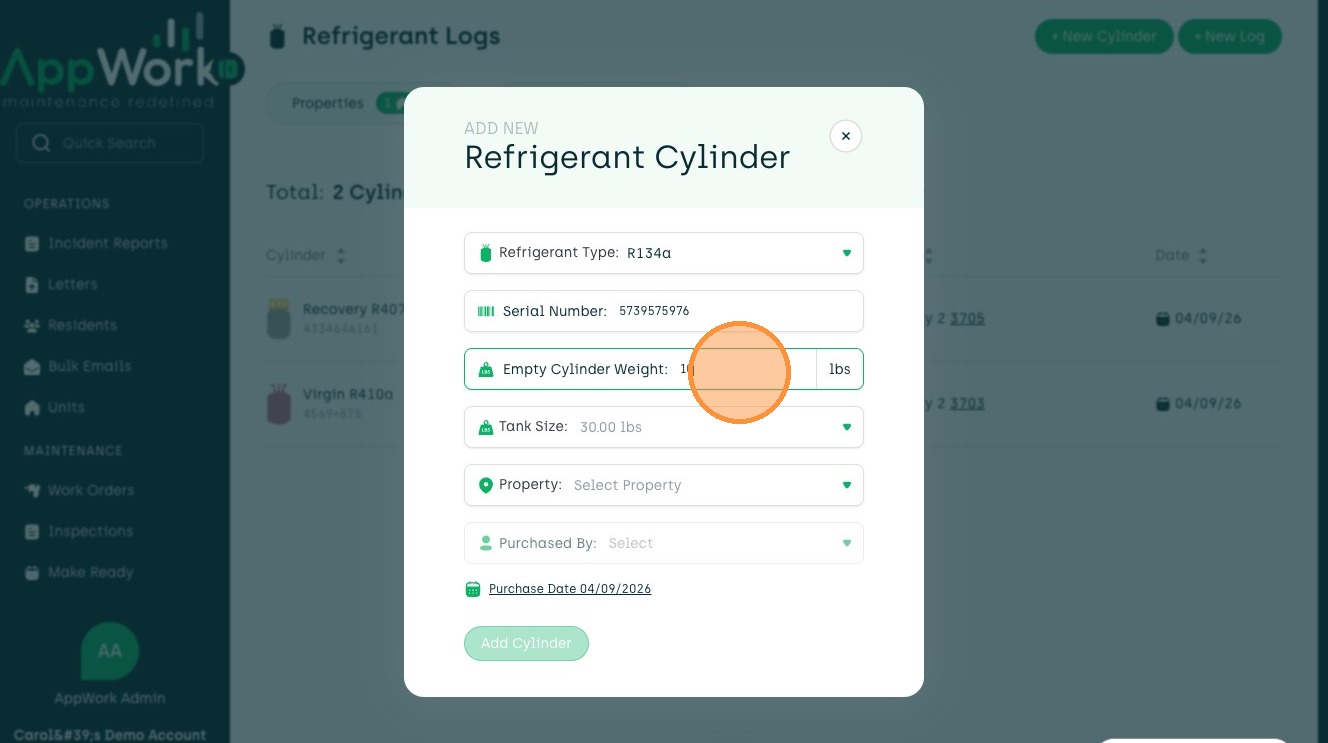
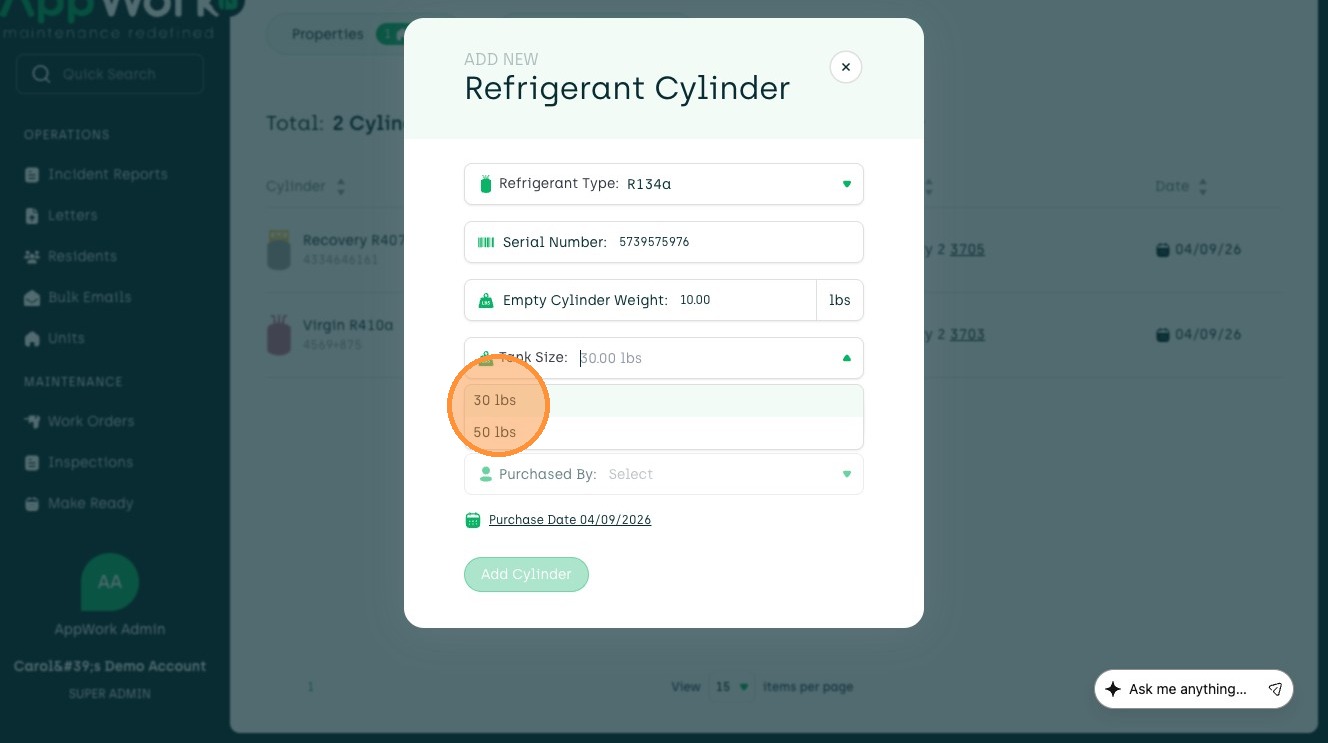
7. Choose which tank size applies to this refrigerant.
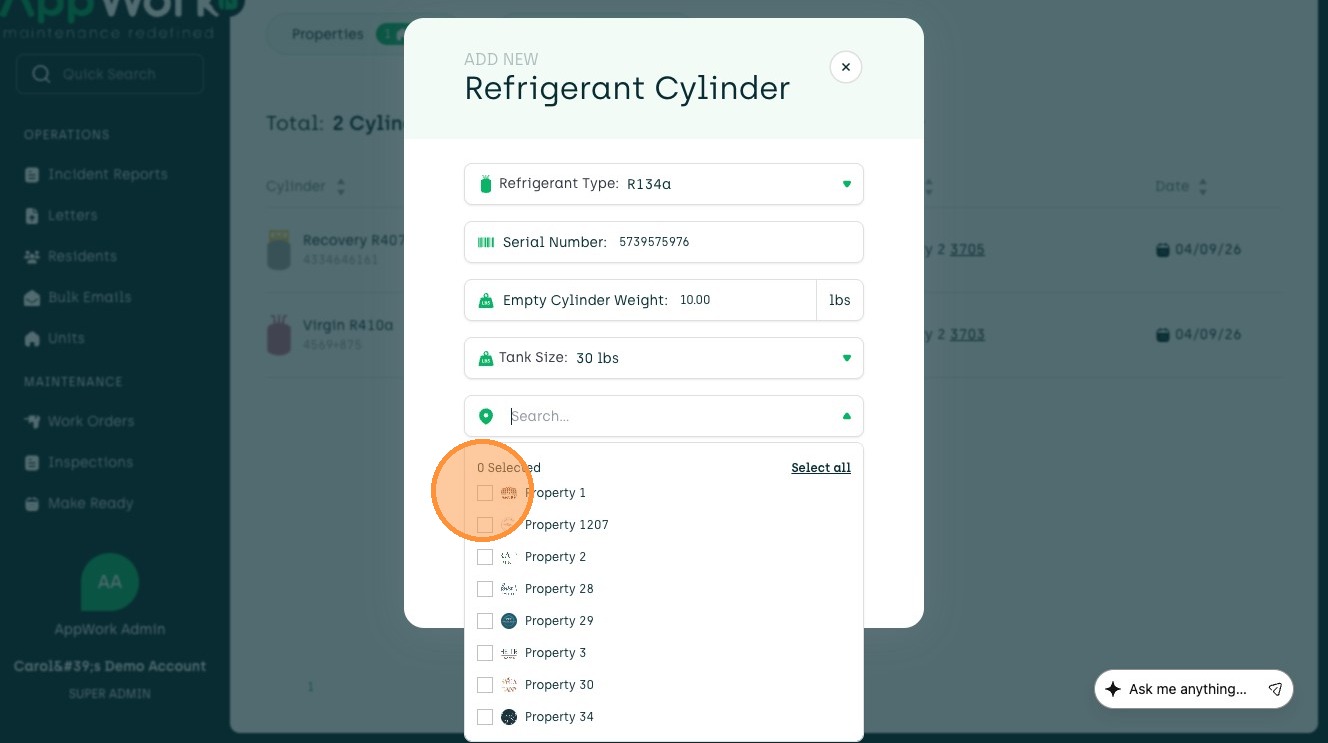
8. Use the search bar to find the unit or select from the dropdown.
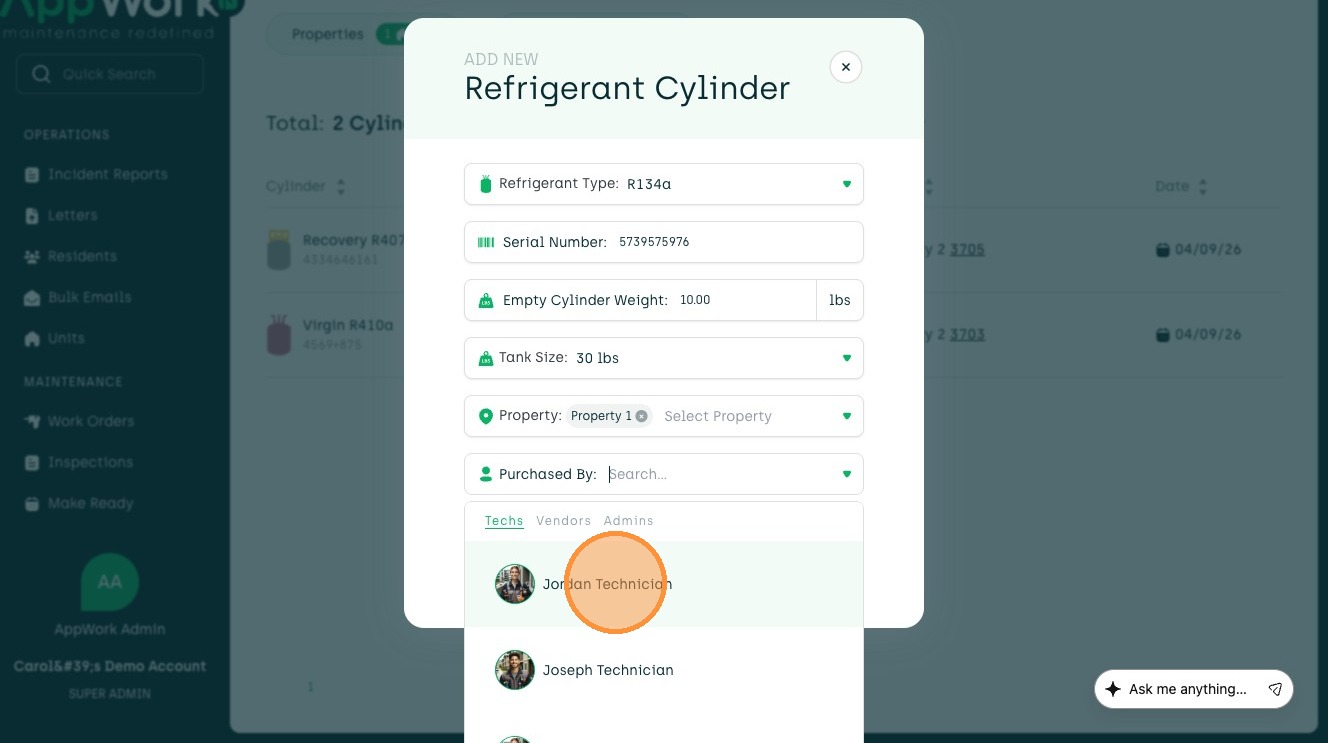
9. Add who purchased the refrigerant here.

10. Click Purchase Date and select a date from the calendar or type it in.
11. To create the cylinder, press Add Cylinder.
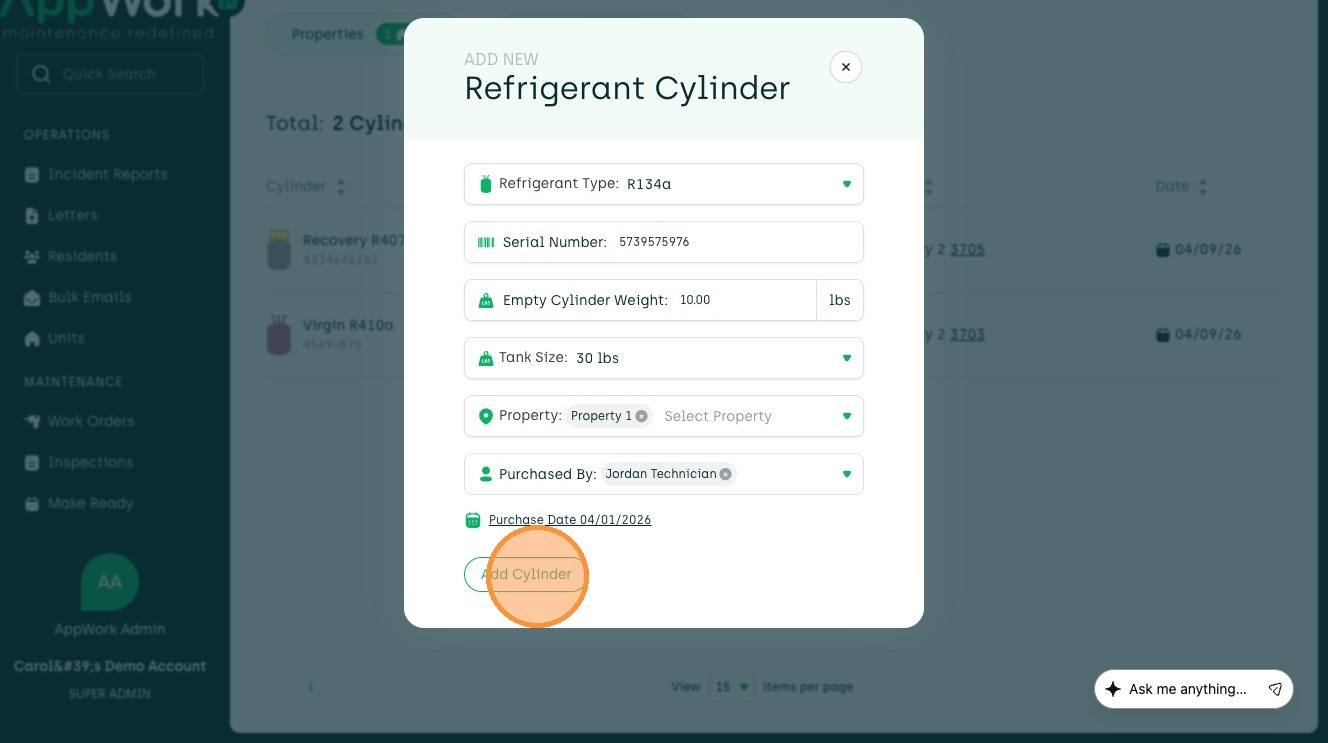
Keep in mind, the cylinder will not pop up until it is attached to a 'Unit to Cylinder' Log or 'Cylinder to Unit' Log.