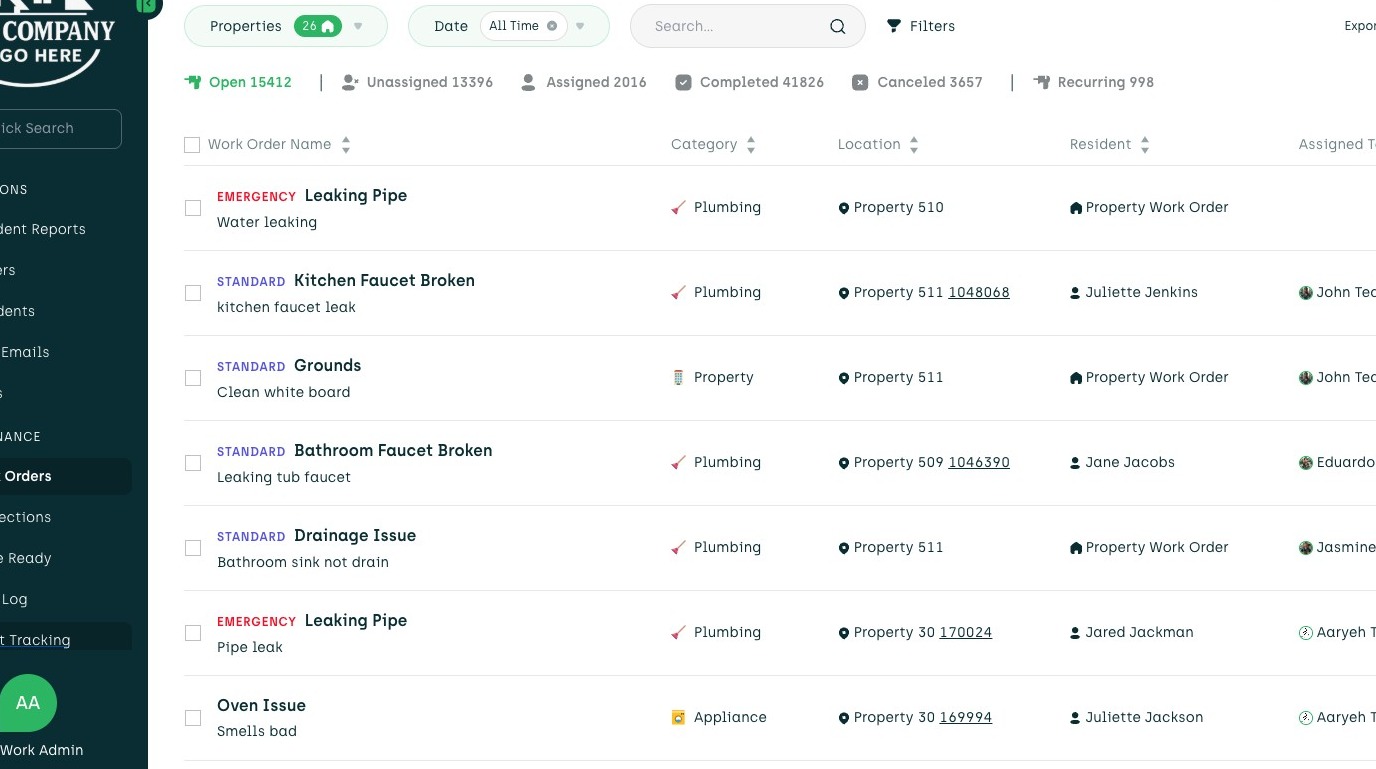
1. Navigate to your Admin Portal
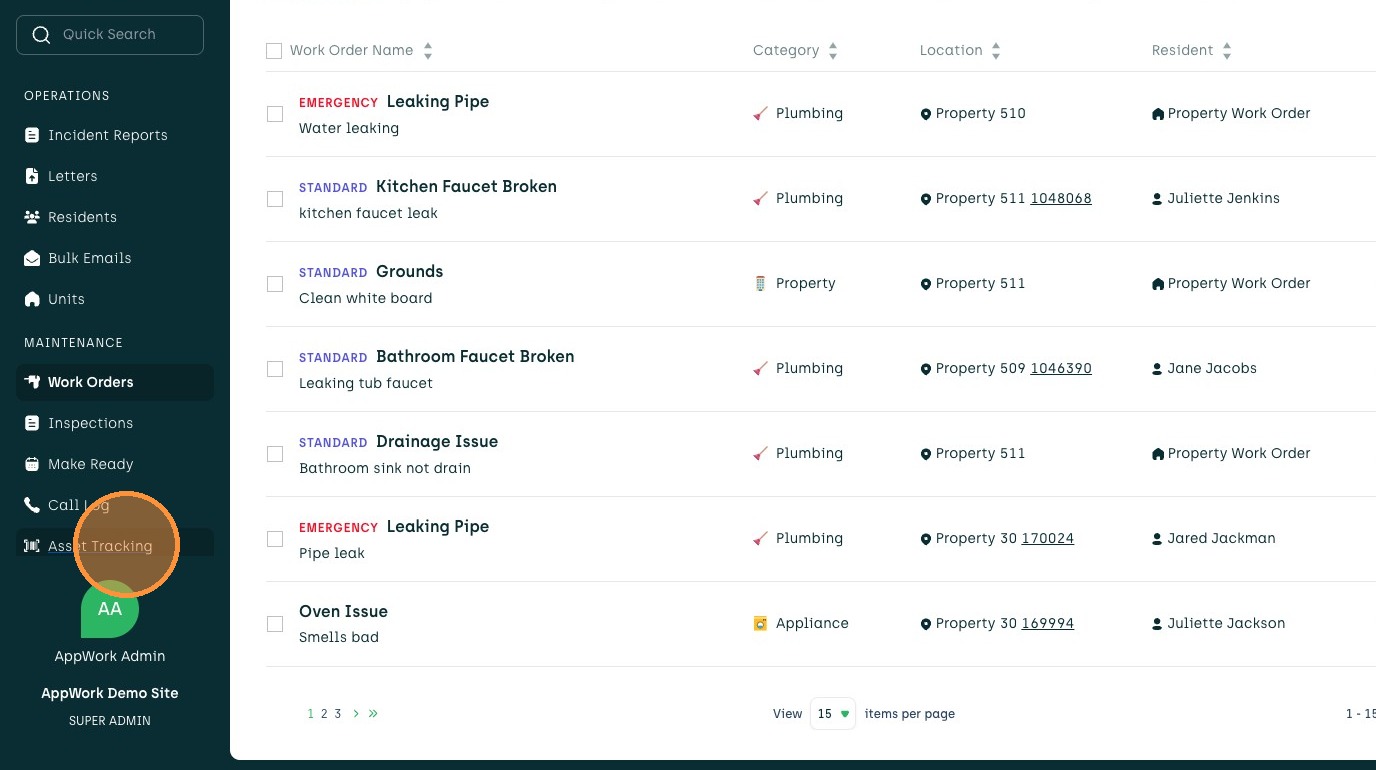
2. Click "Asset Tracking"
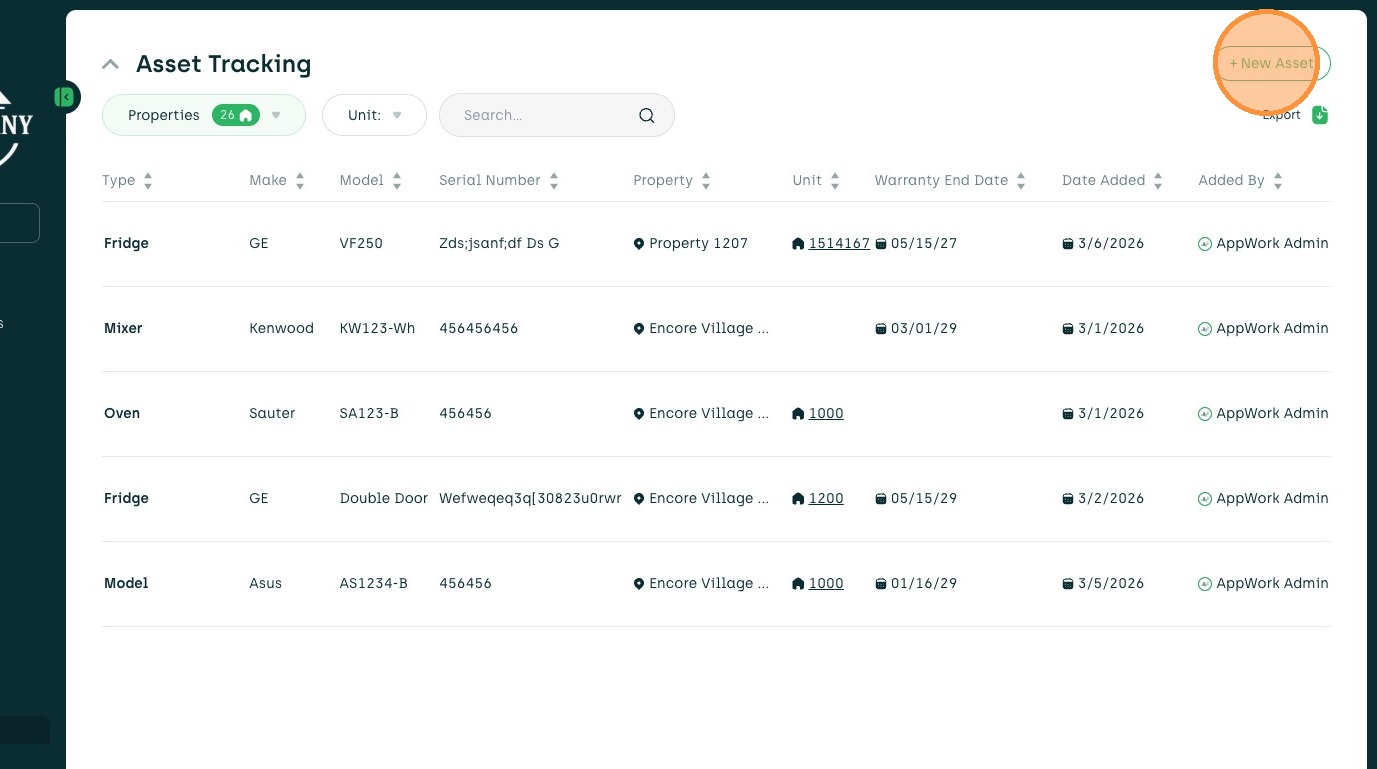
3. Click "+ New Asset"
4. Click the "Enter Type" field.
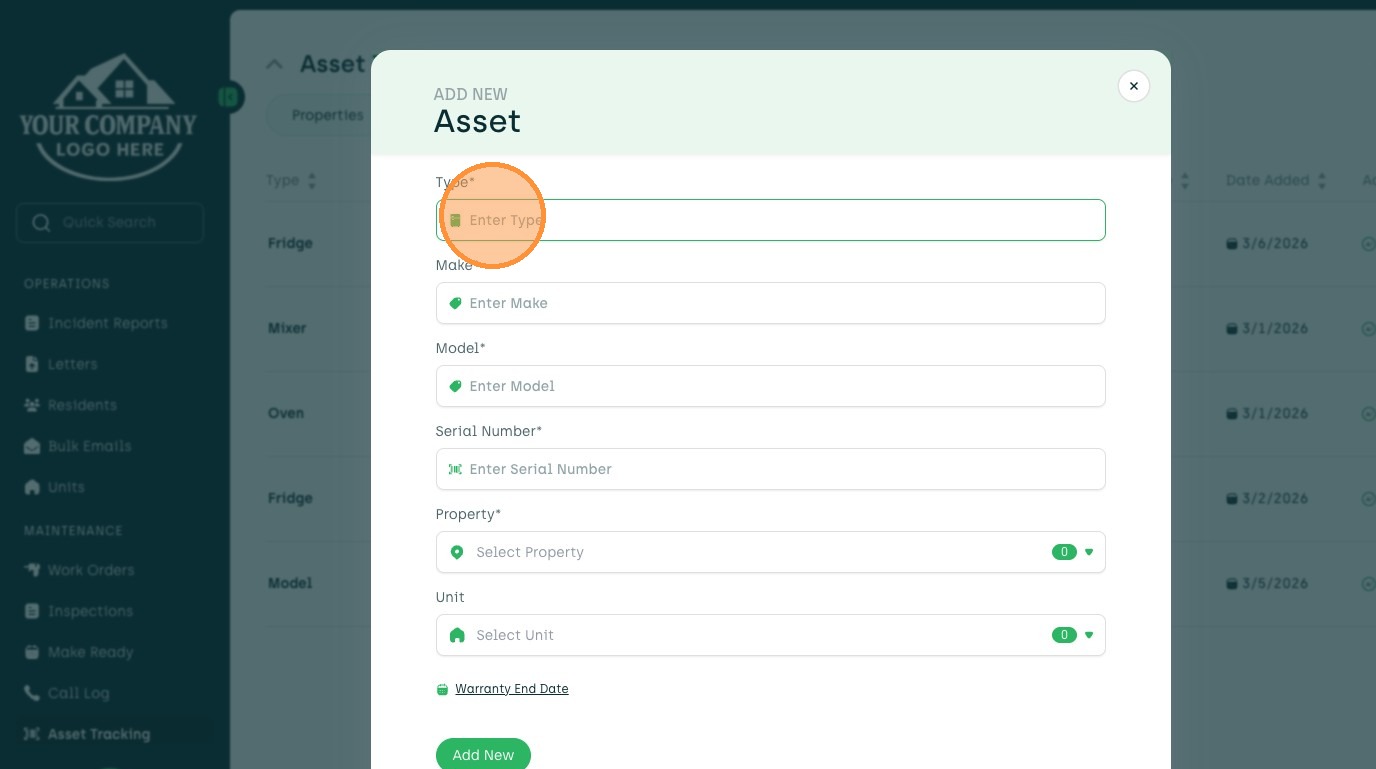
5. Enter the asset type (e.g., "Dishwasher").
6. Click the "Enter Make" field.
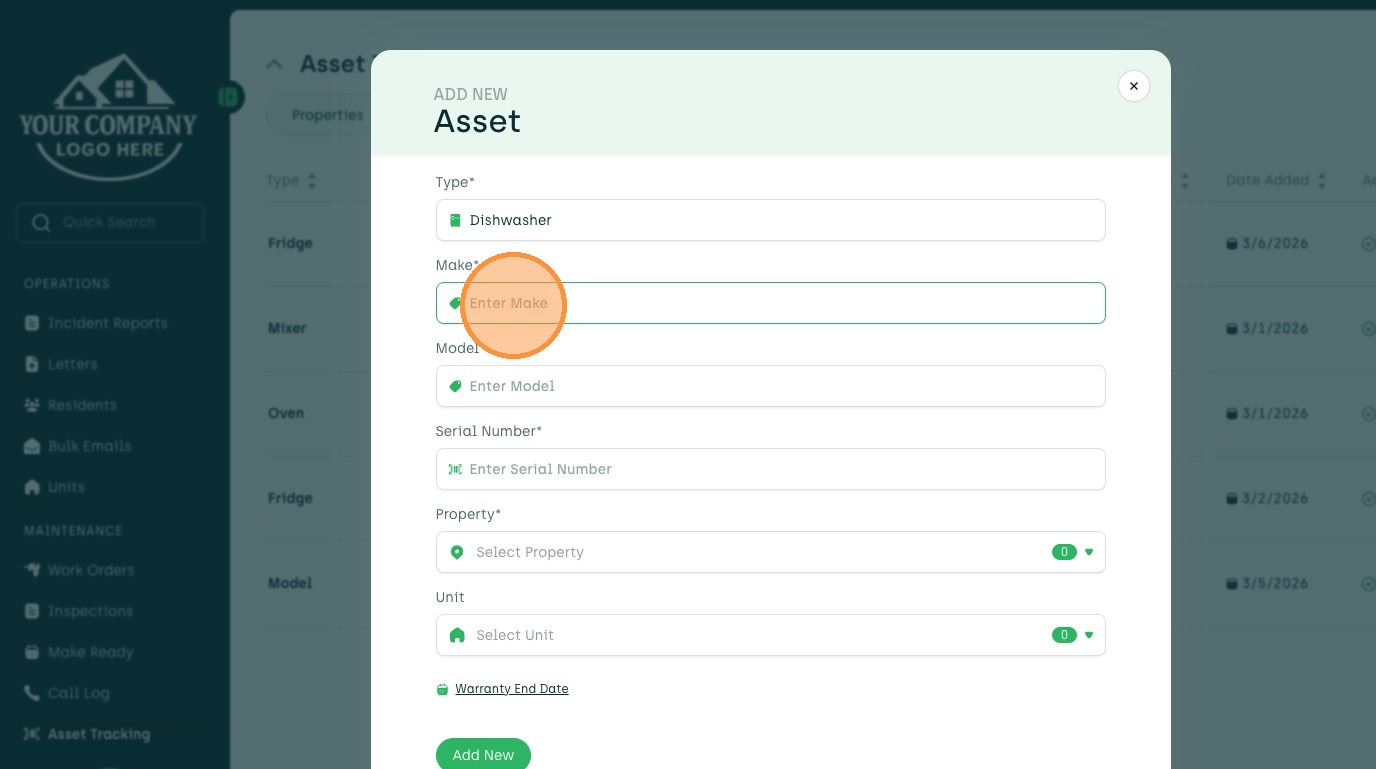
7. Enter the asset Make (e.g., "GE").
8. Click the "Enter Model" field.
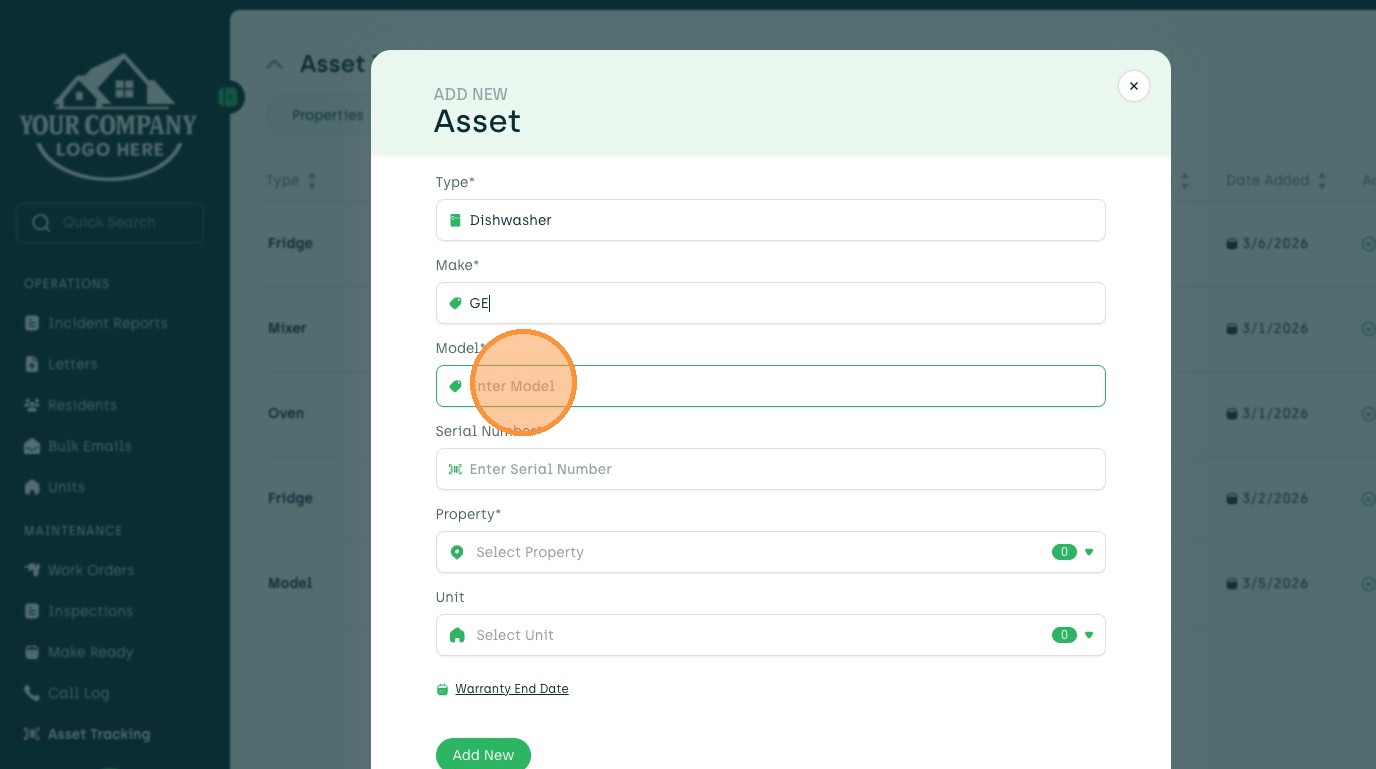
9. Enter the asset Model (e.g., "WDT730PAHZ").
10. Click the "Enter Serial Number" field.
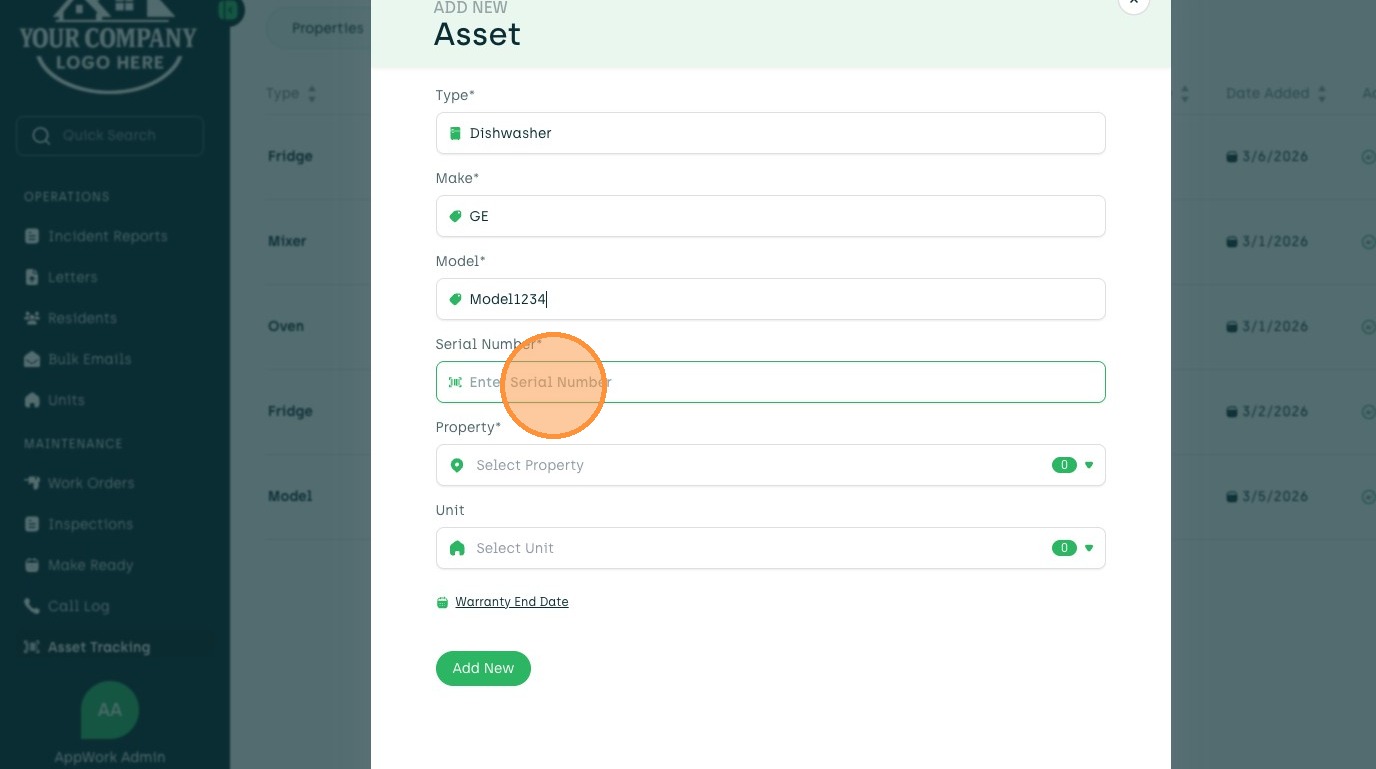
11. Enter the asset Serial Number (e.g., "SN12345678").
12. Click the "Select Property" field.
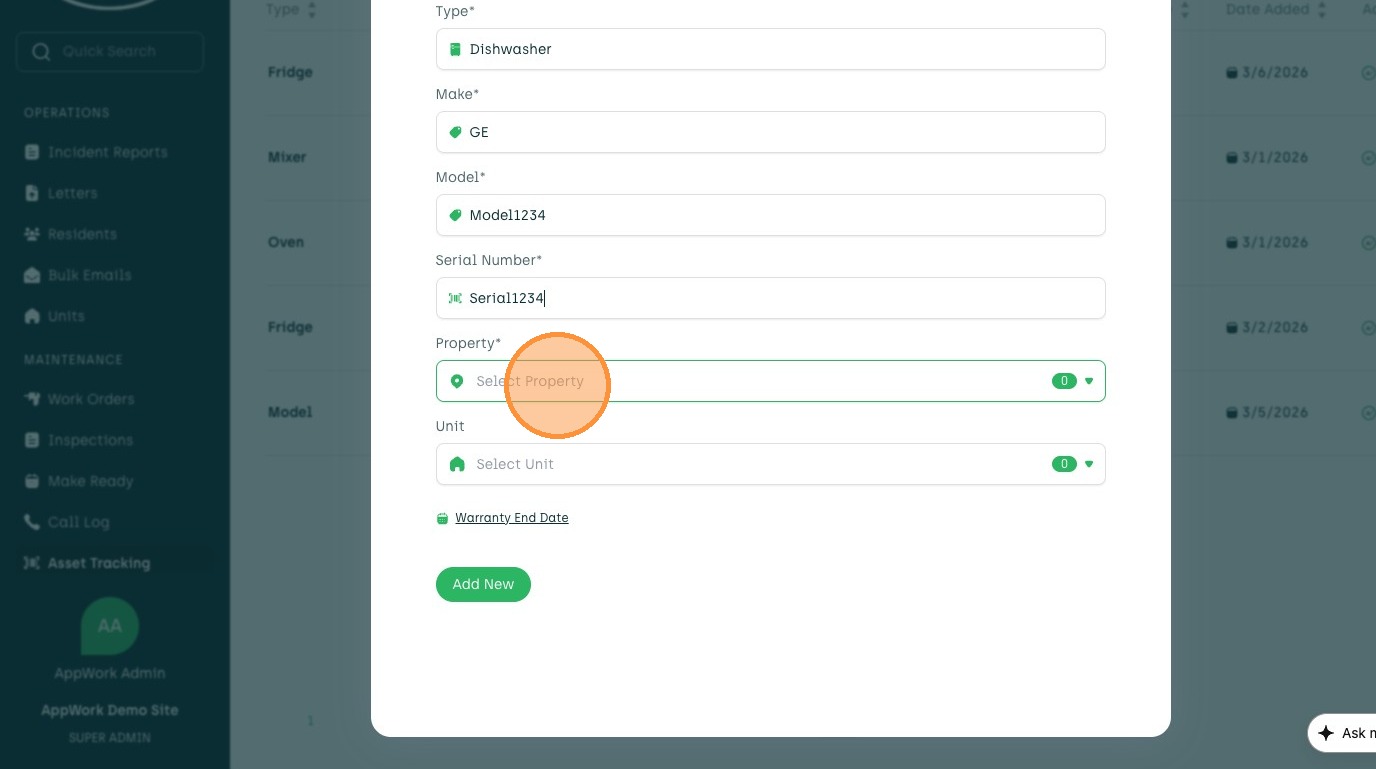
13. Enter the asset's Property (e.g., "Stone Creek").
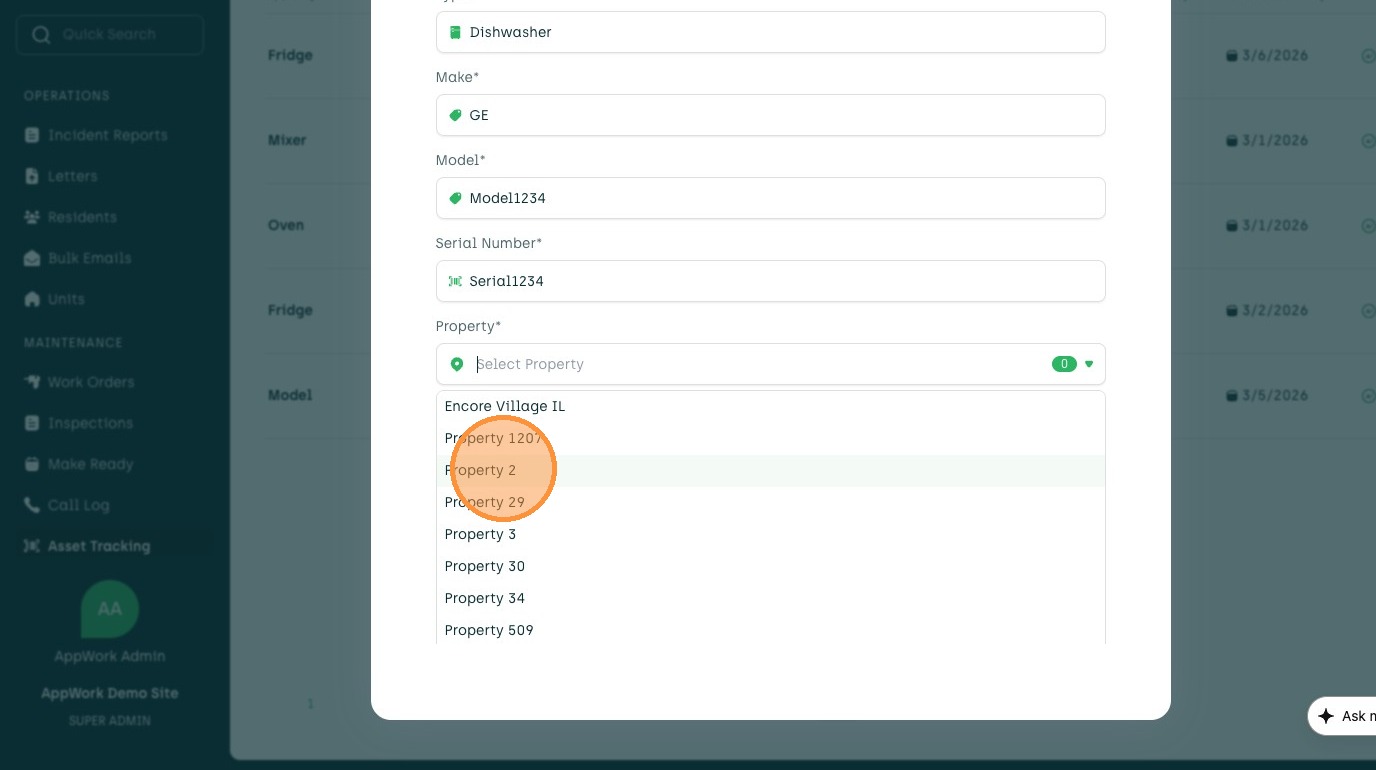
14. Click the "Select Unit" field.
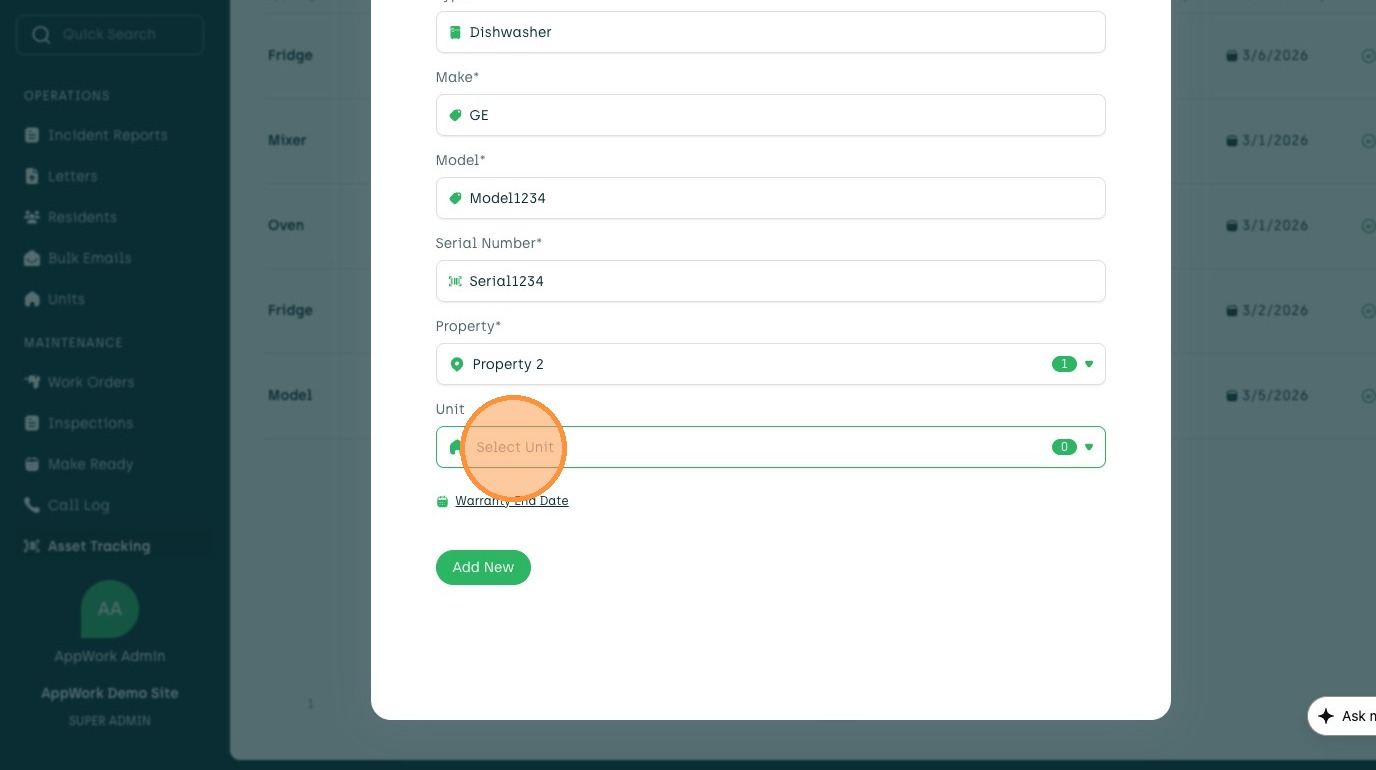
15. Enter asset's unit (e.g., "626")
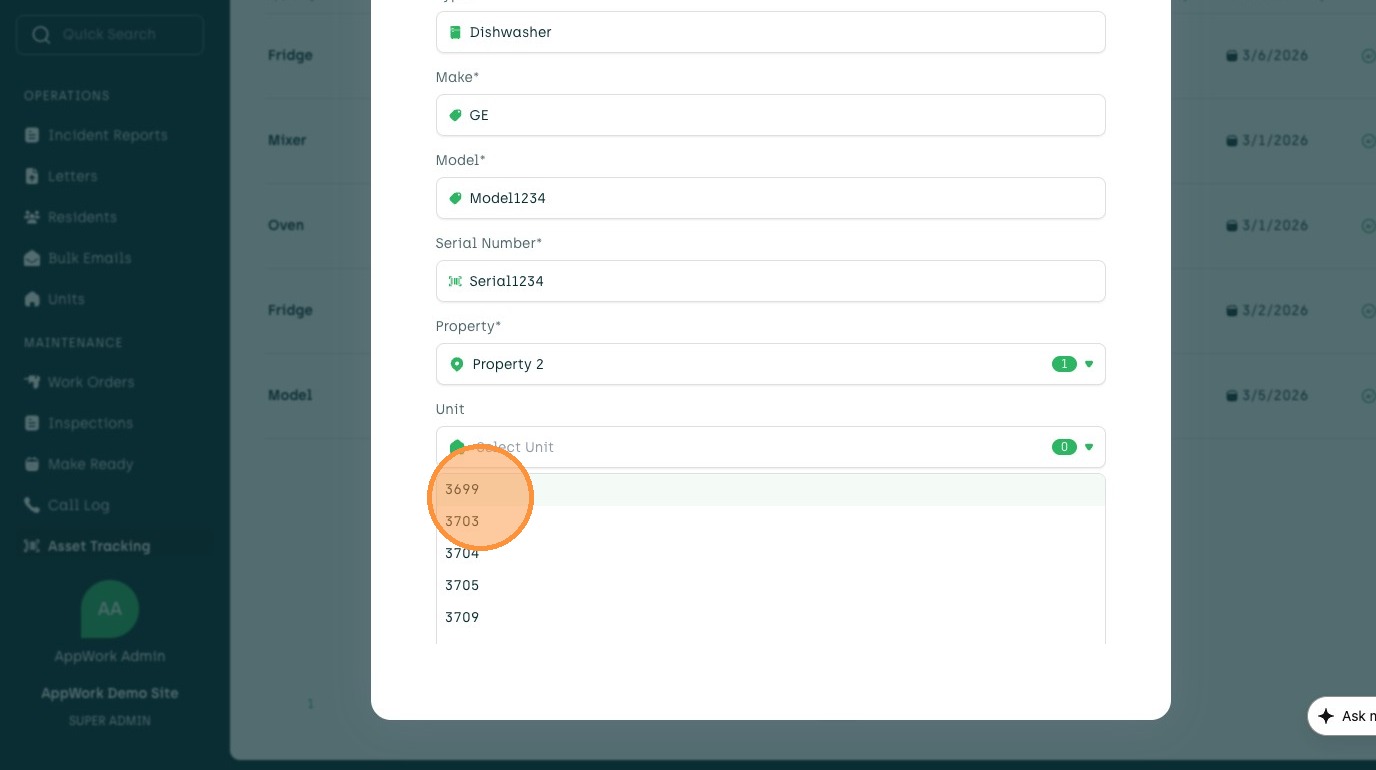
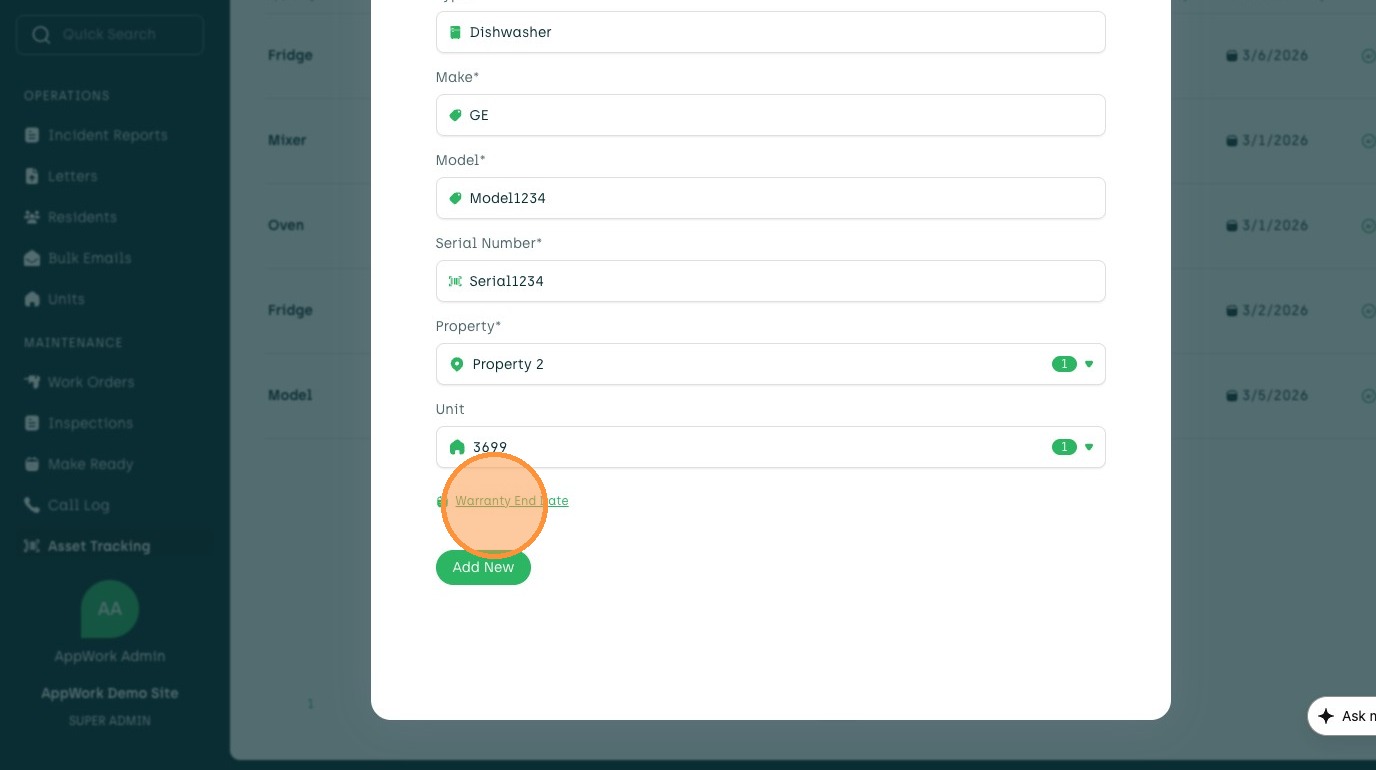
16. Click "Warranty End Date"
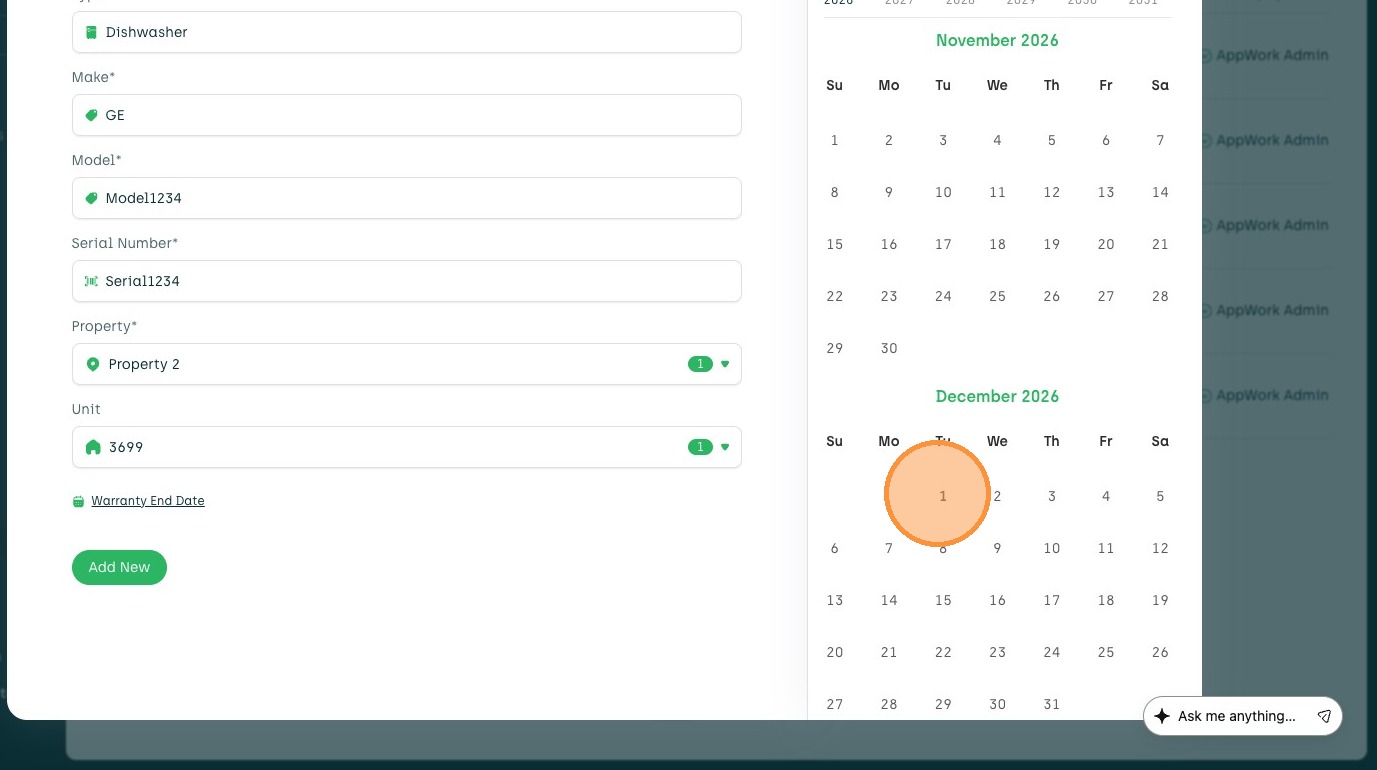
17. Enter asset's Warranty End Date (e.g., "Dec 01, 2026")
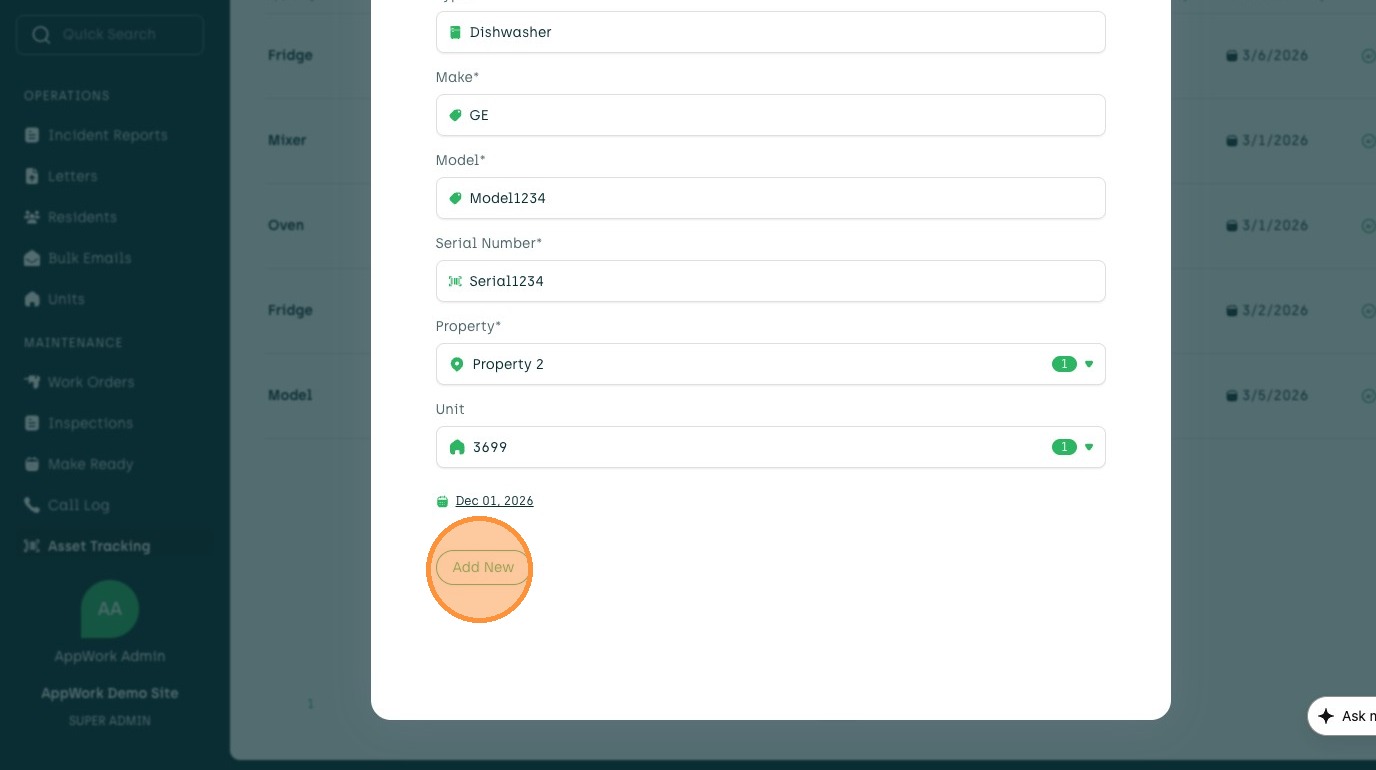
18. Click "Add New"