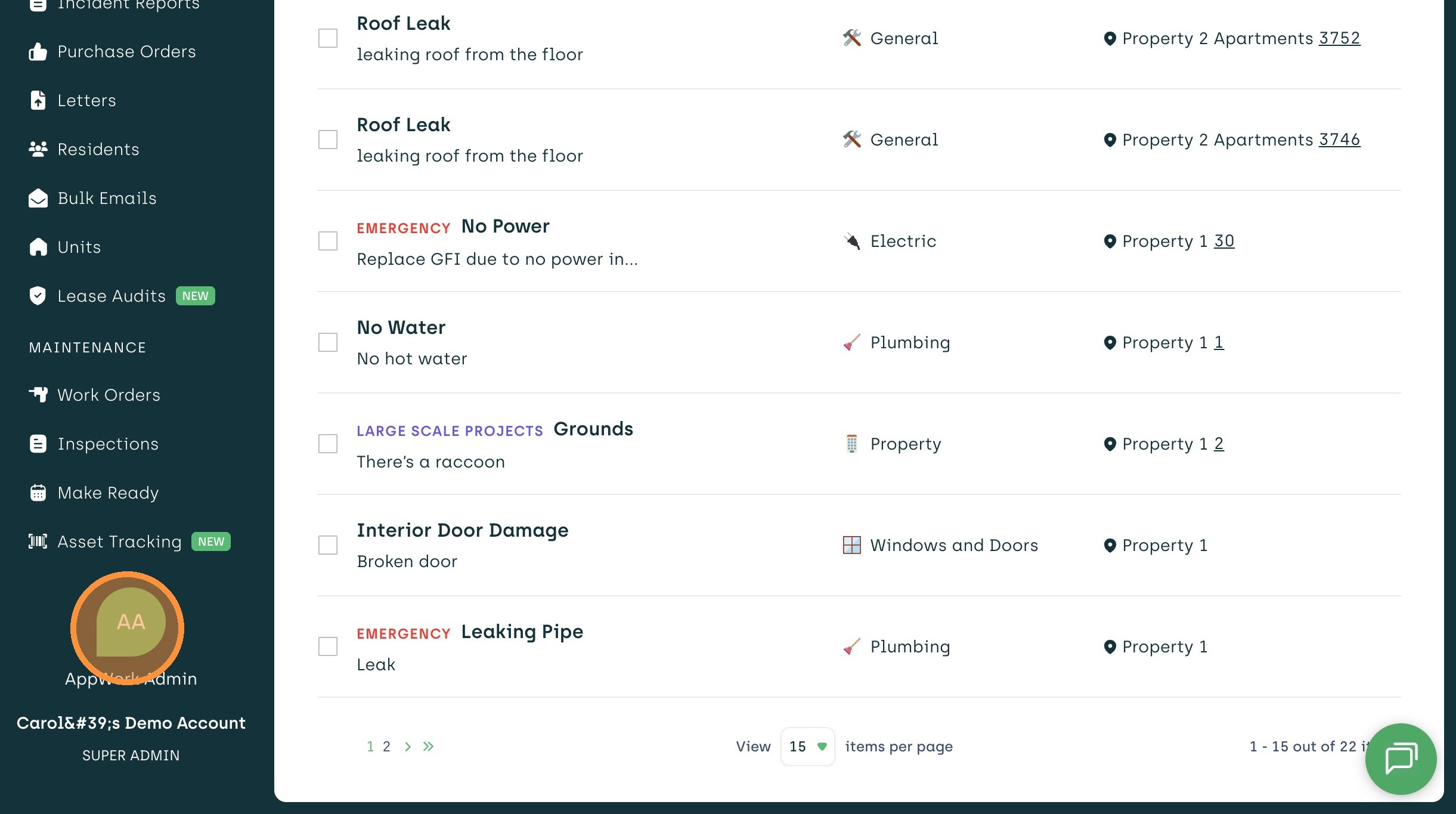
1. Click the user profile icon in the admin portal.
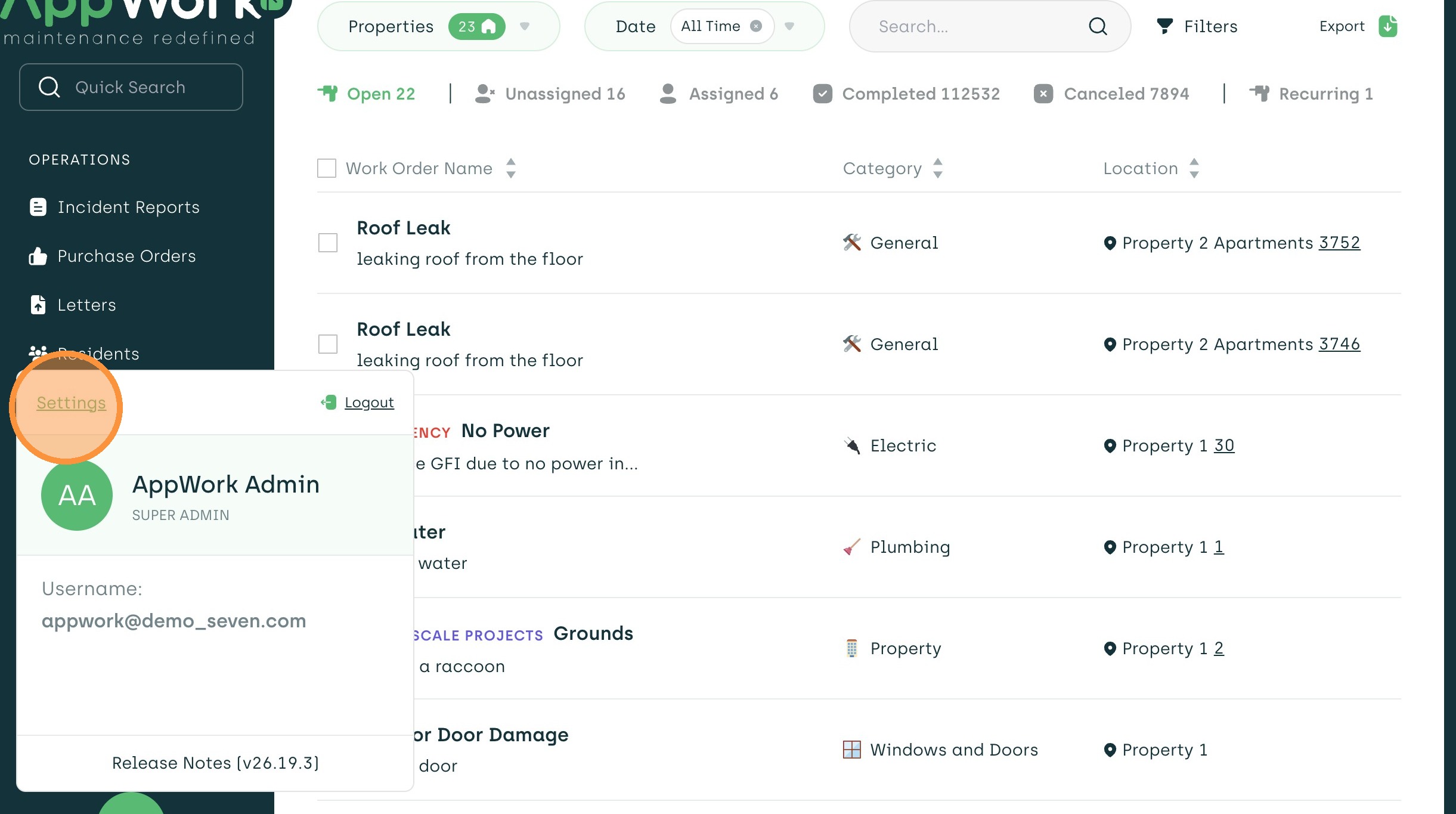
2. Click "Settings".
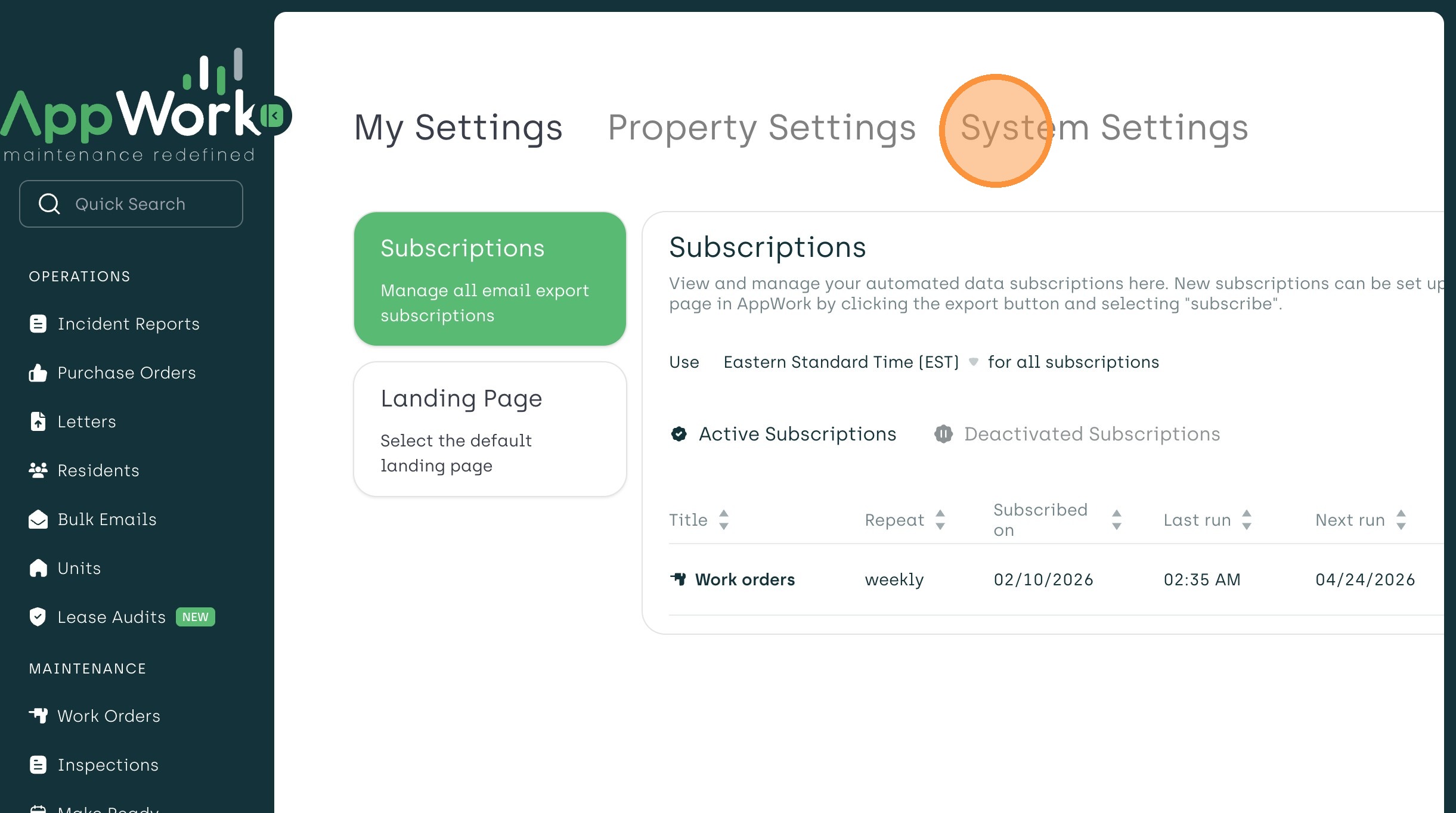
3. Select "System Settings".
4. Select "Staff" from the settings menu.
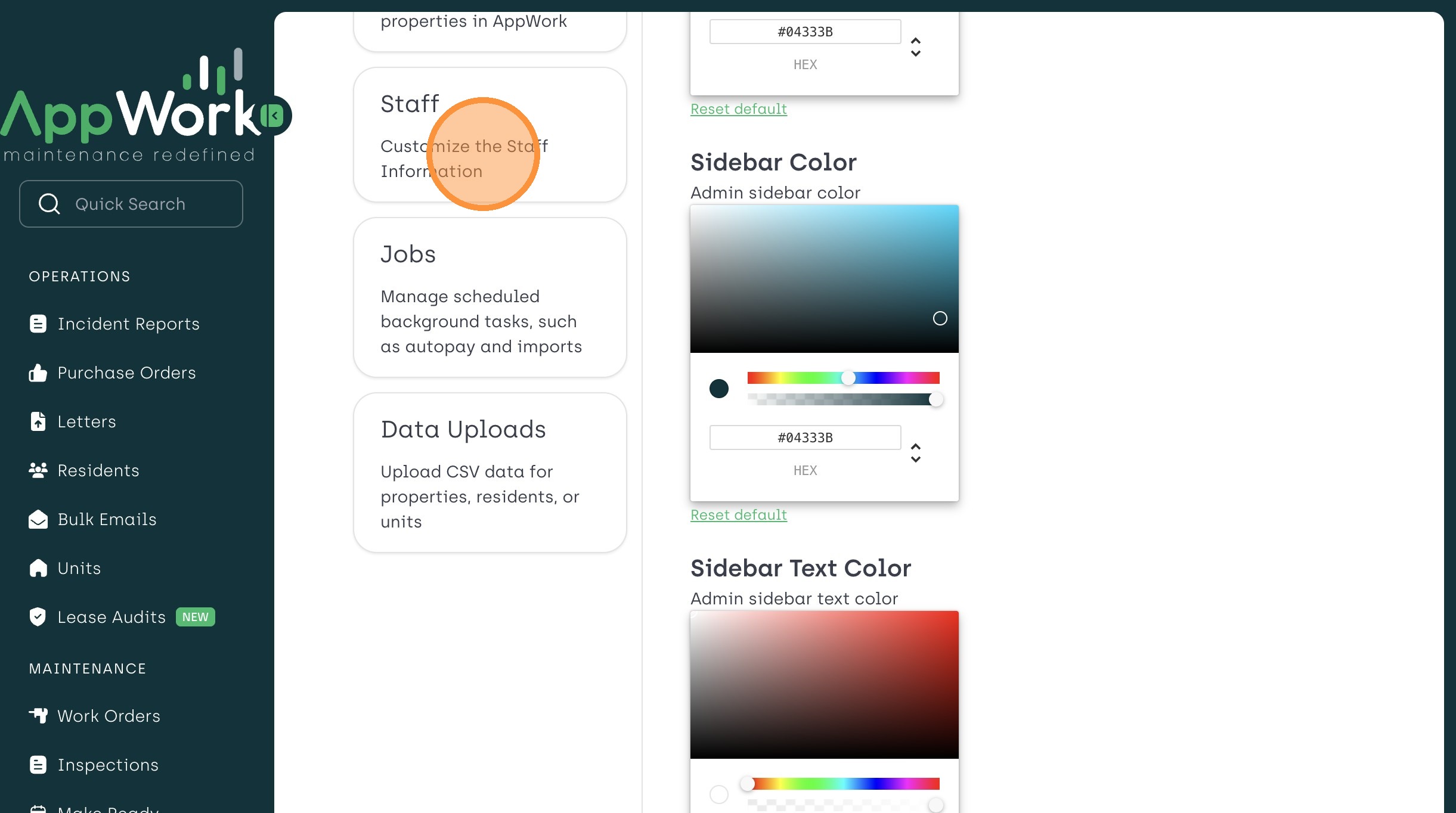
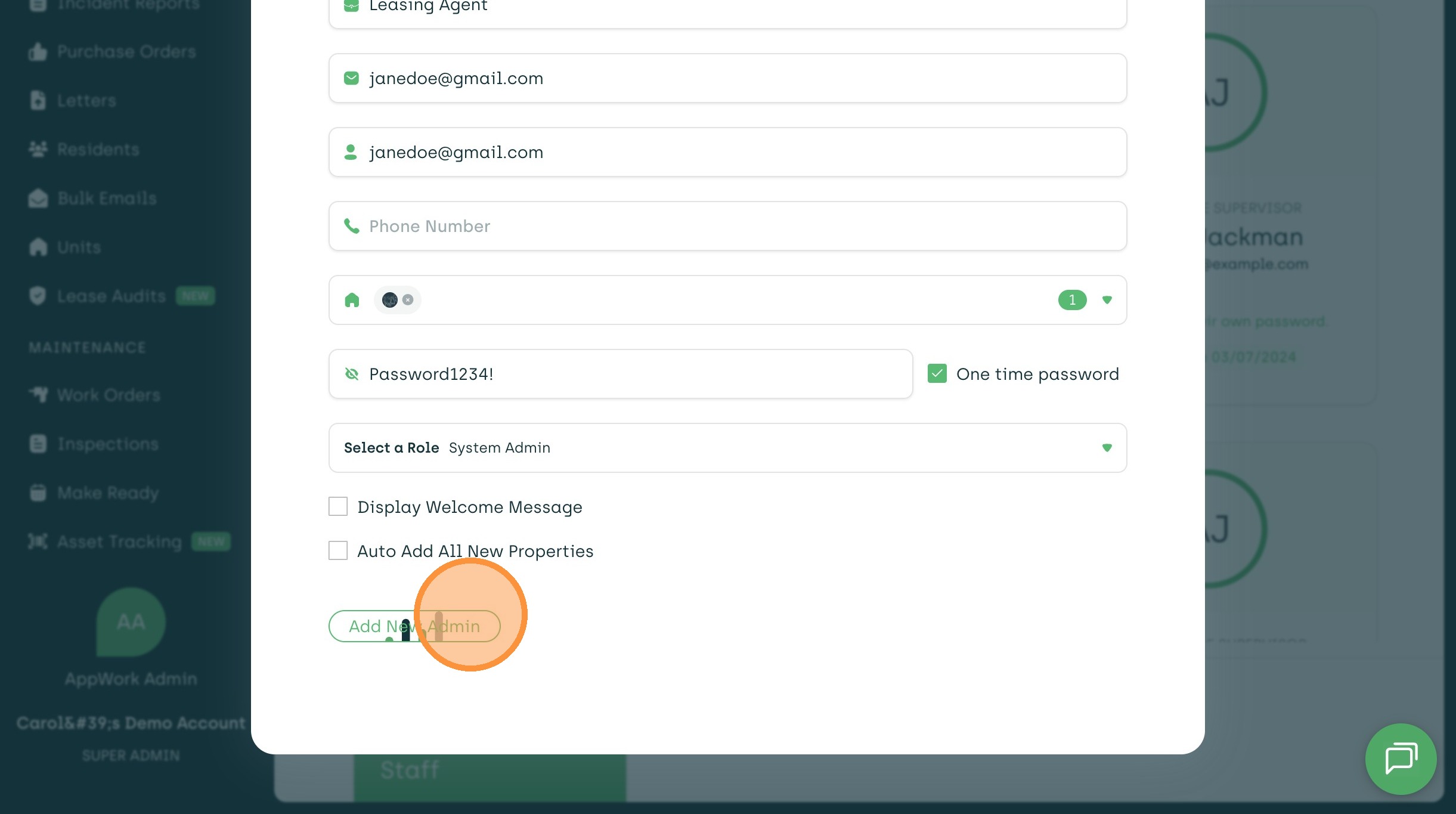
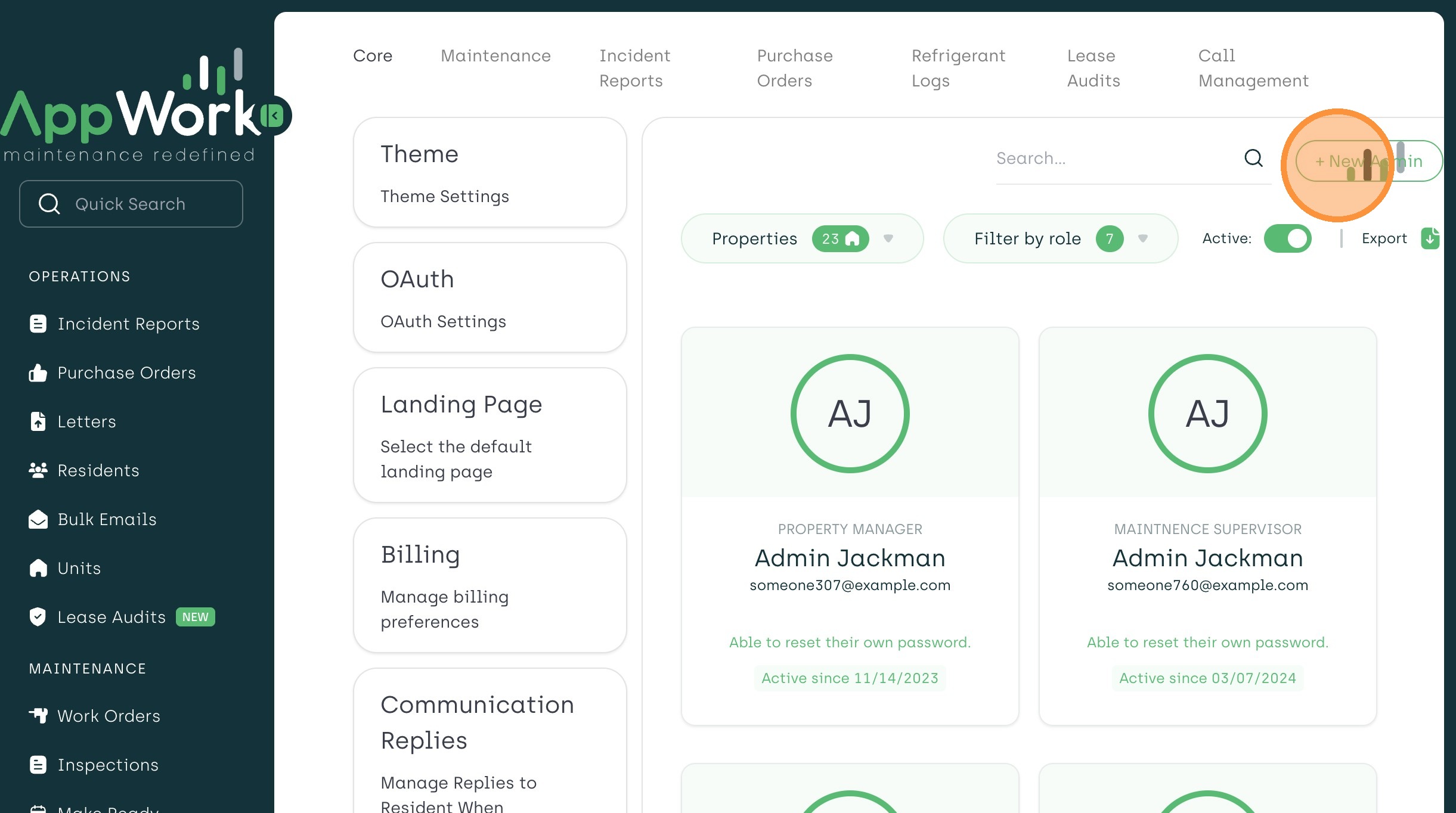
5. Click "+ New Admin".

6. Type the users name into the "Name" field.

7. Type the title of the user into the "Title" field.

8. Type the users email into the "Email" field.

9. Type the users email again into "UserName" field.

10. Select the users assigned Property from the "Property" dropdown.
11. Enter "Password1234!" into Password field.

12. Check "One time password" option. This allows the user to change their password upon logging in.
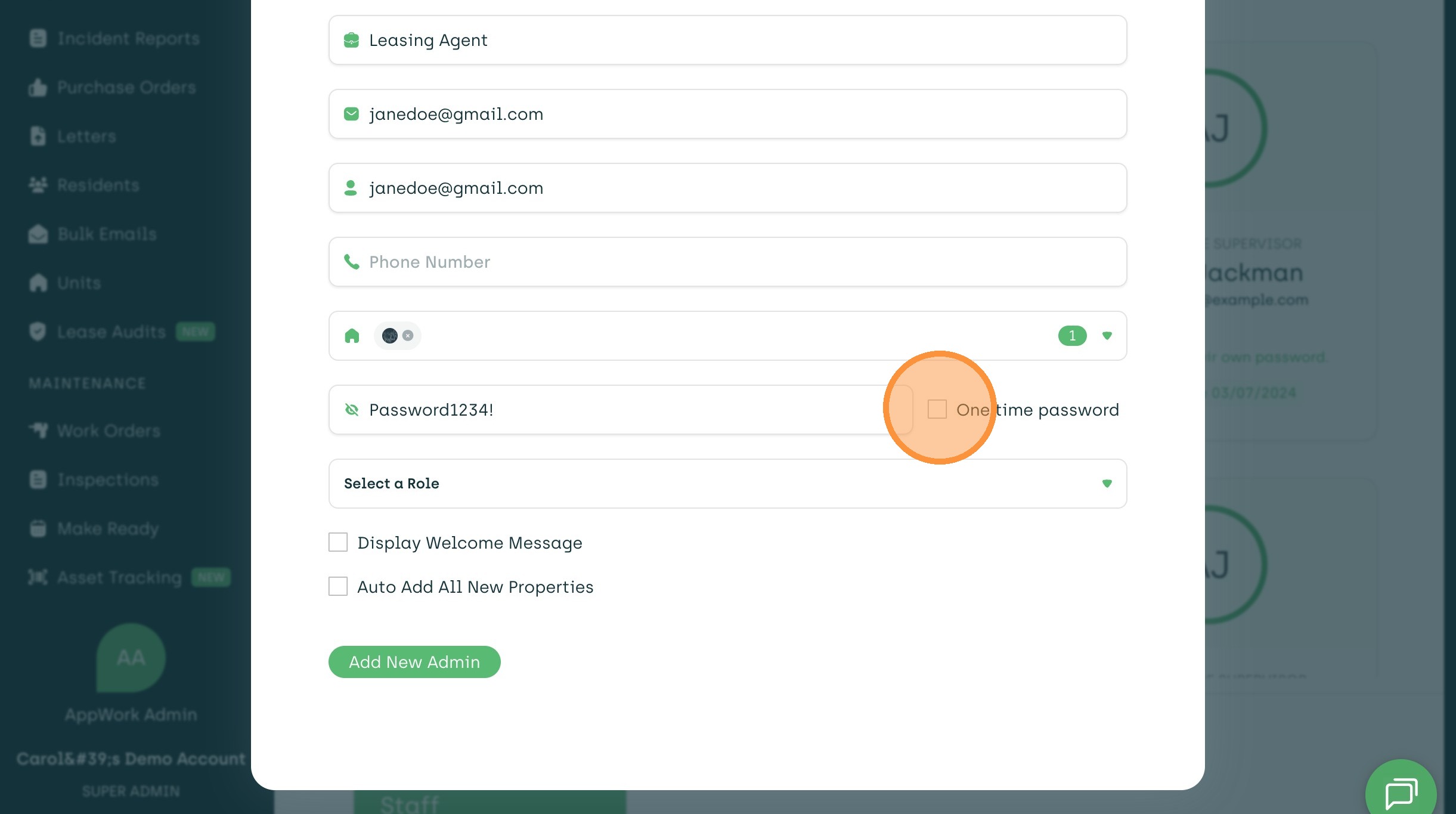
13. Click "select a role" in order to assign the proper user role.

14. Click "Add New Admin" and you are all set!