
Adding a New Technician
Learn how to onboard new technicians to your AppWork system by adding their contact details and assigned properties.
How To Add A New Technician
1. Navigate to the Admin Portal
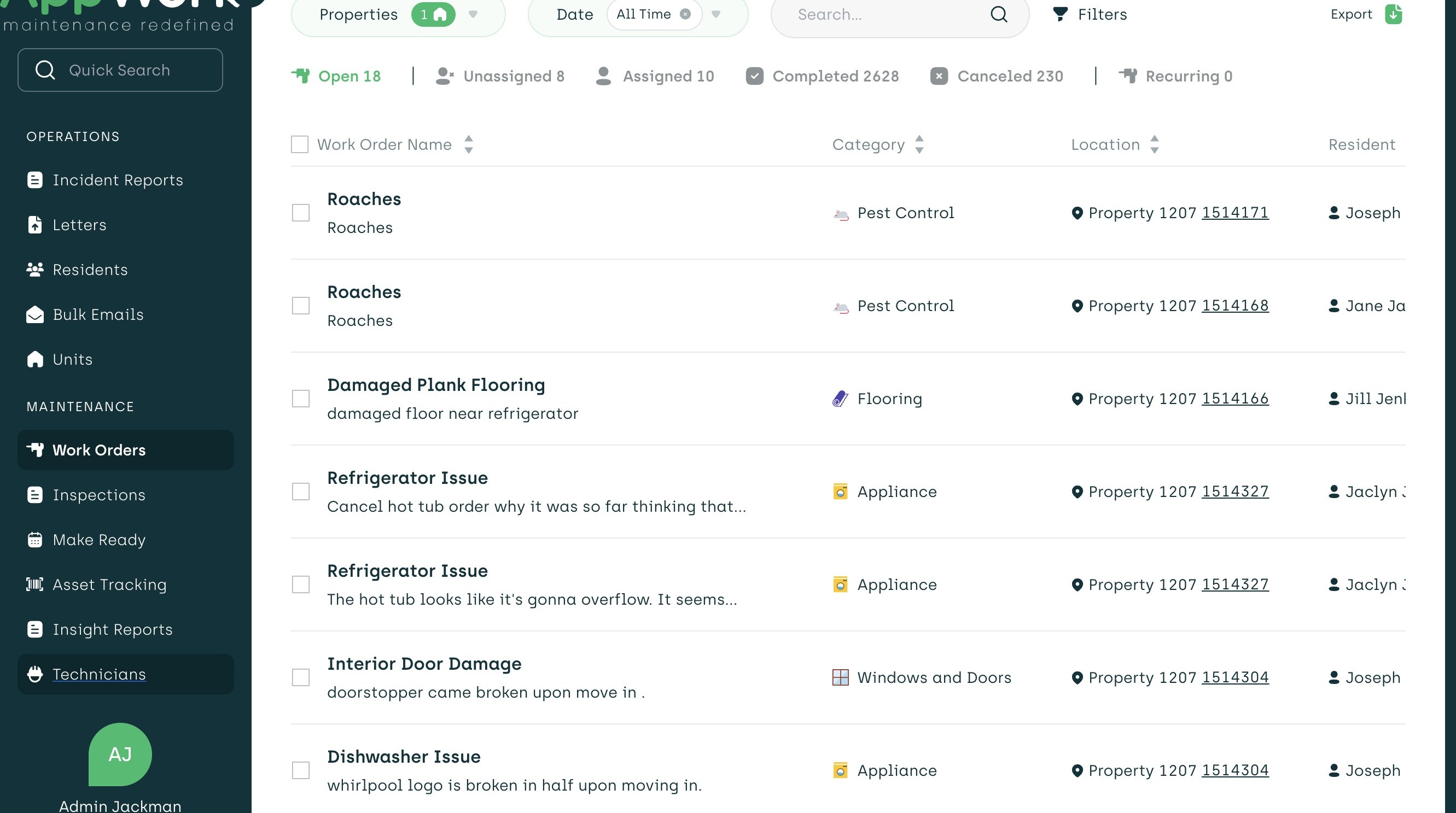
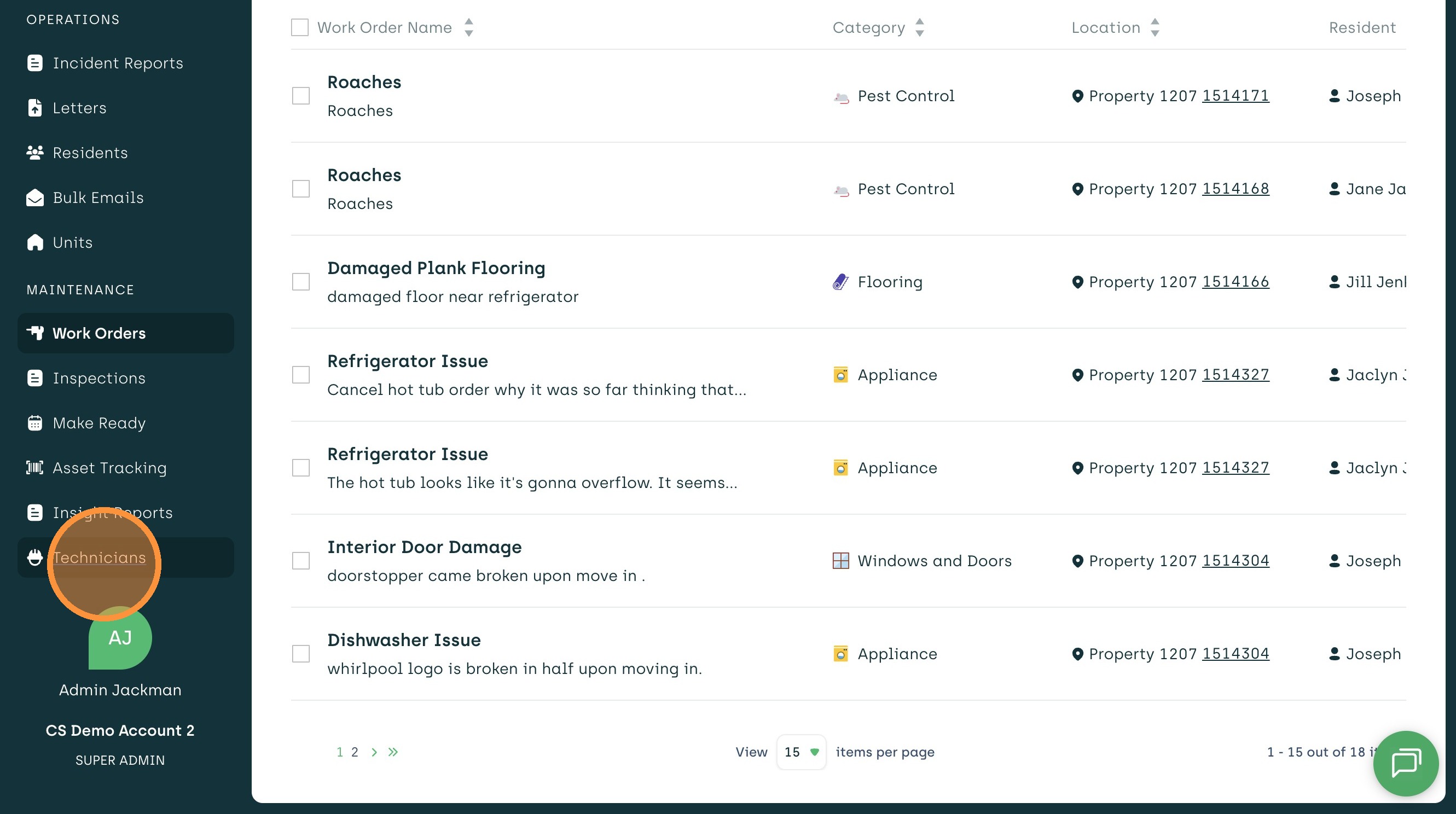
2. Click "Technicians"
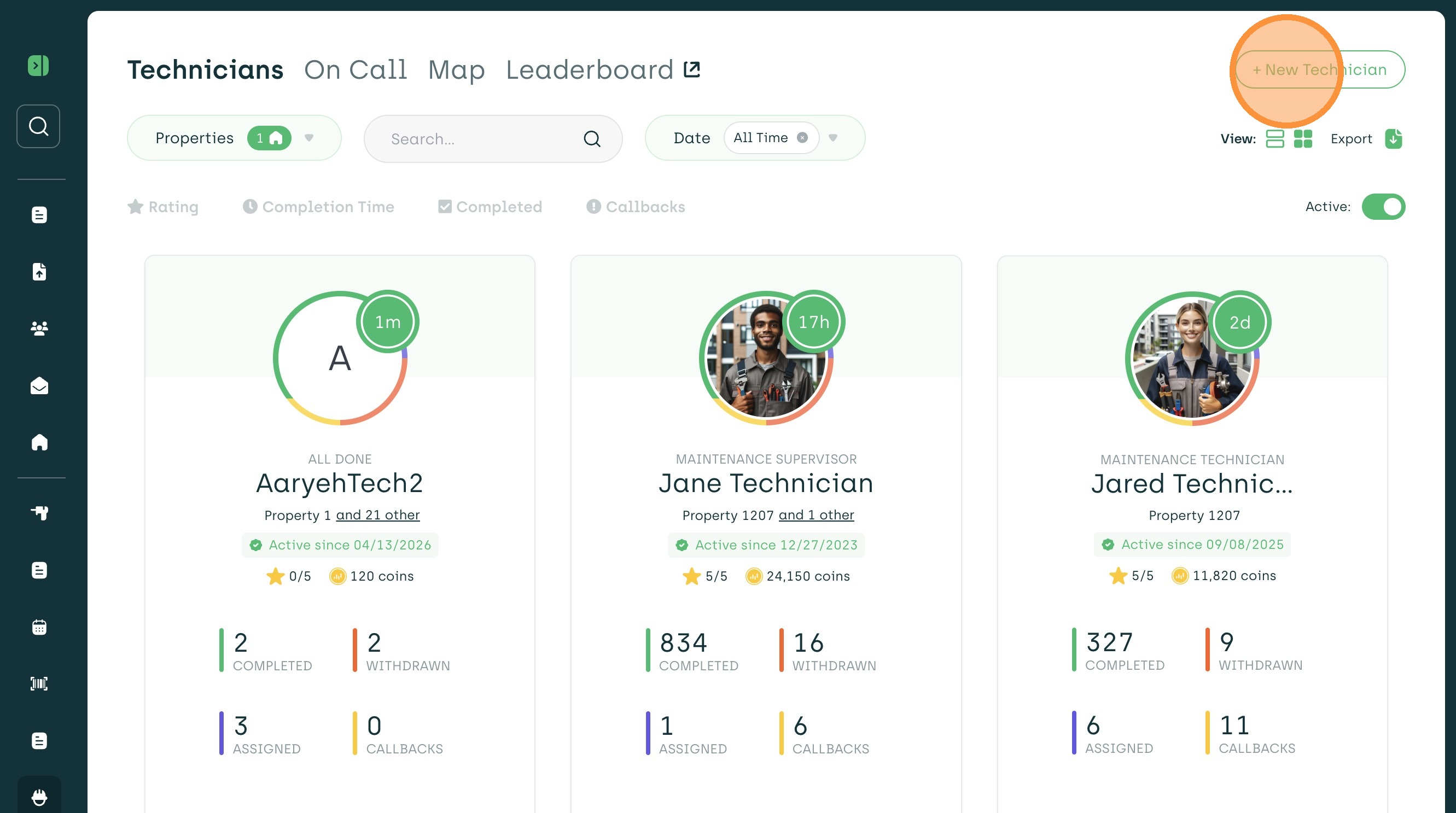
3. Click "+ New Technician"
4. Enter the Technician's name
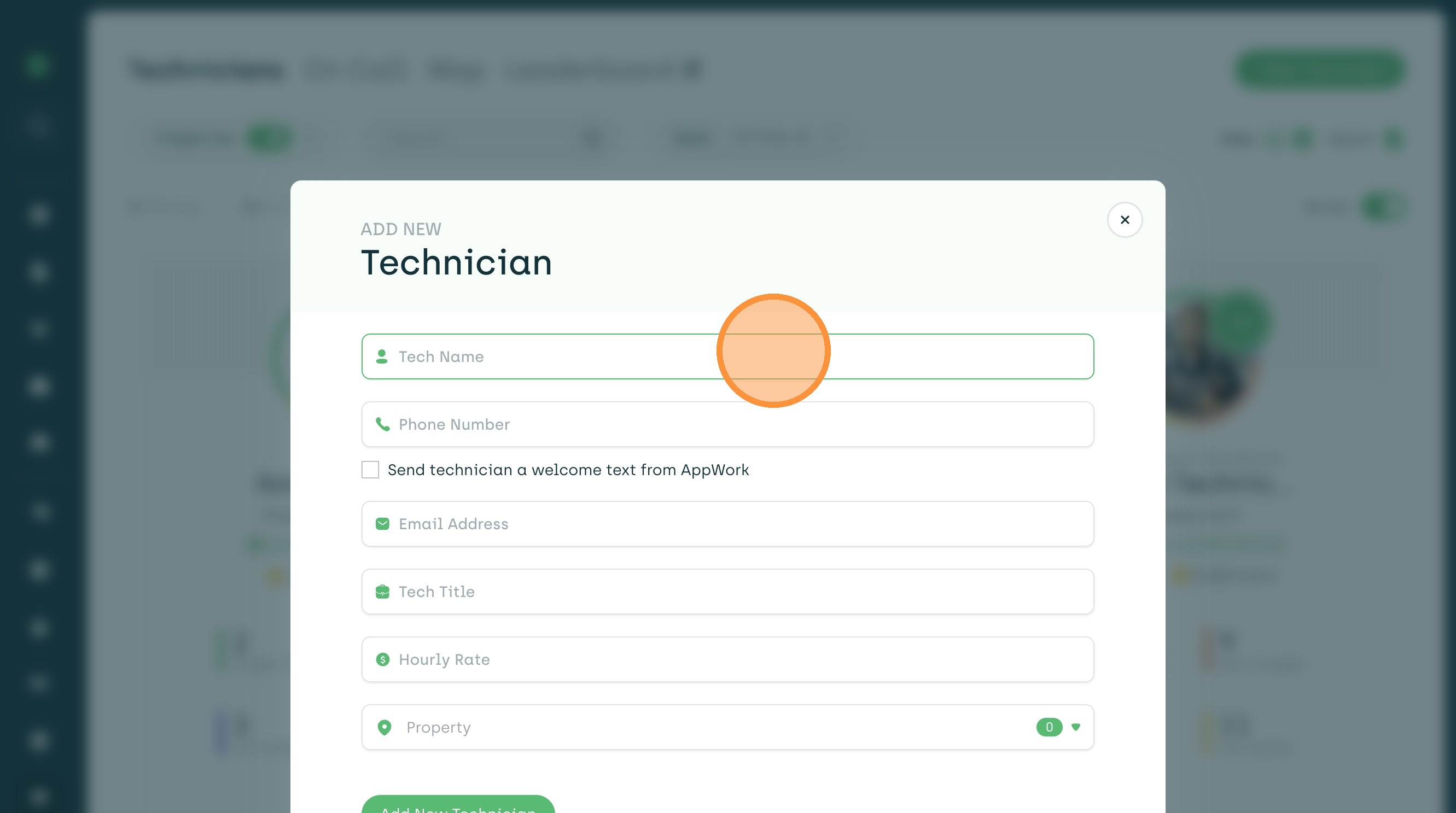
5. Add their cell phone number in the Phone Number field. This field is required for all technicians.
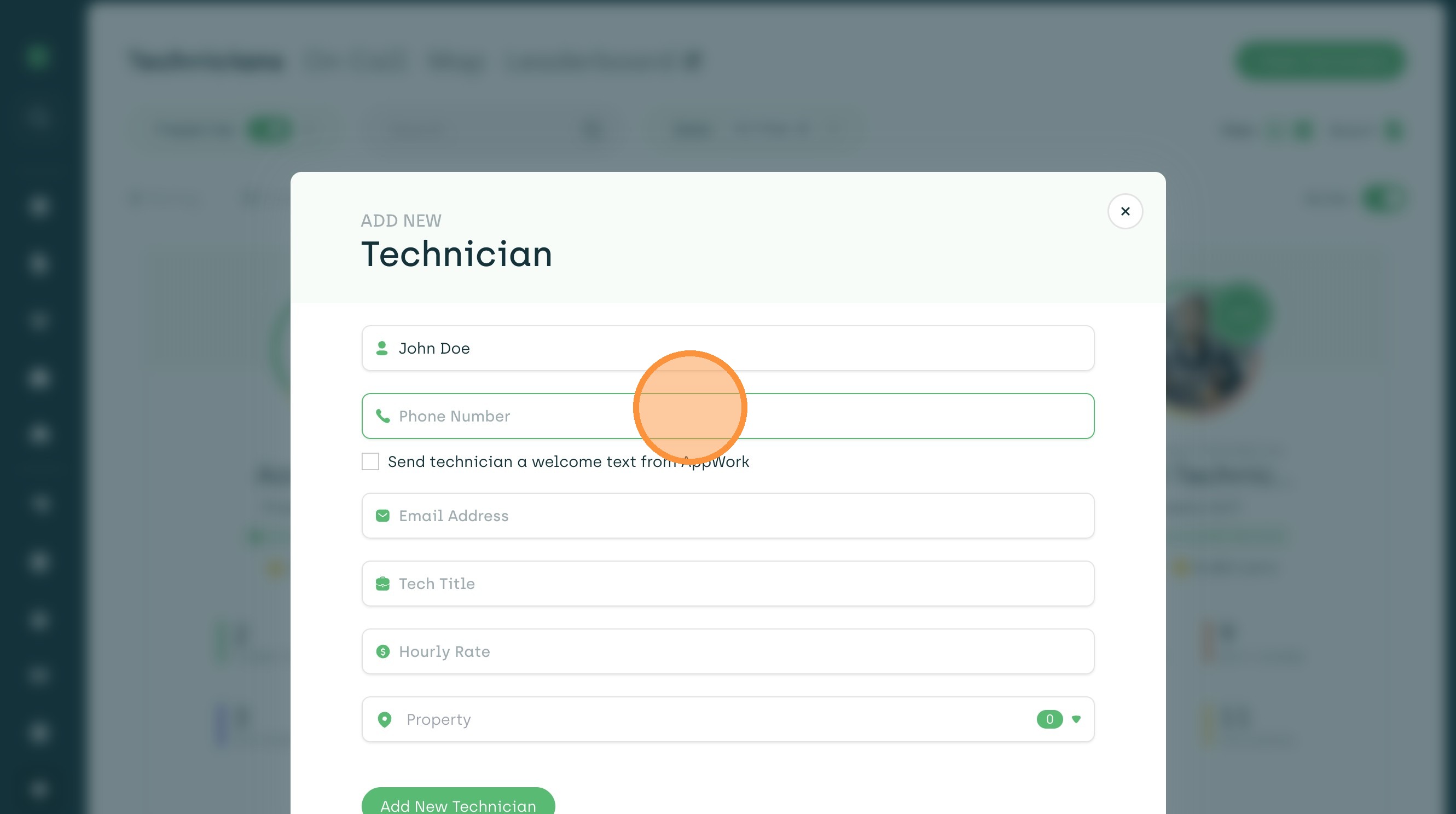
6. Next, add an email address if this is available. Email address is not required for technicians.
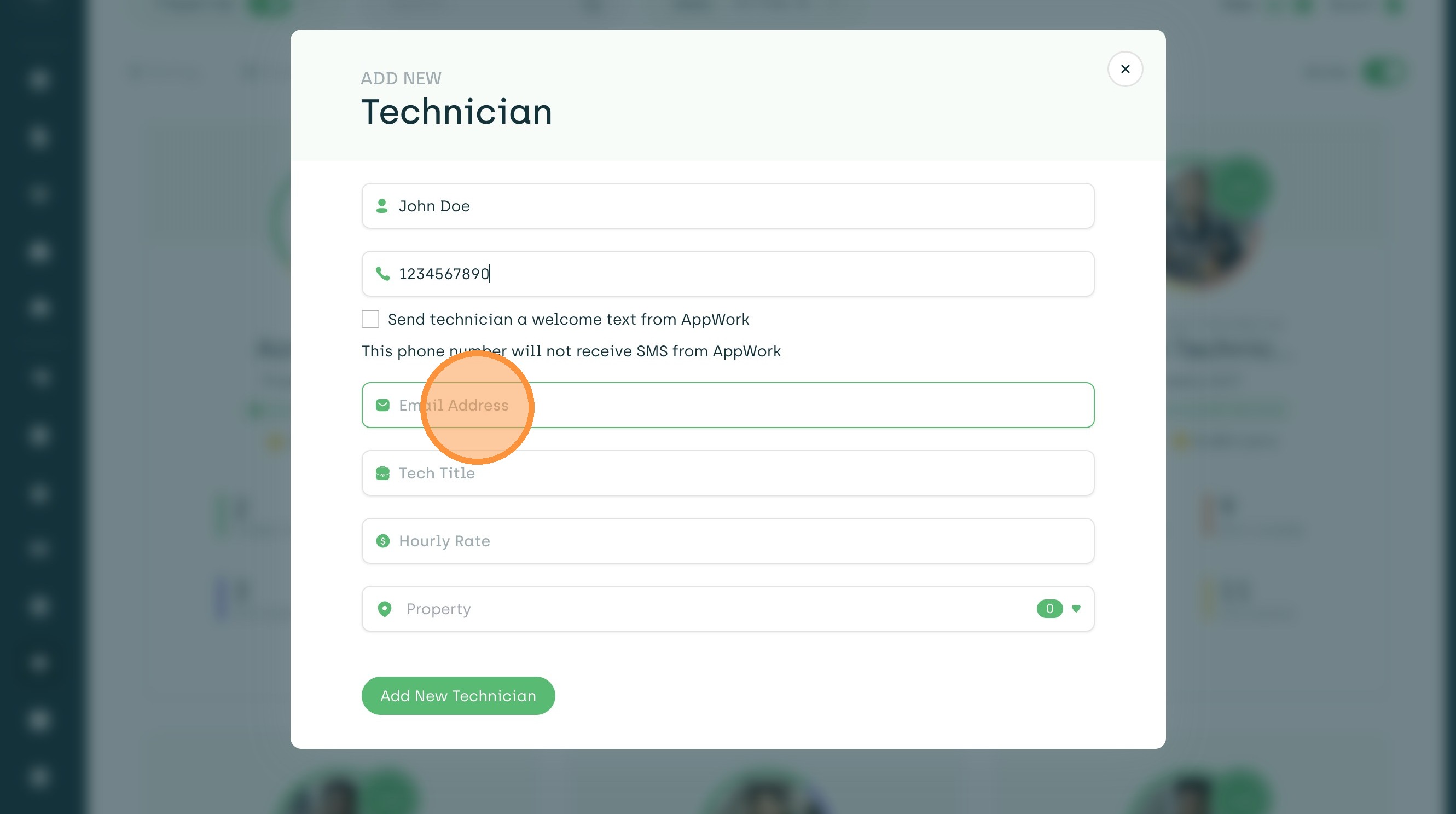
7. Add the technician's title in the Tech Title field.
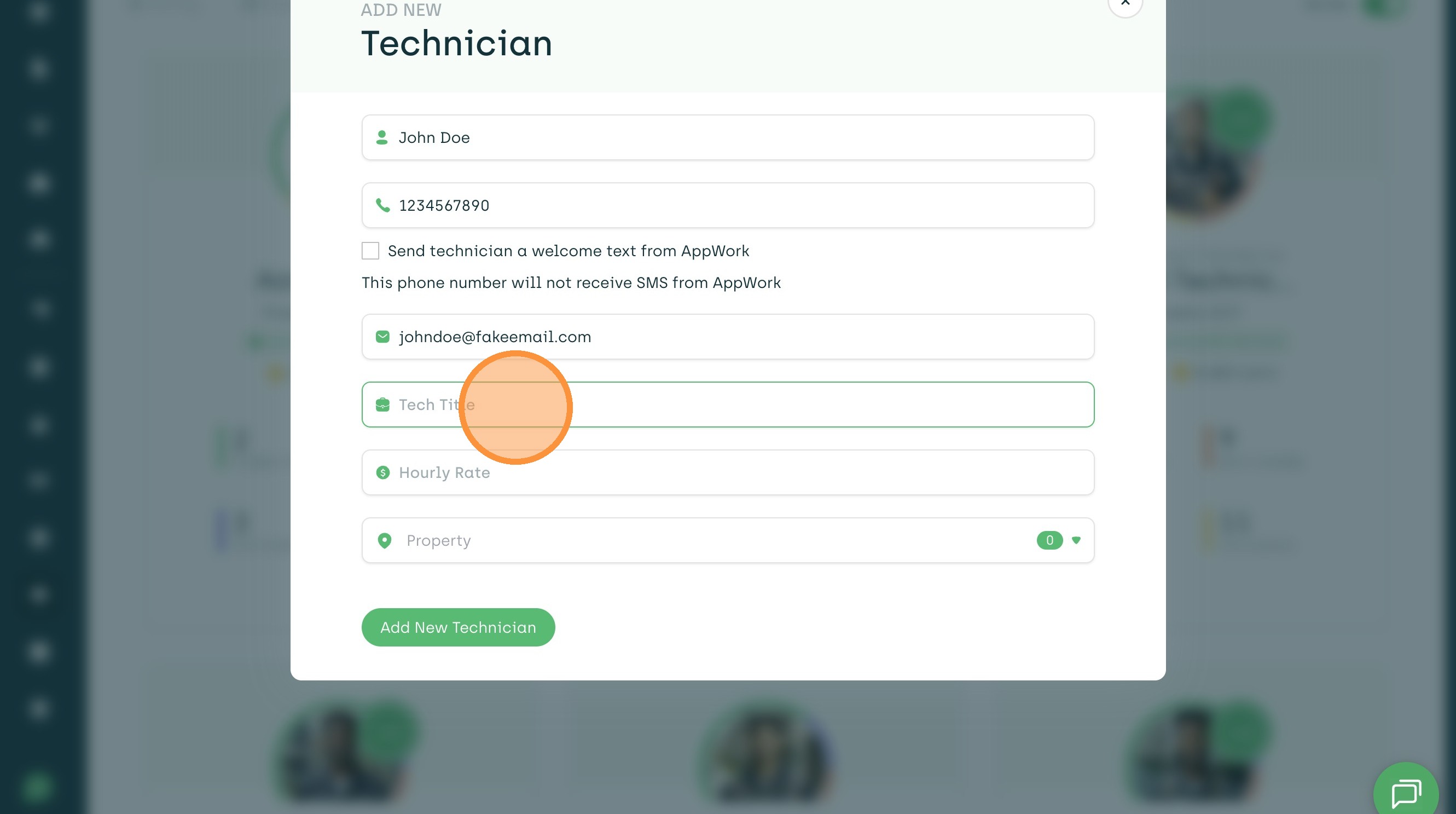
8. Click the "Property" field.
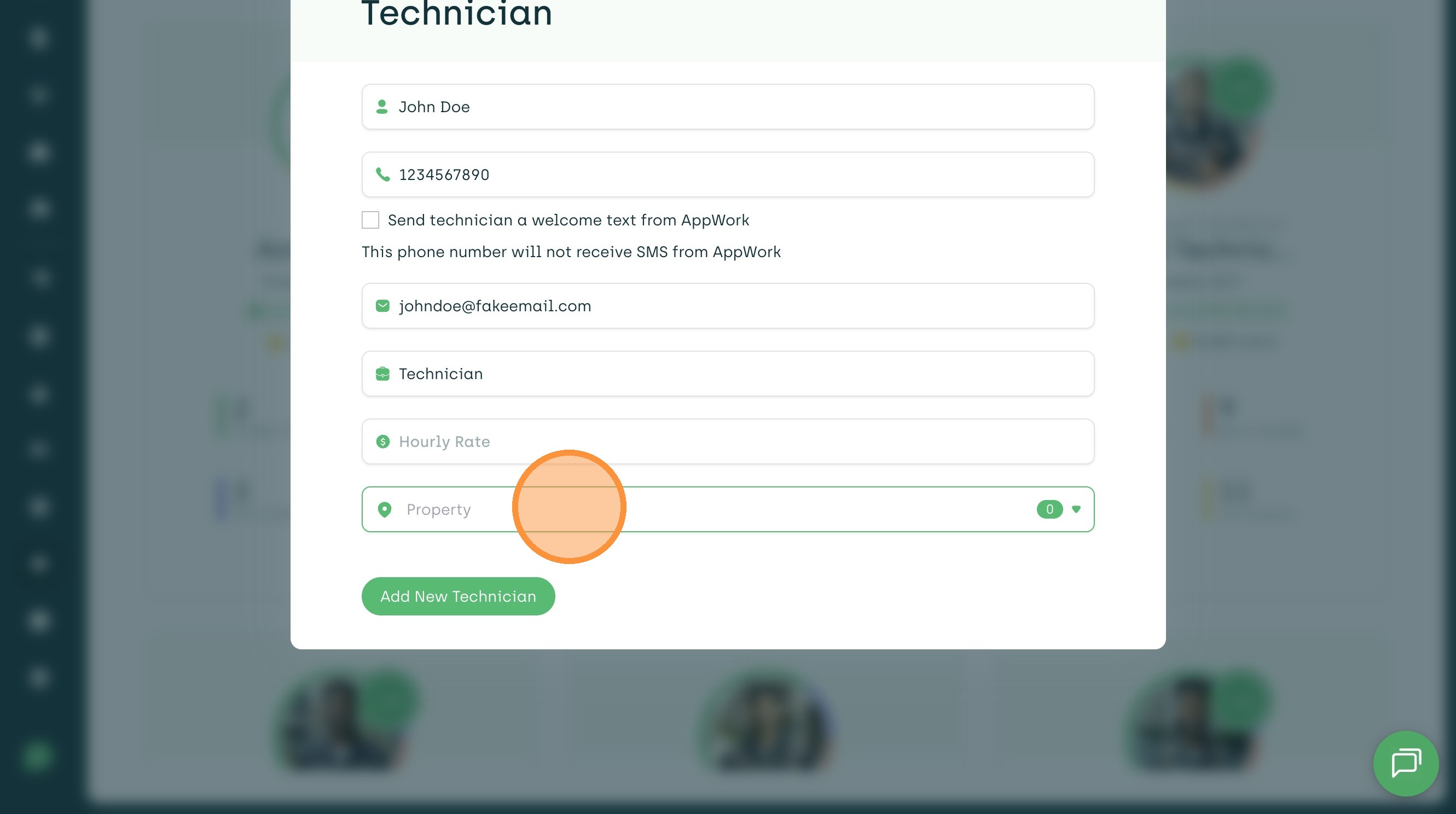
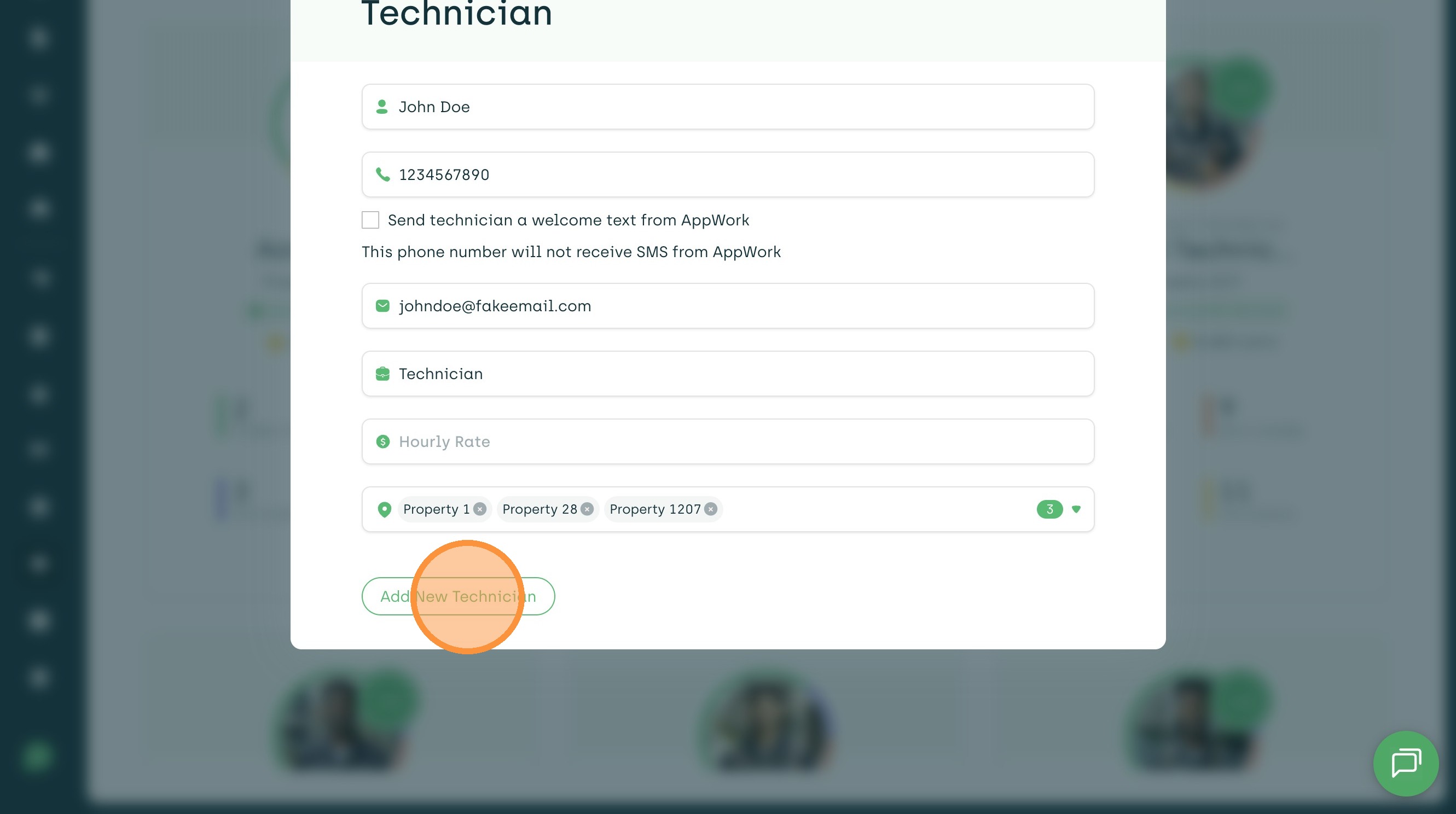
9. Select the property (or properties) the technician should be assigned to.
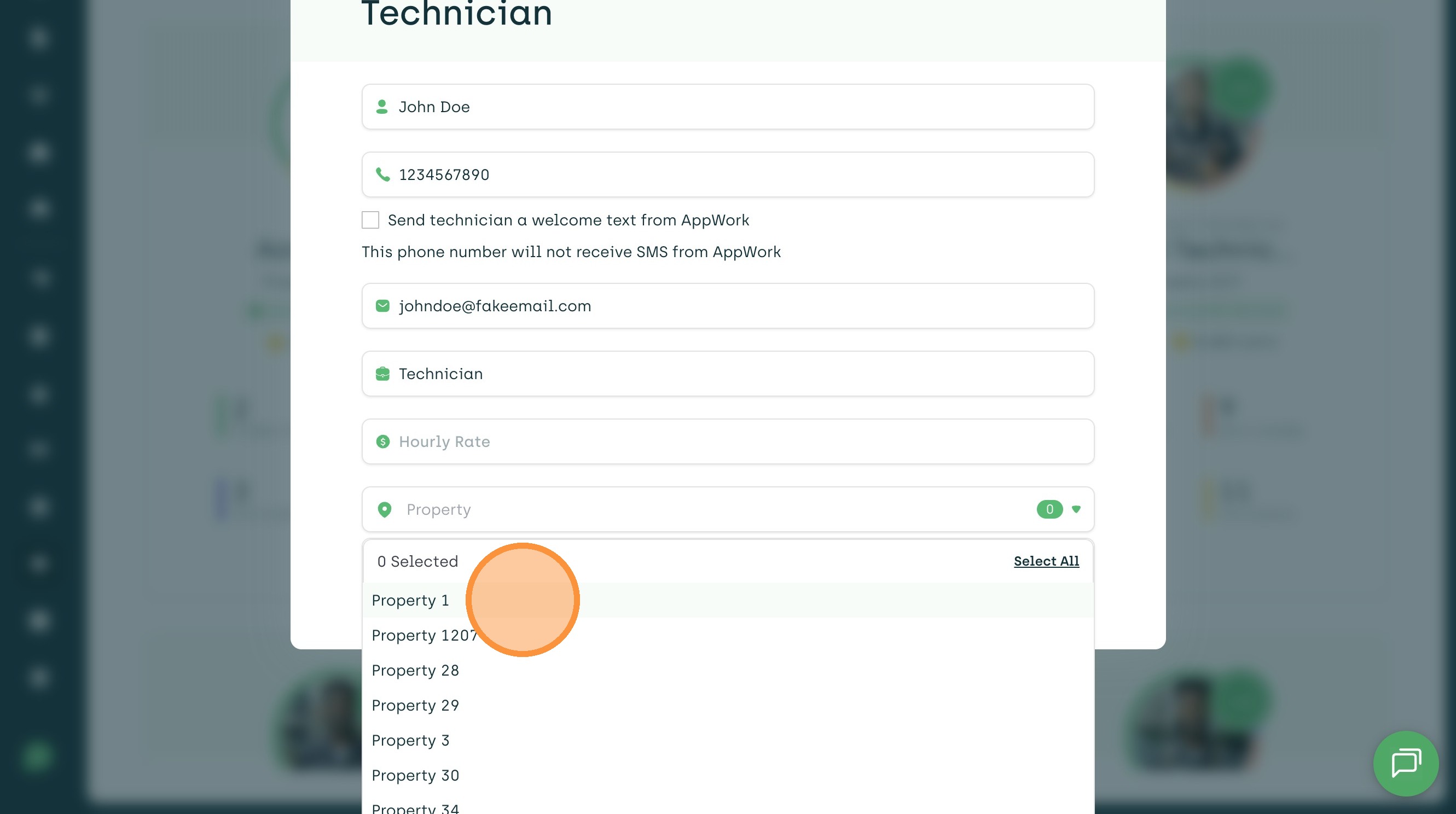
10. Click "Add New Technician" and their new profile will be saved.
There are five features you can toggle on or off for this specific technician:
- Allow technician to edit their profile (give the technician the ability to change their personal information inside the Technician App).
- Technician must upload images to complete tasks (the system obligates the technician to upload a picture to complete a task).
- Technician is eligible for Auto-Assign (AppWork will automatically assign work orders to this technician). Learn more about Auto-Assign settings.
- Allow this technician to submit work orders (give the technician the ability to create new work orders within the Technician App).
- Allow technician to self-assign unassigned work orders (from within the Technician App). Learn more about the self-assign settings.