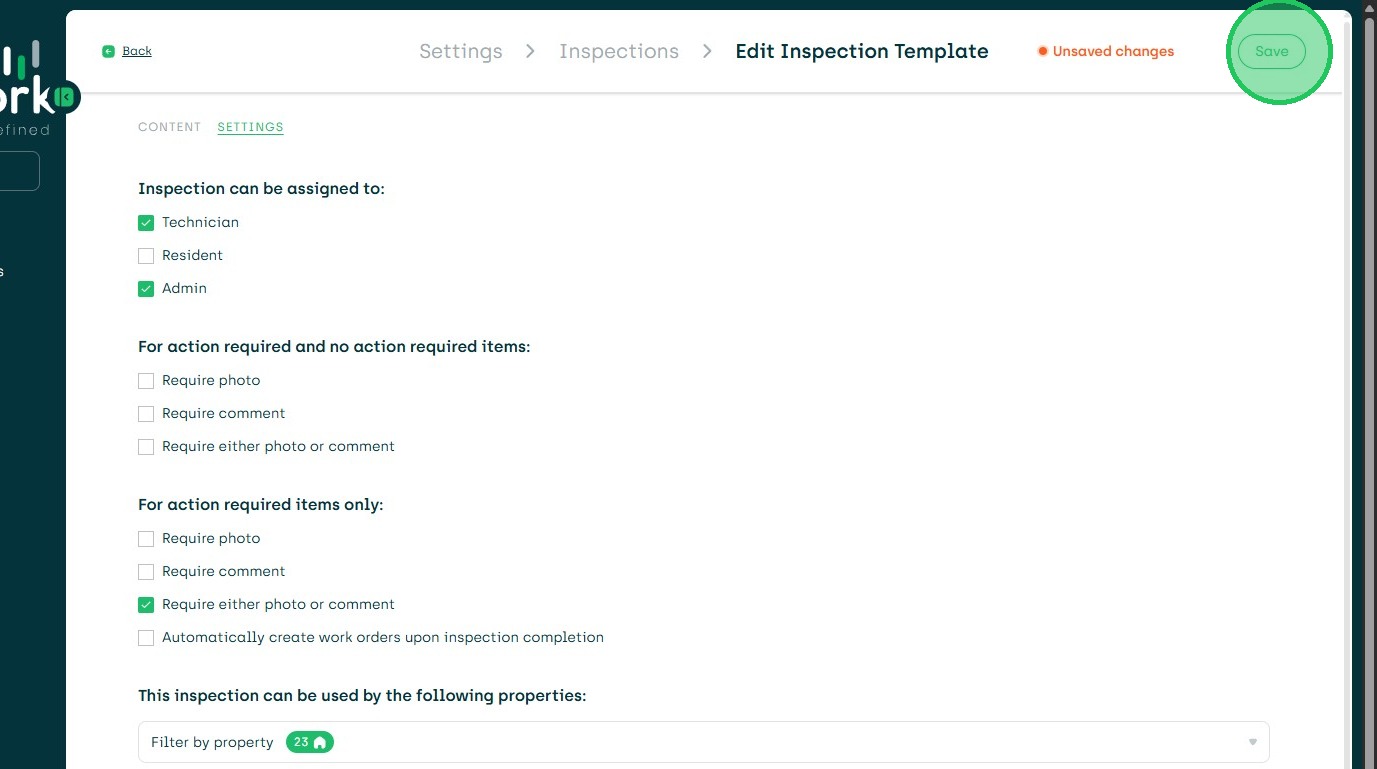
1. Navigate to Settings
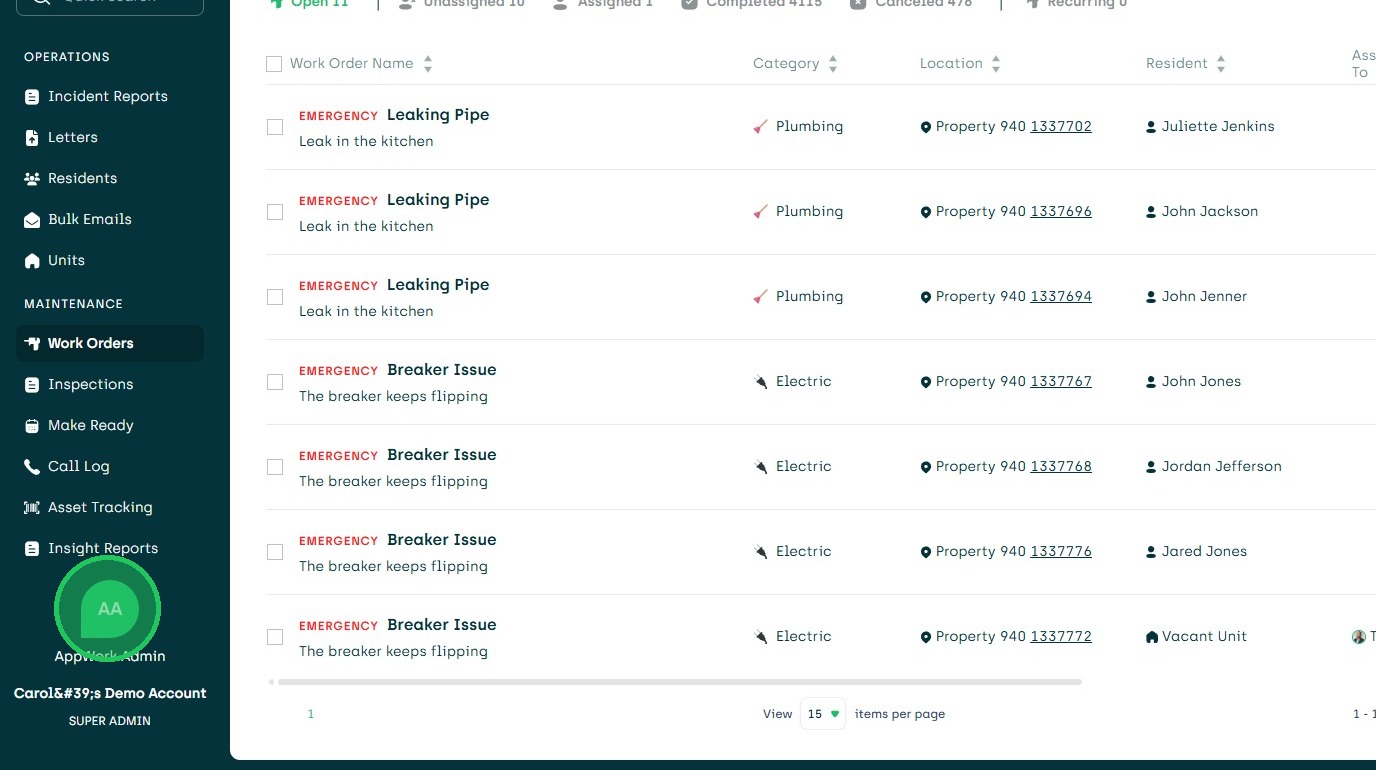
2. Choose Settings
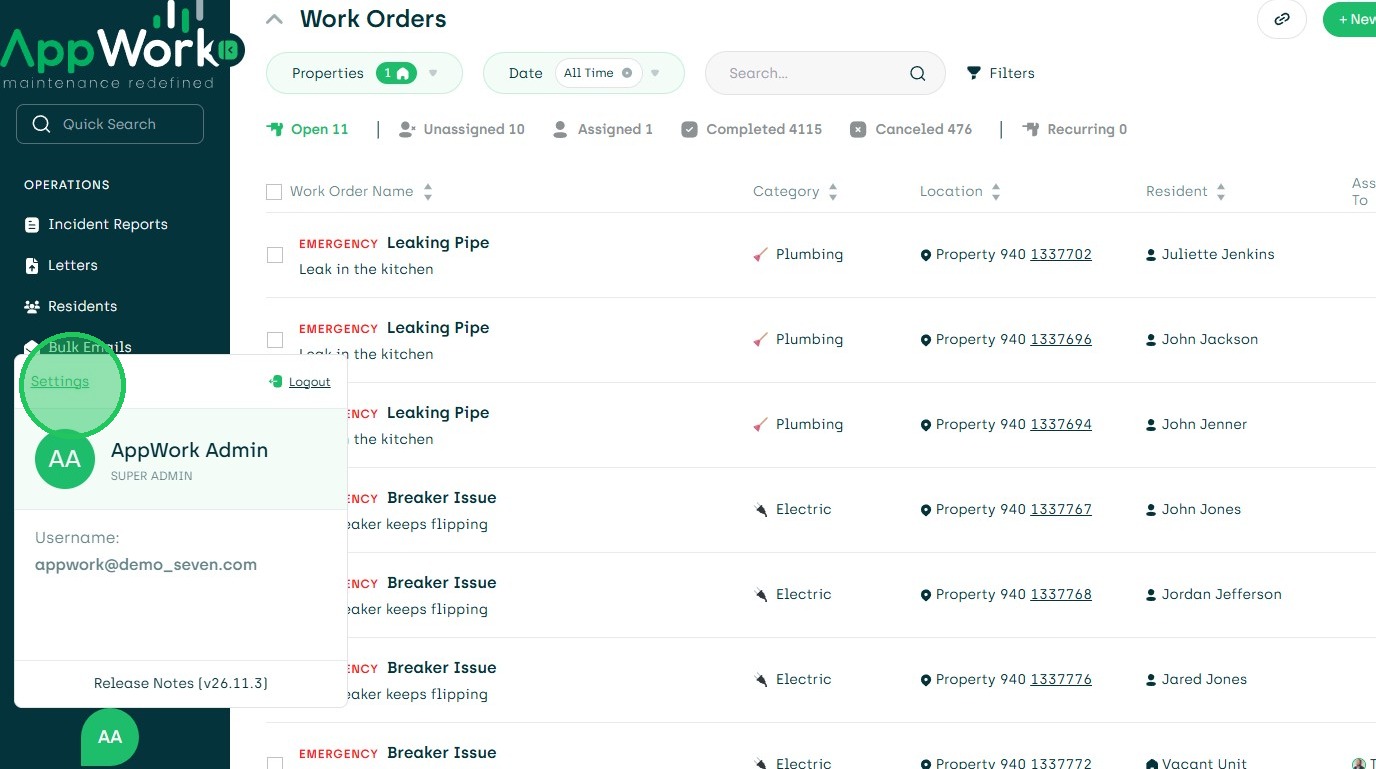
3. Click System Settings
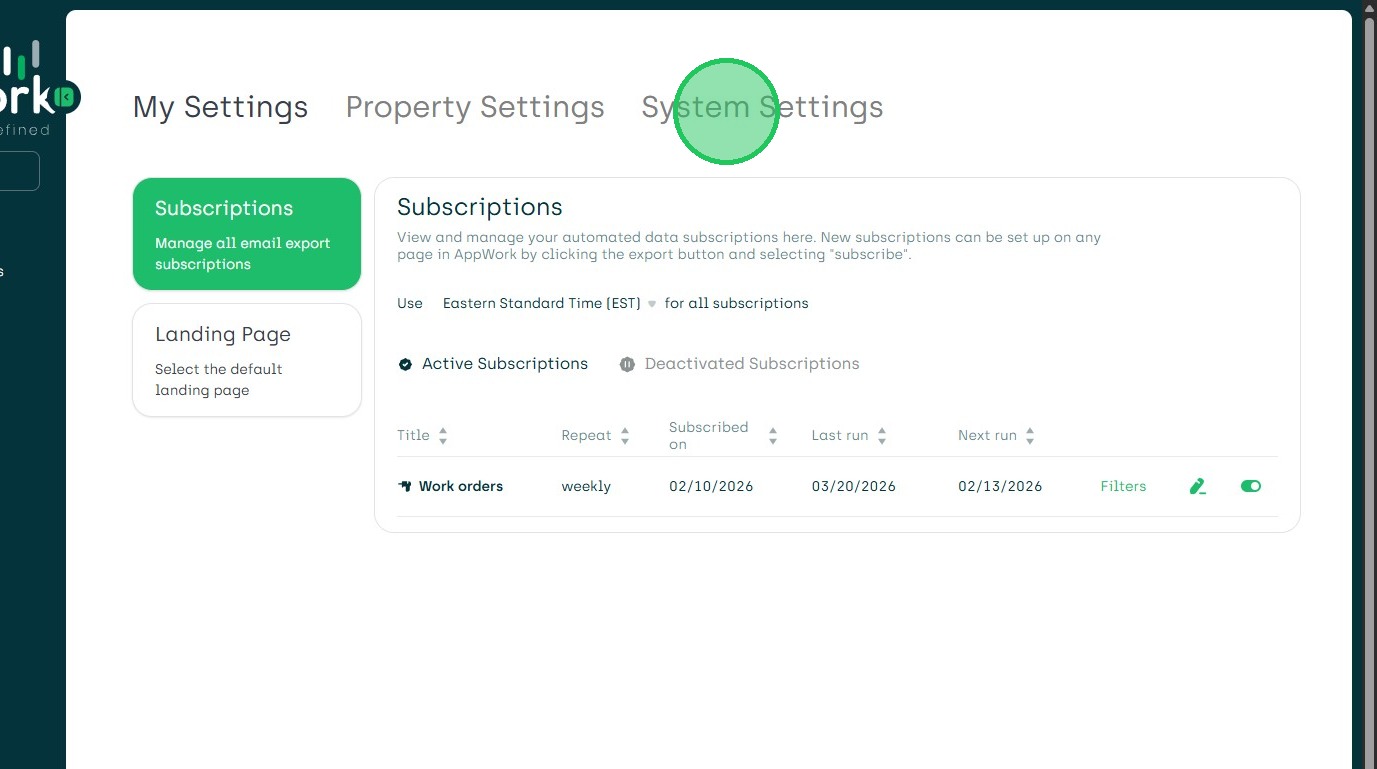
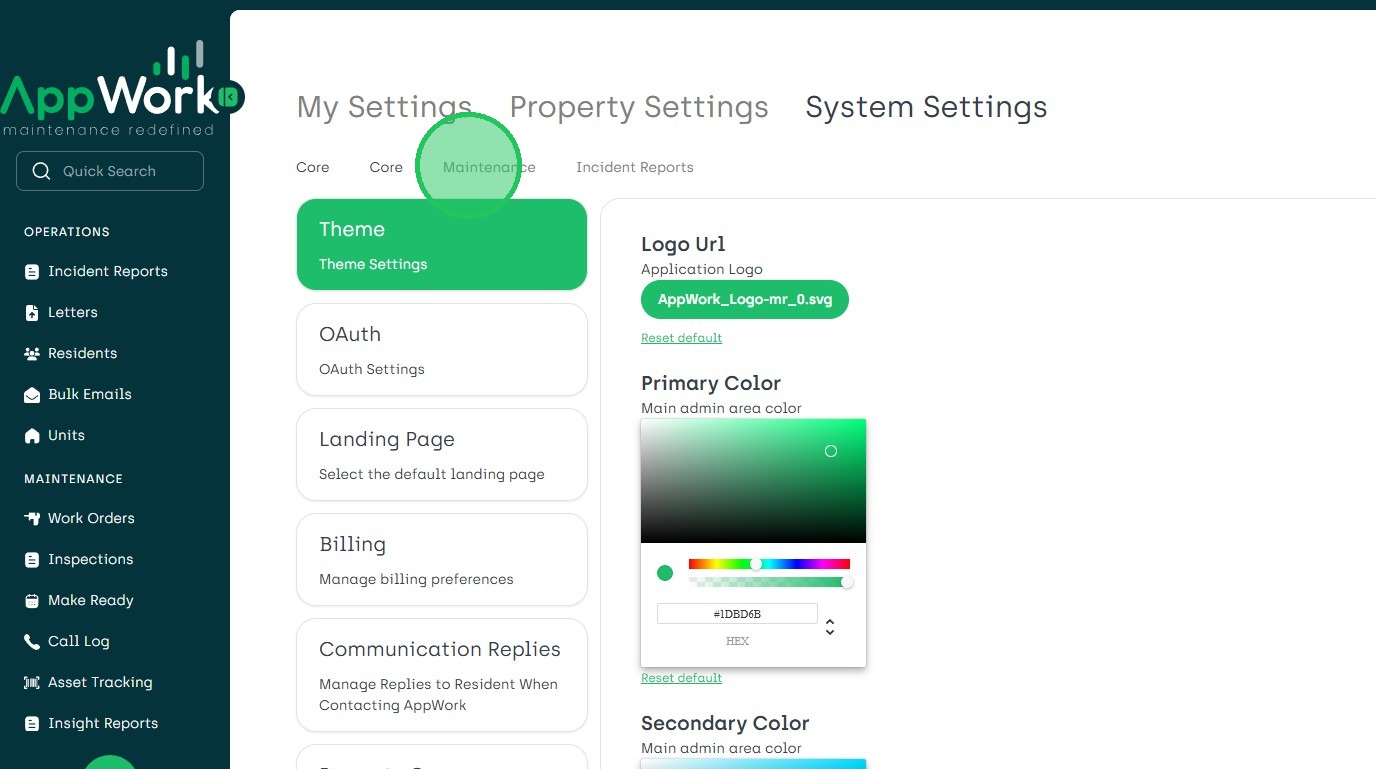
4. Select Maintenance Tab
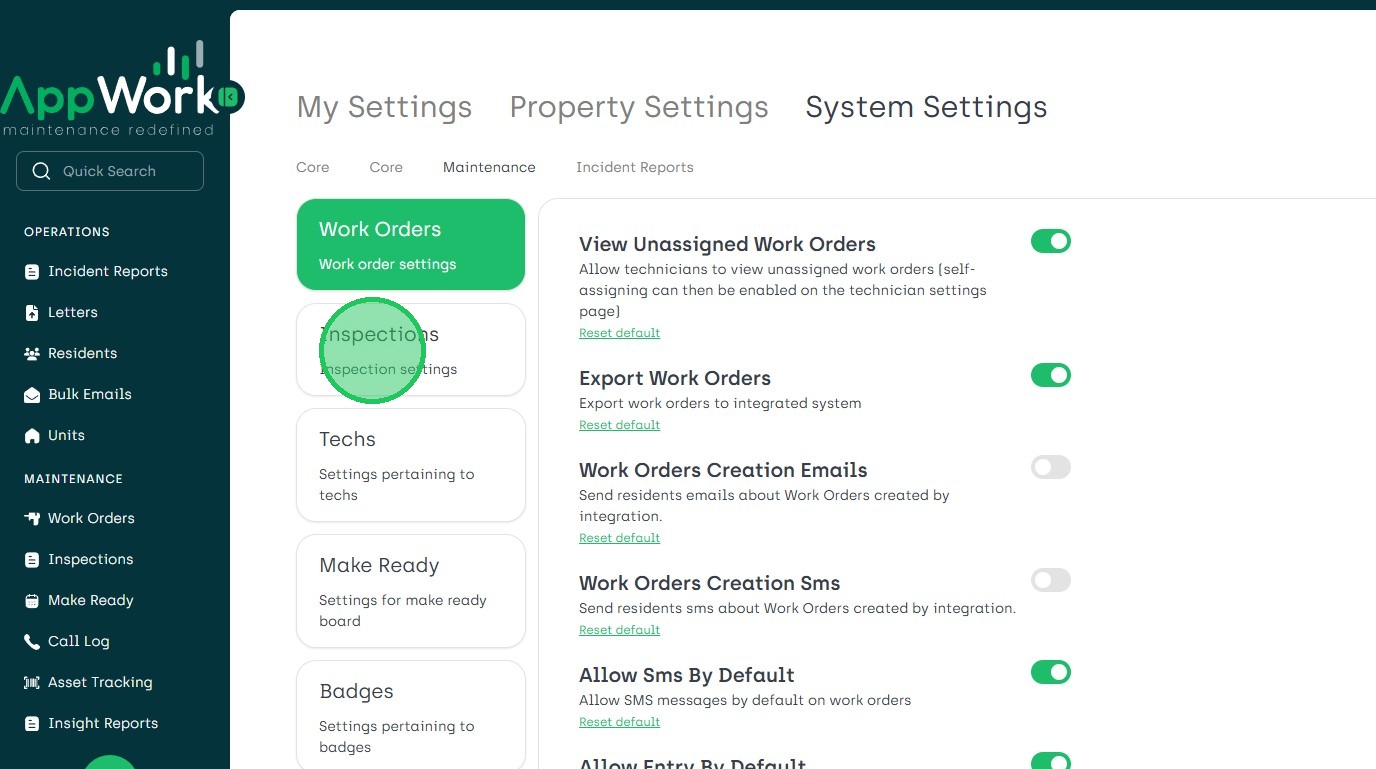
5. Select Inspections Dashboard
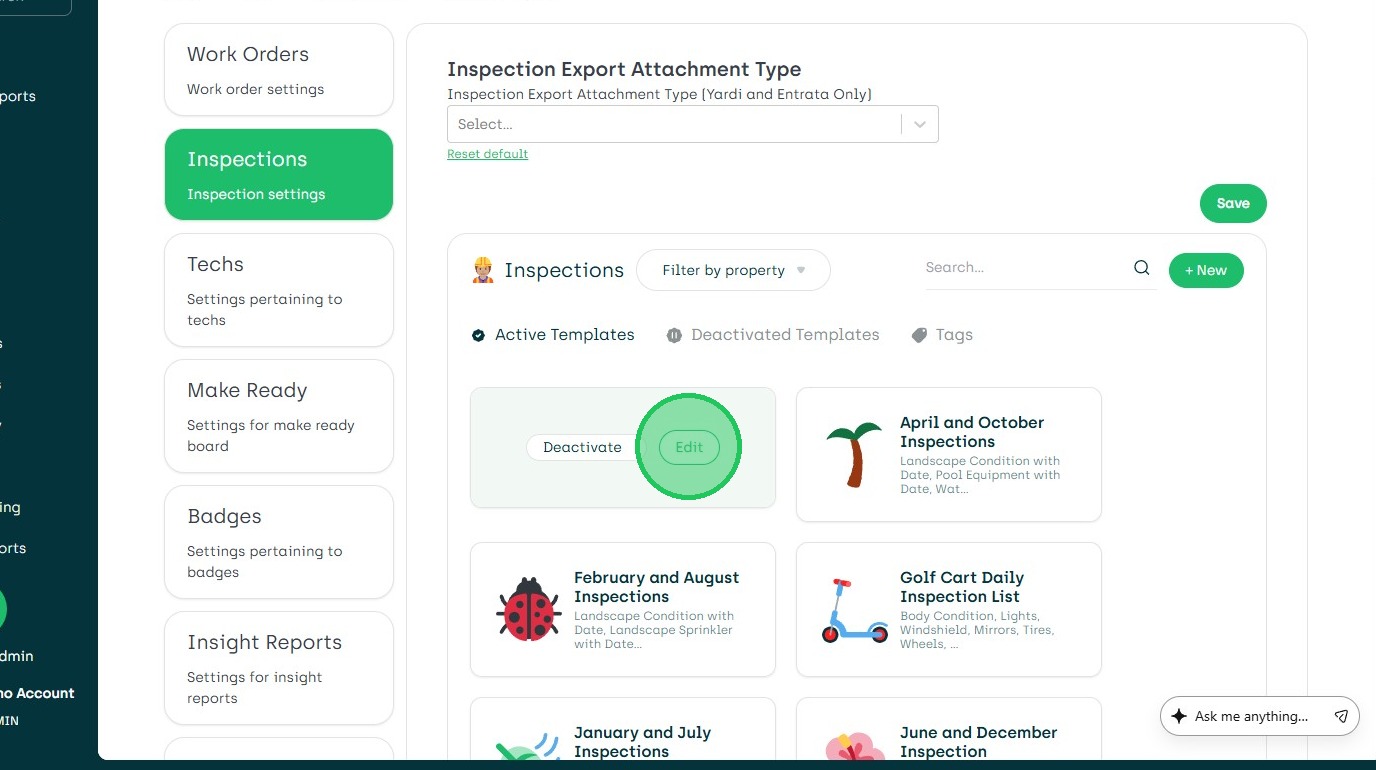
6. Choose Inspection to Edit - Note These Options are Also Available for New Inspections
7. Select Item to add the Drop Down Selector
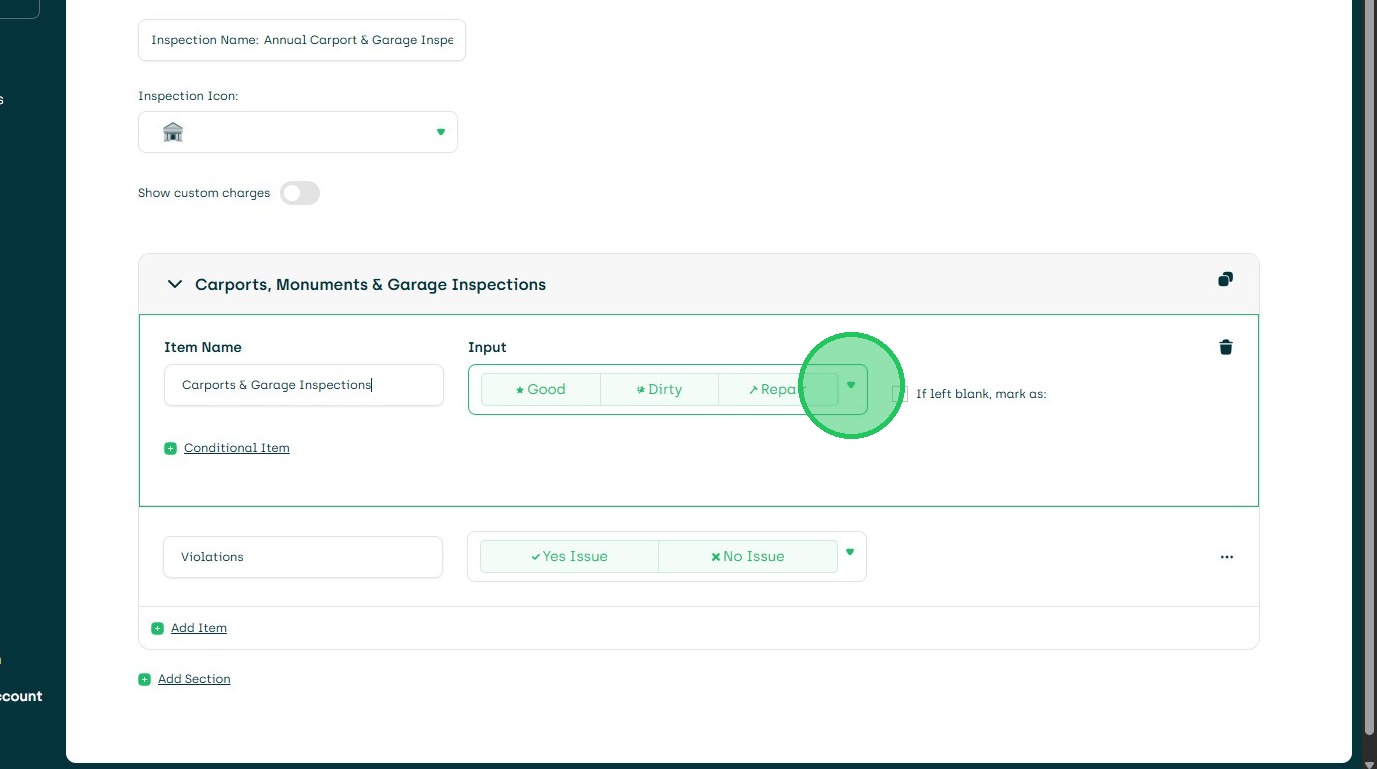
8. Select Dropdown
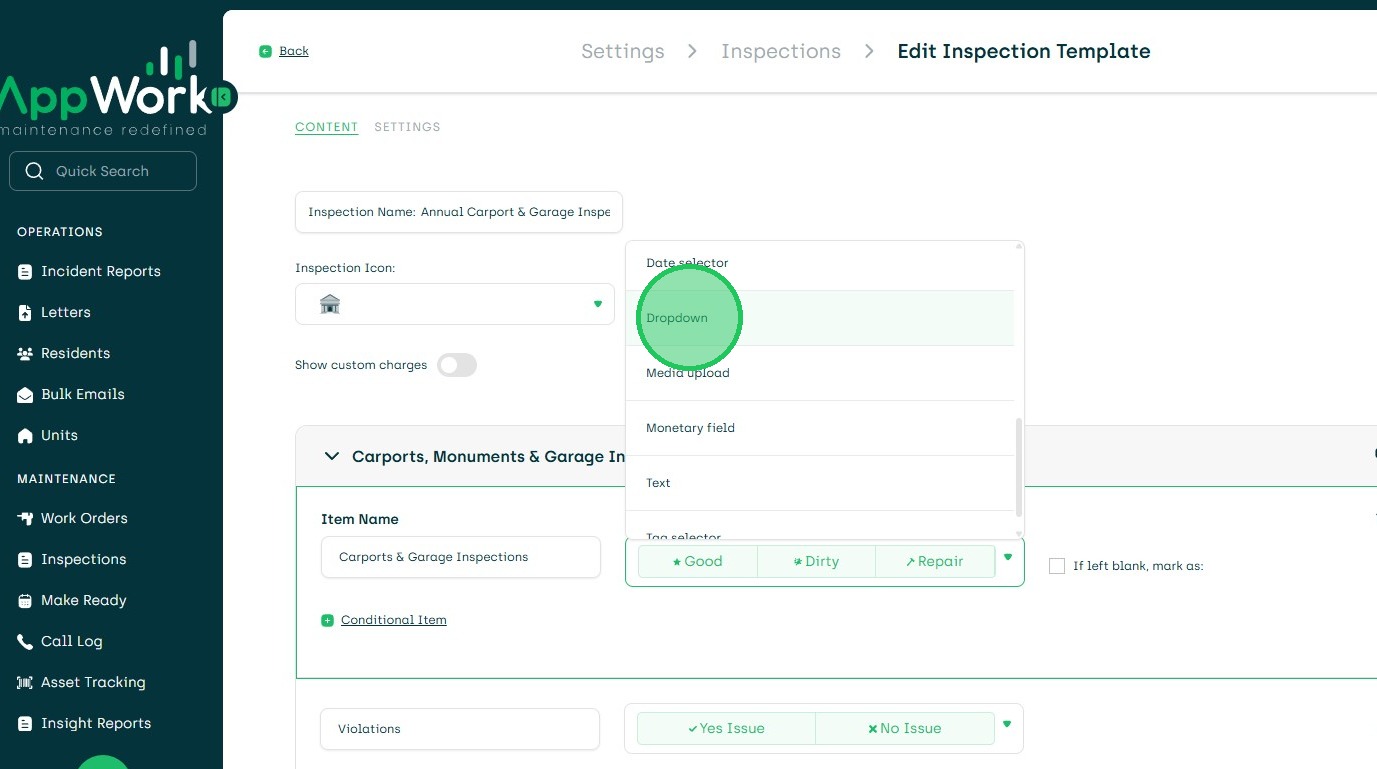
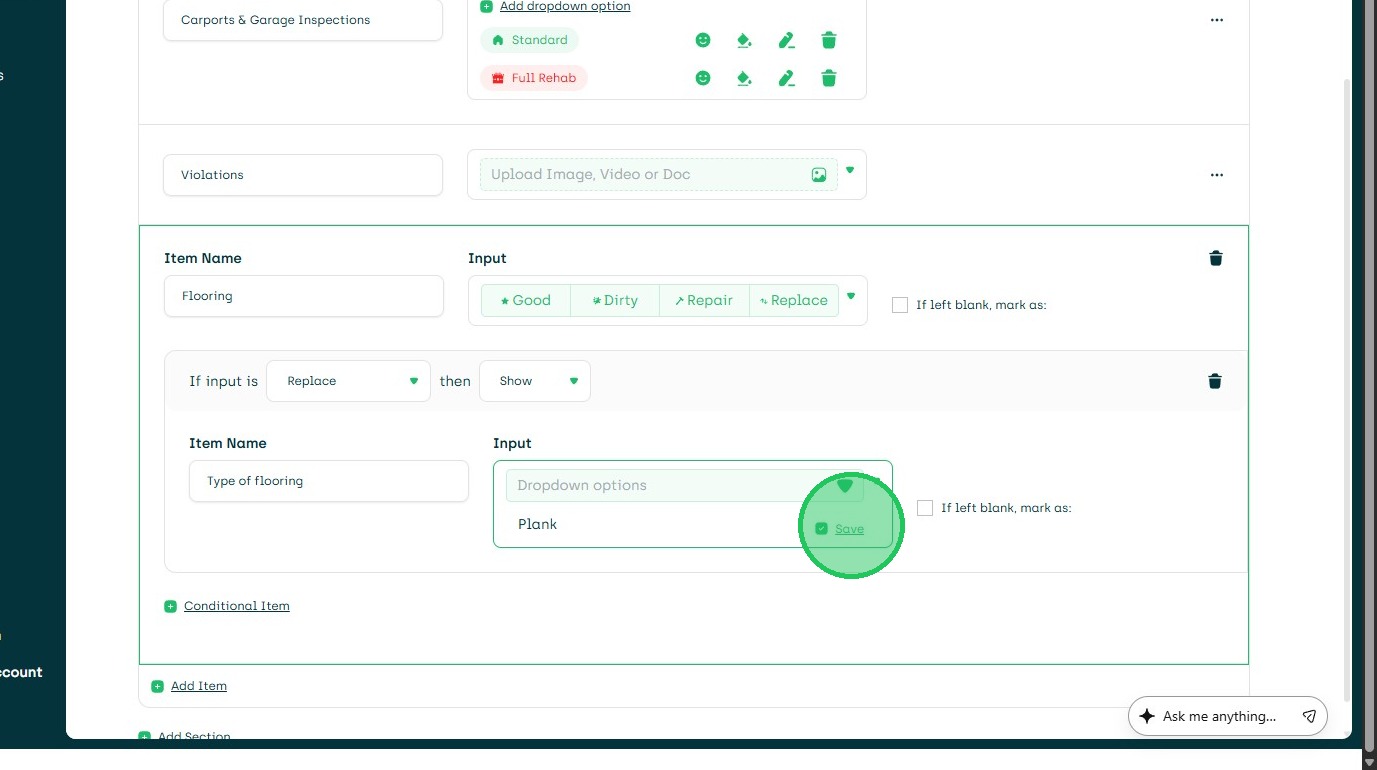
9. Choose Add Dropdown Option
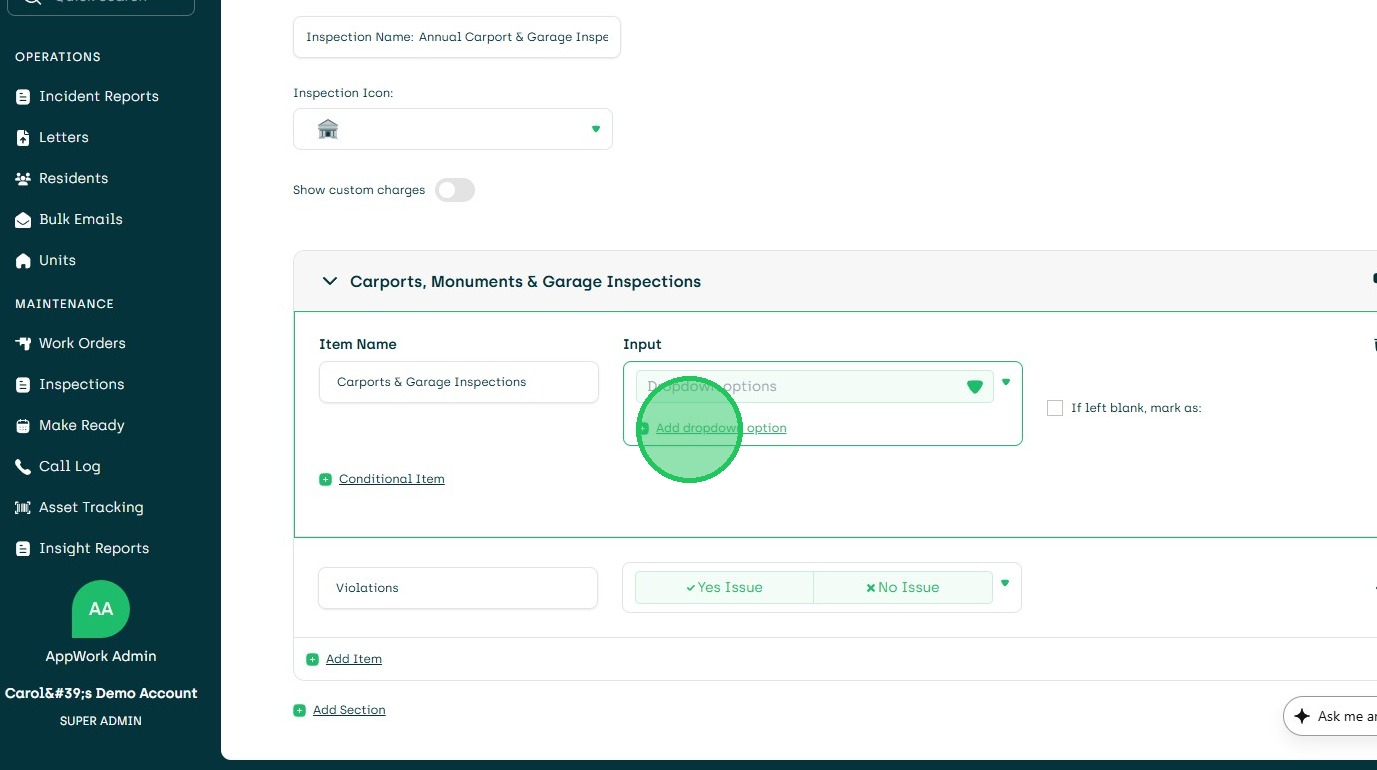
10. Save
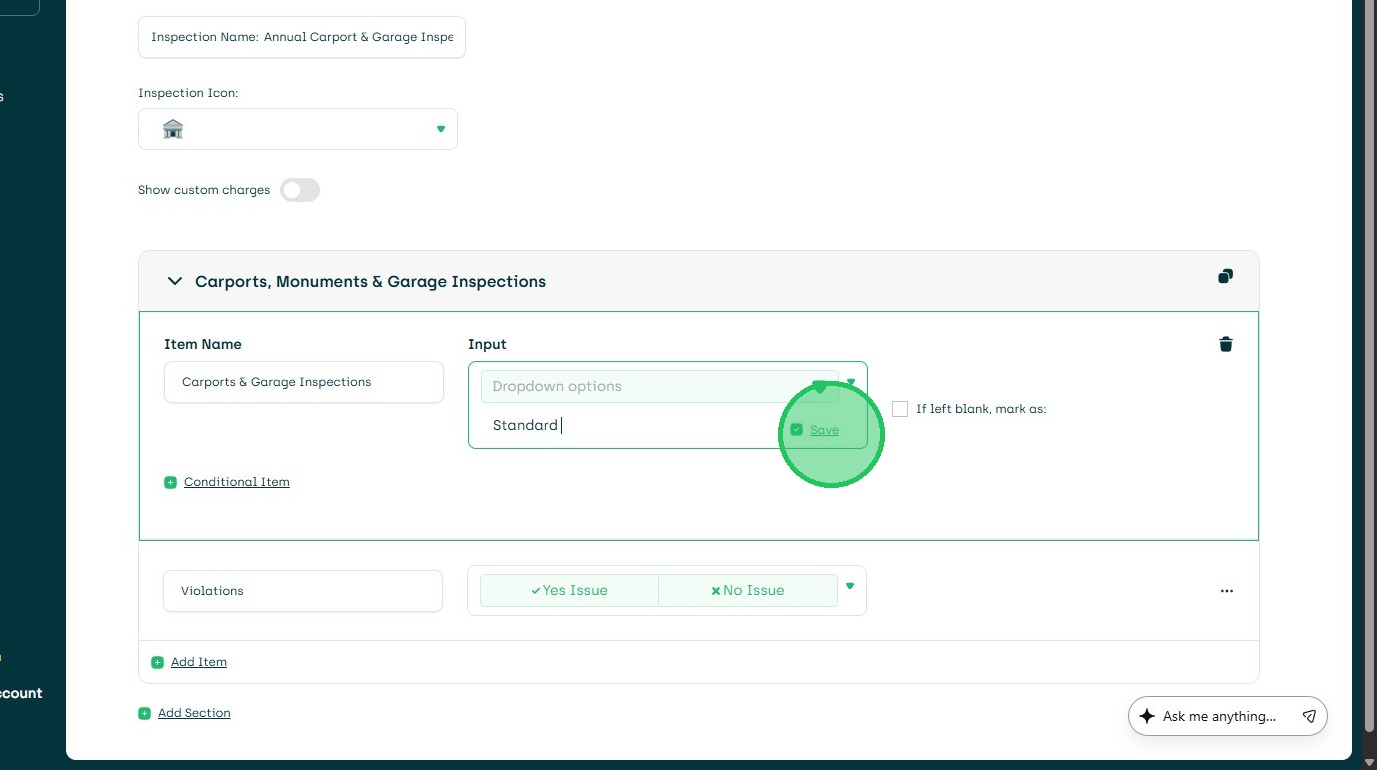
11. Additional Dropdown Options can be Created
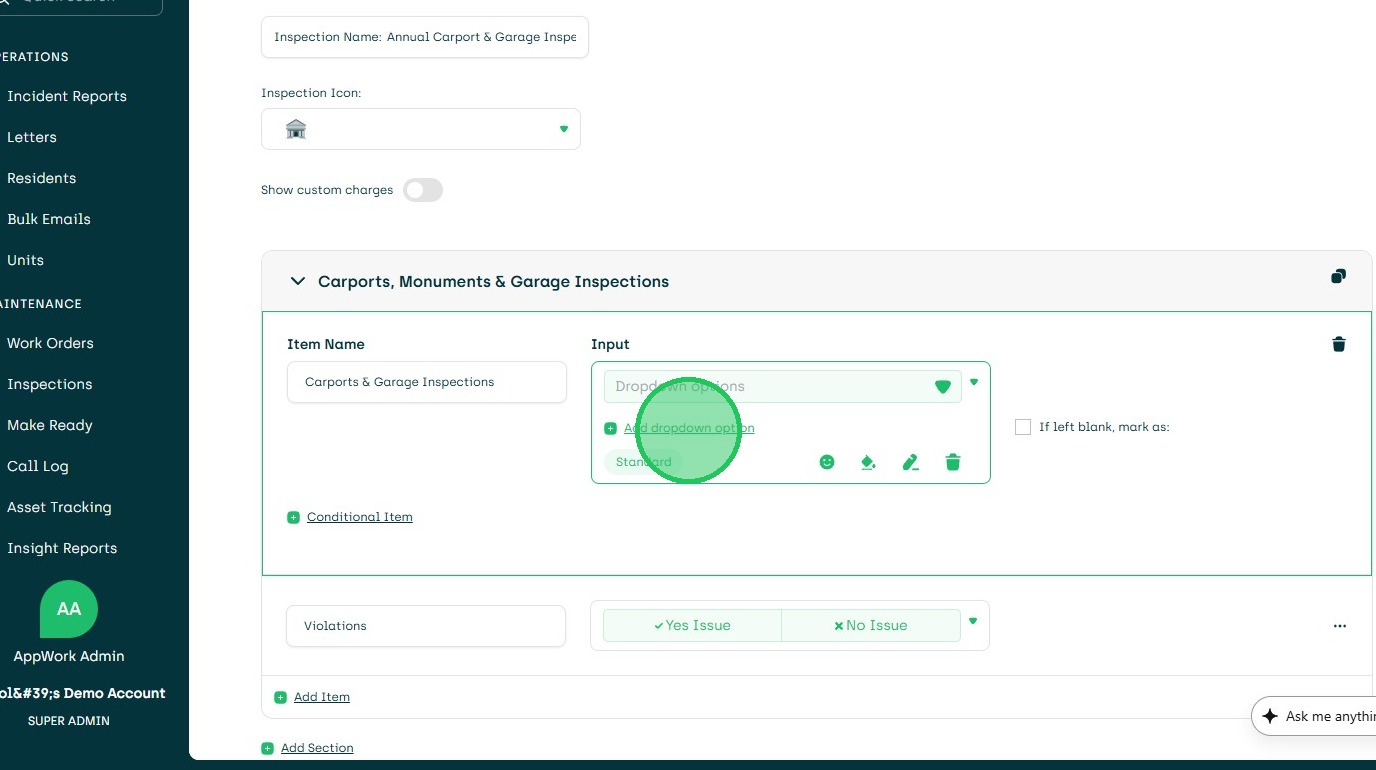
12. Click Save
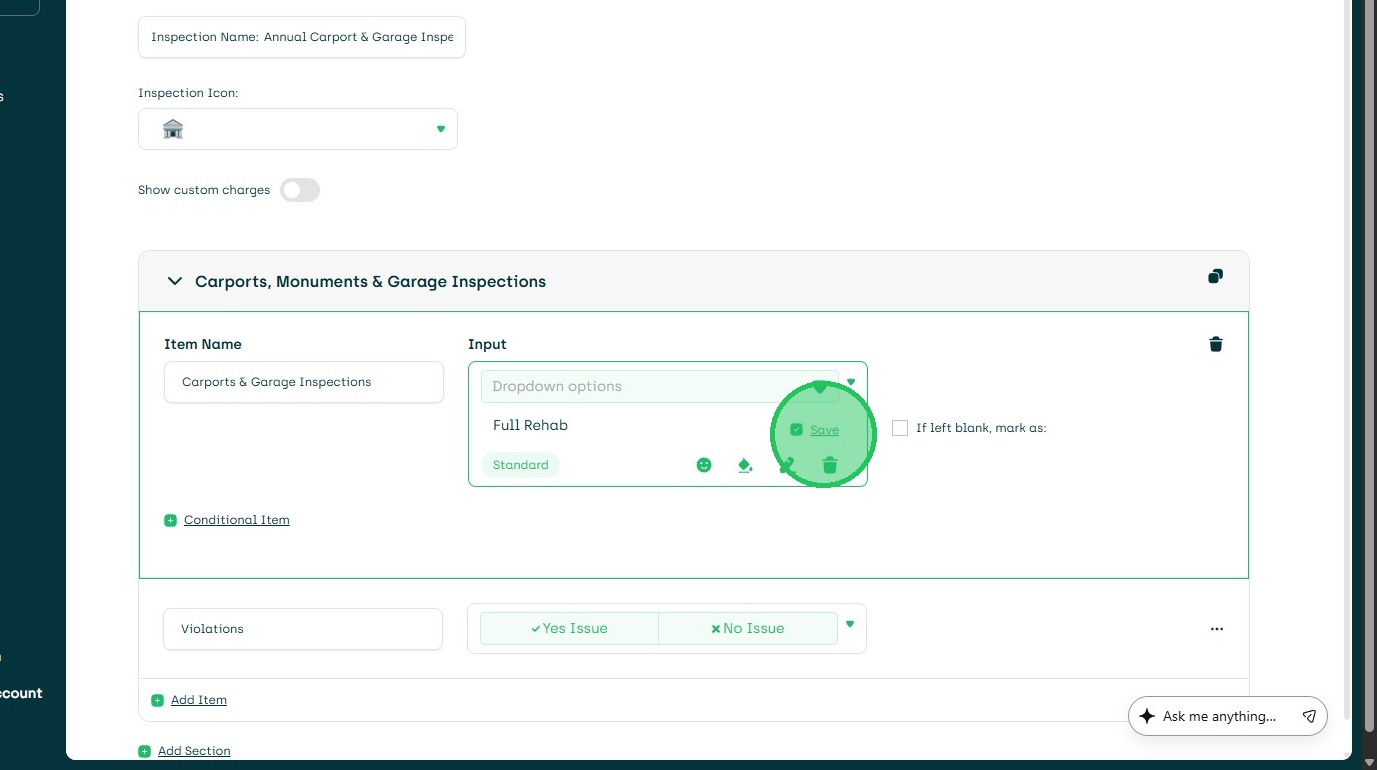
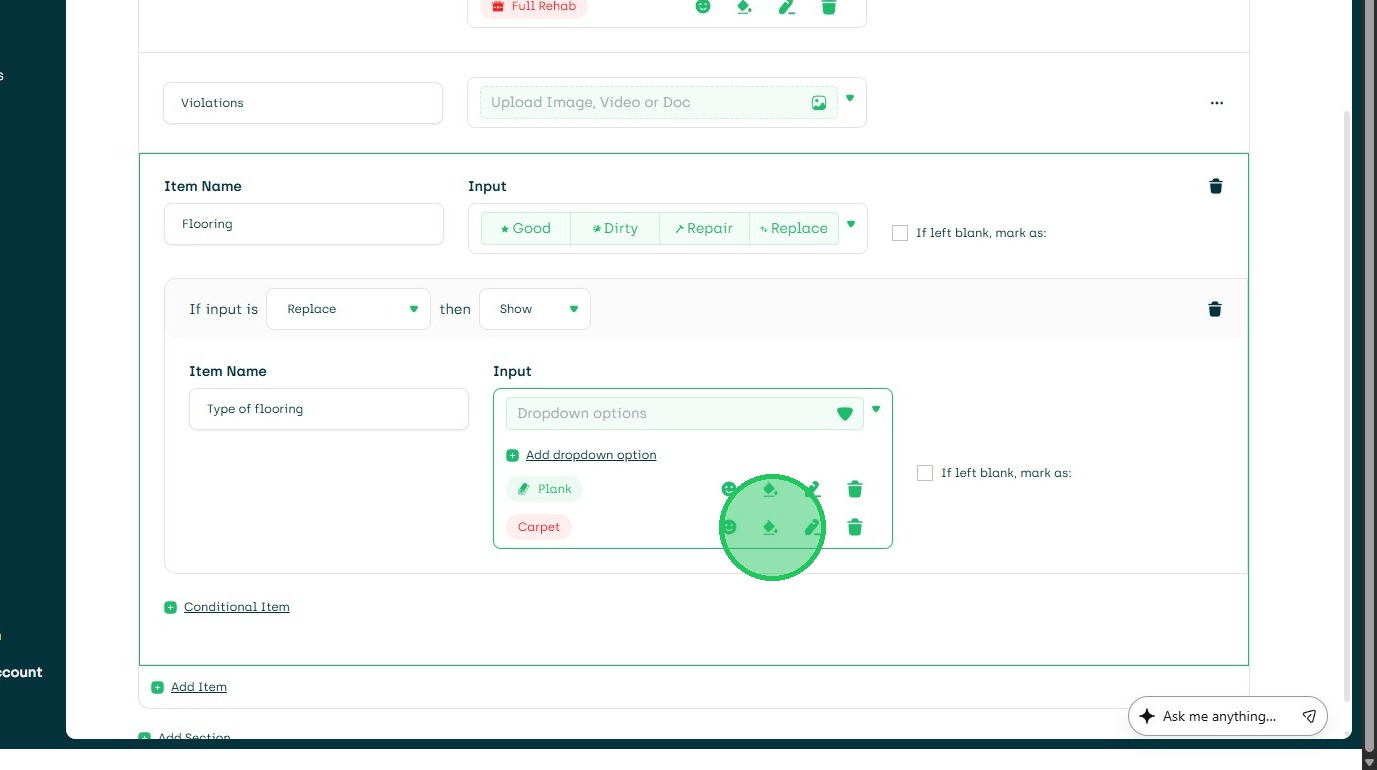
13. Click the Icon Option to Edit Icon
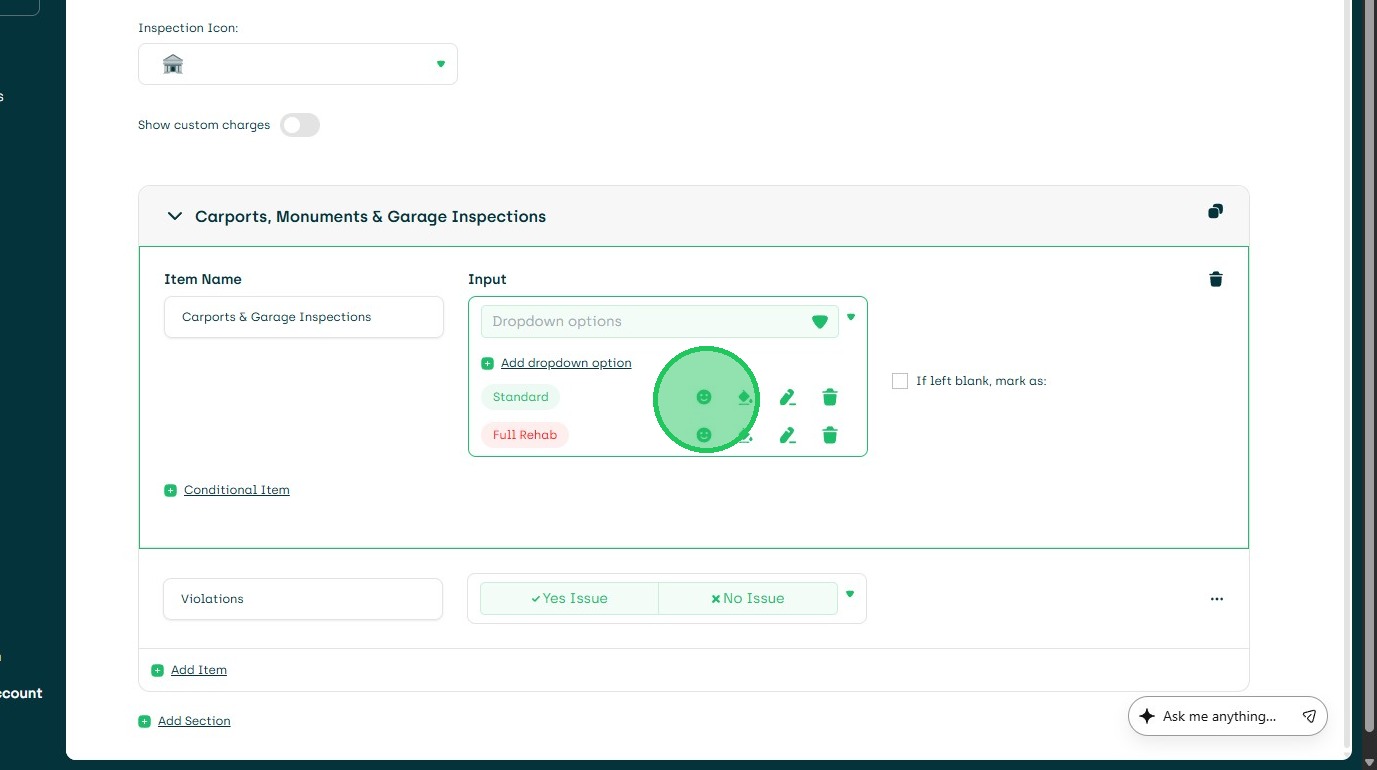
14. Select Icon

15. Media Upload Option
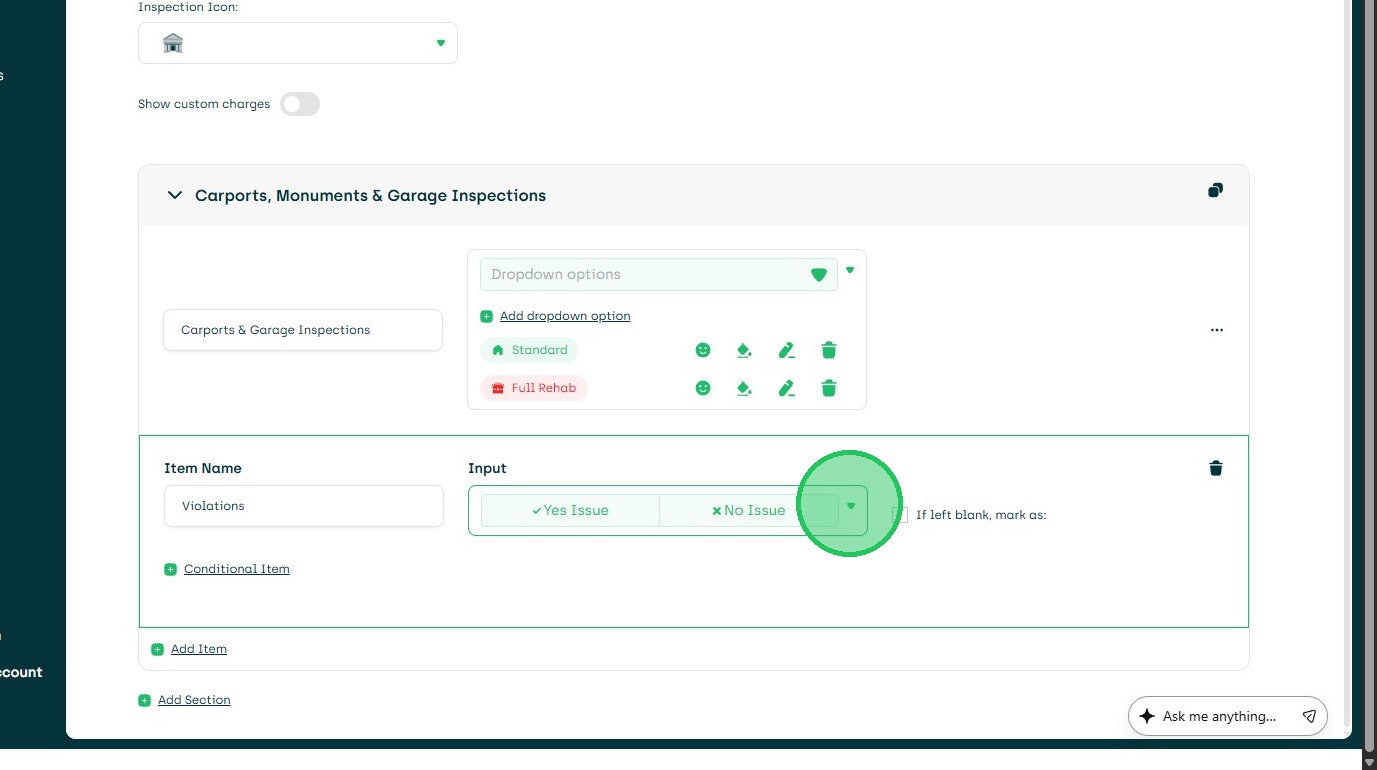
16. Choose Media Upload
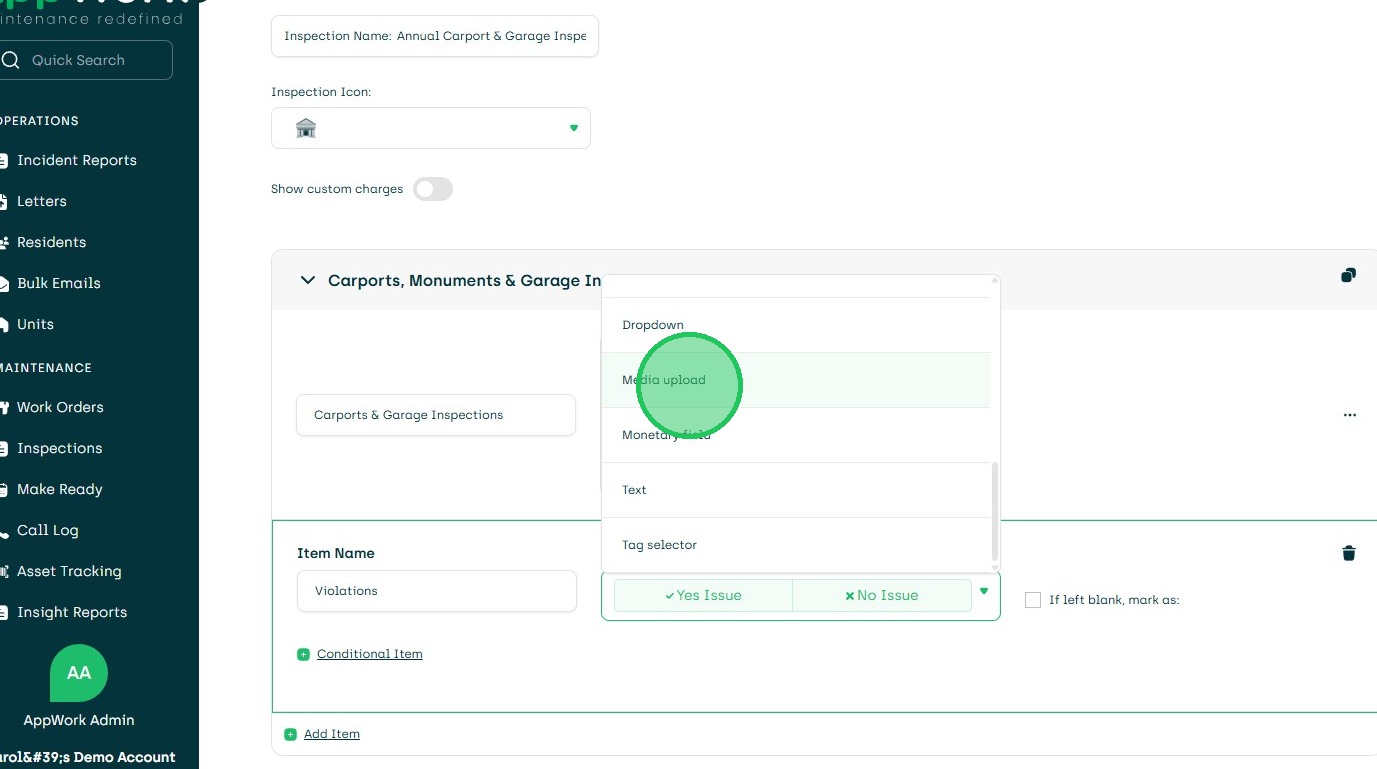
17. Media upload set
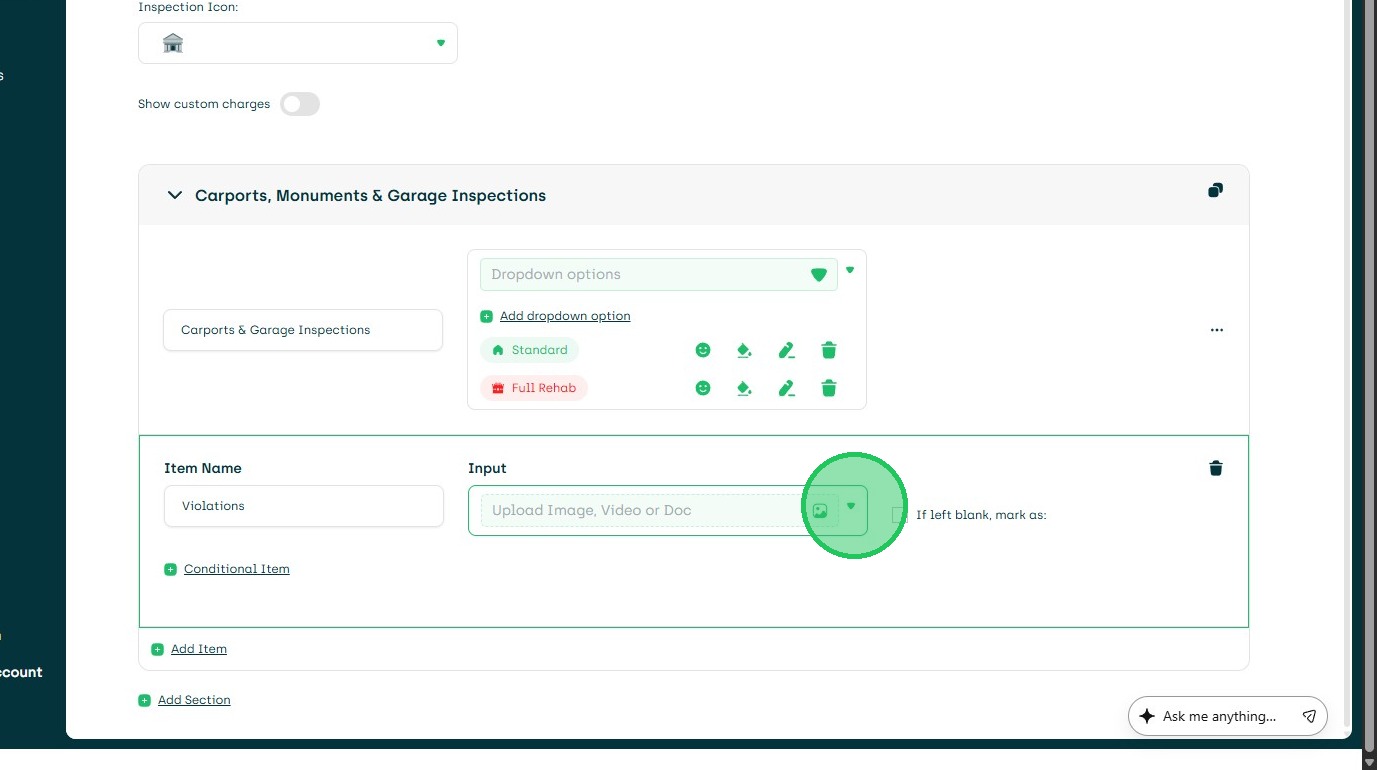
18. To Create or Update to Conditional Item Pick Selector
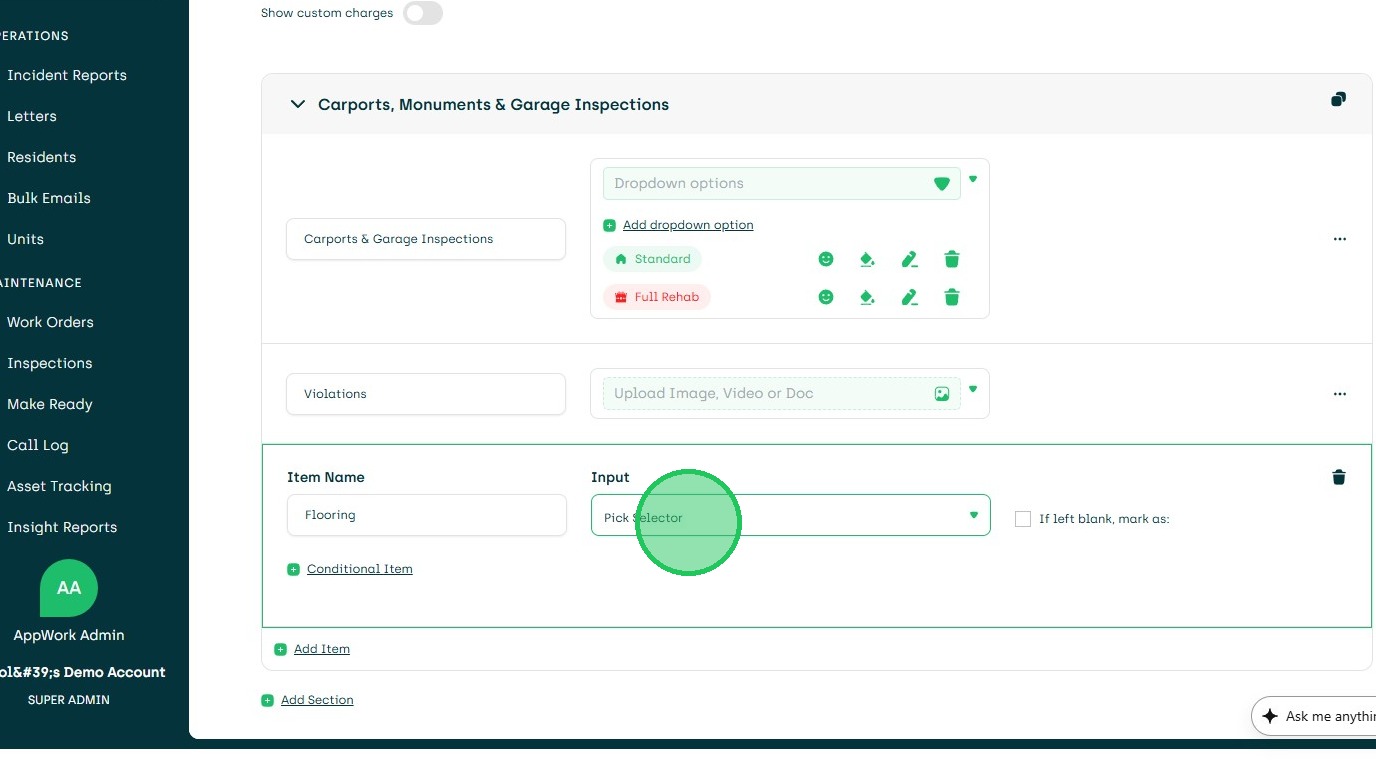
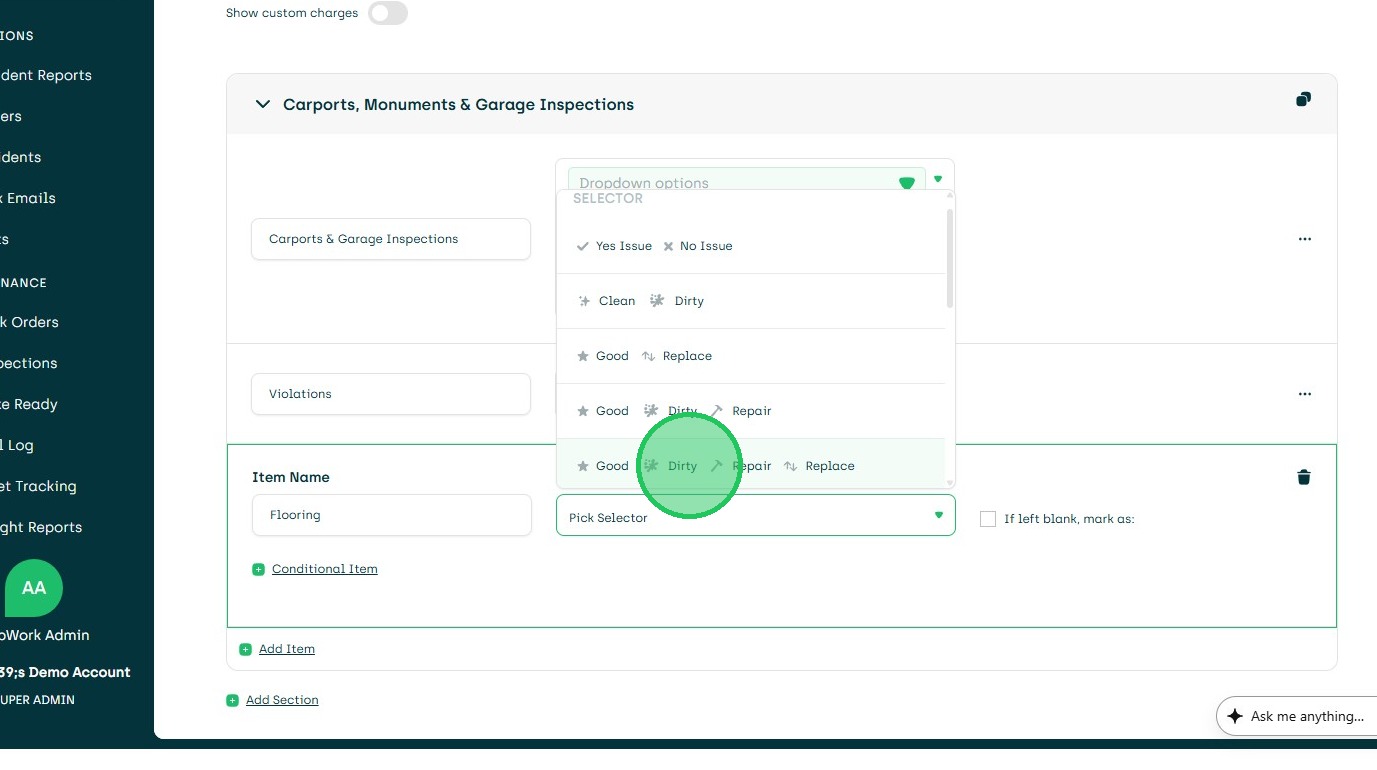
19. Choose Response Options
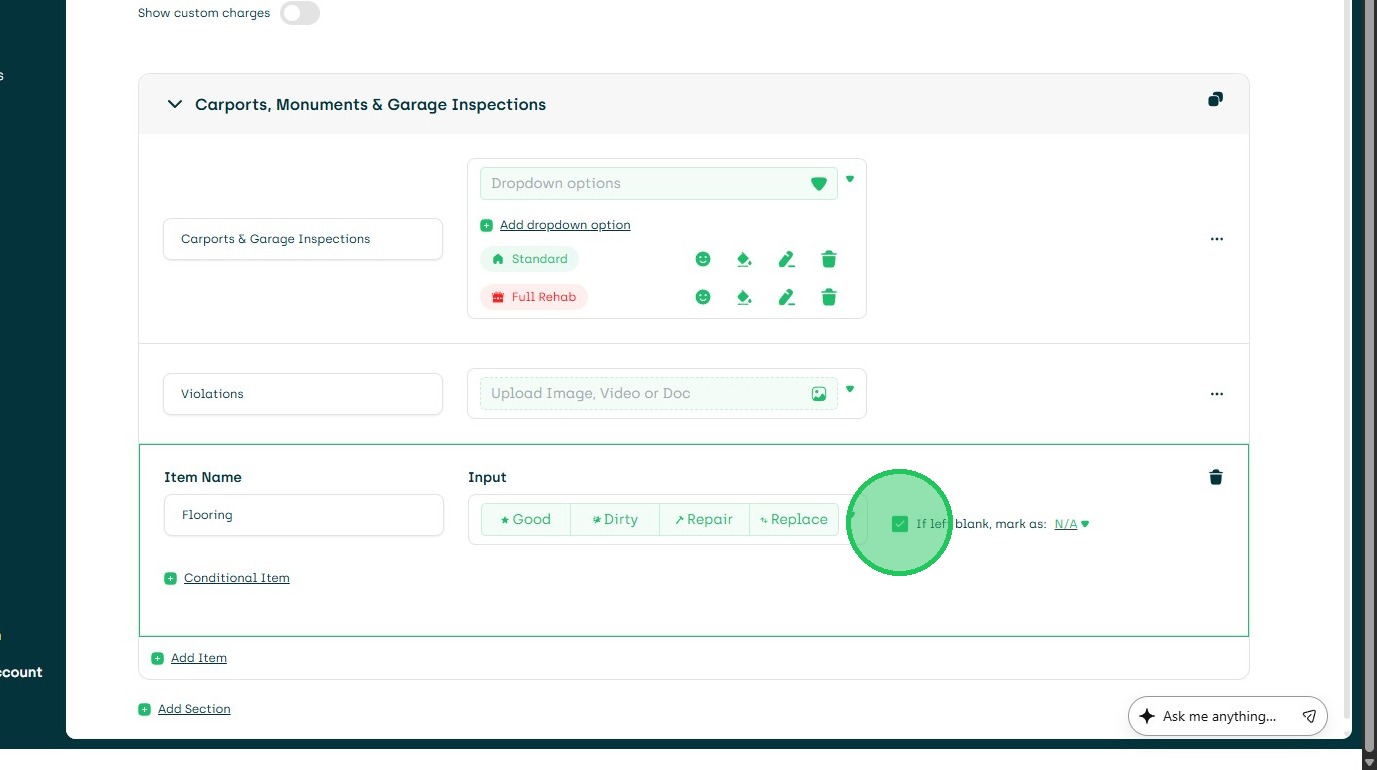
20. Select if Response is not Required
21. Click "Conditional Item"
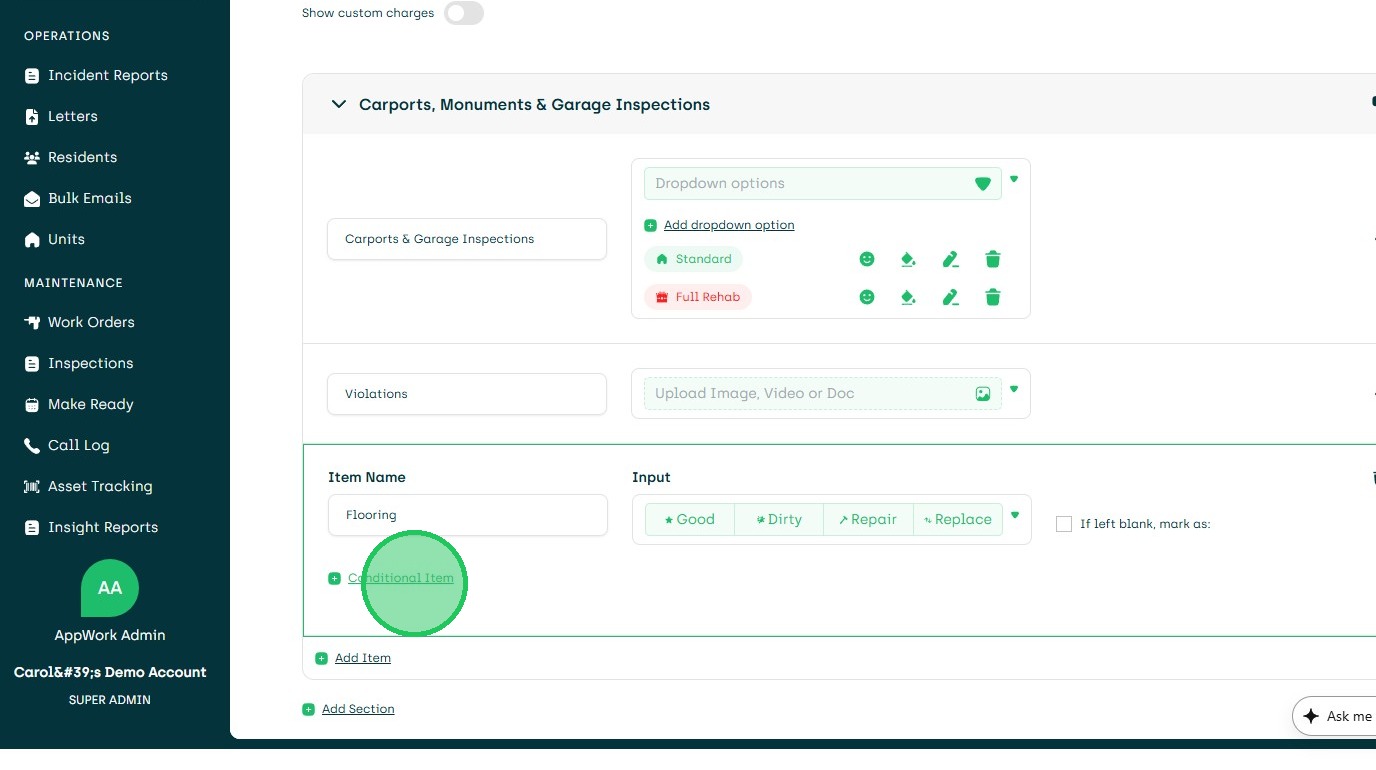
22. Choose Conditional Options
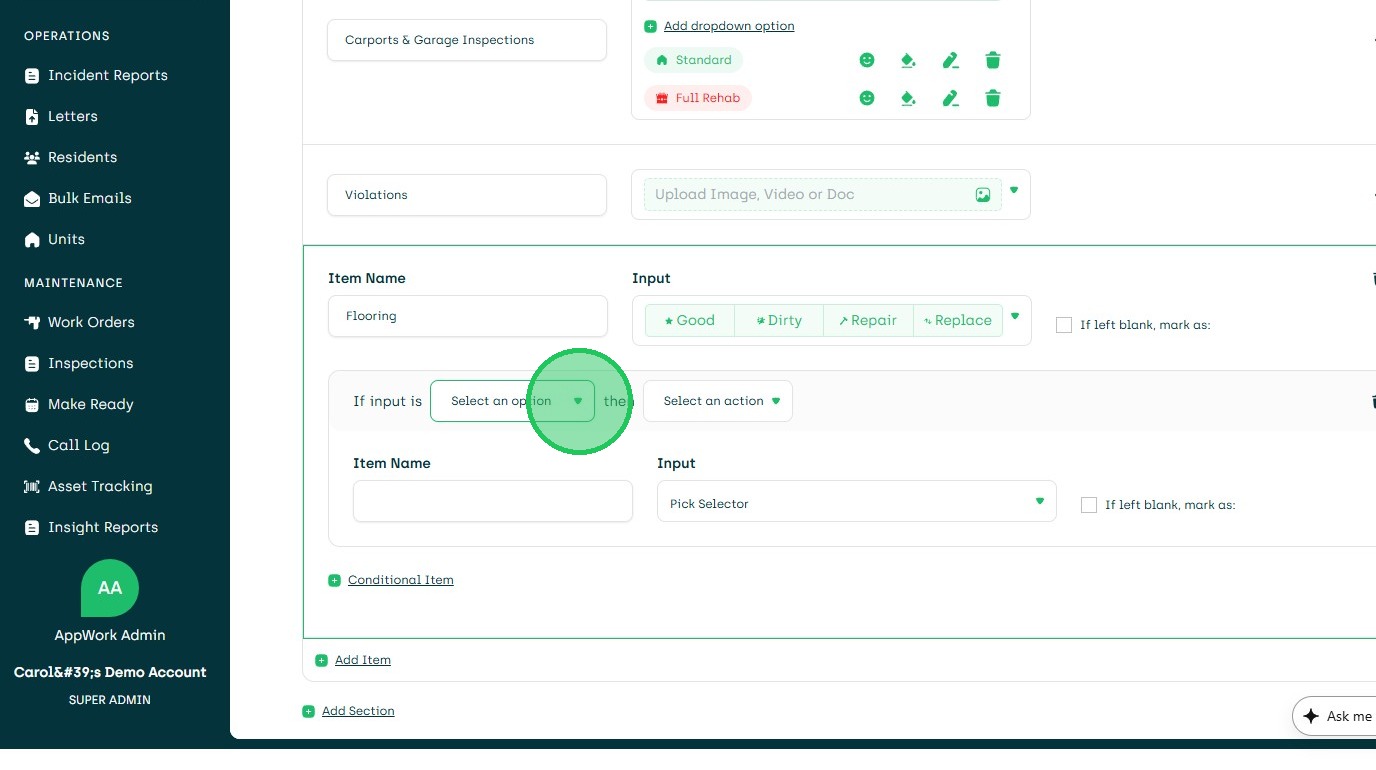
23. Click the If
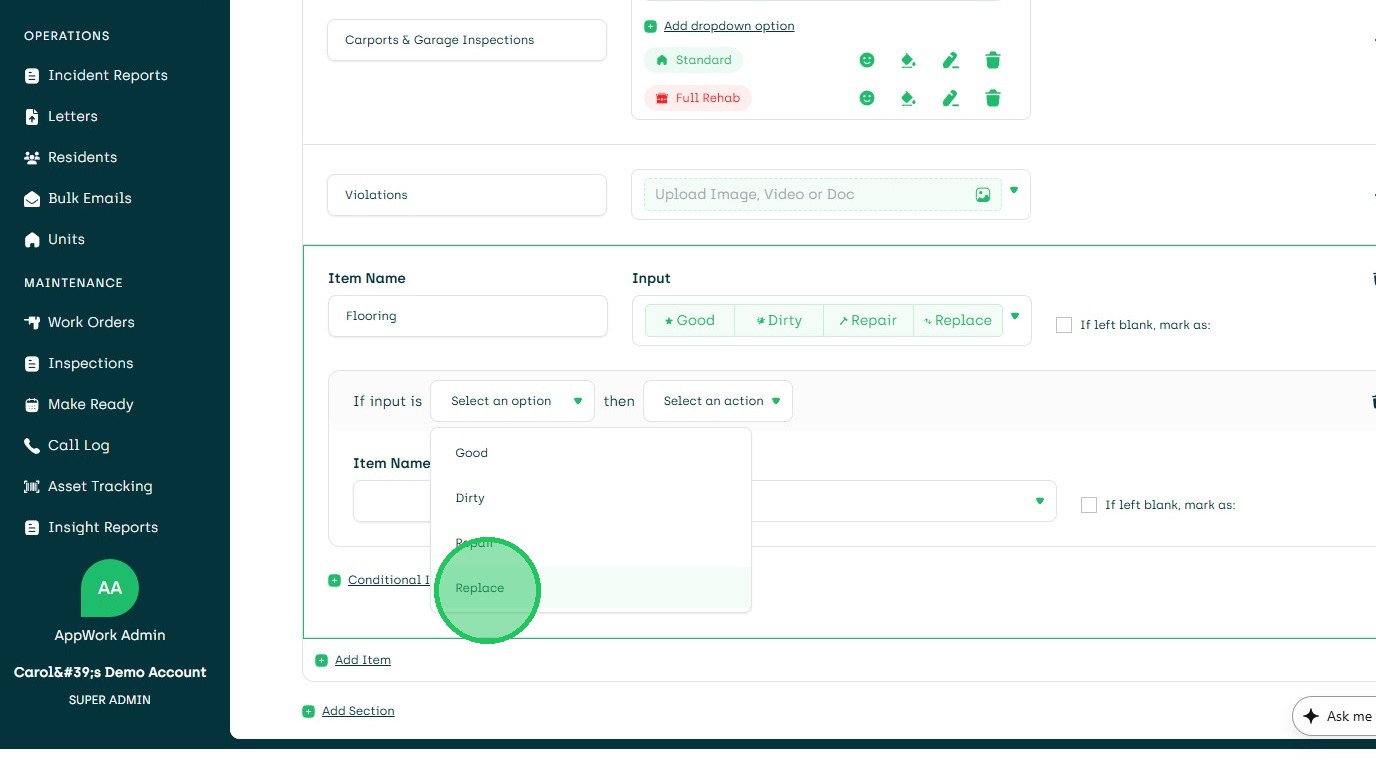
24. Then Choose the Action
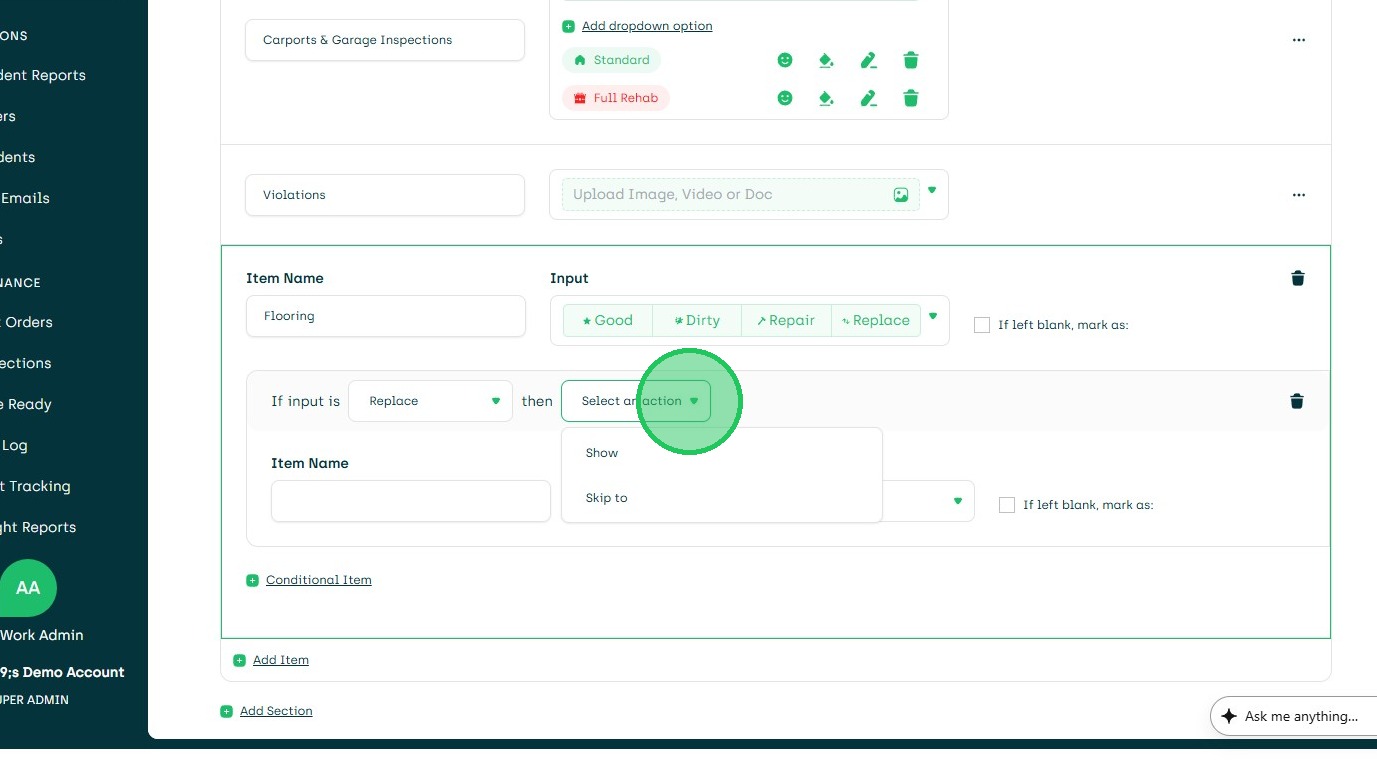
25. Choose Item
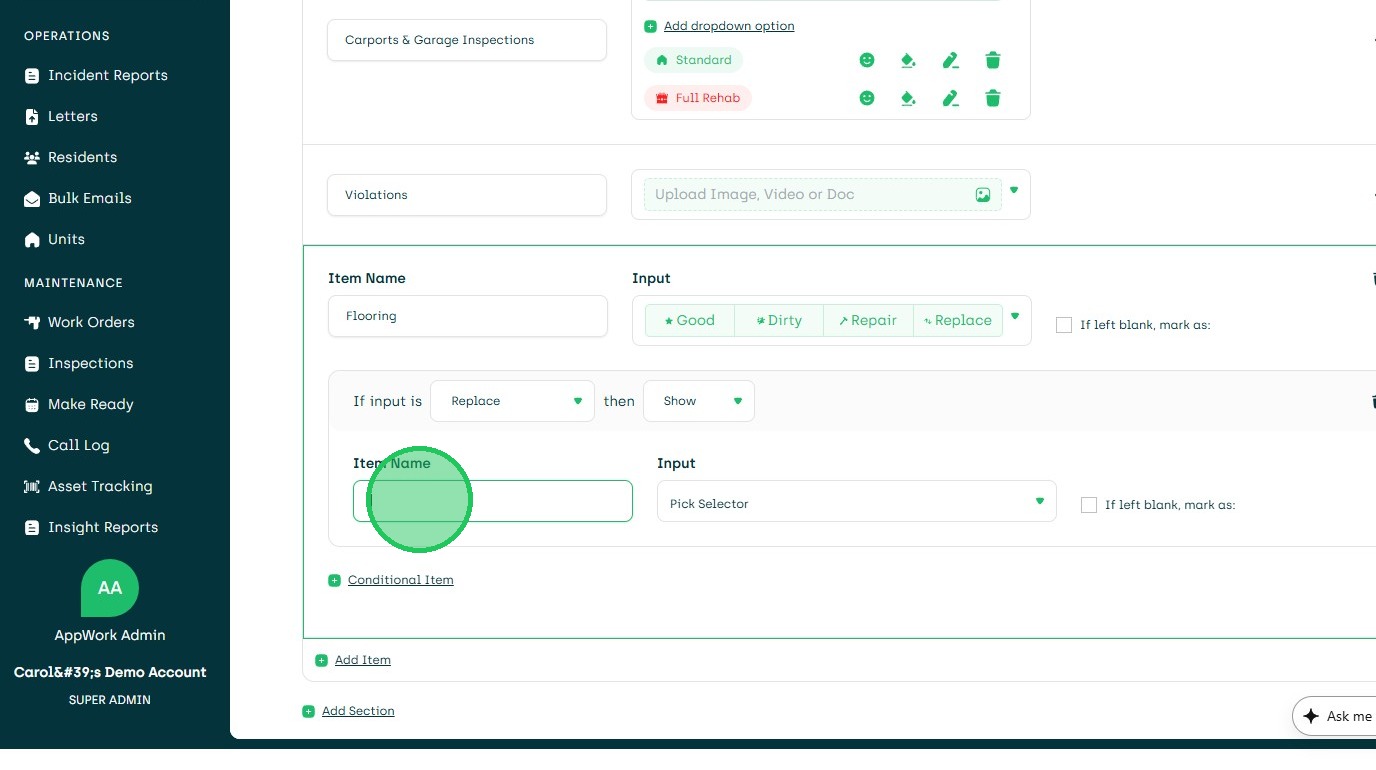
26. Choose Selector
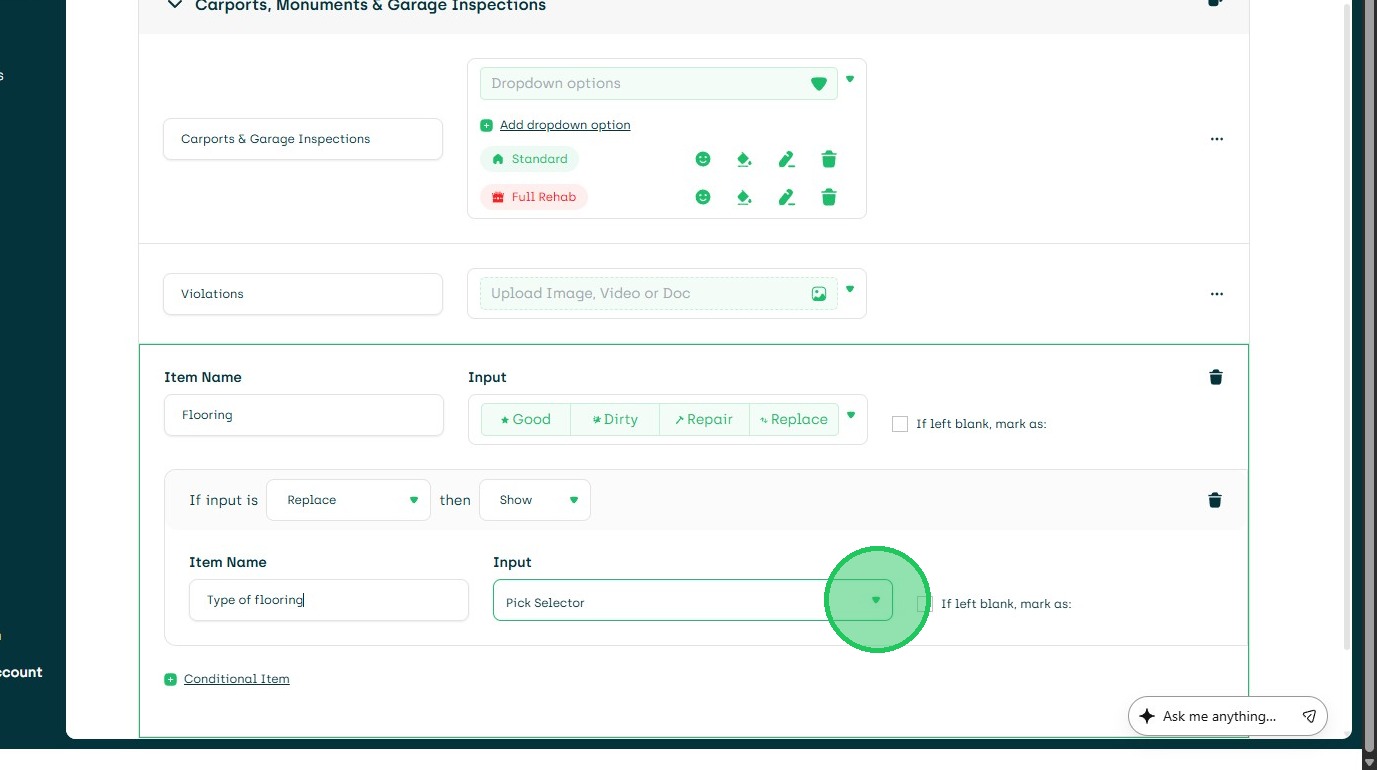
27. Choose Item Selector
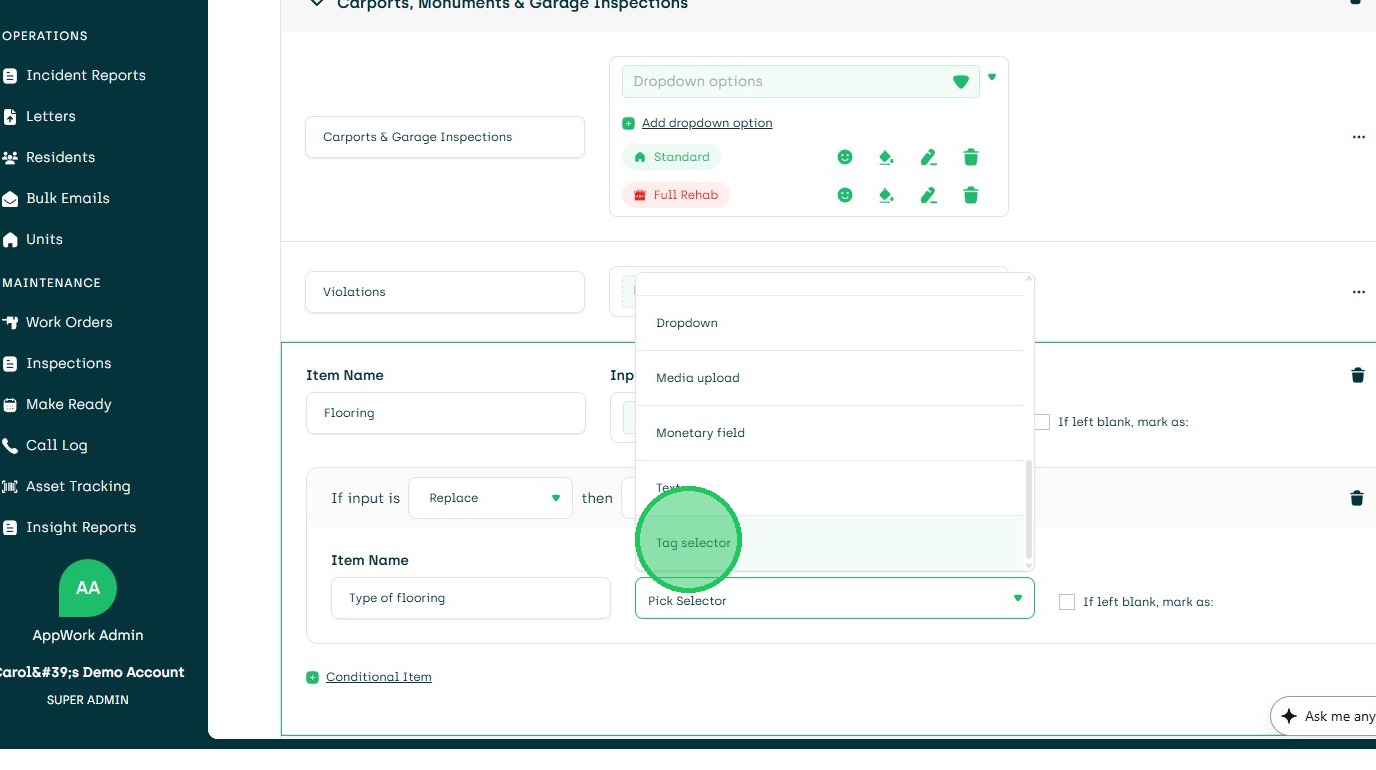
28. Choose.
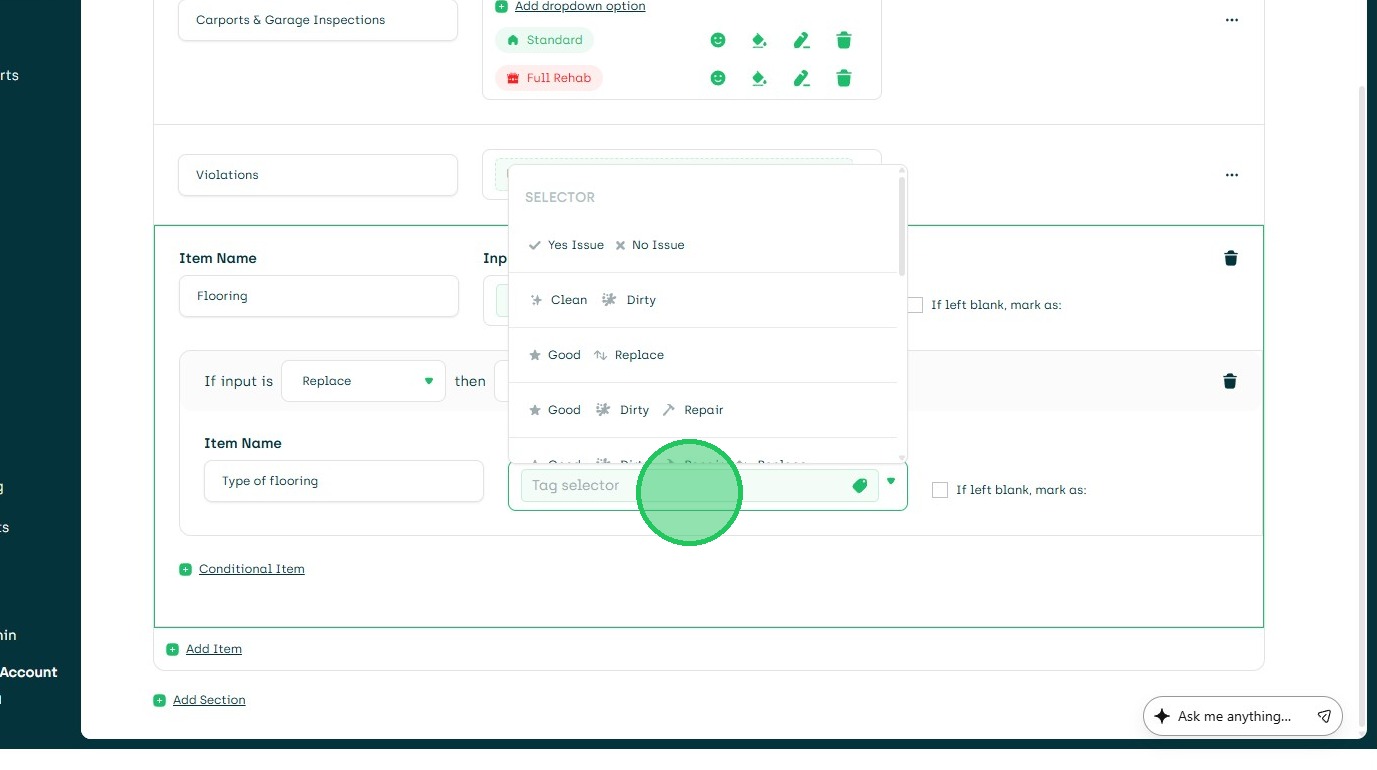
29. Example: Dropdown
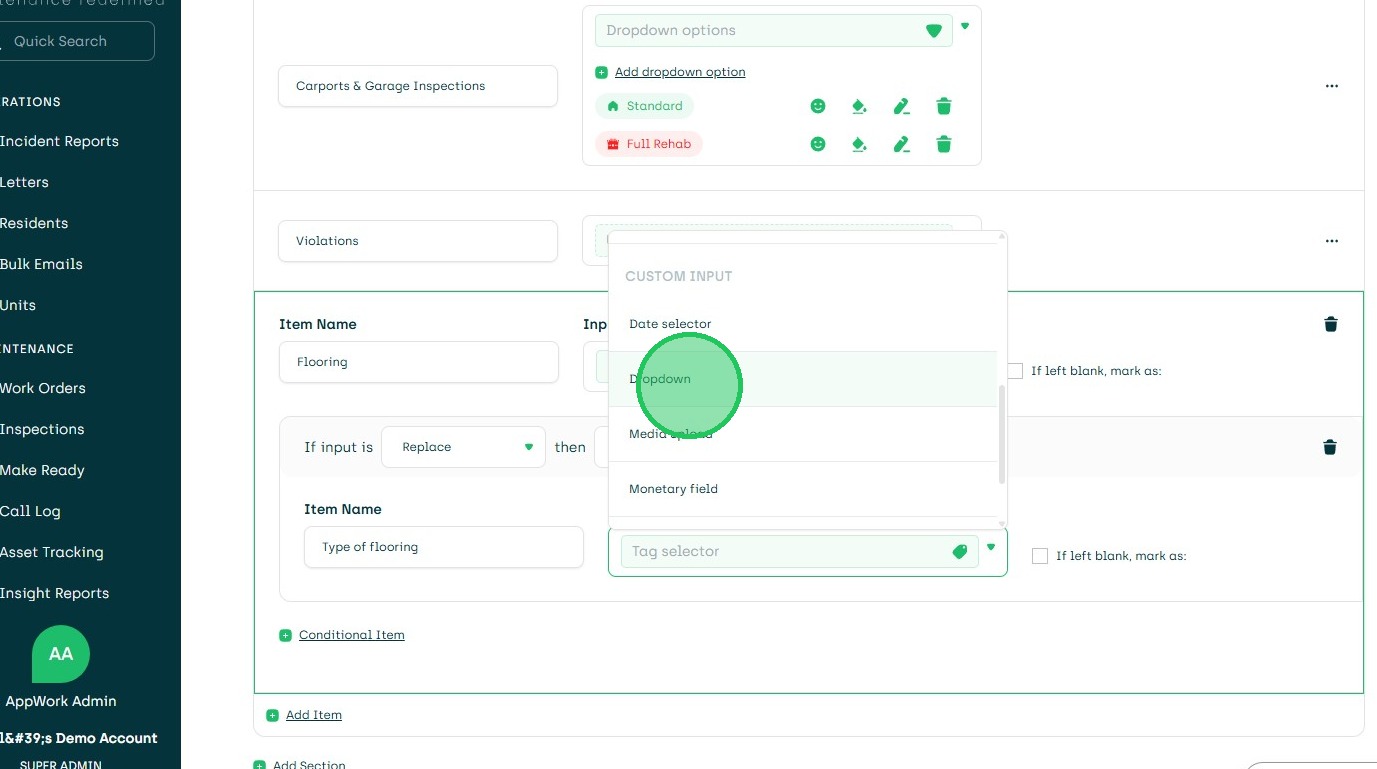
30. Create Dropdowns and Save
31. Edit Colors of Dropdowns if Desired
32. Click SETTINGS
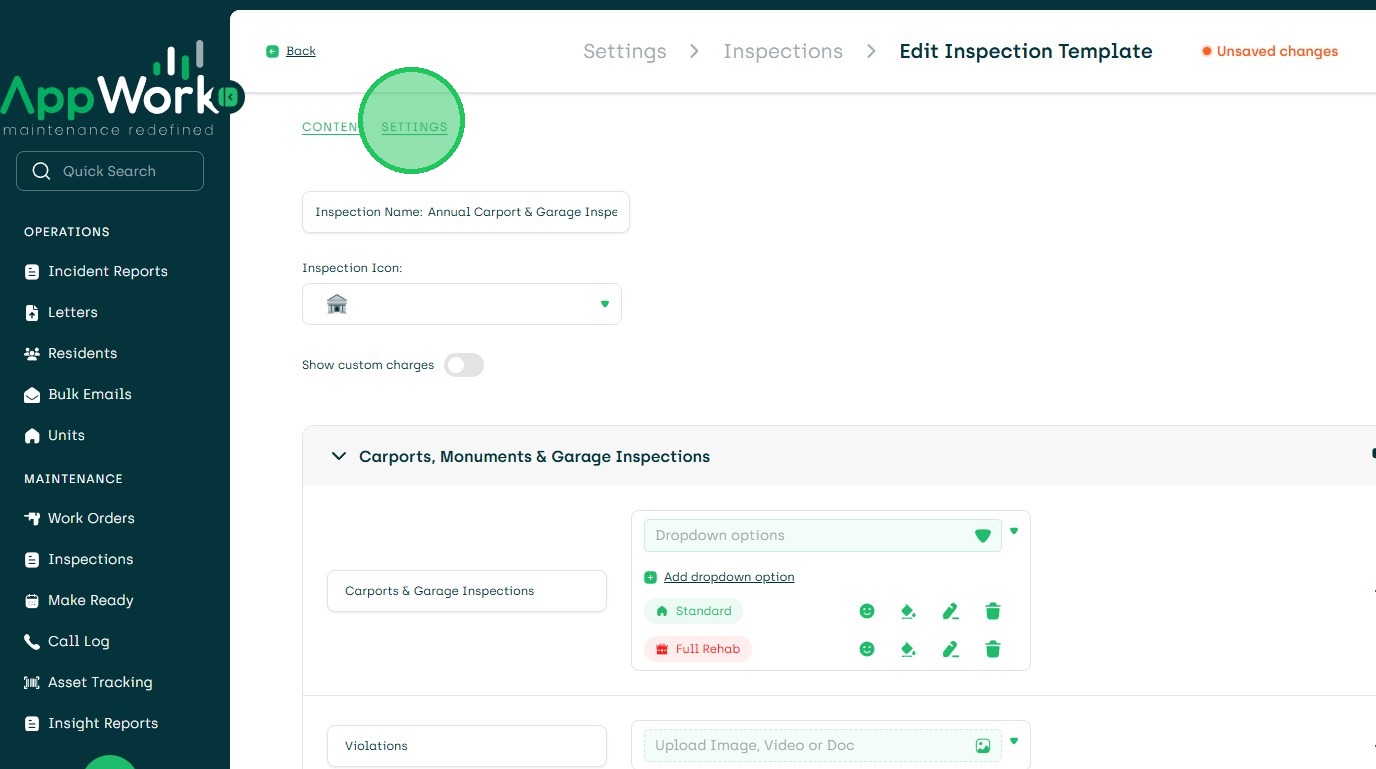
33. Once Done Click Save