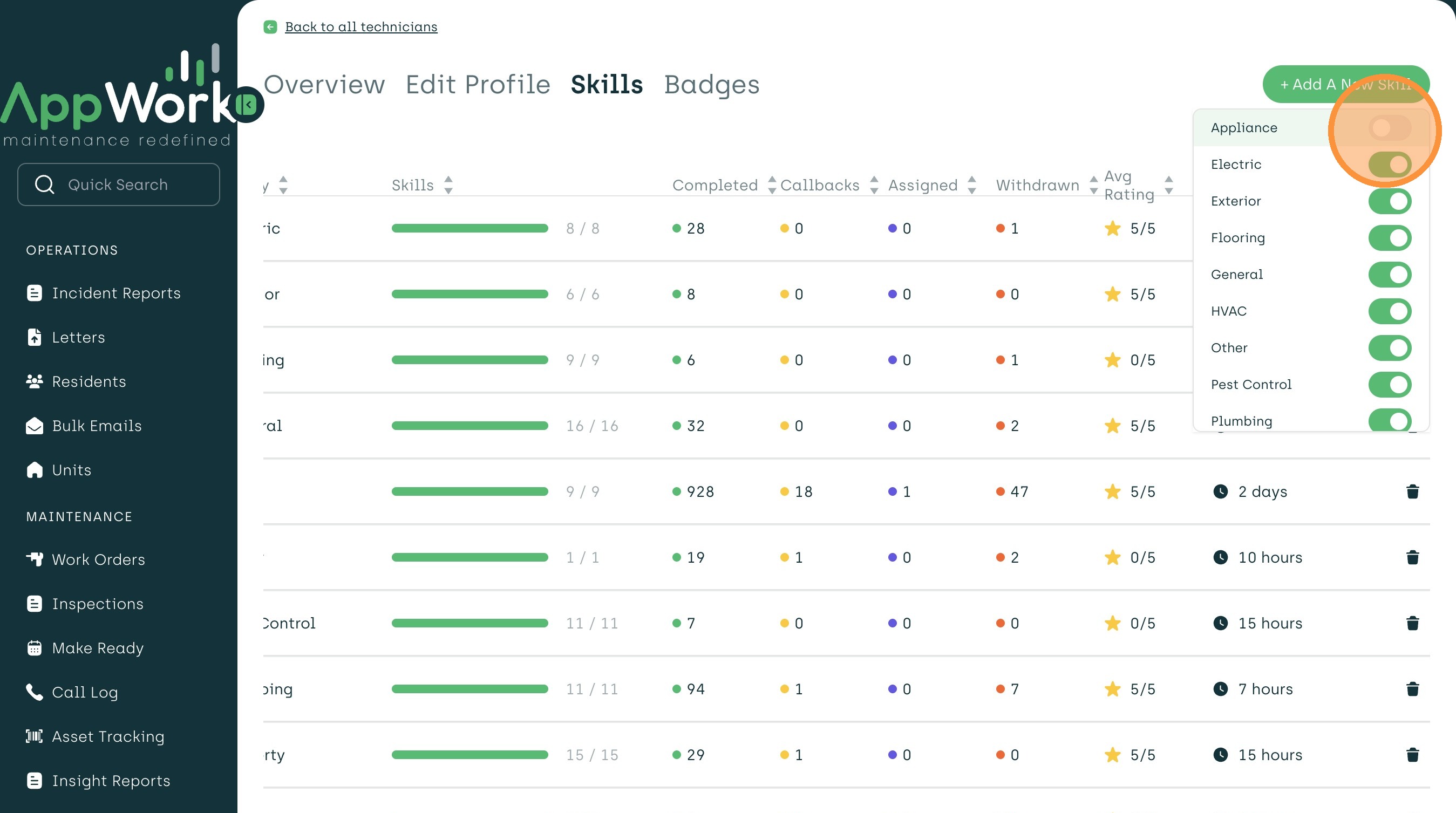
1. From the main Admin Portal dashboard, navigate to the technician tab on the left-hand menu.
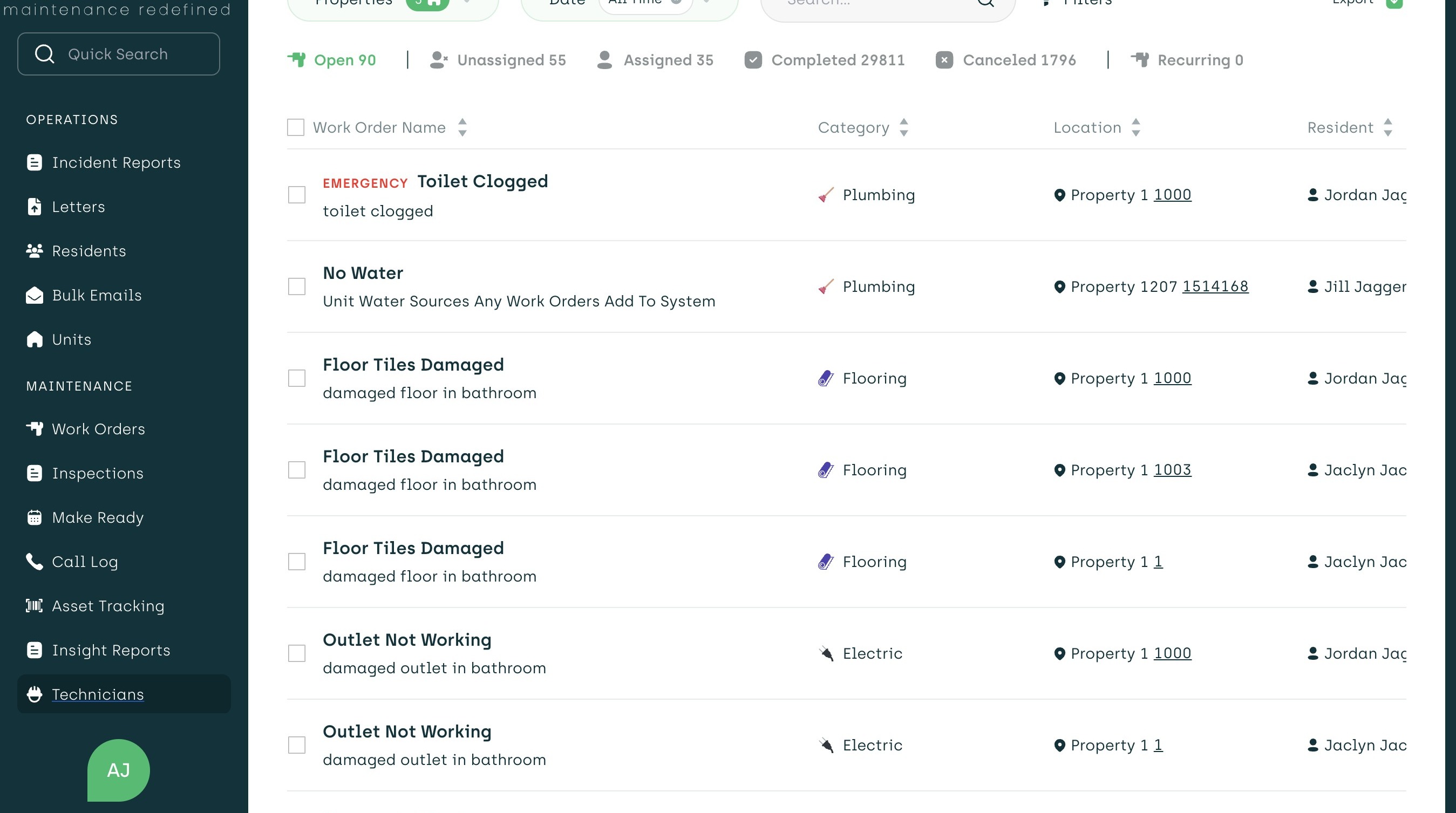
2. Click "Technicians."
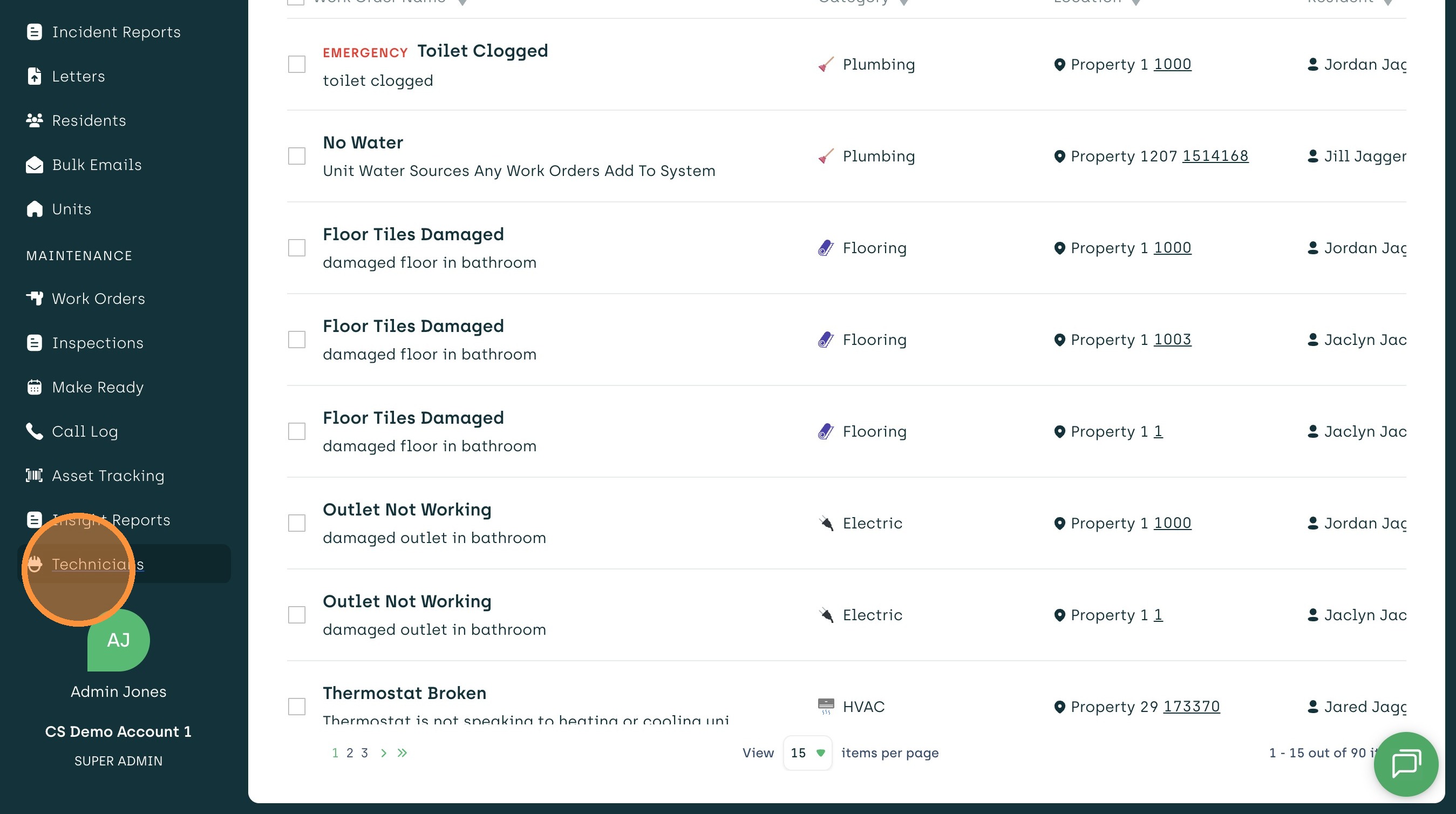
3. Once on the Technician page, select the technician whose skills you'd like to customize.
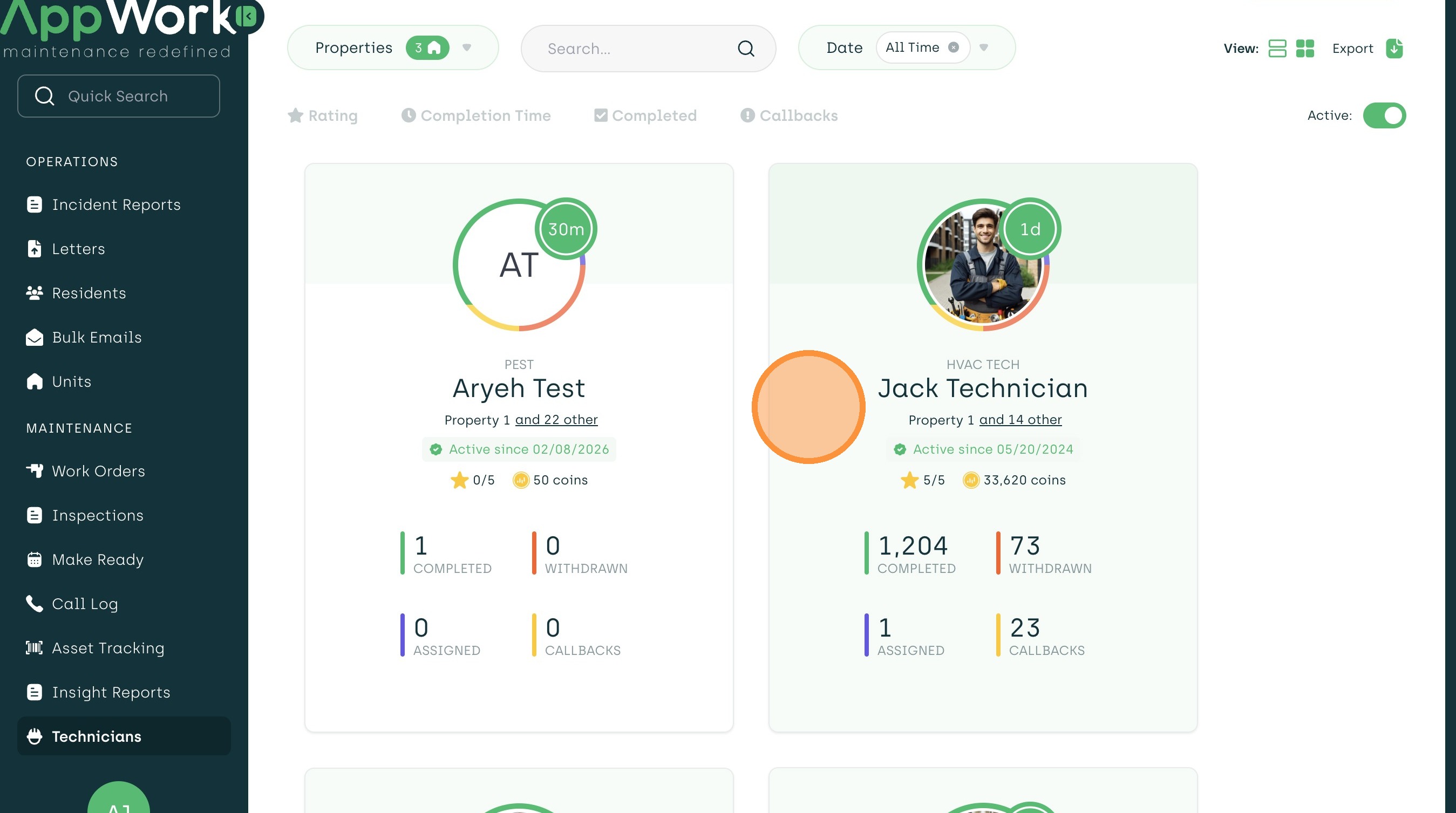
4. Click "Skills"
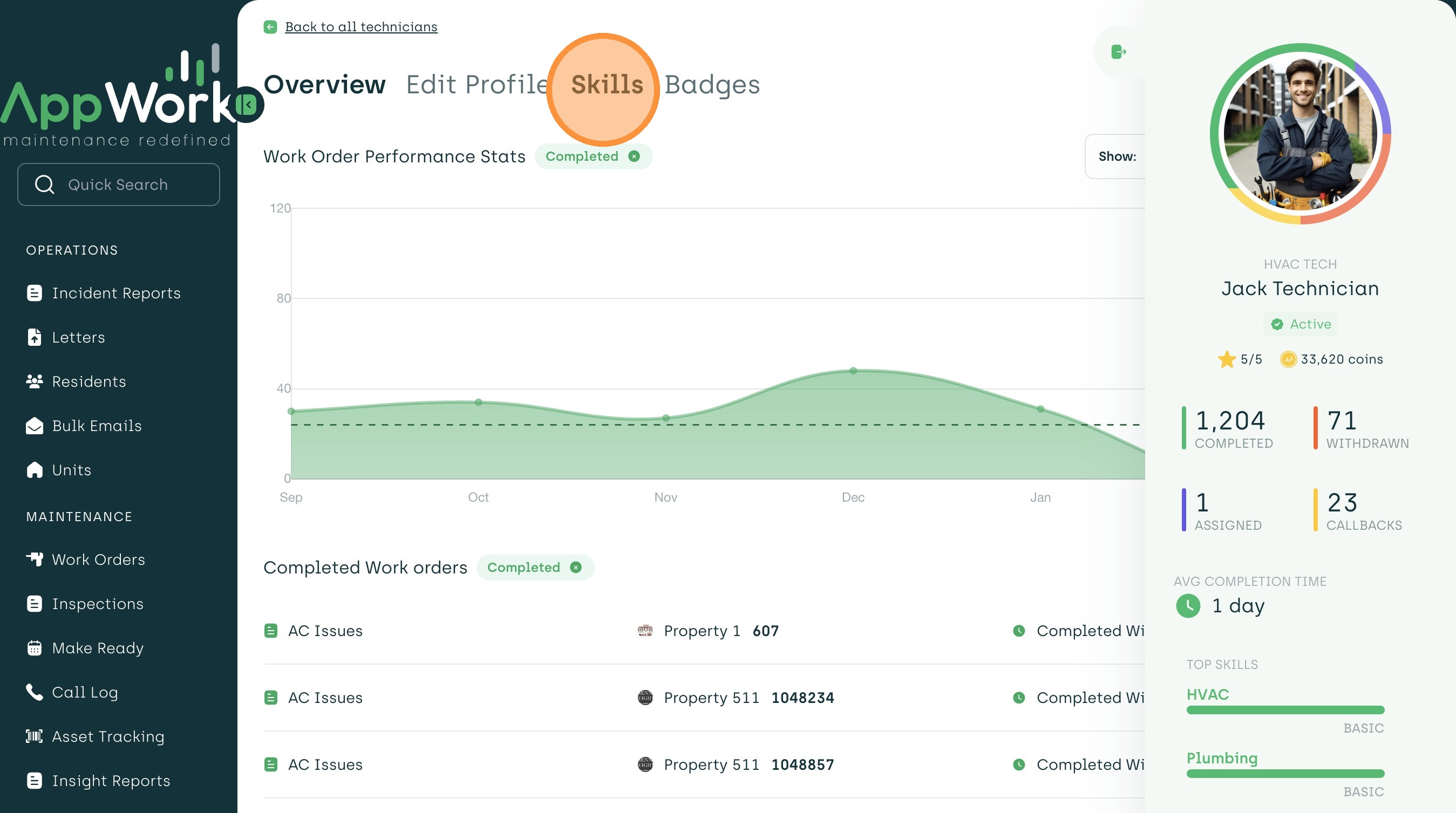
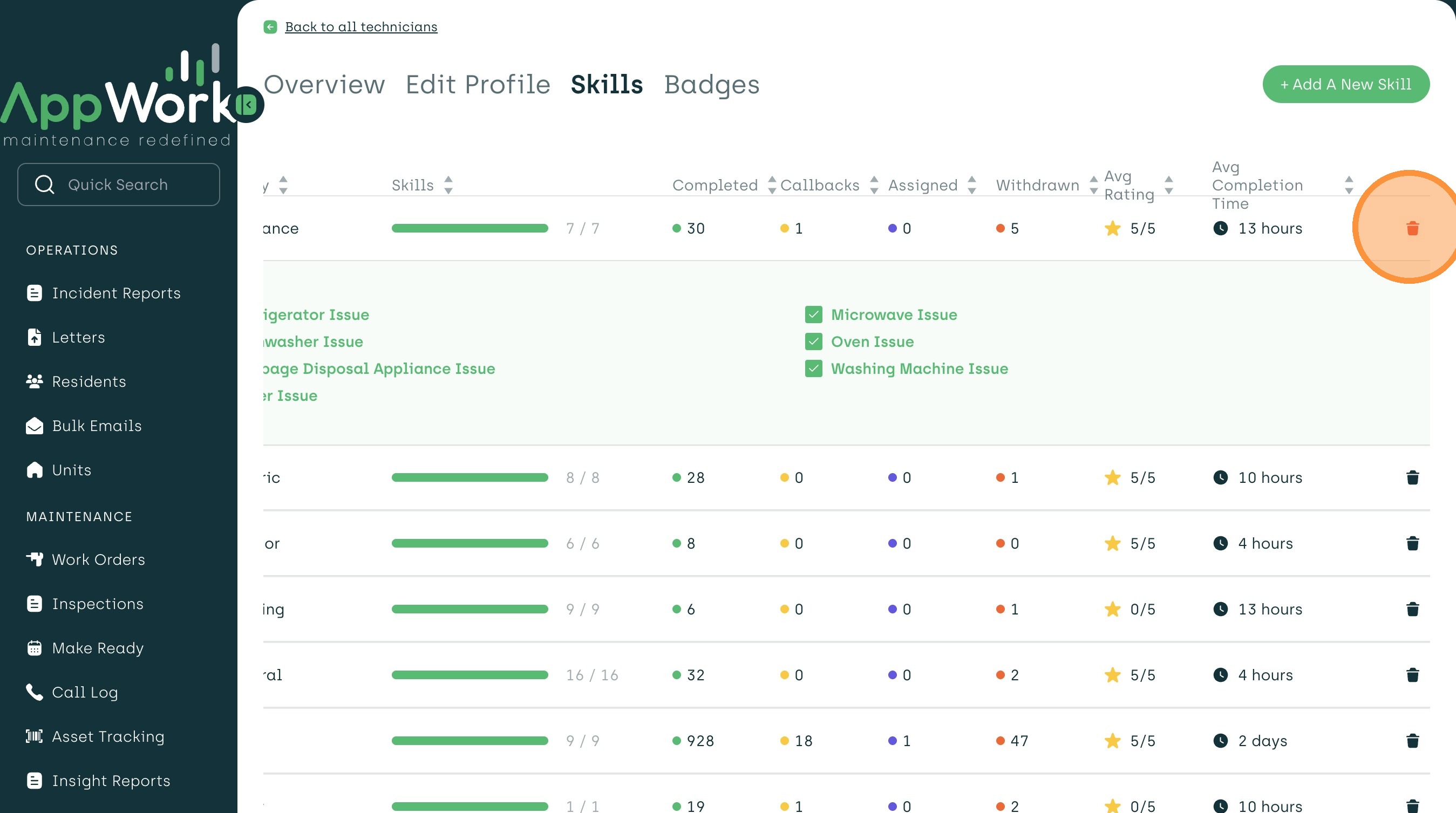
5. On the skills page, you will see the performance stats for your technician broken up by categories.
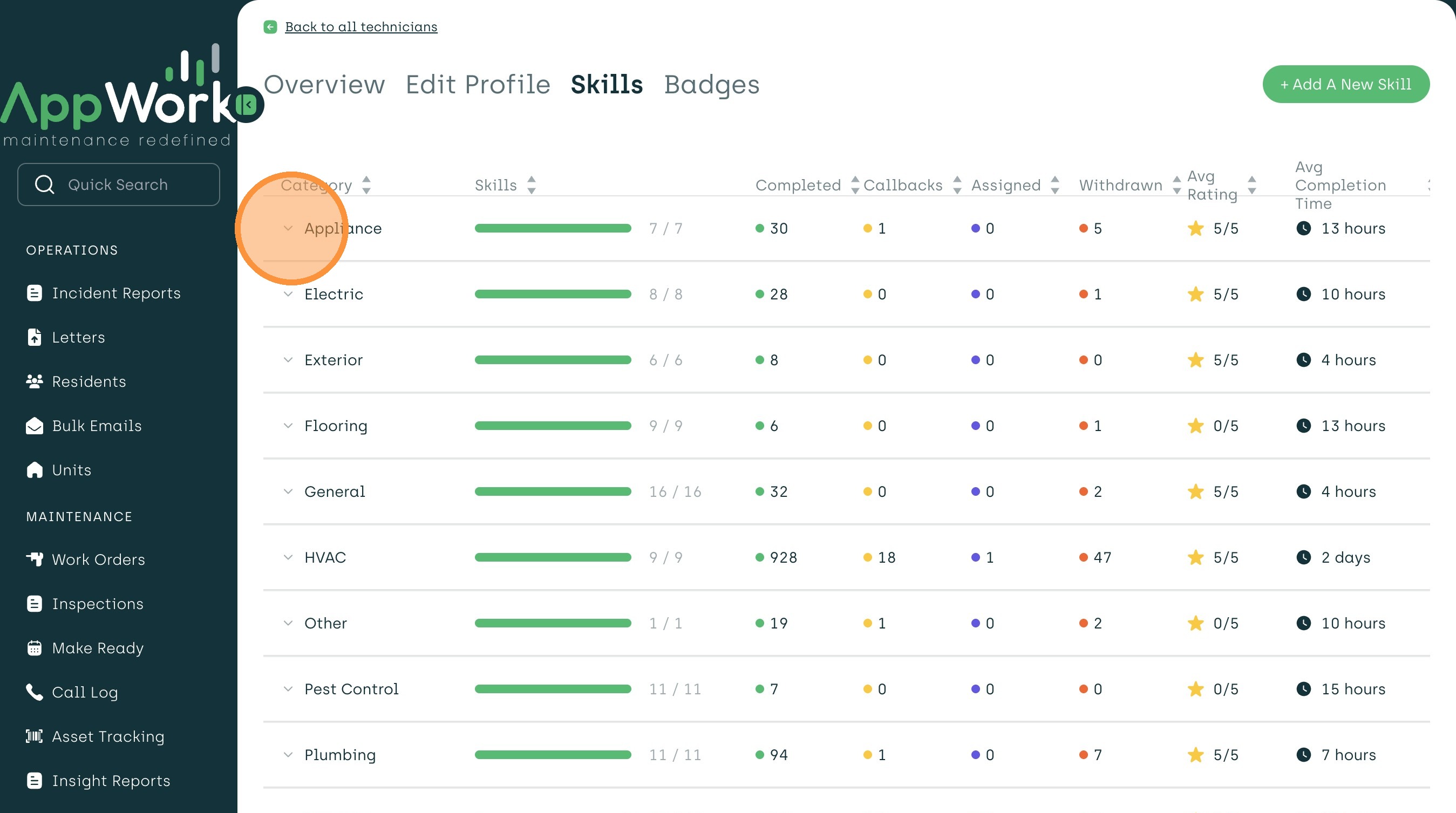
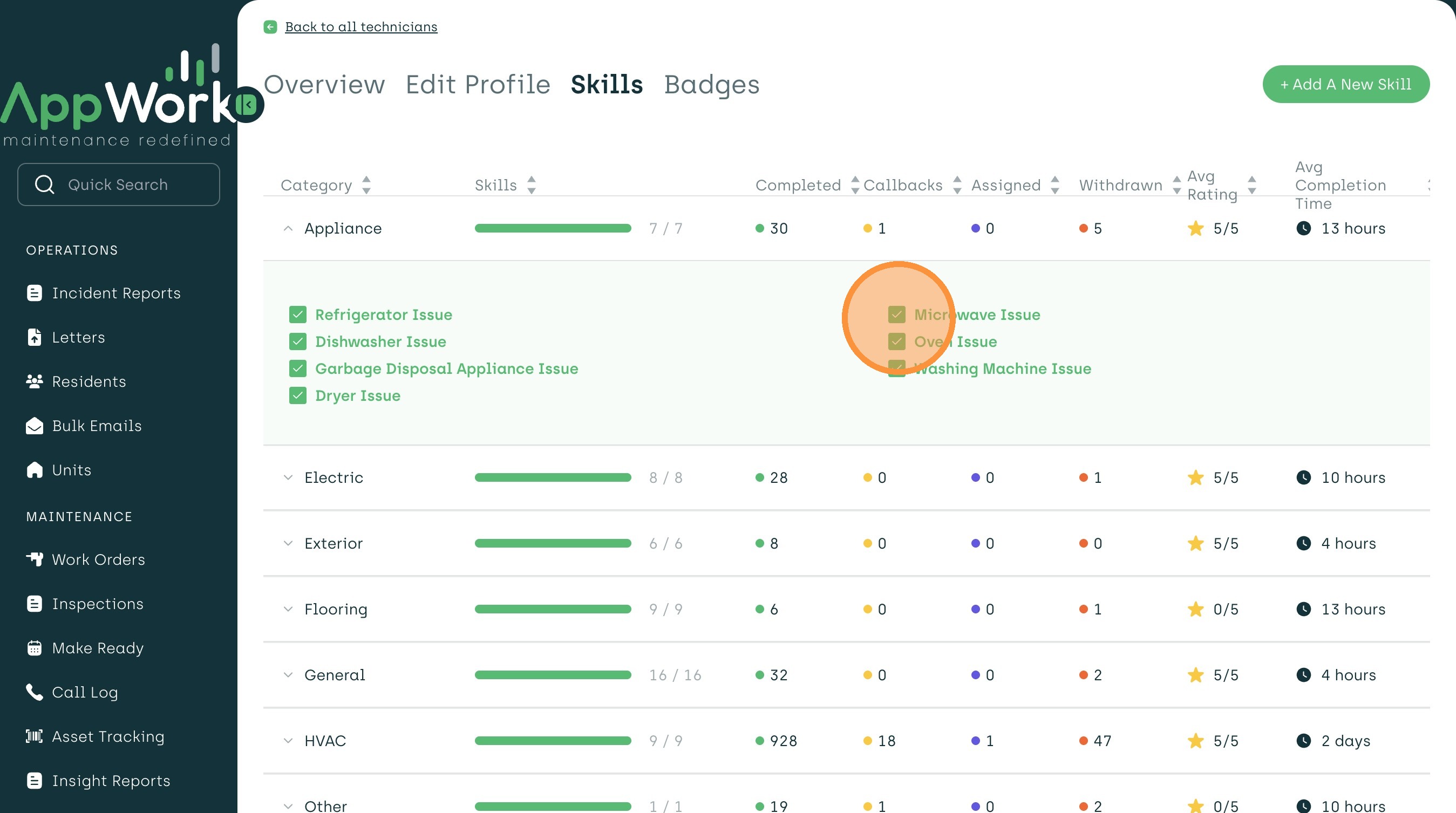
6. By clicking the down arrow of any category, you can disable any subcategories, which will exclude those work orders from showing in their queue indefinitely. This is useful when you either notice the technician may need extra training on that category, or if you simply don't want them working on these types of work orders.
7. You can re-enable a skill by clicking on the blank box. This will allow the technician to see those types of work orders once again. This is typically after they complete a training or certification course that proves their confidence in the specific category.
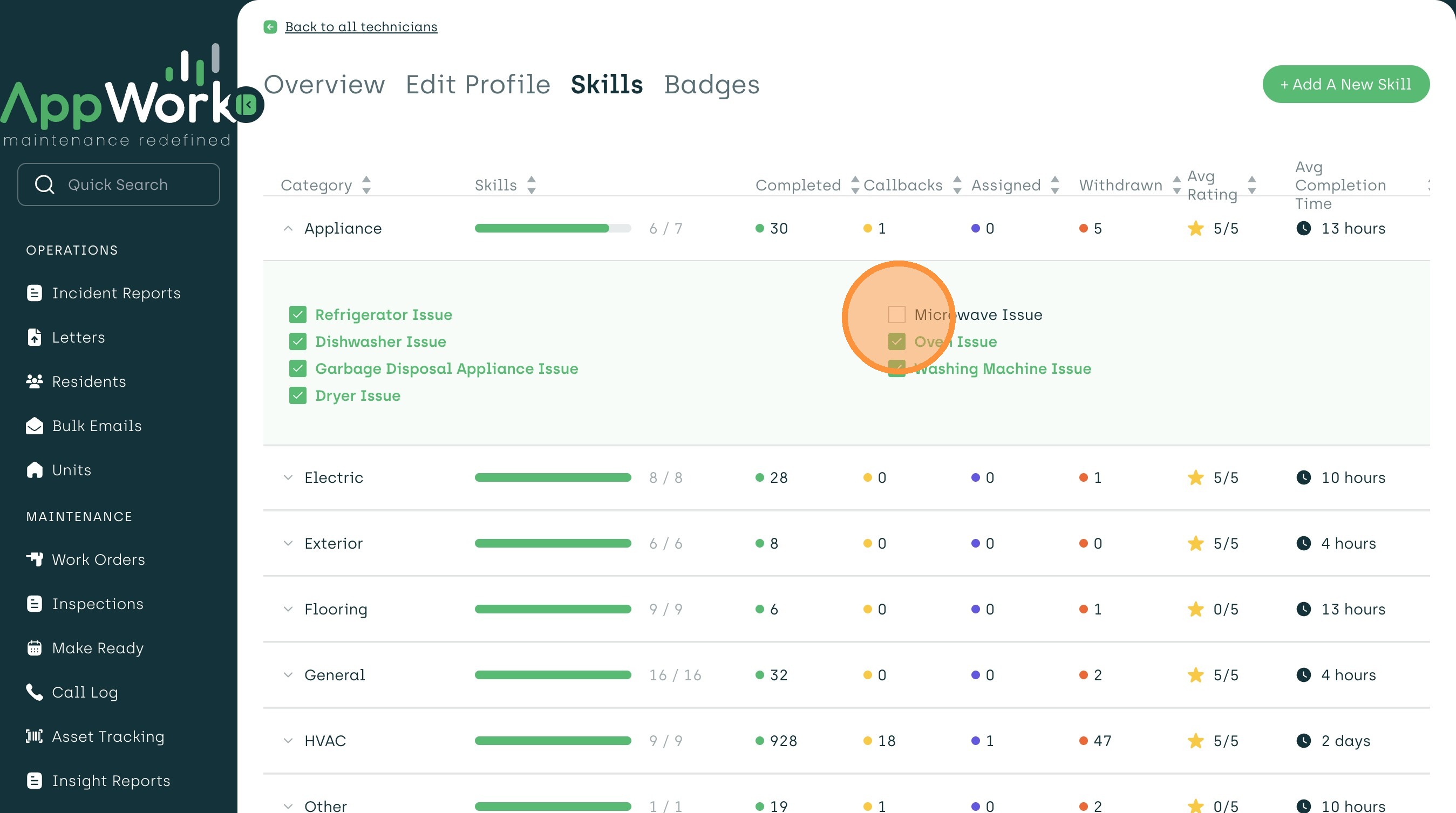
8. You can also delete entire skill sets by clicking on the trash can icon located on the right-hand side of the page.
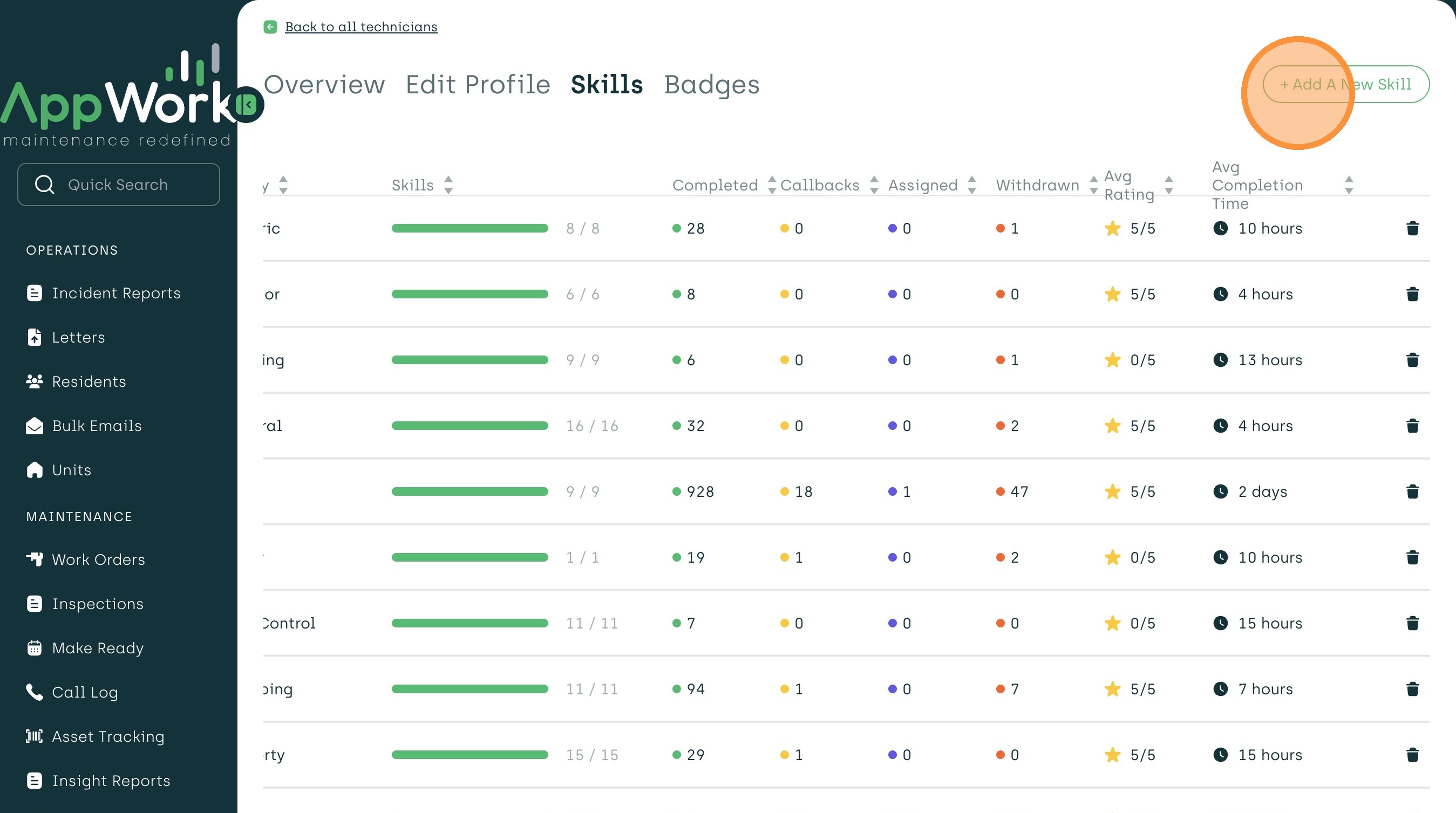
9. If you accidentally delete a section entirely, you can also retrieve it by clicking "Add A New Skill" on the top right of the page.
10. You now know how to customize each technician's skill sets! We recommend you use this for training purposes and to better shape each technician's strengths and weaknesses to better streamline each maintenance member's work order queue.